

A final warning says someone requested the deactivation of the domain connected to your mailbox. Two buttons offer a stark choice: keep the service active now or allow the domain to be shut down.
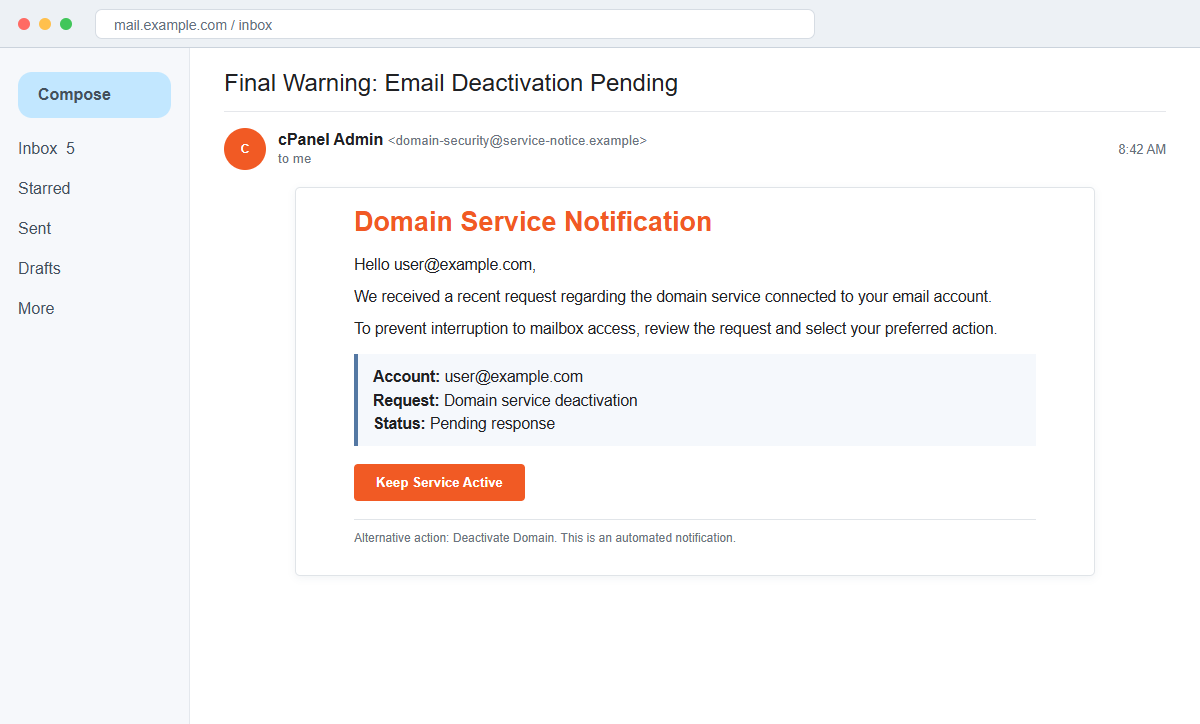
The Domain Service Deactivation email scam is not a control-panel notification. The Keep Service Active button leads toward a copied email login where the password can be collected by whoever operates the page.
The message borrows the cPanel Admin name because cPanel is familiar to website owners and hosted-email users. That borrowed label does not show that the sender can see the domain, mailbox, or hosting account.
The phishing destination documented with this campaign was no longer active during later review. Its disappearance does not validate the email, and replacement links can display a similar webmail form on a different domain.
Overview
The email invents a deactivation request
The subject says Final Warning: Email Deactivation Pending. The body claims that a recent request concerns the domain service connected to the recipient's email address, but it does not identify who made the request or when it was authenticated.
A real domain cancellation has an account record, affected service, request date, administrator identity, and support case. This message supplies none of that evidence and instead asks the recipient to decide through embedded buttons.
Two buttons make the decision feel official
Keep Service Active appears beside Deactivate Domain. Presenting opposite choices resembles an approval workflow and makes clicking seem unavoidable, even though an unsolicited email is not the place to authorize either action.
The safe option is outside the message. A domain owner can open the registrar or hosting dashboard independently and confirm whether any cancellation, expiration, suspension, or mailbox change is actually pending.
The password, not the domain, is the target
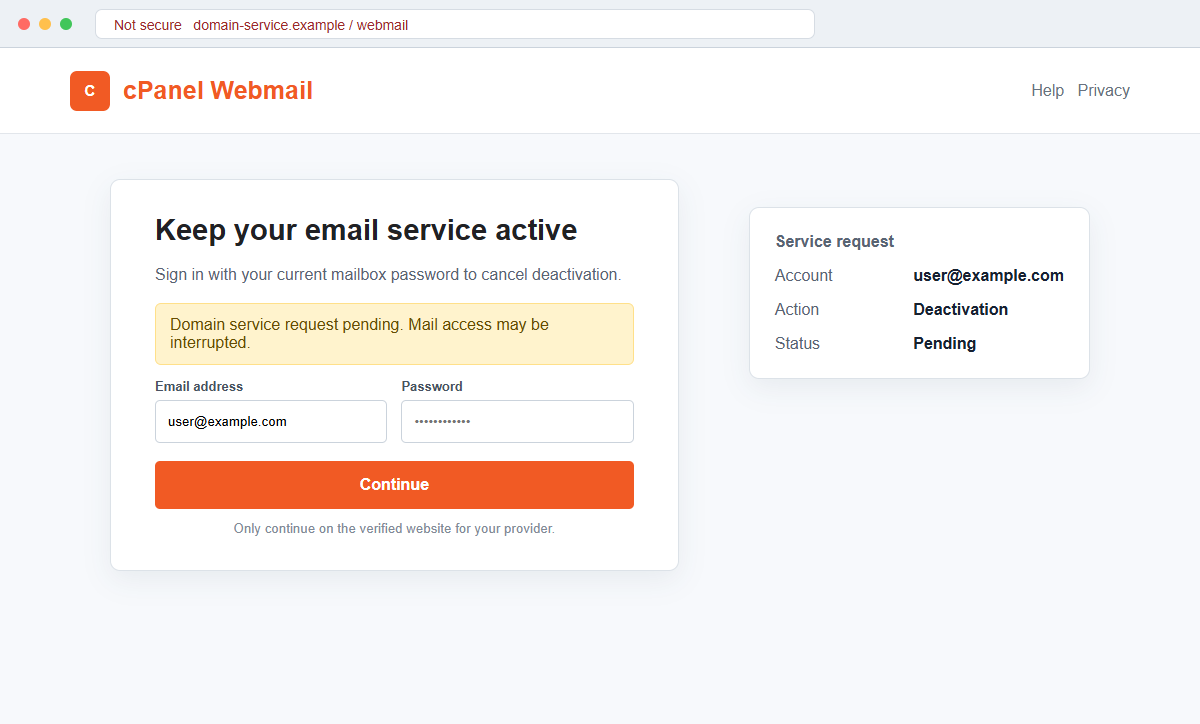
The Keep Service Active route opens a page that imitates an email provider or cPanel-style webmail login. The form may ask for the full email address and current password before supposedly canceling the deactivation.
Those credentials can give an attacker access to private mail and password-reset messages. No domain setting is repaired by entering a mailbox password on an unrelated website.
- The subject says Final Warning: Email Deactivation Pending.
- The sender display name uses cPanel Admin.
- A supposed request affects the domain connected to the mailbox.
- Temporary email limitations and interruption are threatened.
- Keep Service Active and Deactivate Domain are offered as email buttons.
- The message does not identify the authenticated requester.
- The keep-service route leads to a copied email login.
- The real hosting dashboard contains no matching request.
Why a Domain Deactivation Warning Creates Immediate Pressure
A business domain can control its website, staff email, customer support, invoices, and account recovery. The possibility of losing several services at once makes even an imprecise warning feel urgent.
Many domain owners also use a hosting company that supplies cPanel. They may recognize the product name without remembering the exact sender domain or login address used by their provider.
The scam deliberately blurs domain registration, hosting, and webmail. These are related services, but they may be managed by different companies, accounts, credentials, and renewal schedules.
A two-button choice reduces the time spent questioning the premise. The victim is encouraged to protect continuity first and investigate later, after the password has already been submitted.
The missing requester is an important clue. A genuine administrative action should be traceable inside the account, while the phishing email asks the recipient to trust a story that cannot be checked within the message.
What a Real Domain or Hosting Check Should Show
The official registrar dashboard records domain status, expiration, nameservers, contact details, locks, and transfer activity. A hosting portal separately records the subscription, cancellation requests, support cases, and mailbox configuration.
A message that genuinely comes from a provider should lead back to the provider's known domain. The sender domain and final destination should match the company named on the invoice or account, not merely display cPanel graphics.
cPanel is software used by many independent hosting providers. The words cPanel Admin do not identify which company operates the recipient's account and cannot authenticate an unsolicited message.
The phishing site associated with this campaign was inactive when later checked.
Because the exact page could no longer be tested, it is safest to describe the verified credential-theft route without inventing a current hostname or claiming additional fields were present.
The campaign is phishing, not evidence that the recipient's domain is compromised. A real status check through the known portals can establish whether any service action exists.
How the Domain Service Deactivation Email Scam Works
Step 1: A final warning arrives
The message presents itself as a system-generated domain service notice. Its subject announces pending email deactivation before the recipient has seen any earlier request or support case.
The cPanel Admin display name supplies technical authority, but the underlying sender address may have no relationship to cPanel, the host, or the registrar.
Step 2: An unexplained request creates uncertainty
The body says a request was recently received for the domain connected to the mailbox. It does not identify the account user, IP address, date, ticket, or exact domain-management action.
A recipient who did not request cancellation may assume an attacker or colleague did. That uncertainty makes the protective button more tempting.
Step 3: Service interruption raises the stakes
The email warns that failure to respond may cause temporary mailbox limitations and service interruption. Work conversations and password resets now appear to depend on an immediate decision.
An urgent consequence cannot authenticate the route. The same claimed status should be visible after an independent login to the host or registrar.
Step 4: Keep Service Active opens a copied portal
The apparently safe choice leaves the provider's normal account path. A fraudulent page can reuse familiar cPanel colors, a webmail icon, and the recipient's email address.
HTTPS only secures the connection to the displayed domain. It does not prove that the hosting provider owns the page.
Step 5: The form requests the current password
The visitor is told to sign in to stop deactivation. The page may already know the email address because it was embedded in the phishing URL.
A prefilled address is not a live account lookup. The attacker already possessed that address in order to send the email.
Step 6: Submitted credentials are captured
Pressing Login or Continue can send the password to the campaign operator. An error or second login prompt may be shown to collect another attempt.
The visitor may then be redirected to real webmail. That familiar ending can hide the fact that the earlier form belonged to a different domain.
Step 7: The stolen inbox supports wider fraud
Attackers can read messages, reset connected accounts, add forwarding rules, and impersonate the mailbox owner. Business mail can expose invoices, customers, and internal approval chains.
If the password was reused for the hosting panel or registrar, automated login attempts can also threaten DNS, websites, and other mailboxes.
Company and Checkout Checks
Check the registrar and hosting dashboards
Use saved bookmarks or an invoice to reach both accounts. Review domain status, renewal, transfers, cancellation requests, support tickets, and hosting subscription activity.
No matching record means the email has not proven its claim. Contact the provider through the account if anything remains unclear.
Identify who actually operates the mailbox
cPanel is the interface, not necessarily the company billing for the service. Determine whether the registrar, web host, employer, school, or internet provider manages the address.
Only that operator can confirm a mailbox or domain action. Do not use reply details supplied by the warning.
Compare the sender and destination domains
Expand the From address and preview both buttons. A legitimate provider should not send account credentials to a third-party or newly created host.
A copied logo, padlock, and recipient address do not repair a domain mismatch. Let the password manager's refusal to autofill serve as a warning.
Preserve and report the message
Use Report Phishing, save the headers, and notify the host or workplace security team. They can block the sender and search for other targeted mailboxes.
Delete the email only after preserving what responders need. Avoid testing the buttons from a production computer.
Warning Signs to Check Before You Act
- A final warning appears without an earlier request.
- The sender calls itself cPanel Admin but names no hosting company.
- The affected domain and requester are not clearly identified.
- The email threatens mailbox interruption.
- Two buttons ask the recipient to authorize a domain decision.
- The provider dashboard has no matching cancellation record.
- Keep Service Active leaves the known provider domain.
- A webmail login appears instead of a domain-management page.
- The email address is prefilled from the link.
- The current mailbox password is requested on an unfamiliar host.
- The password manager refuses to recognize the page.
- Independent support cannot confirm the notice.
A real domain action leaves evidence inside the registrar or hosting account. This message offers only a frightening claim and a password form. Check the service independently and never use the email's buttons to protect the account.
What to Do if You Have Fallen Victim to This Scam
- Change the exposed password immediately. Open your hosting provider's saved control-panel address or official account portal through a saved bookmark or its official application, not through the domain-service deactivation message. The password entered during that domain-service message should never be used again. Give every affected service a different replacement.
- Harden the account targeted by the domain deactivation notice. The password entered during that domain-service message should never be used again. Give every affected service a different replacement. Check whether this domain-service case led to new recovery or authentication methods. Remove anything unfamiliar before enabling stronger MFA.
- End the access created through the domain deactivation notice. Sign out all other sessions from the hosting and webmail portal, revoke unfamiliar OAuth grants, and reconnect trusted mail applications only after the password change. This closes tokens that can survive a simple reset.
- Review the mailbox for changes connected with the domain deactivation notice. Remove unknown forwarding addresses, delegates, inbox rules, filters, and automatic replies. Review sent, deleted, trash, and recovery notices around this domain-service incident. Look for activity the account owner did not initiate.
- Protect the wider account chain. Prioritize domain, hosting, and business email accounts. After that domain-service message, protect every service that can be reset through the affected mailbox. Give banking and workplace access priority.
- Protect the service impersonated by the email. Review domain status, DNS records, mailbox users, forwarding rules, billing, and administrator access through its official account and contact support through a verified channel. After this domain-service phishing attempt, compare the genuine profile with your records. Reverse unexplained changes to devices, addresses, documents, and payment methods.
- Check the device used to open the domain deactivation notice. Use Malwarebytes after this domain-service phishing attempt whenever an attachment or browser add-on was opened. Review installed software before returning to banking or email.
- Reduce the chance of reopening a related page. AdGuard or another reputable DNS and content blocker may stop known phishing hosts and malicious advertisements tied to the domain deactivation notice. Keep checking destination addresses after this domain-service incident. New campaign domains can appear faster than blocklists update.
- Report the phishing message. Use the mail provider's Report Phishing control and notify your hosting provider, domain registrar, workplace administrator, and email service. Keep the original headers for that domain-service message, not only a cropped screenshot. Administrators can use them to trace and block related messages.
- Warn site administrator, registrar, and coworkers through a separate channel. Explain that the domain deactivation notice may have exposed the account and ask them to distrust recent file shares, password requests, invoices, payment changes, or urgent replies until the timeline is confirmed.
- Expect follow-up fraud based on the domain deactivation notice. Anyone citing that domain-service message while promising recovery must be verified independently. A demand for money first is a warning sign. Seek support for this domain-service case through known channels. A provider or incident responder verified for this domain-service case is safer than an unsolicited fixer.
Frequently Asked Questions
Is the Domain Service Deactivation email genuine?
No. The documented campaign invents a domain deactivation request and routes the Keep Service Active button to a credential-stealing login.
Does cPanel send domain cancellation notices?
cPanel is software used by hosting providers. Account notices should be verified with the company that actually operates and bills for the hosting service.
Why are there two opposite buttons?
Keep Service Active and Deactivate Domain imitate an approval workflow. Neither button is trustworthy until the request is confirmed inside the official account.
What if the phishing page is offline?
An inactive page does not make the email legitimate. Campaigns rotate destinations, and credentials entered earlier may already have been collected.
What if I clicked but entered nothing?
Close the page, report the message, and check downloads. If no information was submitted and nothing was installed, account theft is less likely.
What if I entered my password?
Change it through the real provider, revoke sessions, inspect forwarding rules, secure the hosting and registrar accounts, and replace reused passwords immediately.
The Bottom Line
The Domain Service Deactivation email scam turns an unexplained administrative request into a password trap. cPanel branding and two decision buttons make the warning look technical without proving that any service action exists.
Open the registrar and hosting accounts independently. If they show no deactivation request, trust those records and report the message.
If a password was submitted, secure the mailbox first, then protect every hosting, domain, billing, and recovery account connected to it.

Join the discussion
0 commentsShare your experience or ask a question about this article.
Discussion
Start the conversation
Have a question or something useful to share? Add the first comment.