

Thousands of users are lured daily by websites promising quick and easy money online. Dribzap.site is one of these platforms, claiming you can earn $20 or more daily just by watching videos and completing simple tasks. But behind the appealing promise lies a carefully designed scam meant to steal your time, personal information, and even your money. Before you get trapped in this fraudulent scheme, here’s what you need to know.
Scam Overview: Inside the Dribzap.site PayTube Scam
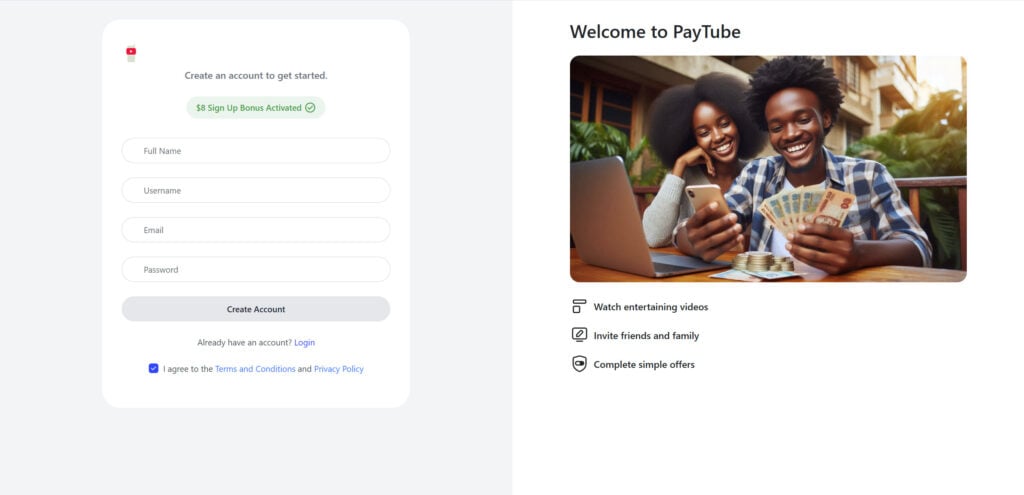
Dribzap.site positions itself as a legitimate website offering substantial earnings through simple tasks such as video watching, referrals, and minor online activities. The website boasts an inviting and professional-looking interface, complete with appealing graphics, smooth navigation, and persuasive calls-to-action such as “$8 Sign-Up Bonus Activated” and “Earn $20+ daily.”
However, beneath this attractive surface, Dribzap.site employs deceitful strategies aimed at harvesting personal data, tricking users into signing up for unwanted services, and exploiting their trust. The scam is not isolated—numerous websites using similar templates and domains like .xyz or .site are part of this extensive fraud network, continuously reinventing themselves to avoid detection and takedown.
Initially, Dribzap.site attracts users via targeted social media ads, email spam campaigns, and word-of-mouth referrals incentivized by promises of generous earnings. Once registered, users encounter seemingly straightforward tasks and immediately see their “earnings” accumulate rapidly, creating a false sense of success and engagement.
The site aggressively promotes a referral system, encouraging users to invite friends by promising high commissions and bonuses. Users thus become inadvertent promoters, spreading the scam further and helping scammers gather a broader pool of victims.
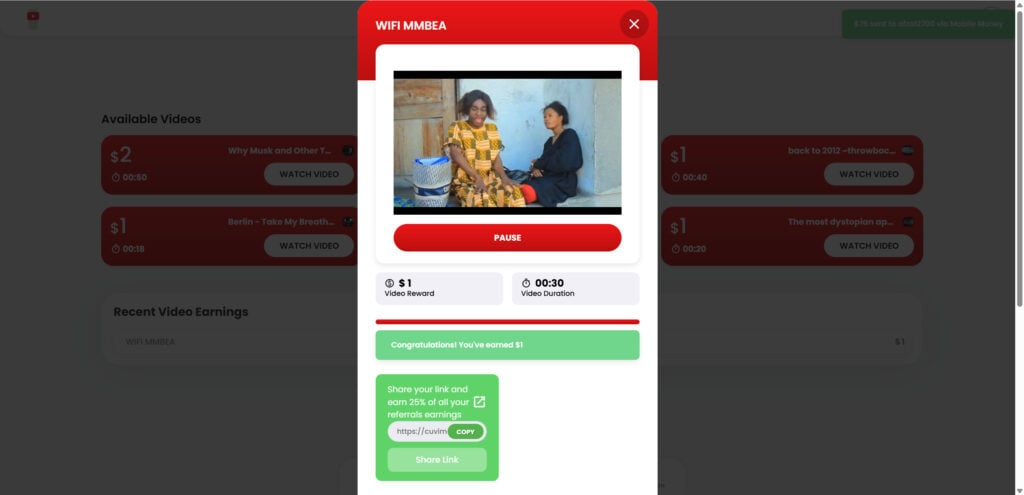
Withdrawal conditions on Dribzap.site appear intentionally complicated, requiring users to achieve unrealistic goals like referring multiple friends, viewing countless videos, or subscribing to external services before being allowed to withdraw their earnings. Ultimately, despite meeting these stringent conditions, users never actually receive their money.
Moreover, the site regularly features “affiliate offers” that users must complete to unlock payouts. These affiliate offers often entail downloading suspicious apps, browser extensions, or subscribing unknowingly to premium services, leading to recurring charges and potential malware infections. Users often realize too late that they’ve been manipulated into financial loss rather than financial gain.
The scheme’s transient nature means that when users begin questioning its legitimacy or report it, scammers quickly deactivate the current domain and launch similar websites under new domain names, repeating the cycle and deceiving new groups of victims.
How the Dribzap.site Scam Works
- Initial Exposure: Users find Dribzap.site through social media advertisements, online forums, email invitations, or referrals from friends lured by generous referral bonuses.
- Registration and Data Collection: Upon visiting the site, users are encouraged to sign up by providing sensitive information such as full name, email address, and sometimes even payment details for supposed withdrawal purposes.
- Engagement and Fake Earnings: Registered users quickly start performing tasks like watching short videos. Each activity falsely shows immediate monetary gains, creating excitement and trust, thereby encouraging continued engagement.
- Referral Pyramid Scheme: Users receive incentives for inviting new users. Referral systems claim to pay commissions from earnings generated by referred individuals, creating a viral, pyramid-style network that exponentially expands the scam’s reach.
- Artificially Complex Withdrawal Conditions: Users attempting to withdraw their “earnings” discover nearly impossible conditions, such as high thresholds, mandatory referrals, or completing tasks daily over extensive periods.
- Forced Affiliate Offers: The platform demands users to complete external affiliate tasks—often involving unwanted subscriptions, premium memberships, or installations of suspicious software—as “verification” for payout eligibility.
- No Actual Payouts: Despite fulfilling every condition, payouts are never executed. Instead, the platform cites technical difficulties, pending verification, or simply ignores withdrawal requests.
- Domain Rotation and Disappearance: Eventually, as suspicion mounts, Dribzap.site shuts down, only to re-emerge with identical templates under different domain names, avoiding authorities and continuously scamming unsuspecting users.
What to Do if You’ve Fallen Victim to the Dribzap.site Scam
- Immediately Cease Interaction: Stop using the Dribzap.site website and avoid engaging with any similar platforms.
- Secure Your Accounts: Immediately change passwords for any online accounts associated with information provided during registration.
- Check Financial Statements: Regularly review bank accounts, credit card statements, and PayPal transactions to identify and reverse unauthorized charges promptly.
- Cancel Unauthorized Subscriptions: Contact your bank or subscription service providers immediately to terminate any unwanted recurring charges.
- Perform Malware Scans: Use reputable antivirus software to thoroughly scan all your devices to identify and eliminate potential threats.
- Report the Scam: File detailed complaints about Dribzap.site to relevant consumer protection authorities, the Federal Trade Commission (FTC), or the FBI’s Internet Crime Complaint Center (IC3).
- Warn Your Network: Inform family, friends, and colleagues to prevent further victimization.
- Monitor for Identity Theft: Consider enrolling in credit monitoring services to detect early signs of identity misuse.
- Seek Professional Help: If significant financial or identity damage has occurred, consult a financial advisor or legal professional to assist with recovery efforts.
Is Your Device Infected? Run a Free Malware Scan
Slow performance, constant pop-ups, or strange behavior? These are classic signs of a malware infection. The fastest way to find out is to scan your device with Malwarebytes Free — one of the most trusted malware removal tools available.
The free version detects and removes the most common threats, including:
- Adware — the cause of those annoying pop-ups
- Browser hijackers — unwanted redirects and changed homepages
- Trojans and spyware — hidden programs stealing your data
- Potentially unwanted programs (PUPs) — software you never asked for
👉 Select your device below — Windows, Mac, or Android — then follow the simple steps to download Malwarebytes, scan your system, and remove any threats it finds. The scan usually takes 5 to 20 minutes.
Run a Malware Scan with Malwarebytes for Windows
Malwarebytes is one of the most popular and trusted anti-malware tools for Windows — and it’s completely free for removing infections. It catches threats that many antivirus programs miss, including adware, browser hijackers, and trojans. Follow the steps below to scan and clean your PC in just a few minutes.
Download Malwarebytes
Click the button below to download the latest version of Malwarebytes for Windows from the official source. The free version is all you need — it will scan your computer and remove adware, browser hijackers, and other malicious software at no cost.
Download MalwarebytesOfficial installer for Windows 11 and 10. Your download starts right away.Want real-time protection? See Malwarebytes Premium Malwarebytes Free for WindowsScans and removes malware at no cost
-
Install Malwarebytes
When the download finishes, open your Downloads folder and double-click the MBSetup file. If Windows shows a User Account Control pop-up, click “Yes” to allow the installation.

Follow the On-Screen Prompts to Install Malwarebytes
The setup wizard will walk you through a few quick screens:
-
Choose where you’re installing the program — “Personal Computer” or “Work Computer” — then click Next.

-
Malwarebytes will now install on your device. This usually takes under a minute.

-
When installation is complete, the “Welcome to Malwarebytes” screen will open automatically.

-
On the final screen, click Open Malwarebytes to launch the program.

-
Enable “Scan for Rootkits”
Before scanning, turn on rootkit detection so Malwarebytes can find even the most hidden threats. Click the Settings gear icon on the left side of the screen.

In the settings menu, find “Scan for rootkits” and click the toggle so it turns blue.

Done? Click “Dashboard” in the left pane to return to the main screen.
Start the Scan
Click the blue Scan button. Malwarebytes will automatically update its virus database and start checking your computer for malware.

-
Wait for the Scan to Finish
The scan checks your entire system for browser hijackers and other malicious programs, so it can take 5 to 20 minutes depending on your computer. Feel free to do something else — just check back occasionally to see the progress.

-
Quarantine the Detected Threats
When the scan is done, you’ll see a list of everything Malwarebytes found — malware, adware, and potentially unwanted programs. Click the “Quarantine” button to remove all of them at once.

Malwarebytes will now remove the malicious files and registry entries and move them safely into quarantine.

-
Restart Your Computer
Some threats can only be fully removed after a reboot. If Malwarebytes asks you to restart, click Yes. Once you’re logged back in, Malwarebytes has finished removing the threats it found.

That’s it — your Windows PC is now clean of trojans, adware, and other malware, and should be back to running smoothly.
If you are still having problems with your computer after completing these instructions, then please follow one of the steps:
- Run a computer scan with ESET Online Scanner
- Ask for help in our Windows Malware Removal Help & Support forum.
Run a Malware Scan with Malwarebytes for Mac
Malwarebytes for Mac is a free on-demand scanner that removes the malware other security software tends to miss — adware, browser hijackers, and unwanted programs included. Cleaning an infected Mac with Malwarebytes has always been completely free, and it’s our go-to recommendation. Follow the steps below to scan and clean your Mac in just a few minutes.
-
Download Malwarebytes for Mac
Click the button below to download the latest version of Malwarebytes for Mac.
Download MalwarebytesOfficial installer for macOS. Your download starts right away.Want real-time protection? See Malwarebytes PremiumMalwarebytes Free for MacScans and removes malware at no cost -
Open the Malwarebytes setup file
When the download finishes, open your Downloads folder and double-click the setup file to begin the installation.

-
Follow the On-Screen Prompts to Install Malwarebytes
The Malwarebytes for Mac Installer will guide you through a few quick screens. Click “Continue” and keep following the prompts until the installation completes.



When the installation is complete, Malwarebytes opens to the Welcome to Malwarebytes screen. Click “Get started“.
-
Select “Personal Computer” or “Work Computer”
Malwarebytes will ask what type of computer you’re installing it on. Click either Personal Computer or Work Computer, whichever applies.

-
Start the Scan
Click the “Scan” button. Malwarebytes will automatically update its detection database and begin checking your Mac for malware.

-
Wait for the Scan to Finish
Malwarebytes will scan your Mac for adware, browser hijackers, and other malicious programs. This can take a few minutes, so feel free to do something else — just check back occasionally to see the progress.

-
Quarantine the Detected Threats
When the scan is done, you’ll see a list of everything Malwarebytes found. Click the “Quarantine” button to remove all the threats at once.

-
Restart Your Mac
Malwarebytes will now remove all the malicious files it found. Some threats can only be fully removed after a reboot — if Malwarebytes asks you to restart, allow it. Once you’re logged back in, your Mac is clean.

That’s it — your Mac is now free of adware, rogue browser extensions, and other potentially harmful software.
If you are still experiencing problems while trying to remove a malicious program from your computer, please ask for help in our Mac Malware Removal Help & Support forum.
Run a Malware Scan with Malwarebytes for Android
Malwarebytes for Android automatically detects and removes dangerous threats like malware and ransomware so you don’t have to worry about your most-used device being compromised. Aggressive detection of adware and potentially unwanted programs keeps your Android phone or tablet running smooth.
-
Download Malwarebytes for Android.
You can download Malwarebytes for Android by clicking the link below.
Get Malwarebytes for AndroidOpens Google Play in a new tab.Want real-time protection? See Malwarebytes Premium for AndroidMalwarebytes for AndroidScans your phone and removes malware at no cost -
Install Malwarebytes for Android on your phone.
In the Google Play Store, tap “Install” to install Malwarebytes for Android on your device.

When the installation process has finished, tap “Open” to begin using Malwarebytes for Android. You can also open Malwarebytes by tapping on its icon in your phone menu or home screen.

-
Follow the on-screen prompts to complete the setup process
When Malwarebytes will open, you will see the Malwarebytes Setup Wizard which will guide you through a series of permissions and other setup options.
This is the first of two screens that explain the difference between the Premium and Free versions. Swipe this screen to continue.
Tap on “Got it” to proceed to the next step.
Malwarebytes for Android will now ask for a set of permissions that are required to scan your device and protect it from malware. Tap on “Give permission” to continue.
Tap on “Allow” to permit Malwarebytes to access the files on your phone.
-
Update database and run a scan with Malwarebytes for Android
You will now be prompted to update the Malwarebytes database and run a full system scan.

Click on “Update database” to update the Malwarebytes for Android definitions to the latest version, then click on “Run full scan” to perform a system scan.

-
Wait for the Malwarebytes scan to complete.
Malwarebytes will now start scanning your phone for adware and other malicious apps. This process can take a few minutes, so we suggest you do something else and periodically check on the status of the scan to see when it is finished.

-
Click on “Remove Selected”.
When the scan has been completed, you will be presented with a screen showing the malware infections that Malwarebytes for Android has detected. To remove the malicious apps that Malwarebytes has found, tap on the “Remove Selected” button.

-
Restart your phone.
Malwarebytes for Android will now remove all the malicious apps that it has found. To complete the malware removal process, Malwarebytes may ask you to restart your device.
That’s it — your Android phone is now clean — no more malicious apps, adware, or browser redirects.
If you are still having problems with your phone after completing these instructions, then please follow one of the steps:
- Restore your phone to factory settings by going to Settings > General management > Reset > Factory data reset.
- Ask for help in our Mobile Malware Removal Help & Support forum.
Stay Protected: Block Ads and Malicious Sites
Now that your device is clean, keep it that way. Most infections start with a malicious ad or a fake download button — so blocking them at the source is your best defense.
We recommend AdGuard, which blocks malicious ads, phishing pages, and dangerous redirects before they can reach you.
👉 Download AdGuard and browse safely
FAQ About the Dribzap.site PayTube Scam
1. What is the Dribzap.site PayTube scam?
The Dribzap.site PayTube scam is an online fraud operation disguised as a video-watching and task-based earning platform. It promises users substantial daily earnings, usually $20 or more, for performing simple tasks or referring others. However, no real payouts occur. Instead, the site collects personal data, pushes users toward unwanted subscriptions, and occasionally exposes them to malware or fraudulent affiliate offers.
2. How do scam websites like Dribzap.site operate?
These websites operate by using professional-looking templates to appear legitimate. They attract victims through online ads, social media, or referral links. Once users sign up, they see fake earnings accumulate. The site then imposes unrealistic withdrawal requirements, such as multiple referrals or completing affiliate offers. These tasks often lead to hidden charges or compromised data, and payouts never materialize.
3. Are there other websites similar to Dribzap.site?
Yes. Dribzap.site is part of a larger network of scam websites often using domains ending in .xyz, .site, or other low-cost extensions. These sites frequently change names and URLs to avoid detection, reappearing under different branding while using the same scam template and tactics.
4. How can I identify a PayTube-style scam site?
Red flags include:
- Promises of high daily earnings with minimal effort.
- A sign-up bonus that seems too generous to be real.
- Complicated withdrawal conditions or mandatory referrals.
- Requests to download apps or subscribe to services for payout verification.
- Lack of verifiable contact information or real user reviews online.
5. What risks do victims face after interacting with Dribzap.site?
Victims risk:
- Financial loss from unauthorized subscription charges.
- Identity theft due to personal data leaks.
- Malware or spyware from installing promoted apps.
- Wasted time on fake earnings systems with no payouts.
- Exposure of friends and family through the referral system.
6. Can I recover my money from Dribzap.site?
Unfortunately, most victims do not recover lost money as the scammer often operates anonymously and offshore. However, victims can dispute charges with their bank or payment processor, cancel subscriptions, and report the scam to consumer protection agencies for further investigation.
7. What should I do immediately after realizing I’ve been scammed?
- Stop interacting with the website.
- Change all passwords used during registration.
- Scan devices for malware.
- Monitor bank statements and dispute any unauthorized charges.
- Report the scam to authorities and warn friends not to click referral links.
8. How can I avoid similar scams in the future?
- Be skeptical of sites offering high earnings for little work.
- Research unfamiliar platforms before signing up.
- Avoid clicking on random ads promising money-making opportunities.
- Use antivirus protection and secure browsers.
- Check independent reviews and scam reporting websites.
9. Are legitimate platforms offering money for watching videos?
Yes, some legitimate platforms exist but they pay very little (usually a few cents per video) and are well-established, like Swagbucks or InboxDollars. Any site claiming large daily earnings for minimal effort should be treated as suspicious.
10. Where can I report Dribzap.site and similar scams?
Victims can report scams to:
- Federal Trade Commission (FTC)
- Internet Crime Complaint Center (IC3)
- Local consumer protection agencies
- Scam reporting forums and databases (e.g., Scamwatch, Better Business Bureau)
Staying vigilant, researching platforms before joining, and recognizing common scam tactics can protect you from falling victim to PayTube-style frauds like Dribzap.site.
The Bottom Line: Staying Safe from Scams Like Dribzap.site
Dribzap.site and similar PayTube scams prey on individuals seeking easy ways to supplement their income online. They cleverly exploit user trust, promising rewards that never materialize while quietly extracting personal data and money through deceptive practices. To stay safe, always approach online earning opportunities skeptically, thoroughly research unfamiliar platforms, avoid overly generous offers, and protect your personal information vigilantly. Staying informed and cautious remains your best defense against sophisticated online scams like the Dribzap.site PayTube fraud.

Reviews & discussion
0 commentsShare a firsthand experience, or ask a question.
Community reviews
dribzap.site
Moderated reader experiences, not an editorial verdict.
Start the conversation
Have a question or something useful to share? Add the first comment.