

A shared document carrying a familiar storage name rarely feels dangerous. It looks like a colleague, customer, or supplier simply chose a convenient delivery method.
The Dropbox File Access and Verification email builds on that expectation. Its path from notification to password prompt deserves a careful, screen-by-screen look.
Overview
The document-sharing story
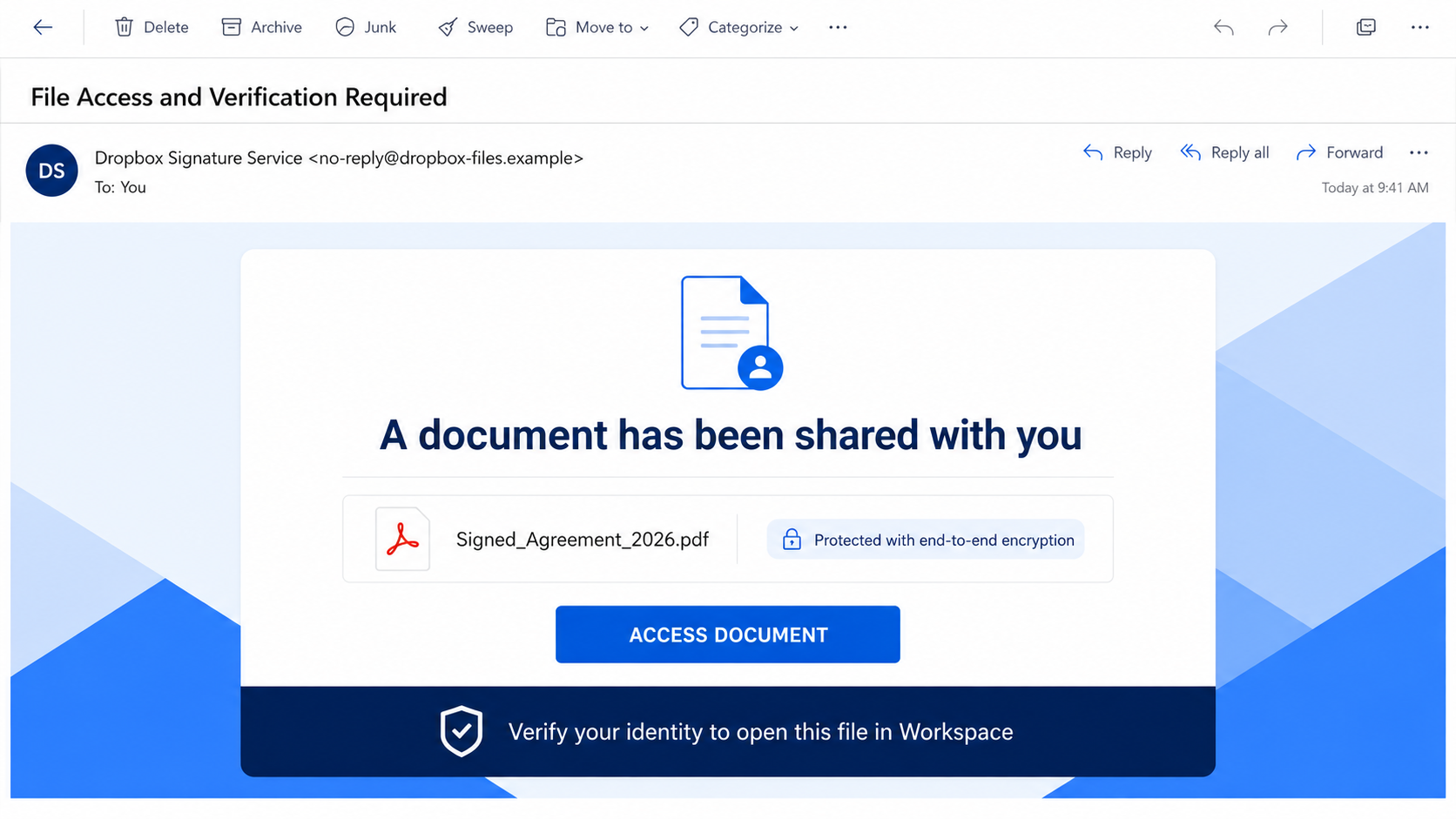
The email impersonates a Dropbox sharing notification and claims someone added a protected document. It may suggest the file is waiting for review or signature.
Language about end-to-end encryption makes the access restriction sound responsible. A prominent “Access Document” button invites the recipient to continue in a workspace.
The sender provides just enough business context to create curiosity, while withholding details that would let the recipient confirm the document independently.
The unexpected chain behind the button
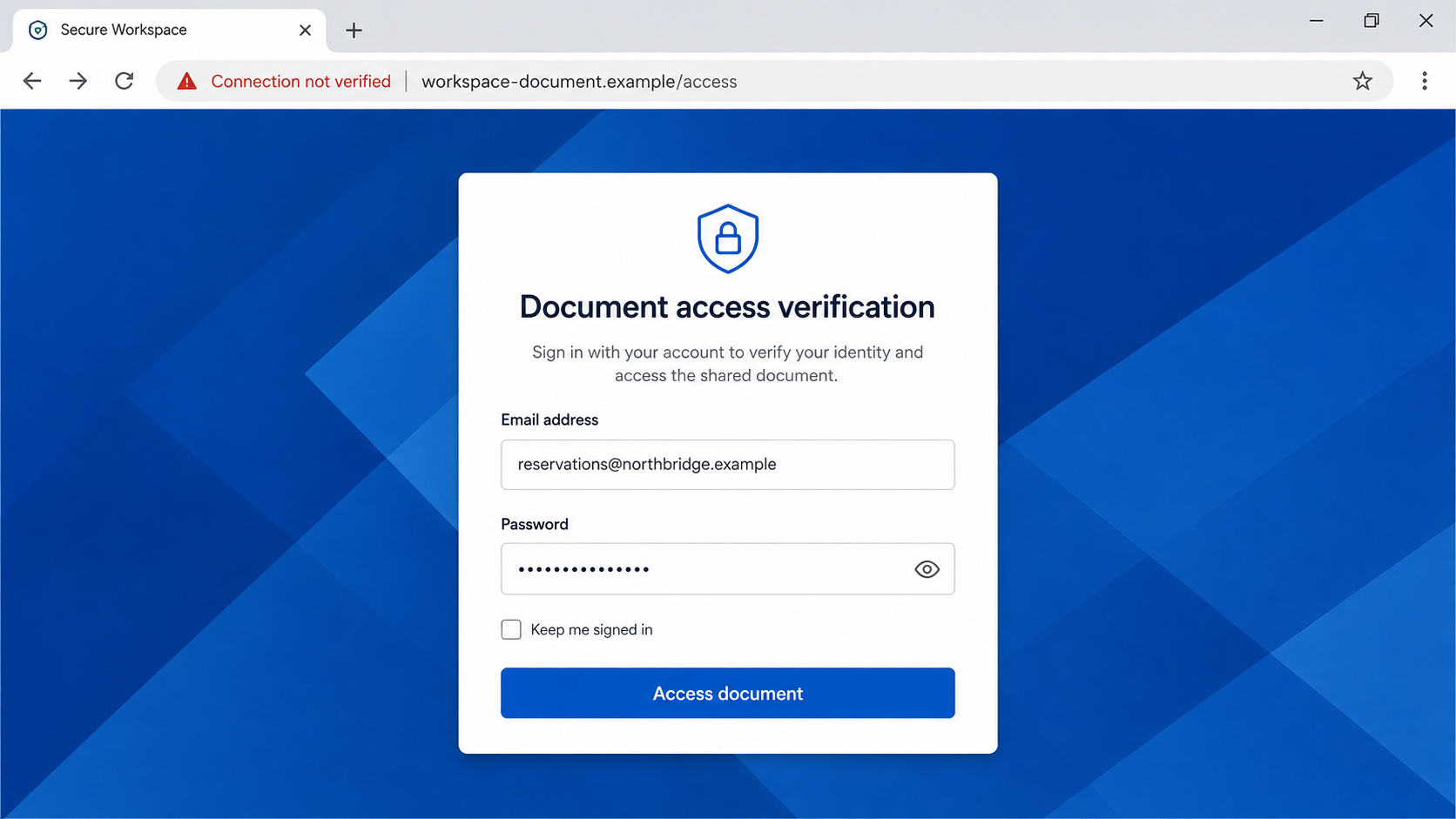
The examined button led to a page hosted on Vultr Object Storage, not Dropbox. That page then presented organization and Outlook-style login cues.
The recipient’s email could appear prefilled, and the form requested the email password. Nothing demonstrated that Dropbox or Microsoft authorized this handoff.
Dropbox and Vultr were not responsible for the campaign. The operators merely copied branding and abused ordinary internet infrastructure.
The clearest warning signs
- The message does not identify a trusted sharer with verifiable context.
- A Dropbox-themed email tells the recipient to open a different “Workspace.”
- The browser reaches an unrelated object-storage domain.
- The page requests the recipient’s email password to display one document.
- Branding changes from Dropbox to workplace or Outlook-style imagery.
- The file cannot be confirmed inside the recipient’s genuine Dropbox account.
The cross-brand journey is especially revealing. Dropbox, an unnamed workspace, Outlook styling, and a third-party host are presented as one seamless service.
Real integrations exist, but they should be documented and expected. An unsolicited chain cannot prove legitimacy merely by displaying several recognizable names.
Open Dropbox independently and check “Shared” activity. If the file is absent, contact the supposed sender through a known address before doing anything else.
How the Dropbox File Access and Verification Scam Works
Step 1: The email borrows a routine collaboration event
Document invitations are common at work and home. Recipients regularly receive contracts, invoices, photographs, tax records, and project files through cloud services.
The scam does not need an extraordinary promise. It only needs the reader to believe a normal file arrived without advance notice.
Some versions mention signature verification, restricted access, or an encrypted document. These labels make the missing preview seem like a privacy feature.
The file name may remain vague because curiosity helps. A precise project name could expose the sender’s lack of knowledge.
Step 2: Familiar branding lowers the first barrier
A copied Dropbox layout immediately explains why a button is present. The recipient may judge the logo and colors before examining the sender or destination.
Email branding is not cryptographic proof. Anyone building a newsletter can place an image, choose matching colors, and write a convincing footer.
The display sender can also contain “Dropbox” while the underlying address belongs elsewhere. Expand it before deciding that the service delivered the message.
Even a plausible sending domain should be considered alongside account activity. Compromised services and redirect links can complicate what appears at first glance.
Step 3: The button moves outside Dropbox
The access link does not remain on a recognized Dropbox domain. In the examined case, it used Vultr-hosted object storage.
Object storage is designed to publish files efficiently. That convenience also lets bad actors place a convincing web page online without operating a traditional website.
Vultr’s presence does not validate the content, and it does not imply Vultr created the campaign. Hosting infrastructure and page ownership are different questions.
Recipients should focus on why a supposed Dropbox document requires an unrelated host. There is rarely a good reason for that silent switch.
Step 4: The page changes brands to fit the target
The landing page can use the recipient’s email domain to choose a workplace name or provider theme. That makes the sign-in prompt appear tailored.
Outlook-style graphics may be displayed even though Microsoft never handled the file. The campaign treats brands as interchangeable pieces of a visual story.
A prefilled address looks like account recognition, but the operators already targeted that address. The information can travel in the link itself.
Check the address bar before reading the form. A perfect logo inside the page cannot change who controls the registered domain.
Step 5: The form captures email credentials
The visitor is told that a password verifies identity or decrypts the document. The form can transmit that password directly to the phishing operator.
A loading screen may appear, followed by a second request or redirect. These responses are designed to feel like ordinary access trouble.
If the real account uses multi-factor authentication, an approval prompt may follow immediately. Approving it could complete the attacker’s sign-in.
Simply opening the notification does not hand over a password. The critical exposure occurs when information is submitted or an attacker-controlled authorization is approved.
Step 6: The inbox supplies access beyond one file
Email access is more valuable than the imaginary document. It can reveal private conversations and provide password-reset links for many connected services.
Attackers may search for cloud-storage invitations, then reset those accounts or target collaborators with new shared-file messages.
Inside a company, they can study projects, reporting lines, invoices, and signature patterns. Later messages can use accurate details that the original lure lacked.
The compromised account becomes borrowed trust. Contacts may click because the next invitation arrives from someone they genuinely know.
Step 7: Hidden settings preserve surveillance
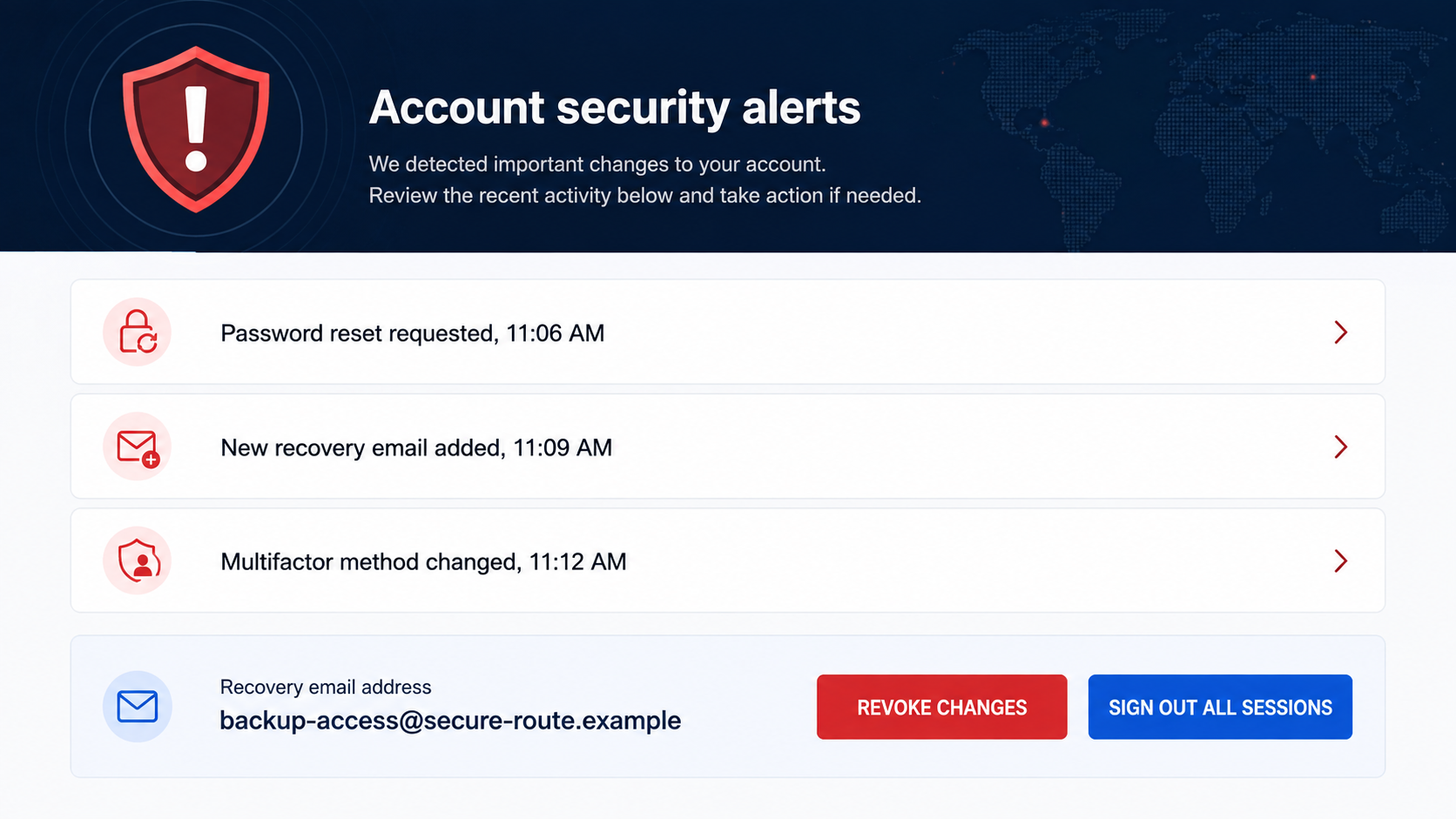
Forwarding rules can copy selected mail to an outside account. Filters can hide warnings or replies that might alert the legitimate owner.
Connected applications and app passwords can provide alternative access. Recovery information may also be changed before the owner notices.
Attackers sometimes remain silent while monitoring a valuable conversation. No immediate spam or password change means little after credentials were submitted.
Complete recovery must remove those access paths, revoke sessions, and inspect what happened during the uncertain period.
How to Verify a Genuine Dropbox Share
Open Dropbox without the email
Use the official application or a saved bookmark. Check shared files, notifications, and recent account activity after signing in through that known route.
If a legitimate invitation exists, it should usually appear there. The suspicious email’s button is not required to find it.
Confirm the person and file
Contact the named sharer through an existing conversation or known number. Ask for the exact file name and reason for sharing.
A simple callback prevents both impersonation and accidental access to an unexpected file. Do not reply to the questionable notification.
Understand legitimate sign-in boundaries
A Dropbox link may ask you to sign in to Dropbox, but the address should remain consistent with the documented service.
A sudden request for an email-provider password on another host is not normal document verification. Close it and begin again from the real account.
Why the Cross-Brand Handoff Matters
Every new brand resets the trust question
A message beginning with Dropbox should not receive automatic trust after moving to another service. Each domain and authentication request needs separate evaluation.
Scammers depend on momentum. Once the first logo feels familiar, recipients may accept later workspace and Outlook imagery without reconsidering ownership.
Pause whenever the brand changes. Ask why the file left one platform and why a different account password is suddenly required.
Encryption language explains away missing details
Calling a document encrypted makes the absent preview seem protective. It also provides a convenient reason for placing an authentication gate before the file.
Encryption is a technical property, not proof of sender identity. A fraudulent page can display the word without protecting any document.
Genuine secure-sharing workflows should be documented by the service. Verify those instructions from the official help center reached independently.
The imaginary file keeps attention off the account
The recipient thinks the objective is reading one document. The operator is actually asking for credentials that unlock a much broader collection of information.
This imbalance is a critical clue. Access to a single shared file should not require surrendering a reusable email password to an unrelated host.
When the requested secret is more valuable than the promised content, close the page and confirm the share through another channel.
Organizations can reinforce this pause with approved-sharing guidance. Employees should know which domains, login screens, and escalation contacts belong to normal document workflows.
That preparation turns a confusing brand transition into a simple decision. If the path does not match policy, staff can report it without experimenting.
Company, Address, and Fulfillment Checks
Dropbox branding is copied, not authenticated
Logos and privacy claims are visual content. They do not prove that Dropbox generated the message, stored the file, or requested the password.
Review the full sender address and message headers. Then compare the invitation with notifications visible inside the genuine Dropbox account.
The host belongs to a different layer
Vultr Object Storage provides infrastructure, much like other cloud platforms. A customer’s uploaded phishing page does not make Vultr part of the deception.
Report the malicious object to the host so it can investigate. Still secure your account first if credentials were entered.
The domain must be read precisely
Words such as dropbox, workspace, secure, and document can appear anywhere in a deceptive address. Identify the actual registered domain rather than scanning for familiar fragments.
Subdomains belong to the domain on their right. A familiar word at the far left may be chosen solely to mislead.
Real support never needs your password
Use the help center reached from the official service. Do not call numbers or open chat widgets displayed by the suspicious page.
No support representative needs your complete email password or a current sign-in code. Those secrets authenticate you and should remain private.
Organizations should also verify whether the named “Workspace” is an approved tool. Unrecognized cross-brand portals should be reported to administrators.
For sensitive documents, ask the sender to share through the organization’s established platform. Security improves when both parties use a known channel.
What to Do if You Have Fallen Victim to This Scam
- Abandon the imitation portal. Do not attempt another login, provide a verification code, or approve an unexpected authentication notification.
- Change the email password directly. Navigate to the real provider on a trusted device. Create a unique password unrelated to the old one.
- End active sessions. Use the provider’s security dashboard to disconnect every device. Remove unknown trusted browsers and invalidate recent tokens where supported.
- Repair account security. Enable multi-factor authentication and remove unknown recovery methods, app passwords, delegates, rules, forwarding addresses, and connected apps.
- Inspect the real Dropbox account. Review sign-ins, shared files, connected devices, deleted content, and applications. Change its password if reused or exposed.
- Review mailbox folders. Check sent, deleted, archive, spam, and recoverable items for fraudulent sharing invitations or hidden security messages.
- Notify collaborators. Warn contacts that recent file invitations may be false. Workplace users should alert IT through a separate trusted channel.
- Secure accounts reset through email. Prioritize cloud storage, financial services, shopping, and social accounts. Replace every reused password.
- Scan unexpected files. If anything downloaded or ran, disconnect the device if necessary and perform a full Malwarebytes scan before sensitive use.
- Add browser protection. AdGuard may block known phishing hosts and malicious redirects. Continue checking domains because no filter catches every new page.
- Save and report evidence. Preserve the email, headers, URLs, login alerts, and timestamps. Report the campaign to the impersonated services and relevant authorities.
If you opened the email but never used the link, credentials were probably not exposed. Report the message and verify the account through its official application.
If you visited the page without submitting information, review downloads and browser extensions. Treat any unexpected autofill or approval prompt as a potential exposure.
Frequently Asked Questions
Is Dropbox sending the File Access and Verification email?
The examined email impersonates Dropbox. Confirm any share by opening your genuine Dropbox account independently and checking its notifications.
Why does the page show my organization and email?
The phishing link can carry your address, while the kit derives organization details from its domain. Personalization does not prove authentication.
Is Vultr responsible for the scam?
No evidence suggests that. Attackers abused Vultr-hosted storage, just as they misuse other legitimate infrastructure. The page operator remains the relevant actor.
Can a real Dropbox share ask me to sign in?
Some protected shares require authentication. Start from Dropbox directly and confirm the invitation there instead of trusting an unexpected email link.
What if I approved a multi-factor prompt?
Assume the sign-in succeeded. Reset credentials, revoke sessions, inspect account settings, and notify your organization’s security team immediately.
Could the linked document also contain malware?
Phishing pages can deliver files, although this campaign focused on credentials. Scan anything downloaded and never enable macros or install requested software.
The Bottom Line
The Dropbox File Access and Verification scam uses a familiar sharing story, then quietly crosses unrelated services before requesting an email password.
Break that chain by opening Dropbox independently, confirming the sender, and checking the browser domain. After exposure, secure both email and connected cloud accounts thoroughly.

Join the discussion
0 commentsShare your experience or ask a question about this article.
Discussion
Start the conversation
Have a question or something useful to share? Add the first comment.