

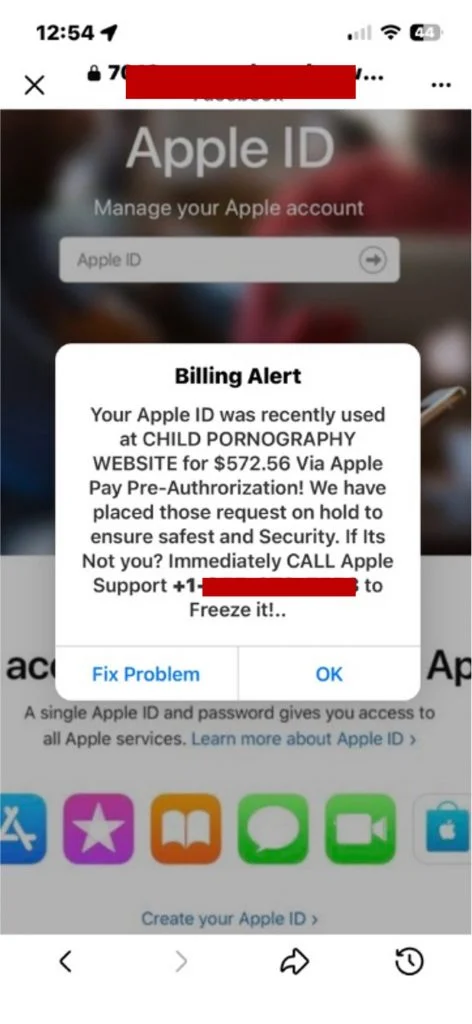
A Facebook link opens inside the app, the page looks like Apple, and a billing alert claims your Apple ID was used for a $572.56 payment connected to illegal content. The screen seems to offer two choices, but both are built around the same demand: call immediately.
The Facebook frame around the page can make the warning feel safer than an ordinary unknown website. That borrowed trust is the first part of the trap.
Overview
The scam reaches victims through familiar Facebook content
The Apple ID billing alert scam can begin with a sponsored advertisement, shared post, compromised Page, comment, or Messenger link. The wording that leads to the page may have little connection to Apple.
After the tap, Facebook opens the destination in its in-app browser. The page remains surrounded by Facebook controls, which can make an unrelated external website feel like part of the platform.
A copied Apple page delivers a shocking fake charge
The destination imitates an Apple Account page and places a white “Billing Alert” box over it. The message claims a $572.56 Apple Pay pre-authorization occurred at a website associated with child exploitation.
The accusation, exact amount, and promise that the charge is “on hold” create a believable emergency. None of those details proves that Apple, Facebook, or a bank detected a transaction.
The call button leads to vishing and account theft
The warning tells the victim to call “Apple Support.” In reported versions of this campaign, both the “Fix Problem” and “OK” buttons direct attention toward the same telephone number.
A fake support operator may request the Apple Account password, a two-factor authentication code, personal details, payment information, or remote access. The webpage creates the fear, while the telephone call performs the theft.
- Facebook delivers or displays the link, but does not authenticate the destination.
- The Apple design is copied by an external website.
- The $572.56 charge and criminal accusation are fabricated pressure.
- The fake support number turns the page into a vishing call.
- Passwords, verification codes, remote access, and payments are the real targets.
Why the Facebook In-App Browser Makes This Alert Convincing
Mobile apps often open links in an embedded browser so users can return to the app easily. Facebook’s in-app browser is a legitimate feature, but the page displayed inside it can belong to any external website.
A lock icon can mean only that the connection to that external domain is encrypted. It does not mean Facebook, Apple, or another trusted company approved the content.
The real domain can be easy to overlook
On a small screen, the address may be shortened, partially hidden, or replaced by a page title. In the campaign screenshot, the domain is redacted, so it cannot be investigated from the image alone.
Always expand the address or open the browser options before trusting a page. The registered domain immediately before the first slash is what matters, not the Apple logo or words placed elsewhere.
Facebook controls remain visible around the scam page
The close button, share icon, and browser controls belong to Facebook’s viewer. The Apple-style page and billing box below them come from the external destination.
Scammers benefit from this visual mixture. A victim may see Facebook at the top and Apple underneath, then assume that two familiar companies are confirming the same warning.
Autofill can increase the consequences of a fake form
Some in-app browsers can store contact or payment autofill information, depending on the user’s settings. A fake Apple form may try to collect an email address, password, card number, or telephone number with fewer taps.
Do not use autofill on a page reached through an unexpected Facebook link. Open Apple’s official site independently if account verification is genuinely needed.
How the Fake Apple Page Uses Fear and Shame
A simple fake purchase might be ignored while the user checks a bank statement. This campaign adds an accusation involving illegal content because it creates a much stronger emotional response.
The victim may feel embarrassed to show the screen to a friend or relative. That isolation gives the fake support operator more control once the call begins.
The $572.56 amount looks calculated
A precise figure resembles a recorded transaction that includes taxes or processing fees. The unusual amount makes the invented purchase seem less like a generic pop-up.
A number printed by a webpage is still only text. The bank and Apple purchase history are the places to verify whether a transaction exists.
The fake “hold” explains why no charge appears
The warning says the request was placed on hold for safety. This conveniently prevents the victim from disproving the claim by checking a card account and finding nothing.
The supposed hold also creates a deadline. Calling now appears necessary to stop the payment, while waiting seems likely to release it.
The message offers one path out of the crisis
The page creates the danger and supplies the rescuer in the same box. The phone number is presented as the only direct route to cancel the charge and clear the account.
Real fraud checks do not require a person to trust contact information supplied by the suspicious message. A user can verify an Apple purchase without calling the number that made the accusation.

How the Facebook Apple ID Billing Alert Scam Works
Step 1: A Facebook ad, post, Page, or message supplies the link
The campaign can use paid advertising, a hacked Page, a reposted link, a comment, or a direct message. Some links use innocent previews or unrelated headlines so the target does not expect an Apple warning.
Scammers can rotate accounts, creative material, and domains. A Page that looked ordinary yesterday may be compromised and used to distribute malicious links today.
Step 2: Facebook opens the external site inside the app
The destination loads in Facebook’s in-app browser instead of Safari or Chrome. The user still sees Facebook controls, so the transition to an outside domain may not feel obvious.
The browser frame does not inspect the truth of every claim on the page. It is a container for the website, not an Apple security verification service.
Step 3: A copied Apple Account page displays the billing alert
The background imitates Apple with a blurred photograph, Apple ID text, familiar icons, and an account-management form. A system-style dialog then claims the $572.56 charge was detected.
The page may use JavaScript to reopen the dialog, intercept taps, switch to a telephone link, or discourage the victim from navigating away. That behavior comes from the website, not iOS.
Step 4: The support number moves the scam off Facebook
Tapping a button or manually dialing the number connects the victim to a person posing as Apple Support. Once the call begins, Facebook and Apple no longer have visibility into what the operator says.
The agent may provide a fake employee ID, case number, department, or callback line. Those details are inexpensive props and can be changed whenever a campaign is reported.
Step 5: Identity questions become credential theft
The caller asks for the Apple Account email, telephone number, password, device passcode, or billing details. A request described as verification may actually supply everything needed for an account takeover.
The operator may enter the victim’s email on Apple’s real sign-in or password-reset system during the call. That action can trigger a genuine Apple notification, which the scammer then claims proves the case is legitimate.
Step 6: A real two-factor code completes the break-in
The victim receives a legitimate six-digit code because the criminal is actively attempting to sign in or change account security. The fake agent asks the victim to read it aloud.
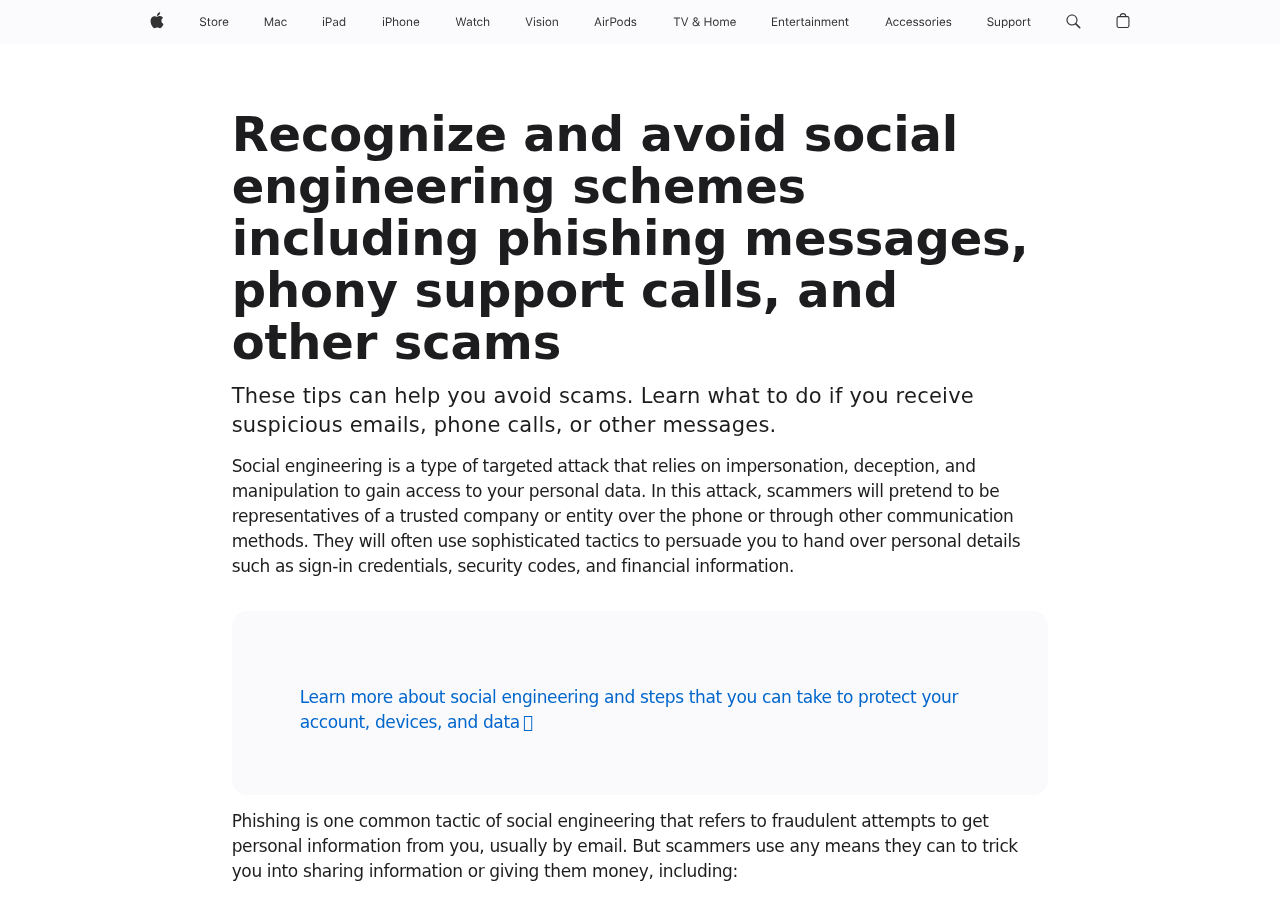
Apple states that its representatives will not ask for an Apple Account password, device passcode, or two-factor authentication code. Sharing that code can authorize the criminal’s device.
Step 7: The operator may add remote access or a fake refund
Some calls move beyond account credentials. The victim may be told to install remote-support software or open online banking to receive a refund for the nonexistent charge.
Remote access lets the scammer watch passwords, manipulate the screen, move funds between accounts, or create a fake overpayment. Gift cards, transfers, cryptocurrency, or cash may then be demanded to correct the invented error.
Step 8: The stolen information fuels follow-up scams
A compromised Apple Account can expose personal data, trusted telephone numbers, device information, purchases, and payment options. The criminal may change recovery details and lock the owner out.
The victim may later receive calls from a supposed bank, Apple recovery team, police officer, or refund specialist. These callers use information from the first interaction to sound credible.
What Apple and Meta Actually Say
Apple’s official guidance warns about fraudulent messages, misleading pop-ups, and phony support calls. It tells users not to share passwords or security codes and to contact Apple through verified channels.
Apple also explains that representatives will not tell a customer to disable account protections, add an unknown trusted number, or tap Allow so another device can sign in.
Meta says it removed more than 159 million scam ads during 2025 and took down millions of accounts associated with criminal scam centers. Those figures show the scale of the problem, not that every malicious link is caught before anyone sees it.
Warning Signs in the Facebook Apple Billing Alert
- An unexpected Facebook link turns into an Apple security warning.
- The external domain does not belong to Apple.
- A webpage claims to see private Apple Pay activity.
- The alert uses a shocking accusation and a precise $572.56 amount.
- The message says the charge is on hold but demands an immediate call.
- Both visible choices keep the victim inside the same support funnel.
- The caller asks for a password, passcode, or two-factor code.
- The cancellation requires remote access, banking, or gift cards.
Company, Address, and Fulfillment Checks
The Facebook Page is not the company behind the warning
A Page name, verified-looking profile picture, or familiar post does not identify the owner of the external domain. Check Page transparency, creation history, recent name changes, and whether unrelated content appeared suddenly.
The in-app address bar is not an Apple office
Expand the full destination and record the domain. A lock icon and Facebook browser frame establish neither a company address nor an Apple relationship. The redacted screenshot cannot establish who registered or hosts the page.
The support number can disappear after reports arrive
Internet telephone numbers can forward calls anywhere and be replaced quickly. A local or toll-free prefix does not prove that the caller works for Apple or has a physical support center in that region.
The technical trail matters more than the claimed employee name
Preserve the Facebook ad or post URL, Page ID, external domain, telephone number, remote-access session, emails, payment destination, and wallet or gift-card details. Those records can connect the stages of the operation more reliably than a fake case number.
What to Do if You Have Fallen Victim to This Scam
- If you only viewed the page, close it. Seeing the alert does not prove your Apple Account was accessed. Close Facebook’s browser and do not reopen the destination from link history.
- Verify the supposed charge separately. Check Apple purchase history, Wallet, and the payment card’s official app. Type the addresses yourself and never use the number or link shown in the warning.
- Report the Facebook content. Use the three-dot menu on the ad, post, Page, comment, or message and select the closest scam or fraud option. Save screenshots and the link before reporting because the content may disappear.
- Clear sensitive in-app browser data. Review Facebook’s browser settings, clear browsing data, and inspect stored autofill details if you entered information. This does not replace changing a password that was submitted.
- Secure the Apple Account from a clean device. Change the password, review trusted devices and phone numbers, remove anything unfamiliar, and confirm two-factor authentication. Contact Apple immediately if you shared a sign-in code.
- Protect Facebook and email accounts. Change reused passwords, review logged-in sessions, check recent messages and posts, and enable two-factor authentication. Warn contacts if your account sent the malicious link.
- Disconnect unauthorized remote access. Turn off the internet connection, end the remote session, and uninstall software installed for the caller. Check for unattended-access passwords and automatic startup.
- Contact the bank quickly. Use a verified number from the card or banking app. Report exposed credentials, transfers, or card information and ask about securing the account, stopping payments, and replacing cards.
- Scan and block repeat exposure. Use Malwarebytes to check for malware and unwanted remote-access components. Use AdGuard to reduce malicious ads, tracking, and redirects that lead to fake support pages.
- Report the wider operation. Send suspicious Apple messages to Apple and file reports with the FTC and FBI’s IC3. Include the Page, domain, number, remote tool, and payment details.
Frequently Asked Questions
Is the Facebook Apple ID billing alert real?
No. It is an external scam page opened inside Facebook’s browser. Facebook’s interface around the page does not authenticate the fake Apple message.
Does the lock icon mean the Apple page is secure?
No. A lock indicates an encrypted connection to the displayed domain. A scam website can use HTTPS while lying about its identity and purpose.
Was my Apple Pay account really charged $572.56?
The alert is not evidence of a charge. Check Wallet, Apple purchase history, and the payment card directly. If no transaction appears, do not call the number to ask about it.
What if I only tapped Fix Problem or OK?
A tap may open the phone dialer or another page without compromising the account. Risk increases if you called, entered credentials, shared a code, downloaded software, or granted permissions.
Why did a genuine Apple verification code arrive?
The criminal may have attempted a real sign-in or password reset while speaking with you. The genuine code protects the account and must never be read to the caller.
How do I safely contact Apple?
Use the Apple Support app, type support.apple.com yourself, or use contact information from Apple’s official website. Do not use the number in the Facebook page.
The Bottom Line
The Facebook Apple ID billing alert scam uses the platform’s in-app browser to place a copied Apple page inside a familiar frame. The $572.56 charge, criminal accusation, and fake support number are designed to move the victim from a social post into a controlled telephone conversation.
Close the page, verify Apple and bank activity independently, and never share a password or two-factor code with a caller. Facebook delivered the link, but the external page has no authority over your Apple Account.

Join the discussion
0 commentsShare your experience or ask a question about this article.
Discussion
Start the conversation
Have a question or something useful to share? Add the first comment.