


An annual performance review is one of the few workplace documents someone might open even when they are busy. Add the promise of a raise, and waiting feels less appealing.
The email says the document is encrypted. It is worth looking at what the mail client calls the attachment before trying to read it.
Overview
The annual-review email described an Excel file that was not there
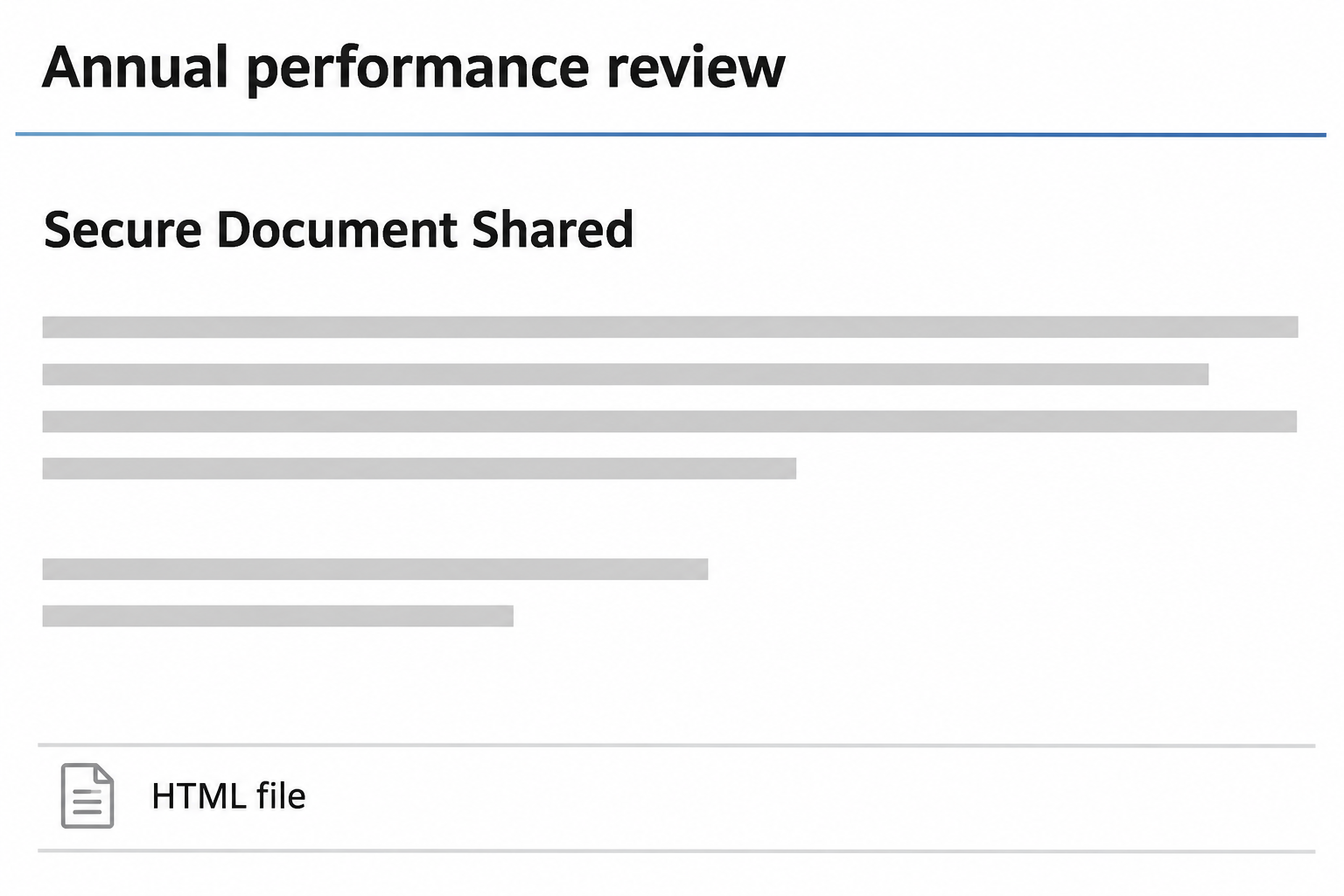
The recorded “Secure Document Shared” message claimed to contain an annual performance review and salary increase. It called the supposed document an encrypted Excel file.
A displayed title included “Last Quater” and “Salary increase.” Its wording gave the reader a reason to expect confidential financial details instead of asking why it came unexpectedly.
The attachment listed by the mail client actually ended in .html. That is a browser document extension, not the usual .xlsx extension for an Excel workbook.
This is the important distinction in the case. A heading in an email can describe anything, but it does not change the type of file the recipient received.
A local browser page can imitate an office application
In the recorded example, opening the HTML attachment displayed spreadsheet imagery behind a “Sign in to view the document” prompt. The form asked for an email password.
The browser showed that it was displaying a local file, not an authenticated company portal. It looked like a workbook without demonstrating that any workbook was present.
The page’s claim that only an authorized recipient could view the document made the password request seem like a condition for accessing confidential material. That claim did not authenticate it.
The archive documents a page requesting credentials. It does not establish that anything was installed, that someone supplied a password, or that a salary change existed.
A private HR message does not need this confirmation route
Companies handle reviews in different ways. Some use a dedicated portal, while others discuss them in a meeting and follow up through an approved internal channel.
Here is how to check an unexpected notice without relying on the attachment:
- Ask your manager or HR contact whether your review was sent.
- Check the normal employee system for a matching notification.
- Use the file type shown by your email client as a separate clue.
- Do not enter your mailbox password into a local document.
The words “secure” or “encrypted” are not enough to verify an unknown attachment. Check the sender and the normal process before doing anything with it.
How the Fake Annual Performance Review Email Works
Step 1: The subject makes the document feel personal
An annual review is tied to a person and a job. The promise of a raise makes the proposed document seem worth opening even if the message is unfamiliar.
The wording also gives the recipient a reason not to forward it to a colleague. They may assume a pay document should be handled privately.
You can respect that privacy while still checking the message. Ask through a trusted HR channel whether a review was sent, without showing the attachment to anyone outside the process.
If a colleague recognizes the subject from a prior year, that is not confirmation for this message. Verify the current review in the system your organization actually uses.
Step 2: The email borrows the expectation of an encrypted workbook
The message describes an Excel document and says a password may arrive separately. That is familiar enough to make a later prompt seem like part of normal document security.
But the name inside the message and the file attached to it are different things. The actual attachment in the captured mail reader was an HTML file.
If you cannot see a file’s full type, let your help desk inspect the message. Do not save and reopen the file just to see which program starts.
The Microsoft guide to common filename extensions distinguishes browser documents from workbooks. A displayed label does not make two formats interchangeable.
Step 3: The attachment makes a web page look like an opened spreadsheet
The report shows a browser opening the file. Spreadsheet-style menus and a grid in the background gave the local page an ordinary workplace appearance.
That background was not an independent document viewer confirming a workbook was open. The foreground request mattered more than the image behind it.
A password assigned to an encrypted file, if there really is one, is not the same thing as the password for your mailbox. Those credentials have different purposes and risks.
If an unexpected form asks for your email password, close it. You do not need to submit anything to determine whether an Excel file should have opened.
Step 4: The prompt turns an HR task into a mail sign-in
The overlay said the file was only accessible to an authorized recipient. It used that restriction to explain why the reader should authenticate.
But a local attachment has not authenticated itself just because it displays your email address. A viewer can show familiar information without being part of your employer’s identity system.
The captured prompt shows an attempt to collect access to an account. It does not prove that an actual review existed behind the form.
If you submitted a password or code, note which account it belonged to. That starts the account response without requiring you to reopen the file.
Step 5: Losing a mailbox can expose more than the review
An intruder who gains access to work email may see salary conversations, staff contact details, and other legitimate HR messages. That information can make later fraud feel much more personal.
A phishing message may be followed by an unexpected payroll change or another request for employee documents. Confirm any such instruction through the normal internal process.
There is no evidence in this case that those events occurred. They are plausible consequences if credentials are misused, which is a different situation from simply receiving the email.
Do not wait for a second alert before reporting an exposed password. Early notice lets the right people check the account while the original evidence is still available.
What to Do if You Have Fallen Victim to This Scam
-
If the message only arrived, report it without opening the attachment. Use your organization’s phishing button or the channel its security team tells you to use.
If the subject includes a personal reference, keep it in the internal report. There is usually no need to circulate salary-related material outside that process.
-
If you opened the HTML but entered nothing, close the browser tab. Tell support when you opened it and whether another file downloaded or a prompt appeared.
Loading the local page is not proof that a password was shared or a program installed. An additional download, approval, or execution needs to be described separately.
Do not reopen the attachment for a better screenshot. Preserve the original message and let the appropriate team tell you how to provide it safely.
-
If you entered an email password, use the real account service to reset it. On a managed work account, report the exposure to your help desk immediately.
Tell support if you also entered a one-time code, approved a sign-in, or provided a recovery method. The complete record determines which access needs to be removed.
If the same password was used on another service, change it there independently. Do not use a reset link included with the false review.
-
Have the relevant account activity checked. Look for unexpected recovery changes, sign-in notifications, sent messages, rules, and connected services through trusted settings.
Microsoft’s compromised-mailbox guidance explains what authorized administrators should review in Microsoft 365. Do not attempt administrative changes on an account you do not manage.
-
Confirm whether payroll or personnel records were affected. If you shared a pay stub, ID, or bank details in a later exchange, identify exactly what the other person received.
Tell your HR or payroll team if any change request followed the email. Use a separate channel to confirm it before providing information or approving a payment.
-
Check the real review only after the suspicious message is handled. Ask your manager or employee portal whether a review actually exists and how you can see it.
If the original email was forwarded, notify those recipients without reattaching the file. Explain that a claimed workbook led to a separate email sign-in.
What You Can Learn From the Attachment Without Opening It
Find the actual file type in the mail client
The big title in a message is not the attachment inventory. Your mail client can show a distinct file name below or alongside the message.
Ask IT if the displayed name is truncated or hidden. An internal security team can inspect the original record without asking each recipient to open the file.
An icon does not settle the question either. Files can look like documents in a mail reader even when the type reveals something quite different.
Ask where compensation changes are normally communicated
A trusted HR process might involve a scheduled conversation or a known employee account. It belongs to an established workflow rather than a message that invents its own.
Even if it is review season, an email arriving at the right time does not prove that it came from the right place. Confirm the event through someone you know.
Employees who do receive an encrypted document should verify what kind of password it uses. An access code for a document is not permission to disclose a company account password.
Make your report useful without adding speculation
Say whether you paid attention to the displayed file label or actually opened a local page. Keep those facts separate from what you think the sender might have wanted.
If the page led elsewhere in your encounter, note the destination privately for support. Do not post a working credential link in a company discussion or public forum.
Know what an encrypted document would ask for
A real workbook may be password protected. In a normal work process, the organization can establish how that document was sent and how a document-specific password is shared.
An encrypted document should not need you to prove access to an unrelated mailbox. If anyone asks for that access, treat it as an account request rather than document security.
The false email anticipated a password prompt by saying a password might arrive separately. That does not prove the later form belongs to the same workflow.
Ask the verified sender how the file was shared before submitting anything. It is acceptable to leave a confidential-looking message unopened until the sender can confirm it.
A browser showing a local file is not a company portal
The archived prompt appeared inside a browser looking at a saved file. The fact that the browser is familiar does not establish that the content belongs to an authenticated service.
In the sample, the spreadsheet image sat behind a sign-in panel. Think of the image as artwork displayed by the page, not a workbook the browser authenticated.
If someone says the visuals prove that the employer sent it, check the actual source first. A copied menu or grid cannot verify a workplace relationship.
If your usual review portal asks you to sign in, reach it directly. The trusted route helps you separate an actual login from a prompt produced by the local file.
Handle coworker reports with payroll privacy in mind
A coworker can tell HR the subject and time without sending actual pay information to a wider group. Preserve sensitive material through the normal reporting channel.
If several people got similar messages, HR can confirm the legitimate review calendar without identifying every recipient. That can prevent others from looking for answers in the attachment.
When people were exposed in different ways, record them separately. A recipient who only saw the subject may need a warning, while a submitted password warrants urgent security review.
Frequently Asked Questions
Did the Secure Document Shared email contain an encrypted workbook?
The captured attachment was an HTML document. Its browser view imitated a spreadsheet, without demonstrating that a genuine Excel workbook or review was present.
Why did the message say a password had been sent separately?
The claim made the expected document sound protected. It did not make it appropriate to enter a mailbox password into the local page that appeared.
Is every HTML attachment automatically malware?
No, HTML is a file format that can display a web page. In this case it presented a fake sign-in, which is different from demonstrated software installation.
Did opening the file prove my company account was compromised?
Opening the attachment alone does not establish account compromise. Tell your security team whether you submitted credentials, authorized a request, or opened anything else.
Can my employer genuinely share performance reviews by email?
Some employers use email to notify staff, but the process varies. Confirm through the employee system, manager, or HR contact you already know.
If I used the same password at another site, should I change it there?
Yes, if you disclosed that password to the suspicious form. Secure each account through its own official route rather than following links from the original message.
The Bottom Line
Do not open the reported HTML attachment to check your pay or review. Confirm the document directly with HR or through the employee system you normally use.
If you entered credentials, secure the account and notify your company now. Then verify any real payroll or review issue through a separate trusted channel.

Join the discussion
0 commentsShare your experience or ask a question about this article.
Community experiences
Did this happen to you?
Your experience could help someone recognize the same scam. Submit a private report for our team to review.
I experienced this tooReports are reviewed before publication. Sharing publicly is always your choice.
Discussion
Start the conversation
Have a question or something useful to share? Add the first comment.