


An installer is easy to trust when it looks like the one you came to find. That is especially true when the product name is already familiar.
The trouble with this CleanMyMac lookalike starts just when a normal download should begin. The page asks for something else, and the distinction is worth noticing.
Overview
The real Mac utility and the fake download
CleanMyMac is a real Mac maintenance app made by MacPaw. The fake CleanMyMac download in this case borrowed that identity, but it was not a MacPaw installer.
In March 2026, Malwarebytes Labs documented a copycat page that sent visitors into Terminal instead of offering a normal installer. Its directions could install a Mac infostealer called SHub.
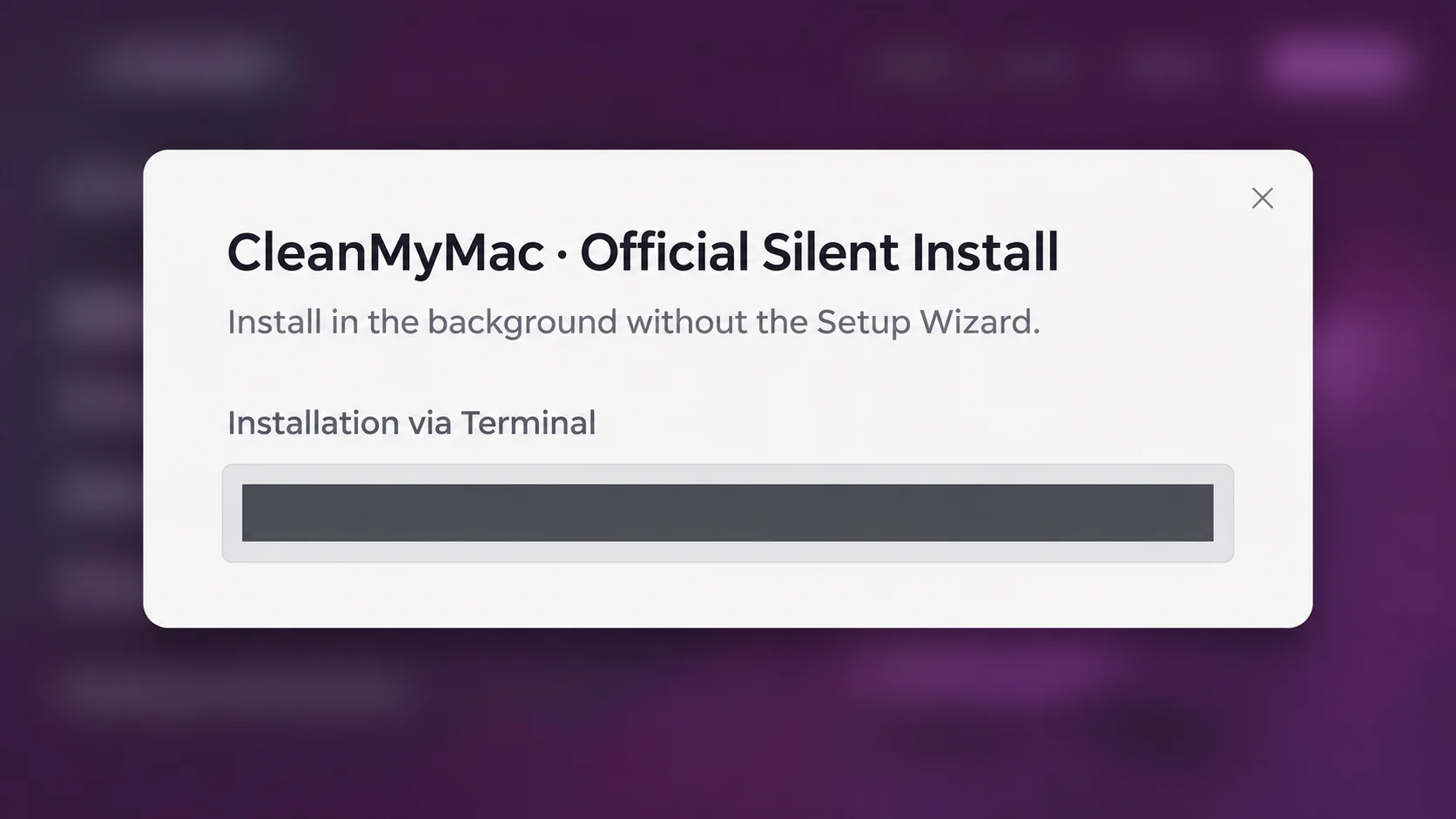
The lead image recreates the relevant part of that fake setup window. It leaves out the executable content and is not a capture of the original site.
MacPaw lists its official CleanMyMac distribution channels, including its own store, the App Store and Setapp. That gives you a direct way to check where you are.
A similar-looking name in the browser is not enough. A secure connection can protect the trip to a website without establishing who controls the site.
An installer that did not behave like an installer
The suspicious page called its method a silent install. That wording made the lack of a normal setup window sound intentional, rather than a reason to stop.
The switch from download to Terminal is the tell. Pause there and verify the installation method with the developer independently.
Researchers also observed a password dialog made to look like a macOS prompt. It appeared after the victim followed the site’s directions, not during a verified download from MacPaw.
The theft can outlast the fake download
SHub went after browser data, stored credentials, Keychain material and messaging sessions. Researchers also documented wallet data collection and modifications to five specific desktop wallet apps.
Those findings matter because recovery has three separate parts:
- The Mac may need containment, inspection and cleanup.
- Passwords or signed-in sessions may need to be replaced or revoked from another device.
- An exposed wallet recovery phrase has to be treated as exposed even after the Mac has been cleaned.
The research describes what the observed sample could do. It does not establish that everyone who encountered the page ran it or that every affected visitor lost funds.
How the Fake CleanMyMac Download Scam Works
Step 1: A familiar app lends credibility to an unfamiliar page
People looking for a Mac cleaner are already expecting a download. The imitation page does not need to explain why you should install an entirely new product.
It only needs to persuade you that it is the page you were looking for. A familiar product name and the language of setup do much of that work.
Seeing the page is different from obeying it. If you closed the page before running anything, you did not complete the execution step documented in this attack.
Step 2: The page substitutes a Terminal instruction for a download
Instead of handing you a verified installer, the site tells you to run text on the Mac. This kind of social engineering is often called ClickFix.
What matters is not the name. It is that the web page asks you to hand control over to instructions you cannot verify by looking at the page.
Copying the text is not the same as running it. If you pasted it without submitting it, close Terminal without pressing Return. There is no need to revisit the page.
Step 3: A password dialog looks like a routine setup step
The fake prompt is especially persuasive after you have already decided to install something. People expect legitimate installers to request permission, so the sequence can feel consistent.
The researchers found the SHub dialog tried to collect the Mac login password. They also reported that the malware could show a failure message to explain the missing app.
An error is not a receipt showing nothing ran. If you submitted the command, use the cleanup steps below even if the only visible outcome was an unsuccessful install.
Step 4: The attack moves beyond the browser that started it
The documented sample looked across applications and profiles for information the owner might have stored. Closing the original browser tab would not undo that activity.
Some accounts are at risk even if their passwords never appear on a screen. A stolen session can sometimes be used while it is still valid.
Researchers also found background access designed to survive the initial visit. That is why repeatedly reopening the original page or scanning only a single downloaded file misses the point.
Step 5: A familiar wallet can stop being trustworthy
The report identifies modifications affecting Exodus, Atomic Wallet, Ledger Wallet, Ledger Live and Trezor Suite. The behaviors varied by application, rather than every wallet displaying the same prompt.
An unexpected recovery or security update screen is especially dangerous here. It can appear inside an application the owner recognizes, after the original fake download is gone.
Do not open an affected desktop wallet to check whether you see the screen. A normal-looking wallet window on a suspect Mac is not a reliable test.
What to Do if You Have Fallen Victim to This Scam
-
Work out how far you got. Write down what you actually did. If you only viewed the page, close it and obtain the real app independently if needed.
If you ran the command or entered a password into the resulting dialog, treat the Mac as potentially compromised. Do not keep experimenting with the installer to establish certainty.
-
Get the Mac offline before continuing. Turn off Wi-Fi from the menu bar and disconnect Ethernet if connected. Leave the device offline while using another trusted device for account recovery.
If the Mac belongs to an employer or school, contact IT from another device. Tell them what ran and when. Do not restart or remove files pending their advice.
-
Start with the accounts that unlock other accounts. On a known-clean device, secure your primary email and password manager first if they may have been available on the Mac.
Replace exposed passwords with unique ones. In each service’s security settings, sign out unfamiliar sessions, review recovery details and remove unrecognized devices where the service allows it.
Follow Apple’s account recovery guidance if your Apple Account might be involved. A new Mac login password is a different change from a new Apple Account password.
-
Treat an exposed crypto wallet as urgent. If you stored wallet secrets on the Mac or entered recovery words into a suspect wallet app, do not reuse those words.
Ask your wallet vendor for guidance through its verified support channel. Use trusted software or hardware on a clean device and protect any new recovery phrase offline.
If moving remaining assets is appropriate, verify the destination and network independently before sending. Do not hand the old or new phrase to anyone offering to recover the funds.
A hardware wallet alone does not protect a phrase you typed into a compromised computer. Conversely, an unfamiliar prompt does not prove you ever gave it the phrase.
-
Save records and tell the right provider. Record the date, the app name and what you remember seeing. Save any account alerts without reopening the suspect site.
For an unauthorized bank transaction, call the provider through the number on your card or its official app. Report suspicious exchange activity through the exchange’s own security channel.
Save public transaction IDs when relevant, but never include recovery phrases, authentication codes or private keys in a support ticket or forum post.
-
Find less obvious secrets that need replacement. If you work with source code or company systems, tell the relevant security team about credentials you may have used on the Mac.
The account owner can revoke affected developer tokens and replace exposed credentials. Never do that work from the machine under investigation.
How to Remove SHub and Secure Your Mac
Step 1: Decide whether the Mac can be handled as a home cleanup
For a work or school Mac, stop at containment and follow the owner’s incident response instructions. Scans and restarts can remove information the administrator needs to investigate.
For a personal Mac, keep a note of what happened and what accounts were open. Do not copy unknown installers or scripts into a backup to preserve them.
If money has moved or a business account is involved, ask an incident responder how to preserve evidence before changing the machine. An urgent account freeze can happen separately.
Step 2: Get the real Malwarebytes package and open it
Use the site’s Malwarebytes for Mac download, ideally obtained on a trusted device if you cannot safely connect the suspect Mac. Do not run another Terminal instruction.
On the Mac, use Finder and open Downloads. Double-click the verified Malwarebytes installer package. The Finder screenshot shows an older version number; your downloaded package will look similar.
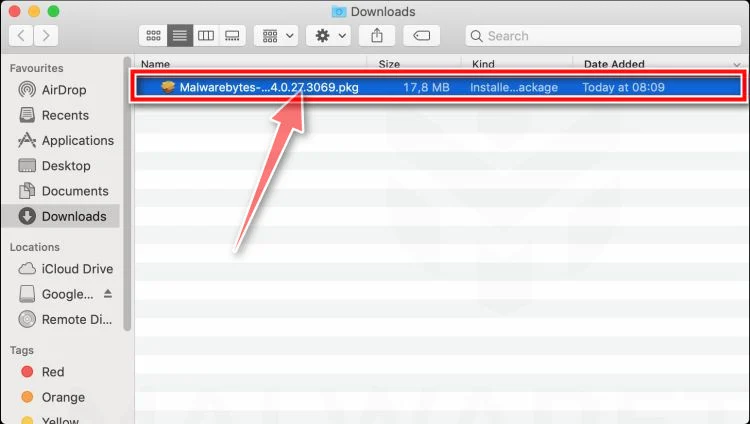
In the package window, click Continue through the introduction, Read Me and software agreement. Choose Agree when asked, then Install to start the standard installation.
Entering your Mac login in the approved package installer is different from doing so in a dialog launched by the fake download. Stop if the installer source is uncertain.
Complete the installation, then open Malwarebytes from Applications and follow the verified app’s setup prompts. If the package fails, check the vendor’s installation instructions from your clean device.
Step 3: Run the scan and review what it actually found
On the Malwarebytes dashboard click Scan. The control is shown below in an older version; the current Malwarebytes scan instructions still use Scan from the main dashboard.
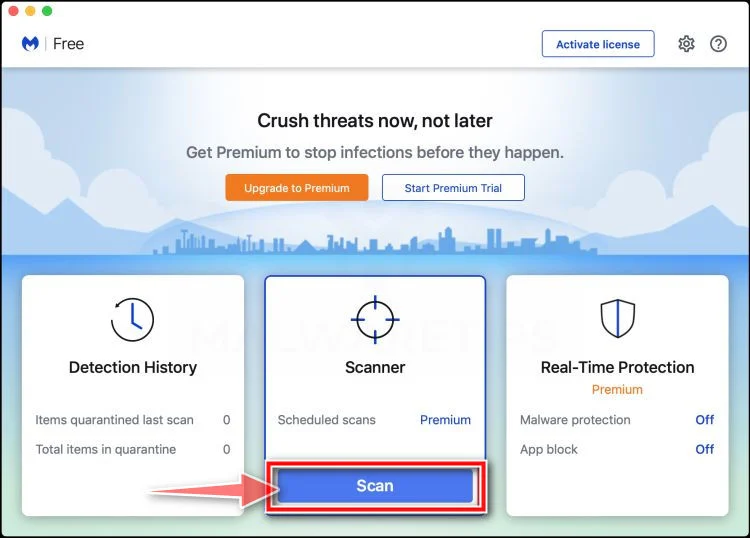
When the results appear, select any threats listed and click Quarantine as offered. Record the names of the detections and any action the app could not complete.
Open Detection History and check Quarantined items. Quarantine restricts what those detected files can do; it is not a statement about every file on the Mac.
If the scanner requests a restart on a personal Mac and you do not need specialist evidence preservation, restart as instructed, reopen Malwarebytes and scan again.
Manual scanning is available without buying Premium. Malwarebytes Premium for Mac is an optional paid protection link; MalwareTips may earn a commission. It is not required for this procedure.
Step 4: Check for unexpected background activity and do not trust the old wallets
Open the Apple menu, choose System Settings, then General and Login Items & Extensions. Review items that open at login and apps allowed to run background tasks.
Take note of entries you cannot explain, especially if they reappear after cleaning. A Google-like updater name on its own is not proof that a file is malicious.
Do not delete every unfamiliar-looking item. Some are needed by legitimate applications. A blank list does not rule out the background access described in the campaign.
Do not reopen the original wallet apps until you know the system can be trusted. Obtain replacements from their verified publishers after deciding whether the Mac should be rebuilt.
Step 5: Verify the result and escalate when the evidence warrants it
If a detection returns, the scanner cannot finish or unexpected activity continues, leave the Mac offline and get help. Do not change the scanner’s exclusions to make a warning disappear.
You can ask in the MalwareTips Mac removal help forum from another device. Share symptoms and detection names, not your full account data or wallet details.
For a confirmed compromise with continuing access or a modified wallet, ask about a clean macOS reinstall. Make a plan for preserving required documents and verify backups before erasing anything.
Do not restore an entire set of suspect apps and background settings over a new installation. Restore needed documents from trustworthy backups and reinstall apps from their original suppliers.
When the Mac is safe to reconnect, open System Settings, then General and **Software Update**. Keeping macOS up to date helps prevent future infections but does not replace cleanup.
Finally, revisit password rotations, session sign-outs and wallet migration. A scan with no alerts cannot tell you what information had already left the device.
Frequently Asked Questions
Is the real CleanMyMac a scam?
The report concerns a copycat site that impersonated CleanMyMac, not the genuine MacPaw software. If you need the app, choose a route that MacPaw confirms.
Can I get SHub just from seeing the fake download page?
The confirmed delivery in this case relied on executing something in Terminal. A page visit does not establish that happened. Do not return to test it.
What if I ran the command but never entered my password?
Not entering the password may limit what could be accessed, but it does not establish that nothing ran. Keep the Mac offline while you investigate what happened.
Does an unsuccessful install mean I stopped it in time?
The researchers observed a decoy failure message after the malware ran. Reconstruct what you did before the error rather than drawing a conclusion from the last thing you saw.
Does changing my wallet password protect an exposed recovery phrase?
It does not change that phrase. Someone with the recovery words may still be able to access the wallet. Seek the vendor’s help with moving to fresh wallet credentials.
Does a clean Malwarebytes result cancel the need to change passwords?
A scan looks for threats still on the Mac. If credentials or sessions may already have been taken, follow the account and wallet recovery steps separately.
The Bottom Line
The fake CleanMyMac download made a strange setup choice look routine. A real product name was enough to make the first screen feel familiar, not enough to make it safe.
If you stopped at the page, leave it there. If you ran the instructions, secure your accounts from another device and treat cleanup on the Mac as a separate job.

Join the discussion
0 commentsShare your experience or ask a question about this article.
Community experiences
Did this happen to you?
Your experience could help someone recognize the same scam. Submit a private report for our team to review.
I experienced this tooReports are reviewed before publication. Sharing publicly is always your choice.
Discussion
Start the conversation
Have a question or something useful to share? Add the first comment.