

A trading page can look familiar before you have read its address. With HyENA, a single extra letter deserves a second look.
The difference matters when old platform links circulate. Check where you landed before treating the page as your account.
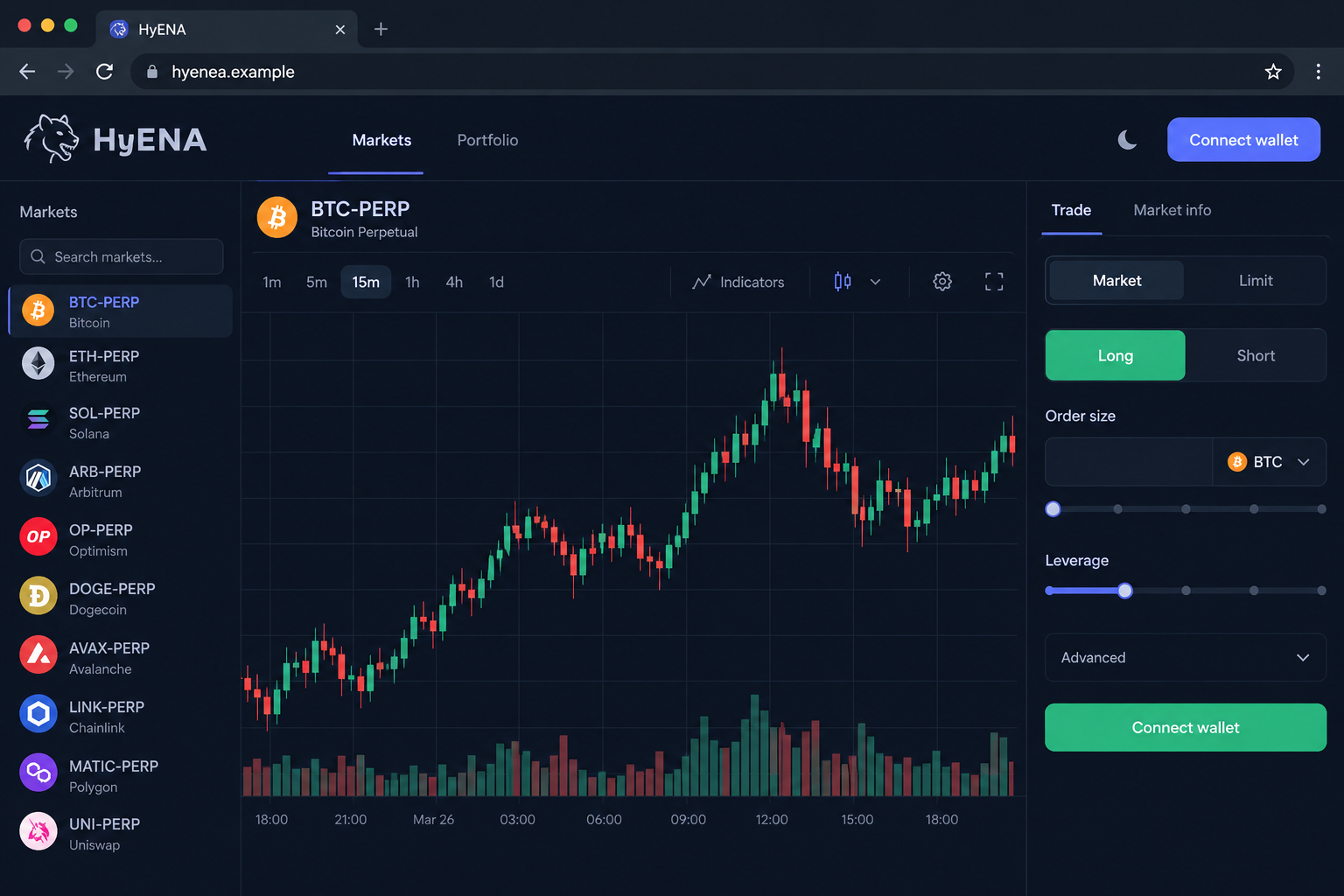
Overview
The reported clone adds an extra letter to a real platform’s name
The fake HyENA trading platform scam used hyenea[.]trade. Compare that carefully with the real brand’s historical address, hyena.trade.
The extra “e” is easy to overlook. The reported page also copied the platform’s visual presentation, making a spelling mistake less noticeable.
This is an impersonation warning. It is not a claim that the legitimate HyENA service operated the counterfeit site.
The clone was reported in January 2026. Our fresh screenshot request could not load it, so its present wallet prompts were not inspected.
The illustration above uses hyenea.example, a reserved demonstration address. Its chart is illustrative, not a record of market activity or a customer’s account.
The real project’s wind-down changes what readers should expect now
There is an important current distinction: the official HyENA documentation now opens with a Sunset Guide, checked on October 21, 2026.
It announces a wind-down beginning August 28, 2026, and describes market settlement, collateral handling, and resources for existing users.
The guide also says the points program ended and that no HyENA token has launched or is planned.
Those statements do not authenticate a new withdrawal message, reward link, or support account. They provide a baseline against which to question such approaches.
We did not test withdrawals or move assets. The availability of the guide should not be mistaken for a guarantee about an individual account.
A copied exchange screen does not explain the action in your wallet
The counterfeit was reported as a wallet-draining lure. Its familiar trading interface is intended to make wallet interaction seem ordinary.
Reading a chart, connecting an address, granting a permission, and signing an asset transfer are not interchangeable actions.
The risky point is what you authorize or disclose, not whether the page’s colors match something you used before.
- Compare the complete domain character by character.
- Check the official wind-down information independently.
- Treat unexpected rescue or token-claim messages as unverified.
- Reject wallet requests that do not match your intended action.
A legitimate project’s closure is not proof of fraud. A separate site exploiting its name is a different matter.
One Extra Letter Can Be Enough
Recognition is quicker than careful reading
Most people recognize familiar words as a whole. That habit helps with everyday reading but can hide a small domain change.
In this case, hyenea and hyena have nearly the same visual shape. A matching header can reinforce the mistaken impression.
The technique is commonly called typosquatting. It takes advantage of mistyped addresses or readers who notice the brand but not every character.
You do not have to mistype the address yourself. A supplied link can deliver the lookalike directly, leaving only a quick glance at the browser bar.
A padlock cannot settle the question. It says something about the connection to that address, not whether the address belongs to the intended organization.
Trading interfaces already make wallet requests seem normal
People using decentralized applications expect signing prompts. A cloned trading dashboard puts a harmful request inside a workflow that already includes wallet approvals.
A chart, order panel, and market selector can all be reproduced without an operating exchange behind them. They are interface elements, not custody evidence.
If a page displays a balance, confirm it through your wallet and the appropriate network records. The website can write any number into its own screen.
Do not place a small trade to decide whether the site is authentic. Testing with money still exposes the wallet interaction you are trying to evaluate.
How the Fake HyENA Trading Platform Scam Works
Step 1: A lookalike address becomes the apparent destination
A visitor reaches a website whose name closely resembles the platform they intended to use. The reported counterfeit inserts the extra letter before “a.”
That small substitution can survive a quick visual check, especially when the link arrives with familiar branding or a plausible explanation.
The domain in a message should not be judged from shortened preview text. Expand your view of the full destination without proceeding to wallet actions.
For an existing account, return to resources you verified before the suspicious message arrived. A stranger’s revised link should not replace your reference point.
Step 2: Familiar trading controls make the page feel established
The reported clone closely imitated HyENA’s site. A reader looking for a usual market or account button may focus on the layout rather than the address.
This is where appearance supplies borrowed credibility. The screen looks like a service the visitor knows, so its requests receive less scrutiny.
But a convincing front end does not show who controls the site or what its wallet integration will ask you to approve.
A useful check is to ask what you came to do. If you wanted account information, an unexplained authorization should not become part of that task.
Step 3: The connect button introduces requests from the impostor
A connection normally lets a site see selected public addresses and ask the wallet for additional actions. The wallet still matters as a separate confirmation surface.
Do not collapse the whole process into “I connected, therefore everything is gone.” Determine whether another request was accepted afterward.
Likewise, do not assume the absence of an immediate loss proves safety. A permission may remain usable even after the site closes.
Record the exact network and account involved. Someone checking only a different chain may miss the relevant activity.
Step 4: An unrelated authorization is presented as part of account access
The reported purpose of the imitation was to expose wallets to a drainer. A harmful request can be disguised as verification or routine platform setup.
Read what the wallet itself says: the requesting origin, recipient, assets, permissions, and any simulation or warning.
A signature can have consequences beyond a simple sign-in, depending on its contents. “No fee” does not mean “no authority granted.”
If a request cannot be reconciled with your intended task, cancel it. Do not ask a private-message support account to explain why you should approve.
No specific malicious contract or signature was reproduced here. Do not use a guessed contract address as the basis for cleaning up your wallet.
Step 5: The visitor must separate account confusion from actual asset movement
A platform wind-down can already leave users uncertain about where balances or controls have moved. That confusion makes an unauthorized help link particularly risky.
Check transaction history before deciding what happened. A missing dashboard, a settled position, and an outgoing wallet transfer describe different events.
If an unauthorized transfer is present, save its transaction reference and destination. If a permission was granted, investigate that permission rather than only disconnecting.
If neither occurred, do not let someone invent a recovery emergency. A demand to deposit more money is not a normal substitute for an explanation.
The Wind-Down Is Not the Same Story as the Clone
Old descriptions can now send readers in the wrong direction
Older material describes HyENA as a perpetual-trading service. That historical description does not mean readers should expect an ordinary active-market interface today.
The official sunset notice is therefore important context. Read it from the documentation domain rather than relying on an old search snippet.
A different page claiming the brand is launching a new token should explain its relationship to the official statement that none is planned.
Do not accept “the website has moved” as a complete explanation. Verify any route change through established project resources before exposing a wallet.
Existing users need account-specific guidance, not a stranger’s rescue plan
The documentation describes different paths for different account types. A single private-message instruction cannot safely replace that distinction.
Start by identifying how you originally accessed the service and which wallet or account held the assets. Keep recovery details out of public chats.
Never paste a private key into a support form, message, or unrelated website. A request to “synchronize” a wallet by disclosing its secret is dangerous.
Someone offering to complete a withdrawal for you should not receive account control merely because the official interface is unfamiliar.
Disconnection is not the complete permission check
Removing a site’s connection stops that relationship inside the wallet. It does not necessarily invalidate authorizations already recorded elsewhere.
MetaMask explains approval management separately from connections. Follow the corresponding trusted guidance for the wallet and network you actually used.
Some requests involve mechanisms other than ordinary token allowances. If you are unsure what a signature authorized, get qualified help reviewing its actual contents.
Do not grant a second stranger broad access in order to inspect the first incident. Good support should explain the requested information and its purpose.
What to Do if You Have Fallen Victim to This Scam
Leave the extra-letter site. Cancel open wallet prompts. Save its full address and the message or result that brought you there.
Do not keep refreshing to see whether the trading screen returns. You do not need to prove the clone still works before protecting an exposed account.
Establish what you approved. Review the relevant wallet’s activity and network. Separate a connection from signatures, permissions, outgoing transfers, and secret disclosure.
Write down the time and account address. Avoid sending private keys or recovery words to anyone helping with the review.
Remove harmful authority where possible. Disconnect the impostor and investigate suspicious permissions using verified wallet resources. Check the spender and asset rather than guessing from labels.
If a signature’s effect is unclear, ask the provider or an appropriately qualified responder. A local password change may not invalidate that authorization.
Secure remaining assets if a secret escaped. A disclosed key or phrase requires a fresh, independently generated wallet on a clean device.
Moving assets may need careful coordination if an attacker is active. Do not repeatedly add funds to the compromised address at a stranger’s suggestion.
Handle the legitimate account separately. Consult the official Sunset Guide for the account type you used. Treat unsolicited withdrawal assistants as unverified.
Do not interpret this counterfeit warning as proof that a trading loss or settlement was theft. Preserve account records so those events can be distinguished.
Report confirmed unauthorized movement. Keep blockchain references, receiving addresses, communications, and timestamps. Notify relevant service providers and the appropriate fraud-reporting agency.
Recovery depends on the circumstances and cannot be assured. Decline offers of guaranteed refunds or special wallet-unlocking payments.
Investigate downloads if the site introduced software. An installed extension or remote-access tool adds a separate device problem. Involve workplace IT where relevant.
Malwarebytes can help detect device threats. AdGuard can reduce exposure to malicious ads. Neither reverses crypto transfers, signatures, or existing wallet permissions.
Is Your Device Infected? Run a Free Malware Scan
Slow performance, constant pop-ups, or strange behavior? These are classic signs of a malware infection. The fastest way to find out is to scan your device with Malwarebytes Free — one of the most trusted malware removal tools available.
The free version detects and removes the most common threats, including:
- Adware — the cause of those annoying pop-ups
- Browser hijackers — unwanted redirects and changed homepages
- Trojans and spyware — hidden programs stealing your data
- Potentially unwanted programs (PUPs) — software you never asked for
👉 Select your device below — Windows, Mac, or Android — then follow the simple steps to download Malwarebytes, scan your system, and remove any threats it finds. The scan usually takes 5 to 20 minutes.
Run a Malware Scan with Malwarebytes for Windows
Malwarebytes is one of the most popular and trusted anti-malware tools for Windows — and it’s completely free for removing infections. It catches threats that many antivirus programs miss, including adware, browser hijackers, and trojans. Follow the steps below to scan and clean your PC in just a few minutes.
Download Malwarebytes
Click the button below to download the latest version of Malwarebytes for Windows from the official source. The free version is all you need — it will scan your computer and remove adware, browser hijackers, and other malicious software at no cost.
Download MalwarebytesOfficial installer for Windows 11 and 10. Your download starts right away.Want real-time protection? See Malwarebytes Premium Malwarebytes Free for WindowsScans and removes malware at no cost
-
Install Malwarebytes
When the download finishes, open your Downloads folder and double-click the MBSetup file. If Windows shows a User Account Control pop-up, click “Yes” to allow the installation.

Follow the On-Screen Prompts to Install Malwarebytes
The setup wizard will walk you through a few quick screens:
-
Choose where you’re installing the program — “Personal Computer” or “Work Computer” — then click Next.

-
Malwarebytes will now install on your device. This usually takes under a minute.

-
When installation is complete, the “Welcome to Malwarebytes” screen will open automatically.

-
On the final screen, click Open Malwarebytes to launch the program.

-
Enable “Scan for Rootkits”
Before scanning, turn on rootkit detection so Malwarebytes can find even the most hidden threats. Click the Settings gear icon on the left side of the screen.

In the settings menu, find “Scan for rootkits” and click the toggle so it turns blue.

Done? Click “Dashboard” in the left pane to return to the main screen.
Start the Scan
Click the blue Scan button. Malwarebytes will automatically update its virus database and start checking your computer for malware.

-
Wait for the Scan to Finish
The scan checks your entire system for browser hijackers and other malicious programs, so it can take 5 to 20 minutes depending on your computer. Feel free to do something else — just check back occasionally to see the progress.

-
Quarantine the Detected Threats
When the scan is done, you’ll see a list of everything Malwarebytes found — malware, adware, and potentially unwanted programs. Click the “Quarantine” button to remove all of them at once.

Malwarebytes will now remove the malicious files and registry entries and move them safely into quarantine.

-
Restart Your Computer
Some threats can only be fully removed after a reboot. If Malwarebytes asks you to restart, click Yes. Once you’re logged back in, Malwarebytes has finished removing the threats it found.

That’s it — your Windows PC is now clean of trojans, adware, and other malware, and should be back to running smoothly.
If you are still having problems with your computer after completing these instructions, then please follow one of the steps:
- Run a computer scan with ESET Online Scanner
- Ask for help in our Windows Malware Removal Help & Support forum.
Run a Malware Scan with Malwarebytes for Mac
Malwarebytes for Mac is a free on-demand scanner that removes the malware other security software tends to miss — adware, browser hijackers, and unwanted programs included. Cleaning an infected Mac with Malwarebytes has always been completely free, and it’s our go-to recommendation. Follow the steps below to scan and clean your Mac in just a few minutes.
-
Download Malwarebytes for Mac
Click the button below to download the latest version of Malwarebytes for Mac.
Download MalwarebytesOfficial installer for macOS. Your download starts right away.Want real-time protection? See Malwarebytes PremiumMalwarebytes Free for MacScans and removes malware at no cost -
Open the Malwarebytes setup file
When the download finishes, open your Downloads folder and double-click the setup file to begin the installation.

-
Follow the On-Screen Prompts to Install Malwarebytes
The Malwarebytes for Mac Installer will guide you through a few quick screens. Click “Continue” and keep following the prompts until the installation completes.



When the installation is complete, Malwarebytes opens to the Welcome to Malwarebytes screen. Click “Get started“.
-
Select “Personal Computer” or “Work Computer”
Malwarebytes will ask what type of computer you’re installing it on. Click either Personal Computer or Work Computer, whichever applies.

-
Start the Scan
Click the “Scan” button. Malwarebytes will automatically update its detection database and begin checking your Mac for malware.

-
Wait for the Scan to Finish
Malwarebytes will scan your Mac for adware, browser hijackers, and other malicious programs. This can take a few minutes, so feel free to do something else — just check back occasionally to see the progress.

-
Quarantine the Detected Threats
When the scan is done, you’ll see a list of everything Malwarebytes found. Click the “Quarantine” button to remove all the threats at once.

-
Restart Your Mac
Malwarebytes will now remove all the malicious files it found. Some threats can only be fully removed after a reboot — if Malwarebytes asks you to restart, allow it. Once you’re logged back in, your Mac is clean.

That’s it — your Mac is now free of adware, rogue browser extensions, and other potentially harmful software.
If you are still experiencing problems while trying to remove a malicious program from your computer, please ask for help in our Mac Malware Removal Help & Support forum.
Run a Malware Scan with Malwarebytes for Android
Malwarebytes for Android automatically detects and removes dangerous threats like malware and ransomware so you don’t have to worry about your most-used device being compromised. Aggressive detection of adware and potentially unwanted programs keeps your Android phone or tablet running smooth.
-
Download Malwarebytes for Android.
You can download Malwarebytes for Android by clicking the link below.
Get Malwarebytes for AndroidOpens Google Play in a new tab.Want real-time protection? See Malwarebytes Premium for AndroidMalwarebytes for AndroidScans your phone and removes malware at no cost -
Install Malwarebytes for Android on your phone.
In the Google Play Store, tap “Install” to install Malwarebytes for Android on your device.

When the installation process has finished, tap “Open” to begin using Malwarebytes for Android. You can also open Malwarebytes by tapping on its icon in your phone menu or home screen.

-
Follow the on-screen prompts to complete the setup process
When Malwarebytes will open, you will see the Malwarebytes Setup Wizard which will guide you through a series of permissions and other setup options.
This is the first of two screens that explain the difference between the Premium and Free versions. Swipe this screen to continue.
Tap on “Got it” to proceed to the next step.
Malwarebytes for Android will now ask for a set of permissions that are required to scan your device and protect it from malware. Tap on “Give permission” to continue.
Tap on “Allow” to permit Malwarebytes to access the files on your phone.
-
Update database and run a scan with Malwarebytes for Android
You will now be prompted to update the Malwarebytes database and run a full system scan.

Click on “Update database” to update the Malwarebytes for Android definitions to the latest version, then click on “Run full scan” to perform a system scan.

-
Wait for the Malwarebytes scan to complete.
Malwarebytes will now start scanning your phone for adware and other malicious apps. This process can take a few minutes, so we suggest you do something else and periodically check on the status of the scan to see when it is finished.

-
Click on “Remove Selected”.
When the scan has been completed, you will be presented with a screen showing the malware infections that Malwarebytes for Android has detected. To remove the malicious apps that Malwarebytes has found, tap on the “Remove Selected” button.

-
Restart your phone.
Malwarebytes for Android will now remove all the malicious apps that it has found. To complete the malware removal process, Malwarebytes may ask you to restart your device.
That’s it — your Android phone is now clean — no more malicious apps, adware, or browser redirects.
If you are still having problems with your phone after completing these instructions, then please follow one of the steps:
- Restore your phone to factory settings by going to Settings > General management > Reset > Factory data reset.
- Ask for help in our Mobile Malware Removal Help & Support forum.
Stay Protected: Block Ads and Malicious Sites
Now that your device is clean, keep it that way. Most infections start with a malicious ad or a fake download button — so blocking them at the source is your best defense.
We recommend AdGuard, which blocks malicious ads, phishing pages, and dangerous redirects before they can reach you.
👉 Download AdGuard and browse safely
A Careful Check Before You Return to Any Trading Page
Use a written reference for the domains you trust. Do not rely on recognizing a logo when a large balance or an urgent withdrawal is involved.
Check a bookmark’s full destination before saving it. A bookmark created from the fake page simply preserves the same mistake.
If you followed a sponsored result, do not use that result again for recovery. Find the established service through a separately verified route.
Keep a separate record of trading decisions and security events. Liquidation, settlement, and unauthorized transfers have different causes and require different explanations.
A position closing changes a trading record. An asset leaving an address creates a transfer record. Compare those records before deciding which support question to raise.
Save available statements or account exports through the service’s established controls. An old screenshot showing a position does not alone prove its final settlement amount.
If you cannot access an old record, tell support exactly which account type and date you need. Do not surrender wallet custody to retrieve a statement.
Ask anyone helping you to identify which event they are addressing. Vague instructions to “verify everything” can conceal requests for unnecessary access.
Frequently Asked Questions
Is HyENA itself the scam described here?
No. This article concerns the reported hyenea[.]trade impersonation. The legitimate project’s wind-down is separate and should not be presented as proof of fraud.
What is different about hyenea.trade?
It contains an extra “e” compared with hyena.trade. The reported clone used that near-match alongside copied branding to appear familiar.
Is the official HyENA service still described as operating normally?
No. Its documentation currently presents a wind-down guide announced in August 2026. Existing users should consult that information instead of assuming old descriptions remain current.
Does the wind-down prove a new token claim is real?
No. The official guide says no HyENA token has been launched or is planned. An unrelated claim page needs more than borrowed branding.
What if I connected but did not sign anything?
Disconnect the suspicious origin and inspect activity. Do not presume a transfer occurred, but confirm that no additional request or permission was accepted.
Can a malware scan recover my trading balance?
No. Scanning helps with software threats. Wallet authorizations, account access, legitimate settlement, and unauthorized transfers must be assessed through their respective records.
The Bottom Line
Avoid the extra-letter HyENA clone. A convincing trading screen is not a reason to trust its wallet requests or disclose an account secret.
Existing users should follow the official wind-down resources. Anyone who used the imitation should review the exact authorization and respond to confirmed exposure, not a guessed loss.

Join the discussion
0 commentsShare your experience or ask a question about this article.
Discussion
Start the conversation
Have a question or something useful to share? Add the first comment.