


The subject sounds like a routine hosting announcement. Only after you open it do you learn that accounts on your domain are supposedly moving.
If you handle email for a small business, that can feel like something you need to check before everyone comes in on Monday.
Overview
A hosting move that arrives without a known project
The fake server upgrade email says accounts on your domain are moving to updated infrastructure. It asks people to review service terms before the transition.
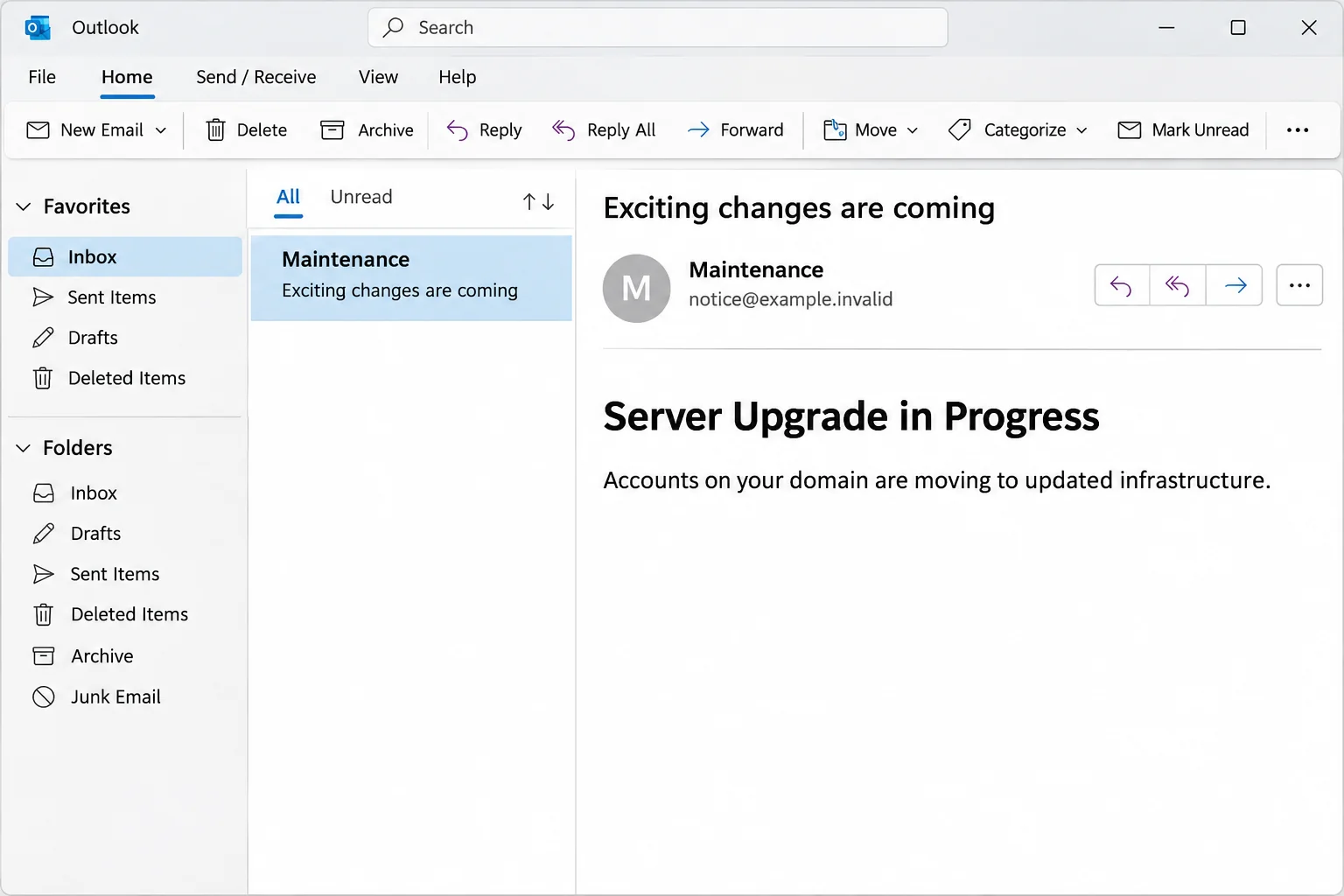
The reported subject was “Exciting changes are coming.” The message then put “Server Upgrade in Progress” where an administrator might expect a maintenance notice.
One copy gave November 16, 2026, as its deadline. That’s a feature of the documented message, not a schedule for an actual migration.
The image recreates the subject and heading without the original link or a real recipient’s domain.
The message doesn’t name a trusted ticket you can check independently. The first question isn’t whether a migration sounds plausible. It’s whether your host recognizes this one.
The supposed terms page wants the mailbox password
The reported link opened a screen that looked like cPanel Webmail. It requested the mailbox password instead of presenting a set of service terms.
The recipient’s email address appeared on the page. Seeing your own address in a form isn’t evidence that the form has a legitimate connection to your mailbox.
The fake screen lived on an unrelated domain. The appearance of cPanel software isn’t a reliable way to identify which organization runs a website.
This is a credential phishing case. No file download or machine infection was established for the documented message, so the central concern is exposure of the mailbox.
Work out which account the notice actually concerns
Small businesses often buy their domain, hosting, and mail through different vendors. Keeping those relationships straight makes a fabricated upgrade easier to challenge.
Look for these independent points of reference:
- Your existing hosting dashboard or the host named on your most recent bill.
- A maintenance ticket your administrator can locate without opening the message.
- A known webmail bookmark or a verified configuration your provider already gave you.
- A confirmed list of mailboxes, dates, and changes if a migration is genuinely planned.
If you only use the mailbox and don’t manage it, send the notice to the person who does. You don’t need a hosting password to help verify it.
How the Fake Server Upgrade Email Scam Works
Step 1: The message makes a change sound already underway
A request to approve an upgrade might invite questions. A notice that the move is in progress makes it sound as though the decision has already been made.
That framing is especially convincing for an employee who doesn’t normally speak to the hosting company. They may assume someone else signed off on the move.
Check whether the people who manage mail received a corresponding notice through the customer account. Don’t rely on another employee having received the same email.
A group of people getting the same message may tell you how widely it was sent. It doesn’t authenticate the sender.
Step 2: The deadline turns service terms into a race
The message makes reviewing the terms sound necessary to finish the transition. The stated date gives someone just enough reason to stop their current work and click.
Ask what action a real migration would need from you. A policy acknowledgement and a mailbox authentication request are different things, and the supposed terms aren’t shown here.
A real provider may have deadlines. You should be able to verify them through contact details or a support account you already trust.
Step 3: A familiar webmail screen replaces the terms
The documented destination appeared as a webmail sign-in screen, with the intended mailbox address already filled in. The password field was the important part.
An address that’s visible to a website might have come from the link, prior activity, or data the sender already had. It isn’t proof you’re on your provider’s site.
You don’t have to type anything to find out who owns the page. Exit and open your saved webmail entry instead.
If the bookmark lands on a sign-in screen you recognize, that’s still a separate session. Don’t carry information back to the suspicious window.
Step 4: Mailbox access puts other work at risk
A stolen mailbox password can let someone read sent mail, reset passwords elsewhere, or contact customers in your name. The effect depends on the account and its protections.
A small business mailbox may contain vendor approvals, private customer records, payroll questions, or links to shared files. That makes a seemingly ordinary mail password valuable.
The original email did not prove that any of those things happened to you. It did create a reason to check them if you entered the password.
Verify a Real Mail Migration Independently
Start with the service that sends your bill
Look up the host in a recent invoice, approved vendor record, or existing dashboard. Don’t use the contact link printed in the message to identify the correct provider.
If you pay a web agency that resells hosting, ask your usual agency contact to open a support case. They may be the only people with access to vendor announcements.
A third-party provider may use technology from cPanel without sending mail from cPanel. cPanel’s guidance on suspicious emails is useful background, but your host confirms your schedule.
Ask for the change window, affected mail service, and any genuine work users must do. If the provider confirms nothing is scheduled, report the message as phishing.
Separate your host from your registrar
A registrar manages your domain registration. Your email might live with a different company, even if both services display the same domain name.
Don’t change your domain’s mail records on the strength of an email. Have your administrator compare the host’s verified instructions with your current configuration.
Where a legitimate change affects the whole organization, circulate the known help desk route. A screenshot of the suspicious link is not a substitute for the real plan.
Check whether the notice was aimed at a shared mailbox
If it reached a shared support or sales address, find out who was using that inbox. More than one person may have handled it.
Ask whether anyone used the linked page, and which account they entered. Don’t ask people to send passwords, share codes, or reopen the email to demonstrate what happened.
For a business, alert finance if the exposed mailbox receives vendor payment instructions. They can compare changes to supplier bank details with existing records and confirm them separately.
What to Do if You Have Fallen Victim to This Scam
-
Report the original notice through a trusted route. Use your workplace reporting option or send the subject and time to your administrator in a fresh conversation.
Don’t distribute the button URL as something coworkers should test. IT may already have delivery logs that show who else received it.
-
If you clicked, close the suspicious page. Note whether it showed your address or asked for credentials. Check for an unexpected download without reopening or running anything.
If you saw the page but gave it nothing, don’t assume the mailbox has already been taken over. Tell IT what happened so it can assess the actual exposure.
-
If you entered the password, reset it immediately. Start at the host’s confirmed dashboard or let your administrator reset the mailbox credentials through the legitimate service.
cPanel’s account access guidance explains options when your organization actually uses that software. It isn’t a way to authenticate the notice.
-
Check mail settings beyond the password. Ask the provider to review active sessions, recovery settings, rules, forwarding, and mail clients that still have access.
Preserve records of changes you don’t recognize before removing them. Someone may be able to keep receiving copies of mail even after the original login no longer works.
-
Warn people who could be affected by altered email. If the inbox sent unfamiliar messages, use another channel to warn customers and coworkers whose requests may have been intercepted.
Where payment instructions were changed, contact the bank promptly and verify outstanding balances against a trusted finance record. Don’t settle a dispute inside the suspicious thread.
Confirm That Your Mailbox Is Back Under Your Control
Check current access before deciding the incident is over
Test the mailbox through the known webmail route after the reset. Confirm that legitimate mail still reaches you and that trusted clients can be reconnected under the new settings.
Look for a new filter that sends payment emails to an unexpected folder or forwards them externally. Quiet delivery trouble after a reset can matter as much as obvious spam.
Ask the host about app passwords and existing sessions, since changing the primary password doesn’t necessarily revoke all forms of access on every service.
Verify changes from the administrator side
The host may separate the mailbox password from the account that manages billing, DNS, and other mailboxes. State clearly which password you used on the suspicious page.
If you used an administrator or reused its credentials, tell whoever manages the domain. That can widen the review from a single mailbox to vendor accounts and routing records.
Once the scope is clear, record when credentials were reset and which sessions were revoked. Another team member should be able to tell which checks are outstanding.
Make a legitimate upgrade easier to recognize next time
Create a single internal place to find maintenance schedules and hosting contacts. Employees should not have to choose between an unfamiliar link and losing their email.
When you announce a real move, tell users what will change and what won’t. Explain whether they need to do anything in the usual dashboard or app.
Have a separate plan for people who can’t log in. Giving employees a known support route before a change takes away some of the urgency the phishing message exploits.
A Checklist for the Person Who Manages the Domain
Resolve conflicting messages before anyone changes settings
Suppose the host’s dashboard says nothing about a move, but a coworker remembers hearing about maintenance. Ask the host whether the named service and date match an open ticket.
An infrastructure notice might concern a web server, while email is hosted somewhere else. Ask which product is affected before taking any action that could interrupt deliveries.
Keep a copy of confirmed instructions in your internal ticket. If the provider says no user action is needed, say so plainly when you warn colleagues about the fake notice.
If the provider does confirm a scheduled change, follow only the instructions retrieved through the trusted channel. A real event doesn’t validate a separate email about it.
Compare a few ordinary messages before declaring delivery healthy
Once the incident is contained, check a known internal message and one from a trusted external sender. Ask the provider to investigate unexpected forwarding or gaps in delivery.
If possible, use a harmless test message with no customer or billing information. You want to check that the address receives messages, not expose more data during the test.
On a mailbox used for customer support, confirm that people can also send through the intended service. Checking only inbound delivery may miss a problem staff are still seeing.
If a message is missing, note the sender and times for the host rather than changing settings at random. The provider can compare those details against its logs.
Tell employees which of their accounts need attention
A user may have several addresses and only one mailbox password. Make clear whether you are reviewing one user, a shared account, or the account that administers the domain.
If one login was exposed, start with the accounts you know were affected. Expand the review when you find a reason to, not just because the notice went to everyone.
Have people report updates using the original ticket. A second email announcing a “completed migration” isn’t clearance unless it matches the independently verified record.
Frequently Asked Questions
Does “Server Upgrade in Progress” mean our host is moving email?
No. That’s the wording of a reported phishing message. Confirm any actual change through your host or your domain administrator.
Why did the page already show my address?
A phishing page can display an address associated with the message. Seeing it already filled in does not prove the site has access to your real mailbox.
Is cPanel itself the scam?
No. cPanel is legitimate hosting software. An unrelated page can copy its appearance without being operated by your provider.
Should I change my DNS settings to complete the move?
Not based on this email. Wait for confirmed instructions from your mail administrator and hosting provider before changing records that affect the domain.
What if I use the same password for the mailbox and hosting account?
Replace it in both places through verified routes. Tell your administrator the password was reused so they can assess access to the hosting account as well.
Does the November 16 deadline mean my email will stop?
That is the date used in the deceptive sample. It isn’t evidence of an interruption, and you don’t need to meet it through the linked page.
The Bottom Line
Don’t use an unexpected server upgrade email to review terms or sign in to webmail. Your actual host can confirm a mail move through an account you already know.
If you entered a password, reset it through that verified route and ask for a review of mailbox sessions and settings. Don’t stop at the login screen.

Join the discussion
0 commentsShare your experience or ask a question about this article.
Discussion
Start the conversation
Have a question or something useful to share? Add the first comment.