

File Recovery is a computer virus that will report that it has found several bogus errors and issues on your computer.
As you’ve probably realized by now, File Recovery is not a real program and it needs to be removed from your computer.
This guide will remove this infection and get you back your files and folders.
If your computer is infected with File Recovery virus,then you are seeing this images:
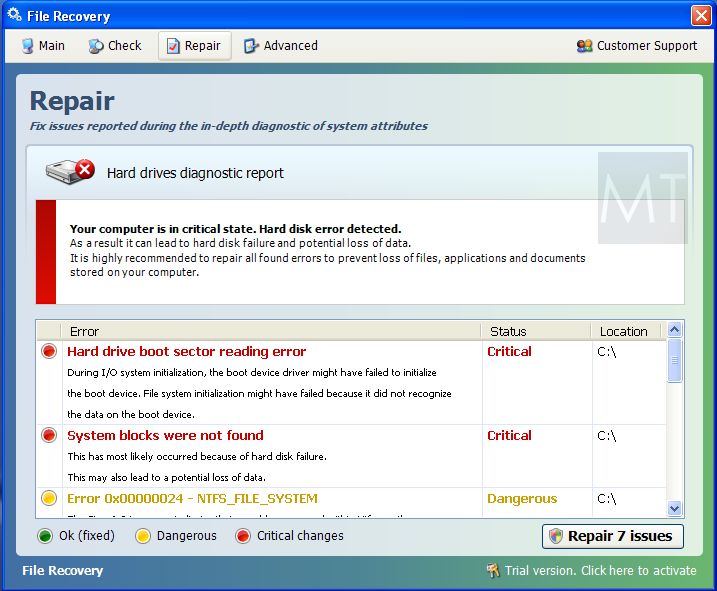
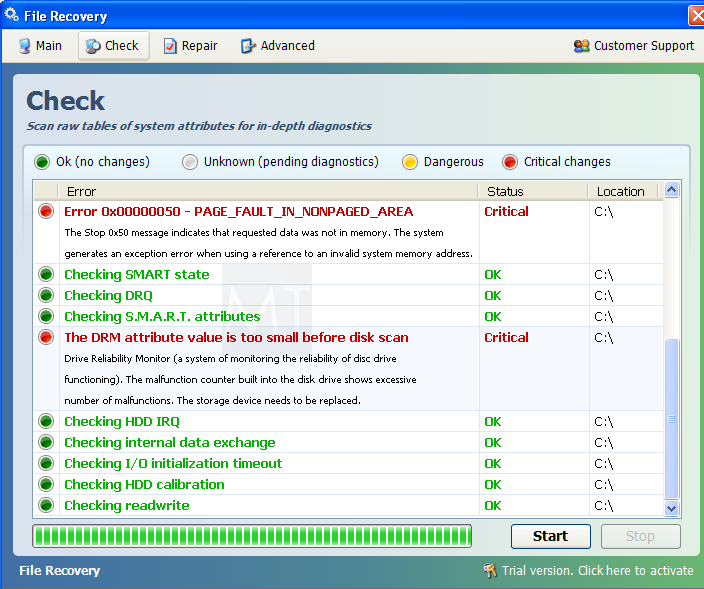
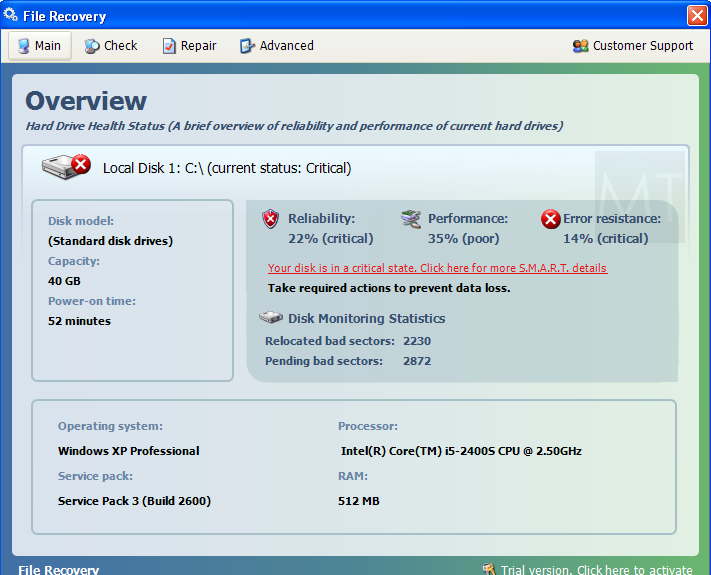
Here are some other alerts that File Recovery will use into scare you into purchasing this product:
Hard drive boot sector reading error
System blocks were not found
Error 0×00000024 – NTFS_FILE_SYSTEM
Error 0×00000078 – INACCESSIBLE_BOOT_DEVICE
Error 0x0000002E – DATA_BUS_ERROR
Error 0×00000050 – PAGE_FAULT_IN_NONPAGED_AREA
The DRM attribute value is too small before disk scan
We strongly advise you to follow our File Recovery virus removal guide and ignore any alerts that this malicious software might generate.
Under no circumstance should you buy this rogue security software as this could lead to identity theft,and if you have, you should contact your credit card company and dispute the charge stating that the program is a scam and a computer virus.
Registration codes for File Recovery
As an optional step,you can use the following license key to register File Recovery virus and stop the fake alerts.
File Recovery activation code: 56723489134092874867245789235982
Please keep in mind that entering the above registration code will NOT remove File Recovery from your computer , instead it will just stop the fake alerts so that you’ll be able to complete our removal guide more easily.
File Recovery Removal Instructions
STEP 1 : Start your computer in Safe Mode with Networking
- Remove all floppy disks, CDs, and DVDs from your computer, and then restart your computer.
- Press and hold the F8 key as your computer restarts.Please keep in mind that you need to press the F8 key before the Windows start-up logo appears.
Note: With some computers, if you press and hold a key as the computer is booting you will get a stuck key message. If this occurs, instead of pressing and holding the “F8 key”, tap the “F8 key” continuously until you get the Advanced Boot Options screen. - On the Advanced Boot Options screen, use the arrow keys to highlight Safe Mode with Networking , and then press ENTER.
![[Image: Safemode.jpg]](//malwaretips.com/images/removalguide/safemode.jpg "Safe Mode with Networking screen")
![[Image: Safemode.jpg]](http://malwaretips.com/images/removalguide/safemode.jpg "Safe Mode with Networking screen")
STEP 2: Remove File Recovery malicious proxy server
File Recovery may add a proxy server which prevents the user from accessing the internet,follow the below instructions to remove the proxy.
- Start the Internet Explorer browser and if you are using Internet Explorer 9 ,click on the gear icon
![[Image: IE gear icon]](//malwaretips.com/images/removalguide/icongear.jpg "Gear Icon") (Tools for Internet Explorer 8 users) ,then select Internet Options.
(Tools for Internet Explorer 8 users) ,then select Internet Options.
![[Image: Internet-options-IE.png]](//malwaretips.com/images/removalguide/ie1.png "Internet Options in IE")
- Go to the tab Connections.At the bottom, click on LAN settings.
![[Image: Remove-proxy-server2.png]](//malwaretips.com/images/removalguide/ie2.png "Connections tab in Internet Explorer")
- Uncheck the option Use a proxy server for your LAN. This should remove the malicious proxy server and allow you to use the internet again.
![[Image: Remove-proxy-server3.png]](//malwaretips.com/images/removalguide/ie3.png "Uncheck the option Use a proxy server for your LAN")
![[Image: IE gear icon]](http://malwaretips.com/images/removalguide/icongear.jpg "Gear Icon") (Tools for Internet Explorer 8 users) ,then select Internet Options.
(Tools for Internet Explorer 8 users) ,then select Internet Options.![[Image: Internet-options-IE.png]](http://malwaretips.com/images/removalguide/ie1.png "Internet Options in IE")
![[Image: Remove-proxy-server2.png]](http://malwaretips.com/images/removalguide/ie2.png "Connections tab in Internet Explorer")
![[Image: Remove-proxy-server3.png]](http://malwaretips.com/images/removalguide/ie3.png "Uncheck the option Use a proxy server for your LAN")
If you are a Firefox users, go to Firefox(upper left corner) → Options → Advanced tab → Network → Settings → Select No Proxy
STEP 3: Run RKill to terminate known malware processes associated with File Recovery.
RKill is a program that will attempt to terminate all malicious processes associated with File Recovery virus,so that we will be able to perform the next step without being interrupted by this malicious software.
Because this utility will only stop File Recovery running process, and does not delete any files, after running it you should not reboot your computer as any malware processes that are configured to start automatically will just be started again.
- While your computer is in Safe Mode with Networking ,please download the latest official version of RKill.Please note that we will use a renamed version of RKILL so that File Recovery won’t block this utility from running.
RKILL DOWNLOAD LINK (This link will automatically download RKILL renamed as iExplore.exe) - Double-click on the iExplore.exe icon in order to automatically attempt to stop any processes associated with File Recovery.
![[Image: run-rkill-1.png]](//malwaretips.com/images/removalguide/rkill1.png "RKILL ICON")
- RKill will now start working in the background, please be patient while the program looks for various malware programs and tries to terminate them.
![[Image: run-rkill-2.png]](//malwaretips.com/images/removalguide/rkill2.png "RKILL Command prompt")
IF you are having problems starting or running RKill, you can download any other renamed versions of RKill from here. - When Rkill has completed its task, it will generate a log. You can then proceed with the rest of the guide.
![[Image: File Recovery virus rkill3.jpg]](//malwaretips.com/images/removalguide/rkill3.png "RKILL LOG")
![[Image: run-rkill-1.png]](http://malwaretips.com/images/removalguide/rkill1.png "RKILL ICON")
![[Image: run-rkill-2.png]](http://malwaretips.com/images/removalguide/rkill2.png "RKILL Command prompt")
![[Image: File Recovery virus rkill3.jpg]](http://malwaretips.com/images/removalguide/rkill3.png "RKILL LOG")
WARNING: Do not reboot your computer after running RKill as the malware process will start again , preventing you from properly performing the next step.
STEP 4: Remove File Recovery malicious files with Malwarebytes Anti-Malware FREE
- Download the latest official version of Malwarebytes Anti-Malware FREE.
MALWAREBYTES ANTI-MALWARE DOWNLOAD LINK (This link will open a download page in a new window from where you can download Malwarebytes Anti-Malware Free) - Start the Malwarebytes’ Anti-Malware installation process by double clicking on mbam-setup file.
![[Image: Malwarebytes Installer]](//malwaretips.com/images/removalguide/malwarebytes-setup.png "Malwarebytes Anti-Malware Installer")
- When the installation begins, keep following the prompts in order to continue with the setup process. Do not make any changes to default settings and when the program has finished installing, make sure you leave both the Update Malwarebytes’ Anti-Malware and Launch Malwarebytes’ Anti-Malware checked. Then click on the Finish button. If Malwarebytes’ prompts you to reboot, please do not do so.
![[Image: Finishing Malwarebytes installation]](//malwaretips.com/images/removalguide/update-malwarebytes.png "Malwarebytes last setup screen")
- Malwarebytes Anti-Malware will now start and you’ll be prompted to start a trial period , please select ‘Decline‘ as we just want to use the on-demand scanner.
![[Image: Decline Malwarebytes trial]](//malwaretips.com/images/removalguide/malwarebytes-trial.png "Decline trial period in Malwarebytes Anti-Malware")
- On the Scanner tab,select Perform full scan and then click on the Scanbutton to start scanning your computer.
![[Image: Starting a full system sca]](//malwaretips.com/images/removalguide/start-scan-malwarebytes.png "Perform a Full System Scan with Malwarebytes Anti-Malware")
- Malwarebytes’ Anti-Malware will now start scanning your computer for File Recovery malicious files as shown below.
![[Image: Malwarebytes scanning for malicious files]](//malwaretips.com/images/removalguide/scan-malwarebytes.png "Malwarebytes Anti-Malware scanning for File Recovery virus")
- When the scan is finished a message box will appear, click OK to continue.
![[Image: Malwarebytes scan results]](//malwaretips.com/images/removalguide/results-malwarebytes.png "Malwarebytes when the system scan has finished")
- You will now be presented with a screen showing you the malware infections that Malwarebytes’ Anti-Malware has detected.Please note that the infections found may be different than what is shown in the image.Make sure that everything is Checked (ticked) and click on the Remove Selected button.
![[Image: Infections found by Malwarebytes]](//malwaretips.com/images/removalguide/detection-malwarebytes.png "Removing the infections found by Malwarebytes")
- Malwarebytes’ Anti-Malware will now start removing the malicious files.After completing this task it will display a message stating that it needs to reboot,please allow this request and then let your PC boot in Normal mode.
![[Image: Malwarebytes Installer]](http://malwaretips.com/images/removalguide/malwarebytes-setup.png "Malwarebytes Anti-Malware Installer")
![[Image: Finishing Malwarebytes installation]](http://malwaretips.com/images/removalguide/update-malwarebytes.png "Malwarebytes last setup screen")
![[Image: Decline Malwarebytes trial]](http://malwaretips.com/images/removalguide/malwarebytes-trial.png "Decline trial period in Malwarebytes Anti-Malware")
![[Image: Starting a full system sca]](http://malwaretips.com/images/removalguide/start-scan-malwarebytes.png "Perform a Full System Scan with Malwarebytes Anti-Malware")
![[Image: Malwarebytes scanning for malicious files]](http://malwaretips.com/images/removalguide/scan-malwarebytes.png "Malwarebytes Anti-Malware scanning for File Recovery virus")
![[Image: Malwarebytes scan results]](http://malwaretips.com/images/removalguide/results-malwarebytes.png "Malwarebytes when the system scan has finished")
![[Image: Infections found by Malwarebytes]](http://malwaretips.com/images/removalguide/detection-malwarebytes.png "Removing the infections found by Malwarebytes")
STEP 5: Double check your system for any left over infections with HitmanPro
- This step can be performed in Normal Mode ,so please download the latest official version of HitmanPro.
HITMANPRO DOWNLOAD LINK (This link will open a download page in a new window from where you can download HitmanPro) - Double click on the previously downloaded fileto start the HitmanPro installation.
![[Image: HitmanPro Icon]](//malwaretips.com/images/removalguide/hpro1.png "HitmanPro Installer")
IF you are experiencing problems while trying to starting HitmanPro, you can use the “Force Breach” mode.To start this program in Force Breach mode, hold down the left CTRL-key when you start HitmanPro and all non-essential processes are terminated, including the malware process. (How to start HitmanPro in Force Breach mode – Video) - Click on Next to install HitmanPro on your system.
![[Image: Starting HitmanPro]](//malwaretips.com/images/removalguide/hitmanpro36-start.png "HitmanPro installation process")
- The setup screen is displayed, from which you can decide whether you wish to install HitmanPro on your machine or just perform a one-time scan, select a option then click on Next to start a system scan.
![[Image: HitmanPro installation screen]](//malwaretips.com/images/removalguide/hitmanpro36-installation.png "HitmanPro setup options")
- HitmanPro will start scanning your system for malicious files as seen in the image below.
![[Image: HitmanPron scanning for File Recovery virus]](//malwaretips.com/images/removalguide/hitmanpro36-scan.png "HitmanPro while scanning for File Recovery virus virus")
- Once the scan is complete,you’ll see a screen which will display all the malicious files that the program has found.Click on Next to remove this malicious files.
![[Image: HitmanPro scan results]](//malwaretips.com/images/removalguide/hitmanpro36-results.png "HitmanPro displaying scan results")
- Click Activate free license to start the free 30 days trial and remove the malicious files.
![[Image: Activate HitmanPro license]](//malwaretips.com/images/removalguide/hitmanpro36-activation.png "Activate the HitmanPro free 30 days trial to remove any detected infections")
- HitmanPro will now start removing the infected objects.If this program will ask you to restart your computer,please allow this request.
![[Image: HitmanPro Icon]](http://malwaretips.com/images/removalguide/hpro1.png "HitmanPro Installer")
![[Image: Starting HitmanPro]](http://malwaretips.com/images/removalguide/hitmanpro36-start.png "HitmanPro installation process")
![[Image: HitmanPro installation screen]](http://malwaretips.com/images/removalguide/hitmanpro36-installation.png "HitmanPro setup options")
![[Image: HitmanPron scanning for File Recovery virus]](http://malwaretips.com/images/removalguide/hitmanpro36-scan.png "HitmanPro while scanning for File Recovery virus virus")
![[Image: HitmanPro scan results]](http://malwaretips.com/images/removalguide/hitmanpro36-results.png "HitmanPro displaying scan results")
![[Image: Activate HitmanPro license]](http://malwaretips.com/images/removalguide/hitmanpro36-activation.png "Activate the HitmanPro free 30 days trial to remove any detected infections")
STEP 6 : Restore your shortcuts and remove any left over malicious registry keys
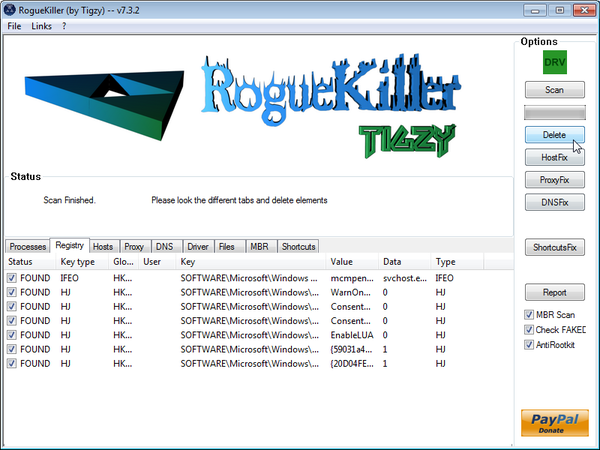
File Recovery has moved your shortcuts files in the Temporary Internet folder and added some malicious registry keys to your Windows installation , to restore your files we will need to perform a scan with RogueKiller.
- Please download the latest official version of RogueKiller.
ROGUEKILLER DOWNLOAD LINK (This link will automatically download RogueKiller on your computer) - Double click on RogueKiller.exe to start this utility and then wait for the Prescan to complete.This should take only a few seconds and then you can click the Start button to perform a system scan.
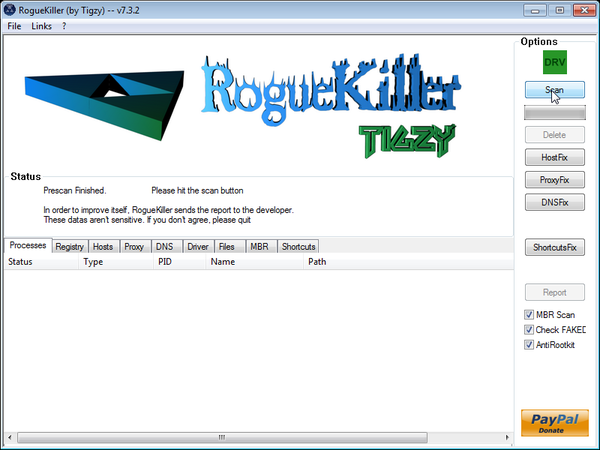
- After the scan has completed, press the Delete button to remove any malicious registry keys.
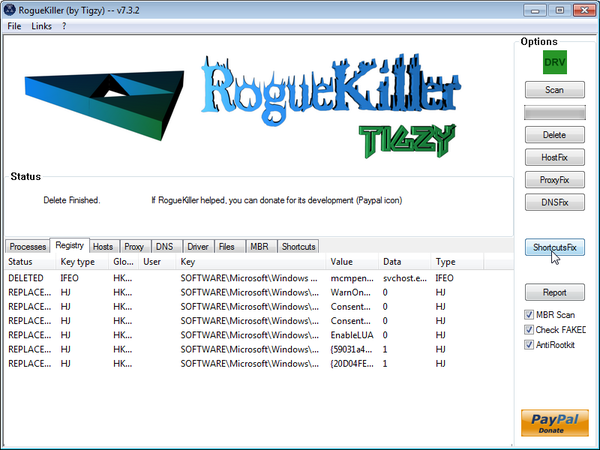
- Next we will need to restore your shortcuts, so click on the ShortcutsFix button and allow the program to run.
STEP 7: Unhide your files and folders
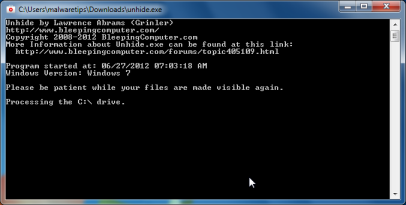
File Recovery modifies your file system in such a way that all files and folders become hidden, to restore the default settings , you’ll need to run the below program.
- Download the Unhide utility, to unhide your files and folders.
UNHIDE.EXE DOWNLOAD LINK (This link will automatically download the Unhide utility on your computer) - Double-click on the Unhide.exe icon on your desktop and allow the program to run.The whole process should not take more than 10 minutes to complete,and at the end this utility will generate a report.
STEP 8: Get your desktop look back!
File Recovery changes your desktop background to a solid black color,to change it back to default one follow the below instruction.
- Windows XP : Click on the Start button and then select Control Panel. When the Control Panel opens, please click on the Display icon. From this screen you can now change your Theme and desktop background.
- Windows 7 and Vista : Click on the Start button and then select Control Panel. When the Control Panel opens, please click on the Appearance and Personalization category. Then select Change the Theme or Change Desktop Background to revert back to your original Theme and colors.









I believe I am having a problem with a Browser Hijacker. I believe it to be Yahoo.Genieo.com redirect virus. I also had the File Recovery virus and followed your steps and it solved the problem. Thank so very much! Could you please help me solve this Yahoo Genieo problem?
Thanx: Terry
Hello Terry,
What exactly happens?Are you getting redirected to this page whenever you do a search or other activity or it starts when your browser opens?What browser are you using?
Stelian,
Thanks for a VERY useful site! I was able to find a pre-infected System Restore Point and simply used your UNHIDE.EXE to bring everything back.
Please e-mail me (privately) a way to send you a token of my appreciation $$.
Regards,
R Hess
p.s. this may have posted twice (oops), but I wanted to make sure you knew that the McAfee suite on my friend’s computer I helped with said all was peachy!!
Thank you for your instructions, they were very useful.. I had some problems with finding the Internet options because I normally use opera and Internet explorer had been hidden by this stupid file recovery, but I manage to remove it. Thanks
That worked! Thank you again.
Well, perhaps I spoke to soon. I went through all the steps and it seemed to work well, however now we are getting random redirects in both IE and Mozilla. You try to go to valid URL and you get redirected somewhere you don’t want to go. Any suggestions?
Hello Scott,
Please follow the instructions from this article: http://malwaretips.com/blogs/remove-google-redirect-virus/
Thank you very very much!!!!
Thank you for taking the time to post this help. This was exactly what I needed. You took me through the process step by step and all of my settings, files, folders, favorites, etc have been restored. Thank you, Thank you.
Bravo Zulu!
Thank you.
Just wanted to let you know, Hitman build 171 won’t give you the 30-day trial option. D/l’d it to fix a user’s scareware problem, but it wouldn’t allow me to proceed without buying a license. I used the log file it created to delete the malware files manually and uninstalled Hitman.
Hello DSSTech,
Is this your personal computer or from work? :)
So today I grabbed a flash drive and went to a friends computer to download the tools in the above list. When I tried to power on the infected computer and boot to safe mode, every time I hit F8 the computer rebooted. Very much like the key had somehow been remapped to the reset function. This virus must have gotten an update.
Hello Okkman,
Lets try to fix your computer,please run the below tools while in Normal Mode;
STEP 1: Run a scan with Malwarebytes Anti-Malware in Chameleon Mode in Norman mode:
STEP 2: Run a scan with RogueKiller
RogueKiller Download Link (This link will automatically download RogueKiller on your computer)
STEP 3 Please perform a scan with HitmanPro as seen on the guide.
If you are having problems starting this program please use the ForceBreach mode as described in the guide.
STEP 4: Run a scan with ESET Online Scanner:
ESET Online Scanner Download Link (This link will automatically download ESET Online Scanner on your computer.)
Waiting for your reply to tell me how everything is running!
Good luck…
Hi Stelian,
My problem now is the lack of Internet connection. Malware bytes will not run because it can’t update, which is basically the same problem the other programs have as well. I believe if I could figure out how to repair Internet connectivity I would be able to follow the other steps.
Hello,
Can you please try to use the activation code provided in this guide and see if this will allow you to connect to the Internet.
This infection is known to disable the Ethernet Adapter in Windows ,to enable it ,please follow the below instructions:
If still can’t connect to the Internet,please reply back.
The network adapter initially was disabled, so I enabled it and it is functional. It seems that the scheme to disable network connectivity is more devious. I can ping outside IPs, it will resolve an IP with a DNS, but it won’t load a web page. I have never seen this type of connectivity issue.
Stelian,
The adapter was disabled (see prev. post) and I was able to turn it back on. I can’t find which setting has been modified (or perhaps a registry key?) that’s not allowing it to successfully negotiate a connection, but I was able to connect for long enough to perform all of the scans and get rid of the virus. According to device manager, the network adapter is working properly. I have checked all of the settings for the adapter and don’t see anything out of order. Very frustrating.
Thanks for your help.
Hello Okkman,
Can you please run a scan with Combofix and Complete Internet Repair utility, and post the logs here so that I can get an idea on what’s going on:
STEP 1 : Run a scan with Combofix
Download ComboFix from the below link:
COMBOFIX DOWNLOAD LINK (This link will automatically download Combofix on your computer)
VERY IMPORTANT !!! Save as Combo-Fix.exe during the download.ComboFix must be renamed before you download to your Desktop
Notes:
STEP 2: Run a scan with Complete Internet Repair utility
Here are the logs:
ComboFix 12-10-22.02 – Joebenz 10/22/2012 17:34:59.1.2 – x86
Microsoft Windows XP Professional 5.1.2600.3.1252.1.1033.18.3071.2556 [GMT -4:00]
Running from: E:\Combo-Fix.exe
AV: Microsoft Security Essentials *Disabled/Updated* {BCF43643-A118-4432-AEDE-D861FCBCFCDF}
AV: Microsoft Security Essentials *Enabled/Updated* {EDB4FA23-53B8-4AFA-8C5D-99752CCA7095}
.
======
What’s the current status?Are you able to connect to the Internet?
I cannot connect to the internet, nor can I enable the windows firewall.
Stelian,
I finally got the problem resolved. I am not sure which of the steps fixed it but I tried resetting winsock and dhcp from netsh, rebuilding the registry hive, resetting the adapter settings to static IP on the pc and my router, then ended up uninstalling TCP/IP from windows, uninstalling my network adapter, returning my firewall settings to default, and reinstalling everything. I believe it was actually one of the scanners that caused the initial problem, perhaps by deleting a registry key, rather than the virus itself. I can’t say that definitively, but that’s my gut feeling. A second pc with the same infection on my network was extremely simple to fix, thanks entirely to this blog and the experience dealing with the first PC. Thank you for your help and thanks especially for posting this blog!
Regards,
Eric
Stay safe okkman!:D
When I ran Hitman Pro, there was no button for a 30 day free activation, continuing with the other steps to see if this is fixed.
Thanks for the advise.
Yes I am another who caught this rather nasty virus! I had the pop ups as above article. It even managed to screw up my all important Acronis backups making recovery impossible. I managed to do a recovery eventually and all I had to do is skate to step 7 as my files were hidden (greyed out). After this I did another recovery and all is good now, so thanks! :-)
worked great thanks a million
Just got this virus. Please excuse my simple language as I’m not an advanced user. I tried to start my computer in safe mode but it won’t reboot at all. The Dell screen comes up and the white bar progresses across the bottom of the screen and then the screen goes black with the cursor in the upper left corner of the screen. You can’t type anything. If I press or tap the F8 key during the startup process or if I just try to let it start up regularly the same thing happens. It just won’t boot. Any suggestions? Thanks!!
Hello CASM,
Lets try to fix your computer,please run the below tools while in Normal Mode;
STEP 1: Run a scan with Malwarebytes Anti-Malware in Chameleon Mode in Norman mode:
STEP 2: Run a scan with RogueKiller
RogueKiller Download Link (This link will automatically download RogueKiller on your computer)
STEP 3 Please perform a scan with HitmanPro as seen on the guide.
If you are having problems starting this program please use the ForceBreach mode as described in the guide.
STEP 4: Run a scan with ESET Online Scanner:
ESET Online Scanner Download Link (This link will automatically download ESET Online Scanner on your computer.)
Waiting for your reply to tell me how everything is running!
Good luck…
If your computer is not booting at all and its just showing a white tab on the top left corner this means your computer regonises that it should boot with your hard drive but there are no boot files to boot!So you will need to go a step further to boot your machine. Remove your hard drive and put it into an external hard drive case. connect it to another machine as a usb drive. You will see that it will show u the size of your hard drive but with no files.
go to cmd as administrator and go into the hard drve.
C:\Documents and Settings\Admin\ f: (Enter)
f:\
under the dir type attrib *. -h -s /s /d
f:\ attrib *. -h -s /s /d
that should unhide your boot files. if u can now see them , mount your hard drive back then do Stelian Pilici ‘s steps to remove the virus
Many thanks for the detailed and helpful instructions. I could have followed the “normal” route by paying someone for data recovery and reformatting my computer then reloading all the programmes and files which would have been a real pain and expensive. Instead, my computer is in perfect working order now after about 1.5 hours of work. It is so generous of you to share.
Thank you for making it possible to eliminate this virus.
Dude, thanks so much; words cant describe the feeling of relief I have right now because of your guide. Its good to know theres tech savy people out there who are actually willing to help people.
Hi, Just wanted to say thanks for posting this. I too had to use the final ComboFix and Eset option and it still wasn’t completely gone (still had a desktop icon and a folder in all programs) I manually deleted the last bit and my computer seems to be working fine. I am running McAfee any idea how this can get by Security Software?
Also, how do I uninstall Rkill and unhide?
Thanks again!
Hello Miranda,
You can just delete Rkill and Unhide,and you should also uninstall Combofix.
Delete the following folders: (If they exist)
C:\ComboFix
C:\Qoobox
Enjoy your Malware FREE computer!And yI would also suggest that you replace McAfee with another antivirus…….Avast 7 Free is a good security product,you should really try it.
Hi im running Malwarebytes Anti-Malware, but when it completed it does not show the results it just finishes and shuts down? please help!
James
Hello James,
Lets try to fix your computer,please run the below tools while in Normal Mode;
STEP 1: Run a scan with Malwarebytes Anti-Malware in Chameleon Mode in Norman mode:
STEP 2: Run a scan with RogueKiller
RogueKiller Download Link (This link will automatically download RogueKiller on your computer)
STEP 3 Please perform a scan with HitmanPro as seen on the guide.
If you are having problems starting this program please use the ForceBreach mode as described in the guide.
STEP 4: Run a scan with ESET Online Scanner:
ESET Online Scanner Download Link (This link will automatically download ESET Online Scanner on your computer.)
Waiting for your reply to tell me how everything is running!
Good luck…
I followed all the steps (except HitmaPro keeps hanging up on 1 file near the end?). All my shortcuts and files reappeared, but so did one for File Recovery, and it’s listed in my All Programs as well! I tried scanning the shortcut with the Malware but it did not find malicious software. Now my Task Bar is messed up (blank) and it’s running super slow. How can I get rid of it?
Hello Michele,
Can you please run a scan with Combofix, ESET online scanner and post the logs here so that I can get an idea on what’s going on:
STEP 1 : Run a scan with Combofix
Download ComboFix from one of the following locations:
COMBOFIX DOWNLOAD LINK #1 (This link will automatically download Combofix on your computer)
COMBOFIX DOWNLOAD LINK #2 (This link will automatically download Combofix on your computer)
VERY IMPORTANT !!! Save as Combo-Fix.exe during the download.ComboFix must be renamed before you download to your Desktop
Notes:
STEP 2: Run a scan with ESET Online Scanner:
ESET Online Scanner Download Link (This link will automatically download ESET Online Scanner on your computer.)
NEXT,please run a scan with HitmanPro and RogueKiller as seen on the guide.
Waiting for your reply to tell me if your machine is ok and the logs.