

File Recovery is a malicious program that will display fake alerts, claiming that several hard drive errors and computer issues were detected on your machine.
In reality, none of the reported issues are real, and are only used to scare you into purchasing File Recovery and stealing your personal financial information.
Apart from the bogus alerts and warning,this rogue software has changed your desktop background to a solid black color,has hidden your files and folders and it’s causing browser redirects.
As part of its self-defense mechanism,File Recovery has disabled the Windows system utilities, including Task Manager and Windows Registry and is block you from running certain programs that could lead to its removal.
If your computer is infected with File Recovery virus,then you are seeing this images:
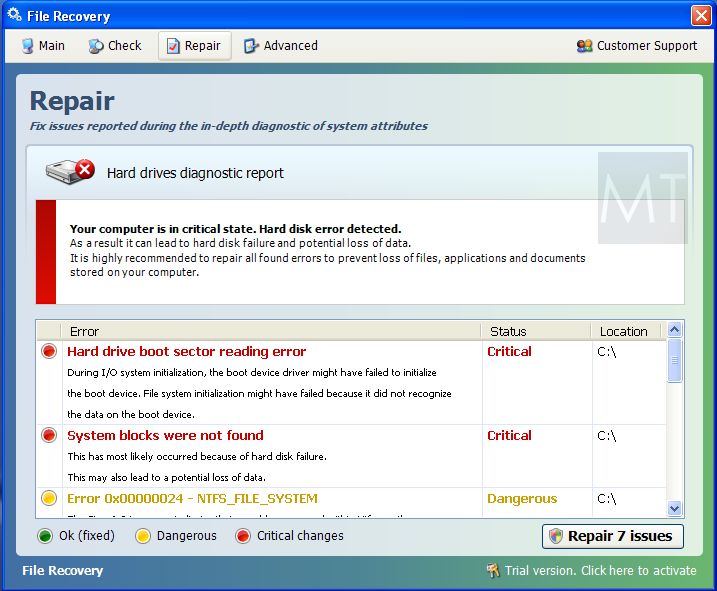
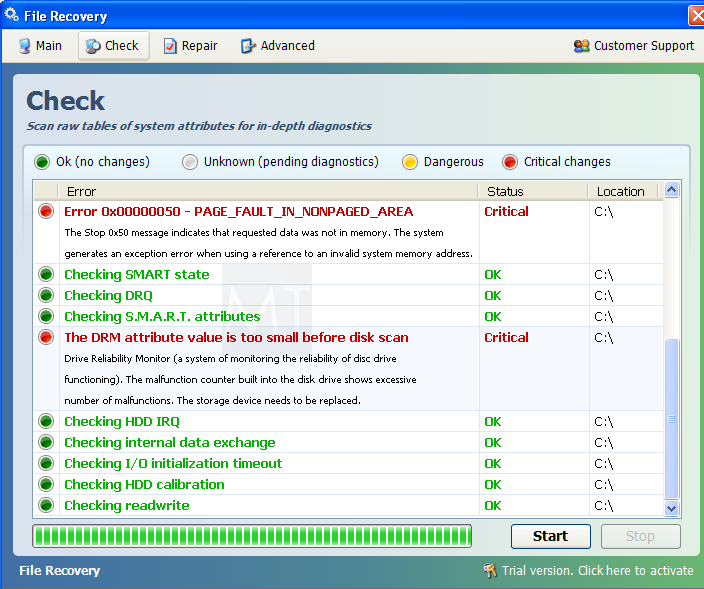
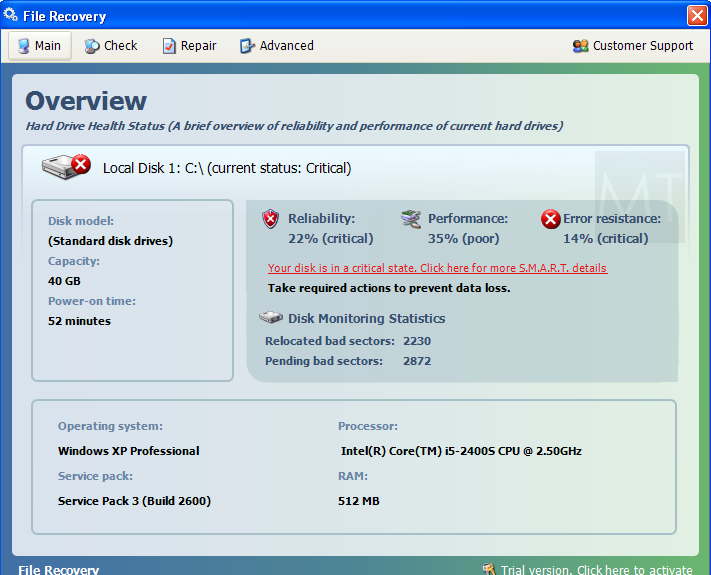
We strongly advise you to follow our File Recovery virus removal guide and ignore any alerts that this malicious software might generate.
Under no circumstance should you buy this rogue security software as this could lead to identity theft,and if you have, you should contact your credit card company and dispute the charge stating that the program is a scam and a computer virus.
Registration codes for File Recovery
As an optional step,you can use the following license key to register File Recovery virus and stop the fake alerts.
File Recovery activation code: 56723489134092874867245789235982
Please keep in mind that entering the above registration code will NOT remove File Recovery from your computer , instead it will just stop the fake alerts so that you’ll be able to complete our removal guide more easily.
File Recovery Removal Instructions
STEP 1 : Start your computer in Safe Mode with Networking
- Remove all floppy disks, CDs, and DVDs from your computer, and then restart your computer.
- Press and hold the F8 key as your computer restarts.Please keep in mind that you need to press the F8 key before the Windows start-up logo appears.
Note: With some computers, if you press and hold a key as the computer is booting you will get a stuck key message. If this occurs, instead of pressing and holding the “F8 key”, tap the “F8 key” continuously until you get the Advanced Boot Options screen. - On the Advanced Boot Options screen, use the arrow keys to highlight Safe Mode with Networking , and then press ENTER.
![[Image: Safemode.jpg]](data:image/gif;base64,R0lGODlhAQABAAAAACH5BAEKAAEALAAAAAABAAEAAAICTAEAOw== "Safe Mode with Networking screen")
![[Image: Safemode.jpg]](http://malwaretips.com/images/removalguide/safemode.jpg "Safe Mode with Networking screen")
STEP 2: Remove File Recovery malicious proxy server
File Recovery may add a proxy server which prevents the user from accessing the internet,follow the below instructions to remove the proxy.
- Start the Internet Explorer browser and if you are using Internet Explorer 9 ,click on the gear icon (Tools for Internet Explorer 8 users) ,then select Internet Options.
- Go to the tab Connections.At the bottom, click on LAN settings.
- Uncheck the option Use a proxy server for your LAN. This should remove the malicious proxy server and allow you to use the internet again.
![[Image: IE gear icon]](http://malwaretips.com/images/removalguide/icongear.jpg "Gear Icon") (Tools for Internet Explorer 8 users) ,then select Internet Options.
(Tools for Internet Explorer 8 users) ,then select Internet Options.![[Image: Internet-options-IE.png]](http://malwaretips.com/images/removalguide/ie1.png "Internet Options in IE")
![[Image: Remove-proxy-server2.png]](http://malwaretips.com/images/removalguide/ie2.png "Connections tab in Internet Explorer")
![[Image: Remove-proxy-server3.png]](http://malwaretips.com/images/removalguide/ie3.png "Uncheck the option Use a proxy server for your LAN")
If you are a Firefox users, go to Firefox(upper left corner) → Options → Advanced tab → Network → Settings → Select No Proxy
STEP 3: Run RKill to terminate known malware processes associated with File Recovery.
RKill is a program that will attempt to terminate all malicious processes associated with File Recovery virus,so that we will be able to perform the next step without being interrupted by this malicious software.
Because this utility will only stop File Recovery running process, and does not delete any files, after running it you should not reboot your computer as any malware processes that are configured to start automatically will just be started again.
- While your computer is in Safe Mode with Networking ,please download the latest official version of RKill.Please note that we will use a renamed version of RKILL so that File Recovery won’t block this utility from running.
RKILL DOWNLOAD LINK (This link will automatically download RKILL renamed as iExplore.exe) - Double-click on the iExplore.exe icon in order to automatically attempt to stop any processes associated with File Recovery.
- RKill will now start working in the background, please be patient while the program looks for various malware programs and tries to terminate them.
IF you are having problems starting or running RKill, you can download any other renamed versions of RKill from here. - When Rkill has completed its task, it will generate a log. You can then proceed with the rest of the guide.
![[Image: run-rkill-1.png]](http://malwaretips.com/images/removalguide/rkill1.png "RKILL ICON")
![[Image: run-rkill-2.png]](http://malwaretips.com/images/removalguide/rkill2.png "RKILL Command prompt")
![[Image: File Recovery virus rkill3.jpg]](http://malwaretips.com/images/removalguide/rkill3.png "RKILL LOG")
WARNING: Do not reboot your computer after running RKill as the malware process will start again , preventing you from properly performing the next step.
STEP 4: Remove File Recovery malicious files with Malwarebytes Anti-Malware FREE
- Download the latest official version of Malwarebytes Anti-Malware FREE.
MALWAREBYTES ANTI-MALWARE DOWNLOAD LINK (This link will open a download page in a new window from where you can download Malwarebytes Anti-Malware Free) - Start the Malwarebytes’ Anti-Malware installation process by double clicking on mbam-setup file.
- When the installation begins, keep following the prompts in order to continue with the setup process. Do not make any changes to default settings and when the program has finished installing, make sure you leave both the Update Malwarebytes’ Anti-Malware and Launch Malwarebytes’ Anti-Malware checked. Then click on the Finish button. If Malwarebytes’ prompts you to reboot, please do not do so.
- Malwarebytes Anti-Malware will now start and you’ll be prompted to start a trial period , please select ‘Decline‘ as we just want to use the on-demand scanner.
- On the Scanner tab,select Perform full scan and then click on the Scanbutton to start scanning your computer.
- Malwarebytes’ Anti-Malware will now start scanning your computer for File Recovery malicious files as shown below.
- When the scan is finished a message box will appear, click OK to continue.
- You will now be presented with a screen showing you the malware infections that Malwarebytes’ Anti-Malware has detected.Please note that the infections found may be different than what is shown in the image.Make sure that everything is Checked (ticked) and click on the Remove Selected button.
- Malwarebytes’ Anti-Malware will now start removing the malicious files.After completing this task it will display a message stating that it needs to reboot,please allow this request and then let your PC boot in Normal mode.
![[Image: Malwarebytes Installer]](http://malwaretips.com/images/removalguide/malwarebytes-setup.png "Malwarebytes Anti-Malware Installer")
![[Image: Finishing Malwarebytes installation]](http://malwaretips.com/images/removalguide/update-malwarebytes.png "Malwarebytes last setup screen")
![[Image: Decline Malwarebytes trial]](http://malwaretips.com/images/removalguide/malwarebytes-trial.png "Decline trial period in Malwarebytes Anti-Malware")
![[Image: Starting a full system sca]](http://malwaretips.com/images/removalguide/start-scan-malwarebytes.png "Perform a Full System Scan with Malwarebytes Anti-Malware")
![[Image: Malwarebytes scanning for malicious files]](http://malwaretips.com/images/removalguide/scan-malwarebytes.png "Malwarebytes Anti-Malware scanning for File Recovery virus")
![[Image: Malwarebytes scan results]](http://malwaretips.com/images/removalguide/results-malwarebytes.png "Malwarebytes when the system scan has finished")
![[Image: Infections found by Malwarebytes]](http://malwaretips.com/images/removalguide/detection-malwarebytes.png "Removing the infections found by Malwarebytes")
STEP 5: Double check your system for any left over infections with HitmanPro
- This step can be performed in Normal Mode ,so please download the latest official version of HitmanPro.
HITMANPRO DOWNLOAD LINK (This link will open a download page in a new window from where you can download HitmanPro) - Double click on the previously downloaded fileto start the HitmanPro installation.
IF you are experiencing problems while trying to starting HitmanPro, you can use the “Force Breach” mode.To start this program in Force Breach mode, hold down the left CTRL-key when you start HitmanPro and all non-essential processes are terminated, including the malware process. (How to start HitmanPro in Force Breach mode – Video) - Click on Next to install HitmanPro on your system.
- The setup screen is displayed, from which you can decide whether you wish to install HitmanPro on your machine or just perform a one-time scan, select a option then click on Next to start a system scan.
- HitmanPro will start scanning your system for malicious files as seen in the image below.
- Once the scan is complete,you’ll see a screen which will display all the malicious files that the program has found.Click on Next to remove this malicious files.
- Click Activate free license to start the free 30 days trial and remove the malicious files.
- HitmanPro will now start removing the infected objects.If this program will ask you to restart your computer,please allow this request.
![[Image: HitmanPro Icon]](http://malwaretips.com/images/removalguide/hpro1.png "HitmanPro Installer")
![[Image: Starting HitmanPro]](http://malwaretips.com/images/removalguide/hitmanpro36-start.png "HitmanPro installation process")
![[Image: HitmanPro installation screen]](http://malwaretips.com/images/removalguide/hitmanpro36-installation.png "HitmanPro setup options")
![[Image: HitmanPron scanning for File Recovery virus]](http://malwaretips.com/images/removalguide/hitmanpro36-scan.png "HitmanPro while scanning for File Recovery virus virus")
![[Image: HitmanPro scan results]](http://malwaretips.com/images/removalguide/hitmanpro36-results.png "HitmanPro displaying scan results")
![[Image: Activate HitmanPro license]](http://malwaretips.com/images/removalguide/hitmanpro36-activation.png "Activate the HitmanPro free 30 days trial to remove any detected infections")
STEP 6 : Restore your shortcuts and remove any left over malicious registry keys
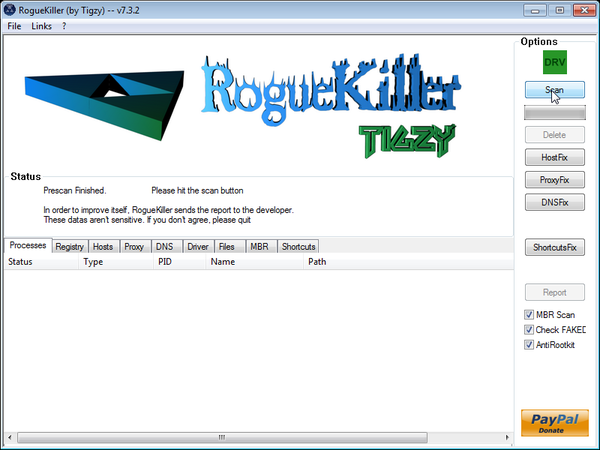
File Recovery has moved your shortcuts files in the Temporary Internet folder and added some malicious registry keys to your Windows installation , to restore your files we will need to perform a scan with RogueKiller.
- Please download the latest official version of RogueKiller.
ROGUEKILLER DOWNLOAD LINK (This link will automatically download RogueKiller on your computer) - Double click on RogueKiller.exe to start this utility and then wait for the Prescan to complete.This should take only a few seconds and then you can click the Start button to perform a system scan.
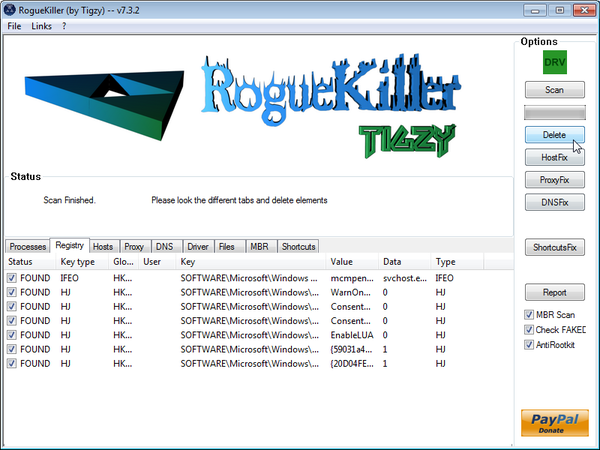
- After the scan has completed, press the Delete button to remove any malicious registry keys.
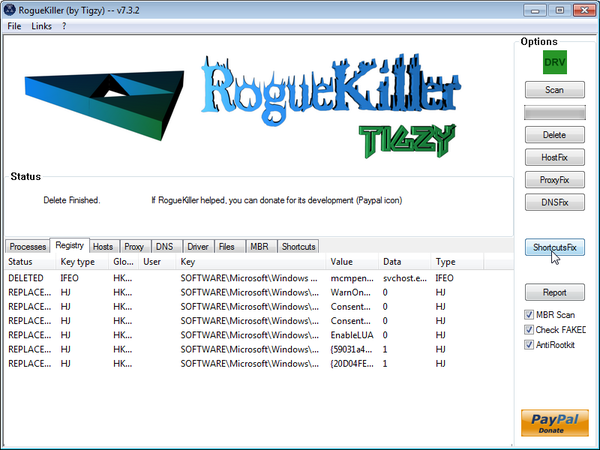
- Next we will need to restore your shortcuts, so click on the ShortcutsFix button and allow the program to run.
STEP 7: Unhide your files and folders
File Recovery modifies your file system in such a way that all files and folders become hidden, to restore the default settings , you’ll need to run the below program.
- Download the Unhide utility, to unhide your files and folders.
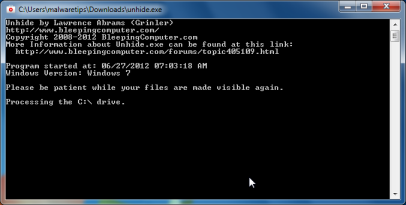
UNHIDE.EXE DOWNLOAD LINK (This link will automatically download the Unhide utility on your computer) - Double-click on the Unhide.exe icon on your desktop and allow the program to run.The whole process should not take more than 10 minutes to complete,and at the end this utility will generate a report.
STEP 8: Get your desktop look back!
File Recovery changes your desktop background to a solid black color,to change it back to default one follow the below instruction.
- Windows XP : Click on the Start button and then select Control Panel. When the Control Panel opens, please click on the Display icon. From this screen you can now change your Theme and desktop background.
- Windows 7 and Vista : Click on the Start button and then select Control Panel. When the Control Panel opens, please click on the Appearance and Personalization category. Then select Change the Theme or Change Desktop Background to revert back to your original Theme and colors.









I am going through the steps detailed above. Question is, if I bought into the scam how can I minimize damage (in addition to completing the steps above). Is there anything I can do about the time in which this was active on my computer becuase I was not smart enough to avoid it?
Hello PackerFan,
This cyber criminals might have collected your personal data,when you have paid for this fake produc and they might try in the future to use your data.The best thing to do here is to inform your bank,that you are the victim of a cyber attack,they should know what’s the next step!
As an additional step I suggest that you do a scan with ESET ONLINE SCANNER
ESET Online Scanner Download Link (This link will automatically download ESET Online Scanner on your computer.)
Stay safe!
Wow,, I was just about to rip all the hair outta my head, kick my boyfriend and have an anxiety attack, until I found you!!! You are friggin GENIUS.. Thank you and my boyfriend thanks YOU! Problem fixed…
Thank you so muth!! Works perfect!! :) You rock!
Before I saw your instructions I was going to reset my whole system. When I was in safe mode I put over some files I didn’t wana lose to an external disk. The files I put over was just some word documents, movie and images. Is it possibly that may external hard disk now is infected (and will infect my computer the plugging it) or should it be safe because I was in safe mode when doing it?
As long as you saved just some images and movies than you are ok!
I suggest that you perform another check…mostly for your peace of mind:
1.Run a scan with Kaspersky Virus Removal Tool
Click here to download the Kaspersky Virus Removal Tool.
2.Run a scan with Eset Online Scanner.
ESET Online Scanner Download Link (This link will automatically download ESET Online Scanner on your computer.)
using the registration number *brilliant* what are they going to do sue me for that lol ……thanks
Hi! I’ve fixed all the problems. Got all the icons on desktop back. However, when I click on any of the folders, there are some folders inside showing no size. And when I click on those folders, all of my photos, documents, and music are gone. In other word, those folders are now empty. I’ve tried the unhide.exe but still did not get them back. Please reply this as soon as possible. (would be great if you email me the answer: tle9794@gmail.com or, the email above). Thank you so much for your time. I wish you all the best things.
Hello Thy Le,
Did you use any clean-up tool while your computer was infected with this rogue program?
Can you please follow the steps from this post: http://malwaretips.com/Thread-Files-still-hidden-after-smart-hdd-removal-and-unhide-exe?pid=58410#pid58410
Everything worked well. I appreciate the time and effort put into this.
Patrick
I believe the virus has made my internet explorer inaccessible. I have no icon in normal or safe mode and cannot find in all programs either. Is this typical? Any suggestions?
Hello Josh,
Lets try another way around this
While in Normal Mode,please try to download and run Malwarebytes Chameleon:
iexplore.exe http://downloads.malwarebytes.org/file/chameleon2.Please perform a scan with HitmanPro,RogueKiller and Unhide.exe as seen on the guide.
3.Run a scan with ESET Online Scanner:
ESET Online Scanner Download Link (This link will automatically download ESET Online Scanner on your computer.)
If it still doesn’t want to work, please try the above steps while in Safe Mode with Networking.
Waiting for your reply to see how everything is running…. Good luck!
most well written guide on the Internet!!
I cant get the first step done, when I enter safe my firefox says already running and wont run and my internet explorer has completely disappeared. Also i tried the activation code twice with no luck.
Hello,
Lets try another way around this
While in Normal Mode,please try to download and run Malwarebytes Chameleon:
iexplore.exe http://downloads.malwarebytes.org/file/chameleon2.Please perform a scan with HitmanPro,RogueKiller and Unhide.exe as seen on the guide.
3.Run a scan with ESET Online Scanner:
ESET Online Scanner Download Link (This link will automatically download ESET Online Scanner on your computer.)
If it still doesn’t want to work, please try the above steps while in Safe Mode with Networking.
Waiting for your reply to see how everything is running…. Good luck!
You absolutely ROCK!!!!!!!! This worked perfectly. Thanks for being so helpful and sharing this info.
You are so awesome!!!!! I’ve spent a whole night of last night until 4 AM trying to fix this by a different way from another website. However, my laptop got frozen on the startup screen and the safe mode didnt work either this morning. Wish I was about to find this earlier. Thank you so much. I think there is still some missing files on the desktop like some word files, picture, and music. But that’s totally fine. Thank you for being so specific. Thank you and thank you
Thanks for this guide, I am impressed with the detail.
I have a machine with this infection. I have daily image backups of this machine going back two weeks. If I restore an image, what’s the best way to determine if it’s clean?
Thanks in advance.
Hello eperson,
Run a scan with Malwarebytes,HitmanPro and ESET Online Scanner.. if they all came up clean then you’re good to go…
+1 for doing Image back-ups!:)
Stay safe!
Thank you, thank you, thank you! This made it so easy to get my computer up and running again. You are the best!
Hi, thank you for providing these instructions for removing the file recovery virus,
I am however having trouble running the Rkill programme even with it being renamed.
It comes up with:
Checking for Windows services to stop.
* No malware services found to stop.
Checking for processes to terminate.
* No malware processes found to kill.
Checking Registry for malware related settings.
* No issues found in the Registry.
Resetting .EXE, .COM, & .BAT associations in the Windows Registry.
Performing miscellaneous checks.
Is this normal? as it says it hasn’t found any malware processes to kill etc. and I am certain I have this virus. Will this stop the other stages… malwarebytes onwards from working?
Thank you in advance.
Hello Caleb,
Go ahead with the Malwarebytes scan… don’t worry about RKILL… If you will have any problems please reply back.
It’s so nice when people like you take the time to give clear, detailed, accurate and intensive directions on how to remove something as disgusting as this malware! Thank you so much!!!!
Hi, Thanks a lot for this great guide! After finishing all the steps, most of my computer settings were restored. However, on my desktop there’s was a shortcut called File_Recovery. I try to right click it and it just freezes on the mouse “loading” image. I searched it on the start menu and there’s an option called “Uninstall File Recovery”. What should I do? I’m scared to click on any of the files.
Thanks for all the help!
Hello Jack,
Can you please run a scan with Combofix, ESET online scanner and post the logs here so that I can get an idea on what’s going on :
STEP 1 : Run a scan with Combofix
Download ComboFix from one of the following locations:
COMBOFIX DOWNLOAD LINK #1 (This link will automatically download Combofix on your computer)
COMBOFIX DOWNLOAD LINK #2 (This link will automatically download Combofix on your computer)
VERY IMPORTANT !!! Save as Combo-Fix.exe during the download.ComboFix must be renamed before you download to your Desktop
Notes:
STEP 2: Run a scan with ESET Online Scanner:
ESET Online Scanner Download Link (This link will automatically download ESET Online Scanner on your computer.)
Waiting for your reply to tell me if your machine is ok and the logs from this utilities.
After doing this several times and in different orders I finally got close to being back to normal, but my internet explorer does not work. It works in safe mode, but not normal mode. I tried updating to IE9 while in safe mode, but didn’t help in normal mode. I installed Chrome in Safe mode and that does not work in normal mode, but works in safe mode. When I click on IE in normal mode an application error pops up saying “The application was unable to start correctly (0xc0000005). Click OK to close the application.” Thanks for all your help so far.
Hello john,
Can you please run a scan with Combofix, ESET online scanner and post the logs here so that I can get an idea on what’s going on :
STEP 1 : Run a scan with Combofix
Download ComboFix from one of the following locations:
COMBOFIX DOWNLOAD LINK #1 (This link will automatically download Combofix on your computer)
COMBOFIX DOWNLOAD LINK #2 (This link will automatically download Combofix on your computer)
VERY IMPORTANT !!! Save as Combo-Fix.exe during the download. ComboFix must be renamed before you download to your Desktop
———————————————————–
———————————————————–
———————————————————–
Notes:
STEP 2: Run a scan with ESET Online Scanner:
ESET Online Scanner Download Link (This link will automatically download ESET Online Scanner on your computer.)
Waiting for your reply to tell me if your machine is ok and the logs from this utilities.
when I run hitman pro there are always two items that need to be replaced:
master boot record(sector 0)
c:smbr
bootkit
and
volume boot record(sector 488368128)
c:svbr_488368128
rootkit
Hello Brandon,
You are infected with a very nasty bootkit.
We will need to run Kaspersky TDSSKiller (follow this instructions – http://malwaretips.com/Thread-Live-security-platnium-virus?pid=69292#pid69292)
Can you please run the RogueKiller scan and see if this will fix it….
Waiting for you reply.
Thank you very much Stelian! Wonderful instructions, easy to understand and follow. I was able to follow all your steps easily enough but I encountered a problem after using RKILL. I could not stop it from rebooting for some reason so I just ended up installing Malwarebytes after it rebooted and it seems to have worked fine without a hitch. My computer is back to normal albeit some programs like by printer control server is not working and needs a re install. If anyone has a step they are having trouble with you can always adjust the steps like I did. It’s probably better to follow it to the T but sometimes its not always exactly like the author’s instructions. Follow these instructions! They aren’t trying to sell you anything, ok maybe the full versions of the programs , they are just sincerely trying to help! There are still good people out there and I thank you again for that! A+
WARNING: Do not reboot your computer after running RKill as the malware process will start again , preventing you from properly performing the next step.
Every time I use Rkill the program automatically reboots. What do I do.
Hello Brian,
It seems like you also have a ZeroAccess rootkit on your machine.Can you please run a scan with Combofix, ESET online scanner and post the logs here so that I can get an idea on what’s going on:
STEP 1 : Run a scan with Combofix
Download ComboFix from one of the following locations:
COMBOFIX DOWNLOAD LINK #1 (This link will automatically download Combofix on your computer)
COMBOFIX DOWNLOAD LINK #2 (This link will automatically download Combofix on your computer)
VERY IMPORTANT !!! Save as Combo-Fix.exe during the download.ComboFix must be renamed before you download to your Desktop
Notes:
STEP 2: Run a scan with ESET Online Scanner:
ESET Online Scanner Download Link (This link will automatically download ESET Online Scanner on your computer.)
NEXT,please run a scan with HitmanPro and RogueKiller
Waiting for your reply to tell me if your machine is ok and the logs from this utilities.
This was a great help! I’m really glad I stumbled across this. It’s pretty annoying to get Malware, but I’ve learned to fix so many of the tough ones I knew right away I needed to shut down and restart in safe mode with networking as soon as my desktop went dark. I also already had Malware Bytes on my computer, so it was pretty easy for me to run the unhide app and hitman. Thank you!
I have followed each of the steps outlined, which removed the virus, restored my shortcuts, desktop, etc, however, like Randy Haben below, I cannot run Windows Update and cannot turn on Windows Defender firewall. I tried the Windows Update Troubleshooter, but it was unable to fix update.
Any suggestions?
Hello Bill
Can you please run a scan with Combofix, ESET online scanner and post the logs here so that I can get an idea on what’s going on :
STEP 1 : Run a scan with Combofix
Download ComboFix from one of the following locations:
COMBOFIX DOWNLOAD LINK #1 (This link will automatically download Combofix on your computer)
COMBOFIX DOWNLOAD LINK #2 (This link will automatically download Combofix on your computer)
VERY IMPORTANT !!! Save as Combo-Fix.exe during the download. ComboFix must be renamed before you download to your Desktop
———————————————————–
———————————————————–
———————————————————–
Notes:
STEP 2: Run a scan with ESET Online Scanner:
ESET Online Scanner Download Link (This link will automatically download ESET Online Scanner on your computer.)
NEXT,
1. Click the Start buton
2. Type “cmd” in the Search Box and then press Enter
3. Right-click “cmd.exe” and select “Run as administrator”
4. Click “Continue” on the “User Account Control” Window
5. In the command prompt type the following command
sc create BITS binpath= “c:\windows\system32\svchost.exe -k netsvcs” start= delayed-auto6.Restart your computer and check if the problem is solved.
Waiting for your reply to tell me if your machine is ok and the logs from this utilities.
Waiting for your reply to tell me if your machine is ok and the logs from this utilities.
Life Saver! Thank you so much for creating this for us non techies. Followed the steps and all my files were recoved. You guys ROCK!!!!!!
Worked great – cool tools.. thank you for the help!
Like many others, I found this blog post enormously helpful. It has taken many hours over a couple of weeks to recover from this attack. I got stuck at the Hitman Pro step. When running it I noticed it flagged the MBR (Master Boot Record). That worried me a little and when I rebooted, I got a “disk read error”. I could not find any articles to deal with that other than re-installing Windows. One problem with that is that I cannot have my original disks. However, I do have another laptop with Windows 7 and created a repair disk from that. Booting from the repair disk dvd, I discovered I could get to the command prompt and could see my hard drive and could run CHKDSK, which came back with no errors. I ran the various boot fixes and still could not get past the disk read error on startup. Then it occurred to me that maybe the partition had been deactivated. I got back to the command prompt on the repair disk and used DISKPART to set the partition (in this case partition 2 because DELL has other uses for partition 1) to active. Bingo! Now the computer boots and fine and I have been able to continue with the remaining steps. RogueKiller identified the ZeroAccess rootkit and apparently neutralized it. MalwareBytes and HitmanPro now run clean.
Thanks again for this really useful post.
Follow-up: Turns out I was not done. BITS and Windows Update services had been corrupted. I was able to get Windows Update working (sort of) with the Fix-It tool from Microsoft. But it could not fix BITS, which is necessary or Windows Updates to actually install the updates. After many hours of painstaking searching, I finally found a registry fix for BITS in a Microsoft answers article: http://answers.microsoft.com/en-us/windows/forum/windows_7-windows_update/bits-service-is-missing-error-code-80246008/08cadf89-5ac5-4e15-8795-6c5ff798847c. After rebooting, BITS started normally but I still don’t see any progress in downloading. In any case, it seems like progress.
OMG! You are a lifesaver! The instructions were easily laid out and made following easy! THANK YOU!