

If you are seeing random pop-up ads from Ads.Find-All-You-Want.com within Internet Explorer, Firefox and Google Chrome, then your computer is infected with the Poweliks trojan.
Poweliks is not a regular piece of malware because it resides in the memory of the system and stores absolutely no file on the disk, making it more difficult to detect.
After compromising the computer, the malware creates registry entries with commands that verify for the presence of PowerShell or .NET Framework and for executing the payload.
Find-All-You-Want.com is a domain that is used by cyber criminals to display pop-up ads, thus generating advertising revenue.
What the Find-All-You-Want.com malware usually does?
If your computer is infected with the Trojan.Poweliks virus, this infection may contact a remote host for the following purposes:
- To report a new infection to its author
- To receive configuration or other data
- To download and execute arbitrary files (including updates or additional malware)
- To receive instruction from a remote attacker
- To upload data taken from the affected computer
How do I know if Find-All-You-Want.com malware or not?
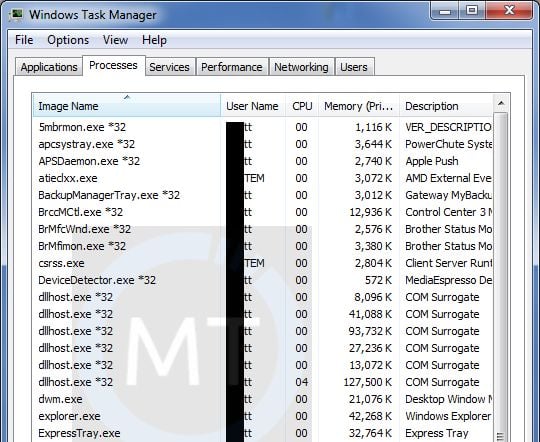
If your machine is infected with the Find-All-You-Want.com you will see very high CPU usage, and multiple dllhost.exe *32, explorer.exe or svchost.exe process running in Windows Task Manager. While these symptoms may be caused by other factors, we strongly suggest to check you computer for malware if you notice them.
How did Find-All-You-Want.com infection got on my computer?
The Find-All-You-Want.com virus is distributed through several means. Malicious websites, or legitimate websites that have been hacked, can infect your machine through exploit kits that use vulnerabilities on your computer to install this Trojan without your permission of knowledge.
Another method used to propagate this type of malware is spam email containing infected attachments or links to malicious websites. Cyber-criminals spam out an email, with forged header information, tricking you into believing that it is from a shipping company like DHL or FedEx. The email tells you that they tried to deliver a package to you, but failed for some reason. Sometimes the emails claim to be notifications of a shipment you have made. Either way, you can’t resist being curious as to what the email is referring to – and open the attached file (or click on a link embedded inside the email). And with that, your computer is infected with the Find-All-You-Want.com virus.
The threat may also be downloaded manually by tricking the user into thinking they are installing a useful piece of software, for instance a bogus update for Adobe Flash Player or another piece of software.
How to remove Find-All-You-Want.com virus (Removal Guide)
This page is a comprehensive guide, which will remove the Find-All-You-Want.com infection from your computer. Please perform all the steps in the correct order. If you have any questions or doubt at any point, STOP and ask for our assistance.
STEP 1: Remove Find-All-You-Want.com Trojan.Poweliks with ESET Poweliks Cleaner
STEP 2: Remove Find-All-You-Want.com virus with Malwarebytes Anti-Malware Free
STEP 3: Remove Find-All-You-Want.com infection with HitmanPro
STEP 4: Double check for any left over infections with Emsisoft Emergency Kit
STEP 1: Remove Find-All-You-Want.com Trojan.Poweliks with ESET Poweliks Cleaner
In this first step, we will run a system scan with ESET Poweliks Cleaner to remove Trojan.Poweliks that might be installed on your system.
- Poweliks will change your Internet Explorer security settings so that you are unable to download files with it. To fix this, press the Windows key (Windows Key) on your keyboard, and while holding it down, also press the R key on your keyboard. This will open the Run dialog box as shown below.
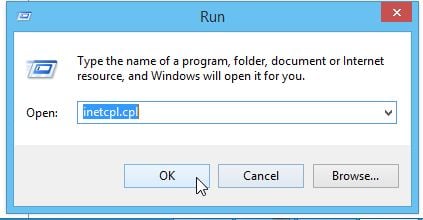
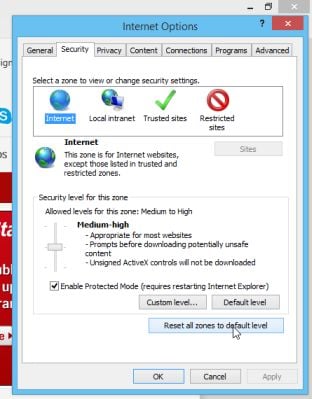
Next, we will need to type inetcpl.cpl in the “Run” box to open the Internet Explorer settings. - In Internet Explorer, click on the “Security” tab, then on “Reset all zones to default level” button. Click on “Apply” and “OK” to save these settings.
- Next, we will need to download ESET Poweliks Cleaner from the below link:
Download ESET Poweliks CleanerYour download starts right away. - Once the ESET Poweliks Cleaner tool has been downloaded, look for the file called ESETPoweliksCleaner.exe on your desktop and double-click it.
- You will now be shown the main screen for the ESET Poweliks Cleaner and it will begin to search for the infection. If the tool detects Poweliks, it will state that it found it and then ask if you wish to remove it.
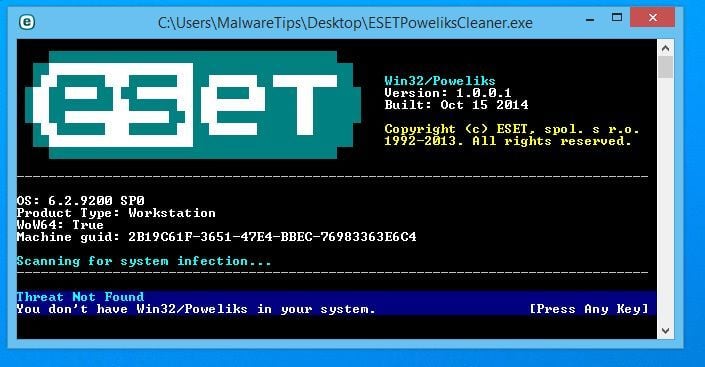
If Poweliks is detected, then press the Y button on your keyboard. ESET Poweliks Cleaner will now remove the Poweliks trojan from your computer.
STEP 2: Remove Find-All-You-Want.com virus with Malwarebytes Anti-Malware Free
Malwarebytes Anti-Malware Free uses industry-leading technology to detect and remove all traces of malware, including worms, Trojans, rootkits, rogues, dialers, spyware, and more.
It is important to note that Malwarebytes Anti-Malware works well and should run alongside antivirus software without conflicts.
- You can download download Malwarebytes Anti-Malware from the below link.
Download MalwarebytesFree official installer. Your download starts right away. - Once downloaded, close all programs, then double-click on the icon on your desktop named “mbam-setup-consumer-2.00.xx” to start the installation of Malwarebytes Anti-Malware.
![[Image: Malwarebytes Anti-Malware setup program]](https://malwaretips.com/blogs/wp-content/uploads/mwt-media/0d/0d753e667804c3aa3748bd016ccce9f8c0536bca429616a55ddea37ce384d555/74812df3e35a7a41ae873b6e22a7fb179f2700fbf6cbc82e74ed61a37d0d6123-107.webp "Malwarebytes Anti-Malware setup program")
 You may be presented with a User Account Control dialog asking you if you want to run this file. If this happens, you should click “Yes” to continue with the installation.
 - When the installation begins, you will see the Malwarebytes Anti-Malware Setup Wizard which will guide you through the installation process.
![[Image: Malwarebytes Anti-Malware Setup Wizard]](https://malwaretips.com/blogs/wp-content/uploads/mwt-media/81/81f935c9428354bb149215e48688f631cd5a5a62faf74d6225001b0453bbca8c/3602f8514cc23acd6cec36061a527c508f9573cd46ecc90aafece3dffc434679-538.webp "Malwarebytes Anti-Malware Setup Wizard")
To install Malwarebytes Anti-Malware on your machine, keep following the prompts by clicking the “Next” button.
![[Image: Malwarebytes Anti-Malware Final Setup Screen]](https://malwaretips.com/blogs/wp-content/uploads/mwt-media/3f/3f231d4b2d8a4d2cb17315dde7a7d4c6dbb851d93ed482418611fe613fbbb864/40e783e7159f9b1c16e350eca98c1e5cad9302d6dc0e6754bd2d411d5fc77489-528.webp "Malwarebytes Anti-Malware Final Setup Screen")
- Once installed, Malwarebytes Anti-Malware will automatically start and you will see a message stating that you should update the program, and that a scan has never been run on your system. To start a system scan you can click on the “Fix Now” button.
![[Image: Click on the Fix Now button to start a scan]](https://malwaretips.com/blogs/wp-content/uploads/mwt-media/39/397642932bd225caef10b38b171def1df393a996003d19b4582dc7dec15bbc3e/6c2e1886cbfe35a01245fd55aaabfccb552b8dc515622a4a40d2858a31263188-669.webp "Remove Find-All-You-Want.com virus (Easy Removal Guide) 2")
Alternatively, you can click on the “Scan” tab and select “Threat Scan“, then click on the “Scan Now” button.
![[Image: Malwarebytes Anti-Malware Threat Scan]](https://malwaretips.com/blogs/wp-content/uploads/mwt-media/ae/aeade34915168b750f843b5f3215b01aaafc8fb09f7157e906e5f685c835a53e/4738036de2b70a9d95be56eb778635095ad7aff3af404c23b34aba00978013ec-645.webp "Malwarebytes Anti-Malware Threat Scan")
- Malwarebytes Anti-Malware will now check for updates, and if there are any, you will need to click on the “Update Now” button.
![[Image: Click on Update Now to update Malwarebytes Anti-Malware]](https://malwaretips.com/blogs/wp-content/uploads/mwt-media/78/7855ebe97b523c19228fcf3cb4daf63cdf9e67b06707b53f04a66d553e0998f8/487f55b5cf520d201e56fc23748091c41fbc1ab50607e7ce74b3dce76effe458-650.webp "Click on Update Now to update Malwarebytes Anti-Malware")
- Malwarebytes Anti-Malware will now start scanning your computer for the Find-All-You-Want.com virus. When Malwarebytes Anti-Malware is scanning it will look like the image below.
![[Image: Malwarebytes Anti-Malware while performing a scan]](https://malwaretips.com/blogs/wp-content/uploads/mwt-media/0c/0c19f7f54697a59603912b4420035538035ecae8dc8a53dd2a4b5caa76738d3a/35ef1e0dee50f5ed4291828f5d220c3d3902541957d9998c2f9293a533d8e77e-642.webp "Malwarebytes Anti-Malware while performing a scan")
- When the scan has completed, you will now be presented with a screen showing you the malware infections that Malwarebytes’ Anti-Malware has detected. To remove the malicious programs that Malwarebytes Anti-malware has found, click on the “Quarantine All” button, and then click on the “Apply Now” button.
![[Image: Remove the malware that Malwarebytes Anti-Malware has found]](https://malwaretips.com/blogs/wp-content/uploads/mwt-media/be/be4965ad0a96322fa2aaa6250cf65d0e07ea43d68f3ae5cc5f1849e7d93b0001/a491bcef2bfe10e87fa16b978b3c01704c837db4581c754a9db57ec7e5975947-804.webp "Remove the malware that Malwarebytes Anti-Malware has detected")
Please note that the infections found may be different than what is shown in the image. - Malwarebytes Anti-Malware will now quarantine all the malicious files and registry keys that it has found. When removing the files, Malwarebytes Anti-Malware may require a reboot in order to remove some of them. If it displays a message stating that it needs to reboot your computer, please allow it to do so.
![[Image: Malwarebytes Anti-Malware while removing viruses]](https://malwaretips.com/blogs/wp-content/uploads/mwt-media/11/118f4e52c9890302751ff1c1547809138d36300a08e80d62862e73250993d3bc/0d2ff1aed2aa2f9c2d364e3d68485b8d6395b9de8e66742485ee519c65496e7e-651.webp "Malwarebytes Anti-Malware asking to reboot your computer")
After your computer will restart, you should open Malwarebytes Anti-Malware and perform another “Threat Scan” scan to verify that there are no remaining threats
STEP 3: Remove Find-All-You-Want.com infection with HitmanPro
HitmanPro is a second opinion scanner, designed to rescue your computer from malware (viruses, trojans, rootkits, etc.) that have infected your computer despite all the security measures you have taken (such as anti-virus software, firewalls, etc.). HitmanPro is designed to work alongside existing security programs without any conflicts. It scans the computer quickly (less than 5 minutes) and does not slow down the computer.
- You can download HitmanPro from the below link:
Download HitmanProOfficial Sophos download. Free scan, free 30-day trial to remove threats. - Double-click on the file named “HitmanPro.exe” (for 32-bit versions of Windows) or “HitmanPro_x64.exe” (for 64-bit versions of Windows). When the program starts you will be presented with the start screen as shown below.
![[Image: HitmanPro start-up screen]](https://malwaretips.com/blogs/wp-content/uploads/mwt-media/17/179226529eaacb1be41384d6652aeed130dbb2fe0c863731b2a019c54fd397ad/21db3c233c08ed0f2bb2649265ffa195d20b3094deac4f98a2f630d13ea2cffe-598.webp "HitmanPro startup screen (Click Next)")
Click on the “Next” button, to install HitmanPro on your computer.
![[Image: HitmanPro setup options]](https://malwaretips.com/blogs/wp-content/uploads/mwt-media/db/db3fc79f21e090f20a9361e6d61977165b6b6eff9eb4b78c91e08ce80a65efe6/cf5150e1a5e0321ab326deba7824b44b76433fcf80dd6fa25ebf2e1f45f18cb8-594.webp "HitmanPro installation options (Click Next)")
- HitmanPro will now begin to scan your computer for Find-All-You-Want.com malicious files.
![[Image: HitmanPro scanning for malware]](https://malwaretips.com/blogs/wp-content/uploads/mwt-media/98/988a6c1b94f8fe64a616506fa24ac6811b607b4907e7edb545787819f319ce8f/7b8dd5a3b737d213ae2693572466b5f4e9487bc2f04e82c95089e0041c932ef7-594.webp "HitmanPro scanning for Find-All-You-Want.com")
- When it has finished it will display a list of all the malware that the program found as shown in the image below. Click on the “Next” button, to remove Find-All-You-Want.com virus.
![[Image: HitmanPro scan results]](https://malwaretips.com/blogs/wp-content/uploads/mwt-media/10/1062728333b2406d51dde014190952550042472f9aadf5aef891f04cf8f56bf5/be41d2989197ce644e79cf3f8c45f5bc82dd27b6c77845d3910ac46e68c5e02b-591.webp "HitmanPro scan results (Click Next)")
- Click on the “Activate free license” button to begin the free 30 days trial, and remove all the malicious files from your computer.
![[Image: HitmanPro Activate Free License]](https://malwaretips.com/blogs/wp-content/uploads/mwt-media/6a/6a182cc86c5bb0da6e2a397c95427a596e7ce9a67c23eb1cfc96900695f39048/482f7d1f786a4b4ac381f1ff27ec73e252b78cdc0c255a550749bb178d4309d1-594.webp "Click on the Activate free license button")
STEP 4: Double check for any left over infections with Emsisoft Emergency Kit
The Emsisoft Emergency Kit Scanner includes the powerful Emsisoft Scanner complete with graphical user interface. Scan the infected PC for Viruses, Trojans, Spyware, Adware, Worms, Dialers, Keyloggers and other malicious programs.
- You can download Emsisoft Emergency Kit from the below link.
Download Emsisoft Emergency KitOpens the download page in a new tab. - Double-click on the “EmsisoftEmergencyKit” icon, then click on the “Extract” button.
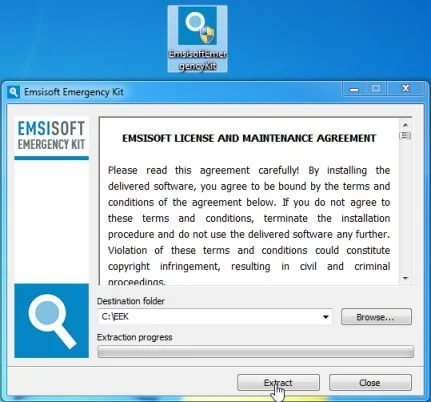
- On your desktop you should now have a “Start Extract Emsisoft Emergency Kit” icon, double-click on it, then when the program will start allow it to update its database.
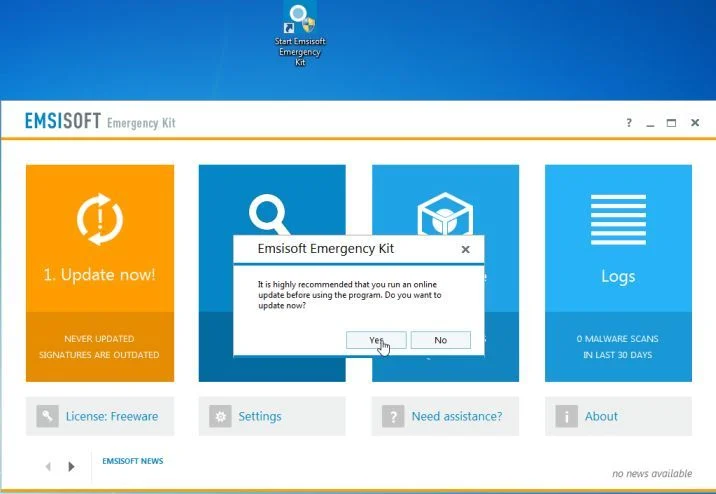
- Once the Emsisoft Emergency Kit has update has completed,click on the “Scan” tab, and perform a “Smart Scan“.
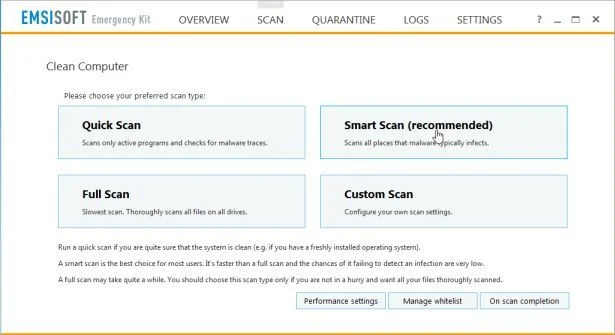
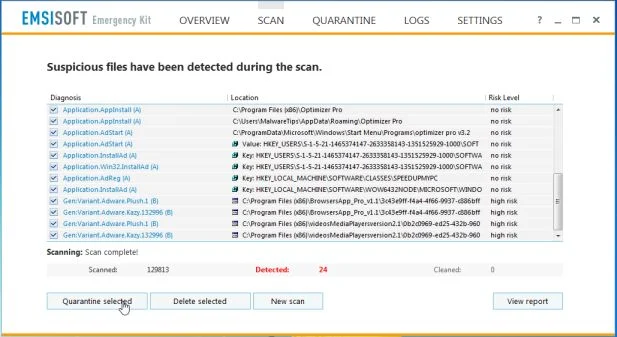
- When the scan will be completed,you will be presented with a screen reporting which malicious files has Emsisoft detected on your computer, and you’ll need to click on Quarantine selected objects to remove them.

Join the discussion
1 commentShare your experience or ask a question about this article.
Discussion
Thank you! This worked great for my pc