

An unexpected client appears to have shared three useful workplace documents. The message looks routine enough to open between meetings without much thought.
One detail changes the risk completely. The supposed Google Drive files arrive through an attachment that behaves very differently from a genuine sharing notification.
Overview
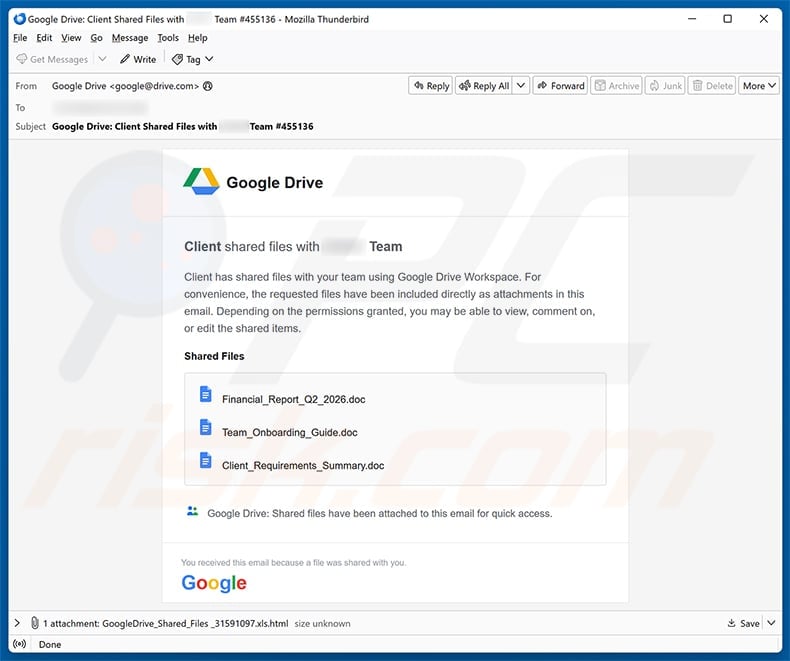
The email imitates a normal workplace sharing request
The subject line says a client shared files with the recipient’s team and includes a reference number to make the notice appear automatically generated.
Inside, Google Drive branding surrounds filenames such as a financial report, onboarding guide, and client requirements summary.
Those names were chosen carefully. They sound relevant across accounting, human resources, sales, consulting, and project-management teams.
The message says the requested files were attached for convenience, turning an unusual delivery method into an apparent productivity feature.
That sentence is the trap. Genuine Google Drive sharing normally directs users into Google’s controlled service rather than delivering a login portal inside an HTML attachment.
The attachment creates the login page inside the browser
The attached filename is crafted to resemble a familiar business document, but its real file type is HTML.
Opening an HTML file launches a browser because HTML describes webpages. That behavior can feel ordinary even when the page came from the computer’s download folder.
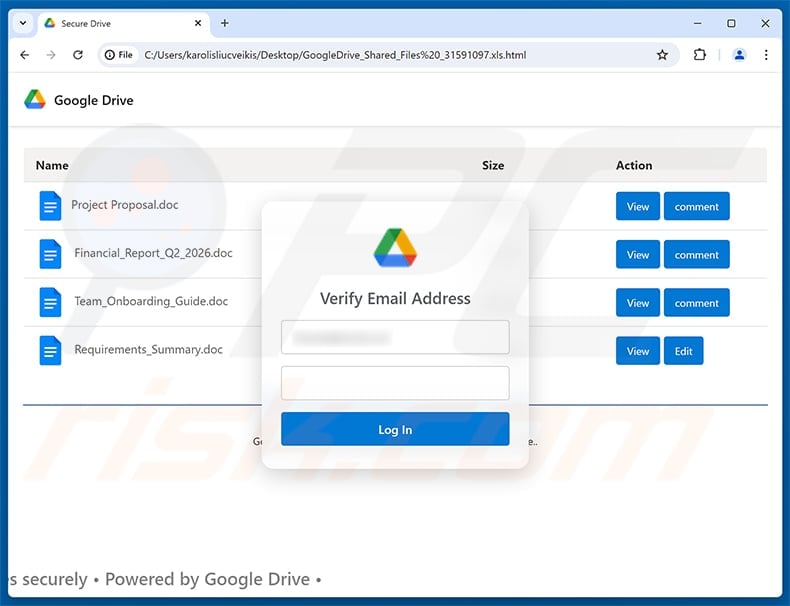
The file displays a Drive-style document list and a verification dialog asking for an email address and password.
What appears to be a cloud login can therefore be a local imitation whose form silently sends entered credentials to an attacker-controlled destination.
The address bar may begin with a local file path rather than accounts.google.com, a powerful clue that the form does not belong to Google.
The objective is control of the victim’s Google account
Credentials entered into the imitation form can expose Gmail, Drive documents, Photos, contacts, calendars, saved communications, and password-reset messages.
A business account may also provide customer data, invoices, shared drives, internal conversations, and access to third-party applications using Google sign-in.
The attacker can then send believable replies from the compromised mailbox, turning one stolen password into a broader supplier or payroll fraud campaign.
Google has no connection to this operation. Its name and interface are being copied because employees already understand and trust the genuine service.
- The message claims a client shared files with an entire team.
- Three plausible business filenames create curiosity and relevance.
- The payload is an HTML attachment, not three ordinary documents.
- The browser page imitates Google Drive and requests credentials.
- A local-looking page can still transmit data over the internet.
- The stolen account may expose both personal and company information.
- Simply receiving the email does not infect the computer.
- Risk begins when the attachment, form, or later payload is used.
How the Scam Works
Step 1: The attacker chooses a business-shaped pretext
Generic prize messages are easy to dismiss. A shared document fits naturally into modern work and requires little explanation.
The sender does not need to know the recipient’s current project because terms like client, team, financial report, and requirements apply almost everywhere.
A numbered subject adds administrative texture while concealing the absence of a recognizable colleague, organization, or real Google sharing identity.
Recipients working quickly may focus on the document names and ignore the sender’s actual address.
That is exactly the desired reaction: recognition of a familiar workflow before verification of the message carrying it.
Step 2: Brand elements suppress suspicion
The body copies Google’s colors, Drive icon, typography, and familiar sharing language.
Visual accuracy does not require access to Google systems. Logos and interface components can be copied from public pages in minutes.
The display name may say Google Drive while the underlying address belongs to an unrelated domain or compromised mailbox.
Recipients should expand the sender details, compare the From and Reply-To fields, and inspect authentication results when their mail client provides them.
Even a message that passes some authentication checks may originate from a compromised third-party account. Context still matters.
Step 3: The attachment disguises its real role
The email claims several documents are attached, yet the actual payload is a single HTML file.
Windows may hide known extensions, letting a filename end visually with something resembling .xls or .doc while the final executable part remains .html.
An HTML attachment is not automatically malicious. Companies sometimes send reports or forms in that format.
However, an unsolicited HTML file demanding credentials should be treated as hostile because it bypasses the visual protections of the genuine cloud service.
The safest response is to verify the supposed sender through an existing contact method and open Drive independently.
Step 4: A convincing page appears without visiting Google
Once opened, the attachment renders a designed webpage with file names, account prompts, and buttons.
Because the browser itself is genuine, its tabs, menus, password manager, and security indicators may lend credibility to the false content inside.
The page can display a Google logo while the address bar shows file://, a temporary folder, blob data, or an unrelated web address.
Password managers may refuse to autofill because the origin does not match Google. That refusal is a warning, not an inconvenience to bypass.
Never type a Google password unless the active domain is exactly accounts.google.com and navigation began through a trusted route.
Step 5: The form sends credentials to the criminal
When the victim submits an email address and password, script inside the page can transmit those values to a remote collection endpoint.
The page may show an error and request the password again, capturing a second attempt or confirming that the victim commonly varies credentials.
It can then redirect to a genuine Google page, making the failure seem temporary and hiding the theft.
No document needs to exist. The promised files served only as a reason for the victim to authenticate.
Attackers may use the credentials immediately, so recovery should begin from a separate trusted device without waiting for suspicious activity.
Step 6: The stolen mailbox becomes an impersonation platform
Email provides context criminals cannot obtain from a random address list. They can study signatures, invoices, schedules, relationships, and writing style.
They may create forwarding rules, delete security alerts, register recovery methods, or authorize applications that preserve access after a password change.
A reply sent inside an existing conversation can persuade coworkers to open another file or approve a payment.
Customers may receive revised bank details from an address they already trust.
This secondary abuse explains why a workplace phishing incident requires more than changing one password and returning to work.
Step 7: The campaign spreads through trusted relationships
A compromised account can send the same shared-files message to contacts found in mail and Drive.
Those recipients are more likely to respond because the sender’s real name, history, and organization now appear legitimate.
Automated security may also grant established accounts more trust than a newly created spam address.
Every delayed recovery increases the number of messages, sessions, tokens, and connected services requiring investigation.
Fast containment protects both the original victim and everyone who relies on that identity.
Why the HTML Attachment Is So Effective
It does not look like a traditional executable
Most users know to avoid .exe files, but HTML appears associated with ordinary websites rather than malware.
The attachment may open cleanly without a macro warning, installation dialog, or obvious system change.
Credential theft does not require installing software. A form and an internet connection can be enough.
That quiet behavior makes the attack feel less dangerous precisely when the password is being exposed.
It can imitate several providers from one file
The page may offer Google, Microsoft, Yahoo, or other login choices after first presenting a Drive-themed document.
Each button can lead to a matching imitation form while sending every submission to the same operator.
This flexibility lets one campaign target mixed organizations without knowing which provider every employee uses.
It also explains why branding can change halfway through the flow without the attacker considering that inconsistency a problem.
Local rendering complicates simple link checks
Traditional phishing advice tells users to hover over a button and inspect the destination.
With an attachment, the first action is opening a file, so there may be no suspicious external link visible in the email body.
The external collection address can remain hidden inside encoded or obfuscated script until the form is submitted.
Email filters may therefore need attachment analysis, sandboxing, and content controls rather than reputation checks alone.
Business context makes curiosity feel responsible
An employee may believe ignoring the document could delay onboarding, payment, or a client’s project.
The filenames create enough specificity to trigger professional duty while remaining broad enough for mass distribution.
Attackers exploit helpfulness, not technical ignorance. Skilled employees can still act quickly when a request resembles ordinary work.
A verification culture should make pausing acceptable, especially when credentials or unexpected attachments are involved.
Red Flags in the Fake Google Drive Message
The promised delivery method contradicts the service
Google Drive shares access through Google’s platform. It does not need to package a sign-in experience inside an unsolicited HTML attachment.
If a colleague genuinely shared files, opening drive.google.com independently should reveal them under Shared with me or through a verified notification.
The attachment count and file list do not align
The email displays several named documents while the mail client shows one attached HTML payload.
That mismatch exposes the difference between the story shown in the body and the file actually delivered.
The message lacks a verifiable human sender
A legitimate collaboration request usually identifies the account or person sharing the files and the organization controlling access.
Vague references to a client and team encourage recipients to fill in missing context from their own workload.
The login page has the wrong origin
Logos, colors, and page titles are content. The domain in the address bar identifies the system receiving information.
A file path, cloud-storage URL, URL shortener, raw IP address, or misspelled domain is not Google’s account service.
What to Do If You Fell Victim to This Scam
- Stop interacting with the attachment. Close the browser tab and email, then disconnect the affected computer if any file executed or unusual download began.
- Change the Google password from a clean device. Use a strong unique password and update every other account where the old password was reused.
- Sign out active sessions. Review Google’s security page, remove unfamiliar devices, and revoke sessions that you do not recognize.
- Enable stronger verification. Turn on two-step verification, preferably with an authenticator or security key, and secure the recovery email and telephone number.
- Inspect persistence settings. Check Gmail forwarding, filters, delegates, app passwords, third-party access, OAuth grants, and recent account activity.
- Notify the organization immediately. Tell security staff which attachment was opened, what was entered, when it happened, and whether the account had business access.
- Warn recent contacts. Ask recipients to ignore unexpected files or payment requests sent from the compromised mailbox, using a separate communication channel.
- Scan the device when warranted. Run Malwarebytes and the built-in operating-system scanner if anything downloaded or executed. AdGuard can block many malicious destinations but cannot undo exposed credentials.
- Preserve evidence and report loss. Save the original message with headers, attachment hash, screenshots, timestamps, and fraudulent transactions for investigators and the payment provider.
How to Handle Real Google Drive Shares Safely
Open Drive yourself
Instead of using the email button, enter drive.google.com manually or open the trusted Drive application.
Check Shared with me and recent activity for the file. If it is absent, ask the sender to share it again from their verified account.
Confirm surprising requests out of band
Message the colleague through a known chat account or telephone number, not by replying to the suspicious email.
Use a simple question that an attacker reading public information cannot easily answer.
Show complete filenames and extensions
Configure Windows and file-management tools to display known extensions. A visible .html ending changes how a supposed spreadsheet should be evaluated.
Organizations can quarantine external HTML attachments or deliver them through a review portal.
Protect the recovery hub
The primary email account deserves the strongest password and multi-factor method because it resets many other services.
Review forwarding and connected applications periodically, not only after an incident.
Frequently Asked Questions
Is the Files Shared Using Google Drive Workspace email real?
The examined message is fraudulent. It uses an HTML attachment and fake verification form to steal credentials rather than sharing genuine Drive files.
Can opening an HTML attachment infect my computer?
Opening it can expose you to phishing scripts, redirects, or downloads. The observed campaign primarily steals credentials, but attachments can carry additional risks.
Am I infected if I only received the email?
No. Receiving or reading the message alone does not mean the computer is infected. Delete it and report it without opening the attachment.
What if I opened the file but entered nothing?
Close it, clear any downloaded files, update the browser, and scan if something executed. Monitor the account, but credential theft requires submitted information in this flow.
Why did my password manager not fill the form?
Password managers match credentials to web origins. Refusing to fill on a local file or unrelated domain is a useful warning that the page is not Google.
Does Google send shared documents as HTML attachments?
Genuine Drive notifications link into Google’s service. An unsolicited HTML attachment that recreates a login screen should be treated as phishing.
The Bottom Line
The Google Drive Workspace email scam turns a familiar collaboration routine into a credential trap hidden inside one HTML attachment.
The document names and branding are scenery. The decisive clues are the unexpected file type, the false login origin, and the request for a password outside Google.
Delete the message if untouched. If credentials were entered, treat the account as actively compromised and complete the recovery steps immediately.

Join the discussion
0 commentsShare your experience or ask a question about this article.
Discussion
Start the conversation
Have a question or something useful to share? Add the first comment.