

A Google Voice email says somebody left you a voicemail. There is a playback button, and you don’t want to miss a message that might matter.
The next screen seems familiar enough to continue. Before you sign in, take a moment to look beyond the form in the middle of the page.
Overview
The voicemail notification is the invitation into the trap
NordVPN researchers documented a Google Voice impersonation campaign that takes recipients from a fake voicemail notice into an attacker-controlled browser session.
The chain used compromised legitimate email accounts, SendGrid tracking links, and checks that restricted access to the final page. Some visitors also encountered a browser-notification request.
The research describes distribution across organizations, not merely a suspicious message received by one person. It does not provide a confirmed victim or loss total.
A genuine Google screen can be running somewhere else
The attacker opens Google’s real login in a remote browser and streams the interaction to the victim. Passwords, one-time codes, and the resulting session can be captured.
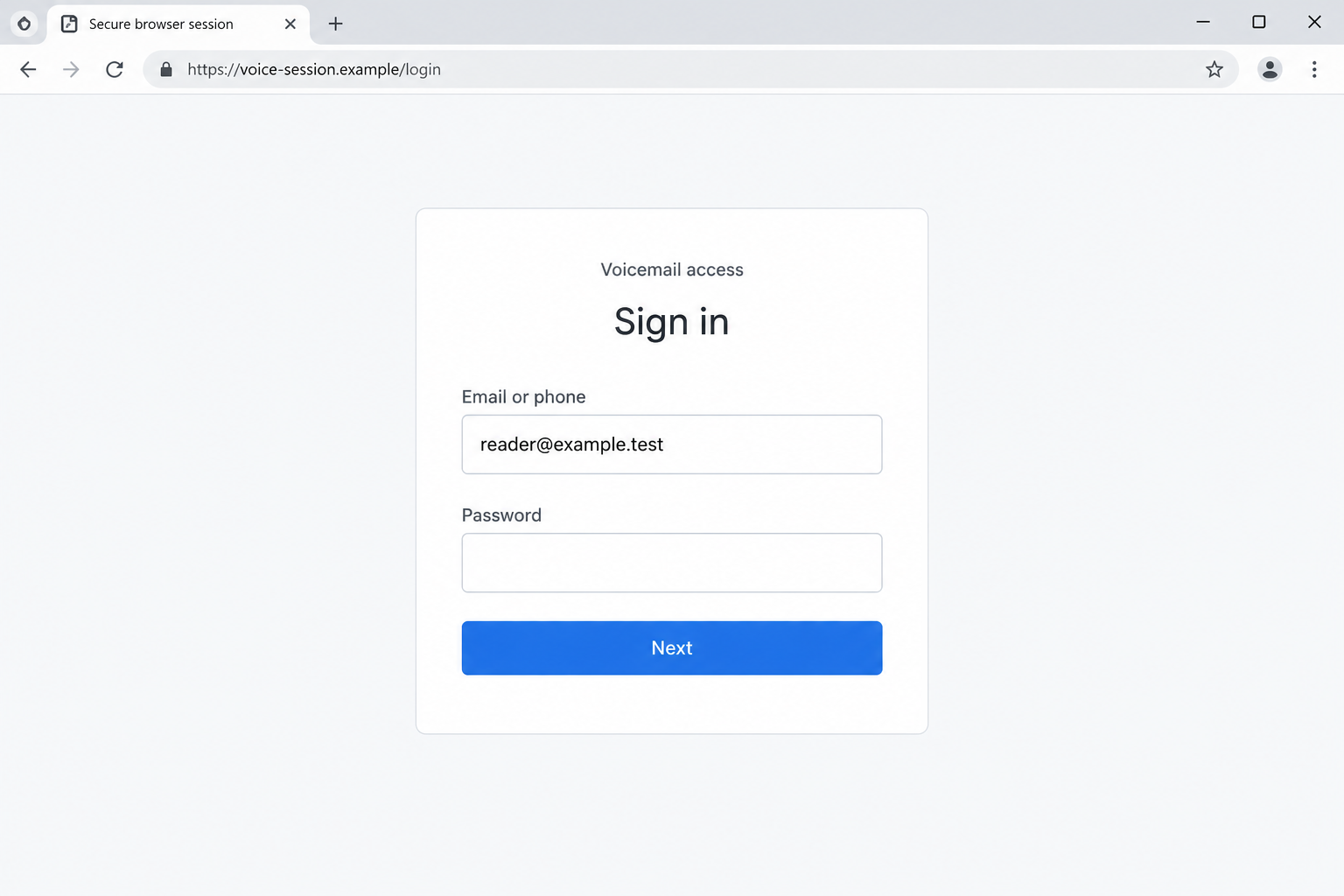
The buttons can work and your password can be accepted, yet the address above the page still belongs to the attacker. Check that outer address before typing.
Google Voice, Google, SendGrid, and Cloudflare are legitimate services being abused in the chain. This finding does not identify those services as the fraud operators.
Check the route before entering another secret
- Open your usual voicemail service independently instead of following an unexpected email’s playback route.
- Read the browser’s real address bar, rather than a familiar logo inside the page.
- Refuse a notification permission request that has nothing to do with retrieving your message.
- Stop if an unfamiliar site asks for passwords, authentication codes, or recovery codes.
The lead image is an illustration using fictional addresses and an empty password field. It shows the mismatch to notice, not an authentic capture of this campaign.
How the Google Voice Voicemail Scam Works
Step 1: A routine message gives you a reason to click
Voicemail is a convenient lure because the recipient doesn’t need to have ordered anything or entered a competition. Almost anyone can imagine having missed a call.
If you are expecting a customer, relative, or appointment update, the email supplies an easy explanation for why the message has arrived.
That explanation comes from your own circumstances. The sender has not earned your trust simply because you can think of someone who might have called.
Check the service you already use. You can resolve the question of a missed message without letting the email choose where you sign in.
Step 2: Familiar delivery infrastructure softens your doubts
A message sent through a recognizable email service may survive checks that would catch a crude forged sender. That is useful context, not an endorsement of its instructions.
Email authentication checks address delivery and domain authorization. They do not decide whether the person controlling an account is using it honestly.
Likewise, a tracking link is not automatically malicious. In this case, a legitimate delivery feature helped carry the recipient toward the attacker’s destination.
Don’t try to settle the whole question by recognizing one part of a long link. The destination and requested action still need to make sense.
Step 3: Access gates make the final page harder to inspect
The researched platform checked how visitors arrived and used a human-verification gate. An automated checker might not see what an intended recipient sees.
A harmless-looking result from one link scanner therefore cannot certify the entire journey. Stop if the actual page you see asks for an inappropriate action.
Do not disable browser protection or keep trying alternate paths to reach the recording. A failed playback attempt is a reason to use the genuine service directly.
Step 4: A notification request creates a separate foothold
Allowing website notifications gives that site a way to display later messages. Closing the original tab does not necessarily withdraw the permission.
A notice about successful subscription is not evidence that a voicemail exists. It can simply mean you authorized a new channel for unwanted prompts.
That permission can be addressed in browser settings. It is a different problem from entering a Google password, so tell anyone helping you which actions occurred.
Step 5: The attacker streams the real login experience
The password form can respond normally because the criminal’s browser is communicating with Google. Your browser is receiving an experience controlled through the intermediary.
Think of the difference between opening your own account and directing somebody else’s already-open browser. Similar buttons on the screen do not make the two situations equivalent.
Look at the actual browser controls around the page. The research identified an unfamiliar outer domain and the tab title Secure browser session.
You don’t need to recognize that particular wording to stop. An unexpected voicemail should not require you to hand an unfamiliar site the keys to your Google account.
Step 6: A one-time code is used while it is still valid
The attacker does not need to save the code for next week. Relaying it during the active sign-in can be enough to complete the session.
Keep multifactor authentication enabled. The lesson is to avoid providing its challenges through an untrusted route, not to remove a useful layer of protection.
Backup recovery codes deserve the same care as passwords. They should not be supplied to a page merely because an earlier authentication step appeared to fail.
Step 7: Closing the page leaves account recovery unfinished
After a successful sign-in, a captured session can remain valuable. Ending your visible interaction does not establish that the intruder’s access ended too.
That is why the response needs account and session checks. A normal-looking inbox or a clean device scan cannot answer those questions by itself.
This Is Different From the Google Voice Verification Code Scam
Another well-known scam asks people to share a verification code so a stranger can register or take over a Google Voice number.
This campaign uses a supposed voicemail to reach a Google-account login session. The target and the recovery work are different.
If you ask for help, describe the screen and what you supplied. Saying only Google Voice scam can send the conversation toward the wrong set of instructions.
For example, tell your administrator whether you entered a password, supplied an authenticator code, approved a phone prompt, or disclosed a backup code.
Also mention any notification permission granted before the login. Revoking a browser permission does not revoke an account session, and changing a password does not automatically remove that permission.
What to Do if You Entered Your Google Details
- Leave the supplied sign-in route. Close the voicemail pages. Open Google’s account settings through your established bookmark or the official app instead.
- Use Google’s recovery process if locked out. Avoid recovery agents in comments or messages. Do not give another person a code to prove account ownership.
- Change the exposed password. Use a unique replacement. If that password protected other services, change those credentials through their genuine websites as well.
- Review security events and devices. Investigate unfamiliar activity and end unauthorized sessions. Tell your work administrator immediately if this was a Google Workspace account.
- Inspect recovery and authentication settings. Check for unfamiliar recovery addresses, phone numbers, passkeys, and other access methods. Replace exposed backup codes through the genuine account.
- Check Gmail’s behavior. Look for unexpected forwarding, filters, delegated access, and sent messages. Report changes instead of assuming an apparently quiet inbox is safe.
- Review connected services. Ask whether important files, financial messages, or accounts using this mailbox for password resets need additional protection.
- Preserve the email and timeline. Keep the original message and approximate sign-in time for the response team. Avoid forwarding an active phishing link as an invitation.
Google’s compromised-account guidance provides the official recovery route and security checks. Follow it from a trusted device if you also suspect installed software.
If the account handles work, let the administrator coordinate access recovery. Customer notifications, file-access review, and payment checks may require more information than one user can see.
Do not assume that every file was copied. Give the response team the opportunity to establish what happened and communicate the verified exposure.
Remove Any Notification Permission You Granted
If you clicked Allow on the suspicious website’s notification prompt, remove that permission through the browser. You do not have to reopen the site.
- In desktop Chrome, open Settings and choose Privacy and security. Open Site Settings, then Notifications.
- Find the unfamiliar site among those allowed to send notifications. Use its menu to block or remove the permission.
- Close unwanted alerts through browser or system controls. Do not use a notification’s proposed fix or support link to remove it.
- If alerts continue, check other browser profiles and ask your organization’s help desk to review managed settings. Avoid deleting unrelated permissions blindly.
The Chrome notification instructions explain where these controls live. Other browsers have their own site-permission settings.
Permission to send notifications is not permission to inspect all your files. Receiving unwanted alerts alone does not prove a Trojan infection.
If an alert persuaded you to install something, report that additional action. The device may then need a separate assessment alongside the Google-account response.
Check What the Account Could Be Used to Reach
Make a short list of services that rely on this email address for recovery. Prioritize financial accounts, work systems, and the main password manager.
Review unexpected reset messages and new sign-in notifications. Do not delete the evidence before the relevant provider or administrator can examine it.
For shared business correspondence, verify recent payment-instruction changes through established contacts. A compromised mailbox can make a new request appear to continue an old conversation.
If money has moved, contact the actual payment provider promptly. Do not wait for the entire account investigation to finish before asking about its fraud process.
Warn affected contacts through a clean route if the account sent deceptive messages. Keep the warning specific about what they should avoid opening or approving.
There is no need to tell every contact that their own account was hacked. Exposure to a message and successful account access are different events.
Review Your Mailbox, Not Just Recent Sign-ins
An intruder does not have to change your password to create a problem. Your familiar inbox can remain accessible while changes elsewhere help them follow future correspondence.
In Gmail, review forwarding and filters through the genuine settings page. Investigate an unfamiliar forwarding destination or a rule that moves important security messages out of sight.
Look for delegated mailbox access as well. On a work account, ask the administrator to check permissions rather than assuming your own settings show the entire picture.
Record suspicious settings before changing them if your response team needs evidence. Don’t send confidential screenshots to strangers offering account-recovery help.
Review messages sent during the possible exposure. Ask IT about message records if the visible Sent folder does not answer whether the account was used to contact others.
Check unexpected password resets for other services. An email account can become a recovery route into something else, even when those services use different passwords.
For connected applications, examine what access was granted and whether you recognize the service. A familiar-looking name alone does not establish that you authorized its permissions.
Do not remove every business application blindly. On managed accounts, have the administrator distinguish approved integrations from suspicious changes before restoring normal access.
Keep new recovery details private. If someone can still read the mailbox, emailing replacement passwords or backup codes through it can expose the recovery work itself.
Finally, preserve the time window used for the review. Knowing when the voicemail route was opened helps separate older, legitimate settings from changes needing closer investigation.
You may find no unauthorized mailbox change. That is useful information, but it should be considered alongside session, device, and authentication findings rather than replacing them.
Frequently Asked Questions
Can the Google sign-in screen really be genuine?
Yes. The analyzed platform streams Google’s real login from an attacker-controlled browser. The unfamiliar outer address and unexpected sign-in route remain crucial warning signs.
Does passing email authentication make the voicemail safe?
No. A compromised legitimate account or abused delivery service can carry deceptive content. Sender checks cannot validate the playback request or the destination’s intentions.
Should I turn off two-factor authentication?
No. Keep it on. Prefer phishing-resistant sign-in methods where supported, and avoid completing authentication through a link supplied by an unexpected voicemail notification.
Did I lose my account by allowing notifications?
Notification permission alone does not establish account takeover. Revoke the permission, then separately address any password, code, or sign-in approval you supplied.
Why might a link checker miss the dangerous page?
The campaign uses arrival checks and human-verification gates. Automated tools may receive a different response, so one reassuring scan cannot certify the route you encountered.
What if I only read the email?
Reading the notification does not by itself demonstrate compromise. Check voicemail independently and report the suspicious message through the genuine service or your workplace process.
The Bottom Line
Do not sign in through an unexpected voicemail’s unfamiliar browser session. Open the voicemail service directly and keep account authentication inside the genuine provider’s route.
If you already entered credentials or codes, secure the Google account immediately. Review sessions and recovery settings, and revoke any unwanted browser-notification permission separately.

Join the discussion
0 commentsShare your experience or ask a question about this article.
Discussion
Start the conversation
Have a question or something useful to share? Add the first comment.