


A Google Workspace invoice says it’s already been paid. Inside, there’s a plan, a seat count, and a charge you don’t recognize.
Maybe you handle billing, or maybe you’ve never been near the Admin console. Either way, there’s a better place than this email to find out what happened.
Overview
The $96.38 notice describes a business subscription
The Google Workspace invoice scam leaves you wondering who authorized a purchase. Google Workspace is a real service, but this email is an impersonation.
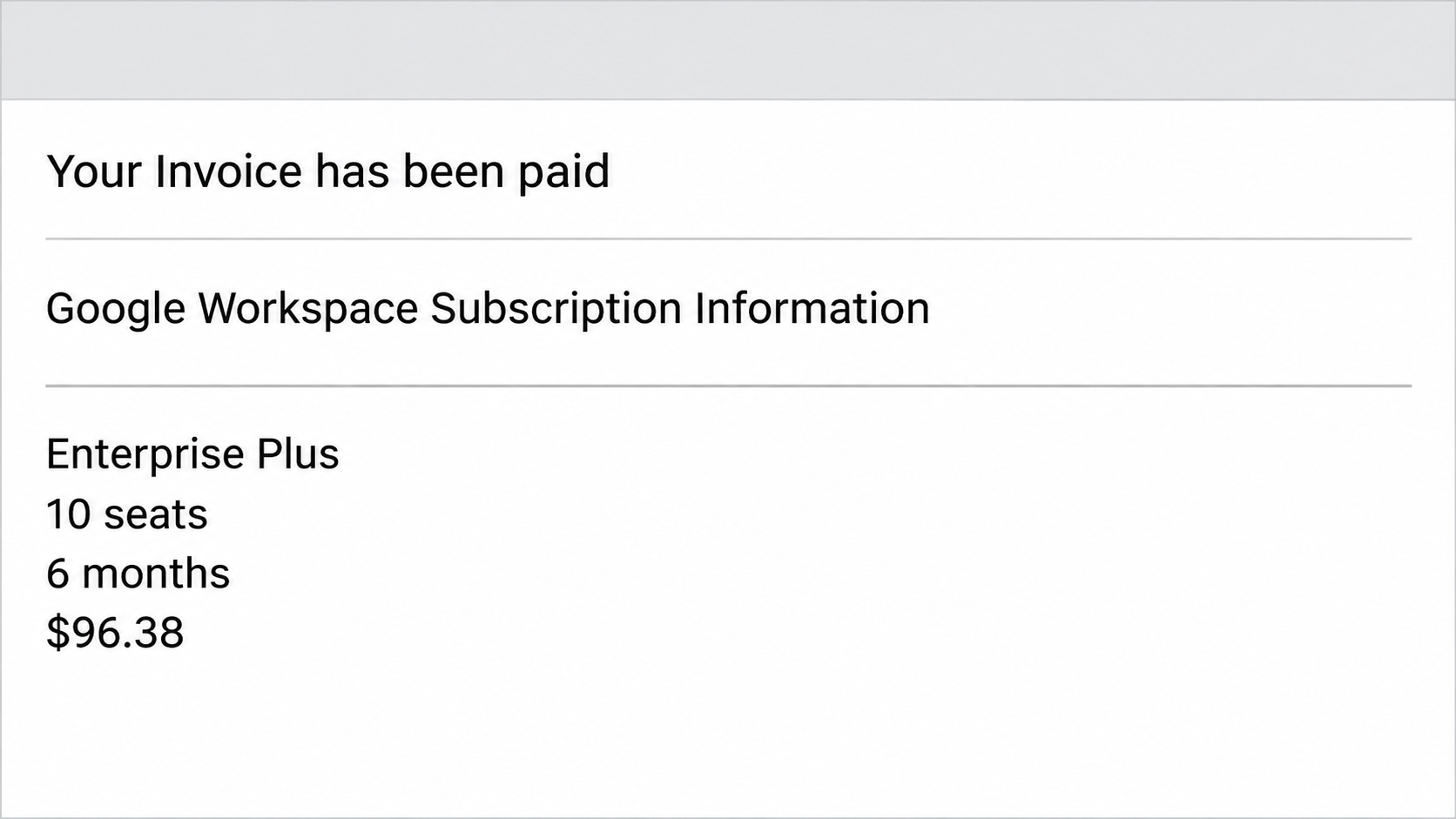
One reported message lists Enterprise Plus, 10 seats, and a six-month billing period. It gives $96.38 as the subscription fee and names automatic card payment.
Those details are claims made by the message. They don’t identify a verified Workspace tenant, prove a card was charged, or give the sender authority over your subscription.
The contact at the bottom is the point of risk
The reported email puts a phone number below its account information. Someone who wants the charge stopped might reach for the number before opening their company’s own billing records.
That’s where the callback trap begins. The email supplies both the apparent billing problem and the contact who can pretend to solve it.
The specimen shows the claim and the callback route. It doesn’t show what any caller was told, whether anyone paid, or whether any device was accessed.
Check the charge and the account separately
A real invoice can arrive by email, and a real card payment can surprise a business. What matters is whether records reached independently support the claim.
- Look for a matching transaction in the organization’s card or bank account.
- Check which Workspace tenant and billing account the invoice would belong to.
- Ask your known reseller for its records if it handles your billing.
- Refer the message to your billing administrator if you cannot check those records yourself.
Use those records before deciding a refund is needed. If you find a real payment you didn’t authorize, resolve the payment through your bank and established billing contacts.
Why This Email Looks Like Work You Already Do
At a small company, approving an invoice and renewing a software subscription might both happen from the same inbox. Each task can look routine until someone checks the details.
Software subscriptions also outlast the people who bought them. A new office manager might reasonably assume a former employee set up Workspace, even if everyone now uses another service.
The wording taps into that uncertainty. It lists tools people recognize, including Gmail, Drive, and Meet, but that list doesn’t tell you who ordered anything.
Even the seat count sounds like an internal fact. It’s only useful when you compare it against a tenant and subscription your organization can identify without help from the sender.
The subject and body also do different jobs. The subject presents the invoice as paid; the body describes an active plan and makes an unexpected contact look routine.
There’s no need to infer a hidden countdown in this particular email. Seeing something marked paid is enough to make a reader worry they’ve missed their chance to intervene.
How the Google Workspace Invoice Scam Works
Step 1: A paid notice lands in your inbox
A request for approval gives you a reason to pause. A notice that sounds like a receipt makes it feel as though someone else already made the decision.
That difference matters when you’re sorting a busy inbox. You may feel responsible for undoing a purchase before you’ve confirmed who made it or whether it exists.
If the email reaches a shared address, nobody may immediately know who pays for Workspace. That’s a reason to check the purchase records, not to contact the sender.
Step 2: Subscription details give the notice weight
The reported example uses one familiar product name and several fields that look like billing records. It supplies an edition, seats, a term, a fee, and a payment method.
There’s nothing mysterious about that vocabulary. Real software agreements use it, which is why none of those labels by itself can tell you whether a message is genuine.
Look for evidence you can reconcile instead. An amount without a corresponding charge, or a plan that nobody can find in the relevant account, leaves the email unverified.
Step 3: The reader is steered toward a callback
By the time you reach the sign-off, the phone number looks like a shortcut. You might expect a billing agent to look up the reference and explain the charge.
Calling is a new action, not a harmless way to inspect the email. It puts you in a conversation whose contact details came from the same unverified source.
A person answering can repeat the product and fee from the notice without ever seeing your legitimate account. Recognition of those details isn’t independent confirmation of anything.
Step 4: A supposed billing problem becomes a request
In a callback scam, an impersonator may shift from discussing the charge to asking for card information, a verification code, or permission to see your screen.
Those requests are possible follow-on tactics, not things observed on a call tied to this sample. You don’t need to wait for one to prove something is wrong.
A refund should not require you to read out a sign-in code to an unsolicited contact. That code may be authorizing entry into the account you’re trying to protect.
If the conversation moves to screen sharing, end it. A person with remote access might see other accounts or records that have nothing to do with Workspace billing.
Step 5: The harm can outlast the original email
If all you saw was the notice, there may be nothing to reverse. If you handed over a code, payment, or access, the problem is whatever that action exposed.
For a Workspace administrator, a compromised login can affect more than one inbox. Alert the people who manage the organization’s accounts so they can review what the account could change.
And if you sent money during the call, tell the bank about that actual transfer. It’s a different transaction from the alleged $96.38 charge in the email.
How to Check Whether Google Workspace Billed You
Start with the record you already control
Open the card issuer’s app, your business bank portal, or the expense system your company normally uses. Don’t click through the notice to see your supposed payment.
Look at the amount, currency, transaction date, and merchant description together. A matching amount alone isn’t enough, and a pending entry isn’t the same as a posted transaction.
If more than one person makes purchases, ask the cardholder or finance team who can verify the card activity. Don’t request full card numbers by email to settle the question.
Confirm the right tenant and billing relationship
If you administer a directly billed subscription, open the Admin console from your usual route. Match the account, plan, term, and billing history against the notice.
Google’s Workspace billing guide explains where invoices and transactions appear. It also describes why multiple charges can occur, so don’t make the date or amount your only test.
Make sure you’re checking the account for the right domain. A company that manages more than one domain or billing account may need to identify which one the payment concerns.
If you buy Workspace through a reseller, establish which company actually invoices you. Ask that reseller through your existing account, contract, or support channel about the line item.
Google’s reseller instructions describe how an authorized administrator can identify the reseller for a subscription. An unfamiliar payment name doesn’t make the phone number in the email trustworthy.
Handle a real charge without involving the sender
You might find a normal renewal, a payment you don’t recognize, or nothing at all. Each outcome calls for a different next step.
- If your own invoice and card activity match a known purchase, reconcile it normally and report the suspicious email separately.
- If a charge exists but nobody recognizes it, ask the finance team or issuer to investigate through a verified contact.
- If you can’t substantiate the purchase, don’t call the email’s number just to make sure.
Use Google’s administrator support route if you need help with a directly managed account. If you don’t have the right permissions, use the internal channel rather than borrowing someone’s login.
Three Billing Situations This Email Can Resemble
The amount matches, but the plan does not
Suppose the card feed shows $96.38, but your team uses a different edition. Don’t treat the amount as a match until you know what the transaction actually purchased.
Ask the finance team for the real invoice or receipt attached to that entry. Another software purchase can share a price without having anything to do with the email.
The subscription exists, but someone else manages it
A contractor may have set up Workspace through a reseller that bundles charges. That explains why a standalone Workspace payment might not appear.
Ask whoever manages that agreement for the contract or current reseller invoice. There’s no reason to tell the unexpected caller which other services your organization uses.
The wrong person received a plausible invoice
A message can arrive in a personal inbox even when the business pays from a separate account. If your name appears, that doesn’t tell you how the sender found it.
Don’t move the message into your expense system as a payable item. Let the team responsible for invoices confirm it against purchase records before anyone records or approves a payment.
For future legitimate subscription changes, make sure staff know who can approve new seats or investigate an unexpected charge. An established route helps when the right administrator is away.
What to Do if You Have Fallen Victim to This Scam
-
If the email is all you saw, report it through your mail app or workplace reporting channel. Check billing independently if the notice names a service you use.
Leave the original message available for your security team if it needs to look at the sender or distribution. Don’t forward it casually to a shared group.
-
If you called but didn’t share information or follow instructions, end contact. Note the time and what you were asked to do before reporting it.
Be prepared for a second call that appears to continue your case. The first caller’s reference number does not make a later caller part of a genuine investigation.
-
If you provided card details or sent money, call the issuer or payment provider from a trusted number. Explain exactly what you disclosed or authorized.
Ask whether they can block the card, dispute a charge, or stop a transfer. Give them the real transaction details rather than relying on the invoice’s reference number.
-
If you entered work credentials or shared a code, contact your IT or security team from a trusted device. Tell them which account and which prompt were involved.
The administrator can use Google’s compromised-account guidance to review account access, sessions, and activity. A password change alone may not address every change already made.
-
If you allowed remote access, disconnect the affected device and stop using it for sensitive activity. Contact your organization’s help desk or a reputable technician from another device.
Tell them whether you granted control, downloaded anything, or signed in during the session. Preserve the program name and session details so responders can decide what needs checking.
-
Keep a private record of the incident for the people helping you. Save the email, the time of any call, and records from your real bank account.
Don’t post payment records or work email headers publicly. When sharing a copy with a colleague, use the reporting method your organization already trusts.
Frequently Asked Questions
Is the $96.38 notice proof that my card was charged?
No, the amount is only what the email claims. Look for the transaction through the issuer, then compare it with the appropriate billing record if you have Workspace.
Can Google send a legitimate invoice by email?
Yes, Google describes emailing PDF invoices in its billing guidance. You can verify an unexpected one without opening the original attachment by locating the invoice in your own account.
Does an unfamiliar amount prove the email is fake?
Not by itself, because real bills can change. Focus on reconciling the billing account, plan, and payment history, and do not use the sender’s callback number.
What if I only use a personal Gmail account?
Using Gmail doesn’t mean you administer a paid Workspace tenant. If your card has no matching charge and you have no such account, there’s no payment indicated to cancel.
Should the finance team cancel a subscription immediately?
Not on the strength of the email. Check what was billed and discuss cancellation only through the appropriate account owner or verified reseller so you don’t interrupt legitimate services.
What if I spoke to someone and shared my screen?
Tell your IT team what was visible and whether you also granted control. Account exposure and device access can require different responses, even when they happen during one call.
The Bottom Line
Don’t call the number in the Google Workspace invoice scam. The notice’s subscription details are not a billing record you can rely on.
Go straight to your card account and known billing administrator or reseller. If you already shared access, payment information, or a login code, report that exact exposure now.

Join the discussion
0 commentsShare your experience or ask a question about this article.
Community experiences
Did this happen to you?
Your experience could help someone recognize the same scam. Submit a private report for our team to review.
I experienced this tooReports are reviewed before publication. Sharing publicly is always your choice.
Discussion
Start the conversation
Have a question or something useful to share? Add the first comment.