ZeroAccess is a family of rootkits, capable of infecting the Windows Operating System.On infection, it replaces Windows System Files and installs Kernel Hooks in an attempt to remain stealthy. Once the hooks are installed, the target operating system falls under control of the rootkit, which is then able to hide processes, files, networks connections, as well as to kill any security tools trying to access its files or processes. This rootkit is known to infect both 32 and 64 bit Windows operating systems.
ZeroAccess also patches system files to load its malicious code. The original file name is then kept inside an encrypted virtual file system the rootkit creates. The virtual file system is stored in a file on disk.
How to remove ZeroAccess/Sirefef virus (Virus Removal Guide)
Please perform all the steps in the correct order. If you have any questions or doubt at any point, STOP and ask for our assistance.
-
To remove ZeroAccess/Sirefef virus, follow these steps:
- STEP 1: Use ESETSirfefCleaner tool to remove ZeroAccess/Sirefef
- STEP 2: Use RKill to stop the ZeroAccess/Sirefef malicious processes
- STEP 3: Scan your computer with Malwarebytes Anti-Malware to remove ZeroAccess/Sirefef
- STEP 4: Double-check for malicious programs with HitmanPro
- (OPTIONAL) STEP 5: Use Zemana AntiMalware Portable to remove ZeroAccess/Sirefef
STEP 1: Use ESETSirfefCleaner tool to remove ZeroAccess/Sirefef
In this first step, we will use the ESETSirefefCleaner tool to remove the ZeroAccess/Sirefef from your computer.
- You can download ESETSirefefCleaner from the below link.
ESETSIREFEFCLEANER DOWNLOAD LINK(This link will automatically download ESETSirfefCleaner on your computer.)Unable to download “ESETSirefefCleaner.exe contained a virus and was deleted”.
More recent variants of Sirefef might prevent you from downloading this removal tool. If you cannot download the tool, follow the steps below:- Click Start → Computer → Local Disk (C:) → Program Files.
- Right-click the Windows Defender folder and select Rename from the context menu.
- Add a unique variation to the filename, such as .old (for example, Windows Defender.old).
- Click the link above to download the ESETSirefefCleaner tool.When the download is complete, make sure to rename the Windows Defender folder back to its original filename before running the ESET SirefefCleaner tool.
- Double-click on ESETSirefefCleaner.exe to start this utility. You may be presented with an User Account Control pop-up asking if you want to allow this to make changes to your device. If this happens, you should click “Yes” to continue.
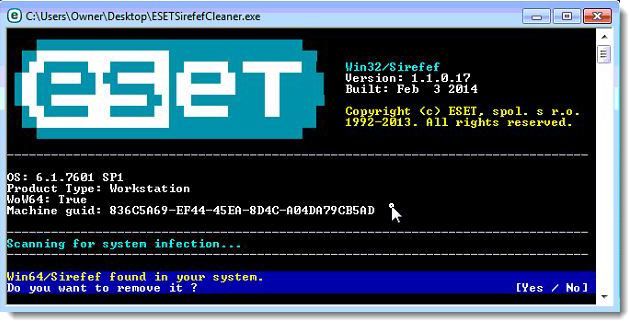
- The message “Win32/Sirefef.EV found in your system” will be displayed if an infection is found. To remove ZeroAccess/Sirefef from your computer, press the Y key on your keyboard

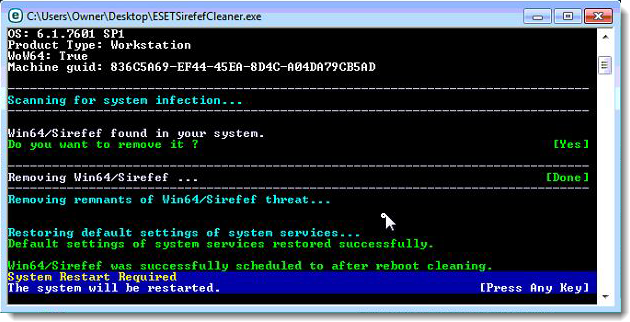
- Once the tool has run, you will be prompted to restore system services after you restart your computer. Press Y on your keyboard to restore system services and restart your computer.
- Once your computer has restarted, if you are presented with a security notification click Yes or Allow. and then continue wit the next step.
STEP 2: Use RKill to stop the ZeroAccess/Sirefef malicious processes
RKill is a program that will attempt to terminate all malicious processes associated with ZeroAccess/Sirefef, so that we will be able to perform the next step without being interrupted by this malicious software.
- You can download Rkill from the below link.
RKILL DOWNLOAD LINK (his link will open a new web page from where you can download “RKill”) - Double click on Rkill program to stop the malicious programs from running.
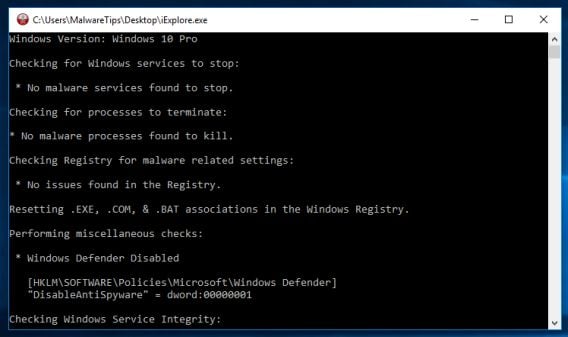
- RKill will now start working in the background, please be patient while this utiltiy looks for malicious process and tries to end them.
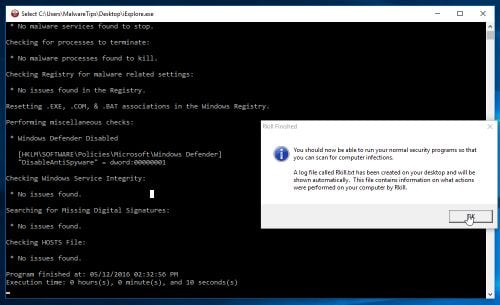
- When the Rkill tool has completed its task, it will generate a log. Do not reboot your computer after running RKill as the malware programs will start again.
STEP 3: Scan your computer with Malwarebytes Anti-Malware to remove ZeroAccess/Sirefef
Malwarebytes Anti-Malware is a powerful on-demand scanner which should remove the ZeroAccess/Sirefef virus from your machine. It is important to note that Malwarebytes Anti-Malware will run alongside antivirus software without conflicts.
- You can download download Malwarebytes Anti-Malware from the below link.
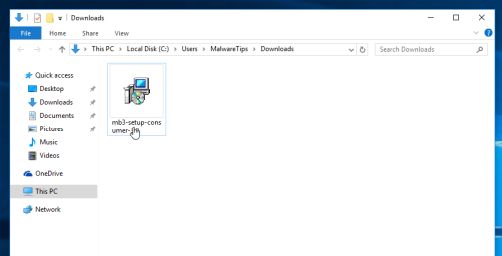
MALWAREBYTES ANTI-MALWARE DOWNLOAD LINK (This link open a new page from where you can download “Malwarebytes Anti-Malware”) - When Malwarebytes has finished downloading, double-click on the “mb3-setup-consumer” file to install Malwarebytes Anti-Malware on your computer.
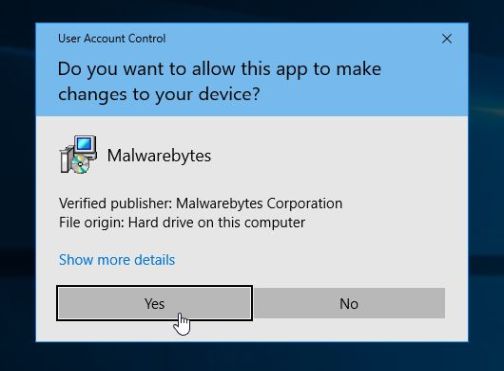
You may be presented with an User Account Control pop-up asking if you want to allow Malwarebytes to make changes to your device. If this happens, you should click “Yes” to continue with the installation.
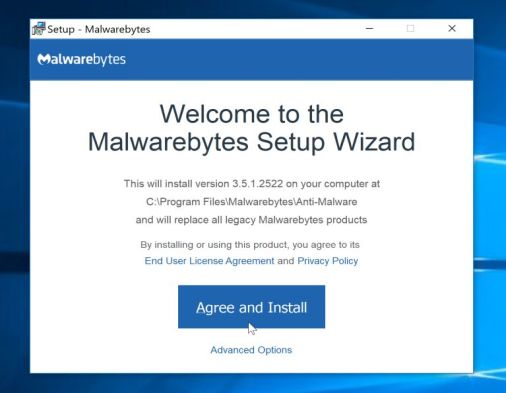
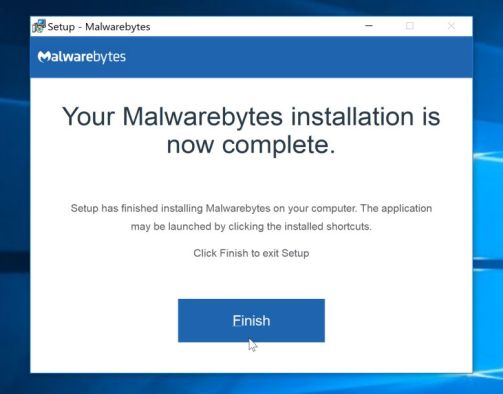
- When the Malwarebytes installation begins, you will see the Malwarebytes Setup Wizard which will guide you through the installation process.
To install Malwarebytes Anti-Malware on your machine, keep following the prompts by clicking the “Next” button.
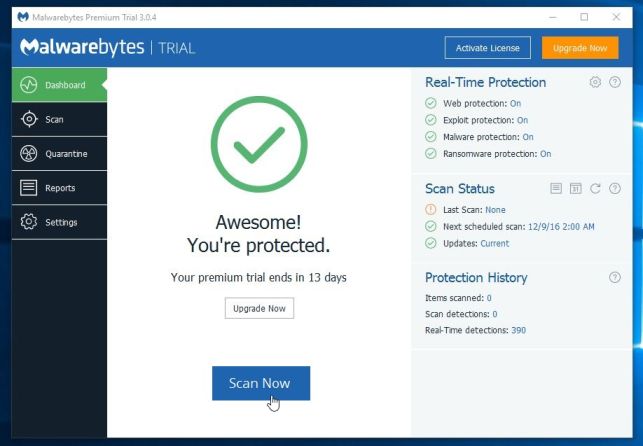
- Once installed, Malwarebytes will automatically start and update the antivirus database. To start a system scan you can click on the “Scan Now” button.
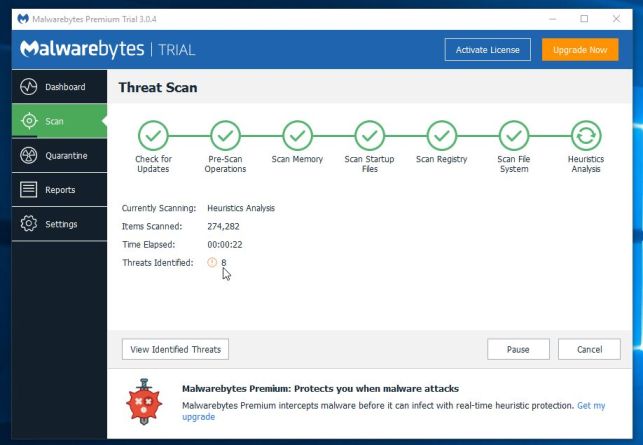
- Malwarebytes Anti-Malware will now start scanning your computer for malicious programs.
This process can take a few minutes, so we suggest you do something else and periodically check on the status of the scan to see when it is finished.
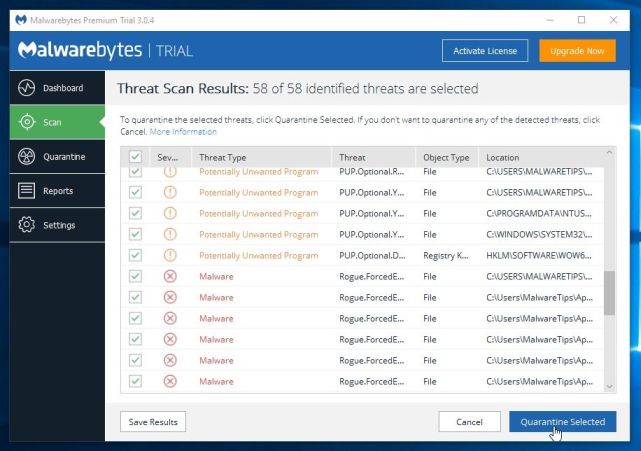
- When the scan has completed, you will be presented with a screen showing the malware infections that Malwarebytes Anti-Malware has detected.
To remove the malicious programs that Malwarebytes has found, click on the “Quarantine Selected” button.
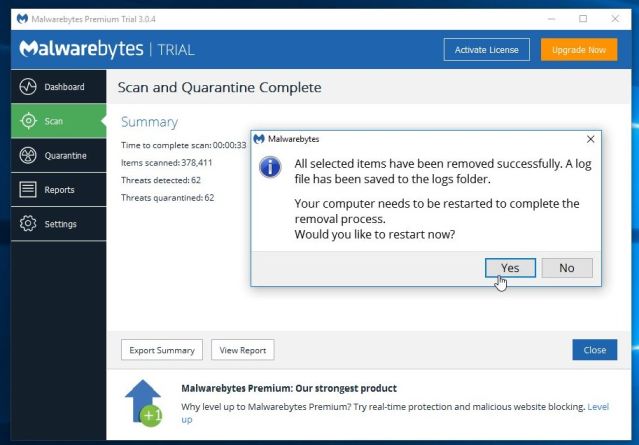
- Malwarebytes Anti-Malware will now quarantine all the malicious files and registry keys that it has found.
To complete the malware removal process, Malwarebytes may ask you to restart your computer.
When the malware removal process is complete, you can close Malwarebytes Anti-Malware and continue with the rest of the instructions.
STEP 4: Double-check for malicious programs with HitmanPro
HitmanPro can find and remove malware, adware, bots, and other threats that even the best antivirus suite can oftentimes miss. HitmanPro is designed to run alongside your antivirus suite, firewall, and other security tools.
- You can download HitmanPro from the below link:
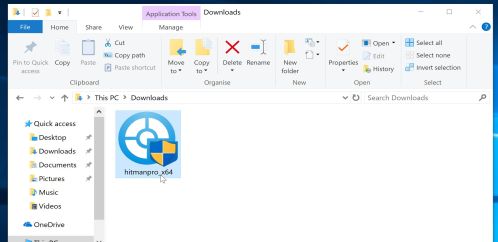
HITMANPRO DOWNLOAD LINK (This link will open a new web page from where you can download “HitmanPro”) - When HitmanPro has finished downloading, double-click on the “hitmanpro” file to install this program on your computer.
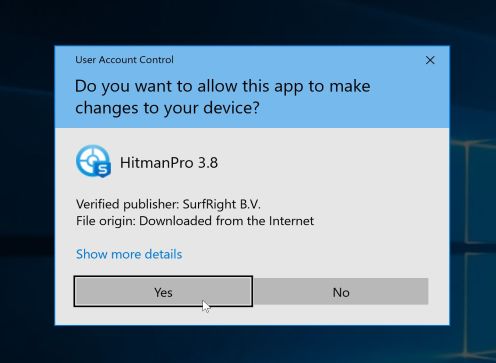
You may be presented with an User Account Control pop-up asking if you want to allow HitmanPro to make changes to your device. If this happens, you should click “Yes” to continue with the installation.
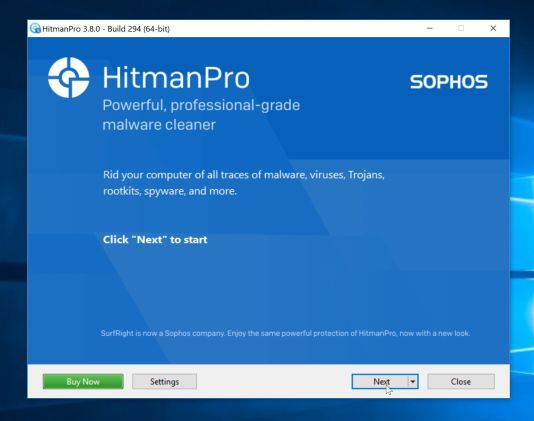
- When the program starts you will be presented with the start screen as shown below. Now click on the Next button to continue with the scan process.
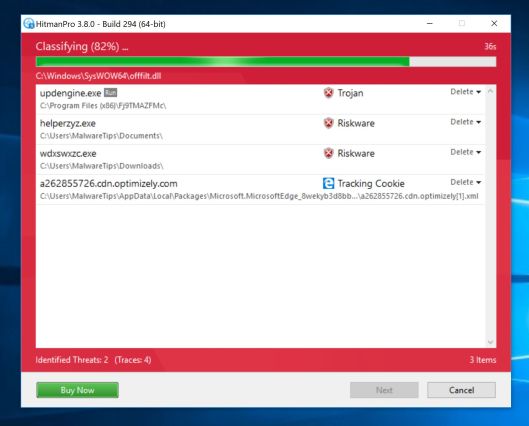
- HitmanPro will now begin to scan your computer for malware.
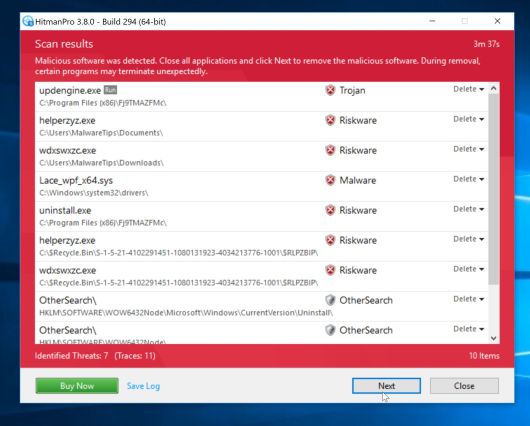
- When it has finished it will display a list of all the malware that the program found as shown in the image below. Click on the “Next” button, to remove malware.
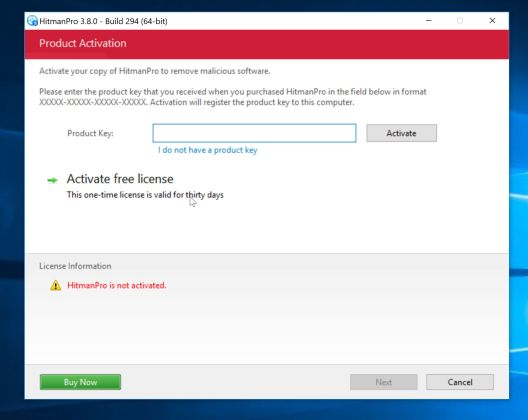
- Click on the “Activate free license” button to begin the free 30 days trial, and remove all the malicious files from your computer.
When the process is complete, you can close HitmanPro and continue with the rest of the instructions.
(OPTIONAL) STEP 5: Use Zemana AntiMalware Portable to remove ZeroAccess/Sirefef
This step should be performed only if your issues have not been solved by the previous steps.
- You can download Zemana AntiMalware Portable from the below link:
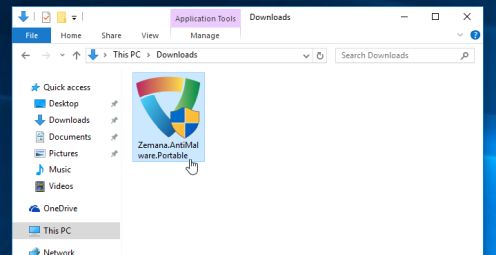
ZEMANA ANTIMALWARE PORTABLE DOWNLOAD LINK (This link will open a new web page from where you can download “Zemana AntiMalware Portable”) - Double-click on the file named “Zemana.AntiMalware.Portable” to perform a system scan with Zemana AntiMalware Free.
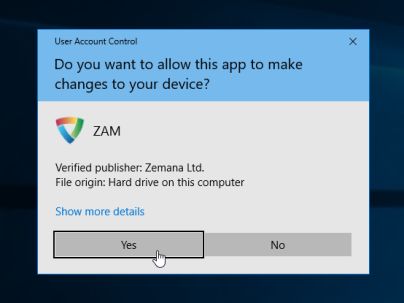
You may be presented with a User Account Control dialog asking you if you want to run this program. If this happens, you should click “Yes” to allow Zemana AntiMalware to run.
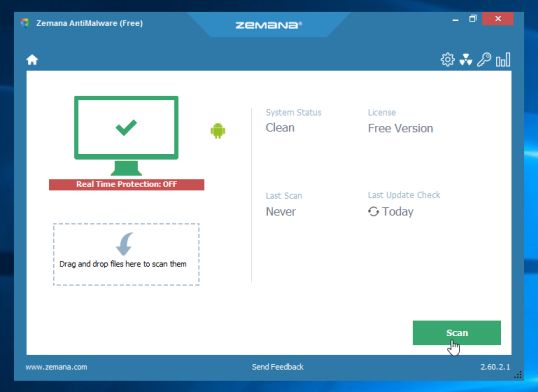
- When Zemana AntiMalware will start, click on the “Scan” button to perform a system scan.
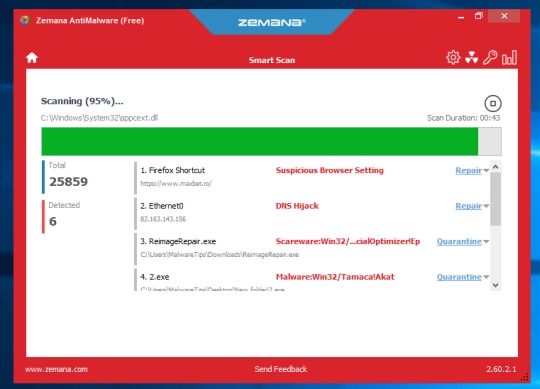
- Zemana AntiMalware will now scan your computer for malicious programs. This process can take up to 10 minutes.
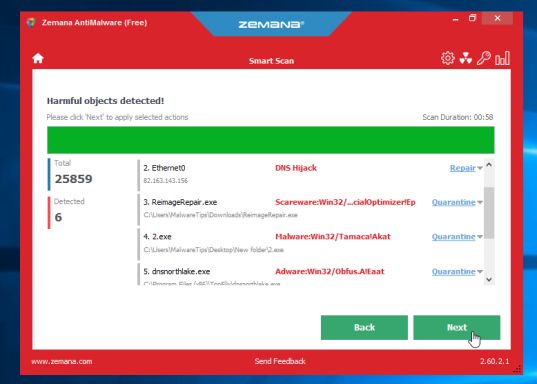
- When Zemana has finished finished scanning it will show a screen that displays any malware that has been detected. To remove all the malicious files, click on the “Next” button.
Zemana AntiMalware will now start to remove all the malicious programs from your computer.