


HunnyVine.com promised a free $100 for opening an account, plus cash for every friend who joined through your link. In late September 2025, those links spread fast online.
Maybe you signed up, shared your link or are still waiting for a payout, and now the site will not load. Here is what HunnyVine really was.
Overview
What HunnyVine Promised
HunnyVine called itself a referral network. Its homepage headline read “Sign up to get a FREE $100!” and said earnings could be withdrawn through PayPal, Cash App, Venmo or Zelle.
The About page went further. It claimed members were paid thousands every day, promised daily payments and said advertisers paid HunnyVine to reach influencers like its members.
No advertiser, product, company name or address appeared anywhere on the site. Its pages rewarded one thing above all: bringing in more people.
What Happened to HunnyVine.com
The domain was registered through Namecheap on September 26, 2025. By March 2026, its headline had changed to a free earning program with no cap and no cost.
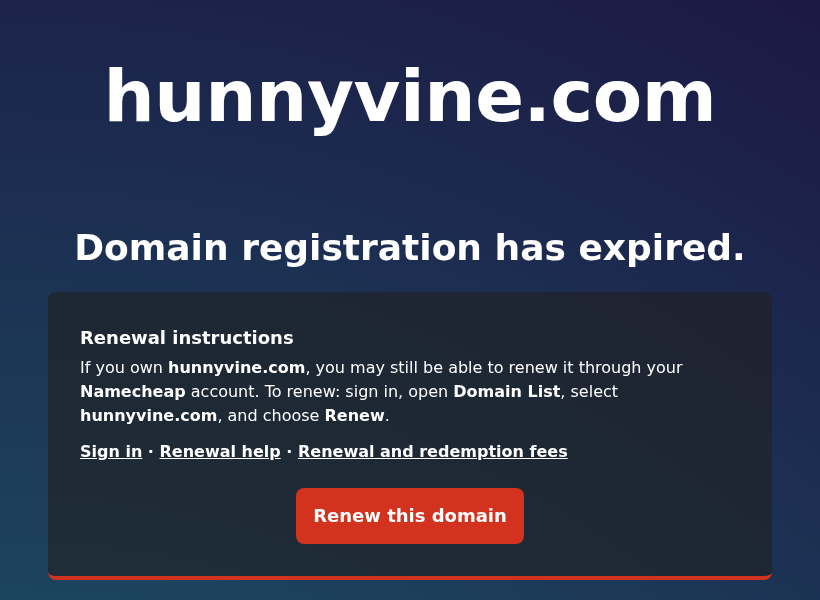
The one-year registration then lapsed. Today hunnyvine.com shows only a Namecheap page saying the domain registration has expired.
Because the registration lapsed, the name can eventually be bought by anyone. A future site at that address would have no link to your old account or balance.
The template did not disappear with it. At least 22 near-identical sites are live, including HunnyBand, KingHunny, HunnyRich and Hunny3, built on the same pages and tracking codes.
Is HunnyVine Legit? What the Evidence Shows
No. HunnyVine was not a real earning platform. Three findings settle it:
- Its member and payout counters matched its clones exactly, and the same figures are still frozen on those clones a year later.
- Its five testimonials were copied word for word onto other sites, with only the site name swapped in the hashtags.
- Members of its sister sites report the same payday excuse: some referrals were not genuine, so recruit more.
HunnyVine Reviews: What Members of Its Sister Sites Report
Trustpilot has no page for hunnyvine.com. The sister sites built on the same template do have reviews, and they read almost like one long complaint.
HunnyTank was registered eight days before HunnyVine with the same headline and tracking codes. Its Trustpilot profile holds a 1.9 TrustScore from 12 reviews, every one a single star.
One HunnyTank member says they reached 11 referrals and were told instant withdrawal needed 16. At 16, the target became 30, or a wait until November 1.
Others describe payday arriving with a message that their referrals were not genuine. Two say they could no longer even sign in once the payout date came.
Trustpilot also shows a notice on the HunnyTank profile warning that the company may be associated with high-risk investments.
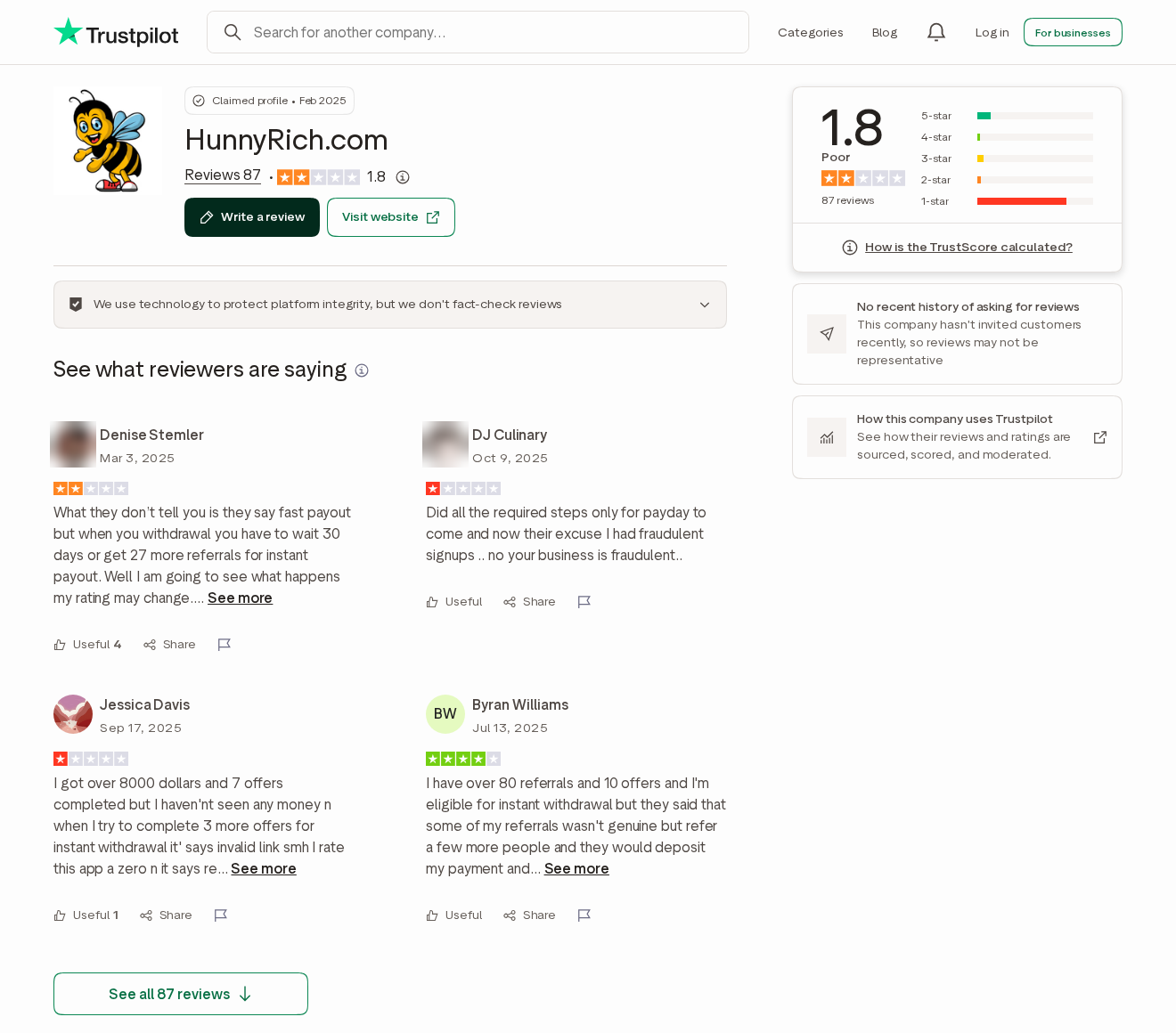
HunnyRich, another clone, averages 1.8 from 87 reviews. Members describe being told to wait 30 days or recruit more people for an instant payout, then being accused of fraudulent sign-ups.
Even a four-star HunnyRich review is a complaint. The reviewer says they had more than 80 referrals and 10 completed offers, and still saw no deposit on their release date.
The same story continues into 2026. A StacksNow member was promised instant withdrawal at 30 referrals, reached 47, and still saw only a processing status.
In September 2026, a MakeRacks reviewer wrote that their money was still not being released. Both sites carry the same testimonials and Google tag HunnyVine used.
How the HunnyVine Scam Works
HunnyVine never asked for a fee up front. The trap is slower: it trades a balance that only exists on screen for your time, your contacts and your personal details.
Step 1: Sign Up for a Free $100
The sign-up form asks for your full name, email address, a username and a password. On the live clones, the button itself promises to claim your free $100.
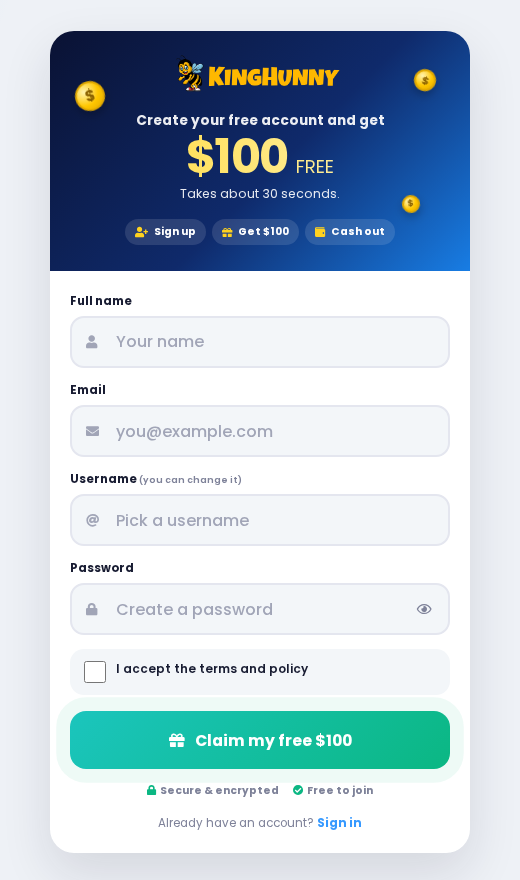
That $100 is a number on a dashboard, not money in an account you control. Members of the sister sites describe balances in the thousands that never left the site.
Nobody behind the site is named, so there is no way to know where those details end up or who can use them later.
Step 2: Share Your Referral Link Everywhere
The About page told members they could make money through Facebook, Instagram, Snapchat, TikTok and X. Each member gets a personal sign-up link to post and send.
The flow was built for links opened inside social apps. HunnyVine’s login page told visitors to leave the in-app browser and reopen the page in Safari or Chrome.
It worked. In HunnyVine’s first eight days, the Internet Archive saved more than 750 different HunnyVine sign-up links, each carrying a member’s personal referral code.
Every sign-up through a link like yours handed another person’s name, email address and password to the same unnamed operator, on your recommendation.
Step 3: Complete Offers to Speed Up the Payout
The current template tells members to complete offers on their own schedule. Reviewers on HunnyRich and Buzzy7 say offers became a second requirement once they hit their referral target.
One Buzzy7 member with 34 referrals and $4,058 on screen says the site put the account under review and asked for seven more offers to bypass it.
Offers on reward sites can mean app installs, account sign-ups or free trials that need a card. Any charge from those is real, even though the balance is not.
Step 4: Wait for Payday, Then Get Disqualified
Members who skip the offers are given a release date, often about 30 days out. Reviewers on HunnyTank, HunnyRich and Buzzy7 describe the same thing happening on that date.
The payout is replaced by a notice that some referrals were not genuine, followed by a new target.
HunnyVine’s own fraud policy set up this excuse in advance. It warned that if its review team or AI detected fake stats, the account would be terminated permanently.
The same policy bans sign-ups through your own link from another device or a VPN. Only the site decides which referrals break those rules, and the policy offers no appeal.
That makes ordinary sign-ups easy to reject. One Buzzy7 member says the site refused two accounts on the same IP address, which rules out a family sharing home Wi-Fi.
When payday fails, there is nobody to ask. The template’s Contact page, still live on HunnyBand, says to email the team but lists no address at all.
Payment questions are sent to a dedicated account manager instead. No such person is named anywhere, and no phone number, company or postal address appears either.
Step 5: The Brand Retires and a New One Launches
HunnyTank was registered on September 18, 2025, HunnyVine on September 26 and HunnyLink on October 3. None of the three runs the template today.
HunnyVine and HunnyLink show Namecheap’s expired-domain page, and HunnyTank shows a parking notice. KingHunny and Hunny3 were registered in February 2026 to carry the same pitch.
Old links can follow members to the next name. In March 2025, a Buzzy7 reviewer wrote that their HunnyRich link now opened Buzzy7 instead.
The Fake Numbers Behind HunnyVine
HunnyVine and most of its copies carry a global stats panel claiming 300,543 members, $9,764,893 paid and 500,949 payments made.
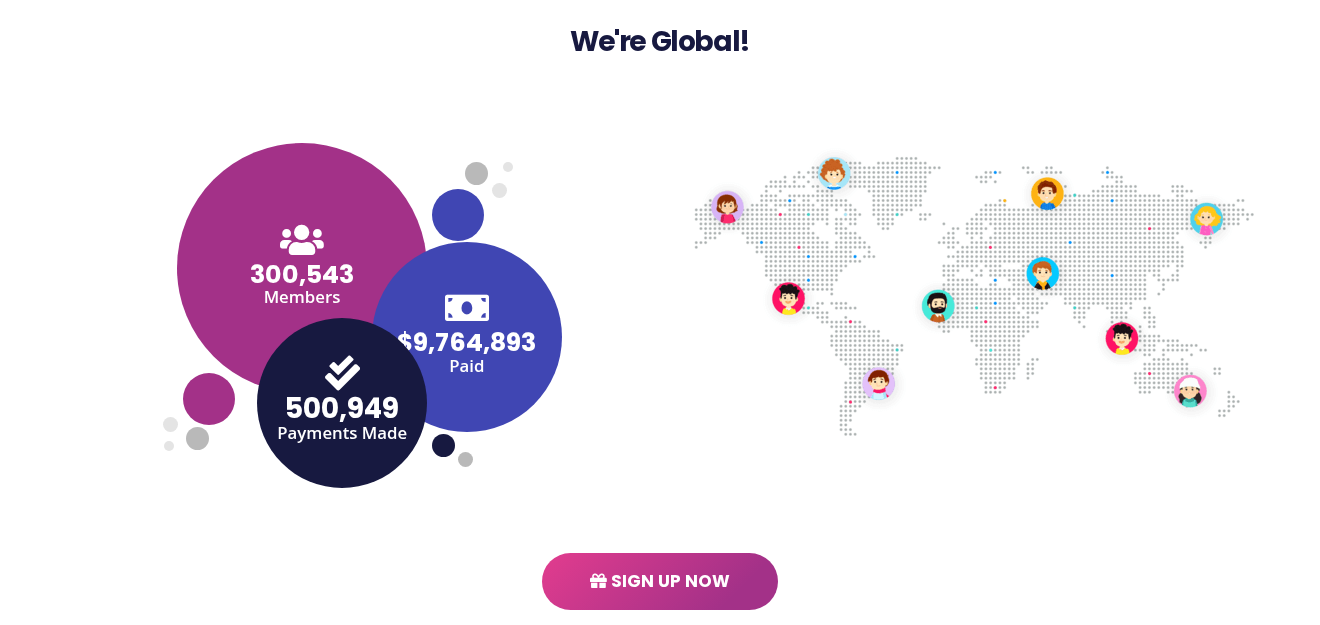
Those figures appeared on HunnyVine in October 2025 and again in March 2026. HunnyBand, KingHunny, Hunny3 and BreadEarn display exactly the same numbers today.
A real payout counter moves. These numbers have not gained a single member or payment in a year, across sites registered months apart.
The testimonials work the same way. Denise C. Perry, James R. Kinney and three other members praise every clone in identical words, each stamped as posted nine hours ago.
One of them says the site beats stimulus checks and wishes they had found it sooner in quarantine. That line fits 2020, not a domain registered in September 2025.
The footer adds a copyright running from 2016 to 2026. HunnyVine’s domain did not exist until 2025, and its Hunny sister domains date from 2025 and 2026.
The HunnyVine Clone Network Still Online
HunnyVine was one name in a large rotating network. The live sites share more than a design: their pages load the same Google Analytics tag, G-WC1FX41R9P.
That means visits to all of them are counted in one analytics property. Twenty of the 22 sites also embed the same Meta advertising pixel.
HunnyVine used both identifiers. Its codes in October 2025 matched HunnyTank’s exactly, and by March 2026 it had moved to the pixel the current clones use.
Live sites carrying the same Google tag include:
- Hunny names: HunnyBand, HunnyPop, KingHunny, Hunny3, Hunny5, Hunny7, HunnyRich, HunnyPay and HunnyMe
- Bread and Ram names: BreadEarn, BuzzBread, BreadTap, Bread7, LuvBread, HoneyRam and RamBuzz
- Other names: MoneyChik, Buzzy7, StacksNow, RubyBucks, MakeRacks and MoneyUpper
We have reported on several sites in this network, including HunnyTank, HunnyRich, KingHunny, HunnyBand and Buzzy7.
The newest Hunny copy, Hunny3.com, was registered on February 23, 2026. Its only Trustpilot review warns that the money never arrives.
Shared tracking codes show shared analytics and advertising accounts. They do not name the person behind the network, and none of the sites lists a company.
How to Spot the Next HunnyVine Clone
The name will change again. The pitch usually stays the same. Watch for these signs:
- A bonus of $100 or more just for creating an account
- Payment app logos used as decoration, with no company name or address behind them
- Earnings that come only from recruiting friends or completing offers
- Member and payout counters that never change
- Testimonials with hashtags and timestamps but no real profiles
- A copyright year older than the domain itself
- A brand built from Hunny, Bread, Ram, Buzz or Bucks plus a number or a short word
- Sign-up links on a dash subdomain ending in register.php with a ref code, the format used across this network
Real referral programs work differently. A named company pays a modest bonus after the person you invited actually uses its service, and its terms explain how payment works.
If a site matches two or three of the signs above, do not sign up, and do not post its link where friends will see it.
What to Do If You Signed Up or Shared a HunnyVine Link
HunnyVine is offline, but the details you gave it and the links you posted are still out there. Work through these steps:
- Stop sharing your link. Delete posts, comments and bio links pointing to HunnyVine or any clone, so friends do not sign up on your recommendation.
- Tell people who joined through you. A short message saying the site never paid helps them skip the offers and stop recruiting others.
- Change any reused password. If your HunnyVine password also protects email, social or payment accounts, change it there and turn on two-factor authentication.
- Never pay to release a balance. Treat any request for a fee, deposit or verification payment to unlock earnings as a separate scam.
- Check every offer you completed. Look through card and app store statements for trials or subscriptions started through offers, cancel them, and dispute charges you did not knowingly approve.
- Ignore recovery offers. Anyone promising to recover a HunnyVine balance for a fee is running another scam. That balance never existed as money.
- Report it. File a report with the FTC at ReportFraud.ftc.gov, and leave an honest Trustpilot review of the clone you used.
- Clean up anything an offer installed. Remove apps you installed for offers and block notifications you allowed, then run the free scan below.
Signing up alone does not infect a phone or computer. If offers had you install apps or allow notifications, the guide below covers a free Malwarebytes scan and AdGuard.
Is Your Device Infected? Run a Free Malware Scan
Slow performance, constant pop-ups, or strange behavior? These are classic signs of a malware infection. A quick way to check is to scan your device with Malwarebytes Free, one of the most trusted malware removal tools available. If you only visited a scam page and didn’t download or install anything, this scan is optional.
The free version detects and removes the most common threats, including:
- Adware — the cause of those annoying pop-ups
- Browser hijackers — unwanted redirects and changed homepages
- Trojans and spyware — hidden programs stealing your data
- Potentially unwanted programs (PUPs) — software you never asked for
👉 Select your device below — Windows, Mac, or Android — then follow the simple steps to download Malwarebytes, scan your system, and remove any threats it finds. The scan usually takes 5 to 20 minutes.
Run a Malware Scan with Malwarebytes for Windows
Malwarebytes is one of the most popular and trusted anti-malware tools for Windows — and it’s completely free for removing infections. It catches threats that many antivirus programs miss, including adware, browser hijackers, and trojans. Follow the steps below to scan your PC and remove what Malwarebytes finds.
Download Malwarebytes
Click the button below to download the latest version of Malwarebytes for Windows from the official source. The free version is all you need — it will scan your computer and remove adware, browser hijackers, and other malicious software at no cost.
Download MalwarebytesOfficial installer for Windows 11 and 10. Your download starts right away.Want real-time protection? See Malwarebytes Premium Malwarebytes Free for WindowsScans and removes malware at no cost
-
Install Malwarebytes
When the download finishes, open your Downloads folder and double-click the MBSetup file. If Windows shows a User Account Control pop-up, click “Yes” to allow the installation.

Follow the On-Screen Prompts to Install Malwarebytes
The setup wizard will walk you through a few quick screens:
-
Choose where you’re installing the program — “Personal Computer” or “Work Computer” — then click Next.

-
Malwarebytes will now install on your device. This usually takes under a minute.

-
When installation is complete, the “Welcome to Malwarebytes” screen will open automatically.

-
On the final screen, click Open Malwarebytes to launch the program.

-
Optional: Check for rootkits with a Custom Scan
You don’t need to change any settings for a normal scan. The standard Threat Scan in the next step is enough for most problems, so you can go straight to it.
If you also want to check for rootkits, use a Custom Scan. In current versions of Malwarebytes, rootkit scanning is only available there:
- On the Scanner tile, click the three-dot menu and select Advanced Scan.
- Choose Custom Scan. In its options, check Scan for rootkits.
- Select your system drive (usually C:\) as the location to scan, then start the scan. It takes longer than a Threat Scan.
- When it finishes, review and quarantine the results as described in the steps below.
Rootkit scanning isn’t available on Windows devices with ARM processors.
Start the Scan
Click the blue Scan button. Malwarebytes will automatically update its virus database and start checking your computer for malware.

-
Wait for the Scan to Finish
The scan checks your entire system for browser hijackers and other malicious programs, so it can take 5 to 20 minutes depending on your computer. Feel free to do something else — just check back occasionally to see the progress.

-
Quarantine the Detected Threats
When the scan is done, you’ll see a list of everything Malwarebytes found — malware, adware, and potentially unwanted programs. Click the “Quarantine” button to remove all of them at once.

Malwarebytes will now remove the malicious files and registry entries and move them safely into quarantine.

-
Restart Your Computer
Some threats can only be fully removed after a reboot. If Malwarebytes asks you to restart, click Yes. Once you’re logged back in, Malwarebytes has finished removing the threats it found.

When the scan is done, check whether the problems you noticed have stopped. If they continue, see the options below.
If you are still having problems with your computer after completing these instructions, then please follow one of the steps:
- Run a computer scan with ESET Online Scanner
- Ask for help in our Windows Malware Removal Help & Support forum.
Run a Malware Scan with Malwarebytes for Mac
Malwarebytes for Mac is a free on-demand scanner that removes the malware other security software tends to miss — adware, browser hijackers, and unwanted programs included. Cleaning an infected Mac with Malwarebytes has always been completely free, and it’s our go-to recommendation. Follow the steps below to scan your Mac and remove what Malwarebytes finds.
-
Download Malwarebytes for Mac
Click the button below to download the latest version of Malwarebytes for Mac.
Download MalwarebytesOfficial installer for macOS. Your download starts right away.Want real-time protection? See Malwarebytes PremiumMalwarebytes Free for MacScans and removes malware at no cost -
Open the Malwarebytes setup file
When the download finishes, open your Downloads folder and double-click the setup file to begin the installation.

-
Follow the On-Screen Prompts to Install Malwarebytes
The Malwarebytes for Mac Installer will guide you through a few quick screens. Click “Continue” and keep following the prompts until the installation completes.



When the installation is complete, Malwarebytes opens to the Welcome to Malwarebytes screen. Click “Get started“.
Malwarebytes needs Full Disk Access to check your whole Mac. When it asks, open System Settings > Privacy & Security > Full Disk Access, turn on Malwarebytes (it may be listed as Malwarebytes Protection), and confirm with your password or Touch ID. Then return to Malwarebytes. On macOS Monterey and earlier, this setting is in System Preferences > Security & Privacy > Privacy.
-
Select “Personal Computer” or “Work Computer”
Malwarebytes will ask what type of computer you’re installing it on. Click either Personal Computer or Work Computer, whichever applies.

-
Start the Scan
Click the “Scan” button. Malwarebytes will automatically update its detection database and begin checking your Mac for malware.

-
Wait for the Scan to Finish
Malwarebytes will scan your Mac for adware, browser hijackers, and other malicious programs. This can take a few minutes, so feel free to do something else — just check back occasionally to see the progress.

-
Quarantine the Detected Threats
When the scan is done, you’ll see a list of everything Malwarebytes found. Click the “Quarantine” button to remove all the threats at once.

-
Restart Your Mac
Malwarebytes will now remove all the malicious files it found. Some threats can only be fully removed after a reboot — if Malwarebytes asks you to restart, allow it. Once you’re logged back in, check whether the problems you noticed have stopped. If they come back, save the scan report and ask for help in our forum.

If the problems you noticed continue after the scan, see the options below.
If you are still experiencing problems while trying to remove a malicious program from your computer, please ask for help in our Mac Malware Removal Help & Support forum.
Run a Malware Scan with Malwarebytes for Android
Malwarebytes for Android scans your phone or tablet for malware, adware, and potentially unwanted apps. The free version scans only when you start a scan. Real-time protection, which checks apps automatically, is part of the paid Premium version.
-
Download Malwarebytes for Android.
You can download Malwarebytes for Android by clicking the link below.
Get Malwarebytes for AndroidOpens Google Play in a new tab.Want real-time protection? See Malwarebytes Premium for AndroidMalwarebytes for AndroidScans your phone and removes malware at no cost -
Install Malwarebytes for Android on your phone.
In the Google Play Store, tap “Install” to install Malwarebytes for Android on your device.

When the installation process has finished, tap “Open” to begin using Malwarebytes for Android. You can also open Malwarebytes by tapping on its icon in your phone menu or home screen.

-
Follow the on-screen prompts to complete the setup process
When Malwarebytes opens, it walks you through a short setup. Tap Get started and follow the prompts. If you see an offer for a trial or a paid plan, read it before you accept. You can skip it and keep using the free scanner.
Malwarebytes will ask for permission to access the files on your phone so it can scan them. Tap Allow, or turn on the permission in the Android screen that opens, then return to Malwarebytes.
-
Run a scan with Malwarebytes for Android
On the main screen, tap Scan now. In some versions, you open the menu, tap Scanner, and then tap Run a scan.
-
Wait for the Malwarebytes scan to complete.
Malwarebytes will now start scanning your phone for adware and other malicious apps. This process can take a few minutes, so we suggest you do something else and periodically check on the status of the scan to see when it is finished.

-
Remove the detected apps.
When the scan has been completed, you will see a list of the threats that Malwarebytes for Android has detected. Next to each detected item, tap the menu icon (three dots), then choose to uninstall the app or delete the file. Android then asks you to confirm. Tap OK or Uninstall to remove the app.
-
Restart your phone.
When the detected apps are removed, restart your phone if Malwarebytes asks you to. Then check whether the problems you noticed have stopped.
If the problems you noticed continue after the scan, see the options below.
If you are still having problems with your phone after completing these instructions, then please follow one of the steps:
- Ask for help in our Mobile Malware Removal Help & Support forum.
- Only as a last resort, reset your phone to factory settings. Read the warning below first.
- Back up your photos, videos, files, and messages, for example to your Google account or a computer.
- Make sure you know your Google account email and password. The phone asks for them after the reset. If you changed the password recently, Google recommends waiting 24 hours before you reset.
- On a Samsung phone, also make sure you know your Samsung account password.
- If you use an authenticator app for two-step verification, move your accounts to another device or save your backup codes first.
Stay Protected: Block Ads and Malicious Sites
No scan can prove a device is completely clean, so it helps to block threats before they reach you. Most infections start with a malicious ad or a fake download button — so blocking them at the source is your best defense.
We recommend AdGuard, which blocks malicious ads, phishing pages, and dangerous redirects before they can reach you.
👉 Download AdGuard and browse safely
Frequently Asked Questions
Is HunnyVine legit?
No. HunnyVine is a recruiting scheme dressed up as a referral program. Its payout figures were decoration, and its only real output was fresh sign-ups and personal data.
Are there any real HunnyVine reviews?
Not under its own name, since Trustpilot has no HunnyVine page. Its sister sites HunnyTank and HunnyRich score 1.9 and 1.8, with reviews describing payouts that never arrived.
Was HunnyVine connected to PayPal, Cash App, Venmo or Zelle?
No. HunnyVine listed them as payout methods, but nothing on the site tied it to any of those companies. A logo on a sign-up page is not a partnership.
Did anyone actually get paid by HunnyVine?
No verifiable payout has surfaced. Most of HunnyRich’s five-star reviews arrived on February 26 and 27, 2025, days after its domain was registered, and none gives a withdrawal amount.
Is it safe to join HunnyBand, KingHunny or another clone instead?
No. A new name restarts the same cycle: a free balance, a referral target, a release date and a new excuse. Your friends pay with their time and data.
Can I delete my HunnyVine account or get my data back?
With the domain expired, there is no account page left to sign in to or close. Assume your name, email and password are in unknown hands, and secure those accounts.
The Bottom Line
Do not sign up for HunnyVine or any site that copies it. The free $100 and the growing balance were never withdrawable money, and recruiting only fed the next round.
If you already joined, stop sharing your link, warn the people who signed up through you, change any reused password and cancel anything an offer charged to your card.
If you want side income, stick to named companies whose referral terms say when they pay. Never treat an on-screen balance as money until it reaches your bank.

Join the discussion
0 commentsShare your experience or ask a question about this article.
Discussion
Start the conversation
Have a question or something useful to share? Add the first comment.