


The “I am a professional coder and I hacked your device” email is a scam that tries to trick you into thinking that your computer or phone is infected with malware and then threatens to make your personal data public. Contrary to the claims in the email, you haven’t been hacked (or at least, that’s not what prompted this email) and this is nothing more than a scam that tries to trick you into sending Bitcoins to these scammers. This is merely a new variation on an old scam which is popularly being called “sextortion”.
This is the text of the “I am a professional coder and I hacked your device” blackmail email, including the grammatical and spelling errors:
Hello!
I am a professional coder and I hacked your device’s OS when you visited adult website. I’ve been watching your activity for a couple of months. If you don’t understand what I am talking about I can explain… My trojan malware lets me get access to my victim’s system. It is multiplatform software with hVNC that can be installed on phones, PC and even TV OS… It doesn’t have any AV’s detects because it is encrypted and can’t be detected becaause I update it’s signatures every 4 hour. I can turn on your camera, save your logs and do everything that I want and you won’t notice anything. Now I have all your contacts, sm data and all logs from chats for the latest 2 months but it is not very useful without something that can spoil your reputation… I recorded your masturbation and the video that you watched. It was disgusting. I can destroy your life by sending this stuff to everybody you know. If you want me to delete this stuff and avoid any problems you have to send $1000 to my bitcoin address: 121UeS1333eASSE6MLHUqV2XiE2pTQ1Prt If you don’t know how to buy bitcoins use Google, there are a lot of manuals about using, spending and buying this cryptocurrency. You have 50 hours from now to complete the payment. I have a notification that you are reading this message… TIME HAS GONE.
Don’t try to respond because this email address is generated. Don’t try to complain because this and my bitcoin address can’t be tracked down. If I notice that you shared this message everybody will receive your data.
Bye!.
The above email and anything it state is just a scam to try and scare you into paying the ransom. If you have received the “I am a professional coder and I hacked your device” email, we recommend to delete it and under no circumstances send any money to these cybercriminals.
Is the “I am a professional coder and I hacked your device” email real?
No, and don’t panic. The “I am a professional coder and I hacked your device” email is a scam that tries to trick you into thinking that your device or email has been hacked, then demands payment or else they will send compromising information -such as images of you captured through your web camera or your pornographic browsing history – to all your friends and family. And in classic ransomware fashion, there’s typically a ticking clock. Giving users a short time limit to deliver the payment is social engineering at its finest.
Threats, intimidation, and high-pressure tactics are classic signs of a scam.
As you can imagine, the “I am a professional coder and I hacked your device” extortion email and anything it states is just a scam to try and scare you into paying the ransom.
They have my password! How did they get my password?
To make the threats more credible, the scammers may include one of your passwords in this email. The scammers have your password from sites that were hacked, and in this case, likely matched up to a database of emails and stolen passwords and sent this scam out to potentially millions of people. You can check if your email or password was compromised in a data breach on Haveibeenpwned.
If the password emailed to you is one that you still use, in any context whatsoever, stop using it and change it NOW. It’s also recommended that you enable two-factor authentication for your email and online accounts whenever that is an option.
Should I pay the ransom?
You should not pay the ransom. If you pay the ransom, you’re not only losing money but you’re encouraging the scammers to continue phishing other people.
Delete the “I am a professional coder and I hacked your device” email, and under no circumstances pay these cybercriminals a penny/dime/bitcoin.
What should I do now?
We recommend that you ignore the content of the “I am a professional coder and I hacked your device” email and delete it from your Inbox. However, if you have downloaded any attachments or clicked on any links from this email, or if you suspect that your computer might be infected with malware, you can follow the below guide to and scan your device for malware and remove it for free.
Depending on which operating system is installed on the device you want to scan for malicious programs, follow the removal guide.
 Scan and remove malware from Windows
-
 Scan and remove malware from Mac
 Scan and remove malware from Android
STEP 1: Use Malwarebytes Free to remove malware from Windows
In this first step, we will install and run a scan with Malwarebytes to remove adware, browser hijackers, and potentially unwanted programs that might be installed on your computer.
Malwarebytes Free is one of the most popular and most used anti-malware software for Windows, and for good reasons. It is able to destroy many types of malware that other software tends to miss, without costing you absolutely nothing. When it comes to cleaning up an infected device, Malwarebytes has always been free and we recommend it as an essential tool in the fight against malware.
-
Download Malwarebytes Free.
You can download Malwarebytes by clicking the link below.
 Malwarebytes Free for WindowsScans and removes malware at no cost
Download MalwarebytesOfficial installer for Windows 11 and 10. Your download starts right away.Want real-time protection? See Malwarebytes Premium
-
Double-click on the Malwarebytes setup file.
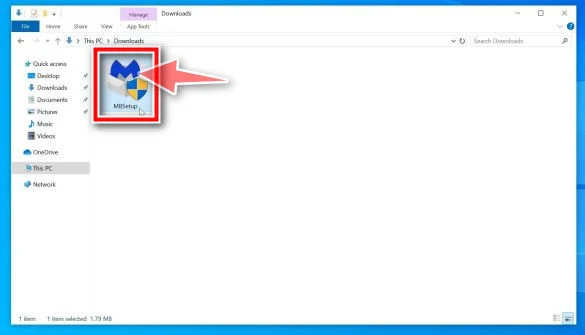
When Malwarebytes has finished downloading, double-click on the MBSetup file to install Malwarebytes on your computer. In most cases, downloaded files are saved to the Downloads folder.
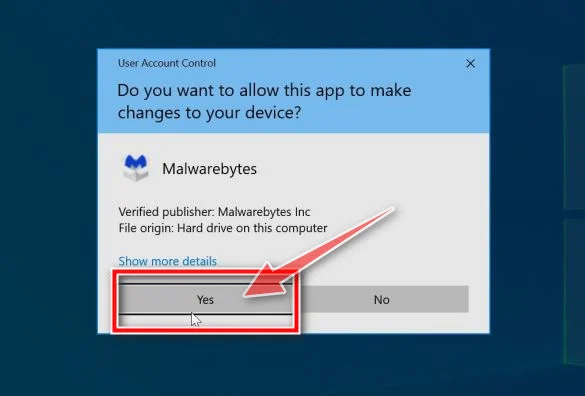
You may be presented with an User Account Control pop-up asking if you want to allow Malwarebytes to make changes to your device. If this happens, you should click “Yes” to continue with the Malwarebytes installation.
-
Follow the on-screen prompts to install Malwarebytes.
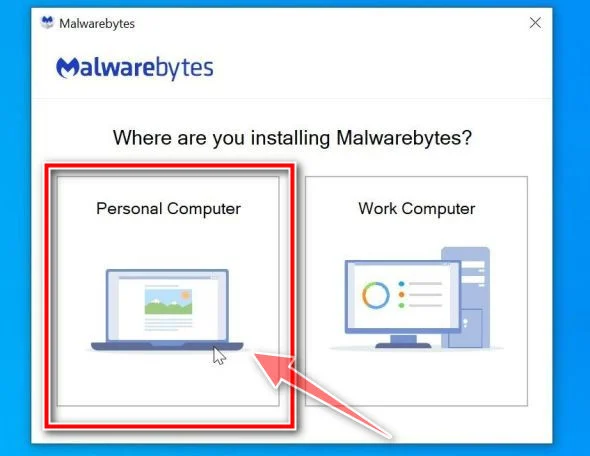
When the Malwarebytes installation begins, you will see the Malwarebytes setup wizard which will guide you through the installation process. The Malwarebytes installer will first ask you on what type of computer are you installing this program, click either Personal Computer or Work Computer.
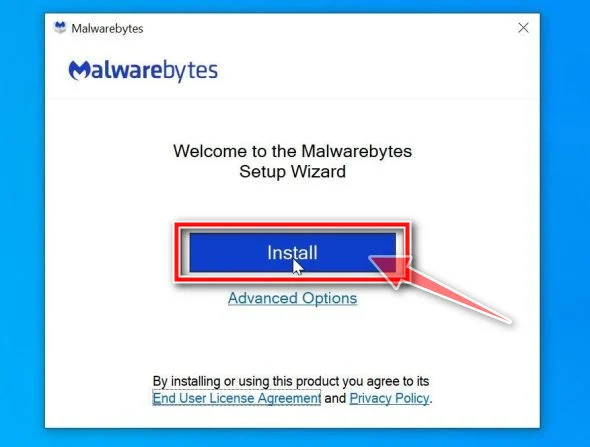
On the next screen, click “Install” to install Malwarebytes on your computer.
When your Malwarebytes installation completes, the program opens to the Welcome to Malwarebytes screen. Click the “Get started” button.
-
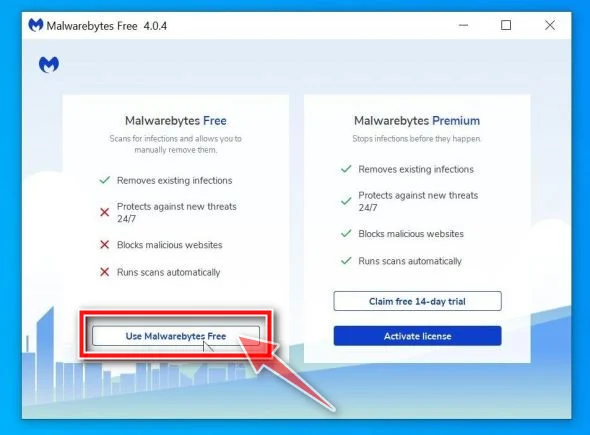
Select “Use Malwarebytes Free”.
After installing Malwarebytes, you’ll be prompted to select between the Free and the Premium version. The Malwarebytes Premium edition includes preventative tools like real-time scanning and ransomware protection, however, we will use the Free version to clean up the computer.
Click on “Use Malwarebytes Free“.
-
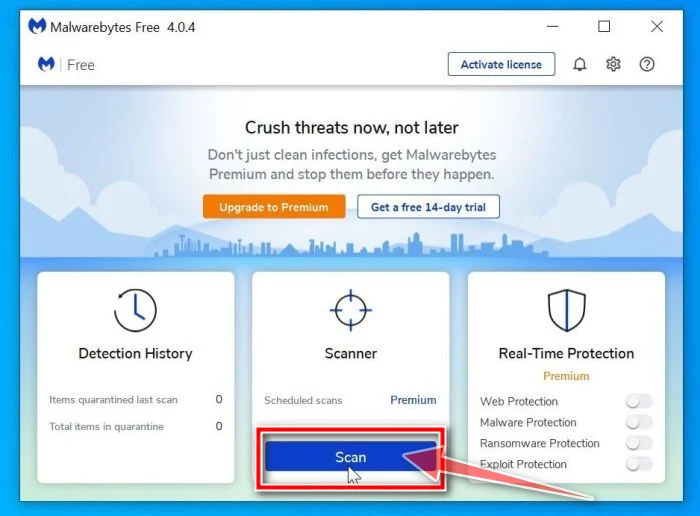
Click on “Scan”.
To scan your computer with Malwarebytes, click on the “Scan” button. Malwarebytes will automatically update the antivirus database and start scanning your computer for malware.
-
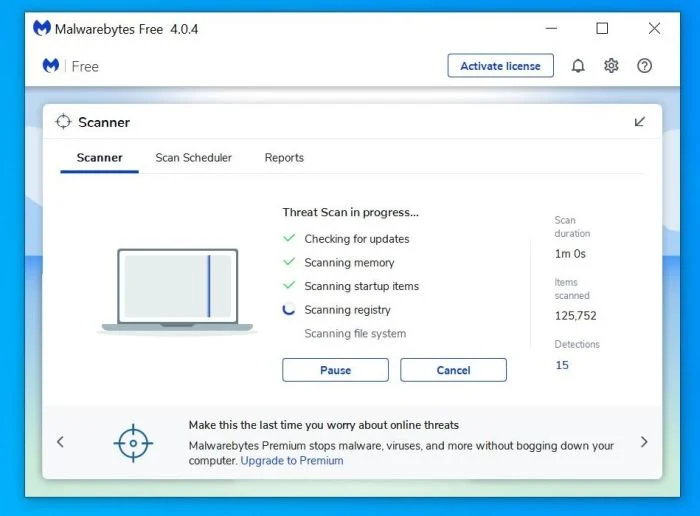
Wait for the Malwarebytes scan to complete.
Malwarebytes will scan your computer for adware and other malicious programs. This process can take a few minutes, so we suggest you do something else and periodically check on the status of the scan to see when it is finished.
-
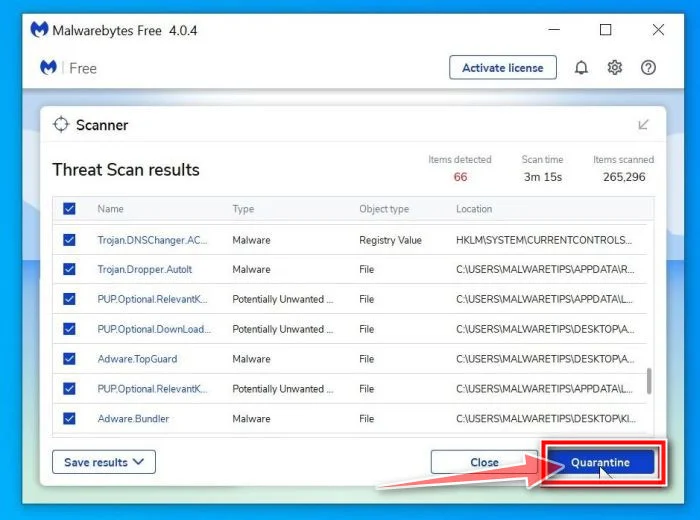
Click on “Quarantine”.
When the scan has completed, you will be presented with a screen showing the malware infections that Malwarebytes has detected. To remove the malicious programs that Malwarebytes has found, click on the “Quarantine” button.
-
Restart computer.
Malwarebytes will now remove all the malicious files and registry keys that it has found. To complete the malware removal process, Malwarebytes may ask you to restart your computer.
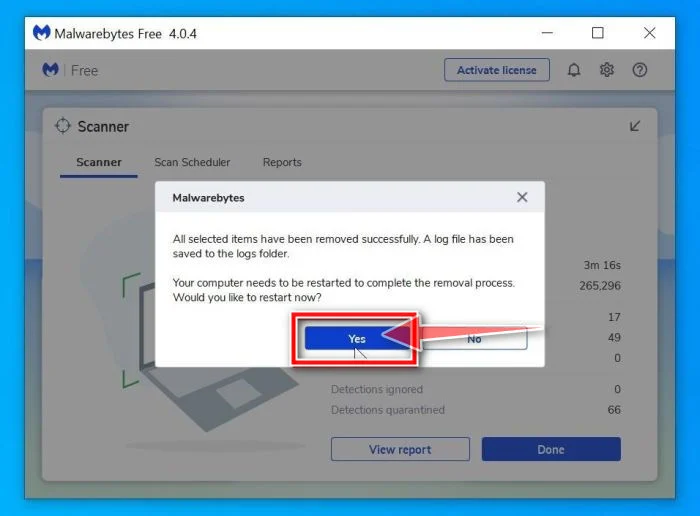
When the malware removal process is complete, you can close Malwarebytes and continue with the rest of the instructions.
STEP 2: Use HitmanPro to scan for malware and unwanted programs
In this second step, we will run a scan with HitmanPro to do a final check for any other malicious programs that may be present on your computer.
HitmanPro is a second opinion scanner that takes a unique cloud-based approach to malware scanning. HitmanPro scans the behavior of active files and also files in locations where malware normally resides for suspicious activity. If it finds a suspicious file that’s not already known, HitmanPro sends it to their clouds to be scanned by two of the best antivirus engines today, which are Bitdefender and Kaspersky.
Although HitmanPro is shareware and costs $24.95 for 1 year on 1 PC, there is actually no limit in scanning. The limitation only kicks in when there is a need to remove or quarantine detected malware by HitmanPro on your system and by then, you can activate the one time 30-days trial to enable the clean up.
-
Download HitmanPro.
You can download HitmanPro by clicking the link below.
 HitmanProSecond-opinion malware scanner from Sophos
Download HitmanProFree scan. Removing threats needs the free 30-day trial. Your download starts right away.
-
Install HitmanPro.
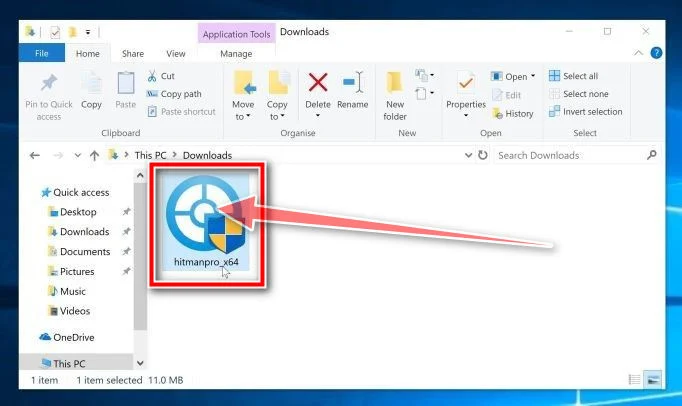
When HitmanPro has finished downloading, double-click on “hitmanpro.exe” (for 32-bit versions of Windows) or “hitmanpro_x64.exe” (for 64-bit versions of Windows) to install this program on your PC. In most cases, downloaded files are saved to the Downloads folder.
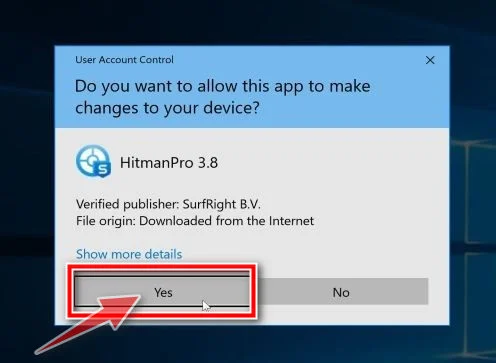
You may be presented with an User Account Control pop-up asking if you want to allow HitmanPro to make changes to your device. If this happens, you should click “Yes” to continue with the installation.
-
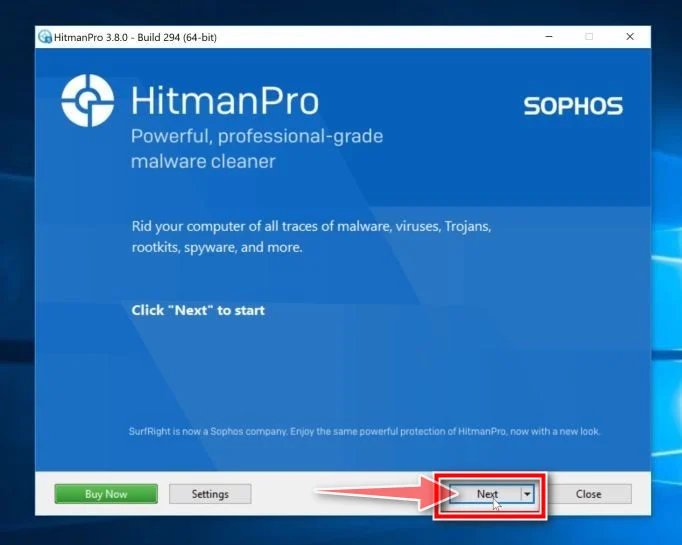
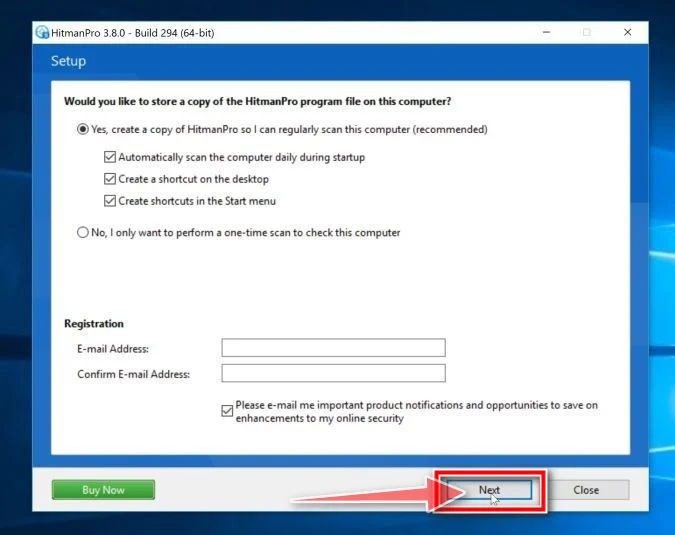
Follow the on-screen prompts.
When HitmanPro starts you will be presented with the start screen as shown below. Click on the “Next” button to perform a system scan.
-
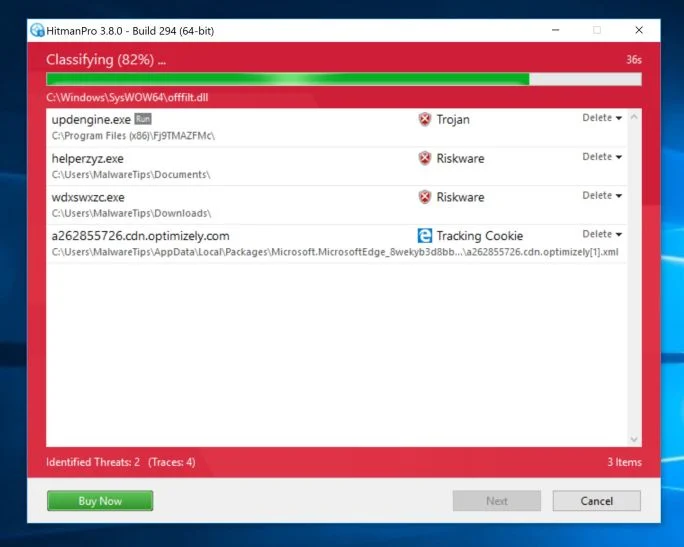
Wait for the HitmanPro scan to complete.
HitmanPro will now begin to scan your computer for malicious programs. This process will take a few minutes.
-
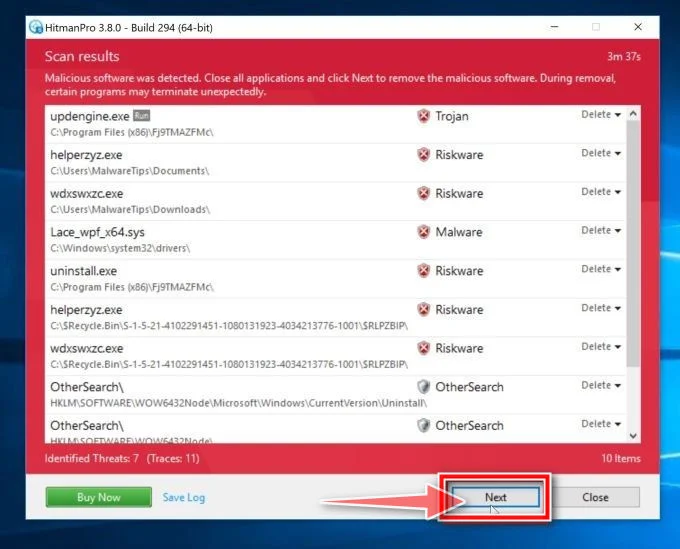
Click on “Next”.
When HitmanPro has finished the scan, it will display a list of all the malware that the program has found. Click on the “Next” button to remove the malicious programs.
-
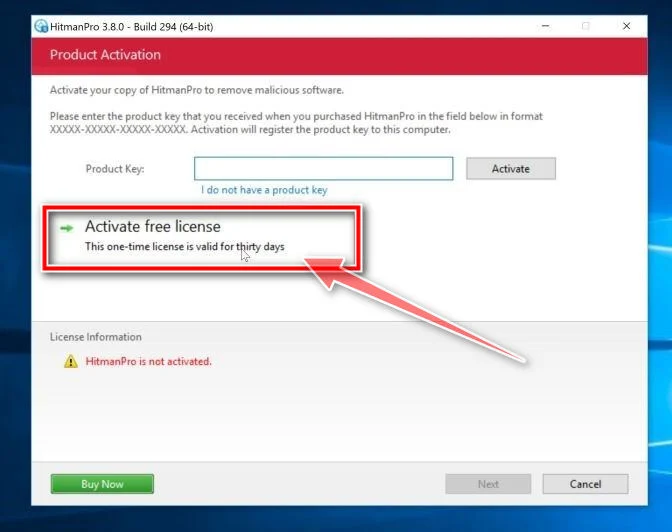
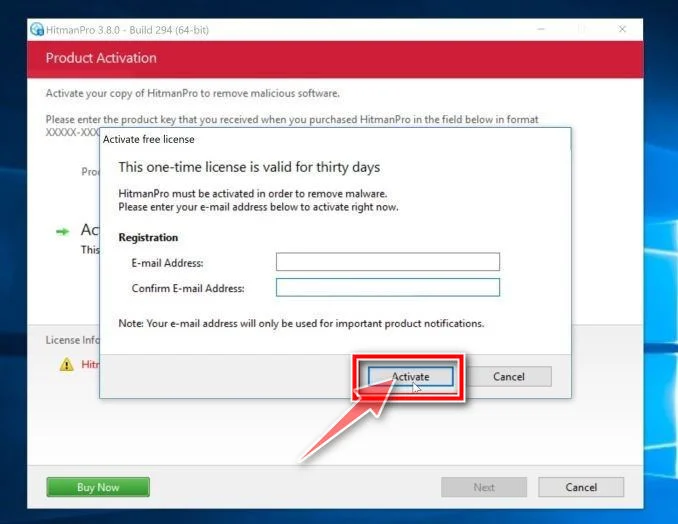
Click on “Activate free license”.
Click on the “Activate free license” button to begin the free 30 days trial and remove all the malicious files from your PC.
Your computer should now be free of the “I am a professional coder and I hacked your device” malware. If your current antivirus allowed this malicious program on your computer, you may want to consider purchasing the full-featured version of Malwarebytes Anti-Malware to protect against these types of threats in the future.
If you are still having problems with your computer after completing these instructions, then please follow one of the steps:
- Run a computer scan with ESET Online Scanner
- Ask for help in our Windows Malware Removal Help & Support forum.
To check your computer for malware and remove it from a Macbook or iMac, follow these steps:
STEP 1: Use Malwarebytes Free to remove malware from Mac
In this first step, we will install and run a scan with Malwarebytes to remove adware, browser hijackers, and potentially unwanted programs that might be installed on your computer.
Malwarebytes Free is one of the most popular and most used anti-malware software for Windows, and for good reasons. It is able to destroy many types of malware that other software tends to miss, without costing you absolutely nothing. When it comes to cleaning up an infected device, Malwarebytes has always been free and we recommend it as an essential tool in the fight against malware.
-
Download Malwarebytes Free.
You can download Malwarebytes for Mac by clicking the link below.
Malwarebytes Free for MacScans and removes malware at no costDownload MalwarebytesOfficial installer for macOS. Your download starts right away.Want real-time protection? See Malwarebytes Premium
-
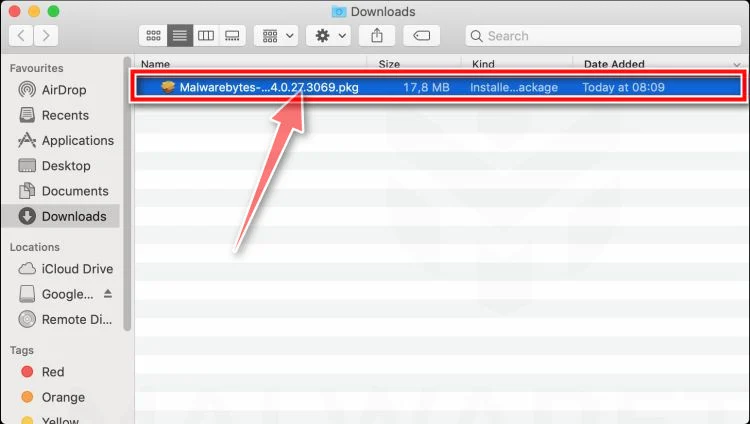
Double-click on the Malwarebytes setup file.
When Malwarebytes has finished downloading, double-click on the setup file to install Malwarebytes on your computer. In most cases, downloaded files are saved to the Downloads folder.
-
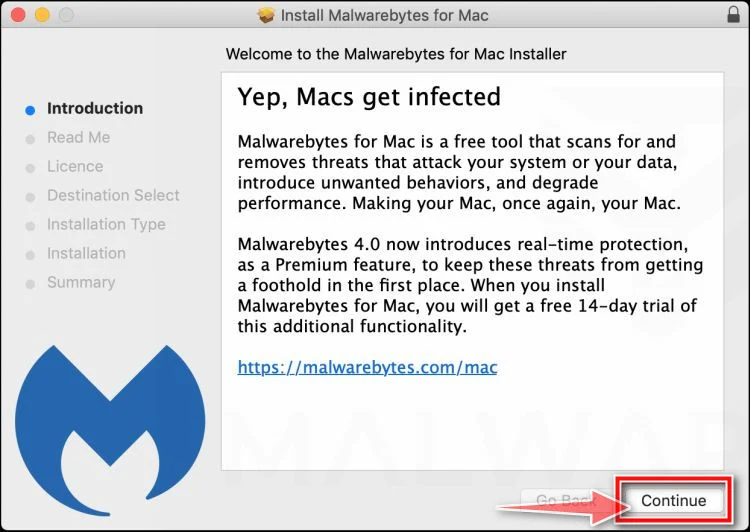
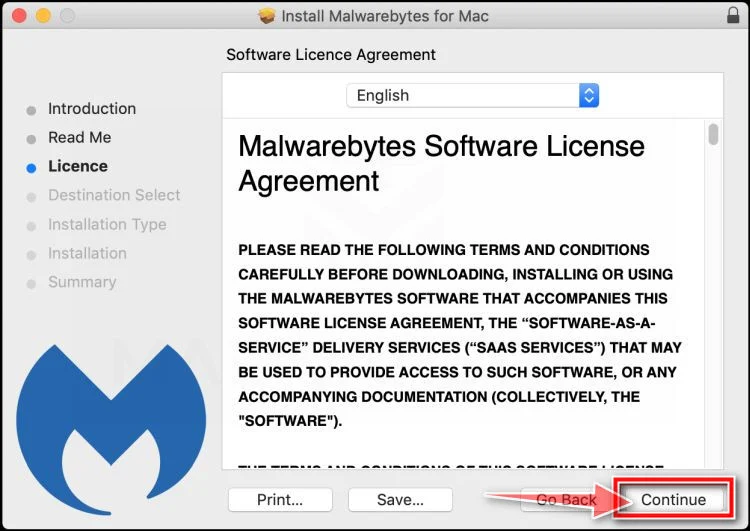
Follow the on-screen prompts to install Malwarebytes.
When the Malwarebytes installation begins, you will see the Malwarebytes for Mac Installer which will guide you through the installation process. Click “Continue“, then keep following the prompts in order to continue with the installation process.
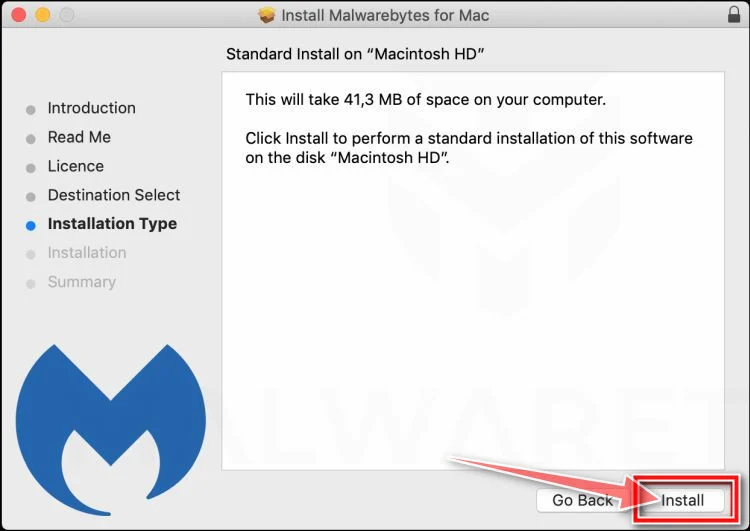
When your Malwarebytes installation completes, the program opens to the Welcome to Malwarebytes screen. Click the “Get started” button.
-
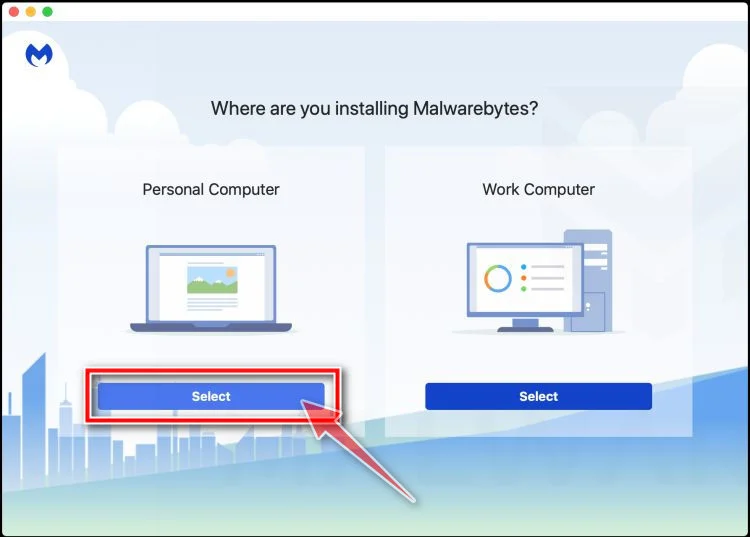
Select “Personal Computer” or “Work Computer”.
The Malwarebytes Welcome screen will first ask you on what type of computer are you installing this program, click either Personal Computer or Work Computer.
-
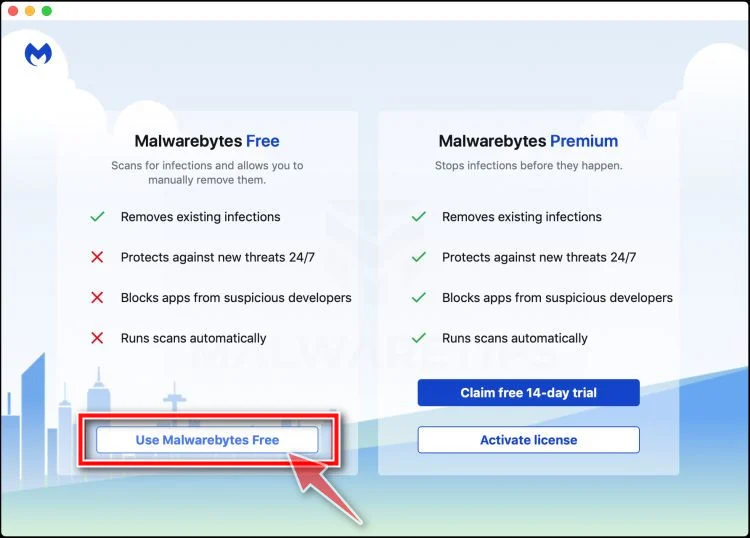
Select “Use Malwarebytes Free”.
You’ll be then prompted to select between the Malwarebytes Free and the Premium version. The Malwarebytes Premium edition includes preventative tools like real-time scanning and ransomware protection, however, we will use the Free version to clean up the computer.
Click on “Use Malwarebytes Free“.
-
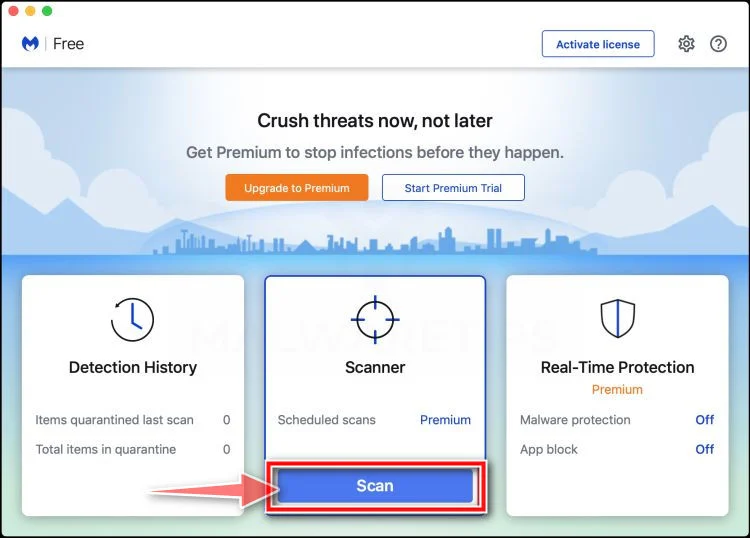
Click on “Scan”.
To scan your computer with Malwarebytes, click on the “Scan” button. Malwarebytes will automatically update the antivirus database and start scanning your computer for malware.
-
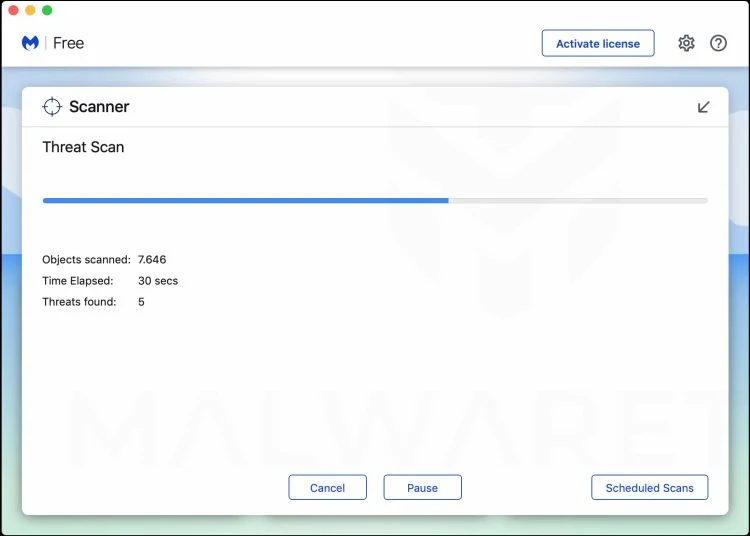
Wait for the Malwarebytes scan to complete.
Malwarebytes will scan your computer for pop-up adss and other malicious programs. This process can take a few minutes, so we suggest you do something else and periodically check on the status of the scan to see when it is finished.
-
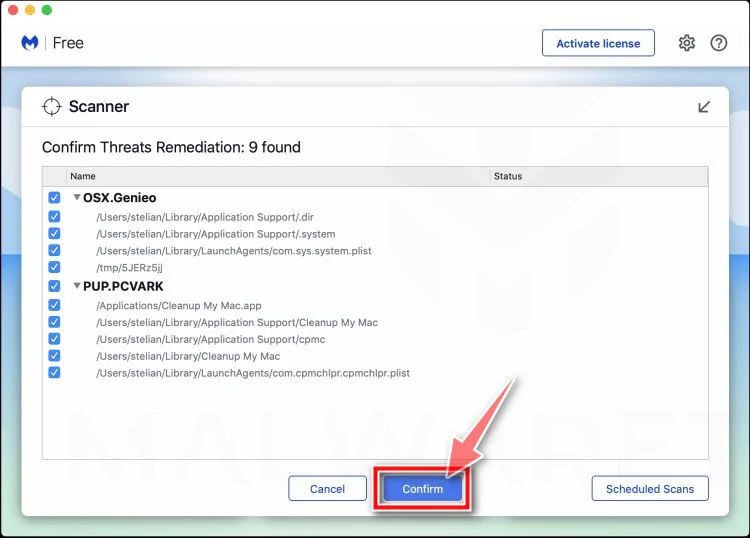
Click on “Quarantine”.
When the scan has completed, you will be presented with a screen showing the malware infections that Malwarebytes has detected. To remove the malicious programs that Malwarebytes has found, click on the “Quarantine” button.
-
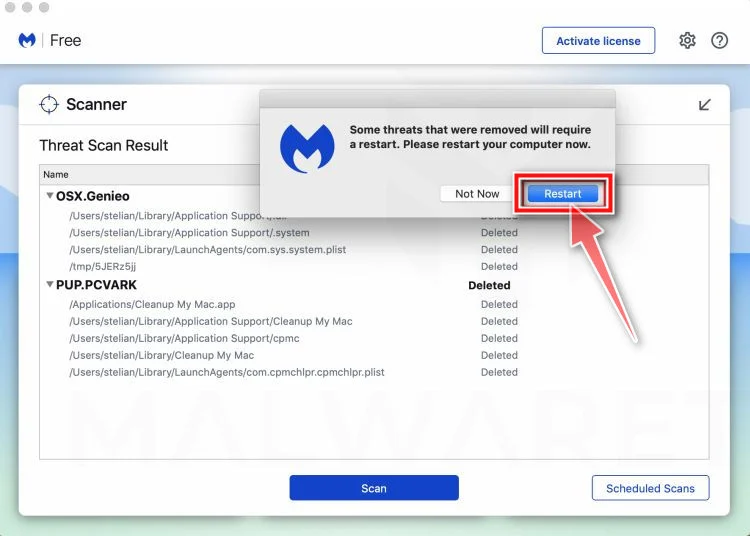
Restart computer.
Malwarebytes will now remove all the malicious files that it has found. To complete the malware removal process, Malwarebytes may ask you to restart your computer.
Your computer should now be free of the “I am a professional coder and I hacked your device” malware. If your current antivirus allowed a malicious program on your computer, you may want to consider purchasing the full-featured version of Malwarebytes Anti-Malware to protect against these types of threats in the future.
If you are still experiencing problems while trying to a malicious program from your computer, please ask for help in our Mac Malware Removal Help & Support forum.
To check your device for malware and remove it from an Android phone or tablet, follow these steps:
STEP 1: Use Malwarebytes Free to remove malware from Android
In this first step, we will install and run a scan with Malwarebytes to remove adware, browser hijackers, and potentially unwanted programs that might be installed on your phone or tablet.
Malwarebytes Free is one of the most popular and most used anti-malware software for Windows, and for good reasons. It is able to destroy many types of malware that other software tends to miss, without costing you absolutely nothing. When it comes to cleaning up an infected phone, Malwarebytes has always been free and we recommend it as an essential tool in the fight against malware.
-
Download Malwarebytes.
You can download Malwarebytes by clicking the button below.
Malwarebytes for AndroidScans your phone and removes malwareGet Malwarebytes for AndroidOpens the download page in a new tab.
-
Install Malwarebytes on your phone
In the Google Play Store, tap “Install” to install Malwarebytes on your device.
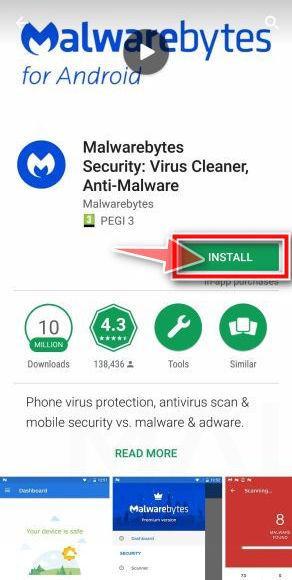
When the installation process has finished, tap “Open” to begin using Malwarebytes for Android. You can also open Malwarebytes by tapping on its icon in your phone menu or home screen.
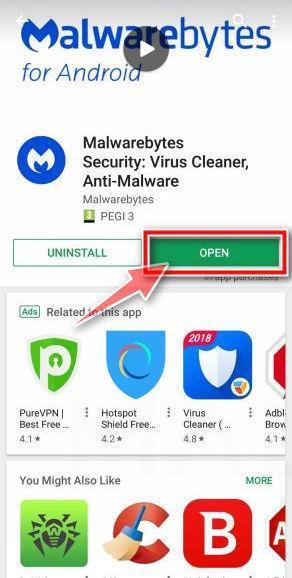
-
Follow the on-screen prompts to complete the setup process
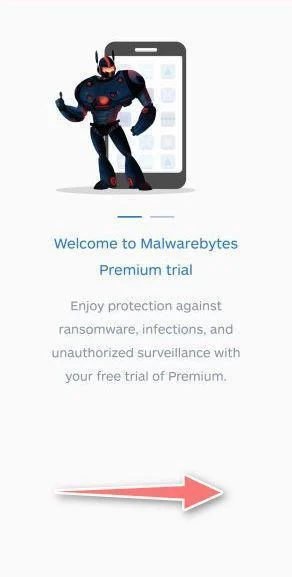
When the Malwarebytes will open, you will see the Malwarebytes Setup Wizard which will guide you through a series of permissions and other setup options.
This is the first of two screens which explain the difference between the Premium and Free version. Swipe this screen to continue.
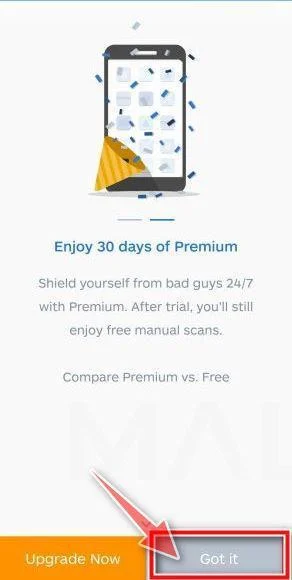
Tap on “Got it” to proceed to the next step.
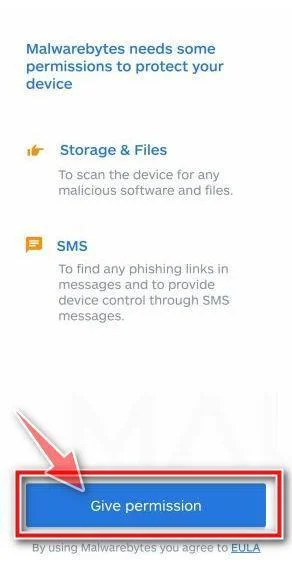
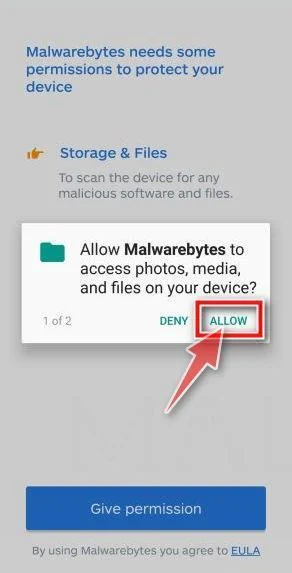
Malwarebytes for Android will now ask for a set of permissions that are required to scan your device and protect it from malware. Tap on “Give permission” to continue.
Tap on “Allow” to give permission to Malwarebytes to access the files on your phone.
-
Update database and run a scan with Malwarebytes
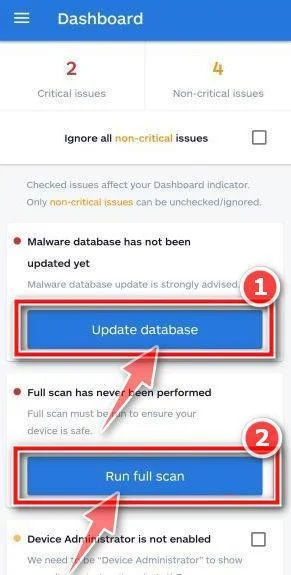
You will now be prompted to update the Malwarebytes database and run a full system scan.
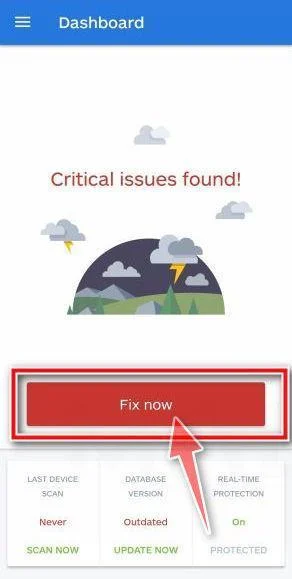
Click on “Update database” to update the Malwarebytes definitions to the latest version, then click on “Run full scan” to perform a system scan.
-
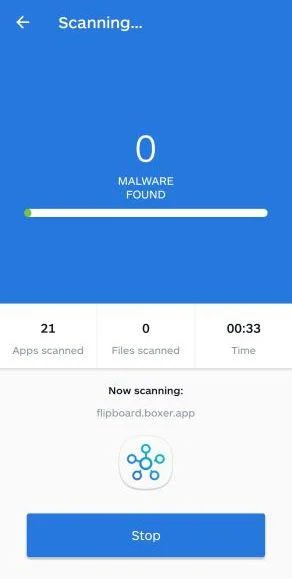
Wait for the Malwarebytes scan to complete.
Malwarebytes will now start scanning your phone for adware and other malicious apps. This process can take a few minutes, so we suggest you do something else and periodically check on the status of the scan to see when it is finished.
-
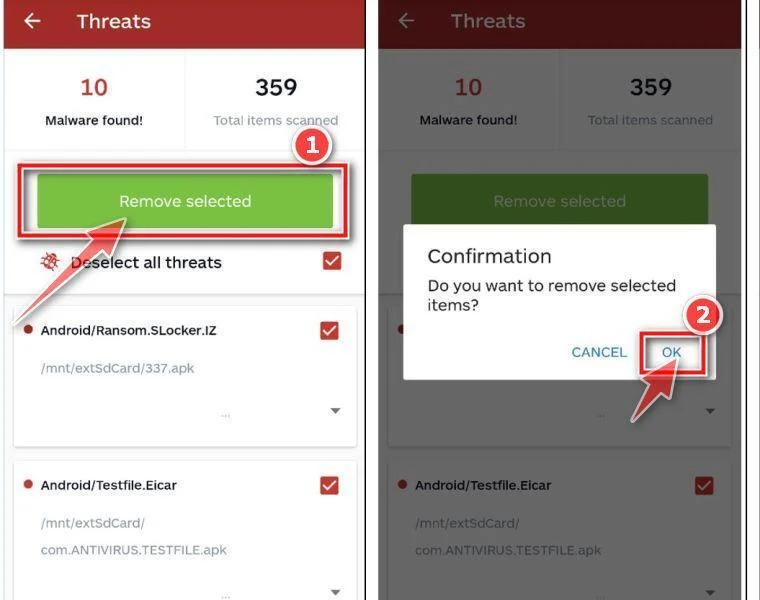
Click on “Remove Selected”.
When the scan has completed, you will be presented with a screen showing the malware infections that Malwarebytes has detected. To remove the malicious apps that Malwarebytes has found, tap on the “Remove Selected” button.
-
Restart your phone.
Your computer should now be free of the “I am a professional coder and I hacked your device” malware. If your current antivirus allowed a malicious program on your computer, you may want to consider purchasing the full-featured version of Malwarebytes Anti-Malware to protect against these types of threats in the future.
If you are still experiencing problems while trying to a malicious program from your computer, please ask for help in our Mobile Malware Removal Help & Support forum.

Join the discussion
0 commentsShare your experience or ask a question about this article.
Community experiences
Did this happen to you?
Your experience could help someone recognize the same scam. Submit a private report for our team to review.
I experienced this tooReports are reviewed before publication. Sharing publicly is always your choice.
Discussion
Start the conversation
Have a question or something useful to share? Add the first comment.