

The “I Need to Start Our Conversation with Bad News for You” email scam is a deceptive phishing campaign targeting many innocent victims. This fraudulent email threatens to leak explicit videos of you to extort money. Here’s what you need to know about recognizing and stopping this scam.
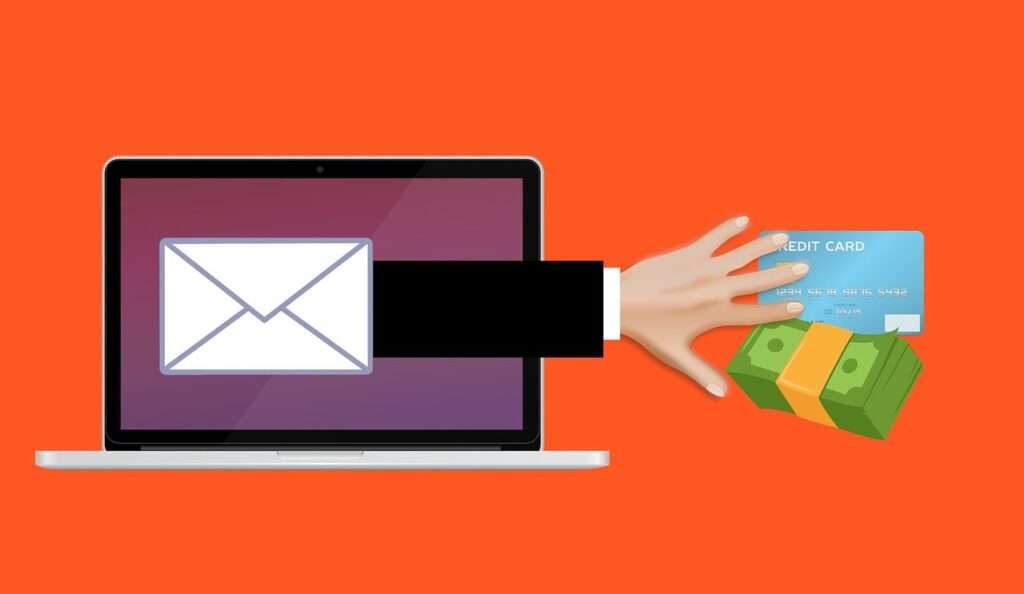
Overview of the Scam
The “I Need to Start Our Conversation with Bad News for You” email scam starts off with an ominous header implying unpleasant information is about to be delivered to the recipient. The fraudulent message pretends to be from a stranger claiming they regretfully must inform the victim about a supposed serious issue.
These scam emails allege that full access was already obtained to all devices and systems the target uses for internet browsing and online activities. The criminals assert they have been closely tracking the recipient’s web surfing behaviors for an extended period by remotely monitoring laptops, phones and tablets without authorization.
As supposed evidence of this infiltration, the message may cite examples of the victim’s recent browsing history or hint at visiting embarrassing websites. Building upon spying accusations, the email then makes threats that inappropriate videos were recorded through secretly accessed device webcams.
Weaving an elaborate fiction designed to provoke panic, the fraudulent note describes hypothetical scenarios of the victim being filmed while watching pornography online – implying their webcam was enabled to capture salacious activity. The deceptive narrative may claim multiple explicit videos were edited together showing private self-pleasuring.
The scam email goes on to threaten immediate distribution of the fictitious embarrassing videos to the victim’s entire contact list, including colleagues, friends and family members. Trying to intimidate, it warns the inappropriate content will also be posted publicly across social media platforms for the world to see. The sender pretends the target will be ruined unless demands are urgently met.
Pushing the deception even further, the phishing scam insists malware was already installed on the operating systems of every internet-connected gadget owned by the recipient. Technical jargon about Trojan viruses and other hacker tools seeks to reinforce perceptions of compromise.
By pretending the infection continually refreshes signatures to avoid detection, the criminals hope to spark overwhelm victims into panicking over supposedly losing control over personal data, devices and reputation. Bogus claims are made that immense amounts of private information have already been completely extracted for abuse.
Ultimately this builds up to ransom payment demands, with the fraudsters requiring $500 to $2000 or more paid within 24 to 48 hours in untraceable cryptocurrency such as Bitcoin. Threats are made to immediately release all the fictional videos and personal data if the funds are not promptly received per the anonymous payment instructions provided.
Some versions of the “I Need to Start Our Conversation with Bad News for You” phishing email may acknowledge that receiving such an alarming note likely sparks skepticism. To overcome doubts, the scam message tries to convey authenticity using personal information like partial passwords and feigning empathy for the victim’s potential shock.
However all the elaborate hacking accusations, threats of leaked media, stolen data warnings, and looming deadlines have absolutely no truth behind them whatsoever. The scammers completely fabricate this barrage of technical jargon, video extortion plots and demands solely to trick frightened recipients into paying the ransom out of confusion and fear.
By heartlessly preying on people’s anxieties surrounding privacy violations and embarrassment, the fraudsters wage psychological warfare through deception and intimidation. Hoping a small percentage of recipients get scared enough into complying with payment instructions, the crooks simply pocket Bitcoin from those tricked by the fake threats and move on to target more potential victims. This allows them to reap major profits with minimal effort invested into blasting out scam emails en masse.
Here is an example excerpt of one of these fraudulent phishing emails using claims of illicit video blackmail to extort money:
Subject: FINAL WARNING.
Hi there!
Unfortunately, I need to start our conversation with bad news for you.
Around few months back I managed to get full access to all devices of yours,
which are used by you on a daily basis to browse internet.Afterwards, I could initiate monitoring and tracking of all your activities on the internet.
I am proud to share the sequence of how it happened:
In the past I bought from hackers the access to various email accounts (today, that is rather a simple thing to do online).
Clearly, it was not hard at all for me to log in to your email account (xxxxxxx@xxxxxxxx).A week after that, I had already managed to effortlessly install Trojan virus to Operating Systems of all devices that are currently in your use, and as result gained access to your email.
To be honest, that was not really difficult at all (because you were eagerly opening the links from your inbox emails).
I know, I am a genius. ^^With help of that software, I can gain access to all controllers in your devices (such as video camera, keyboard and microphone).
As result, I downloaded to my remote cloud servers all your personal data, photos and other information including web browsing history.
Likewise, I have complete access to all your social networks, messengers, chat history, emails, as well as contacts list.
My intelligent virus unceasingly refreshes its signatures (due to its driver-based nature), and hereby stays unnoticed by your antivirus software.Herbey, I believe that now you finally start realizing how I could easily remain unnoticed all this while until this very letter…
While collecting information related to you, I had also unveiled that you are a true fan of porn sites.
You truly enjoy browsing through adult sites and watching horny vids, while playing your dirty solo games.Bingo! I also recorded several filthy scenes with you in the main focus and montaged some dirty videos, which demonstrate your passionate masturbation and cum sessions.
In case you still don’t believe me, all I need is just one-two mouse clicks to make all your unmasking videos become available to your friends, colleagues, and even relatives.
Well, if you still doubt me, I can easily make recorded videos of your orgasms become a public.
I truly believe that you surely would avoid that from happening,
taking in consideration the type of the XXX videos you love watching, (you are clearly aware of what I mean) it will result in a huge disaster for you.Well, there is still a way to settle this tricky situation in a peaceful manner:
You will need to transfer $960 USD to my account (refer to Bitcoin equivalent based on the exchange rate at the moment transfer),
so once funds transfer is complete, I will straight away proceed with deleting all that dirty content from servers once and for all.Afterwards, you can consider that we never met before. You have my honest word, that all the harmful software will also be deactivated and deleted from all your devices currently in use.
Worry not, I keep my promises.
That is truly a win-win solution that comes at a relatively reduced cost, mostly knowing how much effort I spent on monitoring your profile and traffic for a considerably long time.
In event that you have no idea about means of buying and transferring bitcoins – don’t hesitate to use any search engine for your assistance (e.g., Google, Yahoo, Bing, etc.).My bitcoin wallet is as follows: 19yaJM8qhsyXnwoQP7zQbMkqJStoMYxPmE
I have allocated 48 hours for you to do that, and the timer started right after you opened this very email (2 days to be exact).
Don’t even think of doing anything of the following:
*Abstain from attempting to reply me (this email was created by me inside your inbox page and the return address was generated accordingly).
*Abstain from attempting to get in touch with police or any other security services. Moreover, don’t even think of sharing this to you friends.
Once I discover this (apparently, that is absolutely easy for me, taking in consideration that I have complete control over all systems you use) – your kinky video will straight away be made public.
*Don’t even think of attempting to find me – that is completely useless. Don’t forget that all cryptocurrency transactions remain completely anonymous.
*Don’t attempt reinstalling the OS on all your devices or getting rid of them. That won’t lead you to success either, because I have already saved all videos at my remote servers as a backup.Things you should not be concerned about:
*That your funds transfer won’t reach my wallet.
– Worry not, I can see everything, hence after you finish the transfer, I will get a notification right away
(trojan virus of mine uses a remote-control feature, which functions similarly to TeamViewer).
*That I will still distribute your videos although you make the funds transfer.
– My word, I have no intention or interest in continuing making your life troublesome.
Anyway, If I truly wanted that, it would happen long time ago without me notifying you!Everything can be settled in a peaceful and just way!
And lastly… make sure you don’t get caught afterwards in such type of incidents anymore!
My fair advice – ensure you change all your passwords on a regular basis.
How the “I Need to Start Our Conversation with Bad News for You” Email Scam Works
The cybercriminals behind this scam utilize devious tricks to extort money from victims. Here is how they execute this phishing scam campaign:
1. Obtain Email Addresses
Scammers acquire enormous batches of potential targets through various deceitful means, including:
- Buying stolen email lists on the black market dark web
- Hacking into databases and websites to steal user account info
- Using email harvesting tools to scrape addresses found online
- Exploiting vulnerabilities in websites to access contact data
- Getting email lists leaked from data breaches
2. Craft a Threatening Extortion Email
The criminals carefully compose the phishing email to provoke fear. The message pretends to have used malware to access devices and record inappropriate videos of the recipient through the webcam.
The email threatens to publicly share the supposed explicit videos and private data unless the ransom is paid in Bitcoin within 48 hours. The amount demanded typically ranges from $500 to $2000.
3. Demand Anonymous Ransom Payment
The scammers insist on payment through Bitcoin due to its anonymity. Bitcoin transactions are very difficult to trace back to a scammer.
The email includes a Bitcoin wallet address to submit the ransom funds to. This allows frightened victims to pay the criminals while avoiding more traceable bank transactions.
4. Wait for Victims to Pay Up
After blasting out countless intimidating phishing emails, the scammers await payments to roll in from panicked recipients who believe the threats. Even a 0.5% response rate results in major ill-gotten gains from large scam batches.
They never actually carry out threats of leaking or selling data, since the entire extortion premise is fabricated. Their sole aim is to trick victims out of money through deception.
What to Do If You’re Targeted by This Scam
If you receive this phishing email demanding Bitcoin, here are important steps to take:
Don’t Pay the Ransom
No matter how frightening the email seems, do not pay the ransom under any circumstances. The scammers never truly accessed your devices or recorded illicit videos of you. Paying them will only finance more scam operations.
Report the Email as Phishing
Forward the scam email to your email provider’s abuse department so they can block the fraudulent account. Reporting phishing scams helps authorities disrupt their operations.
Run Anti-Virus Software
It’s highly doubtful any malware is installed as claimed, but running an anti-virus scan doesn’t hurt. Make sure your security software is up-to-date.
Monitor Accounts Closely
Carefully check bank statements and credit card statements for any unauthorized payments. Watch for any odd activity that could indicate a real compromise.
Ignore Follow-Up Extortion Emails
If the first scam email goes unpaid, the crooks may send more threats demanding bitcoin. Continue to ignore these demands – do not engage with the frauds.
Is Your Device Infected? Run a Free Malware Scan
Slow performance, constant pop-ups, or strange behavior? These are classic signs of a malware infection. The fastest way to find out is to scan your device with Malwarebytes Free — one of the most trusted malware removal tools available.
The free version detects and removes the most common threats, including:
- Adware — the cause of those annoying pop-ups
- Browser hijackers — unwanted redirects and changed homepages
- Trojans and spyware — hidden programs stealing your data
- Potentially unwanted programs (PUPs) — software you never asked for
👉 Select your device below — Windows, Mac, or Android — then follow the simple steps to download Malwarebytes, scan your system, and remove any threats it finds. The scan usually takes 5 to 20 minutes.
Run a Malware Scan with Malwarebytes for Windows
Malwarebytes is one of the most popular and trusted anti-malware tools for Windows — and it’s completely free for removing infections. It catches threats that many antivirus programs miss, including adware, browser hijackers, and trojans. Follow the steps below to scan and clean your PC in just a few minutes.
Download Malwarebytes
Click the button below to download the latest version of Malwarebytes for Windows from the official source. The free version is all you need — it will scan your computer and remove adware, browser hijackers, and other malicious software at no cost.
Download MalwarebytesOfficial installer for Windows 11 and 10. Your download starts right away.Want real-time protection? See Malwarebytes Premium Malwarebytes Free for WindowsScans and removes malware at no cost
-
Install Malwarebytes
When the download finishes, open your Downloads folder and double-click the MBSetup file. If Windows shows a User Account Control pop-up, click “Yes” to allow the installation.

Follow the On-Screen Prompts to Install Malwarebytes
The setup wizard will walk you through a few quick screens:
-
Choose where you’re installing the program — “Personal Computer” or “Work Computer” — then click Next.

-
Malwarebytes will now install on your device. This usually takes under a minute.

-
When installation is complete, the “Welcome to Malwarebytes” screen will open automatically.

-
On the final screen, click Open Malwarebytes to launch the program.

-
Enable “Scan for Rootkits”
Before scanning, turn on rootkit detection so Malwarebytes can find even the most hidden threats. Click the Settings gear icon on the left side of the screen.

In the settings menu, find “Scan for rootkits” and click the toggle so it turns blue.

Done? Click “Dashboard” in the left pane to return to the main screen.
Start the Scan
Click the blue Scan button. Malwarebytes will automatically update its virus database and start checking your computer for malware.

-
Wait for the Scan to Finish
The scan checks your entire system for browser hijackers and other malicious programs, so it can take 5 to 20 minutes depending on your computer. Feel free to do something else — just check back occasionally to see the progress.

-
Quarantine the Detected Threats
When the scan is done, you’ll see a list of everything Malwarebytes found — malware, adware, and potentially unwanted programs. Click the “Quarantine” button to remove all of them at once.

Malwarebytes will now remove the malicious files and registry entries and move them safely into quarantine.

-
Restart Your Computer
Some threats can only be fully removed after a reboot. If Malwarebytes asks you to restart, click Yes. Once you’re logged back in, Malwarebytes has finished removing the threats it found.

That’s it — your Windows PC is now clean of trojans, adware, and other malware, and should be back to running smoothly.
If you are still having problems with your computer after completing these instructions, then please follow one of the steps:
- Run a computer scan with ESET Online Scanner
- Ask for help in our Windows Malware Removal Help & Support forum.
Run a Malware Scan with Malwarebytes for Mac
Malwarebytes for Mac is a free on-demand scanner that removes the malware other security software tends to miss — adware, browser hijackers, and unwanted programs included. Cleaning an infected Mac with Malwarebytes has always been completely free, and it’s our go-to recommendation. Follow the steps below to scan and clean your Mac in just a few minutes.
-
Download Malwarebytes for Mac
Click the button below to download the latest version of Malwarebytes for Mac.
Download MalwarebytesOfficial installer for macOS. Your download starts right away.Want real-time protection? See Malwarebytes PremiumMalwarebytes Free for MacScans and removes malware at no cost -
Open the Malwarebytes setup file
When the download finishes, open your Downloads folder and double-click the setup file to begin the installation.

-
Follow the On-Screen Prompts to Install Malwarebytes
The Malwarebytes for Mac Installer will guide you through a few quick screens. Click “Continue” and keep following the prompts until the installation completes.



When the installation is complete, Malwarebytes opens to the Welcome to Malwarebytes screen. Click “Get started“.
-
Select “Personal Computer” or “Work Computer”
Malwarebytes will ask what type of computer you’re installing it on. Click either Personal Computer or Work Computer, whichever applies.

-
Start the Scan
Click the “Scan” button. Malwarebytes will automatically update its detection database and begin checking your Mac for malware.

-
Wait for the Scan to Finish
Malwarebytes will scan your Mac for adware, browser hijackers, and other malicious programs. This can take a few minutes, so feel free to do something else — just check back occasionally to see the progress.

-
Quarantine the Detected Threats
When the scan is done, you’ll see a list of everything Malwarebytes found. Click the “Quarantine” button to remove all the threats at once.

-
Restart Your Mac
Malwarebytes will now remove all the malicious files it found. Some threats can only be fully removed after a reboot — if Malwarebytes asks you to restart, allow it. Once you’re logged back in, your Mac is clean.

That’s it — your Mac is now free of adware, rogue browser extensions, and other potentially harmful software.
If you are still experiencing problems while trying to remove a malicious program from your computer, please ask for help in our Mac Malware Removal Help & Support forum.
Run a Malware Scan with Malwarebytes for Android
Malwarebytes for Android automatically detects and removes dangerous threats like malware and ransomware so you don’t have to worry about your most-used device being compromised. Aggressive detection of adware and potentially unwanted programs keeps your Android phone or tablet running smooth.
-
Download Malwarebytes for Android.
You can download Malwarebytes for Android by clicking the link below.
Get Malwarebytes for AndroidOpens Google Play in a new tab.Want real-time protection? See Malwarebytes Premium for AndroidMalwarebytes for AndroidScans your phone and removes malware at no cost -
Install Malwarebytes for Android on your phone.
In the Google Play Store, tap “Install” to install Malwarebytes for Android on your device.

When the installation process has finished, tap “Open” to begin using Malwarebytes for Android. You can also open Malwarebytes by tapping on its icon in your phone menu or home screen.

-
Follow the on-screen prompts to complete the setup process
When Malwarebytes will open, you will see the Malwarebytes Setup Wizard which will guide you through a series of permissions and other setup options.
This is the first of two screens that explain the difference between the Premium and Free versions. Swipe this screen to continue.
Tap on “Got it” to proceed to the next step.
Malwarebytes for Android will now ask for a set of permissions that are required to scan your device and protect it from malware. Tap on “Give permission” to continue.
Tap on “Allow” to permit Malwarebytes to access the files on your phone.
-
Update database and run a scan with Malwarebytes for Android
You will now be prompted to update the Malwarebytes database and run a full system scan.

Click on “Update database” to update the Malwarebytes for Android definitions to the latest version, then click on “Run full scan” to perform a system scan.

-
Wait for the Malwarebytes scan to complete.
Malwarebytes will now start scanning your phone for adware and other malicious apps. This process can take a few minutes, so we suggest you do something else and periodically check on the status of the scan to see when it is finished.

-
Click on “Remove Selected”.
When the scan has been completed, you will be presented with a screen showing the malware infections that Malwarebytes for Android has detected. To remove the malicious apps that Malwarebytes has found, tap on the “Remove Selected” button.

-
Restart your phone.
Malwarebytes for Android will now remove all the malicious apps that it has found. To complete the malware removal process, Malwarebytes may ask you to restart your device.
That’s it — your Android phone is now clean — no more malicious apps, adware, or browser redirects.
If you are still having problems with your phone after completing these instructions, then please follow one of the steps:
- Restore your phone to factory settings by going to Settings > General management > Reset > Factory data reset.
- Ask for help in our Mobile Malware Removal Help & Support forum.
Stay Protected: Block Ads and Malicious Sites
Now that your device is clean, keep it that way. Most infections start with a malicious ad or a fake download button — so blocking them at the source is your best defense.
We recommend AdGuard, which blocks malicious ads, phishing pages, and dangerous redirects before they can reach you.
👉 Download AdGuard and browse safely
Frequently Asked Questions About the “I Have Bad News” Sextortion Scam
This phishing scam raises many concerns. Here are comprehensive answers to key questions recipients have about the fraudulent “I Have Bad News” extortion email:
What exactly is the “I Have Bad News” webcam blackmail scam?
This is a phishing campaign where scammers send messages pretending to have illicit videos of recipients captured through hacked webcams to extort money. The email threatens to publicly share the supposed explicit videos unless bitcoin is paid. But it’s completely fabricated with no truth behind the threats.
How does the “I Have Bad News” sextortion bitcoin scam work?
The email claims remote hacking access was achieved enabling video monitoring through webcams. It threatens to virally release the fictional embarrassing videos online unless the demanded ransom is paid in anonymous cryptocurrency within 24-48 hours. No real recordings exist.
Are the hackers’ claims in the “I Have Bad News” email real?
No, the scammers have not actually hacked anyone’s devices, accessed webcams, recorded inappropriate videos, or obtained personal data as falsely claimed. No evidence exists of any real malware infections either. It’s all lies crafted to trick victims.
Should I pay the bitcoin ransom demanded by the “I Have Bad News” email?
No, never pay ransoms to unknown scammers, especially through untraceable cryptocurrency which cannot be recovered. The extortion threats are completely bogus to manipulate you. Paying them will only enable more of these phishing scams.
What if I already paid the ransom to the “I Have Bad News” email sender?
If you did already pay, contact your bank and the bitcoin exchange you used to see if the transaction can be halted, reversed or refunded. Beware of follow-up demands for more money. You can report it to the FBI Internet Crime Complaint Center at www.ic3.gov.
How are the criminals sending out the fake “I Have Bad News” extortion email?
These phishing scams blast out thousands of emails obtained through illegal hacking, compromised credentials, malware spamming networks, exploiting websites, purchasing stolen data, and other deceitful tactics. Stolen contacts also spread from data breaches.
What measures can I take to avoid this “I Have Bad News” scam?
Be vigilant and cautious when opening unverified emails. Look for poor grammar, threats demanding urgent bitcoin payments, claims of recording you illegally, lack of proof, and other red flags. Securing devices and accounts with strong multifactor authentication and updated software can also thwart many attack vectors.
Who can I contact if targeted by the “I Have Bad News” sextortion email?
You can report these phishing scams to the Anti-Phishing Working Group (info@apwg.org), Google Safe Browsing, PhishTank, and the FBI Internet Crime Complaint Center (www.ic3.gov).
Will law enforcement likely catch the “I Have Bad News” email scammers?
Tracing and prosecuting these kinds of extortion scams can be quite challenging for global authorities across jurisdictions. Scammers use technical tricks to mask locations while demanding untraceable cryptocurrency ransom payments. But increased reporting and shared threat intelligence helps agencies piece together connections within broader cybercrime networks.
The Bottom Line
The “I Need to Start Our Conversation with Bad News for You” email scam preys on victims’ fears of embarrassing or explicit videos being leaked. But in reality, the scammers haven’t accessed anyone’s accounts – they simply hope to dupe recipients through deception and threats.
Recognize these messages as fraudulent extortion attempts. Avoid falling for their demands, report the phishing scams, and implement stronger security best practices. Make others aware of these cybercriminal tactics to help prevent further victims.

Join the discussion
0 commentsShare your experience or ask a question about this article.
Discussion
Start the conversation
Have a question or something useful to share? Add the first comment.