

An unexpected email about Microsoft Cashback can be confusing, especially when you do not remember joining a cashback program. The message may announce updated terms, mention shopping rewards, or ask you to review your account.
Here is the important distinction: Microsoft Cashback is a real Microsoft program, and some policy-update emails are legitimate. Scammers can also copy the name and branding, so the sender, destination, and requested action matter far more than the logo.
Overview
Microsoft Cashback, previously associated with Bing Rebates, is a free shopping rewards program available to eligible Microsoft account users. Offers can appear through services such as Microsoft Edge, Bing, MSN, Copilot, and certain Microsoft mobile applications.
When an eligible shopper activates an offer and completes a qualifying purchase, the reward can later appear in the shopper’s Cashback account. Microsoft says the program does not require a fee or a credit card simply to access earned cashback.
This background explains why a real policy notice may reach someone who does not think of themselves as a regular Cashback user. The feature is integrated into widely used Microsoft products, and a person may have activated an offer or enrolled while signed into a personal Microsoft account.
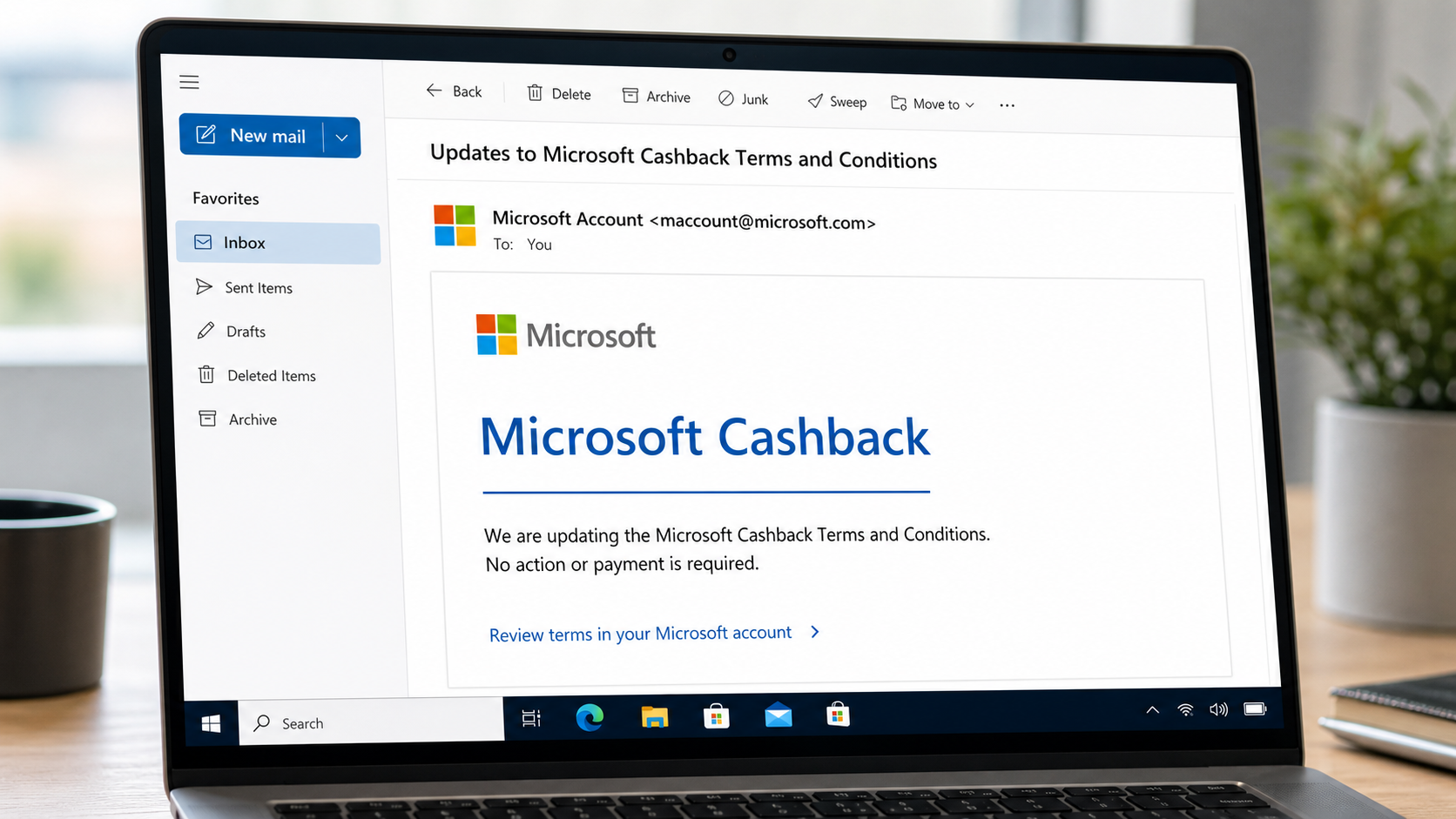
Microsoft’s official Cashback information says genuine program emails come from maccount@microsoft.com. A legitimate terms-update notice should be informational. It should not demand a processing fee, ask for a password by email, or threaten to erase money within minutes.
That does not mean every message displaying that address is automatically safe. The visible From line can sometimes be forged, and a compromised conversation can contain a malicious link. The safest verification happens outside the email, by opening Microsoft directly and reviewing the account there.
What a legitimate terms-update email may say
Subject: Updates to Microsoft Cashback Terms and Conditions
We are updating the Microsoft Cashback Terms and Conditions. Please review the updated terms in your Microsoft account. No payment is required.
The exact wording can vary by location and date. A genuine legal notice may contain a link to Microsoft terms, explain when changes take effect, and identify the Microsoft entity providing the service. It usually does not manufacture a personal emergency.
The source domain is the first useful check. Expand the sender details and read the complete address. Lookalike domains such as micros0ft.com, microsoft-cashback.example, or a random free mailbox are not official merely because the display name says Microsoft Account.
Common variations of the email
Both genuine notices and phishing copies use different subjects. The following are common themes worth checking carefully:
- “Updates to Microsoft Cashback Terms and Conditions”
- “Important Changes to Your Microsoft Cashback Account”
- “Your Cashback Balance Will Expire Today”
- “Confirm Your PayPal Account to Receive Microsoft Cashback”
- “You Have $100 in Unclaimed Microsoft Cashback”
- “Action Required: Verify Your Microsoft Rewards Account”
- “Cashback Payment Failed: Update Your Details”
- “Pay a Small Processing Fee to Release Your Reward”
- “Your Microsoft Cashback Account Has Been Suspended”
- “Exclusive Edge Shopping Rebate Waiting for You”
A terms notice can be genuine. A claim that you must pay taxes, postage, a verification charge, or a release fee to unlock cashback is not how the free Microsoft program works. An urgent password or one-time-code request is also a strong phishing sign.
How to verify the message safely
- Inspect the full sender address. The display name is easy to imitate. Official Cashback messages are associated with
maccount@microsoft.com. - Do not use the embedded link for verification. Open a new tab and type
microsoft.com, or use Microsoft Edge’s known Cashback dashboard. - Check the requested action. A policy notice can ask you to read terms. It should not ask you to send money, cryptocurrency, gift cards, a password, or a security code.
- Preview the destination. On a computer, hover over a link without clicking. On a phone, press and hold to preview it. The actual registered domain should belong to Microsoft.
- Review the account directly. If a reward, restriction, or payment issue is real, it should appear after you sign in through Microsoft’s official site.
- Use your password manager as a warning system. It normally will not autofill a Microsoft password on an unrelated domain.
How The Operation Works
1. A real program gives the lure credibility
The phishing version works because Microsoft Cashback genuinely exists. A recipient who searches the name will find official Microsoft pages, which can lower suspicion before the fraudulent sender or destination has been checked.
Scammers favor services that are built into common products. Even if only a fraction of recipients have seen a Cashback offer in Edge or Bing, the message feels plausible enough to earn a click.
2. The email creates either curiosity or urgency
Some copies announce updated terms to imitate routine corporate mail. More aggressive copies claim a reward is waiting, a balance is expiring, or an account was suspended. The story is designed to make the recipient act from curiosity, fear, or the desire not to lose money.
A timer, a specific reward amount, or a warning that the offer is “final” can make the message feel personal. In reality, the same template may have been sent to thousands of addresses obtained from marketing lists, old breaches, or compromised accounts.
3. A lookalike link opens a fake Microsoft page
The button can lead through several tracking redirects before reaching a page that copies Microsoft sign-in. It may use the familiar four-color icon, a Microsoft Account heading, and a request to enter an email address followed by a password.
The page can be hosted on a newly registered domain, a compromised website, or a legitimate cloud service abused by the attacker. HTTPS only means the connection is encrypted. It does not prove Microsoft owns the site.
4. The fake page collects account credentials
When the victim submits a Microsoft email and password, the site sends those values to the scammer. Some kits then display an “incorrect password” message and request the password again, helping the operator capture multiple variations.
A Microsoft account can protect Outlook mail, OneDrive files, Windows settings, saved contacts, and recovery paths for other services. Stolen access therefore has value far beyond a supposed cashback balance.
5. The attacker may request a security code
If multifactor authentication is enabled, the attacker may immediately attempt a real login. The phishing page then asks for the code Microsoft sends to the victim. Entering that code can complete the attacker’s sign-in.
A code should only be entered into a Microsoft page that the user opened independently. Anyone who asks for a code over email, chat, or telephone is trying to bypass an important security control.
6. A fake payout form harvests payment information
Another version skips account takeover and says the reward must be sent to PayPal or a bank card. The form requests a full name, address, phone number, date of birth, card details, or PayPal login.
Some funnels add a small “verification” charge. The amount may be only $1 or $2 so the victim considers it harmless. The goal can be to capture card details, enroll the victim in recurring billing, or confirm that the card is active.
7. The victim is redirected to a harmless page
After the information is submitted, the fake site may show an error or redirect to Microsoft’s real website. That last redirect can make the incident look like a temporary technical problem instead of completed theft.
The scammers can then use or sell the credentials, test the card, send phishing from the compromised mailbox, or search stored email for financial and identity documents.
Why sender addresses and links can be deceptive
Email apps prioritize a friendly display name, so “Microsoft Account” can appear prominently while the actual domain is hidden. Attackers also use characters that resemble one another, extra subdomains, and long URLs that push the meaningful domain off a phone screen.
A URL such as microsoft.cashback.verify.example belongs to example, not Microsoft. The registered domain is the portion immediately before the top-level ending. Words placed to its left do not change ownership.
Sender authentication can reduce spoofing, but recipients rarely see those technical results. That is why navigating independently remains the most reliable habit, even when the message looks polished.
Why you may receive a legitimate email unexpectedly
Microsoft Cashback can surface through products people already use rather than through a separate subscription purchase. A person may activate an offer while shopping in Edge, click a Cashback result in Bing, or join through a Microsoft account prompt and later forget the interaction.
Program terms can also require service-wide notice. Receiving a legal update does not mean money was charged or that a reward is waiting. It can simply mean the account has a relationship with a feature whose conditions changed.
This is why the correct article conclusion is not “delete every Microsoft Cashback email.” The correct rule is to separate an informational official notice from a copy that adds an urgent action Microsoft does not require.
Read the visible sender, expand the technical address, and compare the message with Microsoft’s published Cashback guidance. Then open the account independently. That three-part check remains useful even if a future campaign copies the exact wording of a current legitimate notice.
Be especially cautious when a reply claims to come from support after you discussed the email on social media. Scammers search public posts for people who are confused about rewards and then offer “help” through direct messages. Microsoft support does not need gift cards, cryptocurrency, remote access, or a security code to explain a policy email.
What To Do If You Clicked a Suspicious Link
- Close the page and stop interacting with it. Do not download anything, approve notifications, call a displayed number, or continue because the page says verification is almost complete.
- Consider what you entered. Merely opening a modern webpage is different from submitting a password, card number, security code, or downloaded file. Your next steps should match the information exposed.
- Change your Microsoft password from a trusted device. Open Microsoft’s official account page yourself. Choose a new, unique password that is not used by any other service.
- Review recent sign-in activity. Sign out unfamiliar sessions, remove unknown devices, and check whether recovery email addresses, phone numbers, aliases, or forwarding rules were changed.
- Secure the mailbox. Look for unexpected inbox rules, deleted security alerts, sent messages you did not write, and applications with new account permissions.
- Reset reused passwords. If the stolen password was used elsewhere, change those accounts too, beginning with email, financial, shopping, and social accounts.
- Enable multifactor authentication. Prefer an authenticator app or passkey where available. Never approve a prompt or share a code generated by an unexpected sign-in.
- Contact the card issuer if payment data was submitted. Explain that the card was entered on a phishing site, ask whether replacement is appropriate, and monitor for unauthorized or recurring charges.
- Remove any downloaded software. If the page persuaded you to install an application or browser extension, disconnect if suspicious activity is occurring, uninstall it, and run a complete security scan.
- Preserve and report the evidence. Save the email, sender, link, and transaction details. Report the message through your mail provider and Microsoft’s official reporting channel.
If you only read a legitimate terms-update email and did not enter information elsewhere, no emergency action is required. You can still verify the notice by opening Microsoft directly and comparing it with the official Cashback account information.
When the message is probably legitimate
A message is more consistent with a genuine Microsoft notice when it comes from maccount@microsoft.com, describes a policy change without threats, asks for no money or secret information, and points only to official Microsoft properties.
No single visual clue is perfect. Treat independent account verification as the deciding test. If the email and the account disagree, trust the account reached through the official site, not the email.
The Bottom Line
Microsoft Cashback is real, and an unexpected terms email is not automatically a scam. Official program information identifies maccount@microsoft.com as the genuine sender and says Cashback does not require a fee or credit card simply to access rewards.
Phishing copies add the dangerous part: an urgent login, payment, code, or identity request on a non-Microsoft site. Do not make the decision from the logo alone. Check the complete sender, avoid the embedded link, and review Cashback by opening Microsoft independently.

Join the discussion
0 commentsShare your experience or ask a question about this article.
Discussion
Start the conversation
Have a question or something useful to share? Add the first comment.