


When mail shows up on one device but not another, a settings warning can sound like the explanation you needed. The abbreviations in this notice make it look technical.
Before changing any settings, find out where the missing messages really are.
Overview
The email gives a technical name to a familiar frustration
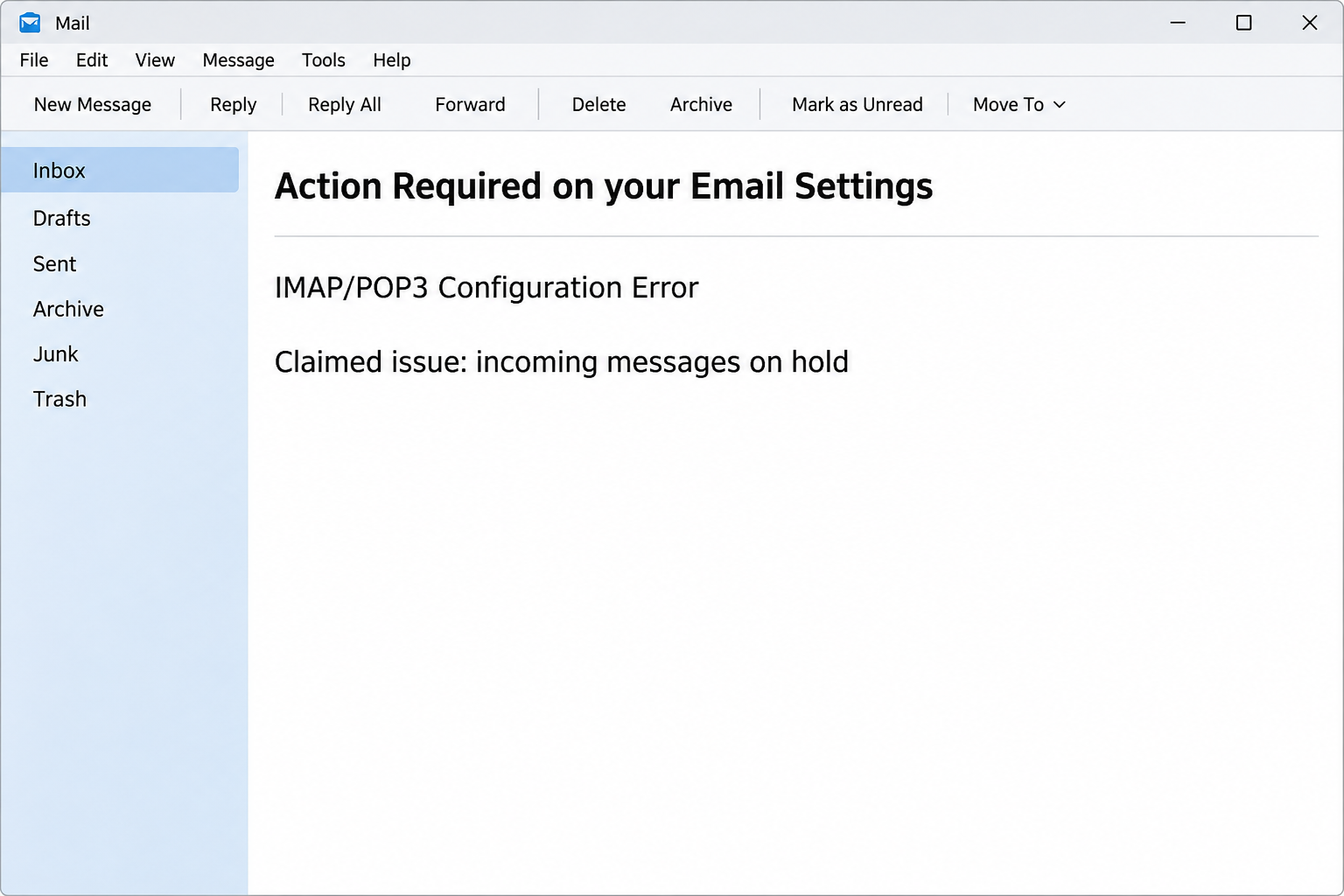
The IMAP/POP3 configuration error email scam claims that incoming messages have been held because of a mailbox interruption. The subject asks for action on your email settings.
It offers a button to review the held messages and fix the supposed error. It also raises the possibility of future sign-in trouble if you do not act.
The specimen includes a timestamp, but that is not a record from your provider. The image recreates the wording without the recipient, timestamp or unsafe destination.
A mail problem can certainly occur. The useful question is whether you can verify a delivery, sync or sign-in problem through the systems you already use.
The reported settings link did not show actual mail settings
The documented destination presented a copy of a provider sign-in, with a Gmail-style screen shown in the report. It sought an account password, not a diagnosis.
That is different from checking which incoming mail service a desktop program uses. The page did not prove that your provider held messages on a server.
IMAP and POP are ways a client retrieves mail. IMAP generally keeps a view in sync with the server, while POP usually downloads messages to the client.
They do not tell you which route an unexpected login belongs to. A real repair should relate to the actual client, service and symptoms you can reproduce independently.
Figure out which part of mail is actually affected
If your trusted webmail shows recent mail but the desktop app does not, investigate the app and its connection first. A real server outage can have a wider effect.
If no client receives a particular message, check with the sender and the provider. A local configuration screen cannot confirm that an outside sender submitted it.
- Open your provider’s verified webmail and check the right address.
- Compare what appears there with what you see in your usual mail app.
- Look for delivery reports, quarantine messages or known outages independently.
- If you disclosed a password, handle that exposure separately from the missing-message report.
Mozilla’s Thunderbird troubleshooting guidance explains the types of checks that belong in a real inbox investigation. Follow your own provider’s settings rather than the notice.
How the IMAP/POP3 Configuration Error Scam Works
Step 1: A vague outage gets a plausible explanation
The notice assigns the problem to a technical-sounding category before you have confirmed a symptom. It suggests a disturbance on the server is holding back incoming messages.
That can feel relevant to anyone who was waiting for a reply. An unsettled order or interview can make a technical answer particularly welcome.
What is missing is a trusted provider record of the interruption. The words “IMAP/POP3” do not tell you which protocol the app actually uses or whether anything failed.
Before acting, compare the claim with normal behavior on an independently opened account. A legitimate problem does not depend on believing the first explanation presented by email.
Step 2: Reviewing held mail is framed as the way to repair it
The message asks you to act on account settings and review held items. A recipient may click just to learn what they missed, without intending to make a change.
Real quarantine tools and actual mail clients solve different problems. A list of quarantined messages concerns provider-side filtering; an app configuration controls how that program connects to a mailbox.
It matters to know which one has failed before changing anything. Editing the active client can introduce a second problem if the original issue came from somewhere else.
Ask support for an explanation of the observed symptom. Nobody needs your live password to tell you where the application’s verified settings are published.
Step 3: A copied sign-in redirects the work from settings to authentication
Following the reported action took recipients to a page resembling an email sign-in. That visual can feel like a natural checkpoint before access to the alleged queue.
The actual request at that point was a sensitive one. The page wants credentials belonging to the real provider while providing no independent reason to trust its own identity.
If you use Gmail, an imitation does not mean Google owns that page. Start at your usual account or organization portal without carrying over the suspect link.
A normal-looking error or redirect afterward would not answer whether the password is exposed. Act on what you entered, rather than returning to see whether the page will eventually work.
Step 4: Some consequences show up in the account, not the mail app
An exposed password can be used to attempt access through the real service. Possible effects depend on sign-in protections and whether other credentials or approvals were provided.
Some changes do not look like an outage. Forwarding or altered rules can affect which messages appear, while people who receive messages from you may initially see nothing wrong.
A work account can contain customer records and password reset messages, not just the mail the phish promised to release. Check its exposure according to what it can access.
Give your provider separate information about the possible sign-in and the delivery problem. That helps it look for both issues without assuming one caused the other.
Step 5: A real sync problem still has an independent solution
If the genuine webmail view has recent messages but the desktop program appears behind, check the account selected, search filters and connection. Do not delete the profile just yet.
For an older POP setup, some messages may exist only on a device, depending on settings and how mail was downloaded. Get advice before removing accounts or changing storage behavior.
If messages are missing everywhere, contact the mail provider or workplace administrator. Give it the sender and time of a known missing delivery, rather than the fake notice’s general claim.
The point is to leave a verifiable trail. The phishing page cannot put mail back in your inbox, but your provider can check how delivery is supposed to work.
What to Do if You Have Fallen Victim to This Scam
-
Stop following the troubleshooting route in the email.
Close the unfamiliar page and reopen the service from its usual app, bookmark or corporate portal. Do not make a new account or delete the old one.
Note whether you only read the notice or entered something on the page. Include any other action such as a browser permission or unexpected download.
On a managed device, report the case through your workplace channel. Preserve the original message privately so support can recognize the same lure in another inbox.
-
Replace a disclosed password outside the suspect page.
If you entered your password, use the real provider’s recovery route or call your known administrator. Tell it if you supplied a code or approved access.
Ask whether an existing session or connected application should be ended. A current password and an already established session are two different ways into the account.
Replace a reused password where it appears elsewhere. Prioritize accounts that can approve payments, manage a domain or send recovery messages to other services.
-
Test the mail service through two trusted views.
Open your real webmail and compare the same inbox with the mail program that seemed out of date. Confirm which address and folder are selected.
If webmail is current and only the client is affected, ask about client authentication, connectivity or settings. Keep the email link out of the test.
If both views lack the same message, ask the sender what address they used and when it was sent. Then provide that information to your mail provider.
-
Review account changes that could affect delivery.
Check sent mail, rules and forwarding through the genuine provider. An unfamiliar rule may explain missing messages after a breach, but do not assume it caused every delay.
If you work from a delegated or shared account, check which colleagues are allowed to change settings. Have an administrator remove unfamiliar access through its normal process.
Ask which changes were authorized and which can be recorded for the incident. That lets you preserve evidence without risking new disruption to mail delivery.
-
Handle local mail carefully during any cleanup.
Do not remove an email profile just because the scam mentions configuration. For a POP client or local folders, confirm whether the provider has copies of older messages.
Before changing a working setup, get the correct details directly from your provider. If a work administrator manages the client, let them guide the change.
Report any actual downloaded file or security warning separately. A device issue needs its own assessment and is not established by an email settings claim.
-
Get back to the message you actually expected.
Identify the sender and ask through an established contact whether the missing item was sent. Avoid using the suspicious email to restart that conversation.
If it concerned a payment, contract or appointment, verify the next action separately from the mailbox repair. An unrelated sender cannot authorize changes to any of them.
Report the impersonation once your account and its delivery status are understood. Use the subject and time instead of giving colleagues a link to test.
Sorting Out a Real Delivery Problem
If just one sender’s message is missing
Start with the message you can describe, rather than an inbox that feels unusually quiet. Confirm the sender used the exact address and note when they tried.
Check the spam folder or any provider-approved quarantine view from your own account. If the sender received a failure notice, ask them to keep it for the help desk.
A missing mail from one sender is different from the whole account failing to refresh. An administrator may use the sender and time to look for a delivery result.
If the mail client is behind on several devices
Check whether each client uses the same account and folder. Seeing old messages in two apps does not tell you whether the provider’s server has newer mail.
Find out whether the apps share a provider or only share a device connection. A network or service issue can affect more than one box without affecting all incoming mail.
When available, consult your provider’s official settings or outage announcements. Ask what it recommends before editing server names, deleting a profile or changing how the app stores mail.
If webmail and the mail app disagree
Make a note of which messages are present in webmail and absent in the client. That makes it easier to ask about synchronization rather than giving support a vague outage.
Check the app both for selected folders and whether it is connected. If the app is managed by your organization, take the discrepancy to IT instead of experimenting with storage.
Support may need to update the client or restart its connection, but those steps belong in the verified maintenance process. Neither depends on the button in this email.
Frequently Asked Questions
Is the IMAP/POP3 configuration error email real?
The example headed “Action Required on your Email Settings” is a phishing lure. Its reported link led to a copy of a mail sign-in, not a settings tool.
Check a real symptom directly with your mail provider. Do not use the email to find out whether your inbox has messages waiting.
What is the difference between IMAP and POP?
IMAP normally lets an app view and synchronize mail stored on the provider’s server. POP typically downloads messages to the app, with server retention depending on settings.
That difference can matter when a device shows old or missing messages. It cannot identify who sent the notice or authenticate the page it points to.
Does this alert mean the server quarantined my messages?
No trusted quarantine record comes with the reported email. It uses a claim about withheld mail to make the outside action sound like a repair.
If your provider really uses quarantine, open its approved dashboard or ask support. Keep that question separate from changes to your local mail application.
Why does my phone show messages that my computer does not?
The two apps may have different account settings, folder selections or synchronization behavior. Compare the same address and folder through your trusted webmail first.
If one app alone is behind, ask your provider or administrator about that client. Do not reset credentials through an unsolicited notice to make the views match.
Should I switch protocols because the email mentioned both?
Do not switch from IMAP to POP or the reverse on the strength of an email. Your provider’s setup and the location of stored mail should guide that decision.
Ask what happens to local folders and older messages before removing accounts. A legitimate repair should not require using this notice as a login route.
What if I entered a password but never saw the held mail?
Treat the password as exposed and replace it from the genuine provider. Ask about recent access and tell the help desk if you approved anything else.
The missing list is not a reason to keep trying the page. Use independent checks to find out whether mail delivery ever had a real problem.
The Bottom Line
Do not use the IMAP/POP3 notice to fix your settings. Its reported route asks for a mailbox password on a copied page instead of opening a real repair tool.
Compare trusted webmail with your normal client to find the actual problem. If you entered credentials, secure the account whether or not any messages were missing.

Join the discussion
0 commentsShare your experience or ask a question about this article.
Community experiences
Did this happen to you?
Your experience could help someone recognize the same scam. Submit a private report for our team to review.
I experienced this tooReports are reviewed before publication. Sharing publicly is always your choice.
Discussion
Start the conversation
Have a question or something useful to share? Add the first comment.