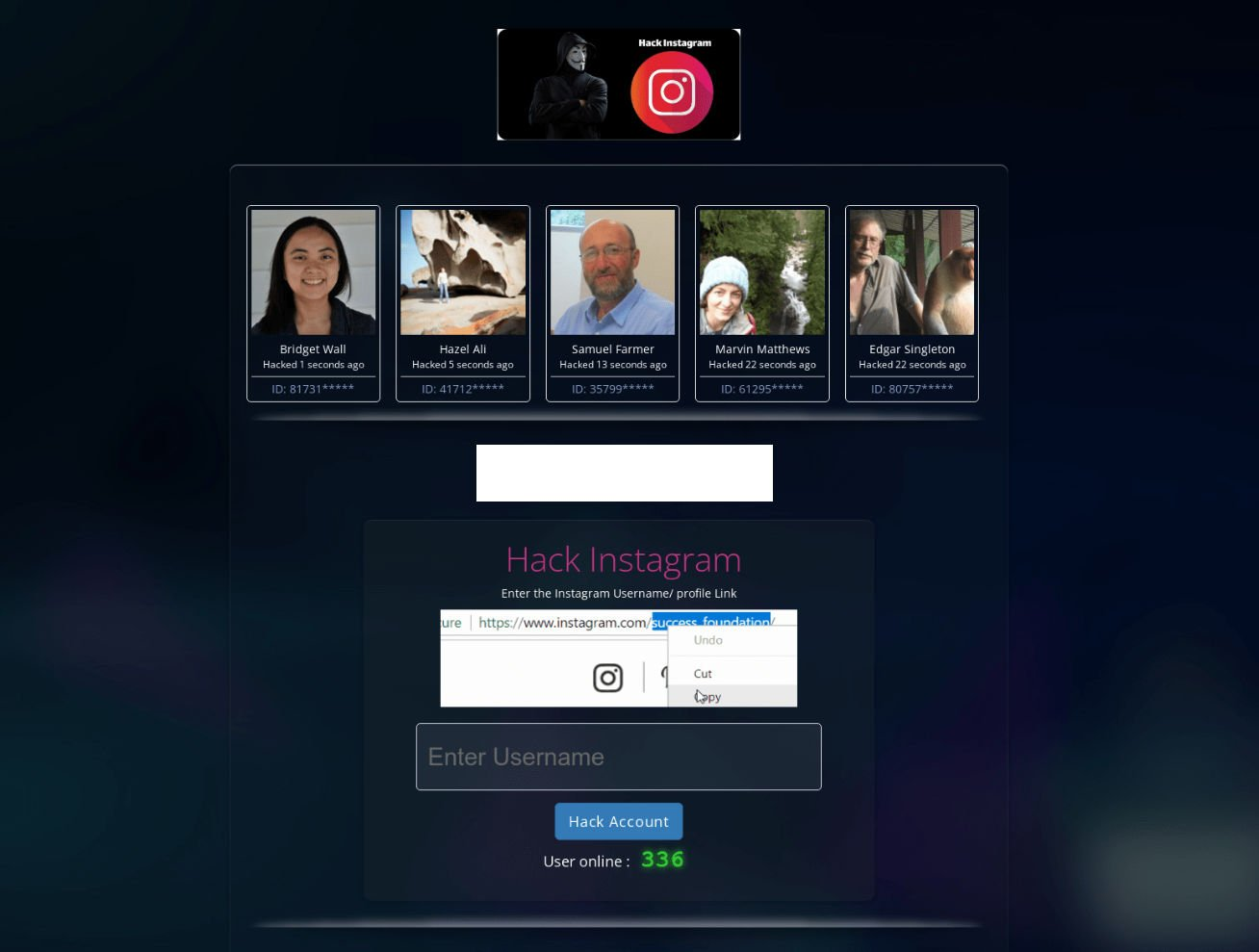
Imagine stumbling across a website that promises you the ability to hack Instagram accounts in minutes. The site looks convincing, complete with progress bars, activity logs, and bold guarantees. One such site, InstagramHackOnline.com, claims to let anyone break into Instagram accounts almost instantly. But here’s the truth: this website is a scam.
In this article, we’ll uncover everything you need to know about the InstagramHackOnline.com scam. You’ll learn exactly how it operates, the dangers involved, what to do if you’ve interacted with it, and how to protect yourself from similar frauds.
Scam Overview
The Hook: “Hack Instagram in 2 Minutes!”
InstagramHackOnline.com lures visitors by promising something that sounds both powerful and dangerous: the ability to hack into Instagram accounts quickly and effortlessly. For many, the temptation is strong. Whether it’s curiosity, desperation, or bad intent, users often click through, hoping to see results.
But what they encounter is not a hacking tool—it’s a carefully crafted scam designed to exploit their trust and generate profits for the fraudsters behind it.
Why People Fall for It
There are several reasons people are drawn to sites like InstagramHackOnline.com:
Curiosity: Many just want to “test” whether such a tool works.
Revenge or spying motives: Some want to access another person’s account.
Account recovery attempts: Others who have lost access to their own accounts may mistakenly believe such tools can help.
Scammers know this and tailor their websites to capture as many victims as possible.
These features are psychological tricks. They make the site feel like a real hacking tool, keeping victims engaged long enough to carry out the scam.
The Real Objective
The site’s real purpose is not to provide hacked Instagram credentials. Instead, it aims to:
Generate affiliate revenue through forced surveys and app downloads.
Push users into premium SMS subscriptions that charge their phone bills.
Deliver malware or adware that compromises devices.
Victims never get what they came for. Instead, they leave with wasted time, potential infections, and sometimes financial loss.
How The Scam Works
To better understand the danger, let’s break down how InstagramHackOnline.com operates.
Step 1: Arrival on the Website
Victims usually land on the site through:
Search engines after typing queries like “hack Instagram password”.
Social media posts or links shared in forums.
Ads on shady websites.
The homepage immediately greets visitors with bold promises like “Hack Instagram in 2 minutes”.
Step 2: Entering the Username
The website asks users to input the Instagram username of the account they want to hack. This simple step convinces victims that the site is targeting a specific account, making the process feel personalized and real.
Step 3: Fake Hacking Simulation
Once the username is entered, a fake process begins:
Progress bars move across the screen.
Messages like “Connecting to server”, “Bypassing Instagram security”, and “Extracting password” appear.
Spinning animations and “loading” icons make it look like advanced coding is happening in the background.
All of this is scripted. Nothing is actually being hacked.
Step 4: The Verification Trap
After a few moments, the site stops and displays a message such as: “We almost finished! Please complete human verification to prove you are not a bot.”
This is where the scam monetizes. Victims are given “verification” tasks, such as:
Completing online surveys.
Downloading mobile apps.
Sending SMS messages.
The scammers earn money through affiliate programs whenever these tasks are completed.
Step 5: Endless Loops
Even if a victim completes a survey or installs an app, they never receive the promised password. Instead, they are often redirected to repeat the process or offered additional “verifications.”
This loop ensures scammers maximize profits while keeping victims chasing a result that will never come.
Step 6: Malware Risk
Some versions of this scam push victims to download supposed “password files” or “hacking tools.” These downloads are often malware designed to:
Steal login credentials.
Display intrusive ads.
Track user activity.
Open backdoors for hackers.
Step 7: Aftermath
By the end of the process, victims walk away with:
No Instagram password.
Possible malware infections.
Unauthorized charges from SMS subscriptions.
Compromised data through surveys.
The scam achieves its goal: exploiting curiosity and greed to generate revenue.
What To Do If You Have Fallen Victim to InstagramHackOnline.com
If you interacted with InstagramHackOnline.com, don’t panic. There are clear steps you can take to minimize damage.
Stop Using the Site Immediately Close the browser tab and do not engage further. Avoid entering personal details.
Check and Remove Suspicious Apps If you downloaded apps during the verification process, uninstall them immediately. Look for apps you don’t recognize.
Run a Security Scan Use a trusted antivirus or anti-malware program such as Malwarebytes, Avast, or Bitdefender. Run a full scan and remove any detected threats.
Cancel Premium SMS Subscriptions If you sent SMS messages as part of the verification, contact your mobile provider. Ask them to cancel any subscriptions and refund charges where possible.
Change Your Passwords Even if you didn’t input personal details on the scam site, it’s wise to change your Instagram password along with email and banking passwords.
Enable Two-Factor Authentication (2FA) Add 2FA to your Instagram, email, and other accounts. This ensures that even if a password is compromised, accounts remain secure.
Clear Browser Cache and Cookies Scam sites often use tracking scripts. Clear your browser data to remove any traces.
Monitor Financial and Online Accounts Watch your bank accounts, email, and social media for suspicious activity. Early detection is key to stopping fraud.
Educate Others Tell friends and family about the scam so they don’t fall for it. Sharing awareness is an effective form of prevention.
Report the Scam Website Report InstagramHackOnline.com to Google Safe Browsing and your country’s cybercrime reporting authority. This helps reduce exposure for others.
Is Your Device Infected? Scan for Malware
If your computer or phone is slow, showing unwanted pop-ups, or acting strangely, malware could be the cause. Running a scan with Malwarebytes Anti-Malware Free is one of the most reliable ways to detect and remove harmful software. The free version can identify and clean common infections such as adware, browser hijackers, trojans, and other unwanted programs.
Malwarebytes works on Windows, Mac, and Android devices. Choose your operating system below and follow the steps to scan your device and remove any malware that might be slowing it down.
Malwarebytes for WindowsMalwarebytes for MacMalwarebytes for Android
Run a Malware Scan with Malwarebytes for Windows
Malwarebytes stands out as one of the leading and widely-used anti-malware solutions for Windows, and for good reason. It effectively eradicates various types of malware that other programs often overlook, all at no cost to you. When it comes to disinfecting an infected device, Malwarebytes has consistently been a free and indispensable tool in the battle against malware. We highly recommend it for maintaining a clean and secure system.
Download Malwarebytes
Download the latest version of Malwarebytes for Windows using the official link below. Malwarebytes will scan your computer and remove adware, browser hijackers, and other malicious software for free.
(The above link will open a new page from where you can download Malwarebytes)
Install Malwarebytes
After the download is complete, locate the MBSetup file, typically found in your Downloads folder. Double-click on the MBSetup file to begin the installation of Malwarebytes on your computer. If a User Account Control pop-up appears, click “Yes” to continue the Malwarebytes installation.
Follow the On-Screen Prompts to Install Malwarebytes
When the Malwarebytes installation begins, the setup wizard will guide you through the process.
You’ll first be prompted to choose the type of computer you’re installing the program on—select either “Personal Computer” or “Work Computer” as appropriate, then click on Next.
Malwarebytes will now begin the installation process on your device.
When the Malwarebytes installation is complete, the program will automatically open to the “Welcome to Malwarebytes” screen.
On the final screen, simply click on the Open Malwarebytes option to start the program.
Enable “Rootkit scanning”.
Malwarebytes Anti-Malware will now start, and you will see the main screen as shown below. To maximize Malwarebytes’ ability to detect malware and unwanted programs, we need to enable rootkit scanning. Click on the “Settings” gear icon located on the left of the screen to access the general settings section.
In the settings menu, enable the “Scan for rootkits” option by clicking the toggle switch until it turns blue.
Now that you have enabled rootkit scanning, click on the “Dashboard” button in the left pane to get back to the main screen.
Perform a Scan with Malwarebytes.
To start a scan, click the Scan button. Malwarebytes will automatically update its antivirus database and begin scanning your computer for malicious programs.
Wait for the Malwarebytes scan to complete.
Malwarebytes will now scan your computer for browser hijackers and other malicious programs. This process can take a few minutes, so we suggest you do something else and periodically check the status of the scan to see when it is finished.
Quarantine detected malware
Once the Malwarebytes scan is complete, it will display a list of detected malware, adware, and potentially unwanted programs. To effectively remove these threats, click the “Quarantine” button.
Malwarebytes will now delete all of the files and registry keys and add them to the program’s quarantine.
Restart your computer.
When removing files, Malwarebytes may require a reboot to fully eliminate some threats. If you see a message indicating that a reboot is needed, please allow it. Once your computer has restarted and you are logged back in, you can continue with the remaining steps.
Once the scan completes, remove all detected threats. Your Windows computer should now be clean and running smoothly again, free of trojans, adware, and other malware.
If your current antivirus allowed this malicious program on your computer, you may want to consider purchasing Malwarebytes Premium to protect against these types of threats in the future. If you are still having problems with your computer after completing these instructions, then please follow one of the steps:
Malwarebytes for Mac is an on-demand scanner that can destroy many types of malware that other software tends to miss without costing you absolutely anything. When it comes to cleaning up an infected device, Malwarebytes has always been free, and we recommend it as an essential tool in the fight against malware.
Download Malwarebytes for Mac.
You can download Malwarebytes for Mac by clicking the link below.
When Malwarebytes has finished downloading, double-click on the setup file to install Malwarebytes on your computer. In most cases, downloaded files are saved to the Downloads folder.
Follow the on-screen prompts to install Malwarebytes.
When the Malwarebytes installation begins, you will see the Malwarebytes for Mac Installer which will guide you through the installation process. Click “Continue“, then keep following the prompts to continue with the installation process.
When your Malwarebytes installation completes, the program opens to the Welcome to Malwarebytes screen. Click the “Get started” button.
Select “Personal Computer” or “Work Computer”.
The Malwarebytes Welcome screen will first ask you what type of computer are you installing this program, click either Personal Computer or Work Computer.
Click on “Scan”.
To scan your computer with Malwarebytes, click on the “Scan” button. Malwarebytes for Mac will automatically update the antivirus database and start scanning your computer for malware.
Wait for the Malwarebytes scan to complete.
Malwarebytes will scan your computer for adware, browser hijackers, and other malicious programs. This process can take a few minutes, so we suggest you do something else and periodically check on the status of the scan to see when it is finished.
Click on “Quarantine”.
When the scan has been completed, you will be presented with a screen showing the malware infections that Malwarebytes has detected. To remove the malware that Malwarebytes has found, click on the “Quarantine” button.
Restart computer.
Malwarebytes will now remove all the malicious files that it has found. To complete the malware removal process, Malwarebytes may ask you to restart your computer.
After scanning, delete any detected threats. Your Mac should now be free from adware, unwanted extensions, and other potentially harmful software.
If your current antivirus allowed a malicious program on your computer, you might want to consider purchasing the full-featured version of Malwarebytes Anti-Malware to protect against these types of threats in the future. If you are still experiencing problems while trying to remove a malicious program from your computer, please ask for help in our Mac Malware Removal Help & Support forum.
Run a Malware Scan with Malwarebytes for Android
Malwarebytes for Android automatically detects and removes dangerous threats like malware and ransomware so you don’t have to worry about your most-used device being compromised. Aggressive detection of adware and potentially unwanted programs keeps your Android phone or tablet running smooth.
Download Malwarebytes for Android.
You can download Malwarebytes for Android by clicking the link below.
In the Google Play Store, tap “Install” to install Malwarebytes for Android on your device.
When the installation process has finished, tap “Open” to begin using Malwarebytes for Android. You can also open Malwarebytes by tapping on its icon in your phone menu or home screen.
Follow the on-screen prompts to complete the setup process
When Malwarebytes will open, you will see the Malwarebytes Setup Wizard which will guide you through a series of permissions and other setup options. This is the first of two screens that explain the difference between the Premium and Free versions. Swipe this screen to continue. Tap on “Got it” to proceed to the next step. Malwarebytes for Android will now ask for a set of permissions that are required to scan your device and protect it from malware. Tap on “Give permission” to continue. Tap on “Allow” to permit Malwarebytes to access the files on your phone.
Update database and run a scan with Malwarebytes for Android
You will now be prompted to update the Malwarebytes database and run a full system scan.
Click on “Update database” to update the Malwarebytes for Android definitions to the latest version, then click on “Run full scan” to perform a system scan.
Wait for the Malwarebytes scan to complete.
Malwarebytes will now start scanning your phone for adware and other malicious apps. This process can take a few minutes, so we suggest you do something else and periodically check on the status of the scan to see when it is finished.
Click on “Remove Selected”.
When the scan has been completed, you will be presented with a screen showing the malware infections that Malwarebytes for Android has detected. To remove the malicious apps that Malwarebytes has found, tap on the “Remove Selected” button.
Restart your phone.
Malwarebytes for Android will now remove all the malicious apps that it has found. To complete the malware removal process, Malwarebytes may ask you to restart your device.
When the scan is finished, remove all detected threats. Your Android phone should now be free of malicious apps, adware, and unwanted browser redirects.
If your current antivirus allowed a malicious app on your phone, you may want to consider purchasing the full-featured version of Malwarebytes to protect against these types of threats in the future. If you are still having problems with your phone after completing these instructions, then please follow one of the steps:
Restore your phone to factory settings by going to Settings > General management > Reset > Factory data reset.
After cleaning your device, it’s important to protect it from future infections and annoying pop-ups. We recommend installing an ad blocker such as AdGuard. AdGuard blocks malicious ads, prevents phishing attempts, and stops dangerous redirects, helping you stay safe while browsing online.
Frequently Asked Questions (FAQ) About the InstagramHackOnline.com Scam
1. What is InstagramHackOnline.com?
InstagramHackOnline.com is a scam website that claims to provide a free Instagram password hacking tool. It promises that users can hack Instagram accounts in just a few minutes by entering a username. However, this site is not legitimate. Instead of providing any real access, it tricks visitors into completing surveys, downloading suspicious apps, or subscribing to premium SMS services, which generate revenue for the scammers.
2. Is InstagramHackOnline.com safe to use?
No, InstagramHackOnline.com is not safe. The site is designed to deceive users. While it pretends to run a hacking process, nothing legitimate happens in the background. Instead, users risk:
Installing malware or adware on their device.
Being signed up for expensive SMS services.
Sharing personal data through fraudulent surveys.
Wasting time in endless loops of fake “human verification.”
3. Can InstagramHackOnline.com really hack Instagram accounts?
No, InstagramHackOnline.com cannot hack Instagram accounts. The entire process is fake. Progress bars, activity logs, and success messages are scripted to create the illusion of real hacking. Instagram has strong security protections in place, and no online website can bypass them. Any service that claims to hack accounts is a scam.
4. How does the InstagramHackOnline.com scam work?
The scam follows a predictable pattern:
Users enter an Instagram username.
The site pretends to “hack” the account with fake progress bars.
Victims are told to complete human verification by filling surveys, downloading apps, or sending SMS messages.
The scammers make money through affiliate programs, SMS charges, or malware installations.
Victims never receive any Instagram password and may instead expose themselves to malware or financial loss.
5. What risks are involved in using InstagramHackOnline.com?
Interacting with InstagramHackOnline.com can expose you to several risks, including:
Malware infections from fake downloads.
Financial loss from premium SMS subscriptions.
Identity theft if personal data is submitted in surveys.
Device slowdowns and intrusive ads from malicious apps.
6. What should I do if I visited InstagramHackOnline.com?
If you visited InstagramHackOnline.com, follow these steps:
Close the site immediately and avoid interacting further.
Check your device for suspicious apps and uninstall anything unfamiliar.
Run a full antivirus or anti-malware scan to detect threats.
Clear your browser’s cache, cookies, and history.
Change your passwords for Instagram, email, and other critical accounts.
Contact your mobile provider if you suspect unauthorized SMS subscriptions.
7. What if I downloaded an app or file from InstagramHackOnline.com?
If you downloaded anything from the site, there’s a strong chance it could contain malware. You should:
Uninstall the app or delete the file immediately.
Run a trusted antivirus program like Malwarebytes, Bitdefender, or Avast.
Monitor your phone or computer for unusual behavior such as pop-ups, slow performance, or strange background processes.
Consider performing a factory reset if the infection persists.
8. Why do scammers create websites like InstagramHackOnline.com?
The primary motivation is money. Scammers behind InstagramHackOnline.com earn revenue from:
Affiliate programs tied to surveys and app downloads.
Premium SMS subscriptions that charge victims without their consent.
Malware that collects data or forces ads onto devices.
They exploit users’ curiosity or desperation to generate steady income streams.
9. Can InstagramHackOnline.com steal my Instagram account?
While InstagramHackOnline.com itself does not hack accounts, it can put your account security at risk. If you entered your Instagram login details on related scam sites, scammers could use those credentials to hijack your account. Always use Instagram’s official login page and enable two-factor authentication (2FA) to protect your account.
10. How can I avoid falling for scams like InstagramHackOnline.com?
To protect yourself:
Be skeptical of any website that claims to hack Instagram or other social media accounts.
Use official recovery options provided by Instagram if you lose access to your account.
Avoid clicking suspicious ads or links promising free hacking tools.
Install a trusted antivirus app and keep your device updated.
Educate yourself and others about online scams to reduce the chances of becoming a victim.
11. Should I report InstagramHackOnline.com?
Yes, reporting helps protect others. You can:
Report the site to Google Safe Browsing for malicious content.
Report it to your browser provider (Chrome, Firefox, etc.).
Inform cybersecurity organizations in your country.
Warn your friends, family, or community to avoid similar scams.
The Bottom Line
InstagramHackOnline.com is not a hacking tool. It’s a scam website that manipulates curiosity and fear to generate profits through surveys, downloads, SMS charges, and malware. No Instagram account has ever been hacked using it, and no legitimate tool can do what it claims.
The only real outcomes of interacting with this site are wasted time, potential infections, and financial risks. If you’ve already visited it, follow the steps above to secure your accounts and devices.
The takeaway is simple: there are no shortcuts when it comes to Instagram security. The only safe way to recover or secure an account is through official Instagram methods. Any site promising instant hacks is a scam.
Thomas is an expert at uncovering scams and providing in-depth reporting on cyber threats and online fraud. As an editor, he is dedicated to keeping readers informed on the latest developments in cybersecurity and tech.