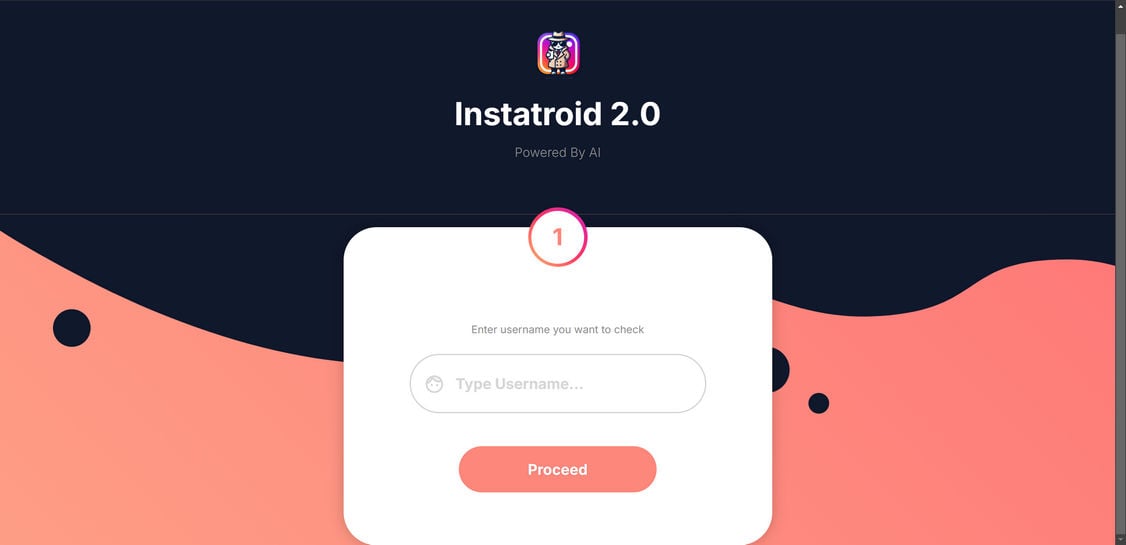
Instagram users beware – the Instatroid scam is back with a revamped website at Instatroid.org and renewed vigor to deceive social media users. Just like the original Instatroid.com, this copycat iteration preys on people’s curiosity about Instagram analytics by faking access to private account insights.
In this comprehensive guide, I’ll explain how Instatroid 2.0 operates, tactics it uses to manipulate victims, and most importantly – how to avoid becoming ensnared by its social media trickery.
An Overview of The Instatroid 2.0 Instagram Scam
The Instatroid scam has reinvented itself with a new domain at Instatroid.org, fresh website design, and updated promises to deceive social media users. Dubbed Instatroid 2.0, this revamped iteration preys on Instagram users’ curiosity around account analytics and insights that are typically hidden from view.
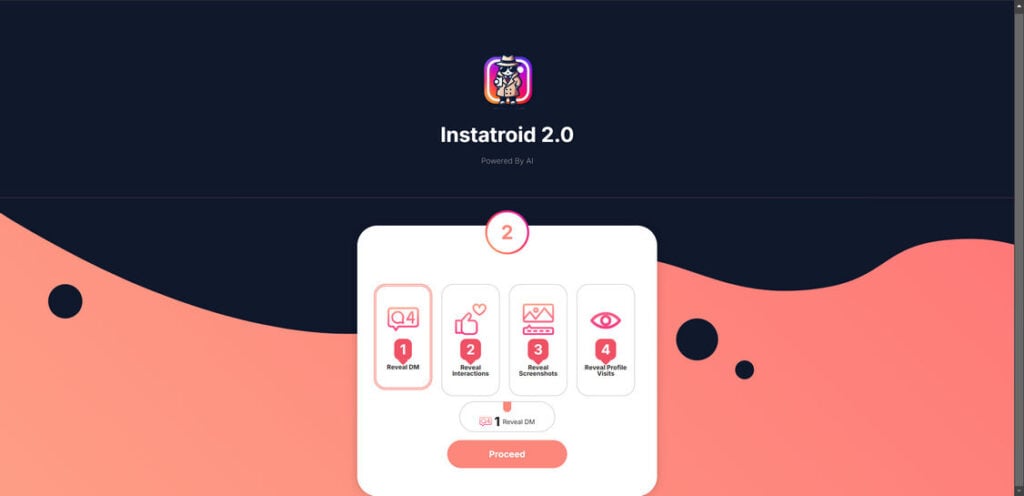
Instatroid 2.0 promotes irresistible but completely fabricated services claiming to reveal:
Deleted direct messages (DMs)
Full DM histories and conversations
Strangers who view your profile
Those who screenshot your posts
Top accounts interacting with your profile
This data is tantalizing to Instagram users who want to know details like who is secretly crushing on them, which posts are being shared behind the scenes, who their most engaged followers are, and more. Instatroid 2.0 exploits this natural human curiosity.
The site requests users enter an Instagram username, then promises access to the hidden analytics and insights. But it is all an elaborate ruse. Instatroid 2.0 has no actual capability to deliver on the promoted services.
By luring social media users in under false pretenses, Instatroid 2.0 can manipulate and deceive users for profit. Let’s look at some specific examples of the fabricated Instagram services advertised:
Reveal DMs – Claims it can display deleted direct messages, unsent DMs, and full message histories with other users.
Reveal Interactions – Promises to uncover the top 10 accounts that interact most with your profile through likes, comments and replies.
Reveal Screenshots – Says it will show the last 50 users who took screenshots of your posts, stories or DMs.
Reveal Profile Visits – Claims it can reveal the last 50 accounts that visited or viewed your Instagram profile.
As you can see, Instatroid 2.0 tempts Instagram users by claiming broad access to private account insights and analytics not visible anywhere else. But it’s all utterly false – just a scammy lure.
How the Deceptive Instatroid 2.0 Scam Unfolds
Instatroid 2.0 employs similar underhanded techniques as the original version to carry out its social media scam:
1. False Service Offer Pages Lure Victims
The site has dedicated pages showcasing each supposed “data insight” service, like viewing DMs or finding followers. The pages highlight value of the offerings to entice users.
2. Users Get Redirected to “Verification” Pages
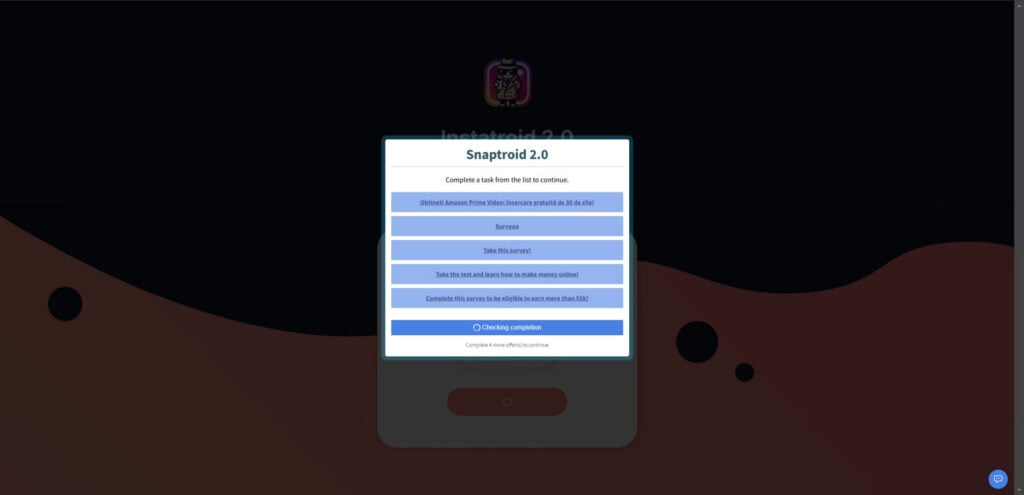
Upon clicking a service button, users get redirected to a “human verification” page rather than receiving info. This tricks users into thinking more steps are required.
3. Repeated Actions Needed for “Verification”
To get past verification, Instatroid 2.0 forces users to:
Download browser extensions and file converters
Complete spam surveys
Subscribe to sketchy services
Watch ads and videos
Often multiple repetitive steps are demanded, but never is access granted.
4. No Instagram Data Is Provided
Despite jumping through hoops, users gain zero Instagram analytics. The cycle simply repeats with more verification requests.
5. Shady Downloads Generate Profits
Instatroid 2.0 profits by getting users to complete “verifications” tied to commissions. This includes downloads bundled with malware and adware.
6. User Data Gets Sold
Personal information submitted to Instatroid 2.0 gets sold to shady third party advertisers, exposing users to more spam and scam risks.
The Instatroid 2.0 scam relies on manipulation at every stage. But understanding the dubious tactics is key to avoiding becoming a victim.
Both Instatroid.org and Instatroid.com Are Scam Domains
It’s crucial for Instagram users to understand that both the Instatroid.org and Instatroid.com domains are engaged in the same deceptive scam operation.
Despite using different web addresses, the Instatroid sites share key indicators proving they are under the same fraudulent control:
Both sites promote identical fake services claiming to reveal Instagram insights like deleted DMs, screenshot takers, profile visits, search history, and more. These are services Instagram does not allow third-party access to.
The pages on both Instatroid domains use similar layouts and flows to trick users, including fake verification redirects. This points to the same scam template.
Sketchy “human verification” steps like suspicious downloads and spam surveys are required on both sites before any promised data is shown. This allows them to profit from commissions.
Neither Instatroid.org nor Instatroid.com have any capability to actually deliver on the promoted Instagram services. The promises are a total fabrication.
User accounts and data entered on either site is at risk of theft and misuse, exposing visitors to financial fraud and identity theft dangers.
Steer completely clear of both the Instatroid.org and Instatroid.com websites. They cannot provide access to sensitive Instagram account details as advertised. Interacting with these scam domains only puts your personal information and device security at risk. Avoid them both entirely.
Red Flags to Recognize with Instatroid 2.0
These signs can help expose the deceitful intentions of Instatroid 2.0:
Too-good-to-be-true offers – Instagram prohibits this level of data access for a reason.
Sketchy downloads – Legit services won’t force unverified installations for “verification.”
Repetitive verification – Real confirmation doesn’t endlessly recycle requirements without delivering results.
Aggressive marketing – Spam surveys and pushy subscriptions are hallmarks of shady sites.
Lack of details – Vague explanations around obtaining data indicate a scam.
Redirects – Being bounced around pages hints the site is a conversion funnel scheme.
Pop-ups and Ads – Excessive pop-ups and ads also signify a profit-driven scam operation.
When these red flags appear with sites claiming Instagram analytics, cease all engagement immediately. The services advertised will never materialize.
Dangers of Providing Data to Instatroid 2.0
Aside from wasted time, users face considerable risks by interacting with Instatroid 2.0:
Malware infections – Downloaded browser add-ons and files contain Trojans, spyware and adware.
Instagram account hijacking – If passwords are compromised, scammers can access accounts.
Identity theft – Personal details are leveraged to commit financial fraud.
Junk mail and spam – Email inboxes and devices get flooded with unwanted communications.
Payment theft – Entered credit card or payment info gets stolen and used.
Every piece of data given to Instatroid 2.0 raises the threats users will encounter. Providing any information is strongly discouraged.
What to Do If You Entered Info on Instatroid 2.0
If you already provided data or downloaded files from Instatroid 2.0, immediately take these steps:
Change any passwords entered on the site and enable two-factor authentication where possible.
Run malware scans to check for threats. Remove anything suspicious found.
Monitor accounts closely for unauthorized access and report any signs of breach.
Contact banks about potential fraud if credit cards were entered.
Place fraud alerts with credit agencies to get notifications for accounts opened in your name.
Avoid phishing links claiming to be from Instagram security teams.
Acting swiftly can help minimize damages from any exposure or theft of information.
Avoiding Instagram Scams Moving Forward
Here are some tips to avoid Instagram scams in the future:
Use unique passwords for every account and platform to limit exposure.
Beware third-parties offering Instagram analytics services – they don’t have access.
Check for red flags like repetition, lacking details, pop-ups and aggressive marketing with any offer.
Don’t install unnecessary programs or browser extensions. Only download from official stores.
Use Instagram security features like login approvals and two-factor authentication.
Report scam attempts so actions can be taken to curb the threat.
Stay vigilant to protect yourself from the endless permutations of Instagram scams online.
Is Your Device Infected? Scan for Malware
If your computer or phone is slow, showing unwanted pop-ups, or acting strangely, malware could be the cause. Running a scan with Malwarebytes Anti-Malware Free is one of the most reliable ways to detect and remove harmful software. The free version can identify and clean common infections such as adware, browser hijackers, trojans, and other unwanted programs.
Malwarebytes works on Windows, Mac, and Android devices. Choose your operating system below and follow the steps to scan your device and remove any malware that might be slowing it down.
Malwarebytes for WindowsMalwarebytes for MacMalwarebytes for Android
Run a Malware Scan with Malwarebytes for Windows
Malwarebytes stands out as one of the leading and widely-used anti-malware solutions for Windows, and for good reason. It effectively eradicates various types of malware that other programs often overlook, all at no cost to you. When it comes to disinfecting an infected device, Malwarebytes has consistently been a free and indispensable tool in the battle against malware. We highly recommend it for maintaining a clean and secure system.
Download Malwarebytes
Download the latest version of Malwarebytes for Windows using the official link below. Malwarebytes will scan your computer and remove adware, browser hijackers, and other malicious software for free.
(The above link will open a new page from where you can download Malwarebytes)
Install Malwarebytes
After the download is complete, locate the MBSetup file, typically found in your Downloads folder. Double-click on the MBSetup file to begin the installation of Malwarebytes on your computer. If a User Account Control pop-up appears, click “Yes” to continue the Malwarebytes installation.
Follow the On-Screen Prompts to Install Malwarebytes
When the Malwarebytes installation begins, the setup wizard will guide you through the process.
You’ll first be prompted to choose the type of computer you’re installing the program on—select either “Personal Computer” or “Work Computer” as appropriate, then click on Next.
Malwarebytes will now begin the installation process on your device.
When the Malwarebytes installation is complete, the program will automatically open to the “Welcome to Malwarebytes” screen.
On the final screen, simply click on the Open Malwarebytes option to start the program.
Enable “Rootkit scanning”.
Malwarebytes Anti-Malware will now start, and you will see the main screen as shown below. To maximize Malwarebytes’ ability to detect malware and unwanted programs, we need to enable rootkit scanning. Click on the “Settings” gear icon located on the left of the screen to access the general settings section.
In the settings menu, enable the “Scan for rootkits” option by clicking the toggle switch until it turns blue.
Now that you have enabled rootkit scanning, click on the “Dashboard” button in the left pane to get back to the main screen.
Perform a Scan with Malwarebytes.
To start a scan, click the Scan button. Malwarebytes will automatically update its antivirus database and begin scanning your computer for malicious programs.
Wait for the Malwarebytes scan to complete.
Malwarebytes will now scan your computer for browser hijackers and other malicious programs. This process can take a few minutes, so we suggest you do something else and periodically check the status of the scan to see when it is finished.
Quarantine detected malware
Once the Malwarebytes scan is complete, it will display a list of detected malware, adware, and potentially unwanted programs. To effectively remove these threats, click the “Quarantine” button.
Malwarebytes will now delete all of the files and registry keys and add them to the program’s quarantine.
Restart your computer.
When removing files, Malwarebytes may require a reboot to fully eliminate some threats. If you see a message indicating that a reboot is needed, please allow it. Once your computer has restarted and you are logged back in, you can continue with the remaining steps.
Once the scan completes, remove all detected threats. Your Windows computer should now be clean and running smoothly again, free of trojans, adware, and other malware.
If your current antivirus allowed this malicious program on your computer, you may want to consider purchasing Malwarebytes Premium to protect against these types of threats in the future. If you are still having problems with your computer after completing these instructions, then please follow one of the steps:
Malwarebytes for Mac is an on-demand scanner that can destroy many types of malware that other software tends to miss without costing you absolutely anything. When it comes to cleaning up an infected device, Malwarebytes has always been free, and we recommend it as an essential tool in the fight against malware.
Download Malwarebytes for Mac.
You can download Malwarebytes for Mac by clicking the link below.
When Malwarebytes has finished downloading, double-click on the setup file to install Malwarebytes on your computer. In most cases, downloaded files are saved to the Downloads folder.
Follow the on-screen prompts to install Malwarebytes.
When the Malwarebytes installation begins, you will see the Malwarebytes for Mac Installer which will guide you through the installation process. Click “Continue“, then keep following the prompts to continue with the installation process.
When your Malwarebytes installation completes, the program opens to the Welcome to Malwarebytes screen. Click the “Get started” button.
Select “Personal Computer” or “Work Computer”.
The Malwarebytes Welcome screen will first ask you what type of computer are you installing this program, click either Personal Computer or Work Computer.
Click on “Scan”.
To scan your computer with Malwarebytes, click on the “Scan” button. Malwarebytes for Mac will automatically update the antivirus database and start scanning your computer for malware.
Wait for the Malwarebytes scan to complete.
Malwarebytes will scan your computer for adware, browser hijackers, and other malicious programs. This process can take a few minutes, so we suggest you do something else and periodically check on the status of the scan to see when it is finished.
Click on “Quarantine”.
When the scan has been completed, you will be presented with a screen showing the malware infections that Malwarebytes has detected. To remove the malware that Malwarebytes has found, click on the “Quarantine” button.
Restart computer.
Malwarebytes will now remove all the malicious files that it has found. To complete the malware removal process, Malwarebytes may ask you to restart your computer.
After scanning, delete any detected threats. Your Mac should now be free from adware, unwanted extensions, and other potentially harmful software.
If your current antivirus allowed a malicious program on your computer, you might want to consider purchasing the full-featured version of Malwarebytes Anti-Malware to protect against these types of threats in the future. If you are still experiencing problems while trying to remove a malicious program from your computer, please ask for help in our Mac Malware Removal Help & Support forum.
Run a Malware Scan with Malwarebytes for Android
Malwarebytes for Android automatically detects and removes dangerous threats like malware and ransomware so you don’t have to worry about your most-used device being compromised. Aggressive detection of adware and potentially unwanted programs keeps your Android phone or tablet running smooth.
Download Malwarebytes for Android.
You can download Malwarebytes for Android by clicking the link below.
In the Google Play Store, tap “Install” to install Malwarebytes for Android on your device.
When the installation process has finished, tap “Open” to begin using Malwarebytes for Android. You can also open Malwarebytes by tapping on its icon in your phone menu or home screen.
Follow the on-screen prompts to complete the setup process
When Malwarebytes will open, you will see the Malwarebytes Setup Wizard which will guide you through a series of permissions and other setup options. This is the first of two screens that explain the difference between the Premium and Free versions. Swipe this screen to continue. Tap on “Got it” to proceed to the next step. Malwarebytes for Android will now ask for a set of permissions that are required to scan your device and protect it from malware. Tap on “Give permission” to continue. Tap on “Allow” to permit Malwarebytes to access the files on your phone.
Update database and run a scan with Malwarebytes for Android
You will now be prompted to update the Malwarebytes database and run a full system scan.
Click on “Update database” to update the Malwarebytes for Android definitions to the latest version, then click on “Run full scan” to perform a system scan.
Wait for the Malwarebytes scan to complete.
Malwarebytes will now start scanning your phone for adware and other malicious apps. This process can take a few minutes, so we suggest you do something else and periodically check on the status of the scan to see when it is finished.
Click on “Remove Selected”.
When the scan has been completed, you will be presented with a screen showing the malware infections that Malwarebytes for Android has detected. To remove the malicious apps that Malwarebytes has found, tap on the “Remove Selected” button.
Restart your phone.
Malwarebytes for Android will now remove all the malicious apps that it has found. To complete the malware removal process, Malwarebytes may ask you to restart your device.
When the scan is finished, remove all detected threats. Your Android phone should now be free of malicious apps, adware, and unwanted browser redirects.
If your current antivirus allowed a malicious app on your phone, you may want to consider purchasing the full-featured version of Malwarebytes to protect against these types of threats in the future. If you are still having problems with your phone after completing these instructions, then please follow one of the steps:
Restore your phone to factory settings by going to Settings > General management > Reset > Factory data reset.
After cleaning your device, it’s important to protect it from future infections and annoying pop-ups. We recommend installing an ad blocker such as AdGuard. AdGuard blocks malicious ads, prevents phishing attempts, and stops dangerous redirects, helping you stay safe while browsing online.
Frequently Asked Questions About the Instatroid 2.0 Instagram Scam
1. What is Instatroid 2.0?
Instatroid 2.0 is a remake of the original Instatroid scam with a new domain, Instatroid.org. It falsely promises Instagram analytics services to deceive users.
2. How is Instatroid 2.0 different from the original?
Instatroid 2.0 uses a new domain name, updated website design, and slightly altered fake services being promoted to avoid detection.
3. What types of services does Instatroid 2.0 advertise?
Services claimed include revealing deleted DMs, full message histories, profile visits, screenshot takers, shared posts, and connected accounts.
4. Can Instatroid 2.0 actually provide these services?
No, Instatroid 2.0 cannot deliver any promoted services, just like the original. The entire premise is fabricated to manipulate users.
5. How does Instatroid 2.0 profit from this scam?
Profits come from affiliate commissions earned when users complete “verification” offers like downloads, surveys, and subscriptions.
6. What are the dangers of providing info to Instatroid 2.0?
Threats include identity theft from stolen data, malware infections, Instagram account hijacking, and endless junk communications.
7. What are some telltale signs Instatroid 2.0 is a scam?
Red flags include unverifiable claims, shady downloads, aggressive marketing tactics, lack of details, and endless verification loops.
8. What should I do if I entered info into Instatroid 2.0?
Change passwords, run malware scans, monitor accounts closely, place fraud alerts if needed, and avoid phishing attempts.
9. How can I avoid Instagram scams in the future?
Use unique passwords, enable two-factor authentication, beware third-parties offering Instagram data services, and watch for red flags.
10. Can Instatroid 2.0 see my old DMs and search history?
Absolutely not. This is technologically impossible from outside Instagram’s servers. The promises are 100% fabricated.
The Bottom Line on Instatroid 2.0
Instatroid 2.0 operates just like the original – promoting irresistible but fake Instagram insight services to deceptively profit off social media users. It cannot actually provide any promised data.
Steer clear of the Instatroid scam in all its evolving forms. Never enter personal information or Instagram usernames into untrustworthy third-party sites. With awareness of its manipulative tactics, you can avoid becoming another victim.
Thomas is an expert at uncovering scams and providing in-depth reporting on cyber threats and online fraud. As an editor, he is dedicated to keeping readers informed on the latest developments in cybersecurity and tech.