

The Insufficient Email Capacity Scam disguises credential theft as a routine mailbox storage alert. A technical-looking alert says your mailbox is 90.52% full.
Incoming and outgoing messages may soon stop, and one blue button appears to offer the quickest way to increase capacity.
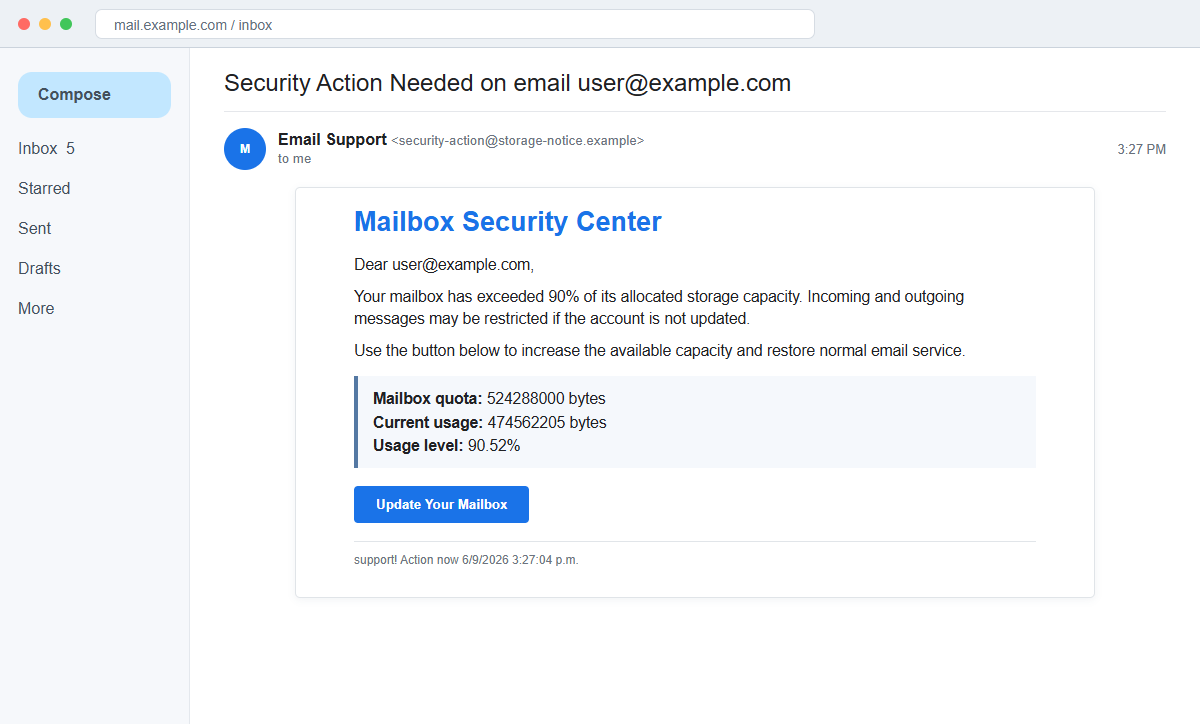
The Insufficient Email Capacity message is a phishing scam. The detailed byte counts are invented, and the Update Your Mailbox button leads to a fake Gmail-style sign-in page that records the password entered by the recipient.
Storage warnings are believable because full mailboxes can cause real delivery problems. The scam exploits that familiar concern, then adds precise numbers to make an unauthenticated email look as though it read the account directly.
Do not use the button. Open Gmail or the relevant provider from its official app or a trusted bookmark and inspect storage there. If the real dashboard shows no matching warning, report and delete the message.
Overview
Precise numbers create the illusion of a real quota reading
The reviewed message says the mailbox quota is 524288000 bytes and current usage is 474562205 bytes, producing a displayed usage level of 90.52%. That precision makes the alert feel machine-generated.
The email supplies no proof that its sender can access the mailbox. Any attacker can calculate a percentage and insert the recipient's address into a template.
The threat targets an everyday business dependency
Recipients are warned that incoming and outgoing messages may be restricted. For someone awaiting a customer reply, password reset, invoice, application, or delivery update, that possibility can feel urgent.
A strangely written footer resembling “support! Action now” adds pressure. The victim is encouraged to repair the problem immediately instead of checking the storage meter in the real account.
The update page steals a Gmail password
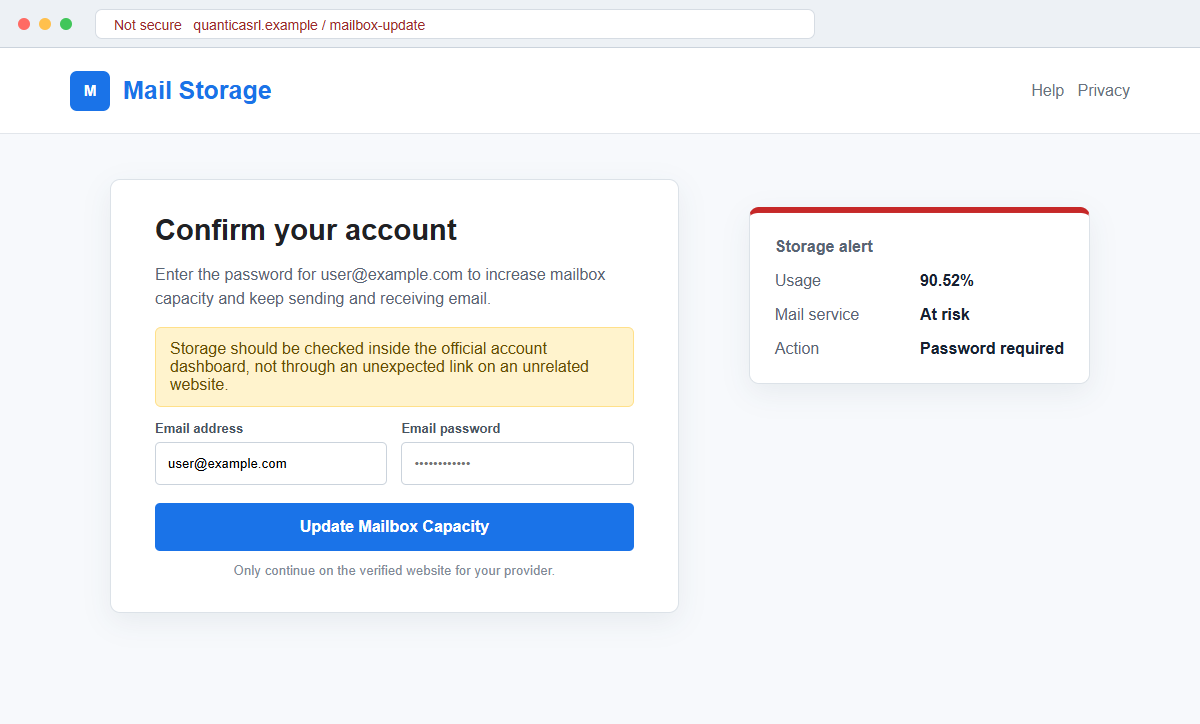
After the button is clicked, a Google-themed page appears over a Gmail-like promotional background. The email address may already be filled in, leaving only the password field for the recipient to complete.
The observed page was hosted on quanticasrl[.]com, an unrelated website that may have been compromised or abused. Submitting the form sends a valuable account secret to the phisher, not to Google.
- The subject says security action is needed for the recipient's email.
- The warning claims storage has exceeded 90%.
- Exact byte counts make the template appear technical.
- The displayed percentage is 90.52%.
- Incoming and outgoing mail are threatened with restriction.
- The Update Your Mailbox button promises a quick repair.
- The destination is not an official Google account domain.
- A Gmail-style background is used as borrowed credibility.
- The address may be prefilled while the password is requested.
- Stolen Gmail access can expose resets, files, contacts, and other Google services.
How Real Gmail Storage Warnings Should Be Checked
Google accounts have real storage limits. For a standard personal account, Google describes 15 GB of storage shared across Gmail, Google Drive, and Google Photos, while workplace or paid plans can have different limits.
When the available storage is exhausted, Gmail may be unable to send or receive messages. The underlying problem is real, but that does not authenticate a particular email or the page linked inside it.
Users can view storage through their official Google account and Google's storage-management tools. The meter should be opened from the known account interface or official app, not from an unexpected quota warning.
Real management options involve deleting unnecessary mail or files, emptying trash, reviewing large items, or purchasing additional storage through the authenticated account. They do not require entering a Google password on an unrelated company's website.
Business and school accounts may be managed by an administrator and can have organization-specific quotas. Employees should use the normal Google Workspace route and contact their established IT team when storage policy is unclear.
The safest habit is independent navigation. Even if the mailbox truly is nearly full, solving the legitimate storage issue through the official dashboard avoids handing credentials to whoever sent the alert.
Details That Reveal the Insufficient Email Capacity Scam
The 500 MB figure represented by 524288000 bytes is suspicious for a message styled around Gmail, but quota sizes alone are not decisive because organizations can configure different services and limits.
The decisive evidence is the destination. quanticasrl[.]com is not accounts.google.com, mail.google.com, one.google.com, or a known organization sign-in domain. A Gmail image cannot change that ownership.
The page asks for the existing account password to update capacity. A storage increase is a billing or administration action that should occur after a normal login to the verified service, not through a link-controlled credential form.
Prefilling the email address is not evidence of access. The address can be placed in the link as a parameter, taken from the recipient field, or copied from a public or breached mailing list.
The timestamp and footer are awkwardly formatted, including unusual punctuation and the phrase “Action now.” Sloppy writing is a warning, though a polished version of the same credential request would remain fraudulent.
A browser lock icon would only show an encrypted connection to quanticasrl[.]com. It would not prove the page belongs to Google or has authority to change the recipient's storage.
How the Insufficient Email Capacity Scam Works
Step 1: Attackers send quota alerts to large address lists
Email addresses come from marketing databases, public pages, old breaches, guessed company formats, and previous phishing campaigns. The sender does not need to know which recipients actually use Gmail.
A broadly familiar storage theme works across personal, school, and work accounts. Non-Gmail users may simply see a generic mailbox variation.
Step 2: Fabricated telemetry makes the warning look personalized
The template inserts the recipient's address and displays a quota, usage count, and exact percentage. Technical detail can feel more trustworthy than a vague claim, even when every number is static.
Attackers may vary the numbers between campaigns to avoid simple text filters while preserving the same story.
Step 3: Mail restriction creates a practical emergency
The recipient is told that messages may not arrive or leave. Because email carries work, purchases, account recovery, and personal correspondence, the threat can provoke immediate action.
The warning does not invite the user to inspect the real account. It funnels attention toward a single update button controlled by the sender.
Step 4: The button redirects to a counterfeit Gmail page
The landing page uses Google-like colors, a Gmail background, familiar account language, and a prefilled email address. Those details make the transition from inbox to webpage feel continuous.
The complete address bar tells a different story. The page sits on an unrelated domain and has no verified connection to Google.
Step 5: The form captures the account password
Only the password may be requested because the email address was already included in the link. When submitted, the credential is delivered to the phisher's collection system.
The page may show an error and request another attempt, then redirect to real Gmail. That sequence reduces suspicion and can collect more than one reused password.
Step 6: The attacker tests Google and reused credentials
Criminals can attempt Gmail, Google Drive, Photos, Calendar, and other Google services. They may also try the same address and password on shopping, social, workplace, and payment accounts.
Multi-factor authentication may trigger a second-stage scam involving fake code forms, repeated prompts, or a caller pretending to be account support.
Step 7: Inbox access enables impersonation and account takeover
An intruder can read private mail, steal files, export contacts, reset other passwords, and search for financial or identity information. Security notices may be deleted before the owner sees them.
The account can then send convincing phishing to trusted contacts. A simple quota lure can therefore expand into identity theft, payment fraud, or a wider workplace incident.
Company and Checkout Checks
Open the storage meter from the real account
Use the official Gmail app, type mail.google.com, or open a trusted Google account bookmark. Review the storage meter and account notifications without using anything from the warning email.
If the meter is high, manage storage there. A real problem does not make the phishing link safe.
Inspect the complete link destination
Hover over Update Your Mailbox on a desktop or use a safe link-preview method. Compare the complete registered domain, not just words such as Google or Gmail placed elsewhere in the address.
Close the page if the hostname belongs to an unrelated organization.
Ask the real administrator about managed accounts
For a work or school mailbox, contact IT through the known service desk, directory, or telephone number. Provide the suspicious email as an attachment so administrators can review headers and block related messages.
Do not reply to the sender and accept its support instructions.
Reject password requests tied to storage buttons
A legitimate login should occur on the provider's verified identity domain as part of the normal account flow. An unexpected site should not collect the current mailbox password to calculate or increase storage.
Use a password manager as an additional signal. It will usually refuse to fill a saved Google password on the wrong domain.
Warning Signs to Check Before You Act
- The subject uses a generic security-action warning.
- The recipient's address is inserted as proof of personalization.
- Exact byte counts appear without an authenticated account context.
- A Gmail-themed message uses an unusual 500 MB quota.
- Incoming and outgoing mail are threatened with restriction.
- The footer contains awkward punctuation and Action now wording.
- The only proposed solution is an email button.
- The destination belongs to an unrelated domain.
- A Gmail background distracts from the address bar.
- The email field is prefilled to lower resistance.
- The page asks for a current Google password.
- No matching alert appears in the official storage dashboard.
Quota warnings should be treated as prompts to inspect the real account, never as proof that the supplied link is safe. Independent navigation solves a genuine storage problem without trusting the sender.
What to Do if You Have Fallen Victim to This Scam
- Change the exposed password immediately. Open Gmail or the relevant provider's official account dashboard through a saved bookmark or its official application, not through the Insufficient Email Capacity message. Set a long password through the real provider after that insufficient-capacity message. Change matching or closely related passwords on other accounts.
- Treat the password entered after the email capacity warning as compromised. Set a long password through the real provider after that insufficient-capacity message. Change matching or closely related passwords on other accounts. Audit the authentication methods registered after this insufficient-capacity case. Remove unknown telephone numbers, recovery addresses, app passwords, and security keys.
- End the access created through the email capacity warning. Sign out all other sessions from the Google account security page, revoke unfamiliar OAuth grants, and reconnect trusted mail applications only after the password change. This closes tokens that can survive a simple reset.
- Review the mailbox for changes connected with the email capacity warning. Remove unknown forwarding addresses, delegates, inbox rules, filters, and automatic replies. The mailbox history surrounding this insufficient-capacity incident may expose attacker activity. Inspect sent mail, deleted items, trash, and recovery messages.
- Protect the wider account chain. Prioritize Gmail and all accounts recovered through that address. The mailbox involved in that insufficient-capacity message may unlock other accounts through reset links. Change those credentials before an intruder does.
- Review the Google account for unauthorized changes. Check recent security activity, devices, recovery email and telephone details, two-step verification methods, app passwords, forwarding, filters, delegates, Drive sharing, and third-party application access. Remove anything you did not authorize.
- Check the device used to open the email capacity warning. Use Malwarebytes after that insufficient-capacity message whenever an attachment or browser add-on was opened. Review installed software before returning to banking or email.
- Reduce the chance of reopening a related page. AdGuard or another reputable DNS and content blocker may stop known phishing hosts and malicious advertisements tied to the email capacity warning. Keep checking destination addresses after this insufficient-capacity case. New campaign domains can appear faster than blocklists update.
- Report the phishing message. Use the mail provider's Report Phishing control and notify Google, the email provider, or the organization's IT team. Keep the original headers for this insufficient-capacity incident, not only a cropped screenshot. Administrators can use them to trace and block related messages.
- Warn email administrator and contacts through a separate channel. Explain that the email capacity warning may have exposed the account and ask them to distrust recent file shares, password requests, invoices, payment changes, or urgent replies until the timeline is confirmed.
- Expect follow-up fraud based on the email capacity warning. Anyone citing this insufficient-capacity incident while promising recovery must be verified independently. A demand for money first is a warning sign. Seek support for this insufficient-capacity phishing attempt through known channels. A provider or incident responder verified for this insufficient-capacity phishing attempt is safer than an unsolicited fixer.
Frequently Asked Questions
Is the Insufficient Email Capacity warning real?
The reviewed message is phishing. It invents a 90.52% quota reading and directs users to a fake Gmail-style password form on an unrelated domain.
Can a full Gmail account really stop receiving email?
Yes, exhausted storage can affect sending and receiving. Check the current meter inside the official Google account and resolve it there instead of using an email link.
Why does the message show exact storage numbers?
Precision is used to create credibility. The sender can place calculated byte counts and the recipient's address in a template without accessing the real mailbox.
What if I clicked but did not enter my password?
Close the page, report it, and inspect the real account. Risk is lower if no data was submitted, file downloaded, or browser permission granted.
Is the page safe if it uses HTTPS?
No. HTTPS encrypts the connection to the displayed hostname. It does not show that an unrelated hostname belongs to Google or your organization.
Should I buy more storage after receiving this email?
Only if the official account dashboard shows a genuine need and the plan fits your requirements. Make the purchase inside the verified Google or provider account, not through the alert.
The Bottom Line
The Insufficient Email Capacity scam turns a believable mailbox problem into a password theft attempt. Exact byte counts and a Gmail-like background are decoration around an unrelated credential form.
Open the official storage dashboard independently and compare the alert there. A legitimate quota issue can be fixed without giving a password to quanticasrl[.]com or any other destination introduced by an unsolicited email.
If a password was entered, change it immediately, revoke sessions, inspect Google and mailbox settings, secure recovery accounts, notify affected contacts or administrators, scan downloaded content, and report the phishing page.

Join the discussion
0 commentsShare your experience or ask a question about this article.
Discussion
Start the conversation
Have a question or something useful to share? Add the first comment.