

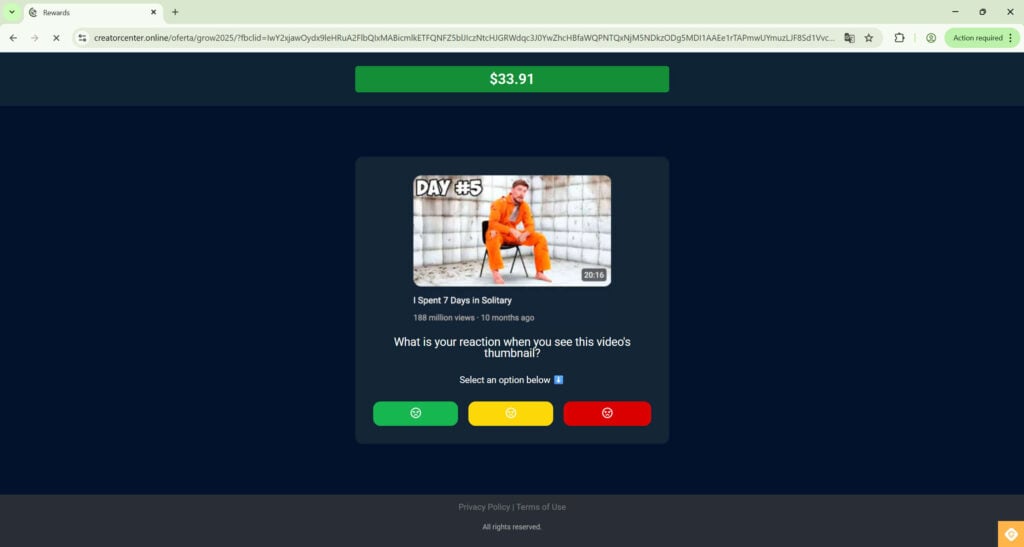
A YouTube-style “Rewards” page appears on your screen and, within minutes, it says you have money waiting.
Not a few cents. Not a coupon. A real-looking balance that climbs every time you tap a simple reaction button under a video thumbnail.
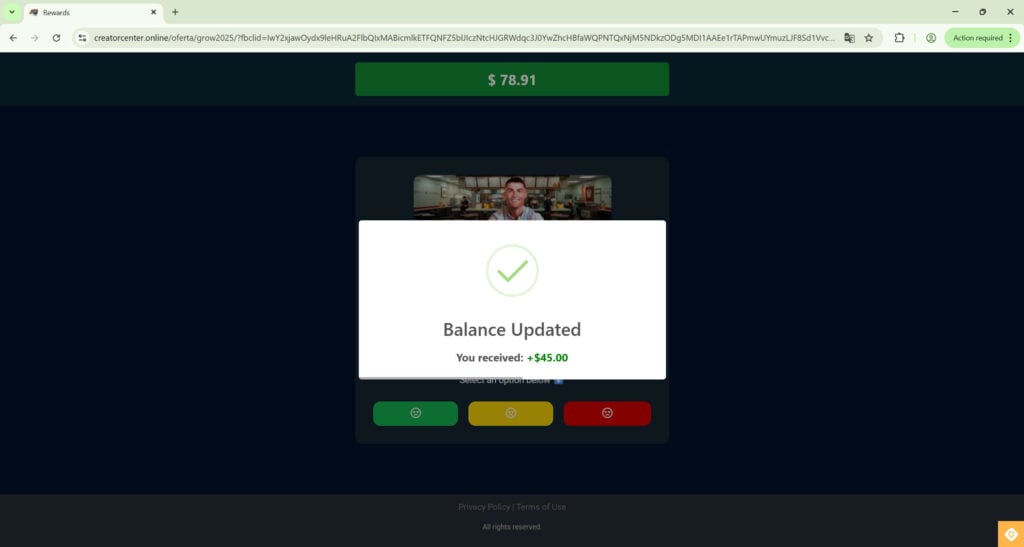
$33.91 becomes $78.91. Then a popup flashes: “Balance Updated. You received: +$45.00.”
It feels almost ridiculous how easy it is. And that is exactly why people keep going.
Because the moment you try to turn that balance into cash is when the story changes.
Scam Overview
The “YouTube Tool” or “YouTube Rewards Program” being pushed through Facebook and Instagram ads is not a real YouTube program. It is a classic fake job and fake rewards scam designed to do one thing: pull you into a staged “earnings” flow, then pressure you into paying fees and deposits you will never get back.
This scam is especially effective because it blends several manipulation tactics into one smooth experience:
- Familiar branding (YouTube name, logo, and creator references)
- A tiny “task” that feels legitimate (thumb reactions and simple survey clicks)
- Instant gratification (your balance increases every few taps)
- Artificial urgency (“withdraw NOW”, “limited spots”, “selected for the program”)
- A handoff to off platform chat groups (WhatsApp and Telegram)
- A final cash extraction stage (fees, “verification”, “activation”, “tax”, “VIP”, “unlock withdrawal” payments)
If you have seen ads claiming users can earn $200 to $800 per day using “YouTube Tool”, you are looking at a scam funnel. The ads often use AI-generated voices and manipulated clips, and they falsely claim that MrBeast and “The Rock” (Dwayne Johnson) promoted the program. They did not.
The pitch is usually framed like this:
- YouTube needs “quick feedback” on video thumbnails or ads.
- Advertisers pay YouTube for feedback.
- You get paid for answering simple questions.
- Withdrawals are available quickly once you “activate” your account.
None of that is real.
What the scam looks like in practice
The landing page commonly appears under domains that sound generic and corporate, but are not related to YouTube at all. One example seen in the wild is a site on creatorcenter.online, which presents itself like a YouTube rewards portal.
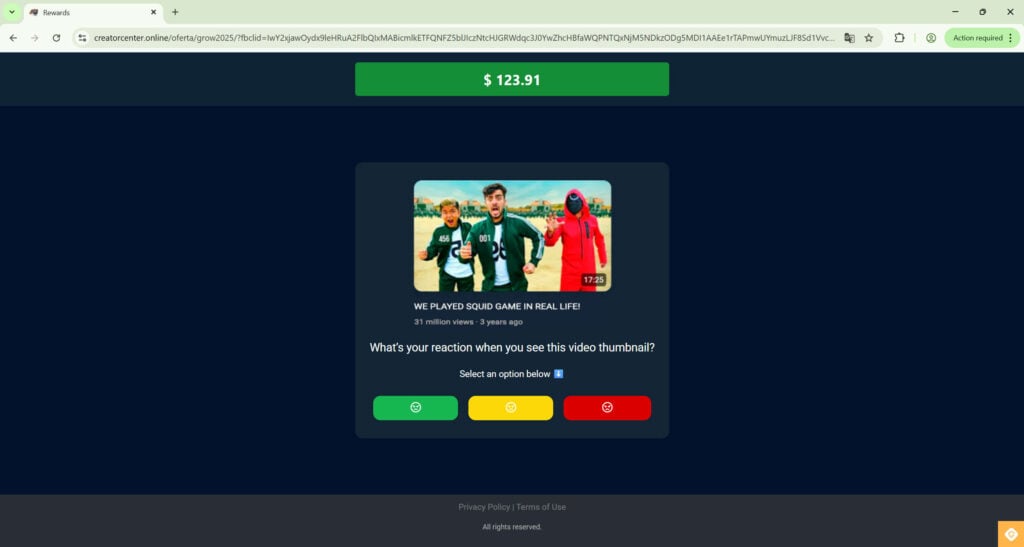
The user interface is designed to feel like a legitimate research platform. It shows a YouTube video thumbnail, a title, a view count, and a question such as:
- “What is your reaction when you see this video’s thumbnail?”
- “Does this video’s thumbnail make you want to watch it?”
Under the question are big colored buttons (often green, yellow, red) that you tap to submit your “reaction.”
This is not market research. It is theater.
Your choices do not matter. The system is not evaluating anything meaningful. The purpose is to keep you clicking long enough to build trust and escalate your commitment.
The fake balance is the core psychological hook
A major red flag is how quickly the balance grows, and how “structured” the increments feel.
In many cases, the site shows a starting balance around $33.91 and then repeatedly displays popups like:
- “Balance Updated”
- “You received: +$45.00”
As you continue, the balance rises through neat milestones like $78.91, $123.91, $168.91, and $213.91.
This is not how real paid testing works.
Real research platforms do not credit you $45 for clicking a single emoji face under a thumbnail. They also do not show you a running “wallet” that grows every few seconds with celebratory confirmation screens. That style of design is commonly seen in gambling-like interfaces and scam funnels because it keeps your brain focused on the reward.
The withdrawal stage is where the scam reveals itself
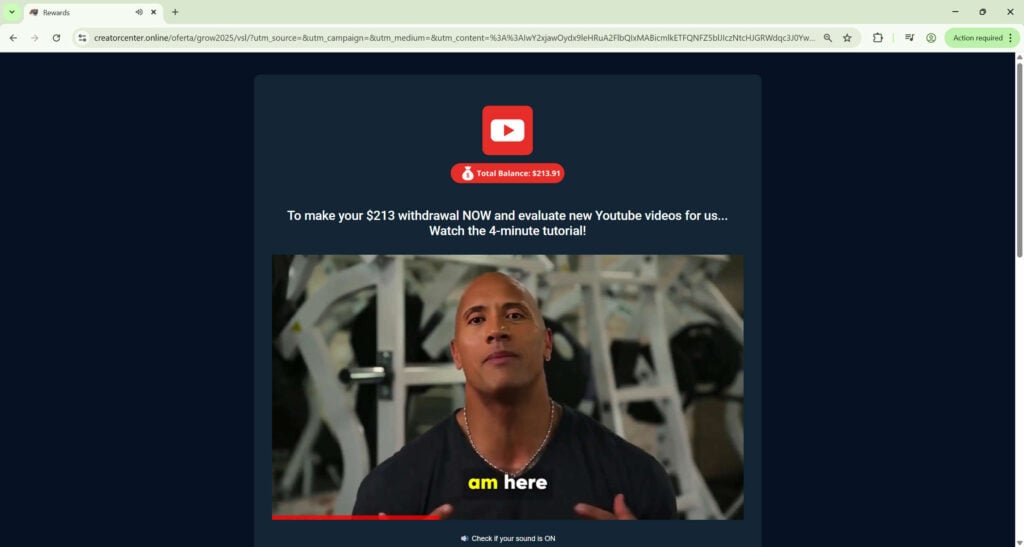
Once your “balance” looks big enough to feel exciting, the site switches from “easy earning” to “unlock withdrawal.”
A typical prompt looks like:
- “Congratulations! Your current balance: $213.91”
- “To register your bank account and withdraw funds, watch a 4-minute video.”
That “4-minute tutorial” is usually a video sales letter (VSL). It tries to convince you that this is a real YouTube initiative and that withdrawals are immediate, but only after you complete a required step.
The VSL often includes staged visuals, fake overlays (PayPal style popups, $300 graphics), and sometimes a fabricated “news” screenshot that claims YouTube launched a tool that lets people earn over $70,000 annually by answering quick questions.
That is another major red flag: scammers love to borrow the visual language of journalism because it shortcuts credibility. They do not need proof if they can give you the feeling that proof exists.
The payment request is the actual business model
After the video, the scam typically demands money.
They may call it:
- A “withdrawal activation fee”
- A “verification fee”
- A “tax” or “processing fee”
- A “membership upgrade” required to withdraw
- A “deposit” to match your withdrawal amount
- A “bank linking” or “account validation” payment
Sometimes the payment page is handled through third-party checkout platforms to make it look more legitimate. For example, victims may be sent to a Hotmart checkout for a product with a generic name (one seen is “Corex1”) priced in euros (for instance €26.62 with VAT included).
That is not YouTube paying you. That is you paying them.
The scam does not need your bank details to “send” your $213.91 because the $213.91 is not real. It only needs you to believe it is real long enough to pay a smaller “unlock” fee.
This is a classic pattern: show a big fake reward, then ask for a smaller real payment to release it.
The WhatsApp and Telegram handoff is another major red flag
Many victims report that after the initial site flow, they are pushed into WhatsApp or Telegram groups.
This is done for several reasons:
- It removes you from the platform where the ad was shown.
- It makes the scam feel like a “team” or “community.”
- It allows real-time pressure from multiple accounts.
- It enables scripted persuasion, fake testimonials, and fast escalation.
Inside these groups, scammers may pose as:
- “Mentors”
- “Customer support”
- “Account managers”
- “Trainers”
- “Financial team”
- “YouTube partners”
You might also see other “members” posting screenshots of withdrawals and praising the system. These are usually staged, recycled, or posted by scam accounts to create social proof.
Then the real squeeze begins.
The endless payment ladder
Once you pay the first fee, the scam rarely stops at one payment.
The excuses change, but the demand stays the same: send more money.
Common follow-up scripts include:
- Your withdrawal is “pending” until you pay a larger verification fee.
- Your account is “flagged” and requires a refundable deposit.
- You need to reach a “VIP level” to unlock full withdrawals.
- Your bank transfer “failed” due to compliance and needs another processing fee.
- Your wallet is “frozen” and you must pay to unfreeze it within a deadline.
- You must pay an “anti-money laundering” step before release.
Each step is designed to feel temporary and solvable.
That is the emotional trap. People keep paying because they believe they are one step away from getting their money.
But the money never comes, because there is no real payout system behind the scenes.
Why this scam spreads so well on social media
This scam is built to fit perfectly into the Facebook and Instagram ad ecosystem:
- The ad looks like a simple opportunity, not a complicated investment.
- The landing page works on mobile and feels “app-like.”
- The tasks are so easy that people do not feel they are taking a risk.
- The balance growth creates excitement quickly, before skepticism kicks in.
- The ask starts small and ramps up after trust is established.
It also benefits from a constant churn of new pages, new domains, and new ad accounts, which makes it harder for casual users to recognize patterns.
If you take nothing else from this overview, remember this:
A real company does not pay you $45 per click to rate thumbnails, then demand you pay fees through random checkout pages to withdraw. That is not a job or a rewards program. That is a staged payout scam.
This scam has been also investigated by Jordan Liles on his YouTube channel, where he offers a detailed video on the subject. We recommend watching his content for a comprehensive understanding of the scam.
Next, let’s break down exactly how scammers carry out this scam from start to finish.
How The Scam Works
Below is the typical step-by-step path victims experience, including the psychological “beats” the scammers rely on.
Step 1: The Facebook or Instagram ad hooks you with easy money
The scam begins with Facebook and Instagram ads claiming users can earn $200 to $800 per day using YouTube Tool.
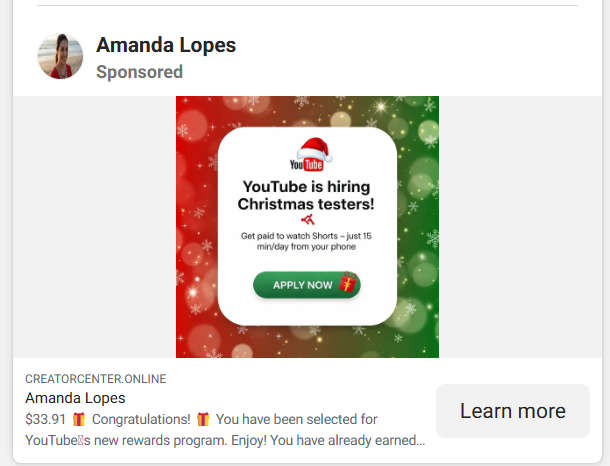
The ads often use AI-generated voices and manipulated video clips and falsely claim that MrBeast and “The Rock” (Dwayne Johnson) promoted the program. They did not.
The messaging is carefully chosen:
- “Get paid to watch Shorts”
- “Just 15 min/day”
- “YouTube is hiring testers”
- “Selected for YouTube rewards”
- “Limited spots”
This framing lowers your guard because it sounds like a simple gig, not an investment.
It also creates urgency, so you click before you think.
Step 2: You land on a site that imitates a rewards portal
You are sent to a standalone website, often with a generic, official-sounding domain. One example is creatorcenter.online.
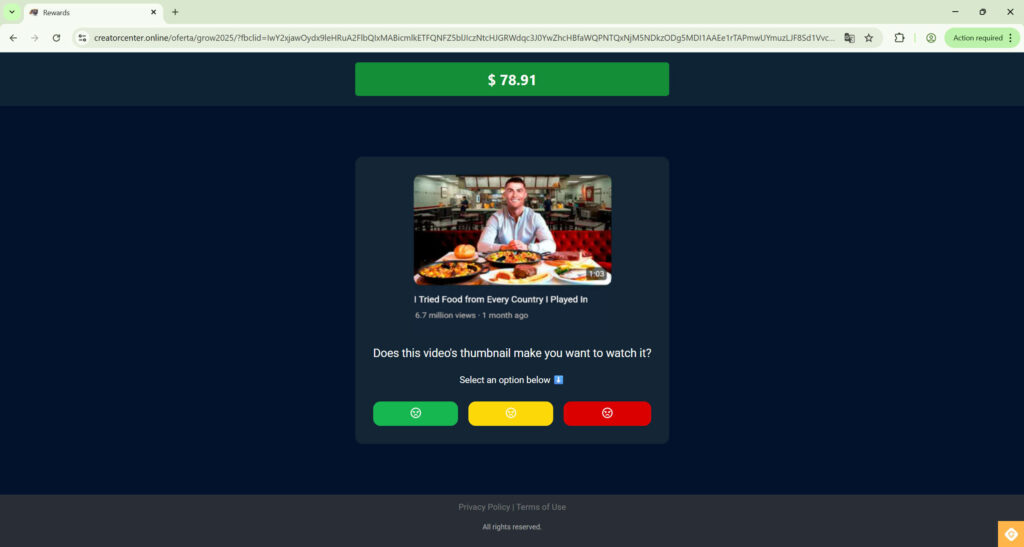
The page uses YouTube-style visuals and language. It may show:
- A “Rewards” page title
- A balance bar at the top
- “Privacy Policy | Terms of Use” links at the bottom
- Clean UI cards that resemble legitimate survey tools
This is the credibility layer. It is not proof, but it feels like proof.
Step 3: You do fake “evaluation tasks” that are designed to be effortless
The tasks are intentionally simple. For example:
- A YouTube thumbnail and title appear.
- You answer one question about your reaction.
- You tap a colored button.
The system might show popular videos with large view counts to make the content feel real.
This step is not about gathering feedback. It is about building a behavioral rhythm:
Click, get rewarded, click again.
Once you are in that rhythm, you are less likely to pause and question the legitimacy.
Step 4: The site rewards you instantly with a fake balance update
After a small number of taps, the site starts showing reward confirmations such as:
- “Balance Updated”
- “You received: +$45.00”
Your displayed balance climbs quickly, often in neat jumps.
This is the trust trap.
Your brain starts treating the balance as “your money,” even though it is only a number on a screen controlled by the scammers.
This is a powerful psychological effect called the endowment effect: once something feels like it belongs to you, you are more likely to take risks to keep it.
Step 5: The platform escalates with a “withdrawal milestone”
After you reach a balance that feels meaningful, the site pivots:
- “Congratulations!”
- “Your current balance: $213.91”
- “To register your bank account and withdraw funds, watch a 4-minute video.”
This is the transition from dopamine to dependency.
Up to this point, everything felt easy. Now there is a “required step.” That step is designed to feel like a normal compliance process.
It is not.
Step 6: The “4-minute tutorial” sells you a fake story
The VSL typically includes:
- Claims that YouTube launched a new tool.
- A fake “news” screenshot suggesting YouTube’s tool lets thousands earn over $70,000 annually.
- Visual overlays of payment notifications.
- Promises of instant withdrawals.
Sometimes the video tries to sound educational, as if it is teaching you how to use a real platform.
In reality, it is simply a conversion video. Its job is to prepare you emotionally for the first payment request.
Step 7: You are told to pay a fee to unlock withdrawal
Here is the moment the scam turns from “free money” into “pay to get paid.”
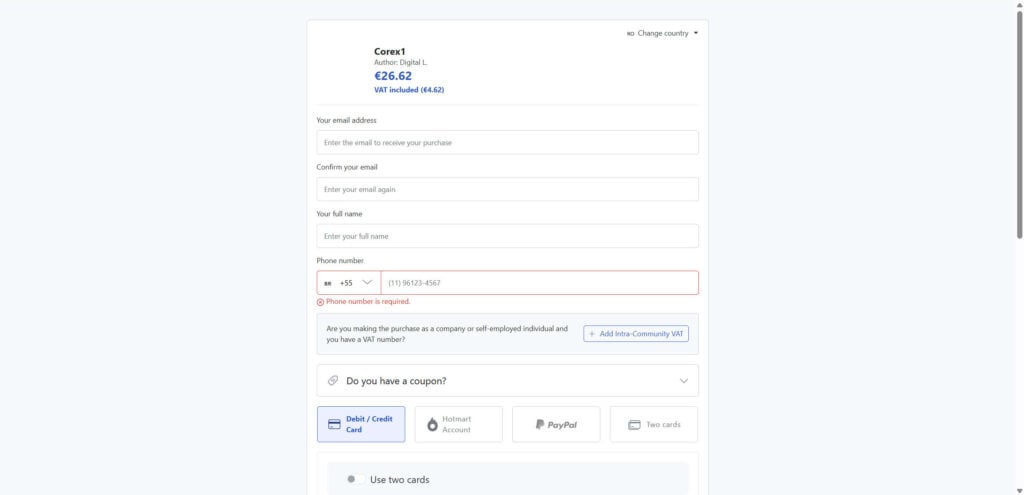
You may be directed to a checkout page and told something like:
- “Pay a small fee to verify your account.”
- “This is refundable.”
- “This is required by policy.”
- “This is a processing charge.”
The payment might be presented as a digital product purchase, a subscription, a “training,” or an “account activation.”
If the page uses a well-known checkout provider, it can trick people into thinking the whole thing must be legitimate.
But a legitimate YouTube payout does not require you to buy random products like “Corex1” through a third-party marketplace just to withdraw your earnings.
Step 8: If you pay once, you are pulled into WhatsApp or Telegram
After payment, the scam often shifts communication to WhatsApp or Telegram groups.
This is where the pressure intensifies.
Inside the group:
- “Support” responds quickly, like a real company.
- You may see constant success posts from other “members.”
- The tone is upbeat and urgent.
- Any hesitation is met with reassurance and scripted explanations.
This social environment is engineered to keep you moving forward without stopping to verify anything.
Step 9: The second and third payment requests arrive with new excuses
Once you have paid once, the scammers know two things:
- You believe the system could be real.
- You are willing to spend money to unlock the payout.
So they escalate.
Typical next steps:
- “You need a higher verification tier.”
- “Your withdrawal is too large for the basic account.”
- “Pay the tax first, then the funds release.”
- “Your account needs a deposit due to risk controls.”
- “You need to reach VIP2 or VIP3 to withdraw.”
This is the endless ladder.
Each payment is framed as the last obstacle. It never is.
Step 10: The “withdrawal” never happens, only more demands
Eventually, one of three things happens:
- You stop paying, and they ghost you or threaten you with account cancellation.
- They keep baiting you with smaller “solutions” to get another payment.
- They push you into a larger deposit scheme, claiming bigger deposits unlock bigger daily earnings.
No matter which route they take, the outcome is the same.
Victims never receive the money promised.
Why victims feel stuck
People often blame themselves after realizing what happened, but this scam is designed to make smart people feel trapped.
It uses:
- A staged earning system that creates emotional ownership
- Escalating commitment, starting with tiny steps
- Time pressure and “compliance” language
- Social proof in group chats
- Shame and urgency to prevent you from asking for outside opinions
If you are reading this because someone you know is involved, the most helpful thing you can do is keep the conversation calm and practical. Shame makes people hide what happened. Calm makes them act.
What To Do If You Have Fallen Victim to This Scam
- Stop paying immediately, even if they say you are “one step away.”
The “one last fee” is the core trick. The moment you stop paying is the moment you stop the damage. - Do not share any additional personal details.
If they are asking for your ID, bank login, card photos, crypto wallet access, or remote access to your device, stop and cut contact. Those requests can escalate into identity theft. - Take screenshots and save evidence now.
Save everything while you still have access: the ad, the website pages, the balance screens, the withdrawal prompts, the video page, receipts, chat logs, usernames, phone numbers, and payment links. - Contact your bank or card issuer and ask about chargeback options.
Explain that you were misled by an online scam and paid under false pretenses. If you used a debit or credit card, act fast. Banks are more likely to help when the report is timely. - If you paid through PayPal, open a dispute immediately.
Use the Resolution Center and describe the transaction as a scam or misleading digital purchase. Provide screenshots of the fake withdrawal promises and the pressure tactics. - If you paid by crypto, assume it may not be recoverable, but still report it.
Crypto transfers are often irreversible, but reporting wallet addresses can still help investigators and platforms flag scam infrastructure. - Leave and report the WhatsApp or Telegram groups.
Report the group and the accounts involved. Do not argue inside the group. Scammers are trained to keep you engaged because engagement creates doubt and delays action. - Change passwords if you reused any login details anywhere.
If you created an account on the scam site using a password you have used elsewhere, change it everywhere. Start with your email, banking, and social accounts. - Enable 2FA on your email and key accounts.
Your email is the master key to password resets. Protect it first. - Monitor your accounts for follow-up fraud attempts.
People who pay once are often targeted again. Watch for new messages claiming they can “recover your money” for a fee. Those are frequently recovery scams. - Report the ad on Facebook or Instagram.
Use the “Report ad” option and choose the closest match to scam or misleading content. This helps reduce reach, even if it does not feel immediate. - Report the checkout and the product listing used to collect payment.
If a third-party checkout platform was involved, report the transaction and the seller. Include screenshots showing the payment was tied to a fake YouTube withdrawal claim. - If you shared sensitive info, consider extra protection steps.
If you shared your phone number, expect more scam calls and messages. If you shared identity details, consider monitoring credit and watching for suspicious account openings, depending on your country.
Is Your Device Infected? Run a Free Malware Scan
Slow performance, constant pop-ups, or strange behavior? These are classic signs of a malware infection. The fastest way to find out is to scan your device with Malwarebytes Free — one of the most trusted malware removal tools available.
The free version detects and removes the most common threats, including:
- Adware — the cause of those annoying pop-ups
- Browser hijackers — unwanted redirects and changed homepages
- Trojans and spyware — hidden programs stealing your data
- Potentially unwanted programs (PUPs) — software you never asked for
👉 Select your device below — Windows, Mac, or Android — then follow the simple steps to download Malwarebytes, scan your system, and remove any threats it finds. The scan usually takes 5 to 20 minutes.
Run a Malware Scan with Malwarebytes for Windows
Malwarebytes is one of the most popular and trusted anti-malware tools for Windows — and it’s completely free for removing infections. It catches threats that many antivirus programs miss, including adware, browser hijackers, and trojans. Follow the steps below to scan and clean your PC in just a few minutes.
Download Malwarebytes
Click the button below to download the latest version of Malwarebytes for Windows from the official source. The free version is all you need — it will scan your computer and remove adware, browser hijackers, and other malicious software at no cost.
Download MalwarebytesOfficial installer for Windows 11 and 10. Your download starts right away.Want real-time protection? See Malwarebytes Premium Malwarebytes Free for WindowsScans and removes malware at no cost
-
Install Malwarebytes
When the download finishes, open your Downloads folder and double-click the MBSetup file. If Windows shows a User Account Control pop-up, click “Yes” to allow the installation.

Follow the On-Screen Prompts to Install Malwarebytes
The setup wizard will walk you through a few quick screens:
-
Choose where you’re installing the program — “Personal Computer” or “Work Computer” — then click Next.

-
Malwarebytes will now install on your device. This usually takes under a minute.

-
When installation is complete, the “Welcome to Malwarebytes” screen will open automatically.

-
On the final screen, click Open Malwarebytes to launch the program.

-
Enable “Scan for Rootkits”
Before scanning, turn on rootkit detection so Malwarebytes can find even the most hidden threats. Click the Settings gear icon on the left side of the screen.

In the settings menu, find “Scan for rootkits” and click the toggle so it turns blue.

Done? Click “Dashboard” in the left pane to return to the main screen.
Start the Scan
Click the blue Scan button. Malwarebytes will automatically update its virus database and start checking your computer for malware.

-
Wait for the Scan to Finish
The scan checks your entire system for browser hijackers and other malicious programs, so it can take 5 to 20 minutes depending on your computer. Feel free to do something else — just check back occasionally to see the progress.

-
Quarantine the Detected Threats
When the scan is done, you’ll see a list of everything Malwarebytes found — malware, adware, and potentially unwanted programs. Click the “Quarantine” button to remove all of them at once.

Malwarebytes will now remove the malicious files and registry entries and move them safely into quarantine.

-
Restart Your Computer
Some threats can only be fully removed after a reboot. If Malwarebytes asks you to restart, click Yes. Once you’re logged back in, Malwarebytes has finished removing the threats it found.

That’s it — your Windows PC is now clean of trojans, adware, and other malware, and should be back to running smoothly.
If you are still having problems with your computer after completing these instructions, then please follow one of the steps:
- Run a computer scan with ESET Online Scanner
- Ask for help in our Windows Malware Removal Help & Support forum.
Run a Malware Scan with Malwarebytes for Mac
Malwarebytes for Mac is a free on-demand scanner that removes the malware other security software tends to miss — adware, browser hijackers, and unwanted programs included. Cleaning an infected Mac with Malwarebytes has always been completely free, and it’s our go-to recommendation. Follow the steps below to scan and clean your Mac in just a few minutes.
-
Download Malwarebytes for Mac
Click the button below to download the latest version of Malwarebytes for Mac.
Download MalwarebytesOfficial installer for macOS. Your download starts right away.Want real-time protection? See Malwarebytes PremiumMalwarebytes Free for MacScans and removes malware at no cost -
Open the Malwarebytes setup file
When the download finishes, open your Downloads folder and double-click the setup file to begin the installation.

-
Follow the On-Screen Prompts to Install Malwarebytes
The Malwarebytes for Mac Installer will guide you through a few quick screens. Click “Continue” and keep following the prompts until the installation completes.



When the installation is complete, Malwarebytes opens to the Welcome to Malwarebytes screen. Click “Get started“.
-
Select “Personal Computer” or “Work Computer”
Malwarebytes will ask what type of computer you’re installing it on. Click either Personal Computer or Work Computer, whichever applies.

-
Start the Scan
Click the “Scan” button. Malwarebytes will automatically update its detection database and begin checking your Mac for malware.

-
Wait for the Scan to Finish
Malwarebytes will scan your Mac for adware, browser hijackers, and other malicious programs. This can take a few minutes, so feel free to do something else — just check back occasionally to see the progress.

-
Quarantine the Detected Threats
When the scan is done, you’ll see a list of everything Malwarebytes found. Click the “Quarantine” button to remove all the threats at once.

-
Restart Your Mac
Malwarebytes will now remove all the malicious files it found. Some threats can only be fully removed after a reboot — if Malwarebytes asks you to restart, allow it. Once you’re logged back in, your Mac is clean.

That’s it — your Mac is now free of adware, rogue browser extensions, and other potentially harmful software.
If you are still experiencing problems while trying to remove a malicious program from your computer, please ask for help in our Mac Malware Removal Help & Support forum.
Run a Malware Scan with Malwarebytes for Android
Malwarebytes for Android automatically detects and removes dangerous threats like malware and ransomware so you don’t have to worry about your most-used device being compromised. Aggressive detection of adware and potentially unwanted programs keeps your Android phone or tablet running smooth.
-
Download Malwarebytes for Android.
You can download Malwarebytes for Android by clicking the link below.
Get Malwarebytes for AndroidOpens Google Play in a new tab.Want real-time protection? See Malwarebytes Premium for AndroidMalwarebytes for AndroidScans your phone and removes malware at no cost -
Install Malwarebytes for Android on your phone.
In the Google Play Store, tap “Install” to install Malwarebytes for Android on your device.

When the installation process has finished, tap “Open” to begin using Malwarebytes for Android. You can also open Malwarebytes by tapping on its icon in your phone menu or home screen.

-
Follow the on-screen prompts to complete the setup process
When Malwarebytes will open, you will see the Malwarebytes Setup Wizard which will guide you through a series of permissions and other setup options.
This is the first of two screens that explain the difference between the Premium and Free versions. Swipe this screen to continue.
Tap on “Got it” to proceed to the next step.
Malwarebytes for Android will now ask for a set of permissions that are required to scan your device and protect it from malware. Tap on “Give permission” to continue.
Tap on “Allow” to permit Malwarebytes to access the files on your phone.
-
Update database and run a scan with Malwarebytes for Android
You will now be prompted to update the Malwarebytes database and run a full system scan.

Click on “Update database” to update the Malwarebytes for Android definitions to the latest version, then click on “Run full scan” to perform a system scan.

-
Wait for the Malwarebytes scan to complete.
Malwarebytes will now start scanning your phone for adware and other malicious apps. This process can take a few minutes, so we suggest you do something else and periodically check on the status of the scan to see when it is finished.

-
Click on “Remove Selected”.
When the scan has been completed, you will be presented with a screen showing the malware infections that Malwarebytes for Android has detected. To remove the malicious apps that Malwarebytes has found, tap on the “Remove Selected” button.

-
Restart your phone.
Malwarebytes for Android will now remove all the malicious apps that it has found. To complete the malware removal process, Malwarebytes may ask you to restart your device.
That’s it — your Android phone is now clean — no more malicious apps, adware, or browser redirects.
If you are still having problems with your phone after completing these instructions, then please follow one of the steps:
- Restore your phone to factory settings by going to Settings > General management > Reset > Factory data reset.
- Ask for help in our Mobile Malware Removal Help & Support forum.
Stay Protected: Block Ads and Malicious Sites
Now that your device is clean, keep it that way. Most infections start with a malicious ad or a fake download button — so blocking them at the source is your best defense.
We recommend AdGuard, which blocks malicious ads, phishing pages, and dangerous redirects before they can reach you.
👉 Download AdGuard and browse safely
The Bottom Line
“YouTube Tool” and the so-called “YouTube Rewards Program” promoted through Facebook and Instagram ads is a scam.
The balance you see is not real money. It is a scripted number designed to make you feel like you are earning. The moment you try to withdraw, the scam switches into fee collection mode, often pushing victims into WhatsApp or Telegram groups where they are pressured to pay more under new excuses.
If you have interacted with it, the safest move is simple: stop paying, save evidence, report it, and work with your payment provider quickly.
Easy money rarely arrives through sponsored posts. Real work does not require you to pay upfront to access your wages.
FAQ
Is YouTube Tool a real YouTube program?
No. “YouTube Tool” and the so-called “YouTube Rewards Program” promoted through Facebook and Instagram ads are not official YouTube programs. The branding is used to create trust and push people into paying fees to “unlock” withdrawals.
Does YouTube pay people to rate thumbnails or answer quick survey questions?
Not in the way these ads claim. Legitimate research or testing programs do not pay $45 per click for simple emoji reactions, and they do not show a rapidly growing “balance” that you can supposedly withdraw after watching a short tutorial.
Why does the balance increase so fast on the website?
Because the balance is fake. It is just a number controlled by the scammers to make you feel like you are already earning, so you are more likely to pay a “verification” or “processing” fee later.
I saw “Balance Updated” and “You received: +$45.00.” Is that proof the money is real?
No. Those popups are part of the staged experience. Scammers use confirmation screens to mimic real payment systems and keep you emotionally invested.
What happens when you try to withdraw the money?
That is where the scam shifts into payment extraction. The site typically claims you must complete a step such as watching a “4-minute tutorial,” then it asks for money to verify or activate your account before releasing the withdrawal.
Why are victims sent to WhatsApp or Telegram groups?
Because scammers want you off the original platform and inside a controlled environment where they can apply pressure, use fake testimonials, and escalate payment demands quickly.
If I paid a small amount, can I get it back?
Sometimes, depending on how you paid and how quickly you act. Debit and credit card payments may be eligible for chargeback. PayPal may allow disputes. Crypto transfers are usually not recoverable, but you should still report them.
Why do they ask for more money after the first fee?
Because the scam is designed as an endless ladder. After the first payment, they invent new reasons like “tax,” “compliance,” “account upgrade,” “VIP level,” “deposit,” or “processing” to keep collecting money.
Are the ads really endorsed by MrBeast or “The Rock” (Dwayne Johnson)?
No. These scams commonly use AI-generated voices and manipulated video clips to create the impression of endorsement. Those public figures did not promote the program.
Is the “news article” in the video real?
In most cases, no. Scammers often use fake or manipulated “news” visuals to make the offer look verified. A screenshot or video clip is not proof of legitimacy.
Why do they use a third-party checkout page instead of asking directly for money?
To make the payment feel safer and more legitimate. Scammers may route payments through digital product checkouts or subscriptions so it looks like you are buying something “official,” when it is actually a method to collect your money.
What information are they trying to collect besides money?
Depending on the version, they may try to collect your phone number, email, name, and sometimes more sensitive data. In worse cases, they may push for bank details, identity documents, or remote access to your device.
What should I do if I entered my email, phone number, or password on the site?
Change any passwords you reused elsewhere, enable 2FA on your email and important accounts, and watch for follow-up scam attempts. If you used the same password on banking or shopping sites, change those immediately.
How can I tell if a “rewards program” ad is fake in the future?
Watch for red flags like:
- Promises of $200 to $800 per day for tiny tasks
- A fake balance that increases instantly after each click
- Pressure to “withdraw now” or “activate” urgently
- Requests to pay fees to unlock withdrawals
- Requests to move to WhatsApp or Telegram
- Unofficial domains that are not owned by YouTube or Google
Can YouTube or Google help me recover the money?
If you paid scammers directly, YouTube typically cannot reverse it. Your best chance is through your bank, card issuer, PayPal dispute process, or the platform that processed the payment. Still, reporting the scam can help prevent further victims.
What is the biggest sign it is definitely a scam?
Any request to pay money to withdraw money. Real jobs and legitimate reward programs do not require upfront payments, “verification fees,” or deposits to access your earnings.

Join the discussion
0 commentsShare your experience or ask a question about this article.
Discussion
Start the conversation
Have a question or something useful to share? Add the first comment.