

Live Security Platinum is a computer virus which will display fake security alerts,reporting that malware has been detected on your computer.This alerts are professional looking pop-ups and when you click on them, you are advised to buy Live Security Platinum in order to remove the detected threats.
In reality, none of the reported issues are real, and are only used to scare you into buying Live Security Platinum and stealing your personal financial information.
Apart from the bogus alerts,as part of its self-defense mechanism,Live Security Platinum has disabled the Windows system utilities, including the Windows Task Manager and Registry Editor,and will block you from running certain programs that could lead to its removal.
Further more,this rogue antivirus has modified your Windows files associations so now you can’t run files that end in a .exe extension.
If your computer is infected with Live Security Platinum,then you are seeing this images:
![[Image: Live Security Platinum virus]](http://malwaretips.com/blogs/wp-content/uploads/2012/06/Live-Security-Platinum-2.png "Live Security Platinum virus")
![[Image: Live Security Platinum Alert]](http://malwaretips.com/blogs/wp-content/uploads/2012/06/Live-Security-Platinum-4.png "Live Security Platinum fake alert")
![[Image: Live Security Platinum Activation request]](http://malwaretips.com/blogs/wp-content/uploads/2012/06/Live-Security-Platinum-3.png "Live Security Platinum activation")
![[Image: Live Security Platinum Warning]](http://malwaretips.com/blogs/wp-content/uploads/2012/06/Live-Security-Platinum-1.png "Live Security Platinum fake warning")
Registration codes for Live Security Platinum
As an optional step,you can use the following license key to register Live Security Platinum and stop the fake alerts.
Live Security Platinum license key: AA39754E-715219CE
Please keep in mind that entering the above registration code will NOT remove Live Security Platinum from your computer , instead it will just stop the fake alerts so that you’ll be able to complete our removal guide more easily.
Live Security Platinum Removal Guide
STEP 1 : Start your computer in Safe Mode with Networking
- Remove all floppy disks, CDs, and DVDs from your computer, and then restart your computer.
- Press and hold the F8 key as your computer restarts.Please keep in mind that you need to press the F8 key before the Windows start-up logo appears.
Note: With some computers, if you press and hold a key as the computer is booting you will get a stuck key message. If this occurs, instead of pressing and holding the “F8 key”, tap the “F8 key” continuously until you get the Advanced Boot Options screen. - On the Advanced Boot Options screen, use the arrow keys to highlight Safe Mode with Networking , and then press ENTER.
![[Image: Safemode.jpg]](//malwaretips.com/images/removalguide/safemode.jpg "Safe Mode with Networking screen")
![[Image: Safemode.jpg]](http://malwaretips.com/images/removalguide/safemode.jpg "Safe Mode with Networking screen")
STEP 2: Remove Live Security Platinum malicious proxy server
Live Security Platinum may add a proxy server which prevents the user from accessing the internet,follow the below instructions to remove the proxy.
- Start the Internet Explorer browser and if you are using Internet Explorer 9 ,click on the gear icon
![[Image: IE gear icon]](//malwaretips.com/images/removalguide/icongear.jpg "Gear Icon") (Tools for Internet Explorer 8 users) ,then select Internet Options.
(Tools for Internet Explorer 8 users) ,then select Internet Options.
![[Image: Internet-options-IE.png]](//malwaretips.com/images/removalguide/ie1.png "Internet Options in IE")
- Go to the tab Connections.At the bottom, click on LAN settings.
![[Image: Remove-proxy-server2.png]](//malwaretips.com/images/removalguide/ie2.png "Connections tab in Internet Explorer")
- Uncheck the option Use a proxy server for your LAN. This should remove the malicious proxy server and allow you to use the internet again.
![[Image: Remove-proxy-server3.png]](//malwaretips.com/images/removalguide/ie3.png "Uncheck the option Use a proxy server for your LAN")
![[Image: IE gear icon]](http://malwaretips.com/images/removalguide/icongear.jpg "Gear Icon") (Tools for Internet Explorer 8 users) ,then select Internet Options.
(Tools for Internet Explorer 8 users) ,then select Internet Options.![[Image: Internet-options-IE.png]](http://malwaretips.com/images/removalguide/ie1.png "Internet Options in IE")
![[Image: Remove-proxy-server2.png]](http://malwaretips.com/images/removalguide/ie2.png "Connections tab in Internet Explorer")
![[Image: Remove-proxy-server3.png]](http://malwaretips.com/images/removalguide/ie3.png "Uncheck the option Use a proxy server for your LAN")
If you are a Firefox users, go to Firefox(upper left corner) → Options → Advanced tab → Network → Settings → Select No Proxy
STEP 3: Repair your Windows Registry from Live Security Platinum malicious changes.
Smart Fortress 2012 has changed your Windows registry settings so that when you try to run a executable file (ending with .exe ) , it will instead launch the infection rather than the desired program.
- Download the registryfix.reg file to fix the malicious registry changes from Live Security Platinum.
Download RegistryFix.regOpens the download page in a new tab. - Double-click on registryfix.reg file to run it. Click “Yes” for Registry Editor prompt window,then click OK.
![[Image: fix registry]](//malwaretips.com/blogs/wp-content/uploads/2011/12/registry.png "Live Security Platinum - Virus Removal Guide 1")
![[Image: fix registry]](http://malwaretips.com/blogs/wp-content/uploads/2011/12/registry.png "Live Security Platinum - Virus Removal Guide 1")
STEP 4: Run RKill to terminate known malware processes associated with Live Security Platinum.
RKill is a program that will attempt to terminate all malicious processes associated with Live Security Platinum,so that we will be able to perform the next step without being interrupted by this malicious software.
Because this utility will only stop Live Security Platinum running process, and does not delete any files, after running it you should not reboot your computer as any malware processes that are configured to start automatically will just be started again.
- While your computer is in Safe Mode with Networking ,please download the latest official version of RKill.Please note that we will use a renamed version of RKILL so that Live Security Platinum won’t block this utility from running.
Download RKillYour download starts right away. - Double-click on the iExplore.exe icon in order to automatically attempt to stop any processes associated with Live Security Platinum.
![[Image: run-rkill-1.png]](//malwaretips.com/images/removalguide/rkill1.png "RKILL ICON")
- RKill will now start working in the background, please be patient while the program looks for various malware programs and tries to terminate them.
![[Image: run-rkill-2.png]](//malwaretips.com/images/removalguide/rkill2.png "RKILL Command prompt")
IF you are having problems starting or running RKill, you can download any other renamed versions of RKill from here. - When Rkill has completed its task, it will generate a log. You can then proceed with the rest of the guide.
![[Image: Live Security Platinum rkill3.jpg]](//malwaretips.com/images/removalguide/rkill3.png "RKILL LOG")
![[Image: run-rkill-1.png]](http://malwaretips.com/images/removalguide/rkill1.png "RKILL ICON")
![[Image: run-rkill-2.png]](http://malwaretips.com/images/removalguide/rkill2.png "RKILL Command prompt")
![[Image: Live Security Platinum rkill3.jpg]](http://malwaretips.com/images/removalguide/rkill3.png "RKILL LOG")
WARNING: Do not reboot your computer after running RKill as the malware process will start again , preventing you from properly performing the next step.
STEP 5: Remove Live Security Platinum malicious files with Malwarebytes Anti-Malware FREE
- Download the latest official version of Malwarebytes Anti-Malware FREE.
Download MalwarebytesFree official installer. Your download starts right away. - Start the Malwarebytes’ Anti-Malware installation process by double clicking on mbam-setup file.
![[Image: Malwarebytes Installer]](//malwaretips.com/images/removalguide/malwarebytes-setup.png "Malwarebytes Anti-Malware Installer")
- When the installation begins, keep following the prompts in order to continue with the setup process. Do not make any changes to default settings and when the program has finished installing, make sure you leave both the Update Malwarebytes’ Anti-Malware and Launch Malwarebytes’ Anti-Malware checked. Then click on the Finish button. If Malwarebytes’ prompts you to reboot, please do not do so.
![[Image: Finishing Malwarebytes installation]](//malwaretips.com/images/removalguide/update-malwarebytes.png "Malwarebytes last setup screen")
- Malwarebytes Anti-Malware will now start and you’ll be prompted to start a trial period , please select ‘Decline‘ as we just want to use the on-demand scanner.
![[Image: Decline Malwarebytes trial]](//malwaretips.com/images/removalguide/malwarebytes-trial.png "Decline trial period in Malwarebytes Anti-Malware")
- On the Scanner tab,select Perform full scan and then click on the Scanbutton to start scanning your computer.
![[Image: Starting a full system sca]](//malwaretips.com/images/removalguide/start-scan-malwarebytes.png "Perform a Full System Scan with Malwarebytes Anti-Malware")
- Malwarebytes’ Anti-Malware will now start scanning your computer for Live Security Platinum malicious files as shown below.
![[Image: Malwarebytes scanning for malicious files]](//malwaretips.com/images/removalguide/scan-malwarebytes.png "Malwarebytes Anti-Malware scanning for Live Security Platinum")
- When the scan is finished a message box will appear, click OK to continue.
![[Image: Malwarebytes scan results]](//malwaretips.com/images/removalguide/results-malwarebytes.png "Malwarebytes when the system scan has finished")
- You will now be presented with a screen showing you the malware infections that Malwarebytes’ Anti-Malware has detected.Please note that the infections found may be different than what is shown in the image.Make sure that everything is Checked (ticked) and click on the Remove Selected button.
![[Image: Infections found by Malwarebytes]](//malwaretips.com/images/removalguide/detection-malwarebytes.png "Removing the infections found by Malwarebytes")
- Malwarebytes’ Anti-Malware will now start removing the malicious files.After completing this task it will display a message stating that it needs to reboot,please allow this request and then let your PC boot in Normal mode.
![[Image: Malwarebytes Installer]](http://malwaretips.com/images/removalguide/malwarebytes-setup.png "Malwarebytes Anti-Malware Installer")
![[Image: Finishing Malwarebytes installation]](http://malwaretips.com/images/removalguide/update-malwarebytes.png "Malwarebytes last setup screen")
![[Image: Decline Malwarebytes trial]](http://malwaretips.com/images/removalguide/malwarebytes-trial.png "Decline trial period in Malwarebytes Anti-Malware")
![[Image: Starting a full system sca]](http://malwaretips.com/images/removalguide/start-scan-malwarebytes.png "Perform a Full System Scan with Malwarebytes Anti-Malware")
![[Image: Malwarebytes scanning for malicious files]](http://malwaretips.com/images/removalguide/scan-malwarebytes.png "Malwarebytes Anti-Malware scanning for Live Security Platinum")
![[Image: Malwarebytes scan results]](http://malwaretips.com/images/removalguide/results-malwarebytes.png "Malwarebytes when the system scan has finished")
![[Image: Infections found by Malwarebytes]](http://malwaretips.com/images/removalguide/detection-malwarebytes.png "Removing the infections found by Malwarebytes")
STEP 6: Double check your system for any left over infections with HitmanPro
- This step can be performed in Normal Mode ,so please download the latest official version of HitmanPro.
Download HitmanProOfficial Sophos download. Free scan, free 30-day trial to remove threats. - Double click on the previously downloaded fileto start the HitmanPro installation.
![[Image: HitmanPro Icon]](//malwaretips.com/images/removalguide/hpro1.png "HitmanPro Installer")
IF you are experiencing problems while trying to start HitmanPro, you can use the Force Breach mode.To start HitmanPro in Force Breach mode, hold down the left CTRL-key when you start HitmanPro and all non-essential processes are terminated, including the malware process. (How to start HitmanPro in Force Breach mode – Video) - Click on Next to install HitmanPro on your system.
![[Image: Starting HitmanPro]](//malwaretips.com/images/removalguide/hitmanpro36-start.png "HitmanPro installation process")
- The setup screen is displayed, from which you can decide whether you wish to install HitmanPro on your machine or just perform a one-time scan, select a option then click on Next to start a system scan.
![[Image: HitmanPro installation screen]](//malwaretips.com/images/removalguide/hitmanpro36-installation.png "HitmanPro setup options")
- HitmanPro will start scanning your system for malicious files as seen in the image below.
![[Image: HitmanPron scanning for Live Security Platinum]](//malwaretips.com/images/removalguide/hitmanpro36-scan.png "HitmanPro while scanning for Live Security Platinum virus")
- Once the scan is complete,you’ll see a screen which will display all the malicious files that the program has found.Click on Next to remove this malicious files.
![[Image: HitmanPro scan results]](//malwaretips.com/images/removalguide/hitmanpro36-results.png "HitmanPro displaying scan results")
- Click Activate free license to start the free 30 days trial and remove the malicious files.
![[Image: Activate HitmanPro license]](//malwaretips.com/images/removalguide/hitmanpro36-activation.png "Activate the HitmanPro free 30 days trial to remove any detected infections")
- HitmanPro will now start removing the infected objects.If this program will ask you to restart your computer,please allow this request.
![[Image: HitmanPro Icon]](http://malwaretips.com/images/removalguide/hpro1.png "HitmanPro Installer")
![[Image: Starting HitmanPro]](http://malwaretips.com/images/removalguide/hitmanpro36-start.png "HitmanPro installation process")
![[Image: HitmanPro installation screen]](http://malwaretips.com/images/removalguide/hitmanpro36-installation.png "HitmanPro setup options")
![[Image: HitmanPron scanning for Live Security Platinum]](http://malwaretips.com/images/removalguide/hitmanpro36-scan.png "HitmanPro while scanning for Live Security Platinum virus")
![[Image: HitmanPro scan results]](http://malwaretips.com/images/removalguide/hitmanpro36-results.png "HitmanPro displaying scan results")
![[Image: Activate HitmanPro license]](http://malwaretips.com/images/removalguide/hitmanpro36-activation.png "Activate the HitmanPro free 30 days trial to remove any detected infections")
STEP 7: Remove the left over malicious registry keys and files
Live Security Platinum has sadded some malicious registry keys to your Windows installation , to remove this malicious changes we need to run a scan with RogueKiller.
- Please download the latest official version of RogueKiller.
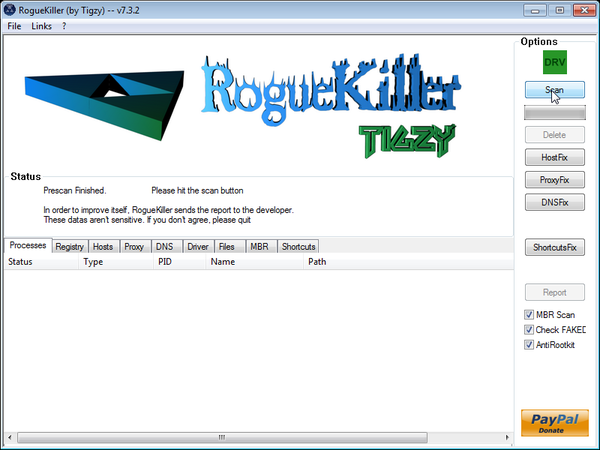
Download RogueKillerOpens the download page in a new tab. - Double click on RogueKiller.exe to start this utility and then wait for the Prescan to complete.This should take only a few seconds and then you can click the Start button to perform a system scan.
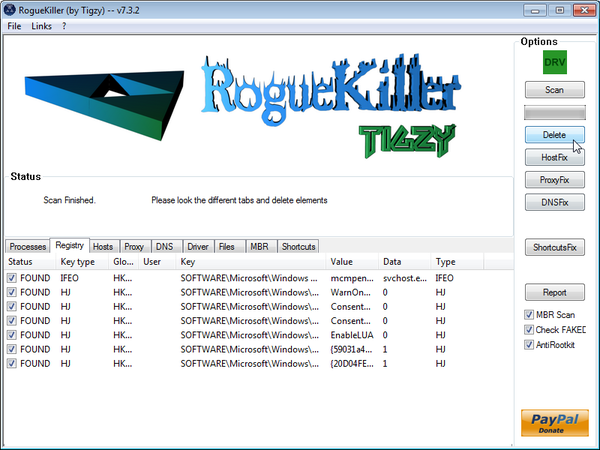
- After the scan has completed, press the Delete button to remove any malicious registry keys.
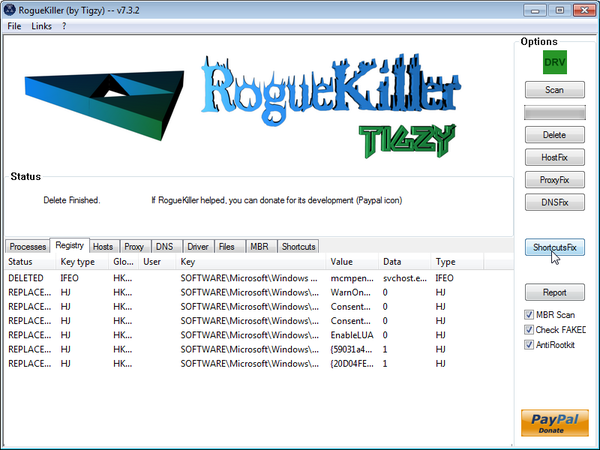
- Next we will need to restore your shortcuts, so click on the ShortcutsFix button and allow the program to run.









Hi Stelian it looks like you have helped alot of people with this problem, im hoping you can now help me. I have done everything upto the RKILL install, Problem being the laptop will not download the file, it downloads approx 1.3mb out of 1.5mb before it is stoped by internet explorer-securty warning it says the file has been blocked because it does not have a valid digital signature that verifies its publisher, I have also tryed the other link you posted but all the other named versions show the same problem on my laptop, is there anyway i can turn this off so i can complete the download Kind regards Stuart
Hello Stuart,
You can accept that notification and ignore the warning…
Alternatively you can follow this guide:
STEP 1: Run a scan with Malwarebytes Anti-Malware in Chameleon Mode in Norman mode:
STEP 2: Run a scan with RogueKiller
RogueKiller Download Link (This link will automatically download RogueKiller on your computer)
STEP 3 Please perform a scan with HitmanPro as seen on the guide.
If you are having problems starting this program please use the ForceBreach mode as described in the guide.
STEP 4: Run a scan with ESET Online Scanner:
ESET Online Scanner Download Link (This link will automatically download ESET Online Scanner on your computer.)
Waiting for your reply to tell me how everything is running!
Good luck…
All is good! THX!
Sir you are a legend its as dead as a doornail i can’t thankyou enough thank you thank you thank you :)
I followed all your steps but still get a “congratualtions your sytem will be locked message” It appears on a notepad entiled “How to decrpyt files” I can not access my files. all the scans say their are no threats. ideas?
It looks like your are also the victim of a ransomware attack….What’s the current status of your computer, can you login into WIndows? Can you view and open your files?
Currently, all is running well with the system and internet but I am unable to open any of my files. I have many pictures in Kodak Share and thankfully not to many personal files in word etc. Nothing I would cry over losing. I need to restore the files somehow. They have been encrypted?
There is also that ransome wordpad mesage..go here..pay $500 so it does seem to be a ransom attack as well. I log into windows but can not access any of my files.
As I’ve suspected…You are the victim of an ransomware attack… DO NOT SEND ANY MONEY.
Next,can you please run a scan with Combofix,RogueKiller and ESET online scanner and post the logs here :
STEP 1 : Run a scan with Combofix
Download ComboFix from one of the following locations:
COMBOFIX DOWNLOAD LINK #1 (This link will automatically download Combofix on your computer)
COMBOFIX DOWNLOAD LINK #2 (This link will automatically download Combofix on your computer)
VERY IMPORTANT !!! Save as Combo-Fix.exe during the download. ComboFix must be renamed before you download to your Desktop
———————————————————–
———————————————————–
———————————————————–
Notes:
STEP 2: Run a scan with RogueKiller
RogueKiller Download Link (This link will automatically download RogueKiller on your computer)
STEP 3: Run a scan with ESET Online Scanner:
ESET Online Scanner Download Link (This link will automatically download ESET Online Scanner on your computer.)
Next,please run HitmanPro and Malwarebytes as seen on the guide.
Waiting for your reply to tell me if your machine is ok and the logs from this utilities.
Stelian,
Thank you for your help thus far. I am convinced that security platinum has been removed. The FBI ransomewre has been removed. One last virus: EnCiphErED This is what is stopping me from opening my files. I am not able to download the McAfee I purchased. Something about temporary files. Help!
Hello Lana,
I advise to avoid McAfee isn’t that great when it comes to zero day malware prevention!
Below you can find some quick suggestions on what security products I would recommend:
Free – Avast 7 Free version or COMODO Internet Security
Paid : Norton Internet Security 2012,Avast Internet Security 7,G-DATA Internet Security 2012 or ESET Smart Security 5.
Anyway ,you should really start a thread in our Security Configuration forum as you need to build a layered security config: http://malwaretips.com/Forum-Security-Configuration-Wizard
Also it would very good if you took the time and read this article that I’ve wrote: http://malwaretips.com/blogs/how-to-easily-avoid-pc-infections/ .. If you follow it,then we’ll never meet again in this conditions:)
Thank you so much!!!!!!!!!!!!! Everything was easy to follow and the virus is completely gone!!
Thanks a lot, your trick really work you saved my computer.
Hi Stelian my laptop was infected with live security platinum ive followed steps to remove it which work a treat thank you! i then notice on your threads that someone was having trouble with windows update /firewall/defender not working or responding and checked my machine which i found was the same so i followed all the steps rogue killer/kaspersky/esnet/windows repair all in one but its still the same running fine but no firewall etc ive got avast av and hitman pro running am i still at risk and can we fix it any ideas ? cheers Des
Hello Des,
Can you please follow this steps:
1. Click the Start buton
2. Type “cmd” in the Search Box and then press Enter
3. Right-click “cmd.exe” and select “Run as administrator”
4. Click “Continue” on the “User Account Control” Window
5. In the command prompt type the following command
sc create BITS binpath= “c:\windows\system32\svchost.exe -k netsvcs” start= delayed-auto6.Restart your computer and check if the problem is solved.
Waiting for your reply to tell me if your machine is ok….
Sorry forgot to mention id tried that before but have tried it again and computer still the same : ( im sure you have another trick up your sleeve though cheers Des.
Hello Stelian,
Thanks for all of your advice. Have followed it through and have got rid of Live Security Platinum I think but now have similar issues as above – the Security Centre will not open, MSE will not update ( since I have reisntalled it) nor will Windows update either. Tried Mr Fixit on Microsoft website, but that will not load up. Have tried the cmd also but not certain I did it right – it came up stratight away with administrator. Any further hints please? Sorry to be a pain!
J
Hello James,
I think we’ll need to uninstall and the re-install back MSE.
Next can you please run a scan with Combofix,RogueKiller and ESET online scanner and post the logs here :
STEP 1 : Run a scan with Combofix
Download ComboFix from one of the following locations:
COMBOFIX DOWNLOAD LINK #1 (This link will automatically download Combofix on your computer)
COMBOFIX DOWNLOAD LINK #2 (This link will automatically download Combofix on your computer)
VERY IMPORTANT !!! Save as Combo-Fix.exe during the download. ComboFix must be renamed before you download to your Desktop
———————————————————–
———————————————————–
———————————————————–
Notes:
STEP 2: Run a scan with RogueKiller
RogueKiller Download Link (This link will automatically download RogueKiller on your computer)
STEP 3: Run a scan with ESET Online Scanner:
ESET Online Scanner Download Link (This link will automatically download ESET Online Scanner on your computer.)
Next,please run HitmanPro and Malwarebytes as seen on the guide.
Waiting for your reply to tell me if your machine is ok and the logs from this utilities.
Hi Stelian & Des,
I was facing the same problem and tried many techniques and tools to get my windows security centre up and running. I reckon restoring it to a previous restore point is the best option as of now. I tried it after going through the above steps and now the system is once again running smoothly.
Cheers!!
Hi Stelian,
Did as you suggested – thanks for your help. ComboFix ran immediately after clicking on the top link, scanned and eventually turned the computer off. Everything else found the odd bug. I reinstalled MSE before hand and afterwards but cannot subsequently update it, nor can I access Microsoft downloads, run their Fixit programme or turn on the firewall.
Here are the logs –
RogueKiller V7.6.6 [08/10/2012] by Tigzy
Many thanks for your help,
J
Hello,
Can you please follow this steps:
1. Click the Start buton
2. Type “cmd” in the Search Box and then press Enter
3. Right-click “cmd.exe” and select “Run as administrator”
4. Click “Continue” on the “User Account Control” Window
5. In the command prompt type the following command
sc create BITS binpath= “c:\windows\system32\svchost.exe -k netsvcs” start= delayed-auto6.Restart your computer and check if the problem is solved.
Waiting for your reply to tell me if your machine is ok and the logs from this utilities.
Tried it. Worked like a charm!
Thanks a lot man! You save me a lot of stress and money for making this guide! Much appreciated.
Thanks a lot bro!!! You saved my brand new laptop!!! Incredible work by you…I was almost about to fall for it as I had very important work from job to be done. Many thanks! Cheers!
Omg thank you so much for having this online I was do worried I wouldn’t be able to fix my laptop
Hello and thanks for the killer guide. all works great, only problem is I can still see Live Security Platinum on my desktop (shortcut) and on my wndows start up list….is this normal?
Hello YianisG,
Those shortcuts are just leftover files which you can delete…… Right click on them and select ;Delete;
Next,lets make sure your computer is really clean :
STEP 1: Run a scan with RogueKiller
RogueKiller Download Link (This link will automatically download RogueKiller on your computer)
STEP 2: Run a scan with ESET Online Scanner:
ESET Online Scanner Download Link (This link will automatically download ESET Online Scanner on your computer.)
Waiting for your reply to tell me how everything is running!
Stay safe!
Worked like a charm. Thank you sir.
Thanks very much for taking the time out to put together this page. Still wishing I could get my hands on these bast*rds!!!
Thanks again
I can’t connect to the internet on the PC that has live security platinum, the virus has blocked the wifi from connecting (in normal mode) and in safe mode with networking the dell wifi is not recocnised. I tried to save the downloads to usb and run them but with no success. It finds the viruses, which I delete, then the program reinstalls/starts up when I start in normal mode.
Hello mumdamnkids,
Can you please run a scan with Combofix,RogueKiller and ESET online scanner and post the logs here :
STEP 1 : Run a scan with Combofix
Download ComboFix from one of the following locations:
COMBOFIX DOWNLOAD LINK #1 (This link will automatically download Combofix on your computer)
COMBOFIX DOWNLOAD LINK #2 (This link will automatically download Combofix on your computer)
VERY IMPORTANT !!! Save as Combo-Fix.exe during the download. ComboFix must be renamed before you download to your Desktop
———————————————————–
———————————————————–
———————————————————–
Notes:
STEP 2: Run a scan with RogueKiller
RogueKiller Download Link (This link will automatically download RogueKiller on your computer)
STEP 3: Run a scan with ESET Online Scanner:
ESET Online Scanner Download Link (This link will automatically download ESET Online Scanner on your computer.)
Next,please run HitmanPro and Malwarebytes as seen on the guide.
Waiting for your reply to tell me if your machine is ok and the logs from this utilities.
Went through all the steps and seemed to work. Thank You.
I have one problem though, I can’t access my security center.
MSE is working and says that my computer is protected and everything is up to date but why cant I access security center to turn on firewall.
Any suggestions?
Hello Tim,
Can you please run a scan with Combofix,RogueKiller and ESET online scanner and post the logs here :
STEP 1 : Run a scan with Combofix
Download ComboFix from one of the following locations:
COMBOFIX DOWNLOAD LINK #1 (This link will automatically download Combofix on your computer)
COMBOFIX DOWNLOAD LINK #2 (This link will automatically download Combofix on your computer)
VERY IMPORTANT !!! Save as Combo-Fix.exe during the download. ComboFix must be renamed before you download to your Desktop
———————————————————–
———————————————————–
———————————————————–
Notes:
STEP 2: Run a scan with RogueKiller
RogueKiller Download Link (This link will automatically download RogueKiller on your computer)
STEP 3: Run a scan with ESET Online Scanner:
ESET Online Scanner Download Link (This link will automatically download ESET Online Scanner on your computer.)
Next,please run HitmanPro and Malwarebytes as seen on the guide.
Waiting for your reply to tell me if your machine is ok and the logs from this utiliti
Thank you for your help! Everything seems to be working fine except updating spyware definitions on MSE. (error code 0x80240022) This could be due to the fact that I replaced one of the registry files with wscsvc.zip and cant remember what the original file was called. Also dont have a backup. Is there a way to get a list of registry files. I might recognize it if I see it. I looked but couldnt find one
The quickest way to fix this,would be just to re-install Microsoft Security Essentials…
However I do recommend that you uninstall this product and go instead with Avast Antivirus 7 Free as it’s a much better choice…
Stay safe!
ooohhh… i just used the registration key, i was starting at step 1…. that worked, thanks for the forum :) one clean laptop
Hi I left a post yesterday but it seems to have disappeared! Since getting rid of the virus my laptop doesn’t seem to want to work! When I connect to the Internet it goes really slow and eventually crashes or freezes. Please help
Hello Suze,
Can you please run a scan with Combofix,RogueKiller and ESET online scanner and post the logs here :
STEP 1 : Run a scan with Combofix
Download ComboFix from one of the following locations:
COMBOFIX DOWNLOAD LINK #1 (This link will automatically download Combofix on your computer)
COMBOFIX DOWNLOAD LINK #2 (This link will automatically download Combofix on your computer)
VERY IMPORTANT !!! Save as Combo-Fix.exe during the download. ComboFix must be renamed before you download to your Desktop
———————————————————–
———————————————————–
———————————————————–
Notes:
STEP 2: Run a scan with RogueKiller
RogueKiller Download Link (This link will automatically download RogueKiller on your computer)
STEP 3: Run a scan with ESET Online Scanner:
ESET Online Scanner Download Link (This link will automatically download ESET Online Scanner on your computer.)
Next,please run HitmanPro and Malwarebytes as seen on the guide.
Waiting for your reply to tell me if your machine is ok and the logs from this utiliti
Thanks! Your tutorial really helped :)
Stelian you’re a life-saver, thanks man!! Worked perfectly, saved me at least £50 and your instructions were brilliantly easy to follow (as opposed to other techy forums/posts which are clearly written for other computer geniuses, not mere mortal every day users like me). I definitely owe you a pint :-)
Fantastic!!! Great advise, if you follow the instructions you’l get the result you wanted. Really easy to follow and clear and simple instructions! Highly recommended. Many thanks. Warren 15/08/2012 Stockport UK.
Thank you so much for the help. Was very close to putting in the factory reset discs!
I can’t get past step 4 with Rkill or the renamed Rkill. Computer says its going to restart, Rkill’s black screen shows no problem found, same a the .txt report. Then computer restarts. So clearly something is wrong. HELP PLEASE. 2 hours and I can’t get past this part
ComboFix 12-08-14.05 – Amar 15/08/2012 2:49:18.1.2 – x86
Microsoft® Windows Vista™ Home Premium 6.0.6002.2.1252.2.1033.18.3070.2252 [GMT -7:00]
Running from: C:\Users\Amar\Desktop\ComboFix.exe
AV: Microsoft Security Essentials *Disabled/Updated* {9765EA51-0D3C-7DFB-6091-10E4E1F341F6}
SP: Microsoft Security Essentials *Disabled/Updated* {2C040BB5-2B06-7275-5A21-2B969A740B4B}
((((((((((((((((((((((((((((((((((((((( Other Deletions )))))))))))))))))))))))))))))))))))))))))))))))))
Hello amar,
Logs look good, can you please run a scan with Malwarebytes and HitmanPro.
How is your computer running now?
Hi,
I got hit with this yesterday and your simple guidance worked brilliantly! One small point, HitmanPro seems to have lost the Activate Free License option…not your problem I know. Fortunately, all nasties were removed and HitmanPro found no additionals.
The “Activate Free License” option is there for me as of today
Hi
I encounter a problem when running RKill As it’s running I get a pop up window which says “Windows has encountered a critical problem and will restart automatically in one minute Please save your work now” I have tried all the alternate links but my computer restarts everytime at this point How can I stop this so I can proceed to the next step? Many thanks in advance!
Helllo Gillian,
Can you please run a scan with Combofix,RogueKiller and ESET online scanner and post the logs here :
STEP 1 : Run a scan with Combofix
Download ComboFix from one of the following locations:
COMBOFIX DOWNLOAD LINK #1 (This link will automatically download Combofix on your computer)
COMBOFIX DOWNLOAD LINK #2 (This link will automatically download Combofix on your computer)
VERY IMPORTANT !!! Save as Combo-Fix.exe during the download. ComboFix must be renamed before you download to your Desktop
———————————————————–
———————————————————–
———————————————————–
Notes:
STEP 2: Run a scan with RogueKiller
RogueKiller Download Link (This link will automatically download RogueKiller on your computer)
STEP 3: Run a scan with ESET Online Scanner:
ESET Online Scanner Download Link (This link will automatically download ESET Online Scanner on your computer.)
Next,please run HitmanPro and Malwarebytes as seen on the guide.
Waiting for your reply to tell me if your machine is ok and the logs from this utilities.