

Live Security Platinum is a computer virus that will report bogus infection on your machine,in an attempt to make you buy this rogue antivirus software.
Some of the bogus alerts you may see include:
Live Security Platinum Warning
Spyware.IEMonster process is found. This is virus that is trying to send your passwords from Internet browser (Explorer, Mozilla Firefox, Outlook & others) for the third-parties.
Click here to protect your data with Live Security Platinum.Live Security Platinum Warning
Live Security Platinum has found viruses at your system.
We highly recommend to get license for Live Security Scanner to remove harmful software now.
In addition to this fake alerts,Live Security Platinum will also slow down your computer,cause browser redirects and prevent you from running any files that has .exe extension.
Whenever you will attempt to run a file that might lead to its removal,Live Security Platinum will display a bogus notification in which will report that the file is infected.
Warning!
Application cannot be executed. The file rdpclip.exe is infected. Please active your antivirus software.
Security Monitor: WARNING!
Attention! System detected a potential hazard (TrojanSPM/LX) on your computer that may infect executable files. Your private information and PC safety is at risk.
To get rid of unwanted spyware and keep your computer safe you need to update your current security software.
Click Yes to download official intrusion detection system (IDS software).
We strongly advise you to follow our Live Security Platinum removal guide and ignore any alerts that this malicious software might generate.
Under no circumstance should you buy this rogue security software as this could lead to identity theft,and if you have, you should contact your credit card company and dispute the charge stating that the program is a scam and a computer virus.
If your computer is infected with Live Security Platinum,then you are seeing this images:
![[Image: Live Security Platinum virus]](http://malwaretips.com/blogs/wp-content/uploads/2012/06/Live-Security-Platinum-2.png "Live Security Platinum virus")
![[Image: Live Security Platinum Alert]](http://malwaretips.com/blogs/wp-content/uploads/2012/06/Live-Security-Platinum-4.png "Live Security Platinum fake alert")
![[Image: Live Security Platinum Activation request]](http://malwaretips.com/blogs/wp-content/uploads/2012/06/Live-Security-Platinum-3.png "Live Security Platinum activation")
![[Image: Live Security Platinum Warning]](http://malwaretips.com/blogs/wp-content/uploads/2012/06/Live-Security-Platinum-1.png "Live Security Platinum fake warning")
Registration codes for Live Security Platinum
As an optional step,you can use the following license key to register Live Security Platinum and stop the fake alerts.
Live Security Platinum license key: AA39754E-715219CE
Please keep in mind that entering the above registration code will NOT remove Live Security Platinum from your computer , instead it will just stop the fake alerts so that you’ll be able to complete our removal guide more easily.
Live Security Platinum Removal Guide
STEP 1 : Start your computer in Safe Mode with Networking
- Remove all floppy disks, CDs, and DVDs from your computer, and then restart your computer.
- Press and hold the F8 key as your computer restarts.Please keep in mind that you need to press the F8 key before the Windows start-up logo appears.
Note: With some computers, if you press and hold a key as the computer is booting you will get a stuck key message. If this occurs, instead of pressing and holding the “F8 key”, tap the “F8 key” continuously until you get the Advanced Boot Options screen. - On the Advanced Boot Options screen, use the arrow keys to highlight Safe Mode with Networking , and then press ENTER.
![[Image: Safemode.jpg]](//malwaretips.com/images/removalguide/safemode.jpg "Safe Mode with Networking screen")
![[Image: Safemode.jpg]](http://malwaretips.com/images/removalguide/safemode.jpg "Safe Mode with Networking screen")
STEP 2: Remove Live Security Platinum malicious proxy server
Live Security Platinum may add a proxy server which prevents the user from accessing the internet,follow the below instructions to remove the proxy.
- Start the Internet Explorer browser and if you are using Internet Explorer 9 ,click on the gear icon
![[Image: IE gear icon]](//malwaretips.com/images/removalguide/icongear.jpg "Gear Icon") (Tools for Internet Explorer 8 users) ,then select Internet Options.
(Tools for Internet Explorer 8 users) ,then select Internet Options.
![[Image: Internet-options-IE.png]](//malwaretips.com/images/removalguide/ie1.png "Internet Options in IE")
- Go to the tab Connections.At the bottom, click on LAN settings.
![[Image: Remove-proxy-server2.png]](//malwaretips.com/images/removalguide/ie2.png "Connections tab in Internet Explorer")
- Uncheck the option Use a proxy server for your LAN. This should remove the malicious proxy server and allow you to use the internet again.
![[Image: Remove-proxy-server3.png]](//malwaretips.com/images/removalguide/ie3.png "Uncheck the option Use a proxy server for your LAN")
![[Image: IE gear icon]](http://malwaretips.com/images/removalguide/icongear.jpg "Gear Icon") (Tools for Internet Explorer 8 users) ,then select Internet Options.
(Tools for Internet Explorer 8 users) ,then select Internet Options.![[Image: Internet-options-IE.png]](http://malwaretips.com/images/removalguide/ie1.png "Internet Options in IE")
![[Image: Remove-proxy-server2.png]](http://malwaretips.com/images/removalguide/ie2.png "Connections tab in Internet Explorer")
![[Image: Remove-proxy-server3.png]](http://malwaretips.com/images/removalguide/ie3.png "Uncheck the option Use a proxy server for your LAN")
If you are a Firefox users, go to Firefox(upper left corner) → Options → Advanced tab → Network → Settings → Select No Proxy
STEP 3: Repair your Windows Registry from Live Security Platinum malicious changes.
Smart Fortress 2012 has changed your Windows registry settings so that when you try to run a executable file (ending with .exe ) , it will instead launch the infection rather than the desired program.
- Download the registryfix.reg file to fix the malicious registry changes from Live Security Platinum.
Download RegistryFix.regOpens the download page in a new tab. - Double-click on registryfix.reg file to run it. Click “Yes” for Registry Editor prompt window,then click OK.
![[Image: fix registry]](//malwaretips.com/blogs/wp-content/uploads/2011/12/registry.png "Live Security Platinum Removal Instructions 1")
![[Image: fix registry]](http://malwaretips.com/blogs/wp-content/uploads/2011/12/registry.png "Live Security Platinum Removal Instructions 1")
STEP 4: Run RKill to terminate known malware processes associated with Live Security Platinum.
RKill is a program that will attempt to terminate all malicious processes associated with Live Security Platinum,so that we will be able to perform the next step without being interrupted by this malicious software.
Because this utility will only stop Live Security Platinum running process, and does not delete any files, after running it you should not reboot your computer as any malware processes that are configured to start automatically will just be started again.
- While your computer is in Safe Mode with Networking ,please download the latest official version of RKill.Please note that we will use a renamed version of RKILL so that Live Security Platinum won’t block this utility from running.
Download RKillYour download starts right away. - Double-click on the iExplore.exe icon in order to automatically attempt to stop any processes associated with Live Security Platinum.
![[Image: run-rkill-1.png]](//malwaretips.com/images/removalguide/rkill1.png "RKILL ICON")
- RKill will now start working in the background, please be patient while the program looks for various malware programs and tries to terminate them.
![[Image: run-rkill-2.png]](//malwaretips.com/images/removalguide/rkill2.png "RKILL Command prompt")
IF you are having problems starting or running RKill, you can download any other renamed versions of RKill from here. - When Rkill has completed its task, it will generate a log. You can then proceed with the rest of the guide.
![[Image: Live Security Platinum rkill3.jpg]](//malwaretips.com/images/removalguide/rkill3.png "RKILL LOG")
![[Image: run-rkill-1.png]](http://malwaretips.com/images/removalguide/rkill1.png "RKILL ICON")
![[Image: run-rkill-2.png]](http://malwaretips.com/images/removalguide/rkill2.png "RKILL Command prompt")
![[Image: Live Security Platinum rkill3.jpg]](http://malwaretips.com/images/removalguide/rkill3.png "RKILL LOG")
WARNING: Do not reboot your computer after running RKill as the malware process will start again , preventing you from properly performing the next step.
STEP 5: Remove Live Security Platinum malicious files with Malwarebytes Anti-Malware FREE
- Download the latest official version of Malwarebytes Anti-Malware FREE.
Download MalwarebytesFree official installer. Your download starts right away. - Start the Malwarebytes’ Anti-Malware installation process by double clicking on mbam-setup file.
![[Image: Malwarebytes Installer]](//malwaretips.com/images/removalguide/malwarebytes-setup.png "Malwarebytes Anti-Malware Installer")
- When the installation begins, keep following the prompts in order to continue with the setup process. Do not make any changes to default settings and when the program has finished installing, make sure you leave both the Update Malwarebytes’ Anti-Malware and Launch Malwarebytes’ Anti-Malware checked. Then click on the Finish button. If Malwarebytes’ prompts you to reboot, please do not do so.
![[Image: Finishing Malwarebytes installation]](//malwaretips.com/images/removalguide/update-malwarebytes.png "Malwarebytes last setup screen")
- Malwarebytes Anti-Malware will now start and you’ll be prompted to start a trial period , please select ‘Decline‘ as we just want to use the on-demand scanner.
![[Image: Decline Malwarebytes trial]](//malwaretips.com/images/removalguide/malwarebytes-trial.png "Decline trial period in Malwarebytes Anti-Malware")
- On the Scanner tab,select Perform full scan and then click on the Scanbutton to start scanning your computer.
![[Image: Starting a full system sca]](//malwaretips.com/images/removalguide/start-scan-malwarebytes.png "Perform a Full System Scan with Malwarebytes Anti-Malware")
- Malwarebytes’ Anti-Malware will now start scanning your computer for Live Security Platinum malicious files as shown below.
![[Image: Malwarebytes scanning for malicious files]](//malwaretips.com/images/removalguide/scan-malwarebytes.png "Malwarebytes Anti-Malware scanning for Live Security Platinum")
- When the scan is finished a message box will appear, click OK to continue.
![[Image: Malwarebytes scan results]](//malwaretips.com/images/removalguide/results-malwarebytes.png "Malwarebytes when the system scan has finished")
- You will now be presented with a screen showing you the malware infections that Malwarebytes’ Anti-Malware has detected.Please note that the infections found may be different than what is shown in the image.Make sure that everything is Checked (ticked) and click on the Remove Selected button.
![[Image: Infections found by Malwarebytes]](//malwaretips.com/images/removalguide/detection-malwarebytes.png "Removing the infections found by Malwarebytes")
- Malwarebytes’ Anti-Malware will now start removing the malicious files.After completing this task it will display a message stating that it needs to reboot,please allow this request and then let your PC boot in Normal mode.
![[Image: Malwarebytes Installer]](http://malwaretips.com/images/removalguide/malwarebytes-setup.png "Malwarebytes Anti-Malware Installer")
![[Image: Finishing Malwarebytes installation]](http://malwaretips.com/images/removalguide/update-malwarebytes.png "Malwarebytes last setup screen")
![[Image: Decline Malwarebytes trial]](http://malwaretips.com/images/removalguide/malwarebytes-trial.png "Decline trial period in Malwarebytes Anti-Malware")
![[Image: Starting a full system sca]](http://malwaretips.com/images/removalguide/start-scan-malwarebytes.png "Perform a Full System Scan with Malwarebytes Anti-Malware")
![[Image: Malwarebytes scanning for malicious files]](http://malwaretips.com/images/removalguide/scan-malwarebytes.png "Malwarebytes Anti-Malware scanning for Live Security Platinum")
![[Image: Malwarebytes scan results]](http://malwaretips.com/images/removalguide/results-malwarebytes.png "Malwarebytes when the system scan has finished")
![[Image: Infections found by Malwarebytes]](http://malwaretips.com/images/removalguide/detection-malwarebytes.png "Removing the infections found by Malwarebytes")
STEP 6: Double check your system for any left over infections with HitmanPro
- This step can be performed in Normal Mode ,so please download the latest official version of HitmanPro.
Download HitmanProOfficial Sophos download. Free scan, free 30-day trial to remove threats. - Double click on the previously downloaded fileto start the HitmanPro installation.
![[Image: HitmanPro Icon]](//malwaretips.com/images/removalguide/hpro1.png "HitmanPro Installer")
IF you are experiencing problems while trying to start HitmanPro, you can use the Force Breach mode.To start HitmanPro in Force Breach mode, hold down the left CTRL-key when you start HitmanPro and all non-essential processes are terminated, including the malware process. (How to start HitmanPro in Force Breach mode – Video) - Click on Next to install HitmanPro on your system.
![[Image: Starting HitmanPro]](//malwaretips.com/images/removalguide/hitmanpro36-start.png "HitmanPro installation process")
- The setup screen is displayed, from which you can decide whether you wish to install HitmanPro on your machine or just perform a one-time scan, select a option then click on Next to start a system scan.
![[Image: HitmanPro installation screen]](//malwaretips.com/images/removalguide/hitmanpro36-installation.png "HitmanPro setup options")
- HitmanPro will start scanning your system for malicious files as seen in the image below.
![[Image: HitmanPron scanning for Live Security Platinum]](//malwaretips.com/images/removalguide/hitmanpro36-scan.png "HitmanPro while scanning for Live Security Platinum virus")
- Once the scan is complete,you’ll see a screen which will display all the malicious files that the program has found.Click on Next to remove this malicious files.
![[Image: HitmanPro scan results]](//malwaretips.com/images/removalguide/hitmanpro36-results.png "HitmanPro displaying scan results")
- Click Activate free license to start the free 30 days trial and remove the malicious files.
![[Image: Activate HitmanPro license]](//malwaretips.com/images/removalguide/hitmanpro36-activation.png "Activate the HitmanPro free 30 days trial to remove any detected infections")
- HitmanPro will now start removing the infected objects.If this program will ask you to restart your computer,please allow this request.
![[Image: HitmanPro Icon]](http://malwaretips.com/images/removalguide/hpro1.png "HitmanPro Installer")
![[Image: Starting HitmanPro]](http://malwaretips.com/images/removalguide/hitmanpro36-start.png "HitmanPro installation process")
![[Image: HitmanPro installation screen]](http://malwaretips.com/images/removalguide/hitmanpro36-installation.png "HitmanPro setup options")
![[Image: HitmanPron scanning for Live Security Platinum]](http://malwaretips.com/images/removalguide/hitmanpro36-scan.png "HitmanPro while scanning for Live Security Platinum virus")
![[Image: HitmanPro scan results]](http://malwaretips.com/images/removalguide/hitmanpro36-results.png "HitmanPro displaying scan results")
![[Image: Activate HitmanPro license]](http://malwaretips.com/images/removalguide/hitmanpro36-activation.png "Activate the HitmanPro free 30 days trial to remove any detected infections")
STEP 7: Remove any left over malicious registry keys and files
Live Security Platinum has sadded some malicious registry keys to your Windows installation , to remove this malicious changes we need to run a scan with RogueKiller
- Please download the latest official version of RogueKiller.
Download RogueKillerOpens the download page in a new tab. - Double click on RogueKiller.exe to start this utility and then wait for the Prescan to complete.This should take only a few seconds and then you can click the Start button to perform a system scan.
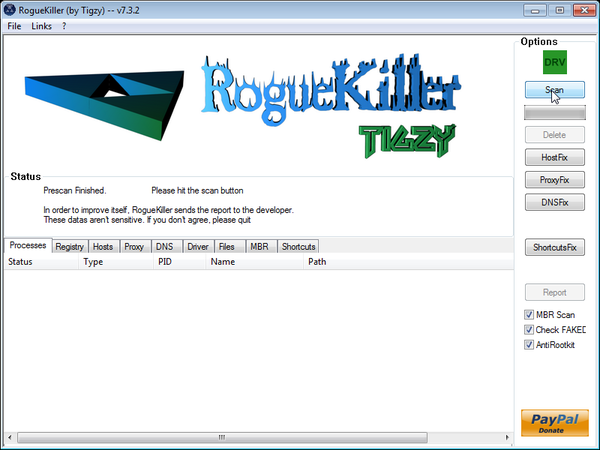
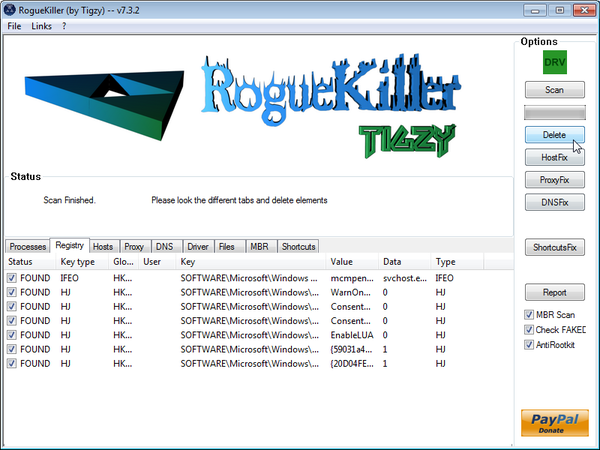
- After the scan has completed, press the Delete button to remove any malicious registry keys.
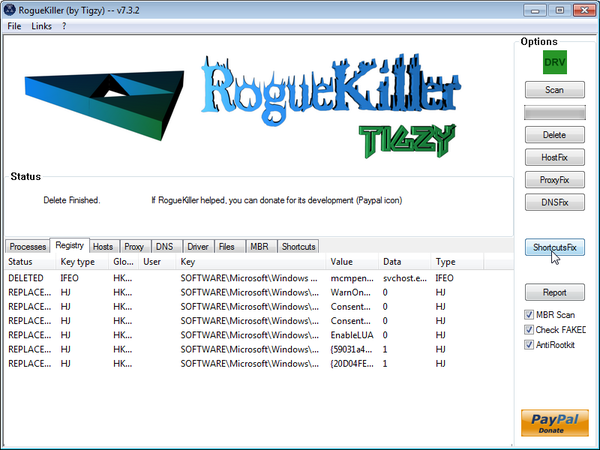
- Next we will need to restore your shortcuts, so click on the ShortcutsFix button and allow the program to run.









thank you!
Sorry! I should have been more specific on which one this three tabs appeared. All the steps went great and I thank you for it, the virus is gone; it was on RougueKiller. Pressed “Scan” = Tab; pressed “Delete”=another tab with the same content; pressed “fixshortcuts” third tab appeared. Hope I don’t anything to worry about it an nothing would happen if I just close the tabs.
Tanks!
I did everything in this guide, but when I had to press the scan button another tab appeared all by itself mostly in French, this is the link to it:
I guess my concern is why did these websites, the first one appeared when I pressed “Scan”, the second one appeared when I pressed “Delete” and third one and last appeared when I pressed “fixshortcuts” every time I pressed something this same website appeared showing a video on how to get rid of “ZeroAccess” Why did it do that all by herself?
This is some of the script:
—-
Dude your amazing i got that thing today and was able to get rid of it today….Man at least now i know if it happens again what to do…Good job and thanks for the free post man..
Thank you so much for your assistance. My dad’s computer was affected today, and completely debilitated the computer. The people responsible are very, very sneaky and we almost fell for their scam!
Your step-by-step instructions are so clearly explained and displayed, and everything worked perfectly in restoring the computer. I was about to take the computer to BestBuy at a cost of $189.99 to remove the virus/malware, but thought I should just do a quick search on my IPad–Am I ever glad that I did!
Now to buy the anti-malware program–Which software would you recommend that I purchase and install– the Malwarebytes or Hitman Pro?
Many, many thanks again.
Regards,
Henry
Mate,
Your brilliance far supercedes the frustration I have felt by the douchebags creating these Trojans. If they could put their attempt at intelligent thought into useful, practical exercises…like building a REAL trojan horse…they would surely go up a notch in my book.
Well done sir, pat on the back to you. I’m free to continue eBaying with free abandon…
Cheers,
Dan.
Thank you! Your guide works!
Thank Your very much.. I was planning to format the system…
Hi
Thank you very much for your detailed Instructions. I got rid of this Live Security Platinum virus after following your guidelines step by step.
An issue came up after restarting the machine i.e the computer appeared to be hanging i.e taking 5 minutes to execute a mouse click. Problem appeared that HitmanPro and malwarebytes Anti malware software utilities were running in the background. I patiently continued and removed those two utilities using ‘Add/remove programs’.
After that re-started the machine and it started working nicely as before.
Thanks a lot.
Ok so I’ve followed everything up untill the hit man pro bit, I used spy hunter instead as i tjought i could get a trial with that(apparently not), and that has found live security platinum however I have to buy that to remove it, my question is what are the zeroaccess Trojans and will removing live security platinum get rid of them too, rkiller and rogue killer both identified the zeroaccess files.
Hello Kieran,
Can you please run a scan with Combofix, ESET online scanner and post the logs here so that I can get an idea on what’s going on:
STEP 1 : Run a scan with Combofix
Download ComboFix from one of the following locations:
COMBOFIX DOWNLOAD LINK #1 (This link will automatically download Combofix on your computer)
COMBOFIX DOWNLOAD LINK #2 (This link will automatically download Combofix on your computer)
VERY IMPORTANT !!! Save as Combo-Fix.exe during the download.ComboFix must be renamed before you download to your Desktop
Notes:
STEP 2: Run a scan with ESET Online Scanner:
ESET Online Scanner Download Link (This link will automatically download ESET Online Scanner on your computer.)
NEXT,please run a scan with HitmanPro and RogueKiller as seen on the guide.
Waiting for your reply to tell me if your machine is ok and the logs from this utilities.
Hey thanks for the help. Only problem is when I get to the hitman pro there is no option for me to activate the free liceanse. Is there anyway around this? Is there another program that is free that I could use instead of this one? Thanks for the help!
Hello Jared,
We can manually remove this files however let’s see if we can get rid of some of them using the below software:
1.Run a scan with Kaspersky Virus Removal Tool
Click here to download the Kaspersky Virus Removal Tool.
2.Run a scan with Eset Online Scanner.
ESET Online Scanner Download Link (This link will automatically download ESET Online Scanner on your computer.)
NEXT,please re-run a scan with HitmanPro and post the log or a screenshot here and I’ll give you instructions on how to remove the left over files.
Good luck!
I am not sure how to post a screenshot here in the comments.
but here is what it found.
Live Security Platinum\ Trojan.FakeAV
C:Users\jlapkow1\AppData\Roaming\Microsoft\WIndows\Start Menu\Programs\
215 Apps\ Adware.IWantThis
HKU\2-1-5-21-515967899-1957994488-854245298-235087\Software\InstalledBrowserExtensions\
Thanks for your help!
Hello Jared,
Those entries are just some left over files and don’t pose any kind of threat to your machine.To remove them please open Malwarebytes Anti-Malware and g to the More Tools tab,then click on Run Tool ,as seen on this post: http://malwaretips.com/Thread-Hitman-Pro-Trick?pid=71074#pid71074
The above warning popped up a few days ago. I have the “Live Security Platinum” icon on my desktop, but I am able to browse the Internet just fine. Am I good to go, or should I follow the removal steps?
Hello Jason,
Did you run the tools recommended on this guide?If no, please run a scan with this 3 tools,just to be on the safe side!
Good luck!
I’ve done well so far, that is, up to the Hitman Pro step. As soon as I start the scan, Hitman Pro stops working and must be closed. Suggestions? Can I use another program for the scan? (The program I mainly use is Microsoft Forefront.)
Hello Tony,
Can you please run a scan with Combofix, ESET online scanner and post the logs here so that I can get an idea on what’s going on:
STEP 1 : Run a scan with Combofix
Download ComboFix from one of the following locations:
COMBOFIX DOWNLOAD LINK #1 (This link will automatically download Combofix on your computer)
COMBOFIX DOWNLOAD LINK #2 (This link will automatically download Combofix on your computer)
VERY IMPORTANT !!! Save as Combo-Fix.exe during the download.ComboFix must be renamed before you download to your Desktop
Notes:
STEP 2: Run a scan with ESET Online Scanner:
ESET Online Scanner Download Link (This link will automatically download ESET Online Scanner on your computer.)
NEXT,please run a scan with HitmanPro and RogueKiller as seen on the guide.
Waiting for your reply to tell me if your machine is ok and the logs from this utilities.
The Combofix Log. Hopefully this will tell you something good! Thanks!
-link removed-
Hello Tony,
There are still some malicious files on this computer so lets try to remove them.Please browse to the following location and delete them (you may need to unhide the invisible files.. here is how.:
C:\sh4ldr
c:\windows\8C5C34C7BC6B48318B2C6535FE63E502.TMP
c:\users\hp\AppData\Local\{DE1A300F-FBC2-11E1-8270-B8AC6F996F26}
c:\programdataC1D1A01000024D8180AE7506C44B161
NEXT,please run the following scans:
1.Run a scan with Kaspersky Virus Removal Tool
Click here to download the Kaspersky Virus Removal Tool.
2.Run a scan with Eset Online Scanner.
ESET Online Scanner Download Link (This link will automatically download ESET Online Scanner on your computer.)
Waiting to tell me how your machine is running! :D
Malacious files removed, Kaspersky scan good, and ESET scan good! At this point, do I need to go back and try the Hitman and/or the Rouge Killer, or did these recent steps take their place?
That’s it Tony!
Unless you are having other problems, it is time to do the final steps.
Delete the following folders: (If they exist)
C:\ComboFix
C:\Qoobox
Enjoy your Malware FREE computer!:D
Excellent! You are a master! Thank you so much!! My last question: since there aren’t any Live Security Platinum-specific removal tools used, could this process be used for most, if not any, type of malware attack? Thanks again!
Hello Tony,
Yes,the tools that we used are very good and can remove a lot of infection…You can keep them installed on your machine and if ever need it,use them to check and remove malware.
Have an awesome life and stay safe!!:)
Hi, I just got this virus today and found your site, I got all the way to the RKill part in safety mode and a message popped up saying “windows has encountered an error and will restart in 1 minute. Please close all windows and save your work” RKill continued to run and created a log but then Windows restarted itself. And now I’ve done 5 more restarts and can’t use F8 anymore to get into the menu and start again in safety mode. I can use F2 to get into other options but F8 won’t work now. Is there anything you can think of that would have caused this or anything I can do? Thanks in advance
Hello Curtis,
STEP 1: Run a scan with Malwarebytes Anti-Malware in Chameleon Mode in Norman mode:
STEP 2: Run a scan with RogueKiller
RogueKiller Download Link (This link will automatically download RogueKiller on your computer)
STEP 3 Please perform a scan with HitmanPro as seen on the guide.
If you are having problems starting this program please use the ForceBreach mode as described in the guide.
STEP 4: Run a scan with ESET Online Scanner:
ESET Online Scanner Download Link (This link will automatically download ESET Online Scanner on your computer.)
Waiting for your reply to tell me how everything is running!
Good luck…
Who’s the man? You are. The virus infected my computer upon downloading Absinthe, a program designed to jailreak iPhones/iPods etc. I found it interesting that this guide was made only 5 days prior to my computer being infected. Thanks
I want to think you for this! My computer was recently attacked and I hadn’t had the time to install an antivirus program into my PC. You saved my life! BIG THANKS!
Hi– first of all, thankk you so much for your detailed instructions and helpful tone. You hav absolutely prevented a meltdown! I followed the instructions to run ComboFix and Hitman Pro and got a clean scan from hitman. The only issue now is that when I try to access the internet via the Explorer icon, I’m given an error mssg. regarding the registry, noting that the key has been marked to be deleted. How on earth do I fix that? I ran a registry fix thing that was listed on another thread. I’m just not sure if I might have missed something. Please help!
Hello Ceri,
Please restart your computer and then try again to run Internet Explorer.
Love you!!!Than you!!
This really worked.10x
thank you!!
Thank you!Got this virus today from an email attachment.Your guide really works!!
Thank you Stelian!!