

Live Security Platinum is a malicious program,which is displaying bogus security alerts in an attempt to trick you into buying this fake security product.
We strongly advise you to follow our Live Security Platinum removal guide and ignore any alerts that this malicious software might generate.
Under no circumstance should you buy this rogue security software as this could lead to identity theft,and if you have, you should contact your credit card company and dispute the charge stating that the program is a scam and a computer virus.
If your computer is infected with Live Security Platinum,then you are seeing this images:
![[Image: Live Security Platinum virus]](http://malwaretips.com/blogs/wp-content/uploads/2012/06/Live-Security-Platinum-2.png "Live Security Platinum virus")
![[Image: Live Security Platinum Alert]](http://malwaretips.com/blogs/wp-content/uploads/2012/06/Live-Security-Platinum-4.png "Live Security Platinum fake alert")
![[Image: Live Security Platinum Activation request]](http://malwaretips.com/blogs/wp-content/uploads/2012/06/Live-Security-Platinum-3.png "Live Security Platinum activation")
![[Image: Live Security Platinum Warning]](http://malwaretips.com/blogs/wp-content/uploads/2012/06/Live-Security-Platinum-1.png "Live Security Platinum fake warning")
Registration codes for Live Security Platinum
As an optional step,you can use the following license key to register Live Security Platinum and stop the fake alerts.
Live Security Platinum license key: AA39754E-715219CE
Please keep in mind that entering the above registration code will NOT remove Live Security Platinum from your computer , instead it will just stop the fake alerts so that you’ll be able to complete our removal guide more easily.
Live Security Platinum Removal Guide
STEP 1 : Start your computer in Safe Mode with Networking
- Remove all floppy disks, CDs, and DVDs from your computer, and then restart your computer.
- Press and hold the F8 key as your computer restarts.Please keep in mind that you need to press the F8 key before the Windows start-up logo appears.
Note: With some computers, if you press and hold a key as the computer is booting you will get a stuck key message. If this occurs, instead of pressing and holding the “F8 key”, tap the “F8 key” continuously until you get the Advanced Boot Options screen. - On the Advanced Boot Options screen, use the arrow keys to highlight Safe Mode with Networking , and then press ENTER.
![[Image: Safemode.jpg]](data:image/gif;base64,R0lGODlhAQABAAAAACH5BAEKAAEALAAAAAABAAEAAAICTAEAOw== "Safe Mode with Networking screen")
![[Image: Safemode.jpg]](http://malwaretips.com/images/removalguide/safemode.jpg "Safe Mode with Networking screen")
STEP 2: Remove Live Security Platinum malicious proxy server
Live Security Platinum may add a proxy server which prevents the user from accessing the internet,follow the below instructions to remove the proxy.
- Start the Internet Explorer browser and if you are using Internet Explorer 9 ,click on the gear icon (Tools for Internet Explorer 8 users) ,then select Internet Options.
- Go to the tab Connections.At the bottom, click on LAN settings.
- Uncheck the option Use a proxy server for your LAN. This should remove the malicious proxy server and allow you to use the internet again.
![[Image: IE gear icon]](http://malwaretips.com/images/removalguide/icongear.jpg "Gear Icon") (Tools for Internet Explorer 8 users) ,then select Internet Options.
(Tools for Internet Explorer 8 users) ,then select Internet Options.![[Image: Internet-options-IE.png]](http://malwaretips.com/images/removalguide/ie1.png "Internet Options in IE")
![[Image: Remove-proxy-server2.png]](http://malwaretips.com/images/removalguide/ie2.png "Connections tab in Internet Explorer")
![[Image: Remove-proxy-server3.png]](http://malwaretips.com/images/removalguide/ie3.png "Uncheck the option Use a proxy server for your LAN")
If you are a Firefox users, go to Firefox(upper left corner) → Options → Advanced tab → Network → Settings → Select No Proxy
STEP 3: Repair your Windows Registry from Live Security Platinum malicious changes.
Smart Fortress 2012 has changed your Windows registry settings so that when you try to run a executable file (ending with .exe ) , it will instead launch the infection rather than the desired program.
- Download the registryfix.reg file to fix the malicious registry changes from Live Security Platinum.
REGISTRYFIX.REG DOWNLOAD LINK (This link will automatically download the registry fix called registryfix.reg) - Double-click on registryfix.reg file to run it. Click “Yes” for Registry Editor prompt window,then click OK.
![[Image: fix registry]](http://malwaretips.com/blogs/wp-content/uploads/2011/12/registry.png "How to remove Live Security Platinum (Uninstall Guide) 1")
STEP 4: Run RKill to terminate known malware processes associated with Live Security Platinum.
RKill is a program that will attempt to terminate all malicious processes associated with Live Security Platinum,so that we will be able to perform the next step without being interrupted by this malicious software.
Because this utility will only stop Live Security Platinum running process, and does not delete any files, after running it you should not reboot your computer as any malware processes that are configured to start automatically will just be started again.
- While your computer is in Safe Mode with Networking ,please download the latest official version of RKill.Please note that we will use a renamed version of RKILL so that Live Security Platinum won’t block this utility from running.
RKILL DOWNLOAD LINK (This link will automatically download RKILL renamed as iExplore.exe) - Double-click on the iExplore.exe icon in order to automatically attempt to stop any processes associated with Live Security Platinum.
- RKill will now start working in the background, please be patient while the program looks for various malware programs and tries to terminate them.
IF you are having problems starting or running RKill, you can download any other renamed versions of RKill from here. - When Rkill has completed its task, it will generate a log. You can then proceed with the rest of the guide.
![[Image: run-rkill-1.png]](http://malwaretips.com/images/removalguide/rkill1.png "RKILL ICON")
![[Image: run-rkill-2.png]](http://malwaretips.com/images/removalguide/rkill2.png "RKILL Command prompt")
![[Image: Live Security Platinum rkill3.jpg]](http://malwaretips.com/images/removalguide/rkill3.png "RKILL LOG")
WARNING: Do not reboot your computer after running RKill as the malware process will start again , preventing you from properly performing the next step.
STEP 5: Remove Live Security Platinum malicious files with Malwarebytes Anti-Malware FREE
- Download the latest official version of Malwarebytes Anti-Malware FREE.
MALWAREBYTES ANTI-MALWARE DOWNLOAD LINK (This link will open a download page in a new window from where you can download Malwarebytes Anti-Malware Free) - Start the Malwarebytes’ Anti-Malware installation process by double clicking on mbam-setup file.
- When the installation begins, keep following the prompts in order to continue with the setup process. Do not make any changes to default settings and when the program has finished installing, make sure you leave both the Update Malwarebytes’ Anti-Malware and Launch Malwarebytes’ Anti-Malware checked. Then click on the Finish button. If Malwarebytes’ prompts you to reboot, please do not do so.
- Malwarebytes Anti-Malware will now start and you’ll be prompted to start a trial period , please select ‘Decline‘ as we just want to use the on-demand scanner.
- On the Scanner tab,select Perform full scan and then click on the Scanbutton to start scanning your computer.
- Malwarebytes’ Anti-Malware will now start scanning your computer for Live Security Platinum malicious files as shown below.
- When the scan is finished a message box will appear, click OK to continue.
- You will now be presented with a screen showing you the malware infections that Malwarebytes’ Anti-Malware has detected.Please note that the infections found may be different than what is shown in the image.Make sure that everything is Checked (ticked) and click on the Remove Selected button.
- Malwarebytes’ Anti-Malware will now start removing the malicious files.After completing this task it will display a message stating that it needs to reboot,please allow this request and then let your PC boot in Normal mode.
![[Image: Malwarebytes Installer]](http://malwaretips.com/images/removalguide/malwarebytes-setup.png "Malwarebytes Anti-Malware Installer")
![[Image: Finishing Malwarebytes installation]](http://malwaretips.com/images/removalguide/update-malwarebytes.png "Malwarebytes last setup screen")
![[Image: Decline Malwarebytes trial]](http://malwaretips.com/images/removalguide/malwarebytes-trial.png "Decline trial period in Malwarebytes Anti-Malware")
![[Image: Starting a full system sca]](http://malwaretips.com/images/removalguide/start-scan-malwarebytes.png "Perform a Full System Scan with Malwarebytes Anti-Malware")
![[Image: Malwarebytes scanning for malicious files]](http://malwaretips.com/images/removalguide/scan-malwarebytes.png "Malwarebytes Anti-Malware scanning for Live Security Platinum")
![[Image: Malwarebytes scan results]](http://malwaretips.com/images/removalguide/results-malwarebytes.png "Malwarebytes when the system scan has finished")
![[Image: Infections found by Malwarebytes]](http://malwaretips.com/images/removalguide/detection-malwarebytes.png "Removing the infections found by Malwarebytes")
STEP 6: Double check your system for any left over infections with HitmanPro
- This step can be performed in Normal Mode ,so please download the latest official version of HitmanPro.
HITMANPRO DOWNLOAD LINK (This link will open a download page in a new window from where you can download HitmanPro) - Double click on the previously downloaded fileto start the HitmanPro installation.
IF you are experiencing problems while trying to start HitmanPro, you can use the Force Breach mode.To start HitmanPro in Force Breach mode, hold down the left CTRL-key when you start HitmanPro and all non-essential processes are terminated, including the malware process. (How to start HitmanPro in Force Breach mode – Video) - Click on Next to install HitmanPro on your system.
- The setup screen is displayed, from which you can decide whether you wish to install HitmanPro on your machine or just perform a one-time scan, select a option then click on Next to start a system scan.
- HitmanPro will start scanning your system for malicious files as seen in the image below.
- Once the scan is complete,you’ll see a screen which will display all the malicious files that the program has found.Click on Next to remove this malicious files.
- Click Activate free license to start the free 30 days trial and remove the malicious files.
- HitmanPro will now start removing the infected objects.If this program will ask you to restart your computer,please allow this request.
![[Image: HitmanPro Icon]](http://malwaretips.com/images/removalguide/hpro1.png "HitmanPro Installer")
![[Image: Starting HitmanPro]](http://malwaretips.com/images/removalguide/hitmanpro36-start.png "HitmanPro installation process")
![[Image: HitmanPro installation screen]](http://malwaretips.com/images/removalguide/hitmanpro36-installation.png "HitmanPro setup options")
![[Image: HitmanPron scanning for Live Security Platinum]](http://malwaretips.com/images/removalguide/hitmanpro36-scan.png "HitmanPro while scanning for Live Security Platinum virus")
![[Image: HitmanPro scan results]](http://malwaretips.com/images/removalguide/hitmanpro36-results.png "HitmanPro displaying scan results")
![[Image: Activate HitmanPro license]](http://malwaretips.com/images/removalguide/hitmanpro36-activation.png "Activate the HitmanPro free 30 days trial to remove any detected infections")
STEP 7: Remove any left over malicious registry keys and files
Live Security Platinum has sadded some malicious registry keys to your Windows installation , to remove this malicious changes we need to run a scan with RogueKiller
- Please download the latest official version of RogueKiller.
ROGUEKILLER DOWNLOAD LINK (This link will automatically download RogueKiller on your computer) - Double click on RogueKiller.exe to start this utility and then wait for the Prescan to complete.This should take only a few seconds and then you can click the Start button to perform a system scan.
- After the scan has completed, press the Delete button to remove any malicious registry keys.
- Next we will need to restore your shortcuts, so click on the ShortcutsFix button and allow the program to run.
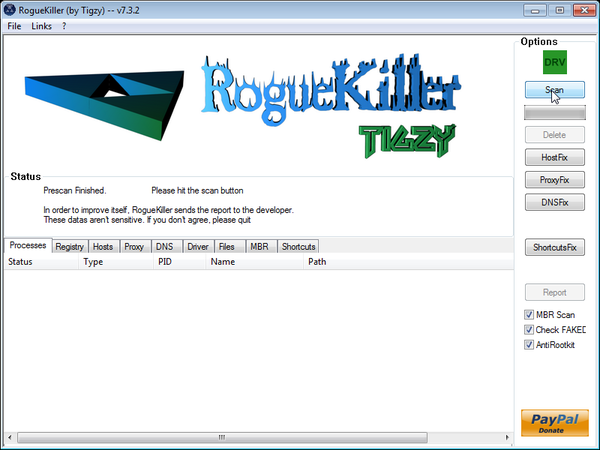
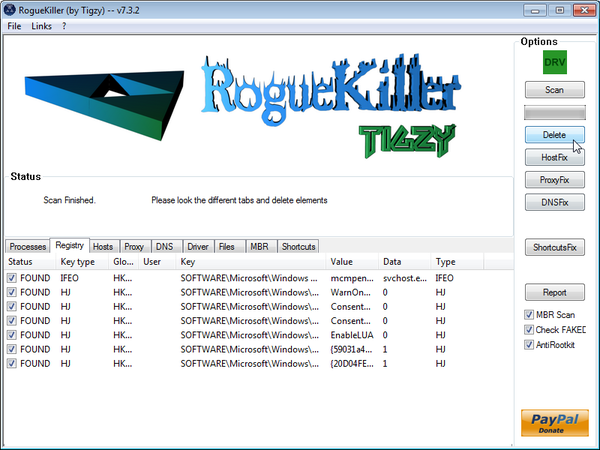
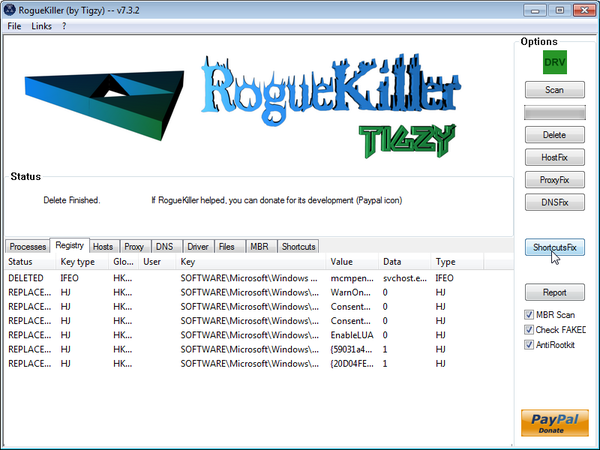









i am having a problem with rkill. everytime i run it my computer says i encounter an error and will auto shutdown in 1 minute.grrrrr plz help
Hello rich,
Lets try to fix your computer,please run the below tools while in Normal Mode;
STEP 1: Run a scan with Malwarebytes Anti-Malware in Chameleon Mode in Norman mode:
STEP 2: Run a scan with RogueKiller
RogueKiller Download Link (This link will automatically download RogueKiller on your computer)
STEP 3 Please perform a scan with HitmanPro as seen on the guide.
If you are having problems starting this program please use the ForceBreach mode as described in the guide.
STEP 4: Run a scan with ESET Online Scanner:
ESET Online Scanner Download Link (This link will automatically download ESET Online Scanner on your computer.)
Waiting for your reply to tell me how everything is running!
Good luck…
Hi, I am following the very well written instructions and everything is doing what is suppose to but the scan is taking almost an hour…? Is that normal? I am afraid to stop the scan.
thx
Hello Leslie,
The scans time depend on your computer speed and the amount of data on your hard drive , below you can see some average times for all the scans..
RKILL Scan – 3-5 minutes.
Malwarebytes Full System Scan – 1-2 hours
HitmanPro scan – 5-10 minutes
Hey just wanted to say thank you very much for such an informative and well written post.
I have never been successful until now in trying to remove these disgusting computer plagues. You deserve all the kudos in the world for creating such a reader friendly set of directions for successfully dealing with these issues. Thankyou so much for your efforts.
John
Thank you for these instructions. It worked and now I have my computer back!! Thank you.
Thought I’d take the time to thank you for putting this guide up. As others have said, these fake av programs are a pain – they just appear out of nowhere, and your guide saved by computer! Thanks very much. Easy to follow and had it running normal in just under 2 hours!
thank you very much
Hi Stelian!
Thank you so much to this post. I feel so terrible when I had this live security platinum malware. I followed you steps and it really works.
The last step about RogueKiller is my problem.
As I open the link given there’s a prompt window says that it is unsafe.
Should I continue to download it or not?
Thank you so much.
Hello aixirt,
You can ignore that alert…Internet Explorer has displayed that alert because this file isn’t commonly downloaded …
Also:
1.Run a scan with Kaspersky Virus Removal Tool
Click here to download the Kaspersky Virus Removal Tool.
2.Run a scan with Eset Online Scanner.
ESET Online Scanner Download Link (This link will automatically download ESET Online Scanner on your computer.)
–
Just writing to say THANK YOU so much Stelian. Really appreciate the time you took to give us advice, so kind of you. You’re a life-saver! Stupid “Live Security Platinum” hit me at the worst time – middle of writing my thesis! But all fine now after running all checks. THANK YOU SO MUCH
I have tried a variety of tools to remove this thing and thought I would try yours too. Unfortunately the biggest hang up I am having is not being able to access the Internet. I have downloaded the tools to a flash drive and moved them all over to the desktop. What can I do to get Internet access so these tools can update properly?
Hello Stillerstedt,
What firewall are you using?
Thanks. Not sure how I got infected with Live Security Platinum. I mostly read news sights and look up the odd bit of information. Took a while, but your removal process worked well and everything seems to be back to normal. Cheers.
Worked like a champ, thanks. Only variable being Hitman no longer offers a 30 day trial. I used this to reference the location of the files and then manually deleted them. Thanks again
Perfection! Thank you! Crisis dealt with! I sooooo appreciate this! *hugs*
Im on a different computer but the computer that was infected with live, i am having trouble getting to this page, it keeps redirecting me to sponsored links and cannot get back onto this page
Hello Sebastian,
Can you please run a scan with Combofix and ESET online scanner and post the logs here so that I can get an idea on what’s going on :
STEP 1 : Run a scan with Combofix
Download ComboFix from one of the following locations:
COMBOFIX DOWNLOAD LINK #1 (This link will automatically download Combofix on your computer)
COMBOFIX DOWNLOAD LINK #2 (This link will automatically download Combofix on your computer)
VERY IMPORTANT !!! Save as Combo-Fix.exe during the download.ComboFix must be renamed before you download to your Desktop
Notes:
STEP 2: Run a scan with ESET Online Scanner:
ESET Online Scanner Download Link (This link will automatically download ESET Online Scanner on your computer.)
Waiting for your reply to tell me if your machine is ok and the logs from this utilities.
Hello! When I access tools and then Connections, my DSL is no longer listed and also the section under Proxy Server is not currently checked. Everything is blank and I am unable to log onto the Internet.
Hello Michelle,
Can you please run a scan with Combofix,Complete Internet Repair and Farbar Service Scanner so that I can get an idea on what’s going on :
STEP 1 : Run a scan with Combofix
Download ComboFix from one of the following locations:
COMBOFIX DOWNLOAD LINK #1 (This link will automatically download Combofix on your computer)
COMBOFIX DOWNLOAD LINK #2 (This link will automatically download Combofix on your computer)
VERY IMPORTANT !!! Save as Combo-Fix.exe during the download.ComboFix must be renamed before you download to your Desktop
Notes:
STEP 2: Run a scan with Complete Internet Repair utility
STEP 3: Run a scan with Farbar Service Scanner
FABAR SERVICE SCANNER (This link will automatically download Farbar Service Scanner on your computer)
Waiting for your reply to tell me if your machine is ok and the logs from this utilities.
you are the man!!!!
THANKS SO MUCH for your help!!!
Hi Stelian, thank you so much for the easy to follow steps. I believe the virus is gone now, but for some reason i can’t use windows update or update Microsoft security essentials. Any suggestions?
If not,thanks again for the guide.
Hello Gregory,
Please follow this steps:
STEP 1: Run a scan with ESET Online Scanner:
ESET Online Scanner Download Link (This link will automatically download ESET Online Scanner on your computer.)
STEP 2: Repair Background Intelligent Transfer Service service
1. Click the Start buton
2. Type “cmd” in the Search Box and then press Enter
3. Right-click “cmd.exe” and select “Run as administrator”
4. Click “Continue” on the “User Account Control” Window
5. In the command prompt type the following command
sc create BITS binpath= “c:\windows\system32\svchost.exe -k netsvcs” start= delayed-auto6.Restart your computer and check if the problem is solved.
STEP 3: Remove the residual damage from Live Security Platinum
Download Windows Repair All In One and install this utility.
Go to the Startup Repairs tab and click the Start button (bottom right)
Note: When asked if you would like to create a restore point. It is recommended just in-case something does not go as planned.
Note: Leave everything else unchecked
Thank you so much for this information! Two frustrating hours later, things seem to be back to normal on my computer. I have no idea how my computer got infected– but I appreciate that you shared these instructions. They were a major help.
Thank you for the help. I am terrible with computers but managed to run all the programs you listed and all 7 steps successfully. But when I rebooted I still saw the little shield inside the Malware icon on desktop – it’s the same shield I saw with th live sec. virus so I deleted the icon and uninstalled Malware from programs. Then I went back to your directions in safe mode again and downlaoded a new Malware. I am running the scan for infections and this time it looks clear. If I am really clear, I should not have to rerun Roguekill and Combo, right? Should I now go back and remove those 2 programs from my computer or just let them expire when I receive info from them in the future? I am afraid to keep them around.
Last?: Since Internet Explorer did not stop this virus, should I change to Mozilla browser. BYW if it helps anyone else, I was on a French Language site when the virus jumped in. I have also deleted Skype as I saw someone said it could jump in from there.
Hello Denise,
HitmanPro and Malwarebytes should have removed this rogue antivirus,however for your peace of mind I would suggest that you perform a scan with the following utilities:
1.Run a scan with Kaspersky Virus Removal Tool
Click here to download the Kaspersky Virus Removal Tool.
2.Run a scan with Eset Online Scanner.
ESET Online Scanner Download Link (This link will automatically download ESET Online Scanner on your computer.)
As far as your browser goes,you should really start using Firefox Or Chrome as they are more secure and often updated when compared with Internet Explorer…..Also I advise you to review your rel-time protection and maybe change your antivirus.Below you can find some quick suggestions:
Free – Avast 7 Free version or COMODO Internet Security
Paid : Norton Internet Security 2012,Avast Internet Security 7,G-DATA Internet Security 2012 or ESET Smart Security 5.
Anyway ,you should really start a thread in our Security Configuration forum as you need to build a layered security config: http://malwaretips.com/Forum-Security-Configuration-Wizard
Also it would very good if you took the time and read this article that I’ve wrote: http://malwaretips.com/blogs/how-to-easily-avoid-pc-infections/ .. If you follow it,then we’ll never meet again in this conditions:)
perfect tutorial!10x Stelian
Thanks so much for the excellent instructions to remove live security platinum. The instructions worked like clockwork and I didn’t even have to run shortcutsfix. My short cuts were ok. This saved me from having to blow away the OS and start over again.
Hi, I did all of these steps and it seemed to work, but not even fifteen minutes later my laptop stopped identifying my wifi connection.
Hello noclue,
Can you please run a scan with Combofix, ESET online scanner and post the logs here so that I can get an idea on what’s going on :
STEP 1 : Run a scan with Combofix
Download ComboFix from one of the following locations:
COMBOFIX DOWNLOAD LINK #1 (This link will automatically download Combofix on your computer)
COMBOFIX DOWNLOAD LINK #2 (This link will automatically download Combofix on your computer)
VERY IMPORTANT !!! Save as Combo-Fix.exe during the download.ComboFix must be renamed before you download to your Desktop
Notes:
STEP 2: Run a scan with ESET Online Scanner:
ESET Online Scanner Download Link (This link will automatically download ESET Online Scanner on your computer.)
Waiting for your reply to tell me if your machine is ok and the logs from this utilities.