

A familiar account suddenly asks you to sign in again. Another shows activity you do not recognize, even though you never shared the password.
When several accounts behave strangely at once, the answer may be on the computer you used yesterday, not in each individual service.
Overview
What LLHN Stealer is built to take
LLHN is an information stealer targeting Windows computers. Its purpose is to collect valuable account material quietly and send it to an operator.
That material can include passwords saved in a browser, session cookies, tokens from gaming and communication services, and cryptocurrency wallet data.
The distinction between a password and a session matters. A valid session token can sometimes let someone act as you without entering a password.
A computer can therefore be compromised even when every account still has two-factor authentication enabled. That protection remains useful, but it is not a complete answer to stolen sessions.
Why one infection has many victims
A stealer does not need to know which of your accounts matters most. It gathers whatever it can reach and leaves the selection to the attacker.
A browser profile may contain years of logins. A gaming client may keep an active session. A wallet extension may be installed beside ordinary work tools.
LLHN has also been described collecting screenshots and clipboard contents. Those captures can expose information visible or copied at the wrong moment.
The attacker can sort the stolen package later. This is why a single run may create problems across seemingly unrelated services.
What a detection does and does not prove
- An LLHN detection warrants a full device investigation and account review.
- No visible pop-up is required for an information stealer to operate.
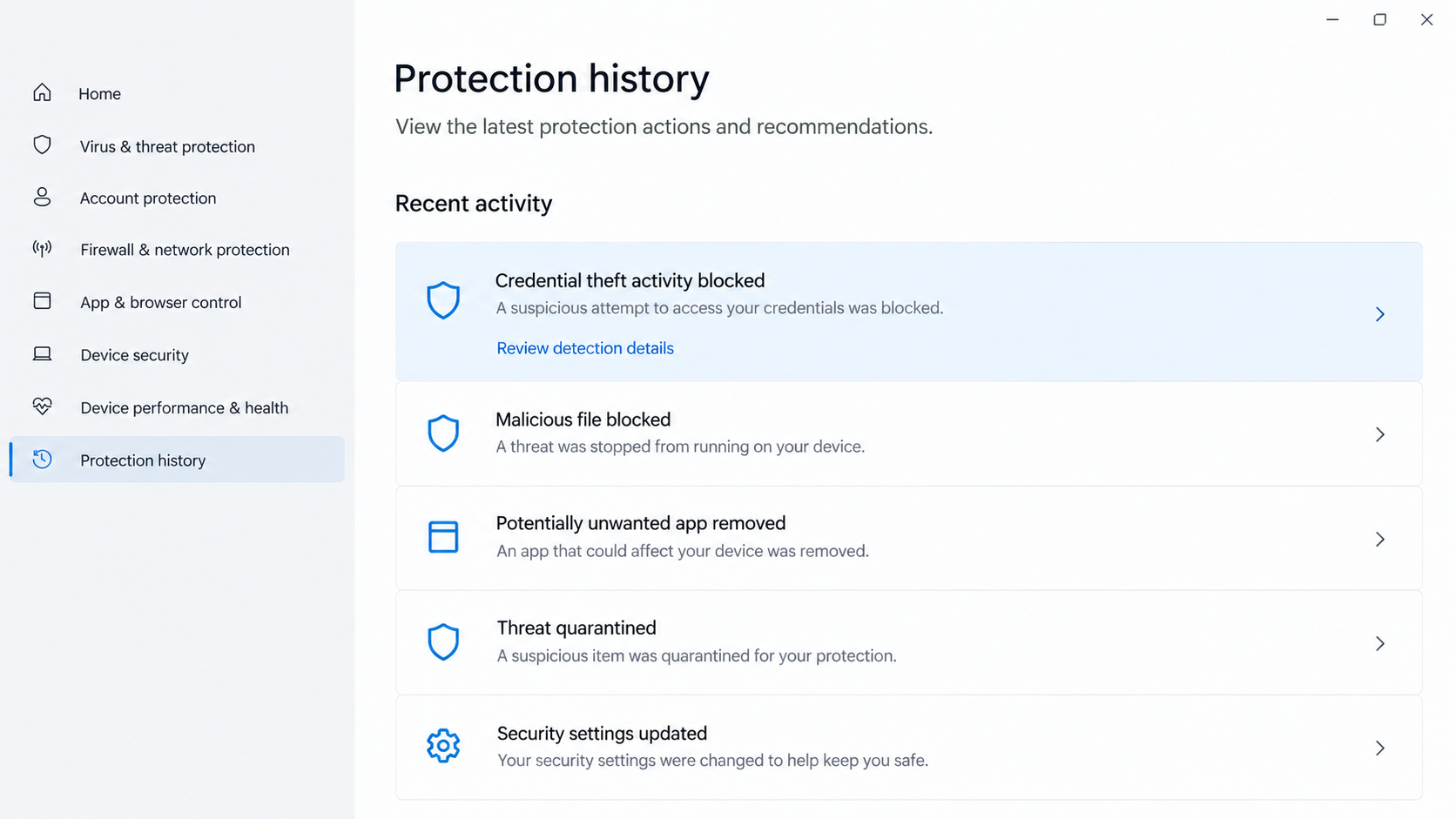
- A blocked file may not have executed, so inspect the protection history before assuming data left the computer.
- A clean scan after the fact cannot prove that previously exposed sessions were never copied.
Security tools may use family names or generic labels. If the alert says only “credential theft,” identify the affected file and event before naming a particular family.
The image above is an illustrative security screen. It is not a capture from an LLHN sample or proof that a specific file ran.
The Risk Is Bigger Than a Saved Password
Many people understand password theft. Session theft is less visible because the stolen item is not something they consciously typed.
After you log in, a site may store a cookie or token that tells it your browser is already authenticated. That convenience is useful to criminals.
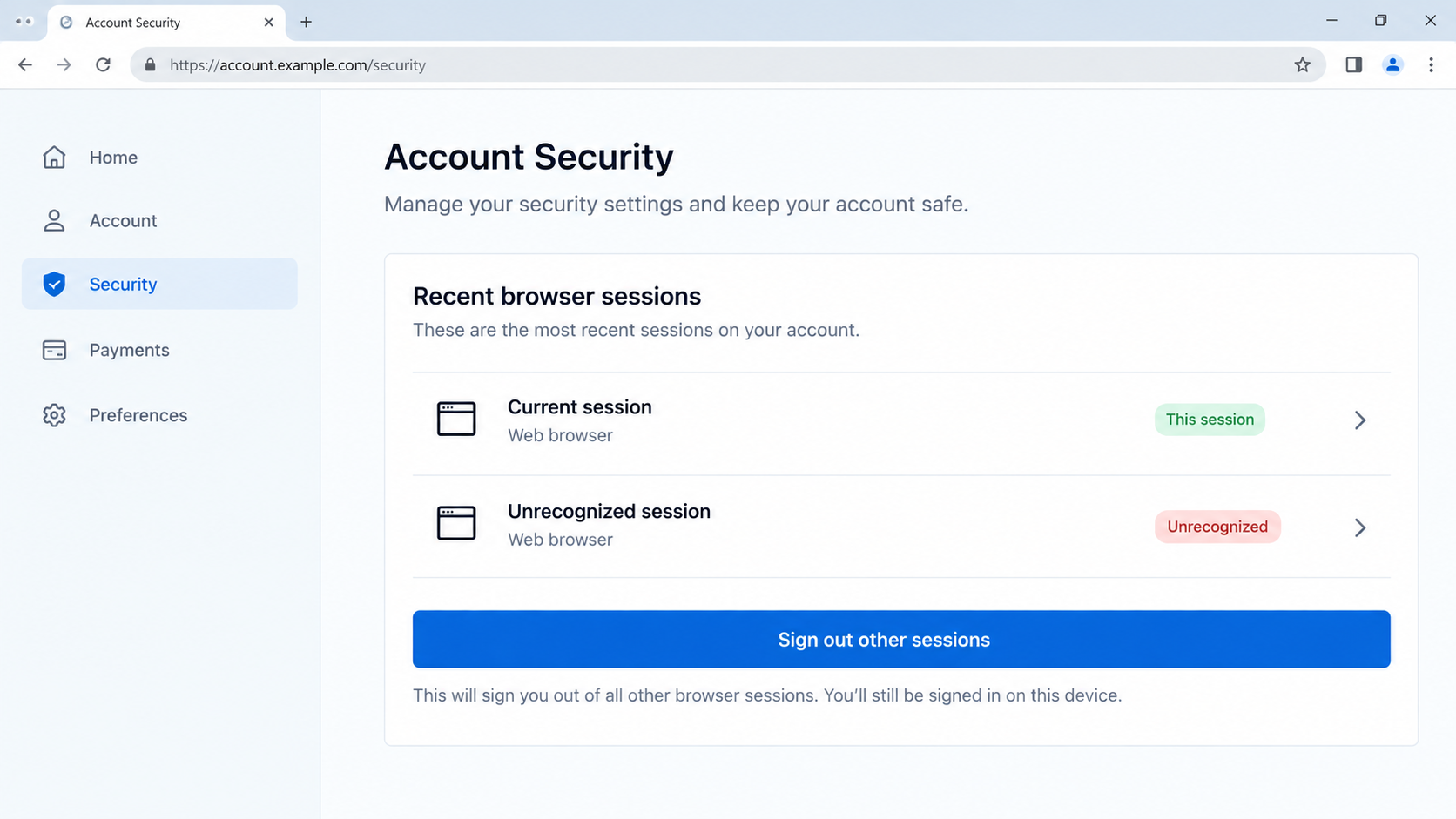
Changing a password may invalidate some sessions, but platforms differ. Use each service’s security controls to sign out unknown or all other sessions.
Review recovery email addresses, linked apps, and two-factor methods too. An intruder may try to keep access by changing those settings.
Discord, Steam, and Riot accounts can have financial value through purchases, inventories, contacts, or connected communities. Treat them as real security priorities.
Cryptocurrency creates a different urgency. Transactions generally cannot be reversed by a bank, and a copied recovery phrase makes a wallet permanently unsafe.
Do not enter that phrase into a website promising to “check” whether it leaked. A legitimate recovery process will never need an unrelated page to inspect your secret.
The account-security image below illustrates the kind of session review that matters after a stealer infection. It does not show an actual victim account.
How an LLHN Stealer Infection Unfolds
Step 1: A program is run on the computer
The specific route used to deliver LLHN has not been fully documented. Do not assume one email subject, website, or installer represents every case.
Information stealers commonly ride in fake software, modified game utilities, cracked programs, malicious ads, and attachments. Those are possibilities, not confirmed details of your infection.
The decisive event is execution. Merely seeing a suspicious link is different from downloading and running the file behind it.
Record what you opened and when. That timeline helps determine which accounts and browser sessions were available at the time.
Step 2: The stealer surveys accessible data
Once running, LLHN looks for account material stored in browsers and applications. It can inspect passwords, cookies, and active platform tokens.
The collection may happen quickly, with no new window or obvious change to the desktop. A lack of symptoms is not a safety verdict.
Some software stores credentials in protected locations, and defenses vary. Do not assume every account on the machine was exposed, but plan for the important ones.
Work accounts deserve special attention because one compromised session may open company mail, documents, or administration tools.
Step 3: It adds context to the stolen material
LLHN has been reported taking screenshots and monitoring clipboard data. This can reveal a wallet address, private note, or conversation even without a saved password.
A screenshot is a moment in time, not a continuous recording. Its value depends on what was visible while the program was active.
Clipboard contents are similarly situational. Copying a secret during an infection can expose it, even if that secret was never stored in the browser.
Think about what you did around the suspected infection window. This is more useful than assuming all past clipboard activity was captured.
Step 4: The data is sent away
Analysis has described several channels through which LLHN can send collected data, including messaging and file-sharing infrastructure.
The victim may see ordinary network traffic rather than a visible upload. A quick glance at the taskbar will not settle the question.
Disconnecting from the network stops further communication while you investigate. It cannot pull back information already sent.
For a workplace machine, isolate it according to your organization’s incident procedure rather than shutting down and wiping evidence immediately.
Step 5: The attacker tests the stolen accounts
Stolen sessions or passwords may be used minutes or days later. Criminals can try email, gaming accounts, social profiles, wallets, and linked services.
An account takeover may announce itself through a login alert. It may also appear as a changed recovery address or a message sent to friends.
If an email account falls first, the attacker can request password resets elsewhere. Securing your main inbox is therefore a high priority.
Check payment and purchase history on services that store a card. Small unauthorized charges can be a warning sign, not a harmless test.
Step 6: Removing the file is only half the response
After the malicious program is removed, copied data may still be usable. That is why account recovery must follow device cleanup.
Change passwords from a clean device, terminate old sessions, and review security settings. Repeating those actions on an infected computer risks exposing the new credentials.
Malware can also leave persistence or companion files. A full scan and follow-up scan are more meaningful than deleting one downloaded file.
When confidence in cleanup remains low, a trusted technician may recommend reinstalling the system after preserving essential personal files.
Which Accounts Need Attention First?
After a stealer alert, the list of accounts can feel endless. Work by consequence rather than alphabetically.
Start with the email address used for password resets. Check its sign-in history, forwarding rules, recovery phone, recovery email, and connected apps.
A criminal with inbox access may hide reset messages or create a rule that forwards future notices. Removing that rule is as important as changing the password.
Next, review banking, payment, and shopping services where money can leave quickly. Look for new beneficiaries, changed payout details, purchases, or saved cards.
Do not wait for a statement at the end of the month. Many providers show recent activity and allow you to freeze a card or report a transaction promptly.
Then inspect social and messaging accounts. An attacker may impersonate you to send links, ask for money, or take control of groups.
Tell contacts if messages went out that you did not send. A short warning through another channel can keep them from following the same trap.
Gaming accounts can be harder to recover after an intruder changes the email address. Save purchase receipts and account identifiers before contacting official support.
Do not give a person in a chat group your login code because they claim to be a moderator. Recovery should happen through the platform’s own process.
For a work account, the order may differ. Your security team can revoke sessions, reset tokens, inspect logs, and coordinate affected customers or coworkers.
Consider what was open in the browser when the suspicious program ran. A session that existed then deserves attention even if its password was not saved.
Also check password managers. A locked vault is not the same as an unlocked vault, but a malware incident should prompt a review of access logs and master credentials.
Keep a written checklist of services you have secured. It prevents repeat work and makes forgotten high-value accounts easier to spot.
There is no need to panic-reset accounts that never touched the affected device. Focus first on actual exposure paths, then widen the review if evidence warrants it.
Finally, watch for secondary scams. Criminals may contact victims claiming to have stolen data, or offer a paid recovery service they cannot provide.
Verify every warning through a company’s official app or site. Do not follow a link in an unexpected message merely because it references a real incident.
File, Session, Wallet, and Workplace Checks
Read the exact security alert
Look at the detection time, file path, and action taken. “Blocked before execution” is different from “removed after running.”
Do not restore a quarantined item just to see whether it was harmless. Ask a trusted analyst if the label seems uncertain.
Review sessions, not just passwords
Use each important service’s security page to inspect recent devices and log out unfamiliar sessions. Also revoke app connections you do not recognize.
Two-factor authentication should remain enabled, but stolen active sessions may bypass a fresh login challenge until they are invalidated.
Handle wallet exposure carefully
If a recovery phrase or private key was stored on the affected computer, assume it may be compromised. Seek guidance from the wallet provider.
Move remaining assets to a newly generated wallet only from a clean device, and never share the new phrase with a “recovery agent.”
Escalate work-device exposure
Tell your employer’s security team if the machine held company credentials, documents, or remote access tools. Early reporting can limit wider account misuse.
Preserve the alert and approximate timeline. Do not erase logs or reinstall a company laptop without coordination.
What to Do if LLHN Stealer May Have Run
Disconnect the affected Windows computer from the internet. If this is a work device, follow your organization’s isolation procedure and notify IT.
Do not log into more accounts on that machine until it has been examined. Disconnecting limits ongoing communication but does not undo earlier theft.
From a separate trusted device, secure your primary email account first. Change its password, sign out other sessions, and check recovery settings.
Your inbox can reset other accounts, so protecting it changes the odds for everything connected to it.
Run an updated full security scan on the affected computer. Malwarebytes is one reputable option, alongside a current built-in or trusted antivirus product.
Quarantine detections, reboot if instructed, then scan again. Do not assume a single deleted download removed every component.
Work through banking, shopping, social, gaming, and cloud accounts. Give priority to services whose passwords or sessions were stored on the device.
Use unique new passwords and revoke active sessions. Check linked apps and forwarding rules where the platform provides them.
Contact your bank or card issuer if you see unauthorized activity. For a wallet, assess whether its private keys or recovery phrase were accessible.
Do not send funds or secrets to someone promising to recover stolen cryptocurrency. Preserve transaction records for reports.
Review the computer’s browser extensions, startup programs, and recent downloads with a trusted professional if the infection returns or scans disagree.
AdGuard can help reduce exposure to malicious ads later, but it cannot revoke stolen sessions or replace malware removal.
Save the security alert, suspicious file details, timestamps, and account notices. Report account abuse through the affected services’ official support channels.
Keep monitoring for several weeks. A stolen token may be tried after the device appears clean.
Is Your Device Infected? Run a Free Malware Scan
Slow performance, constant pop-ups, or strange behavior? These are classic signs of a malware infection. The fastest way to find out is to scan your device with Malwarebytes Free — one of the most trusted malware removal tools available.
The free version detects and removes the most common threats, including:
- Adware — the cause of those annoying pop-ups
- Browser hijackers — unwanted redirects and changed homepages
- Trojans and spyware — hidden programs stealing your data
- Potentially unwanted programs (PUPs) — software you never asked for
👉 Select your device below — Windows, Mac, or Android — then follow the simple steps to download Malwarebytes, scan your system, and remove any threats it finds. The scan usually takes 5 to 20 minutes.
Run a Malware Scan with Malwarebytes for Windows
Malwarebytes is one of the most popular and trusted anti-malware tools for Windows — and it’s completely free for removing infections. It catches threats that many antivirus programs miss, including adware, browser hijackers, and trojans. Follow the steps below to scan and clean your PC in just a few minutes.
Download Malwarebytes
Click the button below to download the latest version of Malwarebytes for Windows from the official source. The free version is all you need — it will scan your computer and remove adware, browser hijackers, and other malicious software at no cost.
Download MalwarebytesOfficial installer for Windows 11 and 10. Your download starts right away.Want real-time protection? See Malwarebytes Premium Malwarebytes Free for WindowsScans and removes malware at no cost
-
Install Malwarebytes
When the download finishes, open your Downloads folder and double-click the MBSetup file. If Windows shows a User Account Control pop-up, click “Yes” to allow the installation.

Follow the On-Screen Prompts to Install Malwarebytes
The setup wizard will walk you through a few quick screens:
-
Choose where you’re installing the program — “Personal Computer” or “Work Computer” — then click Next.

-
Malwarebytes will now install on your device. This usually takes under a minute.

-
When installation is complete, the “Welcome to Malwarebytes” screen will open automatically.

-
On the final screen, click Open Malwarebytes to launch the program.

-
Enable “Scan for Rootkits”
Before scanning, turn on rootkit detection so Malwarebytes can find even the most hidden threats. Click the Settings gear icon on the left side of the screen.

In the settings menu, find “Scan for rootkits” and click the toggle so it turns blue.

Done? Click “Dashboard” in the left pane to return to the main screen.
Start the Scan
Click the blue Scan button. Malwarebytes will automatically update its virus database and start checking your computer for malware.

-
Wait for the Scan to Finish
The scan checks your entire system for browser hijackers and other malicious programs, so it can take 5 to 20 minutes depending on your computer. Feel free to do something else — just check back occasionally to see the progress.

-
Quarantine the Detected Threats
When the scan is done, you’ll see a list of everything Malwarebytes found — malware, adware, and potentially unwanted programs. Click the “Quarantine” button to remove all of them at once.

Malwarebytes will now remove the malicious files and registry entries and move them safely into quarantine.

-
Restart Your Computer
Some threats can only be fully removed after a reboot. If Malwarebytes asks you to restart, click Yes. Once you’re logged back in, Malwarebytes has finished removing the threats it found.

That’s it — your Windows PC is now clean of trojans, adware, and other malware, and should be back to running smoothly.
If you are still having problems with your computer after completing these instructions, then please follow one of the steps:
- Run a computer scan with ESET Online Scanner
- Ask for help in our Windows Malware Removal Help & Support forum.
Run a Malware Scan with Malwarebytes for Mac
Malwarebytes for Mac is a free on-demand scanner that removes the malware other security software tends to miss — adware, browser hijackers, and unwanted programs included. Cleaning an infected Mac with Malwarebytes has always been completely free, and it’s our go-to recommendation. Follow the steps below to scan and clean your Mac in just a few minutes.
-
Download Malwarebytes for Mac
Click the button below to download the latest version of Malwarebytes for Mac.
Download MalwarebytesOfficial installer for macOS. Your download starts right away.Want real-time protection? See Malwarebytes PremiumMalwarebytes Free for MacScans and removes malware at no cost -
Open the Malwarebytes setup file
When the download finishes, open your Downloads folder and double-click the setup file to begin the installation.

-
Follow the On-Screen Prompts to Install Malwarebytes
The Malwarebytes for Mac Installer will guide you through a few quick screens. Click “Continue” and keep following the prompts until the installation completes.



When the installation is complete, Malwarebytes opens to the Welcome to Malwarebytes screen. Click “Get started“.
-
Select “Personal Computer” or “Work Computer”
Malwarebytes will ask what type of computer you’re installing it on. Click either Personal Computer or Work Computer, whichever applies.

-
Start the Scan
Click the “Scan” button. Malwarebytes will automatically update its detection database and begin checking your Mac for malware.

-
Wait for the Scan to Finish
Malwarebytes will scan your Mac for adware, browser hijackers, and other malicious programs. This can take a few minutes, so feel free to do something else — just check back occasionally to see the progress.

-
Quarantine the Detected Threats
When the scan is done, you’ll see a list of everything Malwarebytes found. Click the “Quarantine” button to remove all the threats at once.

-
Restart Your Mac
Malwarebytes will now remove all the malicious files it found. Some threats can only be fully removed after a reboot — if Malwarebytes asks you to restart, allow it. Once you’re logged back in, your Mac is clean.

That’s it — your Mac is now free of adware, rogue browser extensions, and other potentially harmful software.
If you are still experiencing problems while trying to remove a malicious program from your computer, please ask for help in our Mac Malware Removal Help & Support forum.
Run a Malware Scan with Malwarebytes for Android
Malwarebytes for Android automatically detects and removes dangerous threats like malware and ransomware so you don’t have to worry about your most-used device being compromised. Aggressive detection of adware and potentially unwanted programs keeps your Android phone or tablet running smooth.
-
Download Malwarebytes for Android.
You can download Malwarebytes for Android by clicking the link below.
Get Malwarebytes for AndroidOpens Google Play in a new tab.Want real-time protection? See Malwarebytes Premium for AndroidMalwarebytes for AndroidScans your phone and removes malware at no cost -
Install Malwarebytes for Android on your phone.
In the Google Play Store, tap “Install” to install Malwarebytes for Android on your device.

When the installation process has finished, tap “Open” to begin using Malwarebytes for Android. You can also open Malwarebytes by tapping on its icon in your phone menu or home screen.

-
Follow the on-screen prompts to complete the setup process
When Malwarebytes will open, you will see the Malwarebytes Setup Wizard which will guide you through a series of permissions and other setup options.
This is the first of two screens that explain the difference between the Premium and Free versions. Swipe this screen to continue.
Tap on “Got it” to proceed to the next step.
Malwarebytes for Android will now ask for a set of permissions that are required to scan your device and protect it from malware. Tap on “Give permission” to continue.
Tap on “Allow” to permit Malwarebytes to access the files on your phone.
-
Update database and run a scan with Malwarebytes for Android
You will now be prompted to update the Malwarebytes database and run a full system scan.

Click on “Update database” to update the Malwarebytes for Android definitions to the latest version, then click on “Run full scan” to perform a system scan.

-
Wait for the Malwarebytes scan to complete.
Malwarebytes will now start scanning your phone for adware and other malicious apps. This process can take a few minutes, so we suggest you do something else and periodically check on the status of the scan to see when it is finished.

-
Click on “Remove Selected”.
When the scan has been completed, you will be presented with a screen showing the malware infections that Malwarebytes for Android has detected. To remove the malicious apps that Malwarebytes has found, tap on the “Remove Selected” button.

-
Restart your phone.
Malwarebytes for Android will now remove all the malicious apps that it has found. To complete the malware removal process, Malwarebytes may ask you to restart your device.
That’s it — your Android phone is now clean — no more malicious apps, adware, or browser redirects.
If you are still having problems with your phone after completing these instructions, then please follow one of the steps:
- Restore your phone to factory settings by going to Settings > General management > Reset > Factory data reset.
- Ask for help in our Mobile Malware Removal Help & Support forum.
Stay Protected: Block Ads and Malicious Sites
Now that your device is clean, keep it that way. Most infections start with a malicious ad or a fake download button — so blocking them at the source is your best defense.
We recommend AdGuard, which blocks malicious ads, phishing pages, and dangerous redirects before they can reach you.
👉 Download AdGuard and browse safely
Frequently Asked Questions
Is LLHN a virus that locks files?
No. LLHN is described as an information stealer. Its main danger is data and account theft, not file encryption.
Can two-factor authentication stop a stolen session?
It helps protect new logins, but a copied active session may not trigger a new challenge. Revoke suspicious sessions through the service’s security controls.
Does a detection mean my accounts were definitely stolen?
No. A file blocked before running differs from an executed stealer. Review the alert details and respond according to the possible exposure.
Should I change passwords on the infected computer?
Use a clean device first. A still-infected computer could capture replacement credentials as soon as you type them.
Will deleting the downloaded file be enough?
Not necessarily. A program may have run, copied data, or created persistence. Scan fully and secure affected accounts afterward.
Can I recover a stolen cryptocurrency wallet?
A leaked seed phrase cannot be made secret again. Create a new wallet on a clean device and move any remaining assets promptly.
The Bottom Line
LLHN Stealer is dangerous because it can turn one Windows infection into several account compromises without an obvious warning on screen.
Clean the device, then protect the accounts and sessions it may have exposed. The second step matters just as much as removing the malware.

Join the discussion
0 commentsShare your experience or ask a question about this article.
Discussion
Start the conversation
Have a question or something useful to share? Add the first comment.