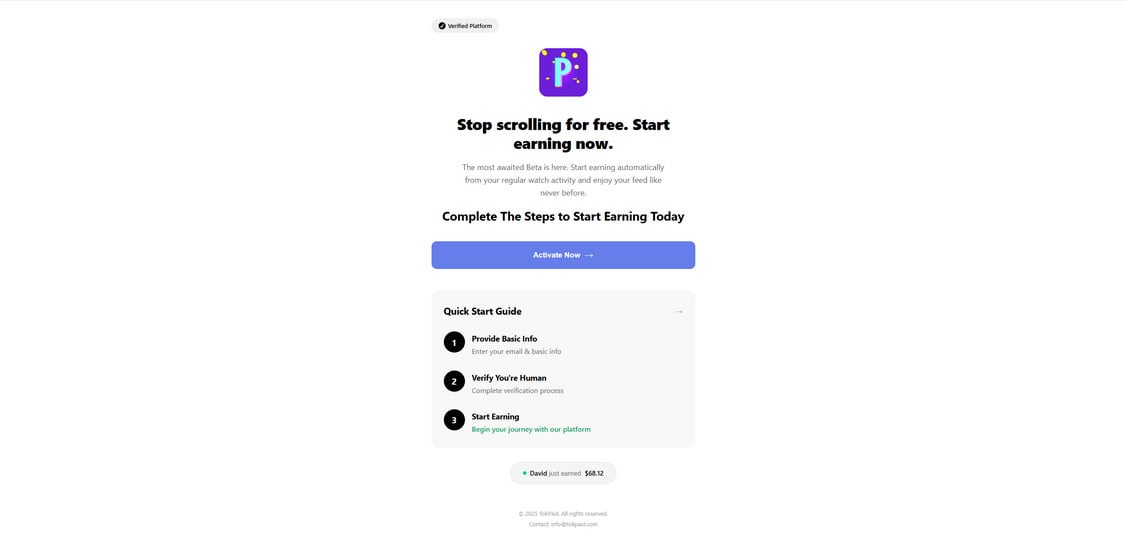
If you’ve seen ads or links claiming you can earn $750 for reviewing Walmart products, you’re not alone. These promotions have been circulating widely on TikTok, Instagram, Facebook, and YouTube, often appearing legitimate thanks to clean branding, professional layouts, and strategically placed Walmart logos. One of the most deceptive sites behind this trend is MartPerks.com, a page claiming to offer a “Walmart Review Program” where users supposedly receive a $750 Walmart gift card after completing a quick survey and providing feedback on their shopping experiences.
The offer sounds easy. It sounds profitable. And most importantly, it sounds believable because it uses Walmart’s trusted name. But despite its polished appearance, MartPerks.com is not affiliated with Walmart, and the “review program” it advertises does not exist. Instead, it is part of a long-running network of affiliate reward scams designed to harvest personal information, push users into completing sponsored offers, and generate revenue for scammers. No one ever receives the $750 Walmart gift card.
This article breaks down the MartPerks.com Walmart Review Program Scam, explains how it works, and shows you what to do if you shared your information. Read on before you click anything connected to this fraudulent offer.
Scam Overview
The MartPerks.com Walmart Review Program scam is part of a larger ecosystem of fraudulent survey and reward scams that impersonate popular brands. These scams often promise large rewards—frequently between $500 and $1,000—in exchange for simple tasks such as answering surveys, downloading apps, or providing feedback. MartPerks.com follows this exact structure, offering a $750 Walmart gift card in return for participating in a supposed Walmart feedback program.
To a casual visitor, the MartPerks.com website looks clean, polished, and professional. The homepage prominently displays the Walmart logo, uses blue-and-white Walmart color schemes, and includes a headline stating:
“Get a $750 Walmart Gift Card. Take our quick survey about your shopping experience at Walmart and receive a $750 gift card as a thank you for your feedback.”
This attractive claim is followed by a bright button labeled “Start Survey Now,” offering a clear and immediate call to action.
Why MartPerks.com Looks Convincing
There are several reasons this scam successfully convinces people to participate:
Brand Mimicry The page uses Walmart’s branding, colors, and styling almost perfectly. For someone who isn’t looking for signs of fraud, the site can easily appear legitimate.
Simple Steps The site outlines a simple three-step process:
Sign up
Share feedback
Get rewarded
These steps sound realistic and mirror what a genuine customer-feedback program might look like.
Fake Benefits Section MartPerks.com includes sections with headings like “Easy Feedback Process,” “Flexible Timing,” “Quick Approval,” and “Exclusive Community.” These sections are designed to resemble corporate incentive pages used by real companies.
Personalized Touches Some versions of this scam include fake notifications in the bottom corner, claiming that “John from Texas just received a $750 Walmart gift card.” These notifications are fabricated and automatically generated by the site.
Appeal of the Reward A $750 Walmart gift card is a huge incentive. Many people believe they can earn it simply by answering a survey.
The combination of familiar branding, simple instructions, and large rewards creates a high-conversion trap that preys on curiosity and optimism.
Not Associated With Walmart
In fine print at the bottom of the site, there is usually a quiet disclaimer stating:
“Not affiliated with Walmart Inc.”
This tiny notice serves as the scammers’ legal escape hatch. It contradicts the entire page’s presentation, yet many users never scroll far enough to see it.
Walmart has never publicly announced or endorsed a program offering $750 gift cards in exchange for quick surveys or external reviewer tasks. Genuine Walmart promotions are always found on official sites such as:
Walmart.com
Walmart’s official app
Verified Walmart social media accounts
MartPerks.com appears nowhere on any official Walmart channel.
The True Purpose of MartPerks.com
The real goal of the MartPerks.com scam is to push users into completing what they call “required deals.” These deals include:
Downloading apps
Submitting phone numbers
Signing up for free trials
Providing credit card information
Completing multi-step surveys
Signing up for subscription services
Entering sweepstakes
Each time a user completes a deal, the operators of MartPerks.com earn money through affiliate commissions. These commissions range anywhere from a few cents to more than $50 per completed offer.
The scammers profit regardless of whether you receive a gift card—which you never will.
A Pattern of Cloned Scams
MartPerks.com is almost identical to dozens of other scam websites that have impersonated major brands, including:
Cart700.com
ReviewersCost.com
ApplySeph.com
RedReview.info
TikReview.com
AppleStudentPrograms
WalletRewards scams
UpLevelRewards
RewardGiant clones
Each site swaps in a different brand name, different logo, and different color scheme, but the underlying mechanism is always the same.
The Fallout for Victims
Victims of MartPerks.com often report:
Spam emails
Excessive text messages
Unwanted phone calls
New subscriptions they didn’t authorize
Hidden credit card charges
Data exposure
More scam attempts targeting their inboxes
Some users have even mistakenly signed up for recurring subscriptions costing $30–$80 per month.
In short, MartPerks.com uses Walmart’s name to harvest personal data and push people into endless affiliate offers, all while promising rewards that never come.
How the MartPerks.com Scam Works
This section breaks down the full scam process step-by-step so you can clearly understand how the operators behind MartPerks.com deceive users and profit from the scheme.
Step 1: The Social Media Trap
Scammers promote MartPerks.com across major platforms, including TikTok, Instagram, and Facebook. The ads typically show:
Someone claiming they received $750
Fake screenshots of Walmart gift card email confirmations
A $750 balance shown on a phone
A testimonial stating, “It only took me 2 minutes”
The ads are polished and strategically targeted toward users seeking easy side income.
Once clicked, the ad redirects to MartPerks.com.
Step 2: The Fake Walmart Survey
The landing page presents a clean and minimalistic design with:
The Walmart logo
A large headline offering $750
A “Start Survey Now” button
The survey itself includes typical retail questions, such as:
“How often do you shop at Walmart?”
“Which departments do you visit most often?”
“Rate your last shopping experience.”
These questions are generic and do not contribute to any real data collection. Their purpose is psychological—to convince the user that the process is legitimate.
When the fake survey is finished, a message appears saying:
“Congratulations! You qualify for your $750 Walmart gift card.”
This is the bait that pulls users into the next phase.
Step 3: Data Collection Phase
Before accessing the supposed reward, users must enter:
Full name
Email
Phone number
Zip code
This is where the scammers begin harvesting valuable personal data.
Once entered, this information may be:
Sold to “lead generation” companies
Added to spam lists
Used to target you with future scams
Shared with third-party marketing databases
The user might immediately begin receiving dozens of promotional emails.
Step 4: The Offer Wall
Next, the site reveals that to receive the gift card, users must complete several “Deals.” These might include:
Signing up for a streaming service free trial
Installing multiple apps
Registering for reward programs
Providing credit card information for “free” offers
Completing multi-step surveys
Signing up for subscription boxes
Each offer is tied to an affiliate payout.
For example:
A subscription trial may pay the scammers $20
An installed app may pay $3
A sweepstakes entry may pay $1
A credit card submission may pay more than $50
This is the monetization engine behind the scam.
Step 5: The Endless Loop
Even after completing several deals, the site never unlocks the reward. Instead, victims are told:
“You still have offers left.”
“Complete one more deal to finish.”
“Your reward is almost ready.”
“Verify your identity by completing more deals.”
Some users have completed 20+ offers without receiving anything. The system is designed to keep moving the goalpost.
Step 6: The Scammers Profit
Every completed offer generates revenue for the scam operators. They profit from:
Leads
App installs
Trial signups
Sweepstakes participation
Credit card submissions
The user receives nothing in return.
Step 7: The Aftermath
Victims often experience:
Fraudulent credit card charges
New subscriptions they never intended to join
Hundreds of spam emails
Scam calls
Privacy breaches
Scammers continue selling victim data long after they leave the site.
What to Do If You Fell Victim to MartPerks.com
If you interacted with MartPerks.com, follow these steps immediately.
1. Stop Interacting With the Website
Close the page and avoid clicking any additional links.
2. Change Your Email Password
Use a strong, unique password and enable two-factor authentication.
3. Check for Suspicious Charges
Look for charges connected to trials or subscriptions you may have unknowingly approved.
4. Cancel Any Subscriptions
Log into any service you signed up for through the site and cancel it before it bills you.
5. Contact Your Bank
If you shared payment details, ask your bank to:
Cancel your card
Reverse fraudulent charges
Block future transactions
6. Run a Security Scan
Use antivirus software to detect malware or tracking tools placed on your device.
7. Report the Scam
Notify:
Federal Trade Commission (FTC)
Better Business Bureau Scam Tracker
Internet Crime Complaint Center (IC3)
8. Mark Scam Emails as Spam
Never click unsubscribe, which often confirms your email as active.
9. Monitor Your Identity
Use credit monitoring tools to track unauthorized activity.
10. Warn Friends and Family
Scams spread quickly. Sharing what happened may protect someone else.
Is Your Device Infected? Scan for Malware
If your computer or phone is slow, showing unwanted pop-ups, or acting strangely, malware could be the cause. Running a scan with Malwarebytes Anti-Malware Free is one of the most reliable ways to detect and remove harmful software. The free version can identify and clean common infections such as adware, browser hijackers, trojans, and other unwanted programs.
Malwarebytes works on Windows, Mac, and Android devices. Choose your operating system below and follow the steps to scan your device and remove any malware that might be slowing it down.
Malwarebytes for WindowsMalwarebytes for MacMalwarebytes for Android
Run a Malware Scan with Malwarebytes for Windows
Malwarebytes stands out as one of the leading and widely-used anti-malware solutions for Windows, and for good reason. It effectively eradicates various types of malware that other programs often overlook, all at no cost to you. When it comes to disinfecting an infected device, Malwarebytes has consistently been a free and indispensable tool in the battle against malware. We highly recommend it for maintaining a clean and secure system.
Download Malwarebytes
Download the latest version of Malwarebytes for Windows using the official link below. Malwarebytes will scan your computer and remove adware, browser hijackers, and other malicious software for free.
(The above link will open a new page from where you can download Malwarebytes)
Install Malwarebytes
After the download is complete, locate the MBSetup file, typically found in your Downloads folder. Double-click on the MBSetup file to begin the installation of Malwarebytes on your computer. If a User Account Control pop-up appears, click “Yes” to continue the Malwarebytes installation.
Follow the On-Screen Prompts to Install Malwarebytes
When the Malwarebytes installation begins, the setup wizard will guide you through the process.
You’ll first be prompted to choose the type of computer you’re installing the program on—select either “Personal Computer” or “Work Computer” as appropriate, then click on Next.
Malwarebytes will now begin the installation process on your device.
When the Malwarebytes installation is complete, the program will automatically open to the “Welcome to Malwarebytes” screen.
On the final screen, simply click on the Open Malwarebytes option to start the program.
Enable “Rootkit scanning”.
Malwarebytes Anti-Malware will now start, and you will see the main screen as shown below. To maximize Malwarebytes’ ability to detect malware and unwanted programs, we need to enable rootkit scanning. Click on the “Settings” gear icon located on the left of the screen to access the general settings section.
In the settings menu, enable the “Scan for rootkits” option by clicking the toggle switch until it turns blue.
Now that you have enabled rootkit scanning, click on the “Dashboard” button in the left pane to get back to the main screen.
Perform a Scan with Malwarebytes.
To start a scan, click the Scan button. Malwarebytes will automatically update its antivirus database and begin scanning your computer for malicious programs.
Wait for the Malwarebytes scan to complete.
Malwarebytes will now scan your computer for browser hijackers and other malicious programs. This process can take a few minutes, so we suggest you do something else and periodically check the status of the scan to see when it is finished.
Quarantine detected malware
Once the Malwarebytes scan is complete, it will display a list of detected malware, adware, and potentially unwanted programs. To effectively remove these threats, click the “Quarantine” button.
Malwarebytes will now delete all of the files and registry keys and add them to the program’s quarantine.
Restart your computer.
When removing files, Malwarebytes may require a reboot to fully eliminate some threats. If you see a message indicating that a reboot is needed, please allow it. Once your computer has restarted and you are logged back in, you can continue with the remaining steps.
Once the scan completes, remove all detected threats. Your Windows computer should now be clean and running smoothly again, free of trojans, adware, and other malware.
If your current antivirus allowed this malicious program on your computer, you may want to consider purchasing Malwarebytes Premium to protect against these types of threats in the future. If you are still having problems with your computer after completing these instructions, then please follow one of the steps:
Malwarebytes for Mac is an on-demand scanner that can destroy many types of malware that other software tends to miss without costing you absolutely anything. When it comes to cleaning up an infected device, Malwarebytes has always been free, and we recommend it as an essential tool in the fight against malware.
Download Malwarebytes for Mac.
You can download Malwarebytes for Mac by clicking the link below.
When Malwarebytes has finished downloading, double-click on the setup file to install Malwarebytes on your computer. In most cases, downloaded files are saved to the Downloads folder.
Follow the on-screen prompts to install Malwarebytes.
When the Malwarebytes installation begins, you will see the Malwarebytes for Mac Installer which will guide you through the installation process. Click “Continue“, then keep following the prompts to continue with the installation process.
When your Malwarebytes installation completes, the program opens to the Welcome to Malwarebytes screen. Click the “Get started” button.
Select “Personal Computer” or “Work Computer”.
The Malwarebytes Welcome screen will first ask you what type of computer are you installing this program, click either Personal Computer or Work Computer.
Click on “Scan”.
To scan your computer with Malwarebytes, click on the “Scan” button. Malwarebytes for Mac will automatically update the antivirus database and start scanning your computer for malware.
Wait for the Malwarebytes scan to complete.
Malwarebytes will scan your computer for adware, browser hijackers, and other malicious programs. This process can take a few minutes, so we suggest you do something else and periodically check on the status of the scan to see when it is finished.
Click on “Quarantine”.
When the scan has been completed, you will be presented with a screen showing the malware infections that Malwarebytes has detected. To remove the malware that Malwarebytes has found, click on the “Quarantine” button.
Restart computer.
Malwarebytes will now remove all the malicious files that it has found. To complete the malware removal process, Malwarebytes may ask you to restart your computer.
After scanning, delete any detected threats. Your Mac should now be free from adware, unwanted extensions, and other potentially harmful software.
If your current antivirus allowed a malicious program on your computer, you might want to consider purchasing the full-featured version of Malwarebytes Anti-Malware to protect against these types of threats in the future. If you are still experiencing problems while trying to remove a malicious program from your computer, please ask for help in our Mac Malware Removal Help & Support forum.
Run a Malware Scan with Malwarebytes for Android
Malwarebytes for Android automatically detects and removes dangerous threats like malware and ransomware so you don’t have to worry about your most-used device being compromised. Aggressive detection of adware and potentially unwanted programs keeps your Android phone or tablet running smooth.
Download Malwarebytes for Android.
You can download Malwarebytes for Android by clicking the link below.
In the Google Play Store, tap “Install” to install Malwarebytes for Android on your device.
When the installation process has finished, tap “Open” to begin using Malwarebytes for Android. You can also open Malwarebytes by tapping on its icon in your phone menu or home screen.
Follow the on-screen prompts to complete the setup process
When Malwarebytes will open, you will see the Malwarebytes Setup Wizard which will guide you through a series of permissions and other setup options. This is the first of two screens that explain the difference between the Premium and Free versions. Swipe this screen to continue. Tap on “Got it” to proceed to the next step. Malwarebytes for Android will now ask for a set of permissions that are required to scan your device and protect it from malware. Tap on “Give permission” to continue. Tap on “Allow” to permit Malwarebytes to access the files on your phone.
Update database and run a scan with Malwarebytes for Android
You will now be prompted to update the Malwarebytes database and run a full system scan.
Click on “Update database” to update the Malwarebytes for Android definitions to the latest version, then click on “Run full scan” to perform a system scan.
Wait for the Malwarebytes scan to complete.
Malwarebytes will now start scanning your phone for adware and other malicious apps. This process can take a few minutes, so we suggest you do something else and periodically check on the status of the scan to see when it is finished.
Click on “Remove Selected”.
When the scan has been completed, you will be presented with a screen showing the malware infections that Malwarebytes for Android has detected. To remove the malicious apps that Malwarebytes has found, tap on the “Remove Selected” button.
Restart your phone.
Malwarebytes for Android will now remove all the malicious apps that it has found. To complete the malware removal process, Malwarebytes may ask you to restart your device.
When the scan is finished, remove all detected threats. Your Android phone should now be free of malicious apps, adware, and unwanted browser redirects.
If your current antivirus allowed a malicious app on your phone, you may want to consider purchasing the full-featured version of Malwarebytes to protect against these types of threats in the future. If you are still having problems with your phone after completing these instructions, then please follow one of the steps:
Restore your phone to factory settings by going to Settings > General management > Reset > Factory data reset.
After cleaning your device, it’s important to protect it from future infections and annoying pop-ups. We recommend installing an ad blocker such as AdGuard. AdGuard blocks malicious ads, prevents phishing attempts, and stops dangerous redirects, helping you stay safe while browsing online.
The Bottom Line
The MartPerks.com Walmart Review Program is not real. It does not provide Walmart gift cards and has no connection to Walmart. The site is a sophisticated affiliate scam designed to harvest data, push users into endless deals, and generate money for scammers. Victims get nothing but spam, charges, and frustration.
Authentic Walmart promotions always come directly from Walmart.com or the Walmart app. If a website promises hundreds of dollars for answering a quick survey or completing simple offers, it is almost certainly a scam.
Frequently Asked Questions
Is MartPerks.com an official Walmart program?
No. MartPerks.com is not connected to Walmart in any way. The website uses Walmart’s branding, colors, and layout to appear legitimate, but Walmart does not run gift card promotions through third-party survey websites. Any genuine Walmart promotions are only hosted on Walmart’s official website or through verified partners.
What does MartPerks.com claim to offer?
The site claims you can receive a $750 Walmart gift card by completing a quick survey and giving feedback about your shopping experience. It presents this as a simple, fast process that only requires a few tasks. In reality, the “tasks” become a long chain of offers, app downloads, sign-ups, and trials that exist solely to generate money for the scammers, not you.
How does the MartPerks.com scam actually work?
Once you click “Start Survey Now,” you are asked to enter personal information such as your name, email, phone number, and zip code. After that, you are pushed toward completing “recommended deals.” These deals are affiliate marketing offers that pay the scammers when someone signs up. The site keeps adding more requirements until the user gives up. No one ever receives the $750 gift card, regardless of how many deals they complete.
Why does the website look so real?
Scammers design sites like MartPerks.com to mimic the look of major brands. They use:
Walmart logos
Walmart colors (blue, yellow)
Clean, corporate layouts
Fake testimonials
Fake notifications that appear to show other users joining
This creates trust and reduces suspicion, making it easier to convince people to enter personal information and start completing offers.
Is it safe to enter my email or phone number?
No. Entering your contact information can result in:
Persistent spam emails
Unsolicited marketing texts
Scam phone calls
Additional fraud attempts
Your data may be sold to third-party advertisers or added to lead lists used by other scams.
Can I really earn a $750 Walmart gift card by taking surveys online?
Not through MartPerks.com. The promised reward is intentionally unattainable. Even after completing many offers, users are told they need to do “just one more step” or “one more deal” to qualify. This design ensures that the scammers make money while victims never receive anything in return.
Why do the scammers want me to complete deals or sign up for trials?
Each deal generates affiliate revenue for the scammers. When you download an app, start a trial, or fill out a form, the site owner earns a commission. These commissions add up quickly, especially when thousands of people fall for the scam. The $750 promise is simply bait to keep you completing more offers.
What personal information does MartPerks.com collect?
The website may collect:
Full name
Email address
Phone number
Home address or zip code
Browser data
IP address
Information entered into third-party “deals,” including payment details
All of this information can be used for marketing, resold to list brokers, or exploited by scammers.
Is there a risk of unauthorized charges?
Yes. Many of the “free trial” offers linked through MartPerks.com require a credit card. These offers often convert into paid subscriptions, charging users monthly without clear reminders. In some cases, people report unexpected charges appearing long after they forgot about the trial.
What should I do if I already completed some offers?
If you entered only basic information, prepare for increased spam. You can use spam filters and block unknown numbers. If you entered payment information, contact your bank immediately. Ask them to:
Cancel any related subscriptions
Block future charges
Issue a new card if needed
Acting quickly helps prevent additional billing.
Can the scammers access my bank account if I signed up for a trial?
No direct access is given, but they can continue charging the card you used. This is why many victims unknowingly pay monthly fees for trials they forgot to cancel.
How can I check whether a reward program is legitimate?
You can verify legitimacy by:
Checking the official brand website
Searching the company’s name plus “scam”
Looking for real contact information and privacy policies
Checking the domain age (scam sites are usually very new)
Searching for reviews outside the website
Avoiding offers that promise unusually high rewards for simple tasks
If the reward sounds unrealistic, it usually is.
What signs indicate a survey or reward site is a scam?
Common red flags include:
Promises of large payouts for minimal effort
Generic layouts impersonating major brands
“Complete 3–5 deals” requirements
Requests for credit card information
Fake testimonials
Pushy countdown timers
No verifiable contact information
Recently registered domains
MartPerks.com matches nearly all of these signs.
Does Walmart offer real product-testing or review programs?
Walmart occasionally runs legitimate programs, but these are conducted through official Walmart channels or recognized partners. They never offer $750 rewards for completing surveys, nor do they use third-party websites like MartPerks.com to recruit participants.
Thomas is an expert at uncovering scams and providing in-depth reporting on cyber threats and online fraud. As an editor, he is dedicated to keeping readers informed on the latest developments in cybersecurity and tech.