


A bottle of gummies can look like a simple wellness purchase, especially when the page feels calm, familiar, and reassuring from the moment it opens.
MediBloom deserves a closer look because the most important details are not necessarily the ones that first catch a shopper’s eye or hold their attention.
Overview
The bottle is not the whole offer
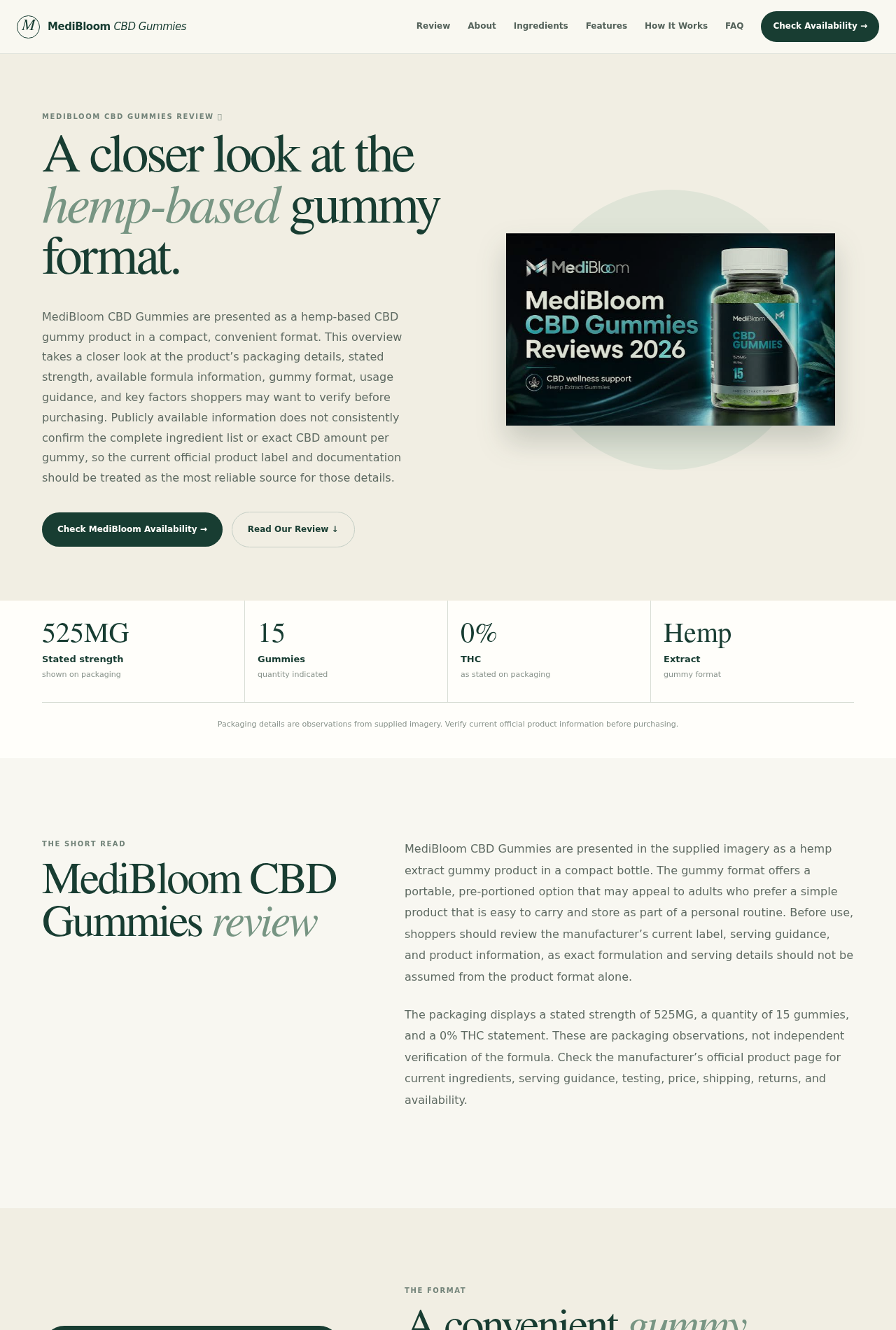
MediBloom CBD Gummies are presented as a compact hemp-based product.
One current promotional page shows a bottle labeled 525MG, 15 gummies, and 0% THC, while also telling shoppers to verify current product information before buying.
That careful wording is worth noticing.
A bottle image can show what the seller wants a shopper to see.
It does not independently establish the formula, the amount in each gummy, laboratory testing, or how the product will affect a particular person.
The recurring terms change the real price
The strongest concern is not hidden in a rumor. It appears in published sales terms connected to MediBloom-branded stores.
Those pages list subscription and one-time options side by side, with materially different prices and a new supply scheduled every 30 days unless the customer cancels.
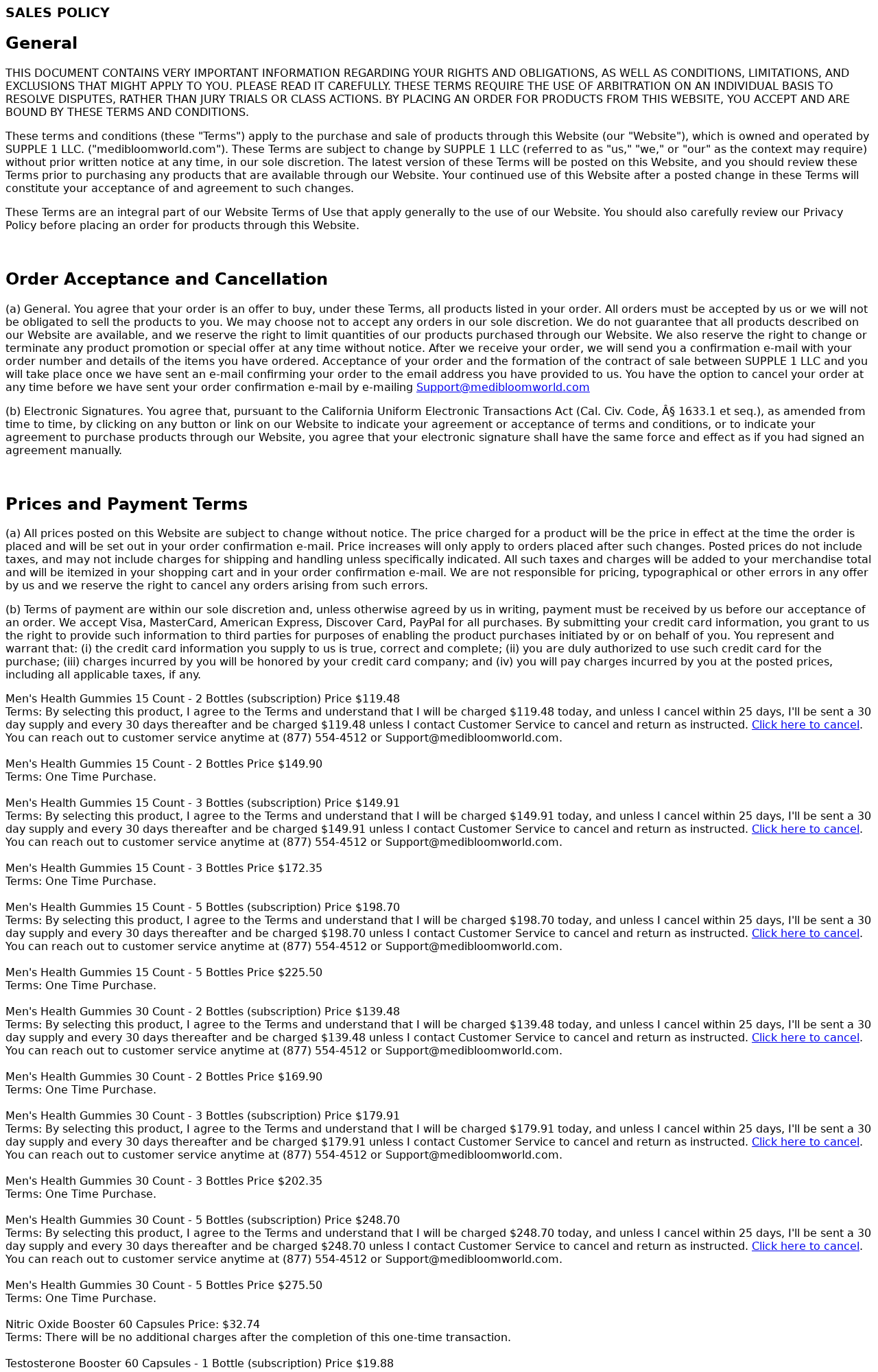
For example, one terms page lists two bottles of 15-count gummies at $119.48 under a subscription option.
It says another 30-day supply will be sent every 30 days unless the customer cancels within 25 days.
Several identities appear around the same sales pattern
The corporate trail is not as simple as the name on the bottle.
One site names MEDIBLOOM LLC, while another sales policy says the website is owned and operated by SUPPLE 1 LLC and uses a different phone number and support email.
That does not prove a crime by itself.
It does mean a shopper should identify which legal entity is taking the order and which store wrote the terms.
The buyer should also confirm which company will appear on the card statement before entering payment details.
- The offer includes both subscription and one-time purchase choices.
- Published subscription prices range from $119.48 to $248.70 for several listed gummy bundles.
- The recurring schedule is every 30 days unless canceled under the stated procedure.
- Different MediBloom-branded pages identify different operating entities and support contacts.
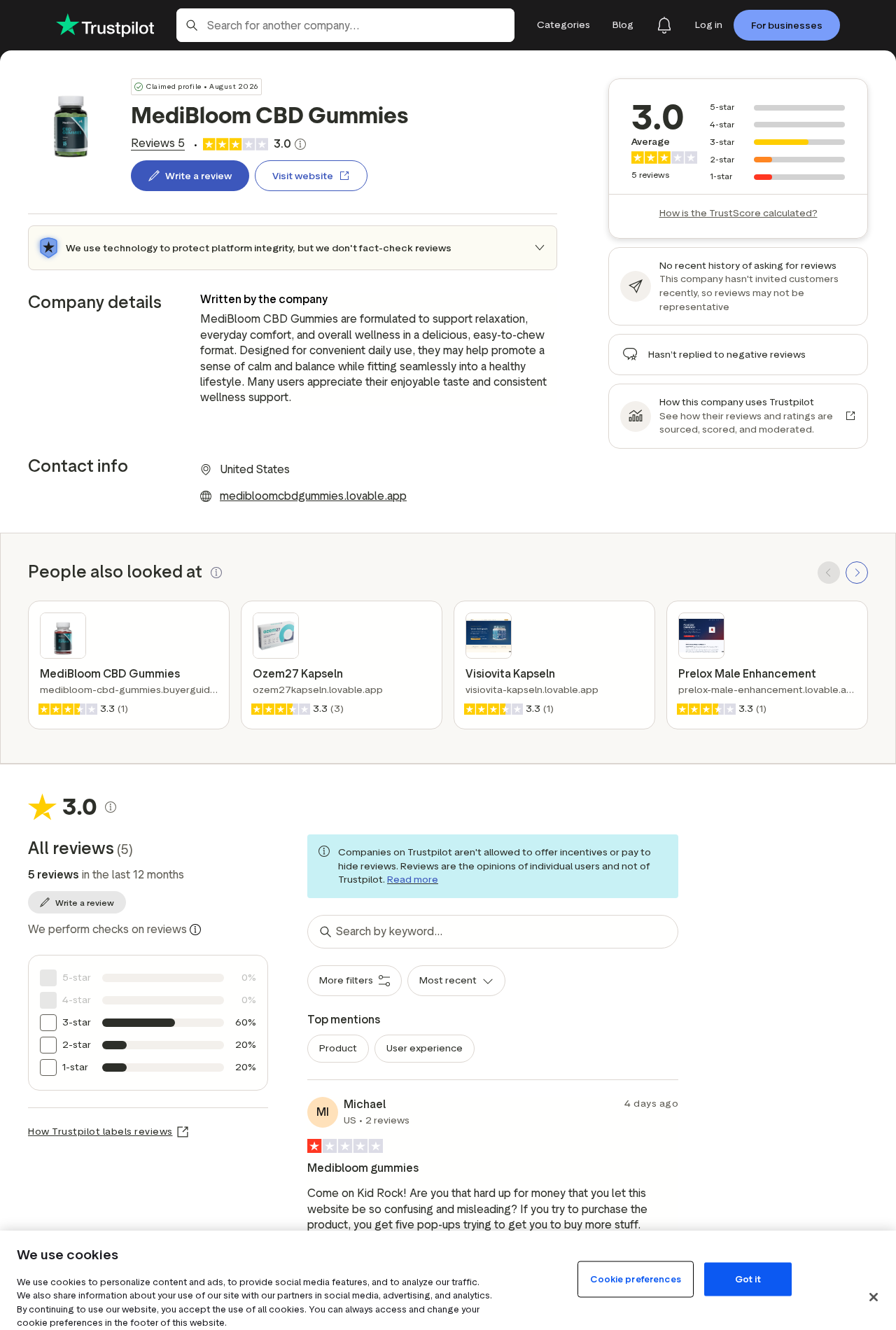
- Customer reviews include both ordinary feedback and allegations of confusing checkout or unexpected charges.
The practical conclusion is straightforward. MediBloom is not a product to buy from the headline alone.
The buyer must understand the exact cart selection, the recurring language, the seller identity, and the health limitations before treating the offer as a routine purchase.
How The Scam Works
Step 1: An ad sells relief before it sells a bottle
The journey usually begins with a social media ad, sponsored article, or polished review page.
The message may focus on relaxation, sleep, discomfort, stress, or general wellness, subjects that feel personal enough to keep someone reading.
Good photography and a calm design make the page feel clinical without actually being clinical.
A stated strength, a hemp leaf, and words such as natural or premium can create confidence before the shopper has seen a complete label or batch-specific test.
Step 2: The sales page narrows attention to the promised outcome
Once the visitor reaches the product page, the story becomes simpler. The page emphasizes convenience, easy daily use, and a limited offer.
Questions about dosage, interactions, testing, ownership, and recurring billing are less visually exciting and may appear in separate policies.
This is where shoppers can mistake a marketing page for independent evidence. A review-style page may be controlled by a seller or affiliate.
Product photography, ratings, and customer quotes on that page should not be treated as laboratory verification.
Step 3: The cheaper option can be the subscription option
A recurring plan often looks attractive because its first price is lower than the one-time purchase.
On MediBloom terms pages, the word subscription appears next to several bundles, while the one-time versions are priced higher.
That difference can steer a rushed shopper toward the recurring choice. The real comparison is not $119.48 versus $149.90 today.
It is a one-time charge versus a charge that can repeat every 30 days until the cancellation is accepted.
Step 4: The cancellation clock starts immediately
The published language says customers must cancel within 25 days to prevent another 30-day supply.
That leaves little room for shipping delays, trying the product, deciding whether it helped, and completing a cancellation before the next billing cycle.
A shopper may reasonably think a 30-day supply means 30 days to decide. The terms describe a shorter cancellation window.
That difference is exactly why the confirmation email and the date of the first charge should be saved.
Step 5: Another charge may reveal what the first screen did not
Some buyers only recognize the recurring arrangement when a later charge appears or another package is dispatched. At that point, the problem is no longer a product question.
It becomes a billing, cancellation, and documentation problem.
Public reviews should be read cautiously because they are personal reports, not audited findings.
Still, allegations of a confusing order flow or an unexpected membership are useful warnings when the seller’s own terms independently confirm recurring billing options.
Step 6: The customer must unwind the order through the seller and bank
The next step is often a support call or email, followed by a return request.
The customer may need an authorization, an unused product, tracking proof, or a request made within a stated period.
If the seller does not resolve the issue, the card issuer becomes important.
A buyer should dispute only charges that were unauthorized or materially different from the disclosed agreement, and should provide the order page, terms, emails, and cancellation record.
Step 7: The same offer can reappear under a different storefront
Once a campaign attracts complaints, advertisements and checkout pages can move to another domain or use a slightly different seller name.
That is why the domain, billing descriptor, support email, and saved terms matter more than the product name alone.
What the Product Claims Do Not Prove
A label saying CBD, hemp extract, or 0% THC is a claim on packaging.
It does not replace a batch-specific certificate of analysis from an identifiable laboratory, and it does not show whether the bottle in a photograph matches the bottle shipped.
The FDA says only one CBD product has been approved as a prescription drug for specific seizure conditions.
Other CBD products have not been evaluated as approved treatments for anxiety, pain, sleep problems, or other medical conditions simply because a sales page uses wellness language.
The agency also warns that CBD can interact with medications and may carry risks involving the liver, alertness, digestion, and mood.
Anyone taking prescription medicine should speak with a qualified healthcare professional before using a CBD product.
Do not stop prescribed treatment because a testimonial describes a dramatic result.
A customer story cannot establish cause, dosage, safety, or suitability for someone with a different condition and medication history.
Company, Address, and Fulfillment Checks
The company name changes across related storefronts
One MediBloom terms page identifies MEDIBLOOM LLC. A separate MediBloom World sales policy identifies SUPPLE 1 LLC as the owner and operator.
The names may reflect different storefronts, campaigns, or commercial arrangements, but the shopper should not have to guess.
Before ordering, save the legal name shown in the terms and compare it with the order confirmation and card descriptor.
If those names do not match, ask the seller to explain the relationship in writing.
The contact details are not consistent
The MediBloom Hub terms list `(888) 961-6744` and `Support@medibloomhub.com`. The MediBloom World policy lists `(877) 554-4512` and `Support@medibloomworld.com`.
A buyer must use the contact information tied to the exact checkout used.
Call before ordering and ask whether the number handles that exact product, recurring refills, cancellations, and returns. A working sales line is not enough.
The important test is whether support can clearly explain the contract.
A return address may be a mailbox or processing point
One terms page lists a PO Box in Garden Grove, California.
A PO Box can receive correspondence, but it does not identify a manufacturing plant, testing laboratory, executive office, or warehouse.
A returns address can also belong to a fulfillment company that handles packages for many unrelated brands.
That is why an address alone should never be presented as proof that the product was manufactured or tested there.
Manufacturing and testing need documentary proof
We found no reliable basis to claim that every MediBloom product is made in China, and an article should not invent that fact.
The correct question is whether the seller provides a current lot number, manufacturer identity, complete label, and batch-specific independent test.
If those records are missing, the buyer cannot verify potency, THC content, contaminants, or consistency. For an ingestible product, that is not a small paperwork gap.
It is a reason to pause the purchase.
How to Protect Yourself Before Ordering
- Choose a one-time purchase only if the cart clearly labels it as one time.
- Take screenshots of the cart, total, selected option, and recurring terms.
- Read the cancellation deadline before entering a card number.
- Ask for a batch-specific certificate of analysis and complete ingredient panel.
- Compare the company name in the terms with the receipt and card descriptor.
- Use a credit card that provides dispute rights, not a bank transfer or cryptocurrency.
- Discuss CBD with a healthcare professional if you take medication or have a medical condition.
Also check the browser address before paying. A product name can appear on several domains, and a search result labeled official may belong to an affiliate.
The domain taking the payment is the one whose policies matter.
Do not let a countdown timer make the decision.
If an offer is legitimate, the seller should explain the price, renewal date, cancellation method, refund conditions, and product testing.
A countdown clock should never be needed to push you toward the button.
Search the card descriptor before buying as well. Complaints may appear under the billing company rather than the product name shown in the advertisement.
What to Do if You Have Fallen Victim to This Scam
- Save the complete transaction record. Capture the product page, cart, checkout total, terms, confirmation email, package label, card descriptor, and every support message. Record dates and the names of representatives.
- Cancel the recurring plan in writing. Use the contact details attached to your exact order. State that you are canceling all future shipments and charges, and ask for written confirmation with the effective date.
- Call the support number as well. Note the date, time, number called, and result. If no one answers, keep the call log and send another written request so you can show repeated attempts.
- Contact your card issuer promptly. Explain which charge you approved and which charge you dispute. Ask about blocking future recurring transactions from the same merchant descriptor and replacing the card if necessary.
- Do not return anything without instructions. Ask for the correct return address and authorization. Use tracked shipping, keep the receipt, and photograph the sealed package before mailing it.
- Seek medical advice for side effects. Stop relying on the seller’s marketing and speak with a qualified healthcare professional. Keep the bottle, lot number, label, and ingredient information available.
- Secure the device used for checkout. If the purchase involved suspicious redirects or downloads, run a full Malwarebytes scan. If you only placed an order on an ordinary page, a scan will not cancel billing, but it can check for unwanted software.
- Reduce future ad exposure. AdGuard can block many malicious ads and tracking requests that lead to aggressive funnels. It does not reverse a subscription, so keep working with the seller and card issuer.
- Report deceptive conduct. In the US, report the experience to the FTC and your state consumer protection office. Include the domain, company name, amount, dates, and cancellation evidence.
Is Your Device Infected? Run a Free Malware Scan
Slow performance, constant pop-ups, or strange behavior? These are classic signs of a malware infection. The fastest way to find out is to scan your device with Malwarebytes Free — one of the most trusted malware removal tools available.
The free version detects and removes the most common threats, including:
- Adware — the cause of those annoying pop-ups
- Browser hijackers — unwanted redirects and changed homepages
- Trojans and spyware — hidden programs stealing your data
- Potentially unwanted programs (PUPs) — software you never asked for
👉 Select your device below — Windows, Mac, or Android — then follow the simple steps to download Malwarebytes, scan your system, and remove any threats it finds. The scan usually takes 5 to 20 minutes.
Run a Malware Scan with Malwarebytes for Windows
Malwarebytes is one of the most popular and trusted anti-malware tools for Windows — and it’s completely free for removing infections. It catches threats that many antivirus programs miss, including adware, browser hijackers, and trojans. Follow the steps below to scan and clean your PC in just a few minutes.
Download Malwarebytes
Click the button below to download the latest version of Malwarebytes for Windows from the official source. The free version is all you need — it will scan your computer and remove adware, browser hijackers, and other malicious software at no cost.
Download MalwarebytesOfficial installer for Windows 11 and 10. Your download starts right away.Want real-time protection? See Malwarebytes Premium Malwarebytes Free for WindowsScans and removes malware at no cost
-
Install Malwarebytes
When the download finishes, open your Downloads folder and double-click the MBSetup file. If Windows shows a User Account Control pop-up, click “Yes” to allow the installation.

Follow the On-Screen Prompts to Install Malwarebytes
The setup wizard will walk you through a few quick screens:
-
Choose where you’re installing the program — “Personal Computer” or “Work Computer” — then click Next.

-
Malwarebytes will now install on your device. This usually takes under a minute.

-
When installation is complete, the “Welcome to Malwarebytes” screen will open automatically.

-
On the final screen, click Open Malwarebytes to launch the program.

-
Enable “Scan for Rootkits”
Before scanning, turn on rootkit detection so Malwarebytes can find even the most hidden threats. Click the Settings gear icon on the left side of the screen.

In the settings menu, find “Scan for rootkits” and click the toggle so it turns blue.

Done? Click “Dashboard” in the left pane to return to the main screen.
Start the Scan
Click the blue Scan button. Malwarebytes will automatically update its virus database and start checking your computer for malware.

-
Wait for the Scan to Finish
The scan checks your entire system for browser hijackers and other malicious programs, so it can take 5 to 20 minutes depending on your computer. Feel free to do something else — just check back occasionally to see the progress.

-
Quarantine the Detected Threats
When the scan is done, you’ll see a list of everything Malwarebytes found — malware, adware, and potentially unwanted programs. Click the “Quarantine” button to remove all of them at once.

Malwarebytes will now remove the malicious files and registry entries and move them safely into quarantine.

-
Restart Your Computer
Some threats can only be fully removed after a reboot. If Malwarebytes asks you to restart, click Yes. Once you’re logged back in, Malwarebytes has finished removing the threats it found.

That’s it — your Windows PC is now clean of trojans, adware, and other malware, and should be back to running smoothly.
If you are still having problems with your computer after completing these instructions, then please follow one of the steps:
- Run a computer scan with ESET Online Scanner
- Ask for help in our Windows Malware Removal Help & Support forum.
Run a Malware Scan with Malwarebytes for Mac
Malwarebytes for Mac is a free on-demand scanner that removes the malware other security software tends to miss — adware, browser hijackers, and unwanted programs included. Cleaning an infected Mac with Malwarebytes has always been completely free, and it’s our go-to recommendation. Follow the steps below to scan and clean your Mac in just a few minutes.
-
Download Malwarebytes for Mac
Click the button below to download the latest version of Malwarebytes for Mac.
Download MalwarebytesOfficial installer for macOS. Your download starts right away.Want real-time protection? See Malwarebytes PremiumMalwarebytes Free for MacScans and removes malware at no cost -
Open the Malwarebytes setup file
When the download finishes, open your Downloads folder and double-click the setup file to begin the installation.

-
Follow the On-Screen Prompts to Install Malwarebytes
The Malwarebytes for Mac Installer will guide you through a few quick screens. Click “Continue” and keep following the prompts until the installation completes.



When the installation is complete, Malwarebytes opens to the Welcome to Malwarebytes screen. Click “Get started“.
-
Select “Personal Computer” or “Work Computer”
Malwarebytes will ask what type of computer you’re installing it on. Click either Personal Computer or Work Computer, whichever applies.

-
Start the Scan
Click the “Scan” button. Malwarebytes will automatically update its detection database and begin checking your Mac for malware.

-
Wait for the Scan to Finish
Malwarebytes will scan your Mac for adware, browser hijackers, and other malicious programs. This can take a few minutes, so feel free to do something else — just check back occasionally to see the progress.

-
Quarantine the Detected Threats
When the scan is done, you’ll see a list of everything Malwarebytes found. Click the “Quarantine” button to remove all the threats at once.

-
Restart Your Mac
Malwarebytes will now remove all the malicious files it found. Some threats can only be fully removed after a reboot — if Malwarebytes asks you to restart, allow it. Once you’re logged back in, your Mac is clean.

That’s it — your Mac is now free of adware, rogue browser extensions, and other potentially harmful software.
If you are still experiencing problems while trying to remove a malicious program from your computer, please ask for help in our Mac Malware Removal Help & Support forum.
Run a Malware Scan with Malwarebytes for Android
Malwarebytes for Android automatically detects and removes dangerous threats like malware and ransomware so you don’t have to worry about your most-used device being compromised. Aggressive detection of adware and potentially unwanted programs keeps your Android phone or tablet running smooth.
-
Download Malwarebytes for Android.
You can download Malwarebytes for Android by clicking the link below.
Get Malwarebytes for AndroidOpens Google Play in a new tab.Want real-time protection? See Malwarebytes Premium for AndroidMalwarebytes for AndroidScans your phone and removes malware at no cost -
Install Malwarebytes for Android on your phone.
In the Google Play Store, tap “Install” to install Malwarebytes for Android on your device.

When the installation process has finished, tap “Open” to begin using Malwarebytes for Android. You can also open Malwarebytes by tapping on its icon in your phone menu or home screen.

-
Follow the on-screen prompts to complete the setup process
When Malwarebytes will open, you will see the Malwarebytes Setup Wizard which will guide you through a series of permissions and other setup options.
This is the first of two screens that explain the difference between the Premium and Free versions. Swipe this screen to continue.
Tap on “Got it” to proceed to the next step.
Malwarebytes for Android will now ask for a set of permissions that are required to scan your device and protect it from malware. Tap on “Give permission” to continue.
Tap on “Allow” to permit Malwarebytes to access the files on your phone.
-
Update database and run a scan with Malwarebytes for Android
You will now be prompted to update the Malwarebytes database and run a full system scan.

Click on “Update database” to update the Malwarebytes for Android definitions to the latest version, then click on “Run full scan” to perform a system scan.

-
Wait for the Malwarebytes scan to complete.
Malwarebytes will now start scanning your phone for adware and other malicious apps. This process can take a few minutes, so we suggest you do something else and periodically check on the status of the scan to see when it is finished.

-
Click on “Remove Selected”.
When the scan has been completed, you will be presented with a screen showing the malware infections that Malwarebytes for Android has detected. To remove the malicious apps that Malwarebytes has found, tap on the “Remove Selected” button.

-
Restart your phone.
Malwarebytes for Android will now remove all the malicious apps that it has found. To complete the malware removal process, Malwarebytes may ask you to restart your device.
That’s it — your Android phone is now clean — no more malicious apps, adware, or browser redirects.
If you are still having problems with your phone after completing these instructions, then please follow one of the steps:
- Restore your phone to factory settings by going to Settings > General management > Reset > Factory data reset.
- Ask for help in our Mobile Malware Removal Help & Support forum.
Stay Protected: Block Ads and Malicious Sites
Now that your device is clean, keep it that way. Most infections start with a malicious ad or a fake download button — so blocking them at the source is your best defense.
We recommend AdGuard, which blocks malicious ads, phishing pages, and dangerous redirects before they can reach you.
👉 Download AdGuard and browse safely
Frequently Asked Questions
Is MediBloom CBD Gummies a confirmed scam?
The published evidence supports serious caution, especially around recurring terms and inconsistent company details. It does not justify claiming every order is fraudulent.
The safest conclusion is that buyers must understand the subscription before paying.
Does MediBloom automatically send refills?
Published MediBloom-related terms list subscription options that send a new 30-day supply every 30 days unless canceled.
A separate one-time option is also listed, so the exact selection in the cart matters.
How much can the recurring charge be?
Listed subscription prices vary by product and bundle. Examples on the reviewed terms pages range from $119.48 to $248.70.
Check the current checkout because prices and product names can change.
Are the health claims independently proven?
A promotional page and product label are not independent proof. Ask for a current batch-specific laboratory report, complete ingredients, serving information, and manufacturer details.
Do not treat testimonials as medical evidence.
What if support says the subscription was disclosed?
Ask for the exact checkout record showing what you selected and where the recurring terms appeared. Compare it with your screenshots.
If the charge was not authorized, provide that evidence to your card issuer.
Can Malwarebytes or AdGuard stop recurring charges?
No. Malwarebytes checks devices for malware, and AdGuard blocks many ads and trackers. Neither cancels a billing agreement. Cancellation must be handled with the seller, card issuer, or payment provider.
The Bottom Line
MediBloom is a reminder that the most important part of a supplement offer may be the contract behind the bottle.
The reviewed terms clearly describe recurring choices, 30-day shipments, and cancellation deadlines that can turn one checkout into repeated charges.
Read the selected option, save the terms, verify the company, and demand real product documentation.
If any of those pieces remain unclear, the safest purchase is the one you do not complete.

Reviews & discussion
0 commentsShare a firsthand experience, or ask a question.
Community reviews
MediBloom CBD Gummies
Moderated reader experiences, not an editorial verdict.
Start the conversation
Have a question or something useful to share? Add the first comment.