


An interview invitation can make an ordinary afternoon feel promising. The Meetclave interview scam borrows that moment, introducing a technical problem just when you want everything to go smoothly.
If a recruiter sent you to a Meetclave portal, the important question is what it asked you to do before the conversation could begin.
Overview
The invitation starts with a believable hiring opportunity
Trend Micro documented a recruitment lure that began with job listings on CoFoundersLab, then moved applicants to Telegram and a supposed interview portal at join[.]meetclave[.]com.
The roles included hiring assistance and investor-facing work. A candidate expecting an interview therefore had a reason to follow an unfamiliar meeting link.
CoFoundersLab and Telegram are legitimate services. Their appearance in this route does not establish their involvement in the deception or make every recruiter using them fraudulent.
A device check changes the nature of the request
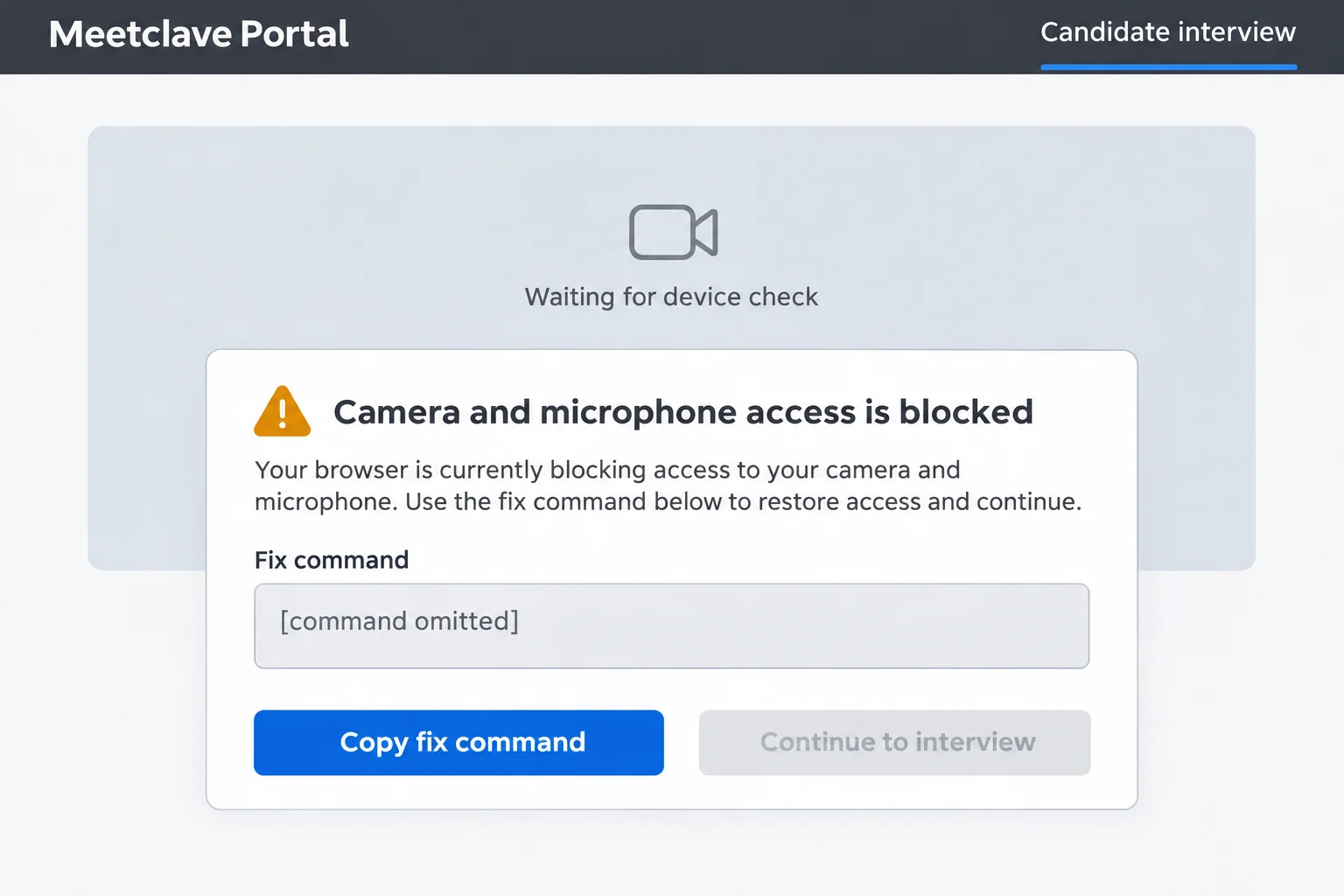
The portal displayed a camera and microphone error, offered a copied repair command, and guided the applicant toward running it through Windows.
Researchers described that command as downloading and launching malware, with information-stealing or remote-access capabilities. The published account did not identify one confirmed malware family.
That distinction matters: this is a reported command-execution trap, not evidence that a particular named virus infected every person who received an invitation.
Your next step depends on what you actually did
- Opened the invitation: stop interacting with the portal and verify the employer independently.
- Copied its fix: do not paste it into a command window; replace the clipboard contents with harmless text.
- Ran the command: treat the computer as potentially compromised and follow the containment and cleanup instructions below.
- Used a work-managed device: involve your security team before installing tools, deleting files, or restarting.
The documented behavior supports calling this a scam. It does not tell us what happened on your individual computer without examining that computer.
How the Meetclave Interview Scam Works
Step 1: A job listing gives the approach a credible starting point
A listing on a familiar platform gives an applicant context: a role to discuss, a reason to expect messages, and an explanation for an upcoming call.
That context can lower your guard without requiring an obviously extravagant offer. A modest opportunity can be convincing when you are actively searching for work.
A platform hosting a listing is not the same as an employer verifying the person behind it. Check the recruiter separately from the website displaying the advertisement.
Step 2: The conversation moves to a private interview channel
Moving into direct messaging makes it easier to deliver personalized instructions. The applicant may start treating the sender as a familiar contact rather than a stranger.
Telegram alone is not the deciding warning sign. The concern is an unverified recruiter combining a private conversation with unusual instructions for accessing a job interview.
If the company supposedly hiring you has a public careers team, use contact details found independently. Do not rely on a second contact supplied by the same sender.
Step 3: A meeting lobby makes the appointment feel ready to happen
Meeting details, access codes, and technical language can make a webpage resemble ordinary conferencing software. None of those elements authenticates the recruiter or the employer.
They also create a practical distraction. Instead of asking whether the invitation is genuine, an applicant may concentrate on getting through the lobby before the scheduled time.
Pause if the conversation never begins because the website keeps demanding another preparation step. An appointment does not give an unknown page authority over your computer.
Step 4: The camera warning supplies a reason to follow instructions
Camera problems are familiar enough to seem plausible. The warning fits the situation, so the proposed repair can feel like a small obstacle between you and the interviewer.
But a message drawn inside a webpage is not necessarily a diagnosis from Windows. An alarming box can be part of the page’s design.
The key change is the requested remedy. Checking a permission setting is different from letting a recruiter dictate commands to run on your operating system.
Step 5: Running the copied command moves the attack beyond the browser
Windows terminals execute instructions on the computer. Pasting a website’s command there can give that command access that an ordinary webpage would not have by itself.
This is the broader ClickFix technique described by Microsoft: a supposed technical problem persuades someone to run the attacker’s instructions.
Copying text and opening a Windows menu are not equivalent to executing it. The serious exposure is submitting the command or approving other software the sender supplied.
Do not try the instructions again to see whether they work. A missing interview, blank window, or quick return to the desktop does not settle whether anything executed.
What a Camera Permission Problem Actually Requires
Use settings you opened yourself
For a genuine Windows 11 camera issue, Microsoft documents the camera controls under Settings > Privacy & security > Camera.
Review the relevant app permissions there. Browser permissions are a separate layer; only grant access to a conferencing site you have already verified.
Do not grant camera access to the suspicious portal as a troubleshooting experiment. First establish where the interview is supposed to happen and who arranged it.
A technical-looking command is not a trust signal
A command can contain familiar Windows terms and still be unsafe. Recognizing one portion does not establish what the remaining instructions download, launch, or change.
Nor does an administrator prompt prove Microsoft endorses the action. That prompt asks you to authorize a program; it does not verify the recruiter’s story.
When you cannot explain an instruction, stop and seek help through a known support channel. You do not owe an unfamiliar interviewer administrator access.
How to Check an Interview Without Returning to the Trap
Verify the role through the employer, not the invitation
Find the employer’s website independently and locate its careers information. Ask whether the named role, recruiter, and interview arrangement belong to that organization.
A missing listing is not conclusive by itself: agencies, confidential searches, and expired advertisements exist. A direct confirmation from a genuine hiring contact is more useful.
If the sender claims to represent a startup, request an independently verifiable company contact. Do not accept urgency as a substitute for identifying who is hiring you.
Compare the requested action with the purpose of the call
A video interview needs a way to communicate. It does not need your wallet recovery phrase, a remote-control session, or an unexplained command from a stranger.
Ask for an alternative meeting method while you verify the invitation. A refusal to continue without running the supplied fix is a reason to end the interaction.
The FTC’s job-scam guidance recommends checking the company or person hiring you and discussing the offer with someone you trust.
If you already shared a résumé, separate that disclosure from a password or identity-document exposure. Different information calls for different follow-up, not an automatic assumption of total compromise.
What to Do if You Have Fallen Victim to This Scam
-
Establish the last action you completed. Write down whether you opened the link, copied text, submitted a command, installed software, or approved an administrator prompt.
Include the approximate time and which computer you used. This helps a technician investigate without asking you to revisit the portal or repeat the command.
If you cannot remember whether you pressed Enter, say so. Uncertainty is useful information; guessing that nothing happened can send the investigation in the wrong direction.
-
If you only opened the page, close it. Do not call a number, download a repair, or contact another supposed support agent supplied by the recruiter.
If you copied its text, overwrite your clipboard with a harmless sentence. Remove a saved clipboard-history entry if present, without pasting it into a terminal.
Opening a webpage alone does not establish the command-based infection described here. Keep your browser updated, and investigate any separate download or permission you approved.
-
If you ran the command, contain the possible exposure. Disconnect a personal computer from Wi-Fi or Ethernet and stop using it for email, banking, or passwords.
Use another trusted device for urgent account protection. Do not assume switching browsers on the same potentially compromised computer makes signing in safe.
For an employer-owned or managed computer, contact IT immediately. Follow its instructions about isolation, evidence preservation, and restarting before attempting the consumer guide below.
-
Preserve the invitation and relevant messages. Keep the listing URL, recruiter profile, meeting invitation, timestamps, and screenshots you already have.
Do not collect evidence by reopening a payload or running the command again. Do not publish passwords, personal documents, or a full command containing private identifiers.
Ask a technician how to preserve security alerts and logs before deleting suspicious files. On managed devices, the security team should control that process.
-
Protect accounts from a clean device. Prioritize your main email account, password manager, work accounts, and financial services used on the affected computer.
Change exposed passwords, check recovery details, and review active sessions. Enable multifactor authentication where available, but also revoke unfamiliar sessions rather than relying on a password change alone.
For work accounts, tell the administrator what happened. It may need to revoke sessions or investigate access that you cannot see in your own settings.
-
Report the route that reached you. Flag the listing and account through the platform’s reporting tools, preserving the details first.
If money moved or identity documents were shared, contact the relevant bank or identity-protection authority through independently obtained details. Describe the actual exposure, not an assumed loss.
Ignore anyone promising guaranteed recovery after an upfront payment. A second stranger offering to repair the situation can create another exposure.
Windows Cleanup if You Ran the Interview Command
Use this scanning guide for a personal Windows computer after possible command execution. For a managed device, contact IT before installing tools, deleting files, or restarting.
Use another trusted device to protect sensitive accounts. If you cannot safely obtain genuine cleanup software, ask a technician rather than following another link from the recruiter.
If this PC is isolated, ask a trusted technician to prepare the genuine installer from a clean device and plan an update-only connection. Don’t resume ordinary browsing.
The tutorial images use an earlier Malwarebytes interface. Follow the current menu labels below if your layout differs; Custom Scan is the free route used here.
Step 1: Download the genuine Windows installer
Get the cleanup tool through the download button below, not through the recruiter or a search advertisement. Keep the suspicious interview command closed.
MalwareTips may earn a commission from qualifying purchases. The free download and optional paid protection links are separate; buying Premium is not required for this guide.
Download Malwarebytes
Windows installer. Save the file before opening it.
Malwarebytes Free product details
Optional: Malwarebytes Premium real-time protection
If Malwarebytes is already installed, open that application instead. You do not need a second copy or another installer to use its scanning controls.
Step 2: Install Malwarebytes and open the app
Open your Downloads folder and double-click the MBSetup file you deliberately downloaded. Do not open any file supplied by the supposed interviewer.

If Windows asks for installation permission, approve only that genuine installer. In Malwarebytes Setup, click Install, choose Personal for your household computer, then Next.

Read any additional product offers. Use Skip this step when offered for extras you do not want, then let installation finish.
Select Open Malwarebytes. Subscription activation is for customers activating a purchased plan, not a reason to buy one before following the free Custom Scan instructions.

The official Windows installation guide explains setup. If installation fails, note the error and seek help instead of disabling security software or bypassing warnings.
Step 3: Configure and run a free Custom Scan
In Settings > General, keep application and threat-intelligence updates enabled. Let updates finish before scanning; if they fail, keep security controls enabled and ask for help.
Malwarebytes lists Custom Scan as free and Threat Scan as paid. Use the Custom Scan controls rather than assuming the dashboard’s main Scan button is free.
On the Scanner tile, click the three-dot menu, choose Advanced Scan, and select Custom Scan.
In Configure Custom Scan, expand the file finder and select your Windows system drive, usually C:\. Include other local folders relevant to the suspicious download.
Review the object and detection options. Keep available memory, registry/startup, and archive checks selected; treat potentially unwanted programs and modifications as malware rather than ignoring them.
The pictured configuration also selects rootkit scanning. That extra check is optional and takes longer; the Meetclave report does not establish a rootkit infection.
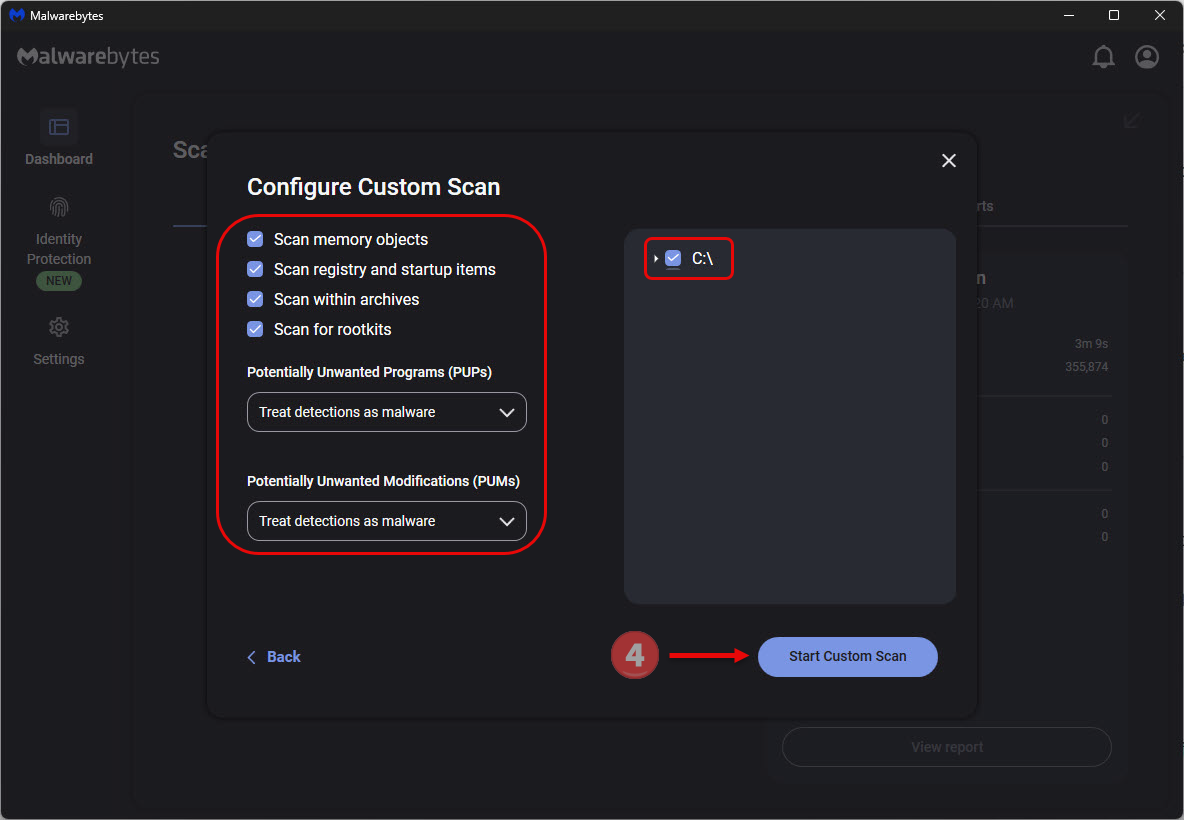
Choose Start Custom Scan and let it finish. The locations and options you selected determine what is examined; a wider selection can take longer.
The current Custom Scan instructions cover this path. If the controls are missing, ask for assistance instead of purchasing a different scan to continue.
Step 4: Review detections and quarantine threats
Read the completed scan results, including each detected name and location. A detection does not, by itself, establish which recruiter, page, or download caused it.
If detected items still need action, select the threats and click Quarantine. Some settings quarantine automatically; check the recorded result instead of assuming everything is still active.
Open Detection History > Quarantined items to review quarantined files. Do not restore or exclude something merely because the recruiter called it a necessary camera component.
If you believe a detection is wrong, preserve its details and ask for help before restoring it. Avoid permanently deleting quarantined items while an investigation needs them.
For the precise controls, see Malwarebytes’ quarantine guidance. Do not reopen the interview command as a cleanup test.
Step 5: Restart when requested, then check the report
Save open work first. If Malwarebytes requests a restart to finish removal, accept the restart and allow Windows to return to the desktop.

Reopen Malwarebytes and check whether its report lists an unresolved detection or another required action. Restarting alone does not prove that every problem has been removed.
To save the findings, open Scanner > Reports, hover over the relevant scan, and select the eye icon. Check the summary and details.
Use Export > Export to TXT to keep a copy. The official report instructions explain viewing and exporting results.
Step 6: Get help if cleanup does not hold
Keep the scan report and any unresolved detection names. A clean result does not prove that no information was copied before the scan.
If detections return, cleanup fails, or remote access remains unexplained, stop sensitive activity and ask for MalwareTips Windows removal help.
Do not reset every browser or delete system files without an identified reason. A persistent compromise may need a professionally planned rebuild.
Account Protection Is Separate From Removing Malware
Review access, not just passwords
An information-stealing infection can put saved credentials or session data at risk. A scan finding nothing cannot tell you that no information left the computer earlier.
Check recent sign-ins, forwarding rules, recovery addresses, and unfamiliar connected applications. Report unexpected changes through each service’s genuine support channel.
For Microsoft accounts, Sign out everywhere is available in additional security options. Microsoft says completion can take up to 24 hours and excludes Xbox consoles.
Handle a possible wallet-secret exposure differently
If a recovery phrase or private key was stored on an affected computer, changing an exchange password does not make that secret safe again.
Use a clean device and your wallet provider’s genuine guidance to assess moving assets to a newly secured wallet. Never type the old phrase into a recovery website.
Do not claim a wallet was drained merely because the computer was exposed. Check actual transactions, preserve their identifiers, and get qualified help if assets moved.
Frequently Asked Questions
Is the Meetclave interview camera fix safe to run?
No. Do not run the fix delivered through this reported interview lure. Verify the employer independently and use trusted support for a genuine device problem.
Am I infected if I only opened the Meetclave link?
Not necessarily. The documented mechanism depends on executing supplied instructions. Consider separately whether you downloaded a file, entered credentials, installed anything, or approved another request.
What if I copied the command but never pressed Enter?
Copying alone is not the same as execution. Close any command window without submitting the text, overwrite the clipboard, and remove the suspicious clipboard-history entry if present.
Does a Telegram interview invitation always mean fraud?
No. The decisive issue here is an unverified invitation demanding a Windows command as a camera repair. Assess the request and verify the recruiter, not just the app.
Can Malwarebytes recover passwords or information already stolen?
No. Malware removal addresses detected software. It does not recall copied information, reverse transactions, or automatically revoke stolen account sessions. Complete the separate account-protection steps.
Should I reset Windows immediately after running the fix?
Not automatically. Preserve relevant evidence first and contact IT for a managed device. Persistent compromise may require a professionally planned rebuild, not an improvised reset.
The Bottom Line
Do not run a Meetclave interview fix supplied by an unverified recruiter. The documented lure turns a plausible camera problem into a request to execute malware.
If you already ran it, stop using that computer for sensitive accounts, contain the exposure, and arrange cleanup. Secure accounts separately from a trusted device.
A missed interview can be rescheduled. You do not need to give an unfamiliar meeting page control of your computer to prove you deserve the job.

Join the discussion
0 commentsShare your experience or ask a question about this article.
Discussion
Start the conversation
Have a question or something useful to share? Add the first comment.