


An email from Meta says another business wants to partner with yours. If you run a Facebook Page or buy ads, that may sound like an ordinary Tuesday.
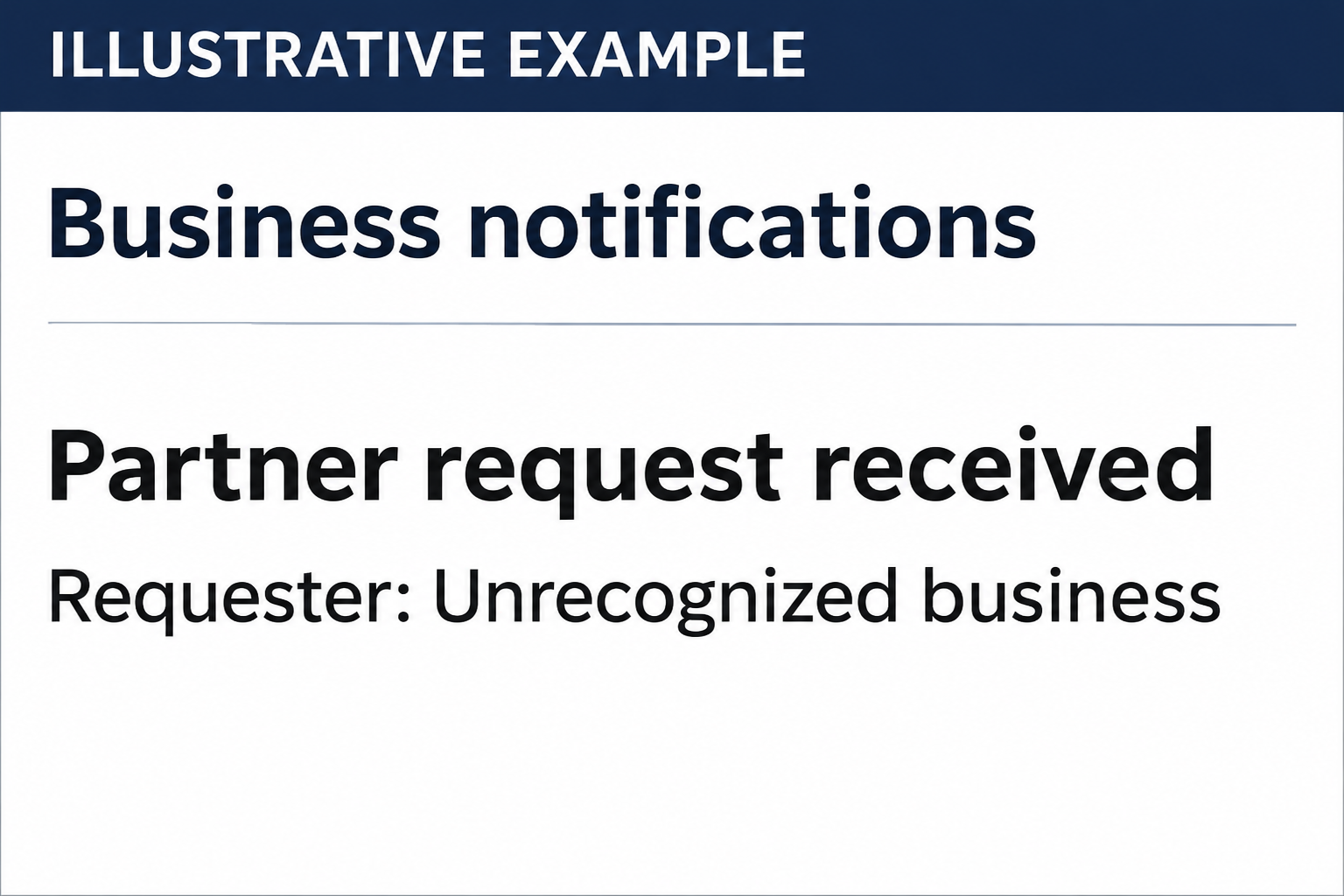
Then you read the requester’s name. Instead of naming an agency you know, it starts telling you what to do next.
Overview
Meta can send the email without endorsing the request
The Meta Business Manager partner request scam starts with a genuine notification. Meta sends it when another business asks for access. Meta isn’t the one asking.
Security researchers at CyberHUB-AM received three such requests in a single day. The email checks they ran showed the messages really came through Facebook’s mail systems.
That makes a familiar rule incomplete. Checking the sender helps identify a forged email. It doesn’t show whether the person asking for access actually works with you.
This is not a warning against every Meta notification.
If you hired an agency and expected a request, you may see similar wording. The relationship should already exist outside the inbox.
The odd wording is part of the request, not a Meta promise
In the reported examples, the requester was presented as a partner program or a source of benefits. Some notices pointed readers toward a chat separate from the ordinary review screen.
The strange part wasn’t a spelling mistake or a broken logo.
It was the way a name in the notification read like a direction, an endorsement, or a reason to hurry.
Meta provides the email template. Information about the requesting business can appear within it. A sentence that looks reassuring at a glance may contain claims that Meta did not make.
If the name reads like a whole sales pitch rather than the name of an agency, stop. You don’t need to ask the requester to explain its own claims.
Opening the request, approving access and sharing a password are different
- Read the email: Receiving a request doesn’t give the sender access to your Page or ad account.
- Viewed a request: Looking at a pending request in Meta Business Suite isn’t the same as granting it.
- Granted access: Review the business and the specific assets and permissions you shared. Don’t assume a password change removes a partner.
- Shared a password or code: Treat it as a potential account compromise, even if you never approved a partner request.
- Found an unfamiliar ad: Document it and deal with the billing issue alongside the account review, not after it.
If you’re reading this because you already clicked, work out which of these happened.
An accurate account of what you did is more useful than saying you fell for an email.
How the Meta Business Manager Partner Request Scam Works
Step 1: The notification arrives in a familiar workflow
Business owners already receive requests from agencies, contractors, and colleagues. The email can arrive beside campaign receipts and ordinary business alerts, where the usual design doesn’t stand out.
It asks you to review a business relationship, which sounds less dramatic than a locked account. That makes it easy to put on your list of things to handle.
If you manage several Pages, pause long enough to identify the business portfolio the message is about. The right logo doesn’t tell you which business, if any, expected the request.
Step 2: The requester makes an unrelated offer sound official
The surprise might be an alleged invitation to a partner program, a credit, or another benefit that sounds useful if you already buy ads.
Read the requester’s name as information supplied by a third party. The name doesn’t prove Meta approved a discount, recommended an agency, or made a new security requirement.
Don’t judge a promotion by the amount it promises. First ask who approached you, why they need access to your business, and whether your team actually asked for it.
Step 3: The request asks you to trust a new conversation
In some reports, the requester asked the recipient to continue in Messenger. The conversation may look familiar and still have nothing to do with Meta’s support team.
The normal review controls aren’t a reason to follow an unrelated instruction. Opening Business Suite yourself lets you see the request without using the route the requester suggested.
If an agency says someone on your team arranged the partnership, contact that colleague directly. Ask them to confirm the agency and what access, if any, was agreed.
Step 4: The conversation asks for access or account information
A scammer may describe an account permission as a routine verification.
Another may ask you to sign in somewhere or read out a one-time code to confirm you own the business.
Those are different requests with different consequences. An invitation can give another business permissions. A stolen sign-in can give somebody access as the person whose account was taken.
Neither action is needed to prove you’re interested in an unsolicited offer. Don’t give a partner control of an ad account to find out whether a discount is real.
Step 5: Any damage depends on what was granted or disclosed
The first email isn’t a receipt for a takeover. Researchers documented attempts to mislead recipients, not evidence that everyone who received one lost a Page or money.
If you granted permission, identify which assets and tasks it covered. If you disclosed a credential, review the activity of your personal profile and any business accounts it can access.
In either case, an unauthorized ad charge is worth prompt attention. The account might contain draft ads, active campaigns, or payment activity that wasn’t visible when you first checked.
What a Real Agency Request Should Look Like
A genuine relationship starts before the notification. You know whom you’re hiring, who introduced them, and which business or Page they need to work on.
Meta’s documentation distinguishes the business requesting access from the assets and tasks an owner approves. The permission isn’t automatically a transfer of the whole portfolio.
For example, an agency preparing a campaign may need access to one ad account. That doesn’t explain a request for a different Page your company manages for another brand.
Verify the business through a contact from a signed agreement or an established email thread. Ask them to confirm the business identity and the assets they expect to work on.
Separate the request from the pitch.
A partner can describe a service in a meeting or proposal without asking you to approve access while you’re still deciding whether to hire them.
Check who on your side is allowed to approve it. A contractor who drafts posts and an owner who controls billing need different responsibilities.
Make sure the right person is in the right portfolio before they decide. A business with several clients can have Pages with similar names and very different owners.
Write down which assets were shared and why. When a project ends, the same note helps you review which access to remove without disrupting another supplier’s work.
Don’t agree to a permission you can’t explain. Ask what the person needs to do, give them only what the work requires, and leave other assets untouched.
How to Review a Request Without Interrupting Real Work
Start with the business owner, not the person named in the notification. Ask whether the work exists, which accounts it involves, and who was assigned to approve it.
In a small business, that may be a single conversation with the person paying the invoices. In an agency, the client may need to approve access from its own portfolio.
Look at the request from the business’s side. If it doesn’t appear in the portfolio you expected, don’t go back to the email and look for another way in.
It’s possible that somebody sent a genuine request to the wrong place. Ask the known partner to confirm the destination through your usual channel, then review the corrected request separately.
When a request is real, think about what the other business will do tomorrow. Publishing a scheduled post, creating an ad and changing billing aren’t interchangeable tasks.
Review the list of affected assets before you approve. A request that mentions one Facebook Page in conversation may still include an ad account or another asset you didn’t discuss.
When somebody on your team is new, give them a clear route for suspicious notifications. They should be able to ask for help without feeling they’re delaying a client’s launch.
If the request claims to come from Meta support, ask yourself what existing case it belongs to. Open that case through the support channel you used to start it.
Teams that share an inbox should agree who owns the follow-up. One person checking permissions is more useful than three people clicking the same message to see what happens.
Don’t block all notices from a legitimate sender just to make the reminders stop. Your inbox may also receive useful alerts about real changes. Report the suspicious messages individually.
Take a second look when the sender tries to change the subject. A request to discuss an ad credit shouldn’t turn into an unexplained request to manage your Page.
A clean request can wait while you verify it. If the supposed partner won’t let you consult a colleague or contact the agency through a known number, don’t approve it.
If you declined an invitation and the requester tries another channel, don’t treat the follow-up as a new endorsement.
Keep the record together so your team can recognize the same approach.
A notice can really come from Meta without making the requester trustworthy. Base your decision on who asked and why, not who delivered their message.
What to Do If You Have Fallen Victim
- Stop dealing with the requester. Don’t follow its chat directions or approve anything else. Open Meta Business Suite independently and select the affected business.
- Record what happened. Save the original email, request details and timestamps. Keep screenshots private if they include business identifiers or payment details.
- Decline unexpected requests you haven’t approved. Confirm with your team first if a legitimate agency might be involved. Don’t use the suspicious requester’s contact details.
- Review and remove unauthorized partner access. Check the Partners area and the affected assets. Have another authorized owner help if you can’t view or change access yourself.
- Secure the personal account if you shared a secret. Change its password from a trusted device, review active sessions and recovery options, and enable two-factor authentication.
- Review people, permissions and billing. Check unfamiliar access, new campaigns, unexpected spending and payment changes. Preserve relevant transaction records before you make changes.
- Contact Meta through your account. Use its support options or its account recovery page if your personal Facebook account was taken over.
- Report unauthorized charges separately. Alert the card issuer through a verified contact. Describe the activity and ask what it needs to investigate or dispute the charge.
For a team, give one person responsibility for the incident record. Others can check the ad accounts they manage and send details without circulating the suspect message again.
If you removed an unfamiliar partner but still see changes, review individual users too. Removing a partner and signing out a compromised user solve different problems.
When you report the case, be specific. Say whether you viewed a pending invitation, approved access to an asset, entered a password, or saw a charge.
Don’t wait for visible damage to review access. A partner request can affect a Page you rarely open. Check that Page’s permissions rather than relying on your personal feed.
Once the account is stable, tell the person who normally approves agency access what appeared in the email. A short description is enough; don’t resend a questionable link.
If business access is missing altogether, document the affected Page or ad account and which other administrators can still see it.
That helps distinguish a permission change from a login problem.
Frequently Asked Questions
Can a genuine Meta email contain a scam request?
Yes. Meta can send a real notification about a request from somebody unaffiliated with it. The email’s origin doesn’t establish that the requesting business should have your permission.
Does viewing a partner request give the sender access?
No. Viewing the request inside the real Business Suite isn’t approval. Check the request’s status and partner permissions if you’re unsure what you clicked.
How can I check an agency without using the email?
Ask the colleague who hired the agency, or contact the agency through a number or email already on file. Confirm its business identity and exact access needs.
Will a password reset remove an unknown partner?
Don’t assume it will. Review the business portfolio and its assets separately. Remove unauthorized business access and secure the personal login if both were exposed.
Does using Messenger prove the conversation is with Meta?
No. It proves the conversation is taking place on a Meta service. Use support you reached yourself if somebody there asks for access or account details.
Should I delete every partner request as spam?
Not necessarily. A business you already know may need legitimate access. Verify it independently and review the named assets rather than deciding based on the email subject.
The Bottom Line
Don’t approve an unexpected Meta Business Manager partner request or follow a pitch in the requester’s name. Open Business Suite yourself and verify the relationship outside the email.
If you already approved it, review and remove unauthorized access. If you also shared a password or see unexpected charges, secure the login and report the spending separately.

Join the discussion
0 commentsShare your experience or ask a question about this article.
Discussion
Start the conversation
Have a question or something useful to share? Add the first comment.