


A claim notice arrives with a familiar name and an update about reimbursement. If you’ve just paid a dental or health bill, it’s an email you want to open.
Before following it, remember which account you used to submit the claim. That detail matters more than how closely the message resembles an ordinary benefit notice.
Overview
A claim update sounds right when you’re waiting for money
The my-benefits claim statement email scam says an Explanation of Benefits or Claim Estimate is ready. It promises reimbursement within two to three business days.
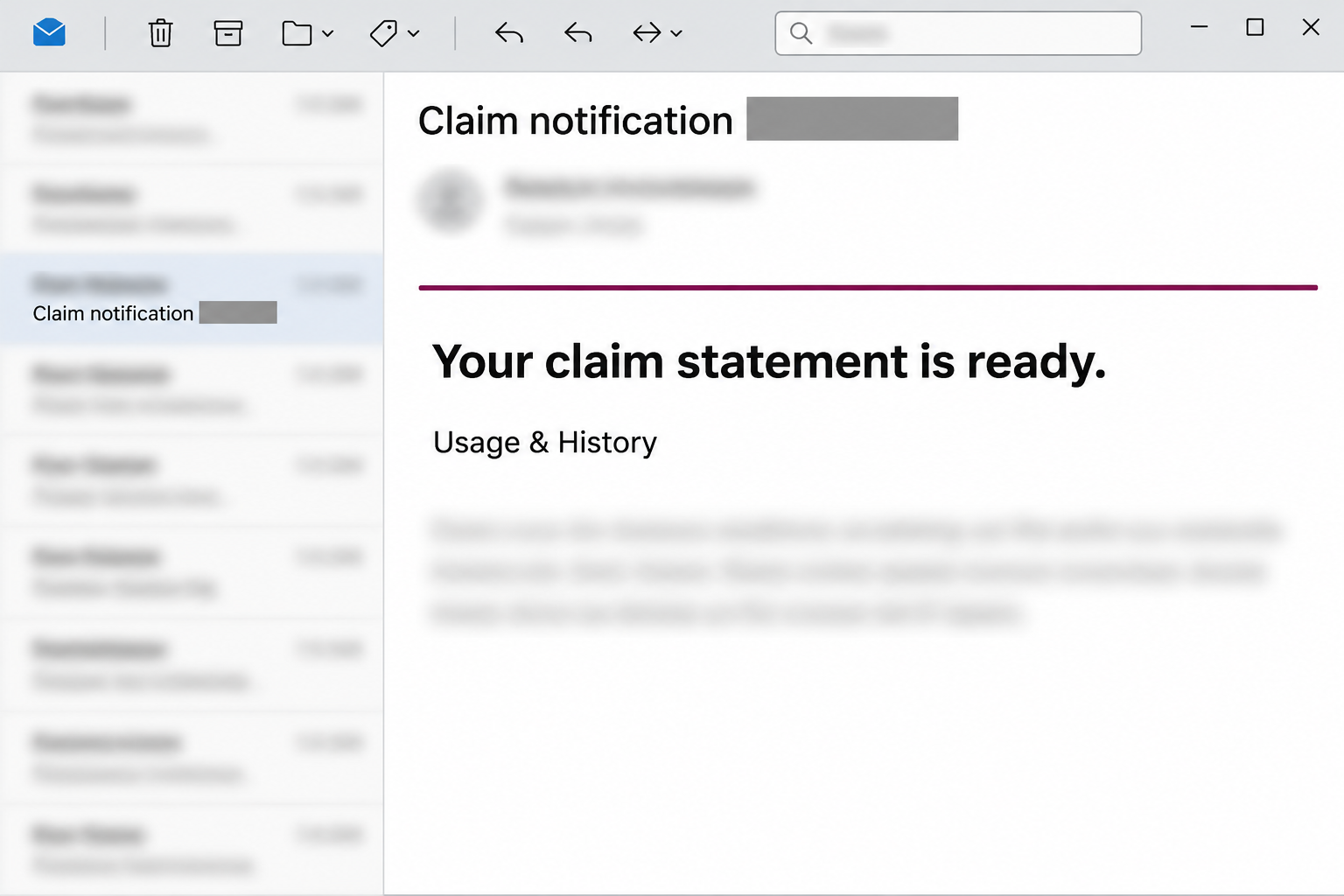
The documented subject begins with “Claim notification” and ends with a .pdf label. That makes the email look like routine correspondence carrying a statement for the recipient.
The email uses the my-benefits name and mentions a Usage & History area. The image recreates those visible clues without including a real claim or the recipient’s personal information.
Nothing in the message establishes that a particular bill was reviewed. If you’re waiting for a refund, there’s a straightforward way to check the claim without the email.
The benefits link opens a fake mailbox sign-in
The message offers a “View your benefit claim” button. In the documented example, it leads to a page that imitates a Google sign-in screen rather than the benefits portal.
The page says the Gmail session has expired and asks for an email password. That request shifts the task from reading a statement to giving away access to a mailbox.
The reported sample shows that fake form, not a verified PDF file or installer. The .pdf lettering in the subject does not establish that there was an attachment.
The warning is about the imitation, not Johnston Group’s genuine service. A real benefits account can have a statement waiting even if an unrelated email about one is fraudulent.
The real records are available without the email button
Johnston Group’s my-benefits page explains that plan members can submit claims and look up their claim history and usage through the actual service.
Start with the portal or app you already use. If your employer provides the benefit and you aren’t sure where to sign in, ask your existing plan administrator.
Look for details that connect the notice to your own claim:
- The type of claim and the date you actually submitted it.
- A matching status in the claim history you reached independently.
- Any statement or explanation available when you open that claim there.
- The reimbursement entry in the destination account, if the plan says payment was issued.
- A verified contact for questions about a delay, estimate, or missing document.
Why This Message Fits Into an Ordinary Benefits Routine
Think about the days after submitting an expense. A notice that says the statement is ready sounds like confirmation that the waiting is nearly over.
The wording borrows two different stages of a benefits process. A claim estimate describes expected coverage, while an explanation of benefits can help explain how a claim was handled.
If you’re waiting for both records, a vague notice can seem to fit either. Check the claim itself to find out what’s actually available.
The reimbursement window is also easy to accept without checking. Two or three business days sounds like an ordinary processing interval, not a threat.
A promise to send money can still create pressure. You may hurry to see the amount or check the deposit without asking why the next page is about Gmail.
If you’ve never made a claim under that plan, don’t try to establish whether one exists by entering a password. Check with the person who actually administers your benefits.
How the My-Benefits Claim Statement Scam Works
Step 1: The subject makes the message look like a document
The .pdf ending appears in the subject, not as proof of downloaded statement contents. It can blend into a routine search for receipts, insurance notices, and claim records.
The title also suggests the claim belongs to the reader. Knowing an address or mentioning it in a subject line doesn’t show the sender has accessed the benefits system.
If you’re reviewing claims for someone you support, avoid assuming the email concerns them. Use the service account you are authorized to use and look for the matching claim there.
Step 2: The body borrows the vocabulary of a real service
The notice mentions the Usage & History area and gives a plausible timeframe for reimbursement. Both details make the next click feel like ordinary account administration.
The detail about viewing claims on a mobile device fits the same story. Johnston Group does have a member app, but a reference to that app doesn’t authorize the email.
The sender doesn’t have to invent a new process. A recognizable part of the real process can give a false notice enough context to feel routine.
Step 3: The benefit button takes the reader outside that workflow
A statement normally makes sense in the account used to make the claim. Here, the prominent benefit link goes to a counterfeit mail sign-in on a different site.
The portion of the page behind the prompt looked like a login screen too. A reader could mistake the foreground message for a genuine reauthentication layer.
If you weren’t trying to read mail, ask why your supposed benefits statement needs your email session. A password request doesn’t explain where the claim record is.
Step 4: The page makes password entry look like a minor interruption
“Gmail Session Expired!” sounds like a routine interruption. It invites the reader to reenter the password so they can get back to the claim.
The page isn’t fixing Gmail or retrieving a claim. It’s asking for an email credential while the claimed statement remains out of view.
If you saw the form and stopped, you did not have to finish a sign-in for the benefits question. Close the page and start from your plan’s usual route.
Step 5: Mailbox access can expose more than this claim
If an attacker gets into your mailbox, they may find receipts, account recovery emails, or correspondence with your employer. The data at risk depends on what the account actually contains.
That doesn’t mean the attacker reached Johnston Group or made a claim in your name. A mailbox takeover and changes to a benefits account require separate checks.
Someone with mailbox access may cite an actual conversation to make a follow-up believable. Independently check any new requests to send documents or change bank details.
How to Verify the Claim or Deposit Without the Message
Match the claim to something you submitted
Open your known portal and find the claim by date or expense type. If an explanation is available there, compare it with your receipt and the coverage you expected.
A claim shown as received or processed isn’t the same thing as a credit you can see in your bank account. Check each record where it really belongs.
If the statement only explains a portion of a bill, don’t assume the difference is a fee you need to pay to unlock reimbursement. Ask the plan to explain it.
When you are helping a family member, let the authorized plan member retrieve their own statement or use the plan’s proper access arrangement. Don’t ask them to send passwords.
Send claim questions only to a verified plan contact
If your employer enrolled you, its benefits or HR contact can tell you who administers coverage. A contact from your membership records is another starting point.
Tell them what you were expecting, such as a reimbursement for an already submitted expense. Avoid sending treatment information or a full receipt until you know where it belongs.
Ask whether the claim requires more documentation, whether a statement has been issued, and whether payment was sent. These are three different questions that an inbox notice can blur together.
If the portal and your bank show different information, keep both references. The plan or bank can check the appropriate record without asking you to use the email’s link.
What to Do if You Have Fallen Victim to This Scam
-
Use the phishing report if you only received the notice. In a work mailbox, follow the organization’s process so it can look for other copies.
If you have a genuine claim pending, verify it separately. Reporting the suspicious email doesn’t cancel a claim you actually submitted.
-
Close the page if the benefit button took you there. A page visit alone doesn’t confirm a login or a change to your plan.
Note whether any field was filled or whether you accepted another prompt. Don’t return to the imitation to see what the last step was.
-
Secure the mailbox if you entered the password. For a personal Google Account, see Google’s compromised account guidance.
For a managed account, contact your administrator as soon as possible. A password change, session review, and protection of recovery options may all matter.
-
Look for changes that would affect future messages. Check for forwarding rules, unfamiliar devices, new app permissions, and replies you don’t recognize.
If you reused that password on the benefits service or anywhere else, replace it there too. Use a distinct password for each account.
-
Contact the plan if you disclosed claim or payment information. Explain precisely whether you gave a member identifier, a receipt, login details, or banking information.
Ask them to review recent claims or changes to the destination for reimbursements. If bank details or payments are involved, contact your financial institution through its official route.
-
Preserve enough information to explain what happened. Save the subject, time, and the kind of information entered or the type of prompt accepted.
Don’t share your treatment records in a public forum. Redact anything unnecessary if you need to show a colleague or report a copy to support.
What to Check When a Workplace Mailbox Was Involved
Find out which account was actually at risk
Some employers use a single work address for benefits correspondence, payroll notices, and routine access. If that password was entered, the administrator needs to know which account it belongs to.
A personal mailbox may also hold plan mail if that’s the address you registered. If so, a workplace administrator cannot fix it on your behalf without the provider’s recovery process.
You can explain the incident without naming your medical condition or treatment. For the first report, identify the affected mailbox, when you supplied the password, and what the page showed.
Use the right evidence for each follow-up
If you see a new email about a claim, check the plan portal first. An intruder who read older messages might know enough to refer to a genuine claim.
If a message announces that the reimbursement destination changed, verify the change with the plan administrator through a known route. Don’t reply with the real bank details.
Use the workplace’s designated reporting channel if asked to forward the note. The original may reveal a member identifier that doesn’t belong on a general employee list.
A statement in the real portal can still raise a coverage question. Handle it with the plan separately so the expense isn’t neglected during the fraud response.
Use the bank to check the deposit, the plan to check the claim, and the email provider to check the mailbox. Each can verify its own part of the story.
If you’re helping a relative check the notice, let them enter their own credentials in the real portal. You don’t need to keep their password or claim history.
If the person who received the email is on a different plan, share that detail with the administrator. Avoid guessing that the sender knew anything about their coverage.
If your email address changed recently, check the address held in your plan profile. Update it through the plan if necessary, not by replying to the suspicious notice.
Frequently Asked Questions
Is Johnston Group’s my-benefits portal a scam?
Johnston Group runs the genuine my-benefits service. This warning concerns an email that borrows its name and routes the recipient to a fake mailbox sign-in.
Is “Your claim statement is ready” always phishing?
That wording by itself doesn’t settle the question. Check the matching claim through your established portal instead of asking the message to prove itself.
Is the .pdf in the subject a file?
No, lettering in a subject is not an attachment. The documented benefit button opened a counterfeit sign-in rather than providing a claim statement.
Why would a benefits notice ask for a Gmail password?
In this example it was an impersonation designed to capture mailbox credentials. You don’t need that page to check your actual benefits account.
What if the reimbursement arrived while I was investigating?
A real reimbursement can arrive independently of the scam message. Match it to the claim in your benefits account, and leave the suspicious link alone.
Should I tell my employer that my claim details were stolen?
Share what you actually disclosed or what changed in the account. The email alone doesn’t show that private claims were accessed or that the administrator’s systems were breached.
The Bottom Line
Don’t open your claim through the my-benefits email button. The reported route asks for a mailbox password on a lookalike page, not through Johnston Group’s benefits service.
Check any genuine claim in your existing portal or through your plan administrator. If you entered a password, secure the email account before trusting new messages about reimbursements.

Join the discussion
0 commentsShare your experience or ask a question about this article.
Community experiences
Did this happen to you?
Your experience could help someone recognize the same scam. Submit a private report for our team to review.
I experienced this tooReports are reviewed before publication. Sharing publicly is always your choice.
Discussion
Start the conversation
Have a question or something useful to share? Add the first comment.