


A message asks you to confirm the email address for a WordPress site. It sounds like the kind of housekeeping someone might send after an update.
If you help maintain the site, you may even recognize the address it mentions. Before doing anything, separate the site setting from the account where you read your mail.
Overview
The message borrows a real maintenance task
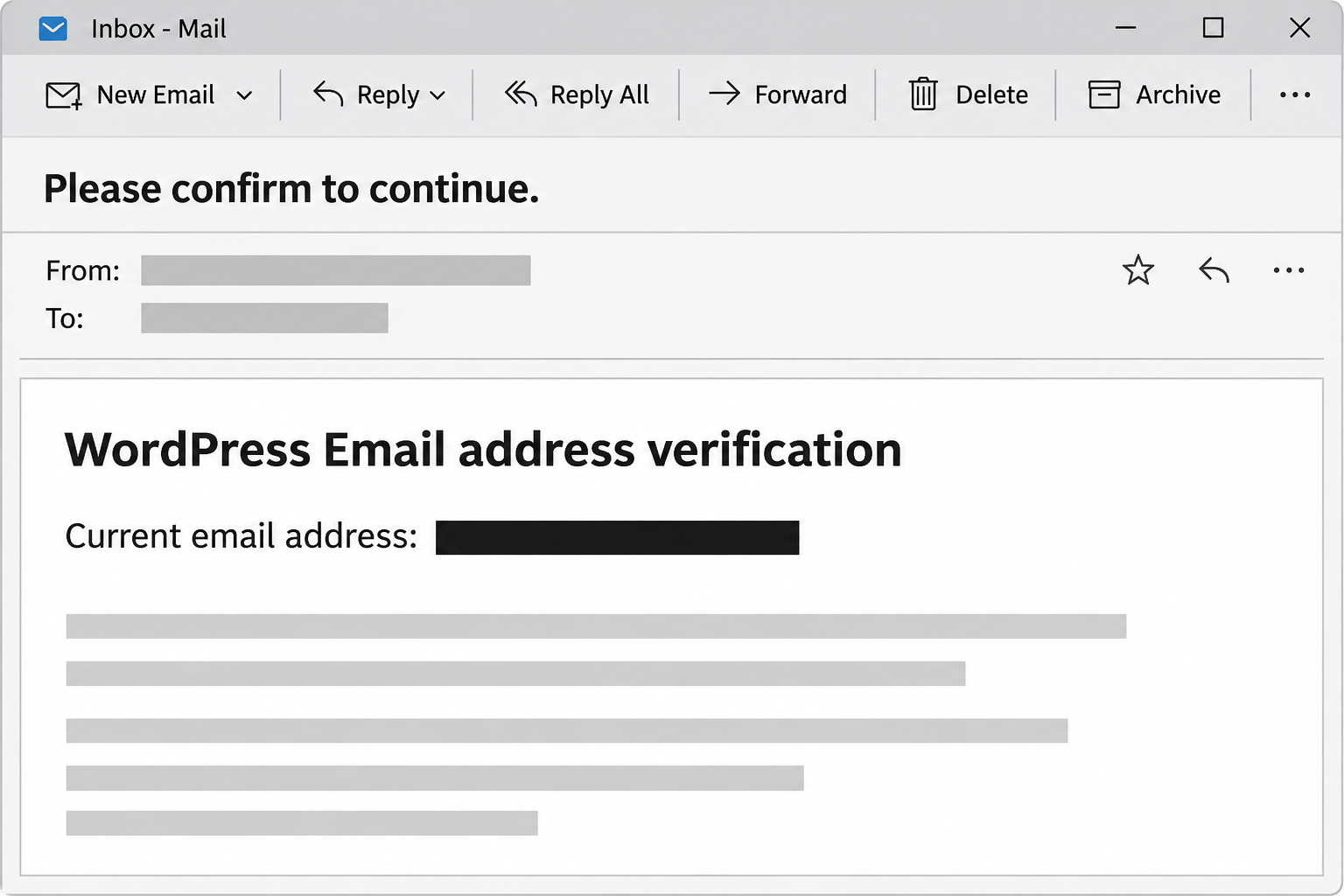
The WordPress email address verification scam asks recipients to confirm the administration email for a website. One documented message used a subject ending in “Please confirm to continue.”
The email names a site and shows its alleged current email address. It notes that the address may differ from the recipient’s personal one.
That’s a real distinction in WordPress. The administration address for the entire site does not have to be the same as the address tied to an individual user profile.
The image recreates the maintenance wording and masks the identifying details. It does not depict a verified WordPress message or a screen from the site’s real dashboard.
The confirmation link asks for a mailbox password
The reported “Confirm email” link opened a counterfeit webmail screen. The page borrowed cPanel-style branding and displayed an address field next to a request for a password.
That’s not the same as verifying whether a WordPress setting is correct. The page asks you to unlock a different account, your email, rather than showing a site administration decision.
The fake form was hosted separately from the site it claimed to represent. A recognizable webmail logo, or a well-known hosting service in the browser address, doesn’t authenticate its operator.
A second version changed the heading and used “Verify Email” instead. The change in button text did not make the request any more trustworthy.
Two legitimate WordPress processes can be confused with the scam
WordPress core documents an administrator verification screen displayed after admin sign-in. You can confirm the displayed address or go to settings to update it.
A site can also send a real confirmation email when an authorized administrator changes the site’s administration address. That is a different event from the periodic dashboard check.
To verify an unexpected notice, keep the relevant accounts and actions straight:
- Use the admin address you already know for the exact site named in the message.
- Compare the current site’s Administration Email Address with your team’s records.
- Look for a pending address change only if someone actually requested one.
- Keep a website administrator’s individual user profile separate from the site-wide email setting.
- Never enter a mailbox password on a page an unexpected WordPress notice opened.
Which WordPress Email Address Is the Message Talking About?
A site-wide address receives operational notices
The address under Settings and General is a destination for administrative email. It can receive information about updates, errors, or other events relevant to the people running the site.
That can be a shared operations mailbox even if each administrator signs in as a separate user. One person can recognize the shared address without controlling that mailbox’s password.
The WordPress settings documentation distinguishes it from a user profile address. Changing the site-level setting doesn’t change what address an individual account uses to sign in.
It’s also not the same as an address in a contact form. A support address customers see might differ from the one the site uses to send operational notices.
A request to change the address has its own record
If your team just requested a replacement, the settings page can show the new address as pending. The existing address remains active until the new one is confirmed.
Ask the administrator who initiated the change to verify the request. If nobody did, don’t make the emailed instruction your reason for changing a working configuration.
An agency handover is a good example. The client and agency may both know the current contact address, but somebody should still be able to identify the actual change request.
If this seems to come from a plugin or hosted service, check that service directly. Those workflows can be different from the core WordPress check.
How the WordPress Email Address Verification Scam Works
Step 1: The email treats a familiar setting as unfinished business
The message mentions a real site or an address connected to it. That personalization can make a routine reminder look like something generated inside the site’s dashboard.
An address may be on a public contact page or in a past message. Knowing it doesn’t show the sender controls the site, even when the address is correct.
For people responsible for many websites, “Please confirm to continue” can sound like a small task someone forgot. Check the specific site before accepting that premise.
Step 2: The button is framed as confirmation rather than sign-in
The email asks whether an address is still suitable for administration. It doesn’t tell the reader to check who owns the page that will handle the answer.
A confirmation label can hide a change in destination. If the email concerns a WordPress setting, your known administration interface is where to look.
A look at the email’s formatting isn’t enough to resolve the question. Real messages can be plain, and deceptive ones can use familiar colors and careful spacing.
Step 3: The destination changes from the website to a counterfeit inbox
The documented page appeared to be webmail and asked the visitor to sign in. It did not display the site administration setting that the subject promised to verify.
A hosting control panel and a hosted mailbox may both use familiar logos. Those names tell you what the page is imitating, not who has access to information you enter.
If your host also provides mail, this switch may feel natural. Compare the prompt with the sign-in address your provider gave you before the email arrived.
Step 4: The requested password gives access to more than one setting
A mailbox may contain billing records and password resets for several sites. Access to it offers far more than an answer about one site’s settings.
If someone reads an operator’s inbox, they may learn who controls domains or which other services use that address for account recovery. They may not have to touch WordPress immediately.
That is a possible consequence of credential exposure, not evidence that the website in the email was already compromised. Check the mailbox and the site as separate systems.
Step 5: A successful-looking screen cannot prove the requested task occurred
A counterfeit page can display an error or move away without updating any WordPress setting. The visible result is not a record from your own administration screen.
If the page went blank after you entered a password, don’t go back to see why. Treat that credential as exposed and secure your actual account.
Use an authorized site administrator to verify whether anything changed on the site. That question requires site records, not another visit to the page that asked for your mailbox password.
How to Check an Unexpected Notice Across Several Sites
If you manage similar domains, start with the exact one named. Even if a staging copy can generate real notices, verify where the message actually came from.
Take note of whether you’re signed into the expected environment before looking at settings. The same dashboard layout can turn up on a test site, a client site, or production.
An address change made by the wrong person can break notifications and make later recovery harder. Don’t update the setting until the right owner confirms where messages should go.
If an old developer’s address still appears, record it as a maintenance issue. Verify who should receive notices and who can authorize the change.
For a team handover, document your agreed route for future email changes. A private ticket recording the request and the actor is easier to verify than a forwarded screenshot.
Keep the old and new mailbox identifiers in the support record only where needed. There’s no reason to publish them in a public thread about the phishing message.
What to Do if You Have Fallen Victim to This Scam
-
If you did not use the link, report the email. Alert whoever administers the named site through a known support channel if it belongs to your organization.
A colleague can check the settings without touching the suspect page. Forward the original only through an approved reporting path, especially if it contains client addresses.
-
Leave the counterfeit page if you reached it. Write down what the page asked for and when it appeared, without reopening it to collect more details.
Merely seeing a form doesn’t tell you the website was accessed. If you downloaded something or approved an unexpected prompt, report that distinct action instead of assuming what happened.
-
Change the mailbox password if you entered it. Use the provider’s usual sign-in page and a trusted device, then ask how to revoke other sessions.
Check outward-facing effects such as forwarding, unfamiliar mailbox rules, and messages sent as you. If the mailbox belongs to a client or team, coordinate through its administrator.
-
Protect WordPress accounts that depended on the exposed mailbox. Start with administrators who use it for resets or whose credentials were also entered or reused.
Change reused passwords in the affected services. Have the administrator check for unusual users, recovery events, and pending changes to the site’s administration address.
-
Look for site changes only through the trusted administration route. Record unfamiliar accounts or settings before a qualified maintainer makes changes, especially if client data could be involved.
If you find unauthorized changes, work with your host and use WordPress’s compromised-site guidance. Don’t try a mass reset solely because the message named the site.
-
Check related hosting access if there are signs of misuse. Ask the responsible team to review a suspected hosting or domain compromise in its own account records.
If unrelated services use the same inbox to confirm changes, add the most important ones to the review. Escalate new billing, DNS, or access changes to their actual owners.
If the Mailbox Is Shared With an Agency or Client
Find out who controls the mailbox and who controls each affected site. In an agency arrangement those responsibilities may not sit with the same person.
A shared inbox can serve several customers. Don’t tell all of them their websites were hacked because one phishing message used a familiar address. First identify what was actually exposed.
Ask the mailbox owner when the exposure may have started. Site maintainers can then look for password resets, invitations, or administration notices from around that time.
Some hosting providers route website and email support through separate teams. Be clear whether you’re reporting a mailbox credential, an administrator password, or a change on the site.
If you don’t know who owns the domain, look in your internal account records or contracts. The email’s signature isn’t a safe way to assign responsibility.
If another admin confirms they initiated a real address change, resume it through the known site. Don’t reuse the suspicious message just because its timing happened to fit.
Use a verified channel for those requests. If you suspect forwarding or mailbox access was changed, email replies alone may not reach the intended person privately.
A missing notification is not always a sign of compromise. A site can have ordinary delivery trouble, so compare what its administration records show with the mail provider’s records.
Keep a simple list of the sites that used the shared inbox for recovery. Prioritize privileged users and existing account events rather than forcing changes on every unrelated site.
If you spot an unknown administrator, a recent reset, or an unexpected settings change, preserve the relevant record and involve the authorized owner. Avoid changing evidence before they see it.
Frequently Asked Questions
Does WordPress have a real admin email verification feature?
Yes, WordPress core has a periodic check for administrators after they sign in. That screen verifies the site address without asking for the mailbox’s password on another site.
Does WordPress ever send a confirmation email for the administration address?
Yes, a change requested through the real settings can require verification at the new address. Verify that the pending change exists and that an authorized person initiated it.
Why does the notice know my website?
A site name or contact address can be visible in public or available from prior correspondence. It doesn’t establish that whoever sent the email has your admin credentials.
Is a cPanel logo proof the host sent the page?
A logo can appear on a page without the host’s permission. Use your hosting provider’s established sign-in address, not a login reached through this notice.
Should I change the site’s administration email immediately?
Only change the setting for a verified operational or security reason. If there’s an unauthorized pending change or active mailbox compromise, coordinate with the site’s actual owner.
Does this email prove my WordPress files were changed?
The documented email shows a phony webmail prompt, not altered site files. If you have signs of a separate compromise, preserve them and ask your host to investigate.
The Bottom Line
Don’t confirm a WordPress administration email through this unsolicited notice. Check the setting or pending change inside the exact site you maintain, using a route you already trust.
If you entered a mailbox password, secure that account and review the sites or services that rely on it for recovery. Start with records, not assumptions about who was hacked.

Join the discussion
0 commentsShare your experience or ask a question about this article.
Community experiences
Did this happen to you?
Your experience could help someone recognize the same scam. Submit a private report for our team to review.
I experienced this tooReports are reviewed before publication. Sharing publicly is always your choice.
Discussion
Start the conversation
Have a question or something useful to share? Add the first comment.