

A prospective customer says its boss met your team at a trade booth and is ready to request a quotation. The email asks you to review order specifications, a presentation, and drawings before confirming quantities and delivery dates.
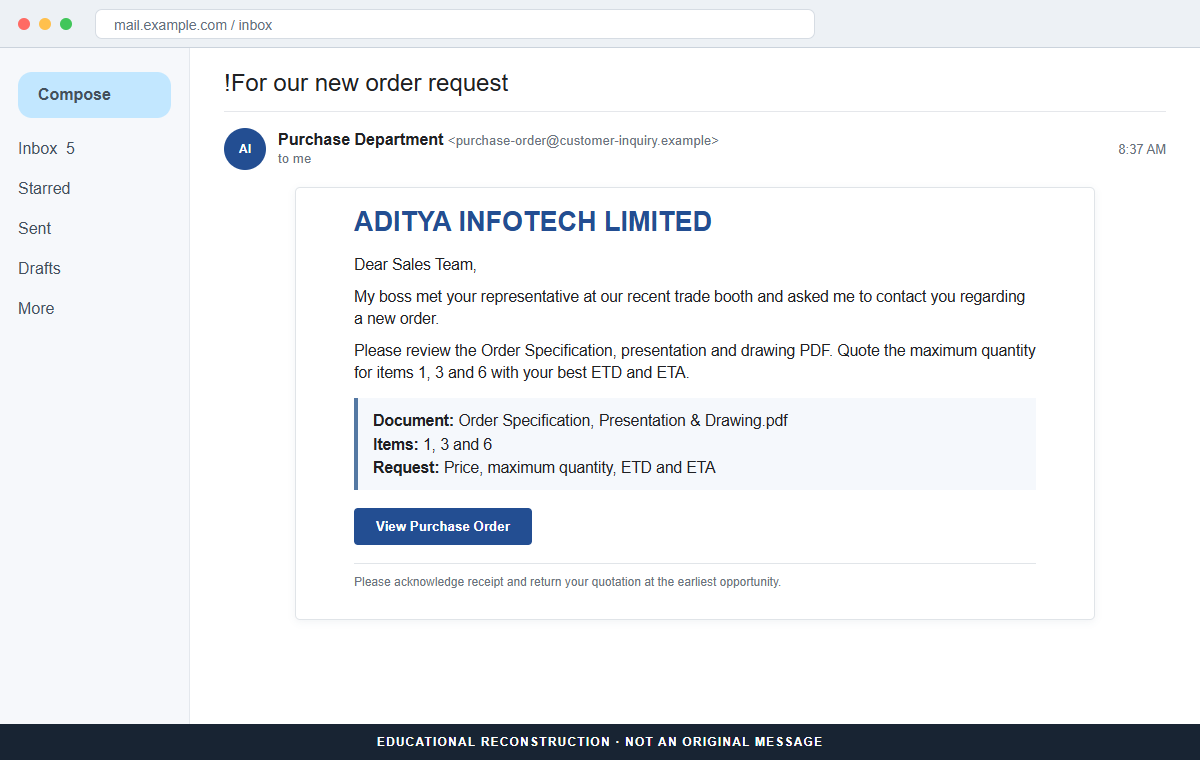
The Order Specification Presentation Drawing email scam uses that invented meeting to make an external document link feel expected. The link opens a Secure Login Portal that displays a blurred order file and asks for the recipient's email password.
The business opportunity is bait. A compromised sales or executive mailbox can expose real customers, pricing, drawings, contracts, and payment conversations that support much larger fraud.
Do not sign in through the document page. Verify the contact in your CRM or through the buyer's official website and open shared files only through a platform your company recognizes.
Overview
A supposed booth conversation creates instant familiarity
The subject may say !For our new order request, while the message claims the sender's boss discussed business with the recipient at a trade booth.
No event name, date, booth number, or employee from the recipient's team is identified.
That vague reference is useful because many suppliers attend exhibitions. The reader may assume a colleague handled the meeting and focus on preparing the quotation.
Technical documents make the inquiry look commercially valuable
The recipient is told to review an order specification, presentation, and drawing PDF. Items 1, 3, and 6 supposedly need maximum production quantities and the best ETD or ETA.
Specific item numbers and logistics terms create depth, but the actual specifications are hidden behind an external link. The email contains no traceable purchase-order or tender reference.
A blurred purchase order conceals a password-harvesting form
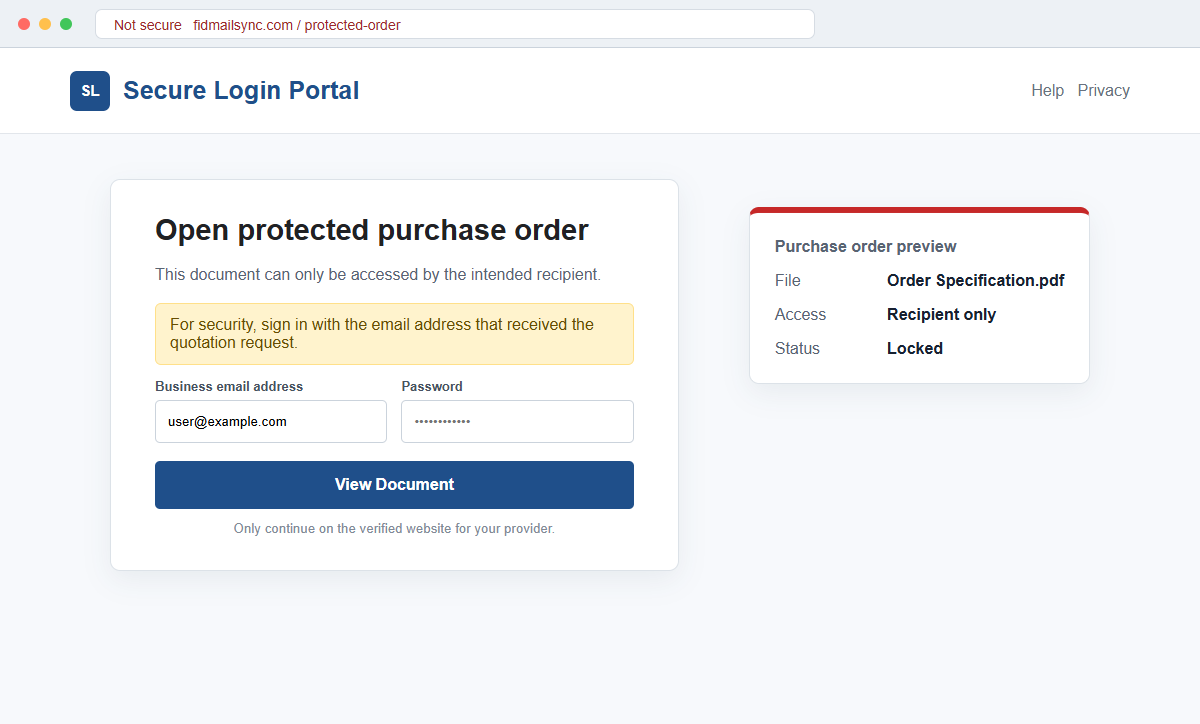
The link opens fidmailsync.com, where a page calls itself a Secure Login Portal and says only the recipient's email address can access the files. The email may already be filled into the form.
The page then asks for the mailbox password. That password is sent to the attacker, not to a verified customer or approved document-sharing service.
- The subject announces a new order request.
- A prior trade-booth discussion is claimed.
- The event, date, and booth are not identified.
- Order specifications, presentations, and drawings are supposedly uploaded.
- Items 1, 3, and 6 need production details.
- The recipient is asked for maximum quantity and ETD or ETA.
- The document link opens fidmailsync.com.
- A blurred purchase order sits behind the login form.
- The email address is prefilled to create familiarity.
- The mailbox password is required to view the files.
Why Sales and Quotation Teams Are Attractive Phishing Targets
A serious order can justify opening drawings, spreadsheets, specifications, and tender documents from new contacts. Scammers exploit the speed and curiosity built into normal sales work.
Trade shows create many brief conversations that are difficult to remember. Mentioning a booth lets the sender borrow a plausible shared history without providing facts that can be checked immediately.
The message also uses manufacturing shorthand. ETD, ETA, maximum quantity, item corrections, and drawings sound natural to staff who prepare quotations, even when the proposed buyer is unfamiliar.
A real customer should be able to identify the event, employee, products, legal buying entity, delivery country, commercial terms, and official procurement route. Vague familiarity is not enough.
Prefilling the email address on the portal makes the page appear connected to the invitation. The attacker can simply place the address in the link because it was already used to send the lure.
A work mailbox is valuable because it contains real quotation formats and customer relationships. Once criminals learn those details, they can send more precise payment-change or purchase-order fraud.
What the Secure Login Portal Is Designed to Capture
The landing page uses the words Secure Login Portal and places a blurred document behind the form. The blur implies valuable content exists while preventing the recipient from checking whether the file is genuine.
A message says only the intended email address can access the document. That exclusivity makes the password request feel like access control rather than credential theft.
The address may already be displayed, leaving only the password field. A one-field form reduces hesitation, but the secret still grants access to the real mailbox.
After submission, the page may show an error, request another password, or redirect to a genuine mail provider. None of those outcomes confirms that a document was ever stored there.
The attacker can search the account for customers, prices, drawings, bank details, invoices, and upcoming shipments. Forwarding rules can copy future business mail without disrupting daily access.
The genuine mailbox may then send revised quotations, fake document shares, or bank-change instructions. Colleagues and customers are more likely to trust the compromised address than the original unknown sender.
How the Order Specification Presentation Drawing Email Scam Works
Step 1: A supplier receives an unexpected order inquiry
The email reaches a sales, information, executive, or quotation address and claims a new customer wants production and delivery information.
Large potential orders attract attention, and role mailboxes may be monitored by several employees who assume someone else recognizes the contact.
Step 2: A fictional booth meeting supplies a shared history
The sender says a boss discussed the project at the recipient's booth. No exact event or staff member is named, which allows the same template to target many exhibitors.
The recipient may avoid asking basic questions because forgetting a promising visitor could feel embarrassing or costly.
Step 3: Technical language makes the request actionable
The message asks for quotation corrections, maximum quantities, and ETD or ETA for selected items. These details give the sales team a task it knows how to perform.
The commercial specifics that would authenticate a buyer remain absent: legal entity, shipping address, payment terms, currency, tender number, and approved domain.
Step 4: A document label conceals the true destination
The clickable text promises a PDF containing specifications, presentations, and drawings. The underlying destination is fidmailsync.com, not the named buyer or a known collaboration platform.
HTTPS only encrypts the connection to that domain. It does not prove the domain belongs to the supposed customer.
Step 5: A blurred order creates the illusion of protected content
The portal places an unreadable purchase order behind an authentication overlay and says access is limited to the recipient. The page can generate this appearance without hosting any genuine file.
A legitimate share should identify the platform, sender, filename, access policy, and organization in a way the recipient can verify independently.
Step 6: The mailbox password is submitted to the attacker
The form uses the prefilled email and asks for a password. Pressing the button sends the secret to the page operator and may trigger a live sign-in attempt.
An unexpected multi-factor code or approval is evidence of that attempt. Deny it and contact security rather than entering the code into the document page.
Step 7: Real business conversations are exploited
The compromised inbox can reveal customers, suppliers, prices, pending invoices, and shipping schedules. Criminals may create forwarding and wait for a high-value opportunity.
Fraudulent quotations or payment instructions sent from the real account can harm both the victim company and outside partners.
Company and Checkout Checks
Identify the alleged meeting
Ask for the trade show name, date, booth, employee met, products discussed, and business card information. Check calendars, lead scanners, badge records, and CRM notes.
Do this through an independently found contact, not by replying to the suspicious sender.
Verify the buyer's legal and technical identity
Compare the sender domain, company website, telephone number, office, employee directory, and procurement route. Look for subtle spelling changes and recently created domains.
A real company name inside the signature does not prove that the sender represents it.
Use an approved document path
Ask the buyer to send the files through your normal collaboration platform, procurement portal, or a link hosted on its verified domain. Scan downloads before opening them.
Never use a mailbox password to unlock a third-party PDF. Sign in only on the identity domain your company already recognizes.
Apply a second-channel check before commercial action
Confirm quantities, delivery locations, bank details, and payment terms by telephone with a known contact. Require another employee to review a new customer's first order.
This check remains important after the initial phishing attempt because a compromised mailbox can create a more convincing follow-up.
Warning Signs to Check Before You Act
- A valuable order arrives from an unknown contact.
- The sender claims a booth meeting but names no event.
- No employee from the recipient's team is identified.
- The subject begins with odd punctuation.
- Technical item references appear without a real purchase order.
- The document is available only through an embedded link.
- The destination uses fidmailsync.com.
- A blurred order is used as proof that a file exists.
- The portal says only one email address can open it.
- The email is prefilled to create trust.
- A mailbox password is required to view a PDF.
- The official customer cannot confirm the request.
A genuine order should become clearer as you verify it. If every commercial detail remains hidden until you surrender a mailbox password, the document portal is the product being sold to you.
What to Do if You Have Fallen Victim to This Scam
- Change the exposed password immediately. Open your verified customer, sales system, procurement portal, or company email service through a known address through a saved bookmark or its official application, not through the Order Specification Presentation Drawing message. Set a long password through the real provider after that order-specification message. Change matching or closely related passwords on other accounts.
- Treat the password entered after the order specification request as compromised. Set a long password through the real provider after that order-specification message. Change matching or closely related passwords on other accounts. Audit the authentication methods registered after this order-specification case. Remove unknown telephone numbers, recovery addresses, app passwords, and security keys.
- End the access created through the order specification request. Sign out all other sessions from the company mail portal, revoke unfamiliar OAuth grants, and reconnect trusted mail applications only after the password change. This closes tokens that can survive a simple reset.
- Review the mailbox for changes connected with the order specification request. Remove unknown forwarding addresses, delegates, inbox rules, filters, and automatic replies. The mailbox history surrounding this order-specification incident may expose attacker activity. Inspect sent mail, deleted items, trash, and recovery messages.
- Protect the wider account chain. Prioritize business email, supplier records, and payment conversations. The mailbox involved in that order-specification message may unlock other accounts through reset links. Change those credentials before an intruder does.
- Check the claimed customer and quotation independently. Contact the supposed buyer using an existing CRM record, company website, or telephone number already known to your sales team. Ask for the booth event, employee name, item list, drawing references, quantities, and official procurement record without replying to the suspicious thread.
- Check the device used to open the order specification request. Use Malwarebytes after that order-specification message whenever an attachment or browser add-on was opened. Review installed software before returning to banking or email.
- Reduce the chance of reopening a related page. AdGuard or another reputable DNS and content blocker may stop known phishing hosts and malicious advertisements tied to the order specification request. Keep checking destination addresses after this order-specification case. New campaign domains can appear faster than blocklists update.
- Report the phishing message. Use the mail provider's Report Phishing control and notify your employer's security team, email provider, sales leadership, and the company whose identity was impersonated. Keep the original headers for this order-specification incident, not only a cropped screenshot. Administrators can use them to trace and block related messages.
- Warn sales team, trade-show contacts, and security staff through a separate channel. Explain that the order specification request may have exposed the account and ask them to distrust recent file shares, password requests, invoices, payment changes, or urgent replies until the timeline is confirmed.
- Expect follow-up fraud based on the order specification request. Anyone citing this order-specification incident while promising recovery must be verified independently. A demand for money first is a warning sign. Seek support for this order-specification phishing attempt through known channels. A provider or incident responder verified for this order-specification phishing attempt is safer than an unsolicited fixer.
Frequently Asked Questions
Is the Order Specification Presentation Drawing email legitimate?
No. The documented message uses a fictional booth meeting and a fake secure portal to steal email credentials.
Why does the email mention a trade booth?
The detail creates familiarity and gives the sender a reason to know the company. Verify the exact event, date, booth, and employee independently.
Does a blurred purchase order prove the document exists?
No. A phishing page can place any blurred image behind a login form. The buyer and file must be verified through an approved route.
Why is my email already filled into the page?
The campaign already knows the address because it sent the email there. It can insert that address into the URL or form automatically.
What if I entered my work password?
Change it immediately, revoke sessions, inspect rules and connected applications, notify security, and warn business contacts if the account was misused.
How should I handle documents from a new buyer?
Verify the buyer through its official website and CRM, use an approved sharing platform, scan files, and confirm commercial terms through a second channel.
The Bottom Line
The Order Specification Presentation Drawing email scam creates a promising customer, a forgotten booth conversation, and a valuable file that can be seen only after a password is submitted.
The blurred purchase order is stage scenery. Verify the buyer, event, domain, and document platform before treating the inquiry as a sales lead.
If credentials were entered, secure the account and alert the business quickly. A stolen sales mailbox can turn one fake quotation request into convincing fraud against real customers and suppliers.

Join the discussion
0 commentsShare your experience or ask a question about this article.
Discussion
Start the conversation
Have a question or something useful to share? Add the first comment.