

The rise of online shopping and package deliveries has led to an increase in package delivery scams. One such scam involves receiving a text message stating that your package has been suspended due to an incorrect street number. This article will provide an in-depth look at how this scam works, what to do if you receive this message, and how to avoid falling victim.
Overview of the “Package Suspended” Scam
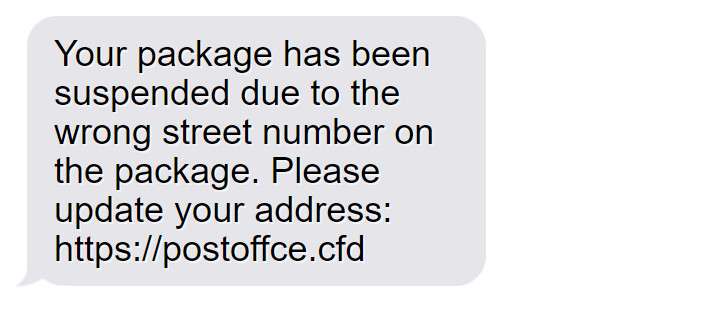
This scam starts when potential victims receive a text message claiming that a package delivery company has suspended delivery of their package due to an incorrect street number. The message will look something like this:
“Your package has been suspended due to the wrong street number on the package. Please update your address: https://postoffce.cfd“
The link in the message leads to a fake website designed to look like a legitimate package delivery site. On this site, victims are prompted to enter personal details like their name, address, and credit card information to allegedly correct the delivery address and pay a re-delivery fee.
In reality, the scammers behind this con do not have any package. The fake website is a phishing scam aimed at stealing personal and financial information. This lucrative scam has become more common as more people shop online and expect more frequent deliveries.
What the Scammers Are After
The end goal of this scam is to steal money and personal information. By tricking victims into inputting details into the fake site, scammers can:
- Obtain names, addresses, phone numbers, and emails to sell or use in future scams
- Steal credit card details to make fraudulent purchases
- Charge fake re-delivery fees they pocket
- Gain logins and passwords to hack into accounts
- Steal identities to open credits cards and commit fraud
Armed with the sensitive data entered, the criminals can gain access to accounts, commit identity theft, and cause serious financial harm.
Prevalence of This Con
This parcel delivery scam has become widespread in the past few years for several reasons:
- More people are shopping online and receiving deliveries, so a message about a missed delivery seems legitimate.
- Criminals are getting increasingly sophisticated at creating real-looking fake delivery company websites.
- Smartphone text messaging provides an easy way for scammers to reach many victims quickly.
- Caller ID spoofing technology allows scammers to mask the source of texts and make them appear to come from a legitimate business.
During the COVID-19 pandemic, this scam skyrocketed as more consumers shopped online and expected more frequent package deliveries. Unfortunately, if a text message states your delivery has been suspended, it’s almost certainly a scam attempt. Legitimate delivery companies will not contact you this way.
How the “Package Suspended” Scam Works
Scammers carry out this con in several clever ways designed to convince victims the message is real. Here is how the scam typically operates:
1. Victims Receive a Text About a Suspended Delivery
The scam starts with an SMS text sent to the victim’s smartphone. The message appears in the same text messaging app used for all texts, making it seem more legitimate.
The text will come from a number designed to look like it could be from a delivery service like UPS, FedEx, Amazon, or DHL. For example:
“UPS: Your package has been suspended due to an incorrect shipping address. Please update your information here: http://addressfix.verifyinfo.net”
The message may reference an actual tracking number and a link to “resolve” the issue, adding credibility. Of course, the tracking number is made up and the link sent is to a fake site controlled by scammers.
2. The Link Leads to a Realistic But Fake Website
If victims click the link, it takes them to a website designed to mimic a delivery company site. The scam web pages look convincingly real, with logos, branding, photos, and messaging appearing legitimate.
The site will prominently display urgent-sounding messages instructing you to update your address and billing details to resume your delivery. Fields will ask for sensitive personal and financial information like:
- Full name
- Address
- Phone number
- Email address
- Credit card number
- CVV security code
- Bank account numbers
3. Scammers Use Your Information for Fraud & Theft
If victims enter any personal or financial information, the scammers immediately gain access and use the details maliciously. They may:
- Charge your credit card for a fake re-delivery fee
- Use your name, number, and address in future phishing attempts
- Access and drain your bank account
- Make purchases using your credit card or stolen identity
- Open new credit cards in your name
- Steal your identity to commit serious fraud
Meanwhile, you never receive whatever item you were expecting to be delivered. Legitimate delivery companies like UPS do not operate or request info this way.
4. Criminals Are Nearly Impossible to Trace
Scammers go to great lengths to conceal their identity and location when running cons like this. Tactics they use include:
- Routing texts through many servers across the world
- Using burner phones that can’t be traced back to them
- Masking caller ID so texts appear from a legitimate business
- Providing fake names and contact info on their scam sites
Between number spoofing, disguising their URLs, using proxy servers, and more, scammers make it exceedingly difficult for authorities to track them down. Even contacting the website host or domain registrar yields little useful information on the criminals.
So once your information gets in scammers’ hands, the situation becomes incredibly challenging to rectify. This makes avoidance the best policy when it comes to package delivery scams.
What to Do If You Get This Scam Message
If you receive a text out of the blue claiming your package delivery has been suspended, here are important steps to take:
Do Not Click Any Links
First and foremost, do not click the link contained in the message under any circumstances. As examined above, the link goes to a fake website controlled by scammers to steal your information. No real delivery service will operate this way.
Look up the Actual Customer Service Number
Your best bet is to call the customer service number listed on the real delivery company’s website. Look up the official UPS, FedEx, Amazon, or other site and reach out to customer service directly.
Explain you received a suspicious text message about a suspended package. Customer service can look up your account and shipping information to clarify whether there are any actual issues.
Report the Scam Text
An important step is reporting the scam text message so operators can attempt to shut down the phone numbers involved. You can report scam texts in several ways:
- Report to the FTC at https://reportfraud.ftc.gov/. Provide the fake number, content of the messages, and any other details.
- Forward the text to SPAM (7726) for your carrier. This alerts phone companies of the fraudulent messages so they can investigate and potentially block the numbers being used.
- File a complaint with the FCC at https://consumercomplaints.fcc.gov/hc/en-us. Supply any evidence you have of illegally spoofed numbers.
- Let the real shipping company know about scammers impersonating their brand. Also notify your state or local consumer protection agencies. The more reports authorities get, the better chance they have of combating scam texts.
Reset Accounts If Compromised
If you did happen to click the link and provide any sensitive information, immediately take steps to protect your accounts. Change passwords on financial accounts, lock credit reports, contact banks about unauthorized charges, and consider cancelling credit cards known to scammers. Take preventative action to limit the fallout.
Use Caution with Future Delivery Notices
Going forward, use extra scrutiny with any texts or calls about suspended deliveries. Legitimate shipping companies will not contact you this way without extensive verification – which scammers cannot provide over a text. Always research numbers yourself and never click links in unsolicited messages.
How to Avoid Falling Victim to This Scam
While this parcel delivery scam is sophisticated, there are ways to detect and avoid it:
Know How Real Delivery Companies Operate
Genuine shipping companies like UPS and FedEx will never contact consumers via text message about suspended packages. This is always a scam tactic. Familiarize yourself with how logistics companies really communicate about deliveries:
- Tracking updates are provided online or via email only.
- You may get an automated call with a tracking number, but nothing more.
- Any official communications will identify themselves extensively before asking for info.
- You need to initiate contact first for delivery issues. They won’t text you.
Be Wary of Unexpected Requests for Information
A core tactic of nearly all scams is asking for personal information unexpectedly via phone, email, or text. Legitimate businesses won’t surprise you by requesting sensitive details out of context. Always verify any fishy communications through an independent channel before providing info.
Watch for Red Flags in Links
Closely analyze the URLs in any text or email messages to look for signs of a scam:
- Misspelled or suspicious domain names (e.g. “fed-exx.com”)
- URLs not matching company names
- Links reporting errors/warnings when checked
- Non-https sites
- Long, convoluted links
Don’t Trust Caller ID
Thanks to spoofing technology, scammers can make calls and texts appear from essentially any number. Just because a text says UPS or shows their number means nothing. Use an independent channel or source to follow up if something seems suspicious.
Keep Device Software Up to Date
Maintaining the latest security patches and software updates can help protect you from phishing websites, malicious texts, spam calls, and other scam techniques. Outdated apps and operating systems make it easier for criminals to infiltrate devices and compromise accounts.
Don’t Provide Information to Unverified Parties
Whenever asked for personal or financial data, take time to directly confirm the legitimacy of the request through known contacts. Validation takes just a few minutes and could save you from catastrophic losses to identity thieves.
Preemptively confirming communications, analyzing links carefully, understanding how companies really operate, and updating your device software are solid precautions against delivery scams.
What to Do if You Provided Your Information to Scammers
If you fell victim and supplied any sensitive information through the phishing site, take these immediate steps to mitigate damages:
- Call banks and credit cards – Alert financial institutions to any compromised cards or accounts. Request replacements and monitor statements vigilantly for signs of fraud.
- Place fraud alerts – Contact credit bureaus to place alerts on credit reports to detect any attempts at identity theft. Monitor your reports closely over the next year.
- Change passwords – Update passwords, security questions, and pins for any email, financial, utility, or other accounts that may have been accessed by scammers. Enable two-factor authentication where possible.
- Cancel affected accounts – Consider closing down accounts known to be compromised that you don’t necessarily need to keep open. Opening new accounts with new numbers reduces risks.
- Contact the FTC – Reporting the incident helps authorities track and respond to emerging scams targeting consumers.
- Review your credit reports – Order your free annual credit reports and comb them for any signs of accounts opened without your authorization. Dispute any fraudulent items.
- Enroll in credit monitoring – Sign up for monitoring services that provide alerts whenever new accounts or loans are requested in your name so you can nip fraud in the bud.
- File a police report – Filing a formal fraud complaint with local law enforcement creates an official record that may help in resolving financial matters and credit reporting issues.
- Learn from the incident – Use the event as motivation to implement tighter cybersecurity and online privacy practices to avoid being victimized moving forward.
Is Your Device Infected? Run a Free Malware Scan
Slow performance, constant pop-ups, or strange behavior? These are classic signs of a malware infection. The fastest way to find out is to scan your device with Malwarebytes Free — one of the most trusted malware removal tools available.
The free version detects and removes the most common threats, including:
- Adware — the cause of those annoying pop-ups
- Browser hijackers — unwanted redirects and changed homepages
- Trojans and spyware — hidden programs stealing your data
- Potentially unwanted programs (PUPs) — software you never asked for
👉 Select your device below — Windows, Mac, or Android — then follow the simple steps to download Malwarebytes, scan your system, and remove any threats it finds. The scan usually takes 5 to 20 minutes.
Run a Malware Scan with Malwarebytes for Windows
Malwarebytes is one of the most popular and trusted anti-malware tools for Windows — and it’s completely free for removing infections. It catches threats that many antivirus programs miss, including adware, browser hijackers, and trojans. Follow the steps below to scan and clean your PC in just a few minutes.
Download Malwarebytes
Click the button below to download the latest version of Malwarebytes for Windows from the official source. The free version is all you need — it will scan your computer and remove adware, browser hijackers, and other malicious software at no cost.
Download MalwarebytesOfficial installer for Windows 11 and 10. Your download starts right away.Want real-time protection? See Malwarebytes Premium Malwarebytes Free for WindowsScans and removes malware at no cost
-
Install Malwarebytes
When the download finishes, open your Downloads folder and double-click the MBSetup file. If Windows shows a User Account Control pop-up, click “Yes” to allow the installation.

Follow the On-Screen Prompts to Install Malwarebytes
The setup wizard will walk you through a few quick screens:
-
Choose where you’re installing the program — “Personal Computer” or “Work Computer” — then click Next.

-
Malwarebytes will now install on your device. This usually takes under a minute.

-
When installation is complete, the “Welcome to Malwarebytes” screen will open automatically.

-
On the final screen, click Open Malwarebytes to launch the program.

-
Enable “Scan for Rootkits”
Before scanning, turn on rootkit detection so Malwarebytes can find even the most hidden threats. Click the Settings gear icon on the left side of the screen.

In the settings menu, find “Scan for rootkits” and click the toggle so it turns blue.

Done? Click “Dashboard” in the left pane to return to the main screen.
Start the Scan
Click the blue Scan button. Malwarebytes will automatically update its virus database and start checking your computer for malware.

-
Wait for the Scan to Finish
The scan checks your entire system for browser hijackers and other malicious programs, so it can take 5 to 20 minutes depending on your computer. Feel free to do something else — just check back occasionally to see the progress.

-
Quarantine the Detected Threats
When the scan is done, you’ll see a list of everything Malwarebytes found — malware, adware, and potentially unwanted programs. Click the “Quarantine” button to remove all of them at once.

Malwarebytes will now remove the malicious files and registry entries and move them safely into quarantine.

-
Restart Your Computer
Some threats can only be fully removed after a reboot. If Malwarebytes asks you to restart, click Yes. Once you’re logged back in, Malwarebytes has finished removing the threats it found.

That’s it — your Windows PC is now clean of trojans, adware, and other malware, and should be back to running smoothly.
If you are still having problems with your computer after completing these instructions, then please follow one of the steps:
- Run a computer scan with ESET Online Scanner
- Ask for help in our Windows Malware Removal Help & Support forum.
Run a Malware Scan with Malwarebytes for Mac
Malwarebytes for Mac is a free on-demand scanner that removes the malware other security software tends to miss — adware, browser hijackers, and unwanted programs included. Cleaning an infected Mac with Malwarebytes has always been completely free, and it’s our go-to recommendation. Follow the steps below to scan and clean your Mac in just a few minutes.
-
Download Malwarebytes for Mac
Click the button below to download the latest version of Malwarebytes for Mac.
Download MalwarebytesOfficial installer for macOS. Your download starts right away.Want real-time protection? See Malwarebytes PremiumMalwarebytes Free for MacScans and removes malware at no cost -
Open the Malwarebytes setup file
When the download finishes, open your Downloads folder and double-click the setup file to begin the installation.

-
Follow the On-Screen Prompts to Install Malwarebytes
The Malwarebytes for Mac Installer will guide you through a few quick screens. Click “Continue” and keep following the prompts until the installation completes.



When the installation is complete, Malwarebytes opens to the Welcome to Malwarebytes screen. Click “Get started“.
-
Select “Personal Computer” or “Work Computer”
Malwarebytes will ask what type of computer you’re installing it on. Click either Personal Computer or Work Computer, whichever applies.

-
Start the Scan
Click the “Scan” button. Malwarebytes will automatically update its detection database and begin checking your Mac for malware.

-
Wait for the Scan to Finish
Malwarebytes will scan your Mac for adware, browser hijackers, and other malicious programs. This can take a few minutes, so feel free to do something else — just check back occasionally to see the progress.

-
Quarantine the Detected Threats
When the scan is done, you’ll see a list of everything Malwarebytes found. Click the “Quarantine” button to remove all the threats at once.

-
Restart Your Mac
Malwarebytes will now remove all the malicious files it found. Some threats can only be fully removed after a reboot — if Malwarebytes asks you to restart, allow it. Once you’re logged back in, your Mac is clean.

That’s it — your Mac is now free of adware, rogue browser extensions, and other potentially harmful software.
If you are still experiencing problems while trying to remove a malicious program from your computer, please ask for help in our Mac Malware Removal Help & Support forum.
Run a Malware Scan with Malwarebytes for Android
Malwarebytes for Android automatically detects and removes dangerous threats like malware and ransomware so you don’t have to worry about your most-used device being compromised. Aggressive detection of adware and potentially unwanted programs keeps your Android phone or tablet running smooth.
-
Download Malwarebytes for Android.
You can download Malwarebytes for Android by clicking the link below.
Get Malwarebytes for AndroidOpens Google Play in a new tab.Want real-time protection? See Malwarebytes Premium for AndroidMalwarebytes for AndroidScans your phone and removes malware at no cost -
Install Malwarebytes for Android on your phone.
In the Google Play Store, tap “Install” to install Malwarebytes for Android on your device.

When the installation process has finished, tap “Open” to begin using Malwarebytes for Android. You can also open Malwarebytes by tapping on its icon in your phone menu or home screen.

-
Follow the on-screen prompts to complete the setup process
When Malwarebytes will open, you will see the Malwarebytes Setup Wizard which will guide you through a series of permissions and other setup options.
This is the first of two screens that explain the difference between the Premium and Free versions. Swipe this screen to continue.
Tap on “Got it” to proceed to the next step.
Malwarebytes for Android will now ask for a set of permissions that are required to scan your device and protect it from malware. Tap on “Give permission” to continue.
Tap on “Allow” to permit Malwarebytes to access the files on your phone.
-
Update database and run a scan with Malwarebytes for Android
You will now be prompted to update the Malwarebytes database and run a full system scan.

Click on “Update database” to update the Malwarebytes for Android definitions to the latest version, then click on “Run full scan” to perform a system scan.

-
Wait for the Malwarebytes scan to complete.
Malwarebytes will now start scanning your phone for adware and other malicious apps. This process can take a few minutes, so we suggest you do something else and periodically check on the status of the scan to see when it is finished.

-
Click on “Remove Selected”.
When the scan has been completed, you will be presented with a screen showing the malware infections that Malwarebytes for Android has detected. To remove the malicious apps that Malwarebytes has found, tap on the “Remove Selected” button.

-
Restart your phone.
Malwarebytes for Android will now remove all the malicious apps that it has found. To complete the malware removal process, Malwarebytes may ask you to restart your device.
That’s it — your Android phone is now clean — no more malicious apps, adware, or browser redirects.
If you are still having problems with your phone after completing these instructions, then please follow one of the steps:
- Restore your phone to factory settings by going to Settings > General management > Reset > Factory data reset.
- Ask for help in our Mobile Malware Removal Help & Support forum.
Stay Protected: Block Ads and Malicious Sites
Now that your device is clean, keep it that way. Most infections start with a malicious ad or a fake download button — so blocking them at the source is your best defense.
We recommend AdGuard, which blocks malicious ads, phishing pages, and dangerous redirects before they can reach you.
👉 Download AdGuard and browse safely
Frequently Asked Questions About This Package Delivery Scam
Am I really getting a package that requires an address update?
No. This is a scam designed to steal your personal information. Legitimate delivery services will not contact you out of the blue via text about an issue with a delivery. Any such message is fake.
Can’t I just click the link to fix the problem with my package?
Do not click the link or call any phone numbers in these scam texts. The links lead to fake websites run by scammers aiming to steal your data. Calling the numbers connects you to the criminals.
What if I paid the re-delivery fee – will they deliver my package now?
Unfortunately, any money sent is pocketed by scammers. There is no actual suspended package to re-ship. The entire incident is fabricated solely to extort payments from victims. No items will be delivered.
Why are delivery scams becoming more common now?
With the huge rise in ecommerce and deliveries, scams capitalize on consumers constantly expecting packages. Criminals spoof legitimate business names and numbers to seem real. More deliveries mean more delivery scam attempts.
How did the scammers get my phone number or know I was expecting a package?
Scammers send these texts en masse to random numbers, knowing a certain percentage of people will be awaiting a real delivery. They don’t actually have your info – they get it when you click their links.
Are these scams illegal? Why can’t officials stop it?
Yes, text scams violate numerous state and federal fraud, identity theft, and consumer protection laws. However, scammers are experts at hiding their tracks using spoofing, proxies, and fake info. This makes enforcement challenging.
What should I do if my information was compromised?
Immediately contact banks, credit cards, and credit bureaus to report compromised accounts and identities. Freeze credit reports, change account numbers and passwords, and monitor for fraudulent activity in the coming years.
How can I avoid falling for this scam in the future?
Learn to recognize signs of phishing attempts like unexpected requests for info and shady links. Only contact trusted sources through known channels if an issue arises. And never provide info via unverified communications.
Who can I report these fraudulent texts to?
You can report the scam messages to the FTC, FCC, your cell provider, local law enforcement, state attorney general office, and the legitimate company being impersonated. Reporting aids further prevention efforts.
The Bottom Line
The “your package is suspended” scam can seem convincing thanks to convincing texts, spoofing, and realistic fake websites. But awareness of common delivery scams, overall online vigilance, and trust of official customer service channels can help you sidestep being swindled.
A savvy consumer remains skeptical of unexpected requests for information over text or email. Genuine logistics companies never contact customers this way – any such message is an attempted con. Look up official numbers, report suspicious texts, and be selective where you provide private data to stay protected.
With the exponential growth of package deliveries, odds are high this scam will only proliferate further. But an informed public can ensure this con ends up being nothing more than a dead end for scammers.
So remember – no matter how real a “your package is suspended” text may seem, reacting to it only causes real issues for victims. Maintain caution around all unsolicited communications to stop phishing scammers in their tracks.

Join the discussion
0 commentsShare your experience or ask a question about this article.
Discussion
Start the conversation
Have a question or something useful to share? Add the first comment.