

The “Payment Failure for Cloud Storage Renewal” message is a fake cloud storage alert designed to scare people into clicking. It appears in emails, pop-up ads, push notifications, and redirect pages, often warning that files will be deleted unless the user updates payment information immediately.
The notification is not from Apple, Google, Microsoft, iCloud, Google Drive, OneDrive, or any legitimate cloud provider. It is a deceptive advertising and phishing-style funnel that may lead victims to suspicious subscription offers, unwanted software, browser hijackers, potentially unwanted programs, or malware.
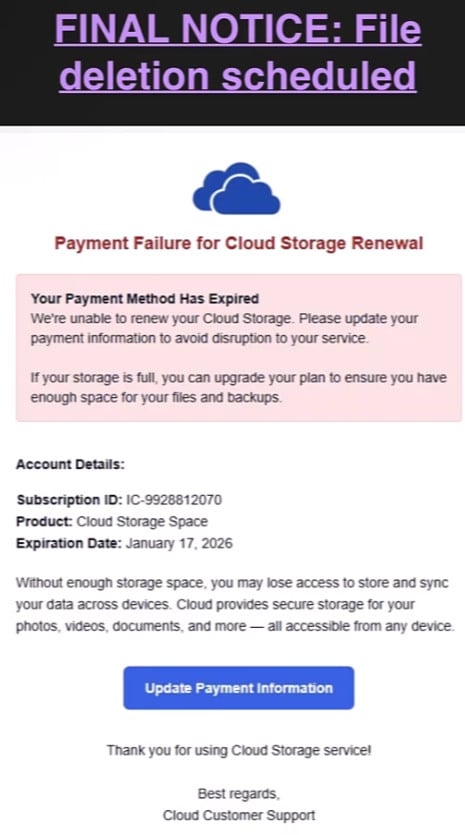
What Is the Payment Failure for Cloud Storage Renewal Scam?
The scam usually appears with a generic cloud icon and alarming language such as:
“FINAL NOTICE: File deletion scheduled”
“Payment Failure for Cloud Storage Renewal”
“Your Payment Method Has Expired”
“Update Payment Information”
Some versions include fake account details, a random subscription ID, a product name such as “Cloud Storage Space,” and an expiration date. The message then claims the victim may lose access to photos, videos, documents, backups, and synced files unless they click a button.
We have documented very similar “Cloud – Your Payment Method Has Expired” emails as spam/phishing messages that target payment information and pressure users with fake cloud-storage deletion warnings. One documented version uses almost the same wording: “Payment Failure for Cloud Storage Renewal,” “Your Payment Method Has Expired,” and “Update Payment Information.”
The scam is not limited to email. It can also appear as:
- A browser pop-up
- A push notification from a suspicious website
- A redirect from a low-quality ad network
- A fake system-style alert on mobile
- A landing page after clicking an ad
- A “storage full” warning shown while browsing unrelated websites
The goal is simple: create panic, then push the victim into entering payment information, installing software, signing up for a subscription, or following a chain of redirects.
Why This Fake Cloud Storage Alert Works
This scam is effective because it imitates a real fear. Many people store important files in cloud accounts, including family photos, work documents, phone backups, passwords, and videos. A warning that those files may be deleted feels urgent.
The scammers use several psychological triggers at once:
- Urgency: “Final notice” and “file deletion scheduled”
- Fear: “Your photos and documents may be lost”
- Generic branding: The word “Cloud” instead of a specific provider
- Fake account details: Random subscription IDs make the message look official
- Simple CTA: One button that says “Update Payment Information”
- Ambiguity: Many users have multiple cloud accounts and may not immediately know which one is being referenced
That ambiguity is intentional. A real billing email would normally identify the exact service, account, plan, billing history, and sender domain. The scam avoids specifics so it can target anyone using any cloud service.
How the Scam Works
1. The Victim Sees a Fake Cloud Storage Warning
The victim receives an email or lands on a pop-up page claiming their cloud storage payment failed. The message says the account is about to expire or that files are scheduled for deletion.
The alert may look clean and professional, but it usually lacks real branding. It may use vague names like:
- Cloud Storage
- Cloud Customer Support
- Cloud Service
- Cloud Backup
- Storage Renewal Team
This is a major red flag. Apple, Google, Microsoft, Dropbox, and other real providers do not send billing notices from a generic “Cloud Customer Support” identity.
2. The Message Pushes the Victim to Click
The button usually says something like:
- Update Payment Information
- Renew Now
- Restore Cloud Storage
- Continue Protection
- Avoid File Deletion
- Upgrade Storage
Clicking does not take the victim to their real iCloud, Google Drive, OneDrive, or Dropbox account. Instead, it sends them through a redirect chain. These redirects may use tracking links, affiliate links, ad-network pages, or cloaked URLs.
3. The Victim Lands on a Subscription or Software Page
Some versions redirect users to third-party websites selling cloud storage, backup software, security tools, browser utilities, or other digital services. For example, users have reported redirects involving sites such as TotalDrive.com and similar cloud-storage or software offers.
Total Drive’s own website presents itself as a cloud backup and file storage service and states that its plans automatically renew unless canceled. It also describes cancellation and refund conditions, including separate steps for canceling auto-renewal and requesting a refund.
The key issue is the deceptive funnel. A user who clicks a fake “your cloud payment failed” notice may believe they are renewing an existing Apple, Google, Microsoft, or device cloud account, when they may actually be signing up for a separate third-party subscription.
4. The Victim Enters Payment Information
At this point, the victim may be asked to pay a small fee, update billing details, start a trial, or “verify” their payment method.
This can lead to:
- Unwanted recurring subscriptions
- Unexpected renewal charges
- Difficulty canceling
- Confusion over which company charged them
- Exposure of credit card information
- Follow-up scam emails and calls
- Additional upsells or bundled offers
Even if the final website provides a real service, the original notification is still deceptive if it falsely claims the user’s existing cloud storage is expiring or their files are about to be deleted.
5. The Victim May Install Unwanted Software
Some redirect chains may push users toward downloads. These can include browser extensions, “cleaner” apps, backup clients, fake security tools, or other potentially unwanted programs.
Google notes that persistent pop-ups, unwanted new tabs, browser redirects, search-engine changes, suspicious extensions, and fake virus alerts can be signs of unwanted software or malware.
This is why victims should not download anything promoted by a fake cloud alert.
Red Flags in the Fake Notification
The “Payment Failure for Cloud Storage Renewal” scam has several obvious warning signs once you know what to check.
Generic Cloud Branding
The notice says “Cloud Storage” or “Cloud Customer Support” but does not clearly identify Apple iCloud, Google Drive, Microsoft OneDrive, Dropbox, or another real provider.
Real services use their official brand, sender domain, app interface, and account portal.
Threats of Immediate File Deletion
The message claims your files may be deleted soon. This is pressure tactics. Real cloud providers usually give repeated warnings, grace periods, account notices, and clear billing options inside your official account.
Random Subscription ID
Scam pages often include a fake subscription ID such as:
IC-9928812070
These numbers are meant to create the appearance of legitimacy. They usually do not correspond to any real account.
Suspicious Sender or Redirect URL
The email may come from a random domain, a compromised address, or a marketing sender unrelated to any real cloud provider. Pop-up versions may appear on unrelated websites, which is enough to treat them as fake.
Payment Button Leads Somewhere Else
Hovering over the button or checking the landing page may reveal that the link does not go to Apple, Google, Microsoft, Dropbox, or your actual cloud provider.
You Are Asked to Install Software
A billing problem should not require you to install a browser extension, antivirus tool, “storage optimizer,” remote support app, or unknown backup software.
Is TotalDrive.com Part of the Scam?
Some users report that fake cloud renewal warnings redirect to TotalDrive.com or similar subscription websites. Total Drive appears to operate as a cloud backup service, and its website describes features such as file backup, syncing, ransomware protection, recurring plans, cancellation, and refund terms.
The concern is not only the destination. The concern is how victims get there.
If a user is shown a fake warning claiming their existing cloud storage payment failed, then gets sent to a separate subscription service, that is a deceptive acquisition funnel. The victim may think they are fixing iCloud, Google Drive, OneDrive, or device storage, when they are actually signing up for an unrelated product.
We have also documented promoted scam pages using fake warnings to push software or services through affiliate-style funnels.
So the safest interpretation is this:
Do not trust any cloud-storage renewal page reached through a scary email, pop-up ad, or browser redirect. Go directly to your real cloud provider’s website or app instead.
What Happens If You Click?
Clicking does not automatically mean your device is infected. The risk depends on what happened next.
If You Only Opened the Page
Close the page. Do not enter information. Do not download anything. Clear suspicious site notification permissions if the alerts keep returning.
If You Entered Your Email or Phone Number
Expect more spam, phishing emails, or scam calls. Be cautious with future messages claiming to be about cloud storage, antivirus, delivery issues, tax refunds, bank alerts, or subscriptions.
If You Entered Payment Information
Contact your bank or card provider. Explain that you were misled by a fake cloud storage renewal notice. Ask about blocking the merchant, disputing the charge, replacing the card, and monitoring for recurring billing.
Also check whether you were enrolled in a subscription. If you can identify the merchant, cancel through the merchant account portal and keep screenshots of every cancellation confirmation.
If You Installed Software
Disconnect from the suspicious page, uninstall the program, remove unknown browser extensions, and run a full security scan. If the software asked for permissions, review browser settings, startup apps, installed programs, and notification permissions.
If You Gave Remote Access
This is more serious. The FTC warns that tech support scammers often use fake warnings to scare victims, obtain financial information, or gain remote access to devices. The FBI also warns that scammers who get remote access may steal personal information, money, or files.
If remote access was granted, disconnect from the internet, uninstall the remote access tool, run security scans, change passwords from a clean device, and contact your bank immediately.
Is Your Device Infected? Run a Free Malware Scan
Slow performance, constant pop-ups, or strange behavior? These are classic signs of a malware infection. The fastest way to find out is to scan your device with Malwarebytes Free — one of the most trusted malware removal tools available.
The free version detects and removes the most common threats, including:
- Adware — the cause of those annoying pop-ups
- Browser hijackers — unwanted redirects and changed homepages
- Trojans and spyware — hidden programs stealing your data
- Potentially unwanted programs (PUPs) — software you never asked for
👉 Select your device below — Windows, Mac, or Android — then follow the simple steps to download Malwarebytes, scan your system, and remove any threats it finds. The scan usually takes 5 to 20 minutes.
Run a Malware Scan with Malwarebytes for Windows
Malwarebytes is one of the most popular and trusted anti-malware tools for Windows — and it’s completely free for removing infections. It catches threats that many antivirus programs miss, including adware, browser hijackers, and trojans. Follow the steps below to scan and clean your PC in just a few minutes.
Download Malwarebytes
Click the button below to download the latest version of Malwarebytes for Windows from the official source. The free version is all you need — it will scan your computer and remove adware, browser hijackers, and other malicious software at no cost.
Download MalwarebytesOfficial installer for Windows 11 and 10. Your download starts right away.Want real-time protection? See Malwarebytes Premium Malwarebytes Free for WindowsScans and removes malware at no cost
-
Install Malwarebytes
When the download finishes, open your Downloads folder and double-click the MBSetup file. If Windows shows a User Account Control pop-up, click “Yes” to allow the installation.

Follow the On-Screen Prompts to Install Malwarebytes
The setup wizard will walk you through a few quick screens:
-
Choose where you’re installing the program — “Personal Computer” or “Work Computer” — then click Next.

-
Malwarebytes will now install on your device. This usually takes under a minute.

-
When installation is complete, the “Welcome to Malwarebytes” screen will open automatically.

-
On the final screen, click Open Malwarebytes to launch the program.

-
Enable “Scan for Rootkits”
Before scanning, turn on rootkit detection so Malwarebytes can find even the most hidden threats. Click the Settings gear icon on the left side of the screen.

In the settings menu, find “Scan for rootkits” and click the toggle so it turns blue.

Done? Click “Dashboard” in the left pane to return to the main screen.
Start the Scan
Click the blue Scan button. Malwarebytes will automatically update its virus database and start checking your computer for malware.

-
Wait for the Scan to Finish
The scan checks your entire system for browser hijackers and other malicious programs, so it can take 5 to 20 minutes depending on your computer. Feel free to do something else — just check back occasionally to see the progress.

-
Quarantine the Detected Threats
When the scan is done, you’ll see a list of everything Malwarebytes found — malware, adware, and potentially unwanted programs. Click the “Quarantine” button to remove all of them at once.

Malwarebytes will now remove the malicious files and registry entries and move them safely into quarantine.

-
Restart Your Computer
Some threats can only be fully removed after a reboot. If Malwarebytes asks you to restart, click Yes. Once you’re logged back in, Malwarebytes has finished removing the threats it found.

That’s it — your Windows PC is now clean of trojans, adware, and other malware, and should be back to running smoothly.
If you are still having problems with your computer after completing these instructions, then please follow one of the steps:
- Run a computer scan with ESET Online Scanner
- Ask for help in our Windows Malware Removal Help & Support forum.
Run a Malware Scan with Malwarebytes for Mac
Malwarebytes for Mac is a free on-demand scanner that removes the malware other security software tends to miss — adware, browser hijackers, and unwanted programs included. Cleaning an infected Mac with Malwarebytes has always been completely free, and it’s our go-to recommendation. Follow the steps below to scan and clean your Mac in just a few minutes.
-
Download Malwarebytes for Mac
Click the button below to download the latest version of Malwarebytes for Mac.
Download MalwarebytesOfficial installer for macOS. Your download starts right away.Want real-time protection? See Malwarebytes PremiumMalwarebytes Free for MacScans and removes malware at no cost -
Open the Malwarebytes setup file
When the download finishes, open your Downloads folder and double-click the setup file to begin the installation.

-
Follow the On-Screen Prompts to Install Malwarebytes
The Malwarebytes for Mac Installer will guide you through a few quick screens. Click “Continue” and keep following the prompts until the installation completes.



When the installation is complete, Malwarebytes opens to the Welcome to Malwarebytes screen. Click “Get started“.
-
Select “Personal Computer” or “Work Computer”
Malwarebytes will ask what type of computer you’re installing it on. Click either Personal Computer or Work Computer, whichever applies.

-
Start the Scan
Click the “Scan” button. Malwarebytes will automatically update its detection database and begin checking your Mac for malware.

-
Wait for the Scan to Finish
Malwarebytes will scan your Mac for adware, browser hijackers, and other malicious programs. This can take a few minutes, so feel free to do something else — just check back occasionally to see the progress.

-
Quarantine the Detected Threats
When the scan is done, you’ll see a list of everything Malwarebytes found. Click the “Quarantine” button to remove all the threats at once.

-
Restart Your Mac
Malwarebytes will now remove all the malicious files it found. Some threats can only be fully removed after a reboot — if Malwarebytes asks you to restart, allow it. Once you’re logged back in, your Mac is clean.

That’s it — your Mac is now free of adware, rogue browser extensions, and other potentially harmful software.
If you are still experiencing problems while trying to remove a malicious program from your computer, please ask for help in our Mac Malware Removal Help & Support forum.
Run a Malware Scan with Malwarebytes for Android
Malwarebytes for Android automatically detects and removes dangerous threats like malware and ransomware so you don’t have to worry about your most-used device being compromised. Aggressive detection of adware and potentially unwanted programs keeps your Android phone or tablet running smooth.
-
Download Malwarebytes for Android.
You can download Malwarebytes for Android by clicking the link below.
Get Malwarebytes for AndroidOpens Google Play in a new tab.Want real-time protection? See Malwarebytes Premium for AndroidMalwarebytes for AndroidScans your phone and removes malware at no cost -
Install Malwarebytes for Android on your phone.
In the Google Play Store, tap “Install” to install Malwarebytes for Android on your device.

When the installation process has finished, tap “Open” to begin using Malwarebytes for Android. You can also open Malwarebytes by tapping on its icon in your phone menu or home screen.

-
Follow the on-screen prompts to complete the setup process
When Malwarebytes will open, you will see the Malwarebytes Setup Wizard which will guide you through a series of permissions and other setup options.
This is the first of two screens that explain the difference between the Premium and Free versions. Swipe this screen to continue.
Tap on “Got it” to proceed to the next step.
Malwarebytes for Android will now ask for a set of permissions that are required to scan your device and protect it from malware. Tap on “Give permission” to continue.
Tap on “Allow” to permit Malwarebytes to access the files on your phone.
-
Update database and run a scan with Malwarebytes for Android
You will now be prompted to update the Malwarebytes database and run a full system scan.

Click on “Update database” to update the Malwarebytes for Android definitions to the latest version, then click on “Run full scan” to perform a system scan.

-
Wait for the Malwarebytes scan to complete.
Malwarebytes will now start scanning your phone for adware and other malicious apps. This process can take a few minutes, so we suggest you do something else and periodically check on the status of the scan to see when it is finished.

-
Click on “Remove Selected”.
When the scan has been completed, you will be presented with a screen showing the malware infections that Malwarebytes for Android has detected. To remove the malicious apps that Malwarebytes has found, tap on the “Remove Selected” button.

-
Restart your phone.
Malwarebytes for Android will now remove all the malicious apps that it has found. To complete the malware removal process, Malwarebytes may ask you to restart your device.
That’s it — your Android phone is now clean — no more malicious apps, adware, or browser redirects.
If you are still having problems with your phone after completing these instructions, then please follow one of the steps:
- Restore your phone to factory settings by going to Settings > General management > Reset > Factory data reset.
- Ask for help in our Mobile Malware Removal Help & Support forum.
Stay Protected: Block Ads and Malicious Sites
Now that your device is clean, keep it that way. Most infections start with a malicious ad or a fake download button — so blocking them at the source is your best defense.
We recommend AdGuard, which blocks malicious ads, phishing pages, and dangerous redirects before they can reach you.
👉 Download AdGuard and browse safely
How to Check Your Real Cloud Storage Account Safely
Do not use the link in the email or pop-up.
Instead:
- Open the official app manually.
- Type the provider’s official website address yourself.
- Sign in through the normal account portal.
- Check billing, storage, and subscriptions from inside the account.
- Review payment methods directly through the provider.
- Check your bank statement for real charges.
For common services:
- iCloud billing is managed through Apple ID settings.
- Google storage is managed through Google One or Google account storage settings.
- OneDrive storage is managed through Microsoft account subscriptions.
- Dropbox billing is managed through Dropbox account settings.
If there is no alert inside your real account, the email or pop-up was fake.
What to Do If You Were Scammed
1. Cancel Any Unwanted Subscription
Log in to the service you were charged for, cancel auto-renewal, and request a refund if eligible. Take screenshots of cancellation confirmations, invoice pages, and support messages.
2. Contact Your Bank
Tell your card issuer that you were redirected from a fake cloud storage warning and may have been enrolled in an unwanted subscription. Ask about chargebacks, card replacement, merchant blocking, and recurring payment controls.
3. Remove Suspicious Browser Notifications
If the pop-ups keep appearing, a website may have permission to send notifications.
In Chrome, check:
Settings → Privacy and security → Site settings → Notifications
Remove any suspicious domains.
4. Remove Unknown Extensions
Check your browser extensions and uninstall anything you do not recognize. Browser hijackers often use extensions to change search settings, inject ads, or redirect pages.
5. Scan Your Device
Run a full scan with trusted security software. Do not use any scanner promoted by the fake alert itself.
6. Change Passwords
Change passwords for your email, Apple ID, Google account, Microsoft account, banking accounts, and any account where you reused the same password.
Use a clean device if you suspect malware or remote access.
7. Enable Two-Factor Authentication
Turn on two-factor authentication for your email and cloud accounts. This helps prevent account takeover if your password was exposed.
8. Report the Scam
Report the email as phishing in your email provider. You can also report scams to the FTC. The FTC says reports help build cases against scammers.
How to Avoid This Scam
The safest rule is simple: never manage billing from a pop-up or unexpected email.
Use these checks:
- Do not click “Update Payment” buttons in suspicious emails.
- Do not trust generic “Cloud Storage” warnings.
- Do not enter card details after a redirect.
- Do not install software from a billing alert.
- Do not allow browser notifications from random websites.
- Do not call phone numbers shown in pop-ups.
- Do not give remote access to anyone who contacted you through an alert.
- Always check your real account manually.
Real companies do not need to scare you with browser pop-ups to make you update a payment method.
The Bottom Line
The “Payment Failure for Cloud Storage Renewal” alert is a fake notification. It uses fear of file deletion to push victims into clicking a button, entering payment details, installing software, or signing up for unrelated subscription services.
Some versions appear in emails. Others appear as pop-up ads or redirect pages. The final destination may vary, but the tactic is the same: make the victim believe their real cloud storage account is about to expire.
Do not click the link. Do not pay through the warning. Do not download anything from the page. Check your real cloud account directly through the official app or website.
FAQ
Is the “Payment Failure for Cloud Storage Renewal” message real?
No. In most cases, this is a fake cloud storage notification designed to scare you into clicking a link. It is not a legitimate warning from Apple, Google, Microsoft, Dropbox, or your real cloud provider.
Why does the message say my files will be deleted?
The file deletion warning is a pressure tactic. Scammers use phrases like “Final Notice” and “File deletion scheduled” to make you panic and click before checking whether the alert is real.
What happens if I click “Update Payment Information”?
You may be redirected through several websites and eventually land on a page asking for payment details, a subscription signup, or a software download. Some victims may end up with unwanted subscriptions, potentially unwanted programs, browser hijackers, or malware.
Is this connected to my real iCloud, Google Drive, or OneDrive account?
Usually, no. These scam alerts often use generic wording like “Cloud Storage” instead of naming a real provider. To check your actual account, open the official app or type the provider’s official website directly into your browser.
Why did I see this as a pop-up ad?
Some versions are distributed through aggressive ad networks, push notifications, malicious redirects, or low-quality websites. The pop-up is not proof that your cloud account has a billing problem.
Can this scam charge my card?
Yes. If you enter payment information, you may be enrolled in a subscription you did not intend to buy. Some victims report unexpected recurring charges, confusing cancellation processes, or difficulty getting refunds.
Can this scam install malware?
It can, depending on the version. Some fake cloud renewal pages push downloads, browser extensions, fake security tools, or other unwanted software. Never install anything promoted through a billing warning pop-up.
What should I do if I entered my card details?
Contact your bank or card issuer immediately. Explain that you were redirected from a fake cloud storage renewal notice. Ask about blocking the merchant, disputing the charge, replacing the card, and stopping recurring payments.
What should I do if the pop-ups keep appearing?
Check your browser notification permissions and remove suspicious websites. Also remove unknown extensions, clear browser data, and run a full scan with trusted security software.
How can I tell if a cloud renewal notice is legitimate?
Go directly to your real cloud provider’s app or website. Do not use links from emails, ads, or pop-ups. If there is no billing warning inside your official account, the message was likely fake.








