

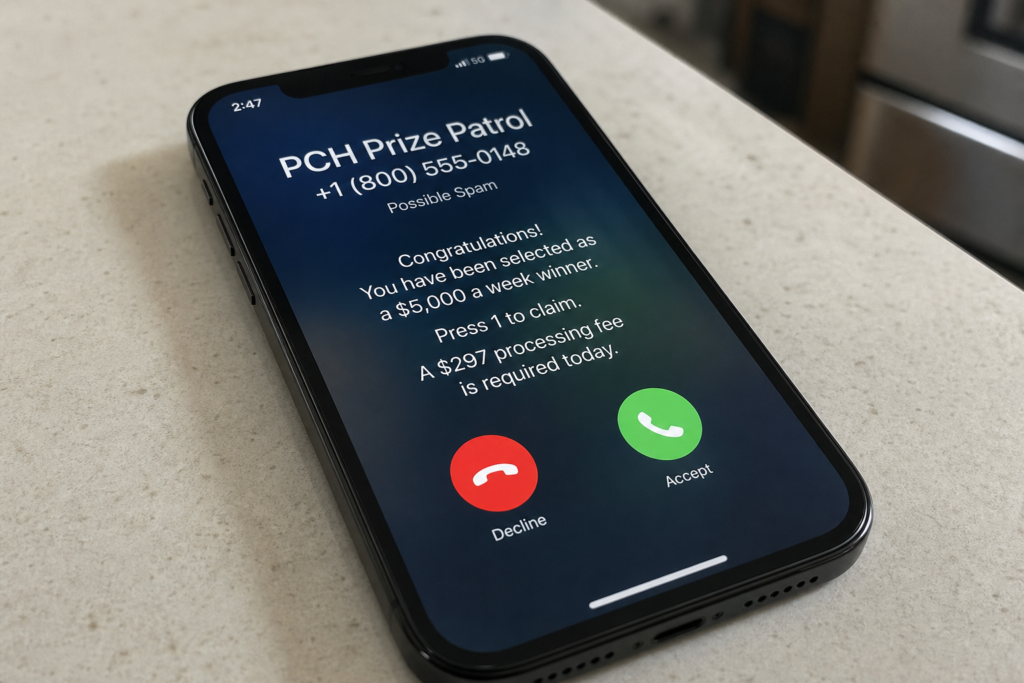
The phone lights up with a name you already know. Prize Patrol. Publishers Clearing House. The voice is warm. Congratulations. A prize is waiting. Stay on the line, they say, so they can walk you through the release.
Publishers Clearing House is a real company. People really do win. The name on the screen is why you picked up.
Overview
The trap is a live call that uses a famous sweepstakes name so you will pay a fee, or hand over details, before any prize exists. The caller may sound like a claims officer. They may already use your first name. None of that proves they work for Publishers Clearing House.
PCH is real. The Prize Patrol is a real tradition. The company itself is not the fraud. The people who dress up as PCH on the phone and then invoice you for a gift are.
The fee before the prize
The first thing they take is money, dressed as paperwork. Taxes. Shipping. Processing. Insurance. A release charge. The label changes. The ask does not. You send something now, and the prize is supposed to follow.
The FTC prize-call alert from March 10, 2026 names that exact sequence. A random call says you won. The caller uses a well-known sweepstakes name as cover. Then come taxes, shipping, or processing, supposedly required before the prize can be released. The agency’s test is one sentence. If they charge to get the prize, it is a scam.
The first amount is often a few hundred dollars, small enough to feel like a form. After you pay, there is no check on the porch. There is another fee. The call, or a new call, says the first payment did not clear the file. That is the trap after you pay. You are no longer a winner in process. You are a person who has already sent money, and they will ask again.
Gift cards and money that does not come back
How they take it matters as much as the story. They do not want a bill you can dispute next month. They want value that is gone the same hour.
They steer you toward:
- Gift cards, then reading the codes out loud
- A wire to a processing name
- A payment app transfer
- Cash handed to a courier or dropped at a store
They will try to stay on the line while you drive to the store. That is not help. It is so a clerk, a teller, or a relative cannot interrupt. Once the codes are read, the balance is usually spent. After you pay that way, the next ask is easier, because you already crossed the line once.
They also take information. Bank names. Card digits. A Social Security number. A one-time code from your phone. After you share those, the prize call can turn into account takeover even if you never bought a card.
The secrecy rule
The call only works if nobody else hears it. That is why they add a rule that sounds official and is not.
You will hear:
- Do not tell your family. It is a surprise.
- Do not call your bank. They will freeze the delivery.
- If you hang up, the prize is forfeited.
- This has to be finished today.
Secrecy is not a prize condition. It is a way to keep a second brain out of the room. After you agree to stay quiet, they can walk you to an ATM, a gift-card rack, or a remote-access app without anyone asking why a prize needs cash.
AARP has been taking these impersonation reports for years. Prize, sweepstakes, and lottery fraud is among the top complaints on the AARP Fraud Watch Network Helpline, recently around 4th. The FTC says consumers reported $145 million in prize, sweepstakes, and lottery losses in 2024. The calls keep working because the name still feels official, and because the script keeps the family out of it. AARP’s guide to Publishers Clearing House scams walks through the same fee-first pattern.
PCH is real, the costume is not
Caller ID is a costume. So is a claim number. So is a text with a logo while you wait. Anyone can spoof a name on the screen. Anyone can invent a case ID. A photo of a giant check is a prop, not a file.
The company is clear on its own PCH scam prevention page: the real Publishers Clearing House will never call you or ask you to pay money to enter or claim a prize. No purchase or fee is required to enter or win. If someone is on the phone asking you to pay so a prize can be released, that person is not PCH.
The company’s SuperPrize is told in person, not announced in advance by a stranger who needs your debit card. You do not have to settle every rumor about how a real winner is contacted. Keep the safe line. They will not call you to demand a fee.
PCH does not take these reports on a private claims-desk number. That same page sends people to the government. If you want to tell someone official, use the FTC fraud report form. You do not need to stay on the call to confirm your file.
How The Scam Works
The call is a sequence. Each step is short on purpose. They do not need you to understand the whole machine. They need you to say yes to the next small request.
Step 1: First contact (robocall, live call, or voicemail)
You pick up, or you play a voicemail later. The first voice is often a recording. Sometimes it is a live person from the first second. The format changes. The job does not.
You hear lines like these:
- “Congratulations, you have been selected. Press 1 to claim your prize.”
- A callback number plus a claim ID you are told to keep handy
- A live caller who already uses your first name
The contact can also arrive as a text that tells you to call a prize desk. A press-1 prompt is not a prize. It is a filter that routes the people who will stay on the line to a live operator.
What that trick does: it turns a cold number into a conversation before you have had time to doubt the story. Once you are talking, hanging up feels like walking away from money.
Step 2: They create legitimacy in the first 60 seconds
Once you speak, they flood you with official-sounding clutter so the call feels like a process, not a pitch. You start matching their words to things you have seen on TV.
The caller may offer:
- A claim number or case ID
- A department name such as prize fulfillment, claims, or a release desk
- A supervisor they can conference in
- Talk of Prize Patrol, a giant check, or a delivery window today
- A text with a logo or a photo of a check while you wait
None of that is verification. Logos are easy to copy. A number they read to you is a number they invented. The 60-second burst is there so you stop asking the only question that matters: why is a prize asking me for something?
What that trick does: it makes hanging up feel rude, as if you would be abandoning a real claim that already has your name on it.
Step 3: They ask harmless questions that are not harmless
Before they mention money, they chat. It feels like they are confirming you are the right person. You answer because the questions sound small, and because you think they already have a file.
They may ask:
- Your full name and mailing address
- Your date of birth or age
- Which bank you use
- Whether you are home alone
- Whether you have entered sweepstakes before
- A security word, or the last digits of a card, just to match the file
They do not have a file. They are building one. Bank names tell them how to script the next lie. Are you alone tells them whether anyone in the room can stop the payment.
What that trick does: it turns small answers into leverage, and it gives them data they can reuse if you hang up later.
Step 4: They introduce verification to lower your defenses
Now the call sounds like paperwork. That is deliberate. Excitement becomes a checklist, and checklists feel safe. You shift from celebrating to complying without noticing the change.
They will say things like:
- We just need to verify you before release.
- This is a standard security step.
- I have to confirm a few details for the delivery team.
Then the path splits in one of two directions:
- Information theft. They want bank routing data, a card number, a Social Security number, or a one-time code from your phone.
- Payment extraction. They say a fee must clear before the prize can move.
Real prize notification does not require you to recite account numbers to a stranger who called you. Verification is the bridge. It moves the call from exciting to controlling.
What that trick does: it makes the next ask sound like a rule you have to follow, not a request you can refuse.
Step 5: The fee demand arrives, dressed up as normal
This is the turn. The prize is ready. Something small stands in the way. You are now being invoiced for a gift.
You may hear:
- Taxes have to be paid before we can release the funds.
- Insurance is required so the check can travel.
- There is a processing charge to finalize the claim.
- Delivery has to be covered today or the window closes.
The first number is often in a range that sounds boring, a few hundred dollars, not a fortune. They pick an amount that feels like a form, not a theft. The FTC names the same labels: taxes, shipping and handling, processing fees. The name of the charge does not matter. A prize that invoices you is not a prize.
What that trick does: it reframes theft as a hoop every winner jumps through, so paying feels like finishing the process.
Step 6: They guide you into an irreversible payment method
If you hesitate, they do not argue about whether the fee is real. They tell you exactly how to pay so the money is gone before you can change your mind. They will stay on the line if they can.
They steer you toward:
- Gift cards, then reading the codes on the phone
- A wire to a processing name
- A payment app transfer
- Cash handed to a courier or dropped at a store
- A deposit they walk you through at a bank or ATM
Keeping you on the phone while you drive is so you cannot ask a clerk, a teller, or a relative what is happening. Gift card codes, once read out, are usually gone. Wires and cash are hard to pull back.
What that trick does: it converts a maybe into money they can spend before you get off the phone.
Step 7: They isolate you and tighten urgency
Any pause is treated as a threat to the prize. The script shifts from friendly to firm. You are no longer a winner being helped. You are a problem they need to close today.
You might hear:
- If you hang up, the prize is forfeited.
- This has to be completed today.
- Do not tell your family. It is a surprise.
- Do not talk to your bank. They will freeze the delivery.
- You are under a confidentiality rule now.
Secrecy is not a prize condition. Urgency is there so you do not search the company name with the word scam, and so you do not call a number you found yourself.
What that trick does: it cuts you off from the people and institutions that would stop the payment.
Step 8: The escalation loop starts (the real money is in repeat payments)
If you paid once, you did not close a claim. You proved you will pay. The same voice, or a new one, comes back with one more step.
The next fee is sold as the last one:
- A second tax that the first payment did not cover
- A delivery permit or an insurance increase
- A hold at a bank that needs a release fee
- A legal filing that must be funded today
The loop runs until you refuse, run out of money, or someone else interrupts. People who pay once also get marked as targets for later pitches. That is why cutting contact matters more than finishing their checklist.
What that trick does: it turns one bad decision into a series, while you are still waiting for a prize that was never coming.
Step 9: The second wave: identity theft and recovery scams
The call may be over. The damage may not be. If you shared personal details, those details can be used after you hang up.
They can use what you gave them to:
- Reset passwords and take over email or banking
- Open new accounts in your name
- Social-engineer a bank employee
- Aim a related scam at a spouse or an adult child
A few days or weeks later, a new voice may offer to get the money back. They claim to be a lawyer, an investigator, a recovery desk, or even someone at a government agency. They want another fee to start the refund. That is a second scam. Real recovery help does not begin with a stranger who already knows you just lost money on a prize call.
What that trick does: it harvests the same person twice, once for the prize and once for the rescue.
What To Do If You Have Fallen Victim to This Scam
If any of this already happened, do not try to out-talk the caller. Stop the contact, lock down money and accounts, then report it. Work the steps in order. You are not the first person to stay on that line. The next hour matters more than the story you tell yourself about how obvious it should have been.
- Stop contact immediately. Hang up. Do not call back. Do not answer the next number. Do not send one last payment to unlock a refund. Every extra minute on the line is another chance for them to collect a code or a card number. Block the numbers you have, then ignore new ones. Scammers switch caller ID the way they switch scripts. Silence is the first fix.
- Write down the facts and save evidence. While the details are fresh, keep a record for your bank and for the people who track this fraud. Save phone numbers, dates, and call times. Save names, badge numbers, and claim IDs they used. Save screenshots of texts and emails. Save receipts, gift card packaging, and transfer confirmations. Save any photos or documents they sent. You are not building a case for the caller. You are building a file for the next calls you make.
- Call your bank or card issuer. Ask for the fraud department. Say it was a prize impersonation scam, not a dispute with Publishers Clearing House. Speed matters for debit cards, wires, and payment apps. A pending transfer can sometimes still be stopped. If you gave routing numbers or logged into anything they directed, say that too. Ask them to watch the account and to reject unexpected charges. If a teller already helped you send cash or a wire because the caller stayed on the line, go back to that branch and tell them it was fraud.
- If you paid with gift cards, act the same day. Keep the receipt and the card. Contact the issuer’s fraud line and report that the codes were stolen in a prize scam. If the balance has not been drained, they may be able to freeze what is left. Do not send photos of unused cards to anyone who calls you back claiming they can reverse the charge. That is the same crew, or a copycat running a recovery pitch.
- Secure your accounts. Start with email. That inbox is the reset button for everything else. Change your email password first, then banking and payment app passwords. Turn on two-factor authentication. Check email forwarding and recovery numbers. Remove any unknown devices from your accounts. If you typed a password on a site they sent, assume that password is burned and change it on every account that shared it.
- If they asked for remote access, treat the device as exposed. Disconnect from the network. Uninstall the app they named. Sign out of banking on that device. Change passwords from a different device you trust. Run a scan with the security software you already use. Call your bank again and tell them a stranger may have watched the screen. Do not let a follow-up caller clean the device. That is another remote-access pitch dressed up as repair.
- Report it to the FTC. File a report at the FTC fraud reporting site. The FTC uses those reports to map campaigns and to warn other people. PCH also points consumers there instead of taking the report on a phone line. If money left through a transfer or the loss is large, file with the FBI Internet Crime Complaint Center as well. Bring the notes and receipts you saved. Reporting will not pull a gift card back by itself. It creates a record, and it can stop the next household from walking the same path.
- Call the AARP Fraud Watch Network Helpline at 877-908-3360. If you want a person who has heard this script before, that number is the calm second voice. The helpline is there for people who got hit by impersonation scams, including ones that use the Publishers Clearing House name. AARP has been ranking this pattern among the most common reports it hears, recently around 4th. You are not the first person to feel foolish. You will not be the last.
- Do not call the number they gave you. A callback from a voicemail, a text, or a supervisor line is not a way to check whether the prize is real. That number belongs to the scam. Calling it puts you back in the script. If you want to check anything with the real company, find contact details yourself from a source you typed, not a link they sent. Remember the safe test: they will not call you to demand a fee. Tell one trusted person what happened. Secrecy helped the scammer. A relative, a neighbor, or a banker helps you catch the follow-up call when it arrives.
Is Your Device Infected? Run a Free Malware Scan
Slow performance, constant pop-ups, or strange behavior? These are classic signs of a malware infection. The fastest way to find out is to scan your device with Malwarebytes Free — one of the most trusted malware removal tools available.
The free version detects and removes the most common threats, including:
- Adware — the cause of those annoying pop-ups
- Browser hijackers — unwanted redirects and changed homepages
- Trojans and spyware — hidden programs stealing your data
- Potentially unwanted programs (PUPs) — software you never asked for
👉 Select your device below — Windows, Mac, or Android — then follow the simple steps to download Malwarebytes, scan your system, and remove any threats it finds. The scan usually takes 5 to 20 minutes.
Run a Malware Scan with Malwarebytes for Windows
Malwarebytes is one of the most popular and trusted anti-malware tools for Windows — and it’s completely free for removing infections. It catches threats that many antivirus programs miss, including adware, browser hijackers, and trojans. Follow the steps below to scan and clean your PC in just a few minutes.
Download Malwarebytes
Click the button below to download the latest version of Malwarebytes for Windows from the official source. The free version is all you need — it will scan your computer and remove adware, browser hijackers, and other malicious software at no cost.
Download MalwarebytesOfficial installer for Windows 11 and 10. Your download starts right away.Want real-time protection? See Malwarebytes Premium Malwarebytes Free for WindowsScans and removes malware at no cost
-
Install Malwarebytes
When the download finishes, open your Downloads folder and double-click the MBSetup file. If Windows shows a User Account Control pop-up, click “Yes” to allow the installation.

Follow the On-Screen Prompts to Install Malwarebytes
The setup wizard will walk you through a few quick screens:
-
Choose where you’re installing the program — “Personal Computer” or “Work Computer” — then click Next.

-
Malwarebytes will now install on your device. This usually takes under a minute.

-
When installation is complete, the “Welcome to Malwarebytes” screen will open automatically.

-
On the final screen, click Open Malwarebytes to launch the program.

-
Enable “Scan for Rootkits”
Before scanning, turn on rootkit detection so Malwarebytes can find even the most hidden threats. Click the Settings gear icon on the left side of the screen.

In the settings menu, find “Scan for rootkits” and click the toggle so it turns blue.

Done? Click “Dashboard” in the left pane to return to the main screen.
Start the Scan
Click the blue Scan button. Malwarebytes will automatically update its virus database and start checking your computer for malware.

-
Wait for the Scan to Finish
The scan checks your entire system for browser hijackers and other malicious programs, so it can take 5 to 20 minutes depending on your computer. Feel free to do something else — just check back occasionally to see the progress.

-
Quarantine the Detected Threats
When the scan is done, you’ll see a list of everything Malwarebytes found — malware, adware, and potentially unwanted programs. Click the “Quarantine” button to remove all of them at once.

Malwarebytes will now remove the malicious files and registry entries and move them safely into quarantine.

-
Restart Your Computer
Some threats can only be fully removed after a reboot. If Malwarebytes asks you to restart, click Yes. Once you’re logged back in, Malwarebytes has finished removing the threats it found.

That’s it — your Windows PC is now clean of trojans, adware, and other malware, and should be back to running smoothly.
If you are still having problems with your computer after completing these instructions, then please follow one of the steps:
- Run a computer scan with ESET Online Scanner
- Ask for help in our Windows Malware Removal Help & Support forum.
Run a Malware Scan with Malwarebytes for Mac
Malwarebytes for Mac is a free on-demand scanner that removes the malware other security software tends to miss — adware, browser hijackers, and unwanted programs included. Cleaning an infected Mac with Malwarebytes has always been completely free, and it’s our go-to recommendation. Follow the steps below to scan and clean your Mac in just a few minutes.
-
Download Malwarebytes for Mac
Click the button below to download the latest version of Malwarebytes for Mac.
Download MalwarebytesOfficial installer for macOS. Your download starts right away.Want real-time protection? See Malwarebytes PremiumMalwarebytes Free for MacScans and removes malware at no cost -
Open the Malwarebytes setup file
When the download finishes, open your Downloads folder and double-click the setup file to begin the installation.

-
Follow the On-Screen Prompts to Install Malwarebytes
The Malwarebytes for Mac Installer will guide you through a few quick screens. Click “Continue” and keep following the prompts until the installation completes.



When the installation is complete, Malwarebytes opens to the Welcome to Malwarebytes screen. Click “Get started“.
-
Select “Personal Computer” or “Work Computer”
Malwarebytes will ask what type of computer you’re installing it on. Click either Personal Computer or Work Computer, whichever applies.

-
Start the Scan
Click the “Scan” button. Malwarebytes will automatically update its detection database and begin checking your Mac for malware.

-
Wait for the Scan to Finish
Malwarebytes will scan your Mac for adware, browser hijackers, and other malicious programs. This can take a few minutes, so feel free to do something else — just check back occasionally to see the progress.

-
Quarantine the Detected Threats
When the scan is done, you’ll see a list of everything Malwarebytes found. Click the “Quarantine” button to remove all the threats at once.

-
Restart Your Mac
Malwarebytes will now remove all the malicious files it found. Some threats can only be fully removed after a reboot — if Malwarebytes asks you to restart, allow it. Once you’re logged back in, your Mac is clean.

That’s it — your Mac is now free of adware, rogue browser extensions, and other potentially harmful software.
If you are still experiencing problems while trying to remove a malicious program from your computer, please ask for help in our Mac Malware Removal Help & Support forum.
Run a Malware Scan with Malwarebytes for Android
Malwarebytes for Android automatically detects and removes dangerous threats like malware and ransomware so you don’t have to worry about your most-used device being compromised. Aggressive detection of adware and potentially unwanted programs keeps your Android phone or tablet running smooth.
-
Download Malwarebytes for Android.
You can download Malwarebytes for Android by clicking the link below.
Get Malwarebytes for AndroidOpens Google Play in a new tab.Want real-time protection? See Malwarebytes Premium for AndroidMalwarebytes for AndroidScans your phone and removes malware at no cost -
Install Malwarebytes for Android on your phone.
In the Google Play Store, tap “Install” to install Malwarebytes for Android on your device.

When the installation process has finished, tap “Open” to begin using Malwarebytes for Android. You can also open Malwarebytes by tapping on its icon in your phone menu or home screen.

-
Follow the on-screen prompts to complete the setup process
When Malwarebytes will open, you will see the Malwarebytes Setup Wizard which will guide you through a series of permissions and other setup options.
This is the first of two screens that explain the difference between the Premium and Free versions. Swipe this screen to continue.
Tap on “Got it” to proceed to the next step.
Malwarebytes for Android will now ask for a set of permissions that are required to scan your device and protect it from malware. Tap on “Give permission” to continue.
Tap on “Allow” to permit Malwarebytes to access the files on your phone.
-
Update database and run a scan with Malwarebytes for Android
You will now be prompted to update the Malwarebytes database and run a full system scan.

Click on “Update database” to update the Malwarebytes for Android definitions to the latest version, then click on “Run full scan” to perform a system scan.

-
Wait for the Malwarebytes scan to complete.
Malwarebytes will now start scanning your phone for adware and other malicious apps. This process can take a few minutes, so we suggest you do something else and periodically check on the status of the scan to see when it is finished.

-
Click on “Remove Selected”.
When the scan has been completed, you will be presented with a screen showing the malware infections that Malwarebytes for Android has detected. To remove the malicious apps that Malwarebytes has found, tap on the “Remove Selected” button.

-
Restart your phone.
Malwarebytes for Android will now remove all the malicious apps that it has found. To complete the malware removal process, Malwarebytes may ask you to restart your device.
That’s it — your Android phone is now clean — no more malicious apps, adware, or browser redirects.
If you are still having problems with your phone after completing these instructions, then please follow one of the steps:
- Restore your phone to factory settings by going to Settings > General management > Reset > Factory data reset.
- Ask for help in our Mobile Malware Removal Help & Support forum.
Stay Protected: Block Ads and Malicious Sites
Now that your device is clean, keep it that way. Most infections start with a malicious ad or a fake download button — so blocking them at the source is your best defense.
We recommend AdGuard, which blocks malicious ads, phishing pages, and dangerous redirects before they can reach you.
👉 Download AdGuard and browse safely
The Bottom Line
Publishers Clearing House is real. A fee-first prize call is not.
You do not have to audit a claim number on a live call. You have to recognize the pattern. They use a famous name, they invent a prize, and they demand money or data before anything arrives.
Hang up. Pay nothing. Verify nothing through a number they handed you. If you already sent money or details, cut contact, call your bank, save the evidence, and report it. A real prize does not invoice you.

Join the discussion
0 commentsShare your experience or ask a question about this article.
Discussion
Start the conversation
Have a question or something useful to share? Add the first comment.