

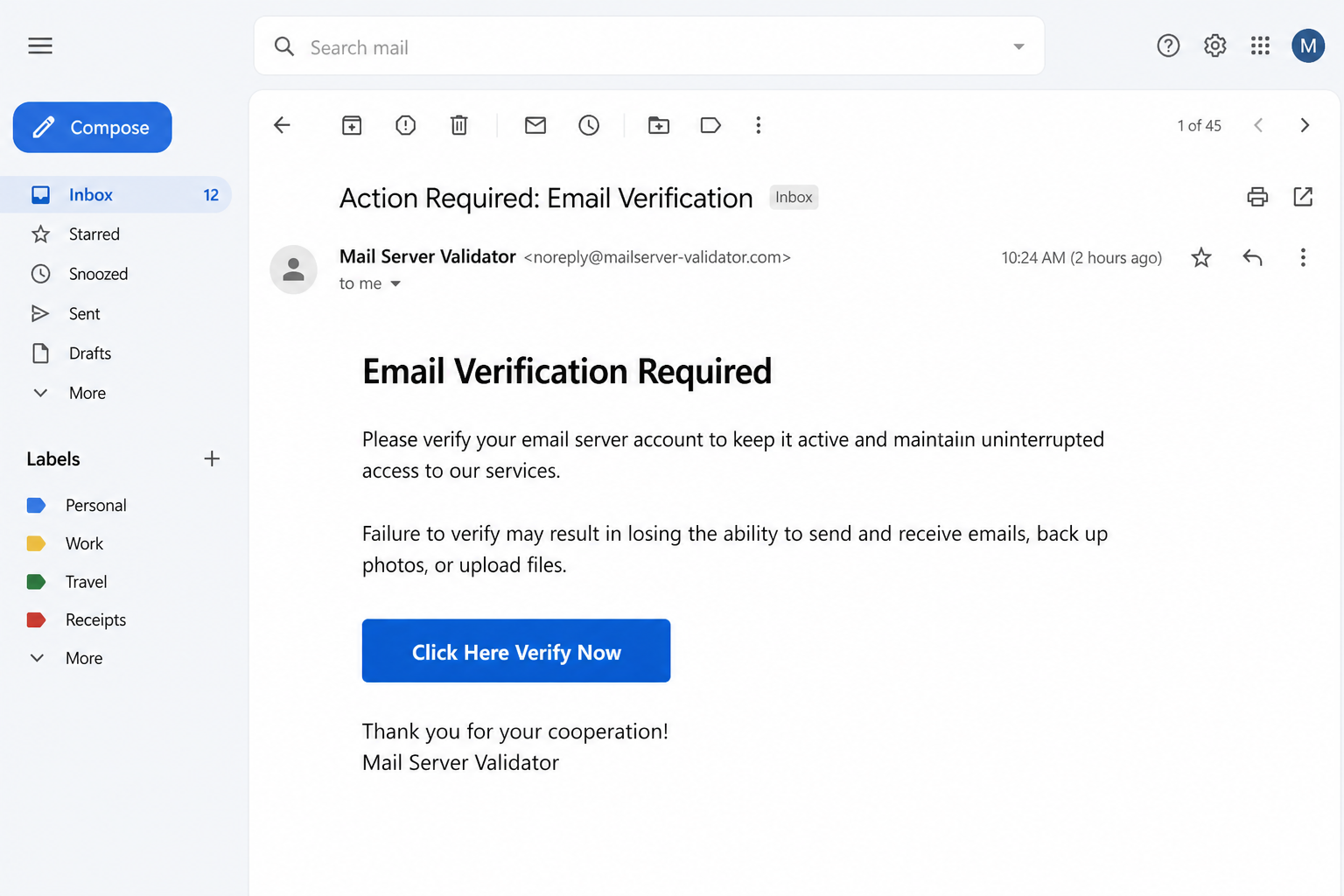
The subject is short enough to read while you are already late. Action Required: Email Verification. The display name says Mail Server Validator. The body does not ask you to think. It says your email server account has to be verified so it stays active, and that if you skip it you may lose the ability to send and receive mail, back up photos, or upload files. Then a wide blue button says Click Here Verify Now.
Overview
The trap is Click Here Verify Now. That button opens a MailServer form that wants the mailbox password. The pitch dresses up as a mail-server check. It claims the mailbox will stop working unless you verify it right now. The form wants the email address, the password, the same password again, and a click on Activate & send. Once they have that pair, they can read mail, reset other logins, and send the same scare to everyone you know.
A mail server is not the scam. People pay hosts every month to keep one running. Offices keep invoices, payroll notes, and customer threads on one. Families keep photo backups and school mail on one. Your real host is not about to delete the inbox because you missed a blue button. The warning is about people who steal the language of a server so you will hand them the key.
There is no official Mail Server Validator desk that watches every mailbox on earth. There is no public MailServer brand that holds your password in a vault and asks you to Activate & send from a cold letter. Real hosts have names you already wrote on a bill. Real work mail has an IT path you already used last year. A letter that refuses to name that host, and then asks for the password anyway, is already outside ordinary mail admin.
The page reported with this costume sits on GitHub Pages at emailactivator.github.io. That sentence scares people for the wrong reason. GitHub is a real company. GitHub Pages is a real product. In the official What is GitHub Pages docs, GitHub describes it as a static site hosting service that takes HTML, CSS, and JavaScript from a repository and publishes a website. User and organization sites are served from an address on github.io. The hosting is real. The padlock is real. The page is still the trap.
Do not open that address to “just look.” GitHub’s own Pages docs say that when a GitHub Pages site is visited, the visitor’s IP address is logged and stored for security purposes, whether the visitor is signed into GitHub or not. Curiosity is how they learn the bait landed. If you already opened it, the later section is for you. If you have not, leave it alone and type your real host instead.
The Federal Trade Commission writes the rule in plain language. In How To Recognize and Avoid Phishing Scams, the FTC says scammers use email to steal passwords, account numbers, or Social Security numbers. A common story is that there is a problem with your account. There isn’t. Another common story is that you must confirm personal information. You don’t. The Commission’s advice is to contact the company with a phone number or website you already know is real, not the information in the email.
CISA says the same thing in two short places. On Avoiding Social Engineering and Phishing Attacks, CISA tells people not to reveal personal or financial information in email, and not to follow links sent in email when a message asks for that information. On Teach Employees to Avoid Phishing, CISA tells staff that if a message feels off, they should verify it without using any phone number or link in the message. Use a number you already have. Use a site you already type. That is the opposite of Click Here Verify Now.
A mailbox is not a library card that expires at midnight because you missed a stamp. A real host can have a quota. A real company can have a password policy. A real admin can ask you to sign in on a page you already bookmark. None of that looks like a nameless validator, a two-sentence panic about photos and uploads, and a button that needs the password plus a confirm plus Activate & send.
The fake MailServer page
The letter does not need a long policy. It needs a short fuse. “Action Required” is a mood, not a ticket number. “Failure to verify” is a threat aimed at the parts of life people will not risk: mail that has to go out today, photos that live in a backup, files that have to upload before a deadline. People click faster when they think they are about to lose work. The costume knows that.
The body copy is polite on purpose. Please verify. Keep it active. Uninterrupted access. Thank you for your cooperation. Politeness is part of the costume. It sounds like a help desk that is doing you a favor. A real help desk that already protects your mailbox does not need you to prove the password to a stranger’s form so the server can stay on.
Work mail makes the panic worse, and the costume uses that. A shared inbox can hold invoices. A school mailbox can hold a child’s schedule. A small business mailbox can hold the only copy of a client thread. Twenty minutes of fear is enough to make a careful person treat a blue button like homework. Doing the right thing in the wrong place is how this theft works.
The password
They want the password. Not a survey. Not a $1 activation fee. Not a gift card. The MailServer page is a collection tray. The email field is there so they know which inbox they just bought. The password field is the prize. The confirm field is theater. It makes the form feel like a real reset, the kind you have completed on honest sites for years. Activate & send is the submit button with a helpful costume.
The inbox takeover
A mailbox password is a master key for more than mail. It can open password-reset messages for banks, shops, payroll, cloud drives, and government portals. A work password can open customer threads, vendor invoices, and the one mailbox the whole office still treats as “the company.” That is why this variant does not bother with a long refund story. The inbox is the prize. Everything else is downstream.
If the password is reused, the damage leaves the mailbox. A reused mail password is a way into shopping accounts, payroll portals, and photo backups that share the same phrase. The FTC’s phishing page says stolen information can be used to get into email, bank, or other accounts, or sold to other scammers. The first hour after a typed password is when that spread is easiest to stop. There is no 0% leftover risk just because the page looked like a server tool.
How The Scam Works
The campaign is simple on purpose. A short subject. A borrowed validator name. A threat about mail, photos, and files. One button. A MailServer form on real GitHub Pages hosting. If you understand those five pieces, you do not need a secret decoder or a case number. You need a habit: never give the password to a page you did not type yourself.
Step 1. The letter that pretends to be the server
A lot of phishing mail tries to look like a bank, a shipper, or a software brand you already pay. This one often does something quieter. It arrives as Action Required: Email Verification. The display name is Mail Server Validator. The heading in the body says Email Verification Required. There is no logo you can match to a card in your wallet. There is no host name you already wrote on a bill. The letter talks about “your email server account” as if every inbox on earth shared one desk.
The vagueness does two jobs. First, it lets the same template travel. A person on a cheap domain host and a person on a giant free mail service can both believe the letter is “theirs.” Second, it stops you from doing the one check that kills most of these mails. If a letter claims to be from your bank, you can open the real app. If it claims to be from the idea of a mail server, there is no app to open. The button becomes the only door in the room.
There is no sender domain invented here for you to hunt. The From line changes. Sometimes the display name is the only part that looks official, and the address behind it is junk. A familiar display name is not proof. A mail that refuses to say which host is writing is already telling you something. Real server mail is usually willing to name the product you pay for.
The FTC’s phishing page walks through a similar letter and points at the generic greeting, the claim that something is wrong with the account, and the invitation to click. Those three marks show up here. A heading. A warning about losing send and receive. Click Here Verify Now. None of that is a ticket you can verify. It is a story built to make you finish a task before you ask who assigned it.
The sign-off is part of the same quiet costume. Thank you for your cooperation. Mail Server Validator. It reads like a finished admin notice, the kind that does not expect a reply. Real hosts that need you to look at a setting will still survive if you ignore a cold letter and open the panel you already use. A thief cannot survive that habit. That is why the letter tries to make ignoring it feel dangerous.
Step 2. The button that feels like homework
The button is usually the only bright object on the page. Click Here Verify Now. The grammar is a little stiff, and that stiffness is easy to forgive when you are already scared. The job is the same as every other costume in this family. It wants a click while you are still in the feeling of “I should deal with this.”
People click buttons like that because they are trying to be responsible. You have been told for years to keep accounts verified. Banks say it. Shops say it. Your own host may say it inside the control panel you already use. The costume steals that good habit and moves it into a cold mail. A person who is trying to keep the office mail alive is the ideal reader.
Hovering over the button, on a computer, can show a destination that has nothing to do with your host. On a phone, that hover is awkward, and many people never see the real address. Even when you do see it, a github.io address can look comforting. Developers use those every day. Students use those every day. Comfort is the point. CISA tells people that if a message might be real, they should not use the link in the message. Type the address you already know, or open the app you already installed, or call a number you already have on a bill.
There is no official Click Here Verify Now portal to publish here. There is no official Mail Server Validator page that belongs to this letter. If your host really needs you to look at a login, it will be a login you can reach by typing the address you have used for years, or by opening the bookmark you made yourself. A button that arrives with a nameless warning is not that door.
Step 3. A real GitHub Pages shelf, a fake MailServer counter
After the click, people land on a page branded MailServer. The layout is meant to feel like a small admin tool, not like a bank. There is an email box. There is a password box. There is a confirm box. There is a control labeled Activate & send. The skin looks like a real mail utility because it is copying the idea of one.
That copy is the reason this costume works on people who are not careless. If you already log into a host panel at work, or into webmail for a domain you bought, a page that talks like a mail server does not feel foreign. It feels like Tuesday. The difference is the address in the browser and the path that brought you there. A real mail panel lives on your host, or on the address your host printed in a welcome mail you can still find. A fake one lives wherever the sender parked it this week.
This week the reported park is emailactivator.github.io. Read that name again. It is a GitHub Pages site. It is not your host. It is not Gmail. It is not Outlook. It is not the panel printed on your hosting invoice. GitHub’s Pages docs are clear about what the product is for. You can host a website about yourself, your organization, or your project, straight from a repository. That is a real, useful service. It is also ordinary cloud furniture. Criminals use ordinary furniture because it looks less dirty than a random domain they registered last night.
GitHub is not asking for your mailbox password on that page. Your host is not asking. The MailServer label on the form is a prop that borrowed three true things: a real fear that accounts get locked, a real hosting product, and a real habit of typing a password to “activate” something. The false thing is the one that matters. Nobody who already protects your mailbox needs you to type the password, type it again, and press Activate & send on a page you reached from a cold letter.
A padlock in the browser does not fix that. Encryption only means the path is private. It does not mean the person at the other end is your host. A github.io name does not fix that either. GitHub publishes user sites on that domain on purpose. The domain is supposed to look legitimate, because for thousands of honest project pages it is legitimate. The trap is the form, not the fact that GitHub’s servers answered.
GitHub’s own rules are not on the thief’s side. The company publishes Community Guidelines and a path to report abuse or spam. You can also use GitHub’s abuse contact form without opening the phishing page again. Reporting is useful. Visiting is not. The reported address is named so you can recognize it if it is already in your history. It is not an invitation to load it.
Step 4. What they do after they have the inbox
The first thing a stolen inbox is good for is more theft. Password-reset links are the obvious path. A bank, a shop, a payroll portal, a social network, a cloud drive, a crypto app, and a government account all tend to believe the person who can read the mailbox. The thief can request a reset, catch the mail, and change the password on a service you have not opened in months. You find out when a statement looks wrong, or when you cannot get in.
The second thing is control of the mailbox itself. A person who is inside can add a forwarding rule so a copy of every new message leaves for an address you will never see. They can change the recovery address. They can change the recovery phone. They can create a filter that hides the very alerts your bank will send. They can send mail as you. That last one is how a coworker gets a “quick favor” that is actually a wire, and how a family member gets an “I need a code” text that looks like it came from your usual address.
The same inbox is also a directory. Contacts, old invoices, school threads, vendor names, and the tone you use when you write “thanks” are all sitting there. A follow-up letter that looks like it came from you is more convincing than the first Mail Server Validator costume, because it can quote a real project. The FTC says scammers update their tactics, but the story is still the same. They want the password so they can become you for a while.
None of this requires malware on your computer. Some phishing pages do try to drop junk. This costume does not need that to succeed. A password is enough. If you also reuse that password on other sites, the thief does not even need the reset mail. They can try the same pair somewhere else and walk in. CISA’s advice after a revealed password is blunt. Change it. Change it on every account that shared it. Do not use that password again.
CISA also tells a short habit story that this letter is counting on you not to have. Pause. Do not use the link in the unexpected mail. Type the real site yourself if you need to look at anything. Hover if you must. Then still do not click. The MailServer form is not a puzzle you have to solve. It is a tray. Walk away from the tray.
What To Do If You Already Typed the Password
If you typed the email, the password, the confirm, and hit Activate & send, treat the account as open to someone else until you close it yourself. Speed helps more than shame. The person on the other side of that form does not need a long head start. If you only clicked and then stopped, you are in a better place than it feels, and the last step in this list is still worth doing.
1. Leave the fake MailServer page
Close the tab. Close the window. If you saved the password in the browser on that page, remove that saved entry later from a page you typed yourself. Do not refresh the MailServer form to see whether it “took.” Do not open emailactivator.github.io again to grab a screenshot. Every extra visit is another chance to type the same secret, and another chance to leave a visitor log.
If you are on a shared or public computer, sign out of the browser profile when you are done with the real recovery steps. A library machine, a hotel machine, and a borrowed laptop are bad places to leave a session warm. That advice is for ordinary life. It is also for the hour after a phishing page.
2. Change the mailbox password from a page you type
Open a new tab. Type the address of the host you already use, or open the official app you already installed. Sign in the way you always do. Change the password from the official security area. Make it new. Make it unused anywhere else. If the old password was also the password for banking, payroll, shopping, or another mailbox, change those too, from their own typed sites.
If you cannot sign in, use the official account-recovery path for that host, the one you reach by typing the real site and choosing the help that starts with a sign-in problem. Do not use a recovery link from the verify mail. Do not use a phone number that arrived in a follow-up message. A fake desk will offer to “finish activation” for you. A real host already has a reset path that does not begin in a cold letter.
For a work or school mailbox, do this with IT on the line if you can. Some tenants lock self-service resets. Some will need an admin to end sessions. The rule is the same. Use the official portal, not the MailServer page. Tell them the subject was Action Required: Email Verification and that the button said Click Here Verify Now. Give them the sender display name. Do not forward the message by clicking its links. If you need to share it, attach the original as a file.
3. Turn on a second factor and end old sessions
A password alone is what the MailServer form was built to steal. Multi-factor authentication, the extra approval on a phone or a security key, is the next lock. The FTC and CISA both tell people to turn it on. The FTC describes it as a second credential: something you know, something you have, or something you are. An authenticator app or a hardware key is stronger than a text message, because a text message can be stolen in a later call.
After the password change, sign out everywhere if the official security page offers that control. Remove a sign-in method you do not recognize. Remove a device you do not own. If this is work mail, ask IT to revoke sessions. A password change that leaves an old session alive is only a partial fix. The person who received Activate & send may already be sitting in a session that still looks like you.
4. Read the inbox the way an attacker would
Look at inbox rules, forwarding, and filters. Look for a forward to an address you do not know. Look for a rule that deletes mail from a bank, from a host, or from IT. Look at Sent Items for messages you did not write. Look at Deleted Items. Look at the junk folder for bounce-backs that mean your name went out to other people.
Look at the recovery address and the recovery phone. If either one changed, change it back from the official page, then treat every reset mail from the last day as hostile. Tell anyone who got a strange message from you that the message was not yours. If the mailbox is shared with a family plan, a small business, or a student group, say it out loud to the other people on that account. They should not click a verify button that appears to come from you.
If money moved, or a card was used, or a payroll login also shared that password, call those places on a number you already have. The FTC’s phishing page says that if a scammer has information like a Social Security number, a credit card, or a bank account number, go to the government’s identity theft site and follow the steps for what was lost. Do not use a number from a follow-up that claims to be the same validator.
5. Report the mail, then report the page
In the mail app you already use, mark the message as phishing or junk if that control exists. Gmail, Outlook, and most work suites have a report path. Use it. Then delete the original, including from Deleted Items, so you do not click it again later on a tired evening.
The FTC asks people to forward phishing mail to reportphishing@apwg.org and to report the attempt at the FTC fraud report form. Those reports help even when you did not lose money. If you still have the MailServer address, report it through GitHub’s abuse path and through Google’s phishing report form without opening the page again. Work and school accounts have one extra call. Tell IT the same day. They would rather hear “I typed the password on a MailServer page” than discover a quiet forward in a week.
6. If you did not type the password
You can breathe, then still do the small version of the same list. Close the fake page. Type your real host, or open the real app, and look at security activity. Report the mail as phishing. Delete it. You do not need to change every password on earth because you hovered a button. You do need the habit in place before the next costume arrives.
If a follow-up call or a follow-up mail arrives and says they are Mail Server Validator, and they need you to finish Activate & send, hang up. CISA says a real check uses a number or a site you already trust. A second scare that uses the first scare as proof is still the trap. There is no validator desk waiting to praise you for cooperating.
The Bottom Line
The Action Required: Email Verification mail is a costume. Mail servers are real. GitHub Pages is real. The mailbox is not about to die because you ignored Click Here Verify Now. The button opens a fake MailServer form, reported on emailactivator.github.io, that wants the email, the password, the confirm, and Activate & send. The only thing they need from you is the password.
Do not click it. Type your real host yourself, or use the work sign-in you already know. If you already typed the password, change it on the real site, turn on a second factor, kill old sessions, and read your rules and sent mail. Report the message as phishing. Tell the FTC at the fraud report form if you want that report on file. Tell GitHub through the official abuse path if you want the Pages site in their queue.
The next time a blue button says the server needs you to verify right now, you already know the ending. The panic is the bait. The login is the hook. Your real mailbox is still on the other side of an address you type with your own hands.

Join the discussion
0 commentsShare your experience or ask a question about this article.
Discussion
Start the conversation
Have a question or something useful to share? Add the first comment.