

A short email says the project’s budget and schedule need adjustment. It sounds like one more ordinary review waiting between meetings.
The Project Budget Adjustment email scam fits neatly into a busy workday. Before opening the proposal, check whether the conversation belongs to your actual project.
Overview
The proposal is a pretext for an unverified login
This is a phishing message posing as workplace coordination. The apparent proposal review directs recipients toward a counterfeit account sign-in rather than authenticated project documentation.
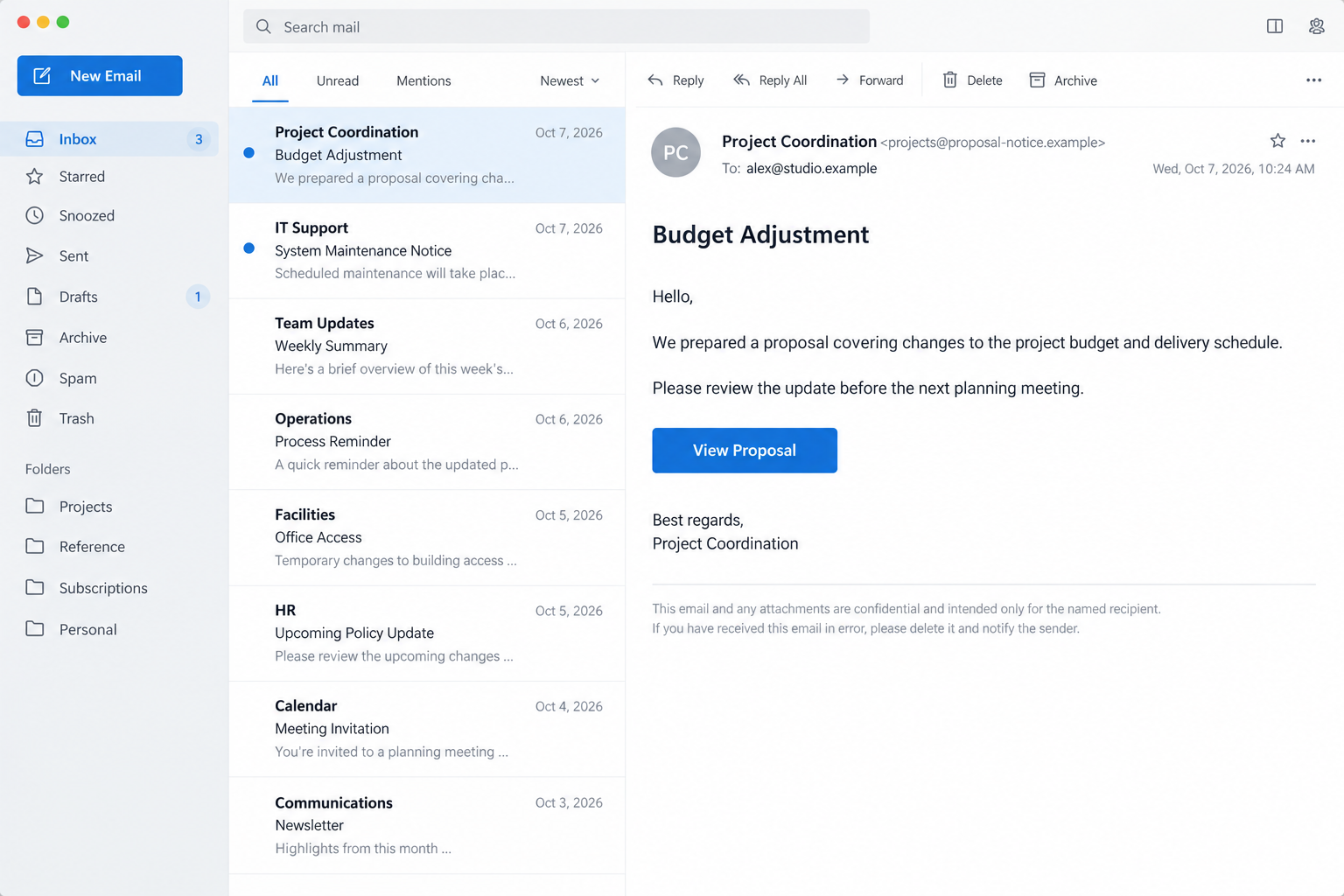
The documented subject is Budget Adjustment. The message refers to changes in a project’s finances and timeline, then presents a button to view the proposal.
That request can seem unremarkable to somebody handling several clients or approvals. The absence of a dramatic threat helps the email blend into routine correspondence.
The message does not establish a real project, authorized sender, or actual document. Those elements need to match records and people outside this email.
A familiar-looking password prompt is not evidence of a shared file. It is the part of the route where your account information can become exposed.
An error page gives the form a convenient explanation
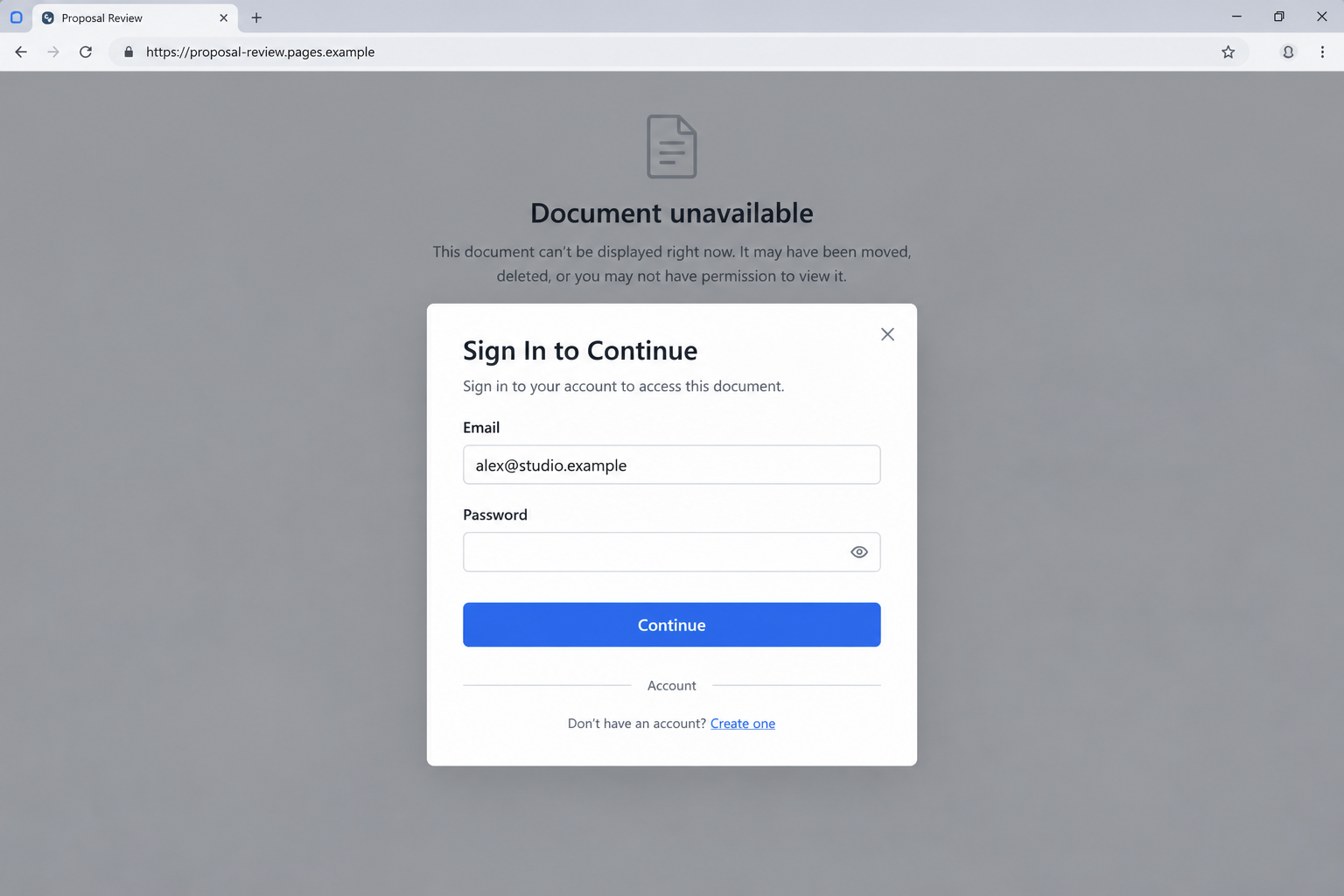
The described destination places a provider-style sign-in overlay over a document error background. Authentication is presented as the way to continue.
This arrangement makes the missing document seem temporarily inaccessible rather than nonexistent. The reader may focus on getting past the obstacle instead of examining the destination.
The documented host is keen-paddle-764.harvis[.]page. It is an incident indicator, not an address to visit or proof of who operates the campaign.
Hosting and copied provider cues do not demonstrate authorization. A service whose infrastructure is abused should not be confused with the person creating the deceptive page.
The right check starts with the real project relationship
Contact the project owner through your existing conversation, directory, or collaboration application. Ask whether they sent an adjustment proposal and where it is stored.
If a legitimate change exists, review it in the established project system. The email’s button is not the only way to reach authorized work.
- A broad budget subject resembles normal professional correspondence.
- The message assumes the recipient knows which project is meant.
- A proposal action opens a separate page.
- A login overlay appears before the document is available.
- The actual project owner can confirm the request independently.
Receiving the message does not prove a coworker was hacked. A fraudster can invent an internal tone without ever entering an employee’s account.
Why This Email Can Work Without an Alarm or Deadline
People often expect phishing to sound threatening. This message instead asks for something ordinary: review the work and raise any concerns.
A project can have several versions, shifting costs, and revised delivery dates. A brief adjustment notice may therefore seem reasonable even when details are missing.
The reader supplies that context. You might connect the email to the client whose timetable changed yesterday, although the sender never identified that client.
A confidentiality footer can make the message look like standard company correspondence. It is a formatting cue, not a guarantee of an authentic business relationship.
The same is true of a polite sign-off. Neither professional grammar nor familiar etiquette establishes that the sender is entitled to request your password.
When you cannot identify the project, that uncertainty deserves attention. Do not click simply to find out which assignment the sender supposedly means.
Ask the known owner first. A legitimate colleague can explain the context without directing you through an unfamiliar authentication page.
The illustrations show a fictional email and an example sign-in overlay. Their accounts and addresses are invented, so they cannot be used as operative campaign links.
How the Project Budget Adjustment Scam Works
Step 1: An ordinary task creates a reason to open the message
The subject concerns money and scheduling, two issues that routinely require managerial attention. The email arrives as a work item rather than an overt security emergency.
A recipient may believe ignoring it could delay a meeting or approval. That pressure comes from normal professional responsibility, not necessarily a threat written by the sender.
Before treating it as assigned work, identify the sender and project. Familiar business vocabulary is insufficient when neither connection can be confirmed.
If the displayed name resembles somebody you know, compare the message with your existing relationship. Names can be copied, and real accounts can sometimes be misused.
Step 2: A proposal button replaces the missing project details
The message suggests that everything you need to know is available after clicking. That lets the sender avoid explaining the project in the email itself.
The reader may assume the link resolves uncertainty. In reality, it transfers the interaction to a page controlled by someone whose authority is still unverified.
Do not confuse a button with an attachment you already requested. Check whether the document exists in your established sharing system or with the known project coordinator.
A correct company domain in the recipient address does not make the destination part of that company. Your address is not a permission statement.
Step 3: The page imitates a document-access problem
An error background makes the proposal seem close but inaccessible. The sign-in form then offers the apparently reasonable solution.
That sequence can exploit a familiar annoyance. People are accustomed to session expiry, restricted files, and account mismatches when working with shared documents.
Legitimate systems can have those problems too. The difference is whether the page and identity provider belong to a workflow you can verify.
Read the actual address rather than accepting the logo, heading, or page background. An unrelated destination does not gain authority by reproducing a provider’s interface.
Step 4: The account prompt collects information before any proposal appears
The fraudulent form asks for the credentials supposedly needed to continue. A prefilled address can make the process seem already associated with your work identity.
That address can come from the email link or page text. It does not demonstrate a genuine session or knowledge of your project permissions.
Once a password is entered, treat it as potentially disclosed. You should not wait for a successful login or a visible document to decide whether action is needed.
Do not approve an unexpected authentication prompt to repair the page. Confirm the actual account request through your provider or administrator.
Step 5: An exposed work account can support a more targeted approach
If the attacker gains access, actual conversations may reveal people, amounts, deadlines, and document names. A later email could use details absent from the original lure.
Payment redirection or impersonation would be possible follow-up risks. The reviewed campaign does not establish that those outcomes occurred, so account evidence must guide the investigation.
The appropriate response includes both identity security and the work affected by it. A project team needs to know if sensitive correspondence may have been accessible.
Deleting the proposal email cannot retract a password. Secure the genuine account promptly and assess any related instructions that arrived afterward.
How to Check a Budget Proposal Without Trusting Its Button
Ask a question the real project owner can answer
Use a known communication channel to ask which project, version, and planning decision the proposal concerns. Avoid supplying confidential project information to the unfamiliar correspondent.
A vague answer copied from your question adds no confidence. The person responsible for the work should be able to connect the request to established records.
If a change is urgent, arrange to review it through the approved collaboration platform. Urgency does not require a new login path introduced by email.
Check the existing document location
Search your authorized project workspace for the expected file or request a fresh share from its known owner. Confirm ownership and permissions inside that platform.
A file title can be copied just as easily as a sender name. The account sharing it and the surrounding project context matter as well.
Do not upload company files to the suspicious page to help it recognize your account. That would create a separate disclosure while attempting to solve the first uncertainty.
Keep budget approval and account authentication separate
Entering a password into a fake form is not legitimate budget approval. Equally, a genuine account sign-in does not by itself authorize every proposed financial change.
Follow your organization’s approval controls after locating a real proposal. Confirm new payment details or spending requests through the normal financial process.
The phishing incident should not force an improvised shortcut in either area. Protect access first, then handle actual business decisions through the appropriate people.
What to Tell IT If You Clicked During a Busy Workday
A brief, accurate report is more useful than a guess about the attacker’s identity. State what arrived, when you clicked, and what the page requested.
Include whether you typed a password, provided a code, approved a notification, or downloaded a file. Do not paste the actual password into a support ticket.
Keep the message and destination information available. IT may ask for the original email so its headers and link details can be inspected.
If you were discussing sensitive budgets, name the relevant project to the authorized responder. Avoid broadly forwarding financial material while explaining the incident.
Prompt reporting lets the team inspect account activity while events are still recent. Embarrassment can delay the response that would be most helpful.
You do not need to prove that a takeover occurred before raising a concern. Supplying credentials to an unverified form is enough reason for an account review.
At the same time, describe observations accurately. A blank page, a failed login, and an installed program are different facts requiring different checks.
What to Do if You Have Fallen Victim to This Scam
-
Stop the proposal interaction and confirm the real request. Close the page and contact the established project owner through an existing channel.
Ask whether a budget or timeline revision was actually sent. If the proposal is genuine, arrange access through the approved system instead of reopening the questionable link.
-
Secure any account information you disclosed. Replace an exposed password in the provider’s genuine settings and update other accounts where that password was reused.
Include every password entered while trying to make the form work. An error message does not establish that the previous entry was discarded.
If the account is organizational, notify IT immediately so its response can include controls outside your individual settings.
-
Examine sessions, applications, and recovery access. Review unfamiliar devices, account events, authentication methods, recovery contacts, and application permissions.
Use available sign-out or revocation controls for suspicious access. Ask an administrator to assist where the provider does not expose those options to you.
Enable suitable multifactor protection through the real service, keeping unexpected approval prompts under scrutiny during recovery.
-
Review correspondence around the affected project. Look for messages you did not send, hidden conversations, forwarding rules, and changed document-sharing arrangements.
Ask the responsible finance or project staff to verify unusual instructions independently. Pay particular attention to new payment destinations or requests that cite confidential context.
Preserve suspicious activity before removing it so the team can assess what happened.
-
Check device exposure if the page introduced software. A download, extension request, or unfamiliar command deserves a separate technical assessment.
Malwarebytes can help inspect possible malicious software. Account access still needs its own recovery controls even when a device scan finds no threats.
AdGuard can reduce some malicious sites and advertising exposure in later browsing. It is an additional precaution, not proof that a proposal sender is authentic.
-
Report the email through the approved security route. Provide the original message, interaction time, and a concise description of the fake prompt.
Do not forward it as an ordinary project task to colleagues who might open it. Use the security team’s preferred method for handling suspected phishing.
If the incident caused a financial transfer, contact the actual payment provider promptly as part of the response.
-
Monitor the work account after access is restored. Check for new reset requests, unfamiliar messages, sharing changes, and further proposal notices.
Recovery should be verified in the actual account, not through a later email promising special assistance. Keep the incident reference and timeline available.
Return to budget decisions once the genuine project owner and document location are confirmed.
Frequently Asked Questions
Does a professional budget email have to be legitimate?
No. Professional wording is easy to imitate. Verify the sender, project, document owner, and authentication route independently.
Does the page error prove a real proposal exists?
No. A background error can be part of the imitation. Locate the actual document in the established workspace or confirm it with its owner.
Was my coworker’s account necessarily hacked?
That is not established by this lure. A copied name or internal tone can be fabricated; genuine account activity is needed to identify compromise.
Is the documented hosting domain the only warning sign?
No. Operators can move pages. The unverified proposal route and unrelated password request remain important even when the hostname changes.
Did entering a password approve a budget increase?
The fake form does not establish a valid approval process. Treat the password as exposed and verify any real business decision through your organization’s controls.
What if I clicked and immediately closed the page?
Report the event and note any downloads or permissions. Account exposure depends on what was entered or authorized, not merely the proposal’s subject.
The Bottom Line
The Project Budget Adjustment email scam turns an ordinary review task into an unverified login request. Confirm the project and reach its document through established channels.
If credentials were supplied, secure the work identity and report the incident. A convincing planning email should never substitute for a verified account-access process.

Join the discussion
0 commentsShare your experience or ask a question about this article.
Discussion
Start the conversation
Have a question or something useful to share? Add the first comment.