

Ransomware attacks have been on the rise, inflicting damage and extorting money from victims globally. The latest emerging threat is a new variant called QEPI ransomware. This insidious cyberattack encrypts personal files on infected devices and restricts access until a ransom is paid.
This comprehensive guide will provide an in-depth look at QEPI ransomware, how it works, detection signs, and most importantly, what you can do if you become a victim. With the right preventative measures and recovery steps, the impact of this virus can be minimized.

Overview of QEPI Ransomware
QEPI ransomware is the newest version of the notorious STOP/DJVU ransomware family. It uses robust encryption algorithms to lock files and appends the .QEPI extension to encrypted filenames. Once infected, victims cannot open their files, including documents, images, videos, and more.
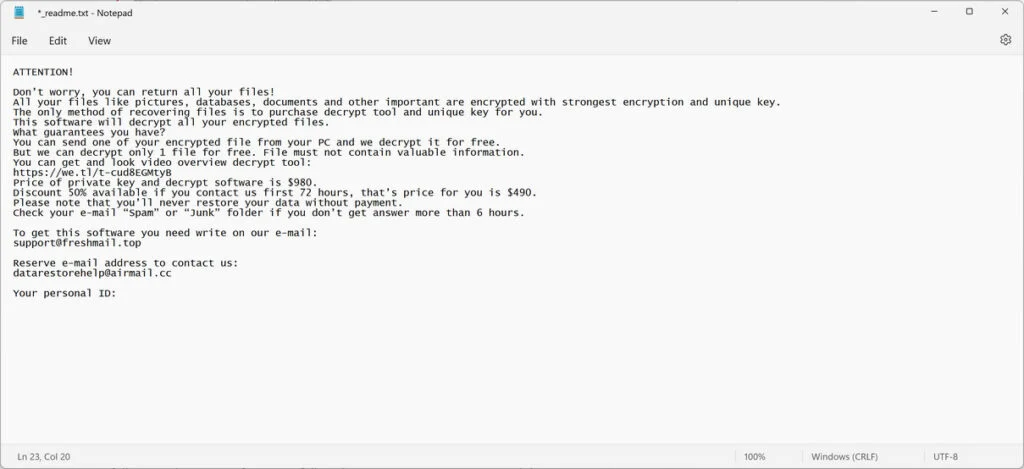
The ransomware then displays a ransom note named _readme.txt with payment instructions. It demands payment in Bitcoin cryptocurrency to allegedly send a decryption key for restoring file access. If users see the .QEPI extension added to inaccessible files, it signifies an active infection.
QEPI joins the ranks of the most harmful ransomware threats. It can lead to permanent data loss if proper precautions are not exercised. Understanding how it spreads, encrypts, and demands payment is crucial to protect yourself.
Infection Vectors
QEPI ransomware uses various infection mediums to compromise devices:
- Malicious email attachments (invoices, shipping notices)
- Infected software installers and crack tools
- Compromised websites and deceitful ads/pop-ups
- External drives containing malware
Once executed on a system, the ransomware runs a scan searching for specific file types like documents, images, videos, and more.
Encryption Process
During the encryption phase, QEPI ransomware targets and encrypts selected file types using a symmetric AES algorithm. A unique encryption key is generated to lock each file.
The original files are deleted, leaving only encrypted versions with the .QEPI extension appended. This prevents any program from opening them, essentially holding your data hostage.
Ransom Demands
With files encrypted, QEPI displays a _readme.txt ransom note with payment instructions:
- Contact the developers at support@fishmail.top and datarestorehelp@airmail.cc
- Visit the payment website to purchase a decryptor tool
- Pay the ransom in Bitcoin cryptocurrency
- Ransom starts at $490 worth of Bitcoin and increases to $980 if not paid promptly
The note claims only they can provide the decryption key to restore data access. But even paying does not guarantee file recovery.
This is the ransom note that the QEPI ransomware will show to its victims:
ATTENTION!
Don’t worry, you can return all your files!
All your files like pictures, databases, documents and other important are encrypted with strongest encryption and unique key.
The only method of recovering files is to purchase decrypt tool and unique key for you.
This software will decrypt all your encrypted files.
What guarantees you have?
You can send one of your encrypted file from your PC and we decrypt it for free.
But we can decrypt only 1 file for free. File must not contain valuable information.
You can get and look video overview decrypt tool:
https://we.tl/t-oTIha7SI4s
Price of private key and decrypt software is $980.
Discount 50% available if you contact us first 72 hours, that’s price for you is $490.
Please note that you’ll never restore your data without payment.
Check your e-mail “Spam” or “Junk” folder if you don’t get answer more than 6 hours.To get this software you need write on our e-mail:
support@fishmail.topReserve e-mail address to contact us:
datarestorehelp@airmail.cc
Here is a summary of the QEPI ransomware:
- Ransomware family: STOP/DJVU ransomware
- Extensions: .QEPI
- Ransomware note: _readme.txt
- Ransom: From $490 to $980 (in Bitcoins)
- Contact: support@fishmail.top and datarestorehelp@airmail.cc emails
- Symptoms: The images, videos, and other documents have the “.QEPI” extension and cannot be opened by any programs
- File recovery: Unfortunately, it is not currently possible to decrypt the files encrypted by the QEPI ransomware. It may, though, be possible in the future if the decryption keys are recovered from the cybercriminals’ servers. Therefore, if you do not plan on paying the ransom, it is advised that you make an image of the encrypted drives so that you can decrypt them in the future.
How QEPI Ransomware Works
Now let’s explore the step-by-step process of how a QEPI ransomware attack unfolds:
1. Initial Compromise
An infection begins by compromising a vulnerable system through an infected email attachment, malicious ad, compromised site, or other vector. Once clicked or accessed, the malicious payload secretly downloads.
2. Malware Execution
The malware payload then executes on the system, initiating the QEPI ransomware infection. It utilizes evasion techniques to avoid detection by antivirus software.
3. Environment Reconnaissance
QEPI scans the infected system’s environment, gathering information like the operating system version, system language, computer name, and more.
4. Internal Network Propagation (Optional)
If connected to a larger network, QEPI may attempt to spread laterally to infect more devices and servers. It leverages techniques like SMB exploitation.
5. Targeted Encryption
QEPI initiates an encryption loop, scanning for and encrypting high-value files like documents, images, videos, databases, and source code. Each file is encrypted with a unique key.
6. Appending New Extension
The original files are deleted after encryption. The encrypted versions receive the .QEPI extension appended to the filenames.
7. Ransom Note Deployment
The ransomware drops _readme.txt containing payment instructions to allegedly decrypt files by purchasing a tool from the attackers.
8. Persistence Mechanisms
To maintain access, QEPI deploys persistence techniques like creating registry run keys and scheduled tasks to execute on system reboots.
9. Command & Control Communication
Finally, QEPI contacts the command & control servers operated by the threat actors to report a successful infection and transmit data.
This multi-stage attack chain allows QEPI to infiltrate systems, encrypt data, and demand ransom payments. Understanding how it works can help equip you with defenses.
What To Do If You Are Infected
Falling victim to QEPI can be devastating but do not panic. There are steps you can take to handle the infection and work to recover files. Here are tips if your system is compromised:
1. Isolate the Infected Device
Disconnect the infected computer from any networks or external devices immediately. This prevents further spreading of the ransomware.
2. Take Photos of the Ransom Note
Photograph any ransom notes or payment instructions that appear. Save this evidence in case it disappears during deeper analysis.
3. Check for Encrypted Files
Search for file types like DOC, JPG, PDF that now have the .QEPI extension. This confirms the presence of file encryption.
4. Report the Crime
Contact law enforcement and cybersecurity authorities to report the ransomware attack. Provide any evidence like the ransom note.
5. Seek Help from IT Security Firms
Engage IT security firms that specialize in ransomware attacks. They may assist with remediation and file recovery efforts.
6. Avoid Paying the Ransom
As difficult as it may be, avoid paying the ransom. There are no guarantees you will get decryption keys or file access.
7. Restore from Backups
Check if clean file backups exist that can restore your data. Ensure backups are disconnected from infected systems first.
8. Use Shadow Volume/System Restore
If available, leverage Shadow Volume copies or System Restore to recover previous versions of encrypted files.
9. Reset Passwords and Accounts
Once your system is clean, reset all account passwords and credentials to prevent further misuse.
10. Monitor Accounts and Credit
Keep close watch on accounts and financial statements for any fraudulent activity following an infection.
While QEPI’s encryption is robust, taking prompt action gives you the best chance of recovering your data. Be ready with contingency plans in case of infection.
Remove the QEPI ransomware and recover the files
It’s important to understand that by starting the removal process you risk losing your files, as we cannot guarantee that you will be able to recover them. Your files may be permanently compromised when trying to remove this infection or trying to recover the encrypted documents.
We cannot be held responsible for losing your files or documents during this removal process.
It’s recommended to create a backup image of the encrypted drives or files before proceeding with the malware removal instructions so that you can restore them if the decryption keys are recovered from the cybercriminals’ servers. To create a backup for your encrypted files or drives, you can use EaseUS Todo Backup Free.
Please perform all the steps in the correct order. If you have any questions or doubts at any point, stop and ask for our assistance.
- STEP 1: Start your computer in Safe Mode with Networking
- STEP 2: Use Malwarebytes to remove QEPI ransomware
- STEP 3: Use HitmanPro to scan for Trojans and other malware
- STEP 4: Double-check for malware infections with ESET Online Scanner
- STEP 5: Restore the files encrypted by the QEPI ransomware
STEP 1: Start your computer in Safe Mode with Networking
In this first step, we will start your computer in Safe Mode with Networking to prevent QEPI malicious drivers and services from loading at Windows start-up. We’re using Safe mode because it starts Windows in a basic state, using a limited set of files and drivers.
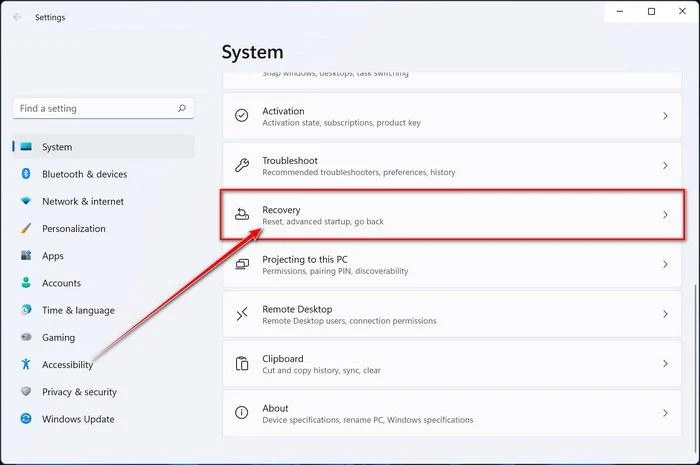
- Press Windows key + I to open Settings. If that doesn’t work, right-click the Start button and select Settings. Then, in the right-hand pane, click Recovery.
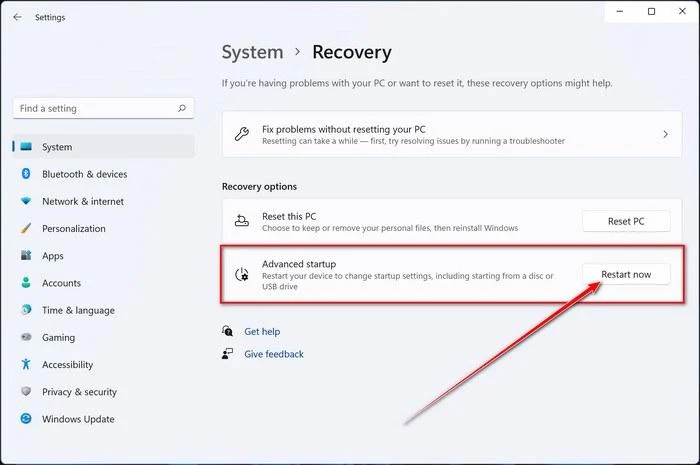
- Under Advanced startup, click Restart now. Save any open work first — your PC will restart immediately.
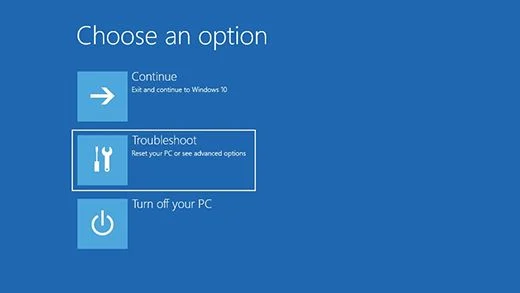
Your PC will restart into the Windows Recovery Environment. From there, follow these steps to reach Safe Mode:
- On the Choose an option screen, select Troubleshoot.
- On the Troubleshoot screen, click Advanced Options.
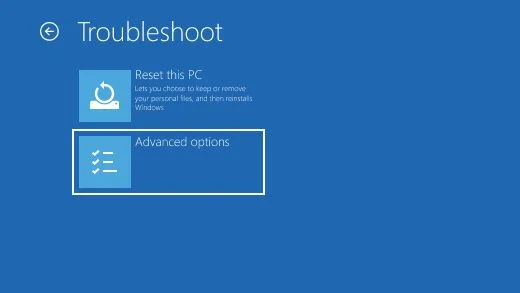
- On the Advanced Options page, click Startup Settings.
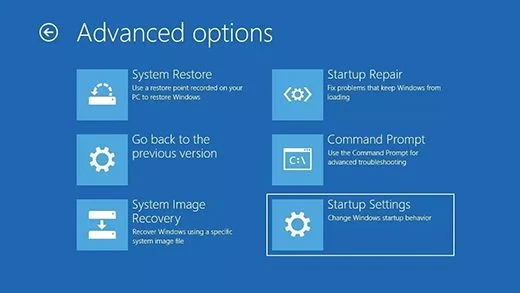
- On the Startup Settings page, click Restart.
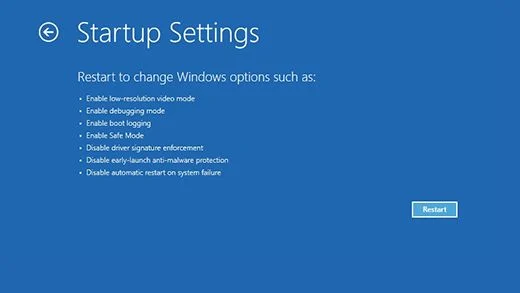
- After your PC restarts, you’ll see a list of startup options. Press 5 or F5 to start Safe Mode with Networking.
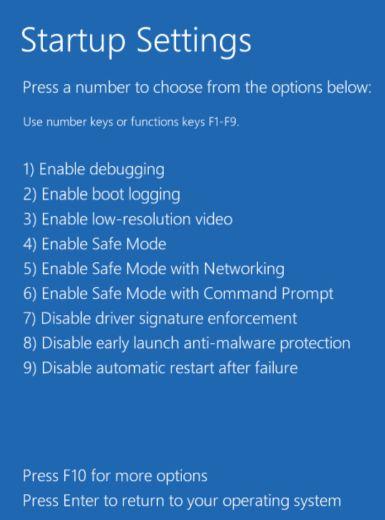
- You’ll know you’re in Safe Mode when “Safe Mode” appears in the corners of the screen. Now continue with the next step of this guide — downloading and running Malwarebytes (explained in Step 2).
- Press Windows key + I to open Settings. If that doesn’t work, click the Start button and select Settings (the gear icon).
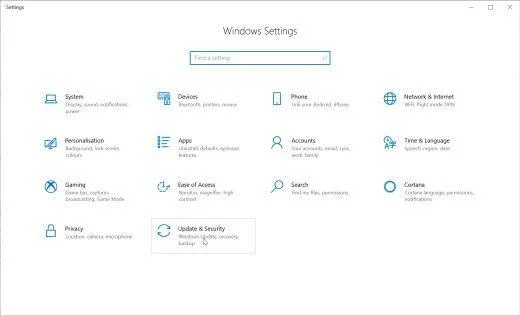
- In the Windows Settings window, select Update & Security, then click Recovery.
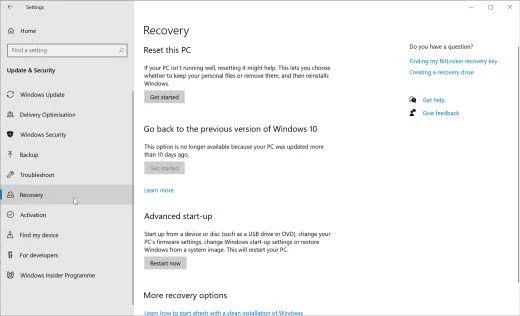
- Under Advanced startup, click Restart now. Save any open work first — your PC will restart immediately.
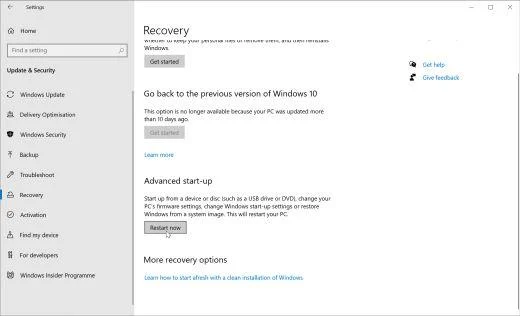
Your PC will restart into the Windows Recovery Environment. From there, follow these steps to reach Safe Mode:
- On the Choose an option screen, select Troubleshoot.
- On the Troubleshoot screen, click Advanced Options.
- On the Advanced Options page, click Startup Settings. (On Windows 8, this option is labeled Windows Startup Settings.)
- On the Startup Settings page, click Restart.
- After your PC restarts, you’ll see a list of startup options. Press 5 or F5 to start Safe Mode with Networking.
- You’ll know you’re in Safe Mode when “Safe Mode” appears in the corners of the screen. Now continue with the next step of this guide — downloading and running Malwarebytes (explained in Step 2).
- Remove any CDs, DVDs, or USB drives from your computer, then restart it.
- As soon as the computer starts (when the hardware information appears on screen), press the F8 key repeatedly until the Advanced Boot Options menu appears. If Windows starts normally instead, you pressed F8 too late — restart and try again.
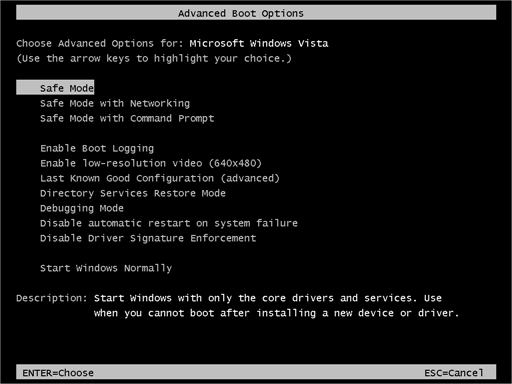
- On the Advanced Boot Options screen, use the arrow keys to highlight Safe Mode with Networking, then press Enter.
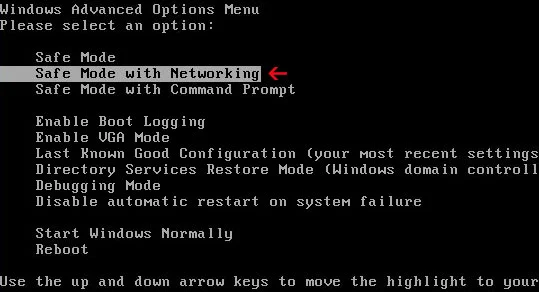
- Once you’re in Safe Mode with Networking, continue with the next step of this guide — downloading and running Malwarebytes (explained in Step 2).
Can’t get into Safe Mode with Networking? No problem — you can run the Malwarebytes scan in normal mode instead and continue the guide from there.
STEP 2: Use Malwarebytes to remove QEPI ransomware
While the computer is in Safe Mode with Networking, we will download, install and run a system scan with Malwarebytes.
Malwarebytes is one of the most popular and trusted anti-malware tools for Windows — and it’s completely free for removing infections. It catches threats that many antivirus programs miss, including adware, browser hijackers, and trojans. Follow the steps below to scan and clean your PC in just a few minutes.
Download Malwarebytes
Click the button below to download the latest version of Malwarebytes for Windows from the official source. The free version is all you need — it will scan your computer and remove adware, browser hijackers, and other malicious software at no cost.
Download MalwarebytesOfficial installer for Windows 11 and 10. Your download starts right away.Want real-time protection? See Malwarebytes Premium Malwarebytes Free for WindowsScans and removes malware at no cost
-
Install Malwarebytes
When the download finishes, open your Downloads folder and double-click the MBSetup file. If Windows shows a User Account Control pop-up, click “Yes” to allow the installation.

Follow the On-Screen Prompts to Install Malwarebytes
The setup wizard will walk you through a few quick screens:
-
Choose where you’re installing the program — “Personal Computer” or “Work Computer” — then click Next.

-
Malwarebytes will now install on your device. This usually takes under a minute.

-
When installation is complete, the “Welcome to Malwarebytes” screen will open automatically.

-
On the final screen, click Open Malwarebytes to launch the program.

-
Enable “Scan for Rootkits”
Before scanning, turn on rootkit detection so Malwarebytes can find even the most hidden threats. Click the Settings gear icon on the left side of the screen.

In the settings menu, find “Scan for rootkits” and click the toggle so it turns blue.

Done? Click “Dashboard” in the left pane to return to the main screen.
Start the Scan
Click the blue Scan button. Malwarebytes will automatically update its virus database and start checking your computer for malware.

-
Wait for the Scan to Finish
The scan checks your entire system for browser hijackers and other malicious programs, so it can take 5 to 20 minutes depending on your computer. Feel free to do something else — just check back occasionally to see the progress.

-
Quarantine the Detected Threats
When the scan is done, you’ll see a list of everything Malwarebytes found — malware, adware, and potentially unwanted programs. Click the “Quarantine” button to remove all of them at once.

Malwarebytes will now remove the malicious files and registry entries and move them safely into quarantine.

-
Restart Your Computer
Some threats can only be fully removed after a reboot. If Malwarebytes asks you to restart, click Yes. Once you’re logged back in, Malwarebytes has finished removing the threats it found.

When the malware removal process is complete, your computer should start in normal mode (if not, simply restart your device to exit Safe Mode) and continue with the rest of the instructions. We do recommend that you run another scan with Malwarebytes once you’re in Normal mode to make sure all the malicious files were removed.
STEP 3: Use HitmanPro to scan for Trojans and other malware
In this third step, while the computer is in normal back, we will download and run a scan with HitmanPro to remove the QEPI ransomware and other malicious programs.
HitmanPro is a second-opinion scanner — it’s designed to catch what your main antivirus might have missed. Instead of relying on a single detection engine, it checks the behavior of files in the locations where malware usually hides. Anything suspicious gets sent to the cloud, where it’s analyzed by two of the best antivirus engines available: Bitdefender and Kaspersky.
Good news: scanning is completely free, with no limits. You only need a license when it’s time to remove what was found — and even then, you can activate a free one-time 30-day trial to clean your PC at no cost. (A full license is $24.95 per year for 1 PC.)
-
Download HitmanPro
Click the button below to download HitmanPro. Remember — the scan is free, so you have nothing to lose by checking your PC.
Download HitmanProFree scan. Removing threats needs the free 30-day trial. Opens the official HitmanPro page in a new tab. HitmanProSecond-opinion malware scanner from Sophos
 -
Install HitmanPro
When the download finishes, open your Downloads folder and double-click the file: “hitmanpro.exe” on 32-bit Windows, or “hitmanpro_x64.exe” on 64-bit Windows.
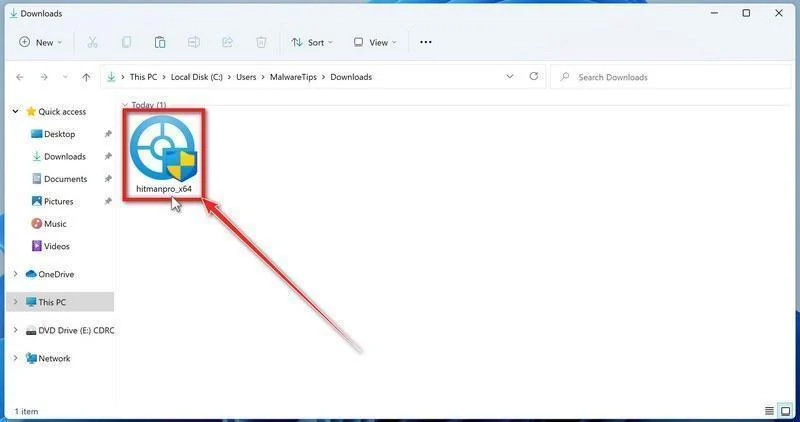
If a User Account Control pop-up asks whether HitmanPro can make changes to your device, click “Yes” to continue.
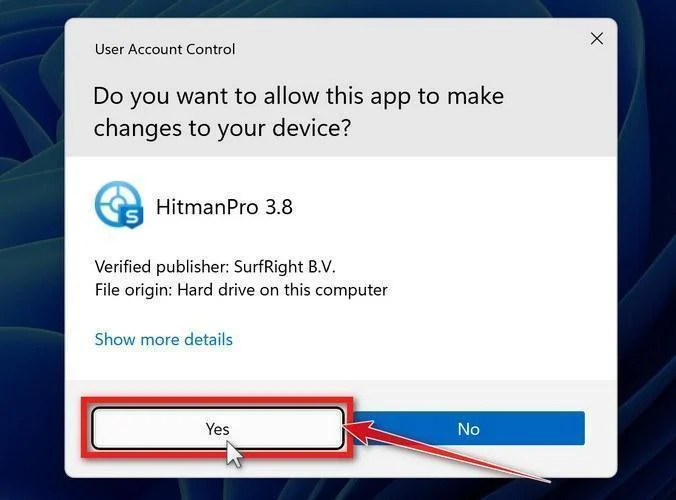
-
Follow the On-Screen Prompts
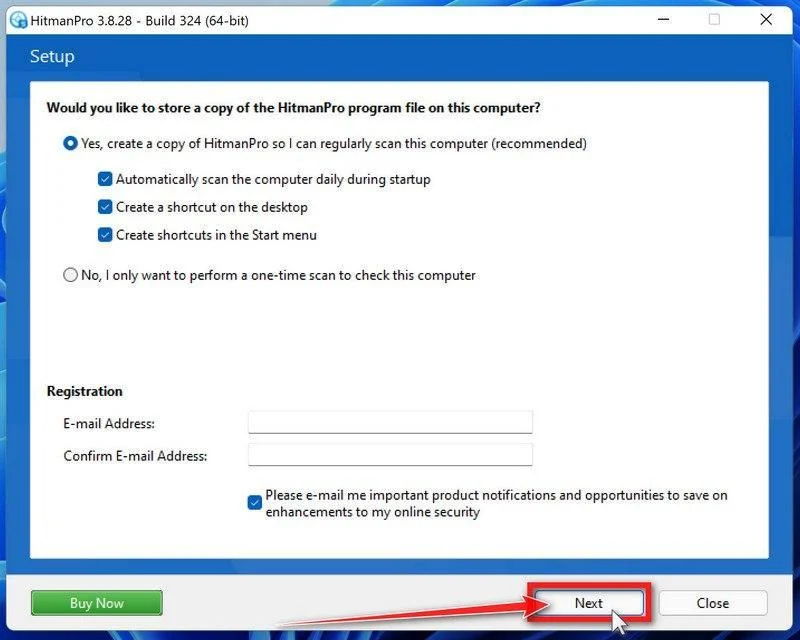
On the HitmanPro start screen, click “Next” to begin the system scan. No lengthy setup required — it goes straight to work.
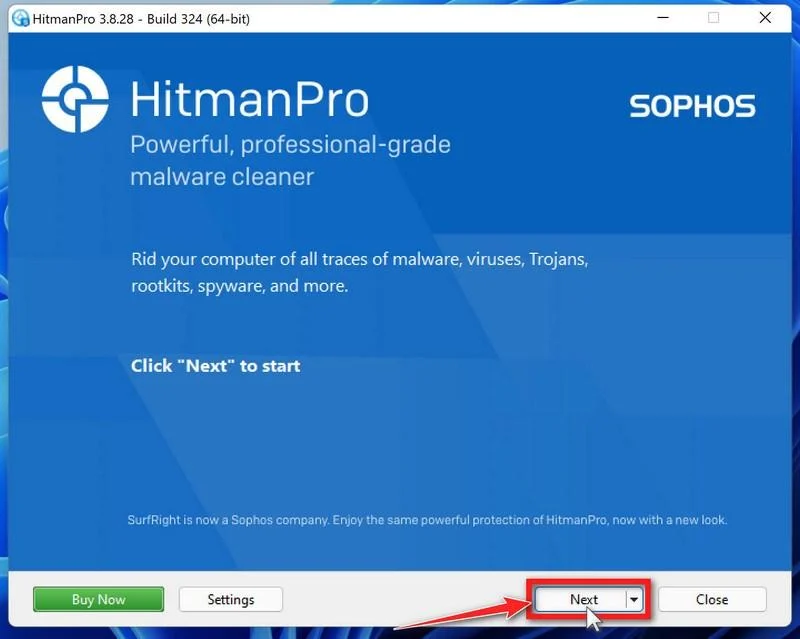
-
Wait for the Scan to Finish
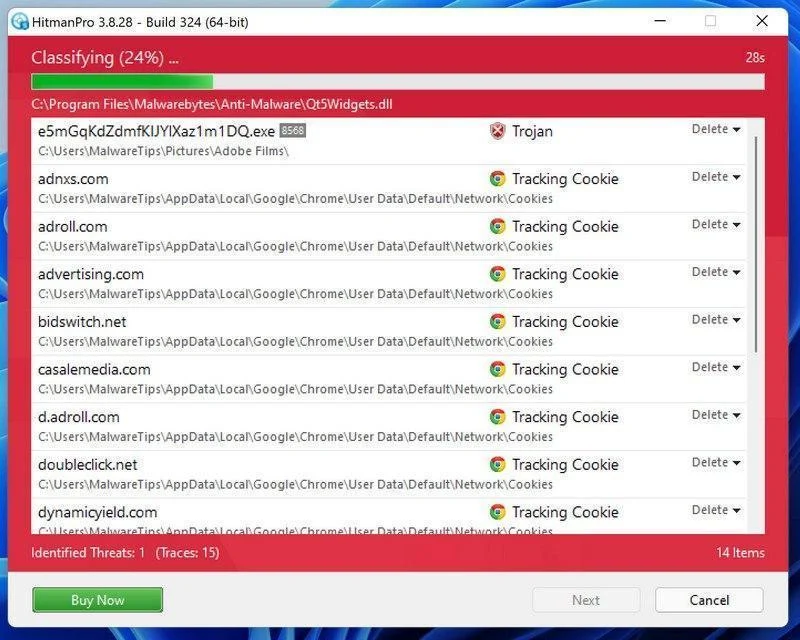
HitmanPro will now check your computer for malicious programs. This usually takes just a few minutes thanks to its cloud-based scanning.
-
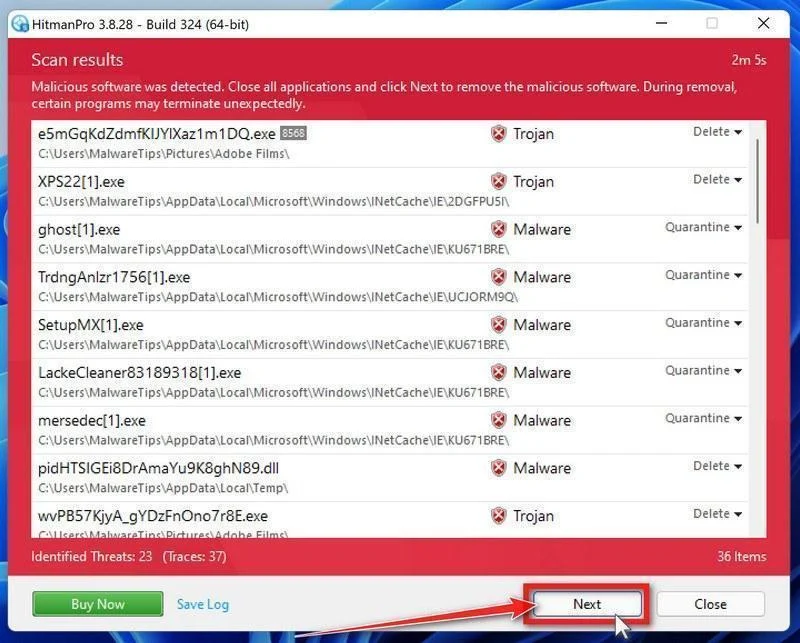
Review the Results and Click “Next”
When the scan is done, HitmanPro will show you everything it found. Click “Next” to remove the detected threats.
-
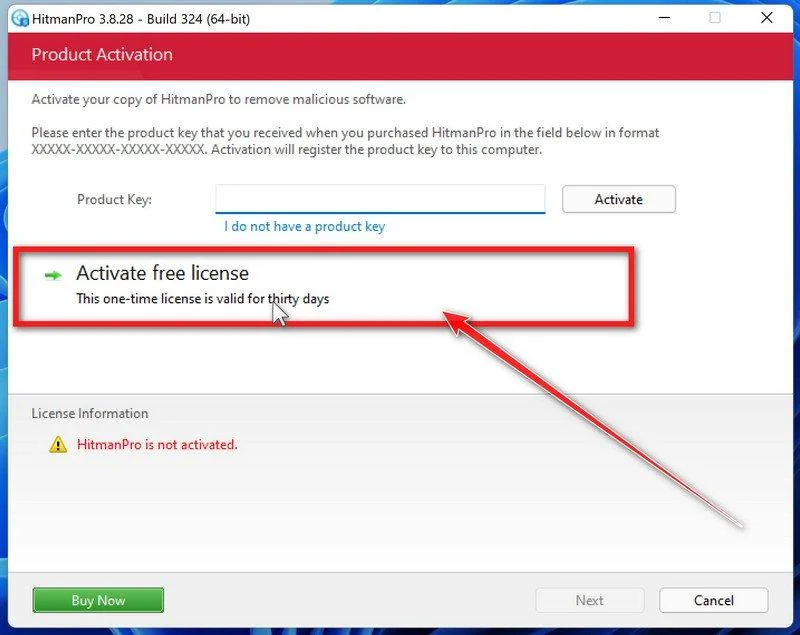
Click “Activate Free License”
To remove the malicious files, click the “Activate free license” button. This starts your free 30-day trial — no payment details needed — and unlocks the full cleanup.
When the removal is complete, HitmanPro will show a summary of everything it cleaned. Click Next, then click Reboot if prompted. If there’s no reboot prompt, just click Close — your PC is clean.
STEP 4: Double-check for malicious programs with ESET Online Scanner
In this fourth step, we run a scan with ESET Online Scanner to remove any leftover files from the QEPI ransomware and other malicious programs.
ESET Online Scanner is a free second-opinion scanner that performs a deep, full-system check for viruses, trojans, rootkits, and other malware. We use it as the final step because it’s thorough — if anything slipped past the previous scans, ESET will find it. A clean result here means your computer is malware-free.
-
Download ESET Online Scanner
Click the button below to download ESET Online Scanner.
Download ESET Online ScannerOpens the official download page in a new tab. ESET Online ScannerFree one-time malware scan from ESET
 -
Run the Installer
When the download finishes, open your Downloads folder and double-click “esetonlinescanner.exe“.
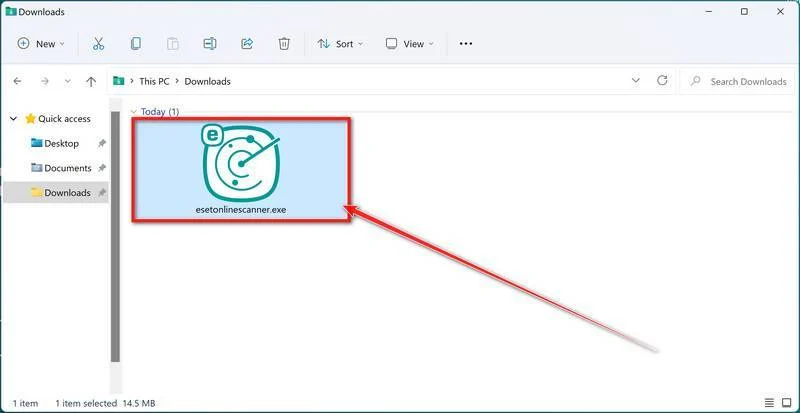
-
Install ESET Online Scanner
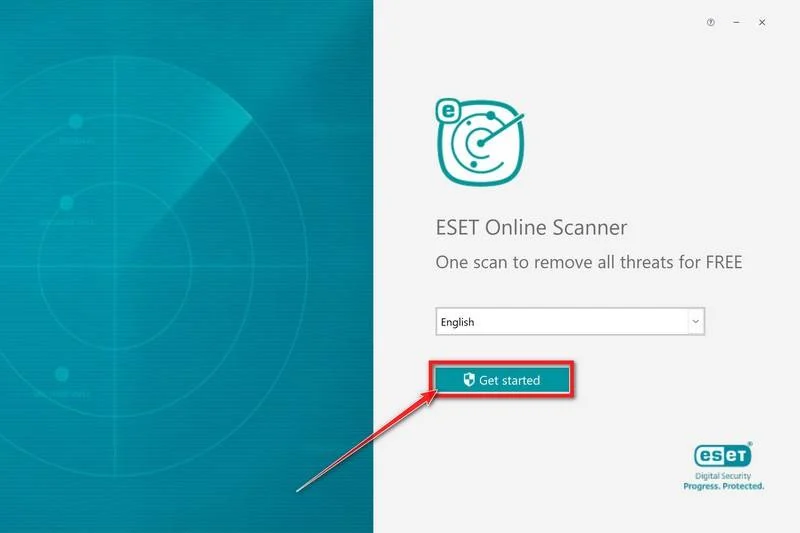
On the start screen, select your language from the drop-down menu and click Get started.
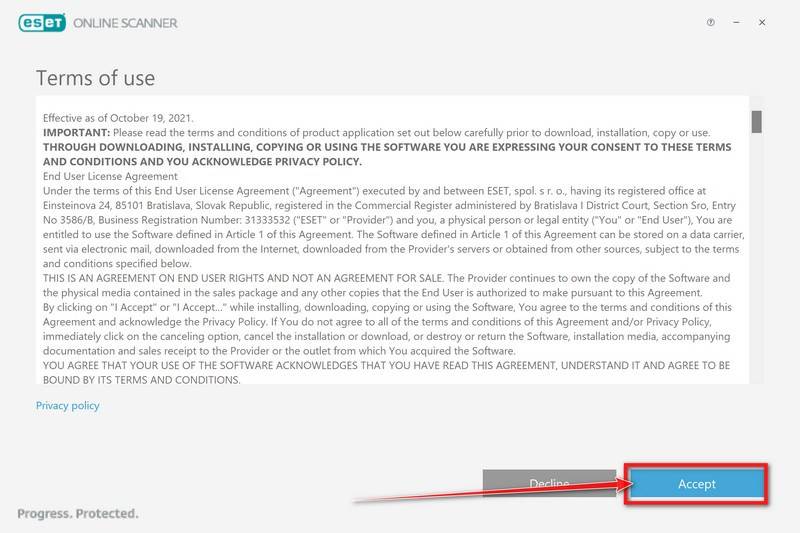
On the Terms of use screen, click Accept.
Choose your preferences for the Customer Experience Improvement Program and the Detection feedback system (either choice is fine), then click Continue.
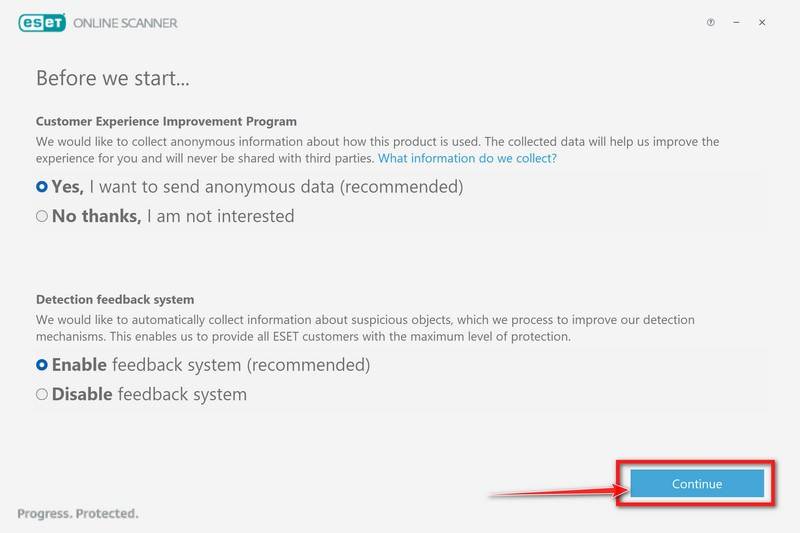
-
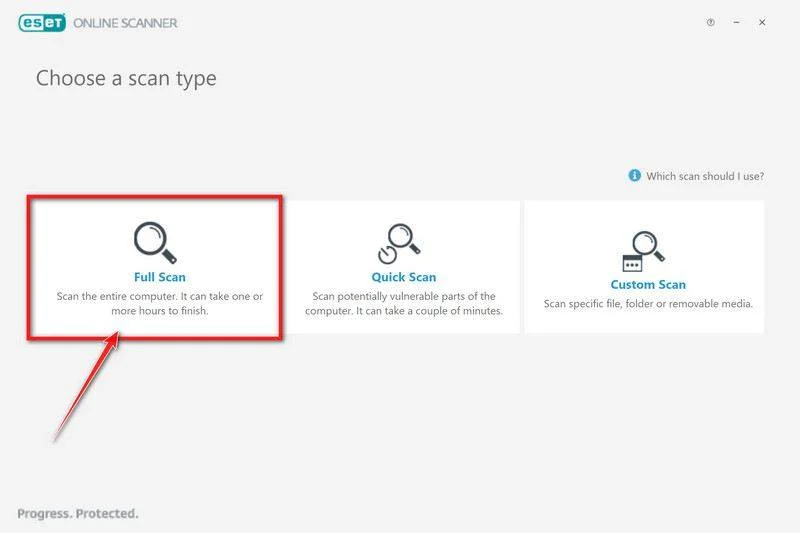
Start a Full Scan
Click Full Scan — this checks your entire computer, not just the common hiding spots.
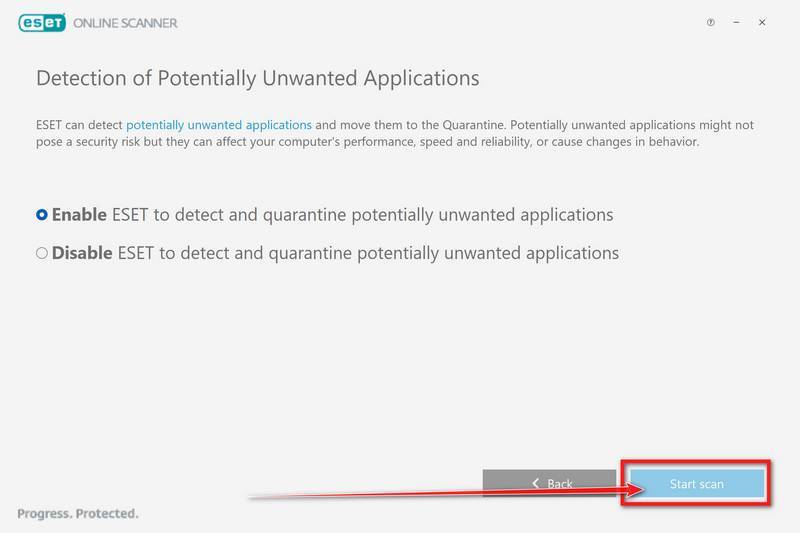
Select Enable for Detection of Potentially Unwanted Applications — this lets ESET catch adware and bundled junk programs, not just viruses. Then click Start scan.
-
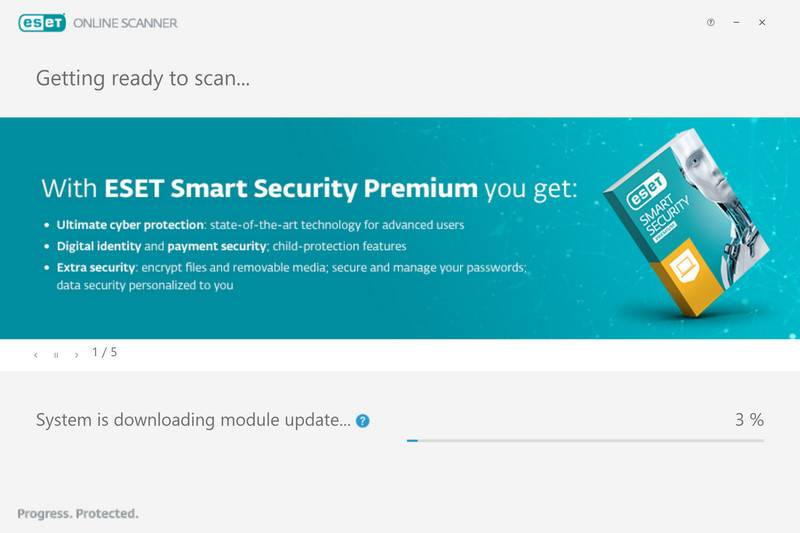
Wait for the Scan to Finish
ESET will now check every file on your computer. Because it’s a full scan, this can take a while — often an hour or more, depending on how much data you have. Leave it running in the background and check on it from time to time.
-
Review the Results
When the scan completes, the Found and resolved detections screen appears. Any threats found were automatically cleaned and quarantined — there’s nothing extra you need to do. Click View detailed results if you want to see exactly what was removed.
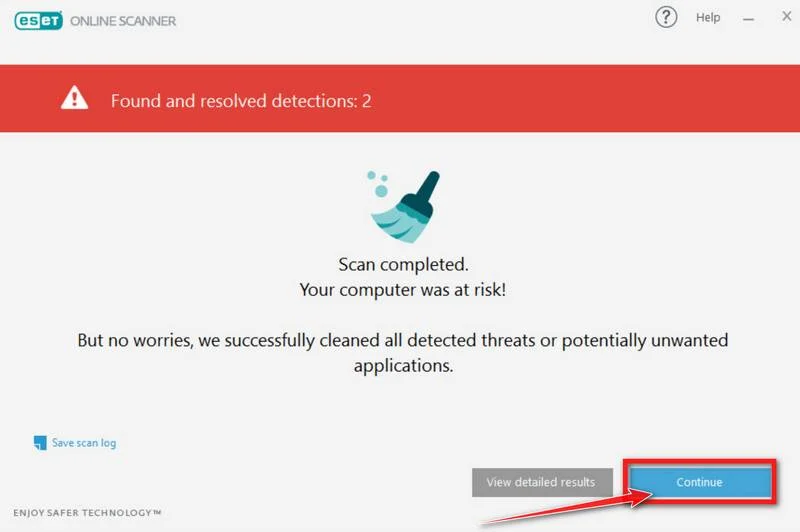
If ESET found nothing — congratulations, your computer has passed the final check and is malware-free.
STEP 5: Restore the files encrypted by the QEPI ransomware
Unfortunately, in most cases, it’s not possible to recover the files encrypted by this ransomware because the private key which is needed to unlock the encrypted files is only available through the attackers. However, below we’ve listed three options you can use to try and recover your files.
Option 1: Use Emsisoft Decryptor for STOP Djvu to restore the files
If your files were encrypted with an offline key there is a chance you can recover them by using Emsisoft Decryptor for STOP Djvu decryption tool. Follow the below guide to recover your files using the Emsisoft Decryptor for STOP Djvu.
-
Download Emsisoft Decryptor for STOP Djvu
You can download Emsisoft Decryptor for STOP Djvu by clicking the link below.
Download the decryptorOpens the official download page in a new tab. Emsisoft Decryptor for STOP DjvuFree decryption tool for some STOP/Djvu variants
 -
Run Emsisoft Decryptor for STOP Djvu
When Emsisoft Decryptor for STOP Djvu has finished downloading, double-click on “decrypt_STOPDjvu.exe” to run this program on your computer. In most cases, downloaded files are saved to the Downloads folder.
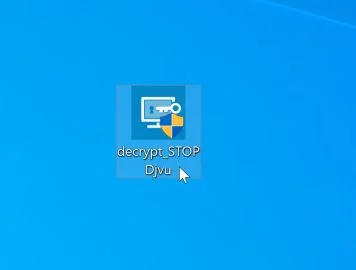
You may be presented with a User Account Control pop-up asking if you want to allow Emsisoft to make changes to your device. If this happens, you should click “Yes” to continue with the installation.
-
Follow the on-screen prompts
When the Emsisoft Decryptor for STOP Djvu starts, you will need to agree with the Terms and accept a disclaimer.
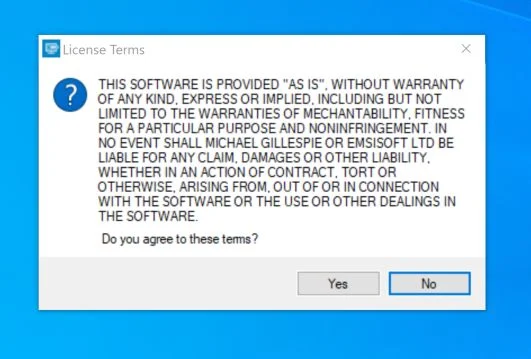
-
Click on “Decrypt”.
Click the “Decrypt” button to start the decryption process. The screen will switch to a status view, informing you about the current process and decryption status of your files.
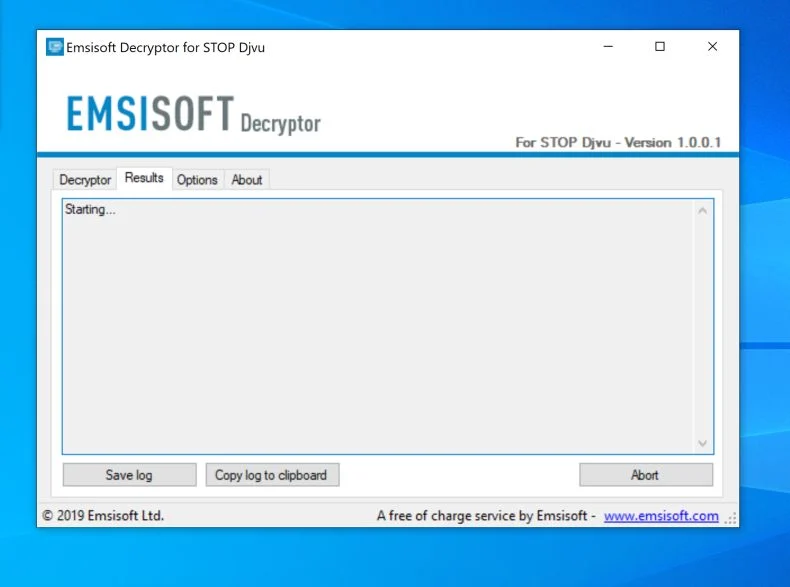
- The decryptor will inform you once the decryption process is finished. If you require the report for your records, you can save it by clicking the “Save log” button. If your system was compromised through the Windows Remote Desktop feature, we also recommend changing all passwords of all users that are allowed to login remotely and checking the local user accounts for additional accounts the attacker might have added.
If the “Emsisoft Decryptor for STOP Djvu” can’t decrypt your documents and you do not plan on paying the ransom, it is advised that you make an image of the encrypted drives so that you can decrypt them in the future.
Option 2: Search for a ransomware decryption tool
The cybersecurity community is constantly working to create ransomware decryption tools, so you can try to search these sites for updates:
- https://id-ransomware.malwarehunterteam.com/
- https://decrypter.emsisoft.com/
- https://noransom.kaspersky.com/
- https://www.avast.com/ransomware-decryption-tools
Option 3: Use EaseUS Data Recovery Wizard Free to recover the encrypted files
EaseUS Data Recovery Wizard Free can restore files and repair corrupted files with simple clicks. Its powerful scanning algorithms can identify and retrieve huge file type library, including all of the popular video files, audio files, photos, and document formats.
While the free version only allows you to recover 2 GB of data, this can be helpful to see if the recovery is possible and restore back the most important files from your computer.
-
Download EaseUS Data Recovery Wizard Free.
You can download EaseUS Data Recovery Wizard Free by clicking the link below.
Download EaseUS Data Recovery WizardOpens the download page in a new tab. EaseUS Data Recovery WizardFile recovery tool with a free version
 -
Double-click on the EaseUS Data Recovery Wizard Free setup file.
When EaseUS Data Recovery Wizard Free has finished downloading, double-click on the setup file to install EaseUS Data Recovery Wizard on your computer. In most cases, downloaded files are saved to the Downloads folder.
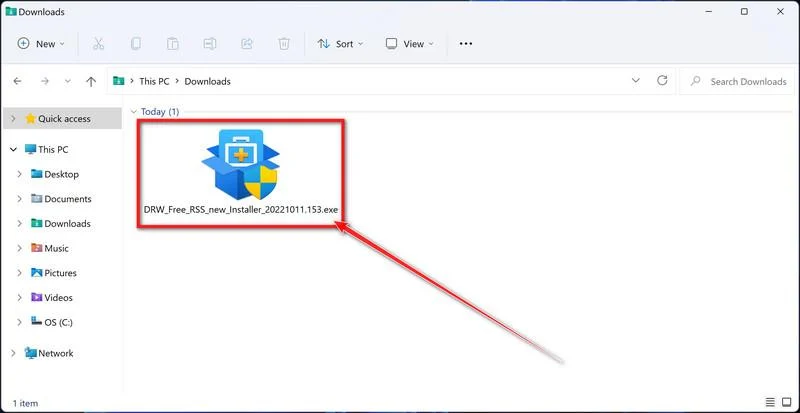
You may be presented with a User Account Control pop-up asking if you want to allow EaseUS to make changes to your device. If this happens, you should click “Yes” to continue with the EaseUS Data Recovery Wizard Free installation.
-
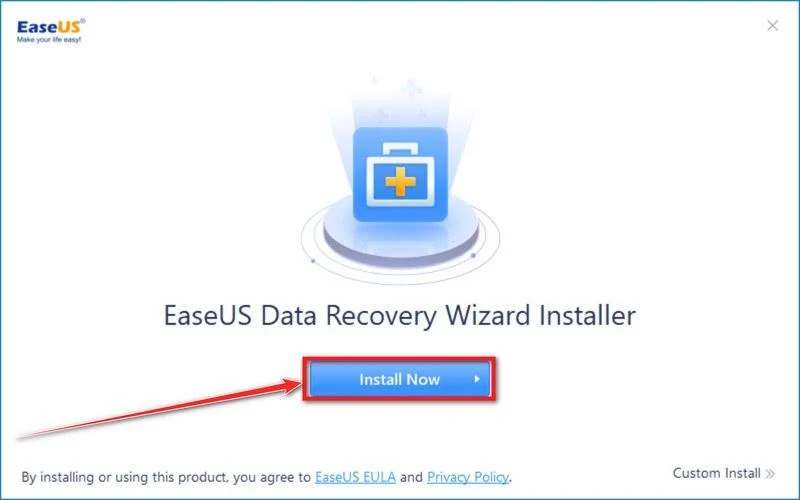
Follow the on-screen prompts to install EaseUS Data Recovery Wizard.
When the EaseUS Data Recovery Wizard installation begins, click on the “Install Now” as seen in the image below.
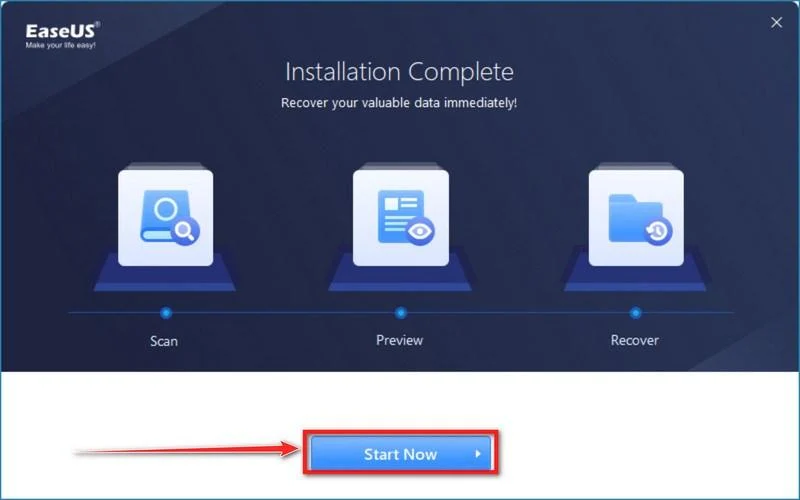
When your EaseUS Data Recovery Wizard installation completes, click the “Start Now” button to start the program.
-
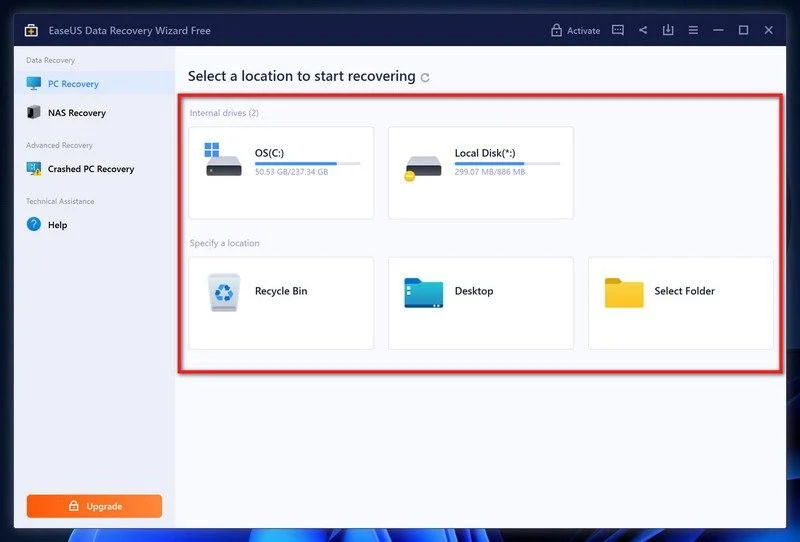
Select a location to start recovering the encrypted files.
Choose the drive or folder where you are the encrypted files that you want to recover and click “Scan“.
-
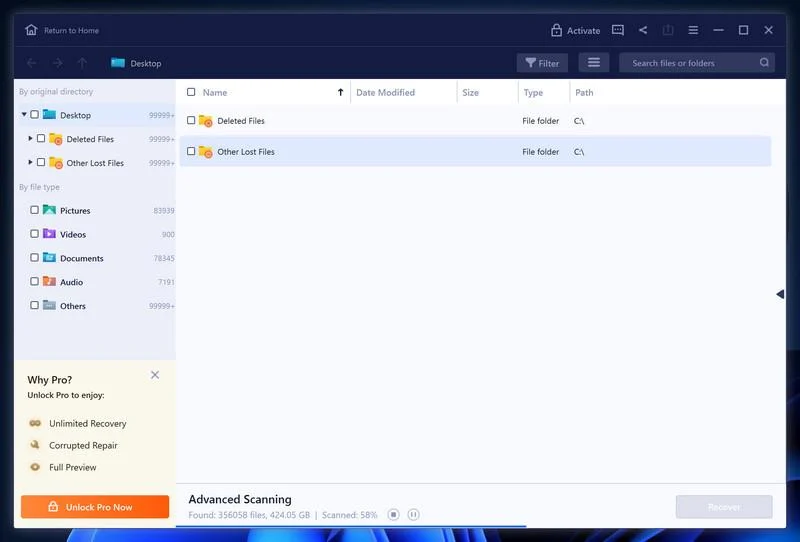
Wait for the EaseUS Data Recovery Wizard scan to complete.
EaseUS Data Recovery Wizard will now scan your computer files that can be restored. This process can take a few minutes, so we suggest you do something else and periodically check on the status of the scan to see when it is finished.
-
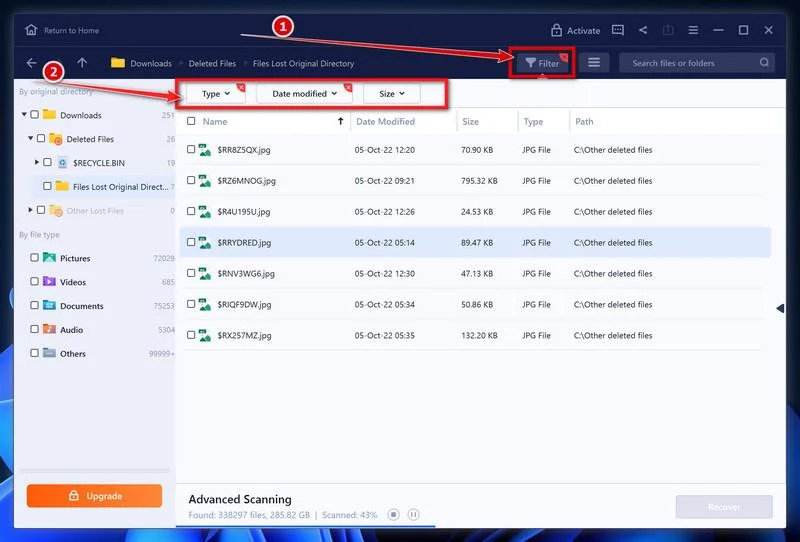
Find the files you want to recover.
When the EaseUS Data Recovery Wizard scan is finished scanning it will show a screen that displays the files that can be recovered. This tool can recover a lot of data, use the “Filter” button to quickly filter specific file types and find the files that you want to recover.
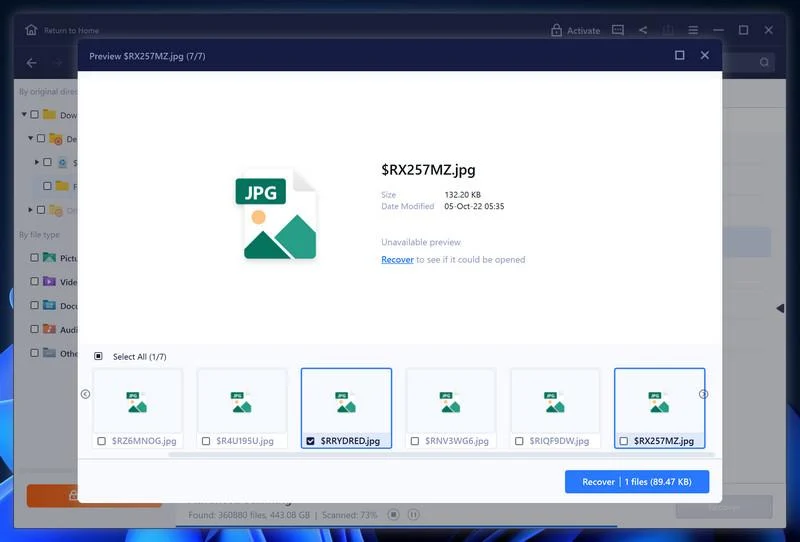
Click the “Preview” button or double-click on a file for a full preview.
-
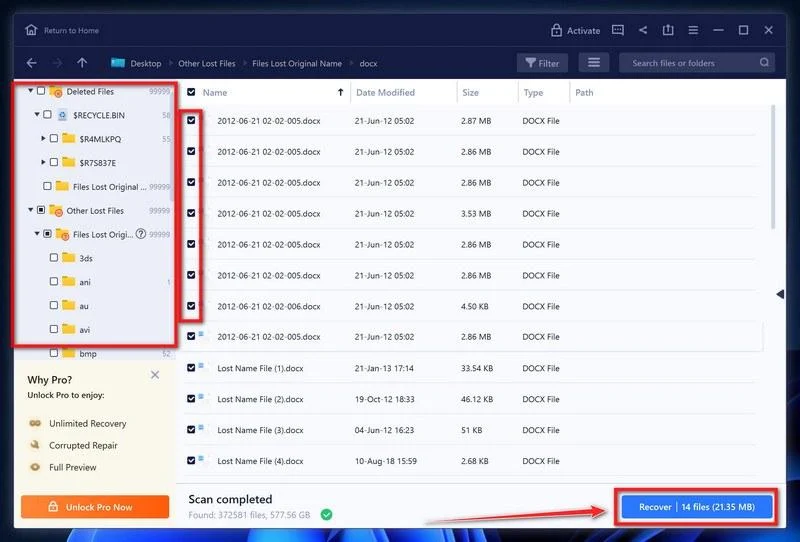
Select your files and click “Recover”.
Finally, select the the files you want to recover and click “Recover“.
Choose a safe location to save all the files.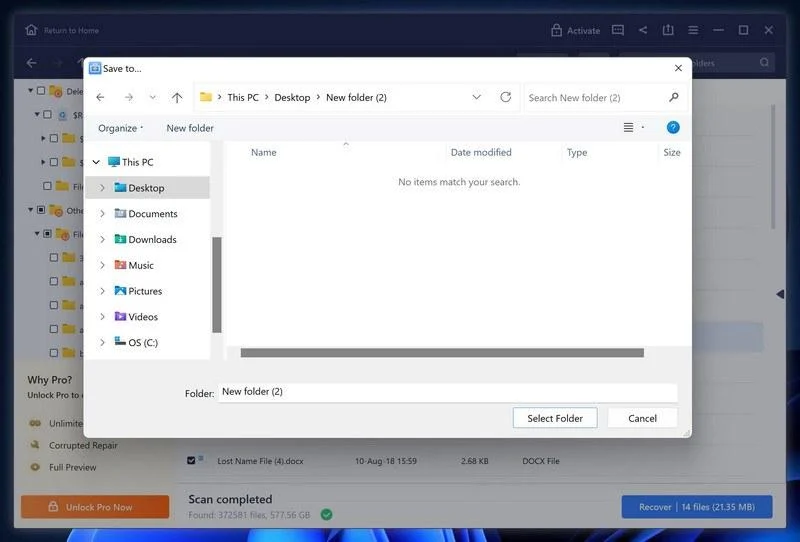
The free version only allow you to recover 2 GB of data, however, this will allow you to recover the most important files and see if EaseUS Data Recovery Wizard can correctly recover them.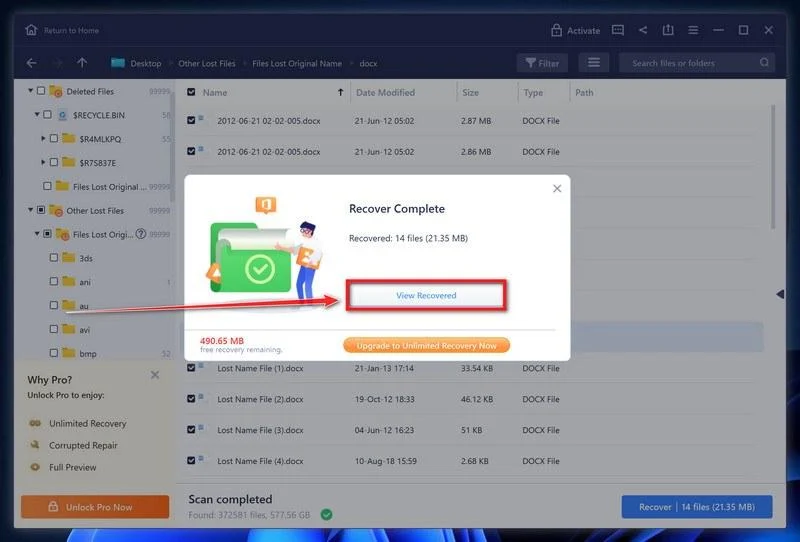
Your computer should now be free of the QEPI ransomware infection and other malware.
If you are still having problems with your computer after completing these instructions, then please follow one of the steps:
- Run a computer scan with Emsisoft Emergency Kit
- Ask for help in our Malware Removal Assistance for Windows forum.
Frequently Asked Questions About the QEPI Ransomware Scam
Ransomware attacks like QEPI are becoming increasingly common, inflicting heavy losses on individuals and businesses. If you’ve fallen victim to this insidious scam, you likely have many questions and concerns. This FAQ guide provides answers to the most common queries regarding QEPI ransomware.
What is the QEPI ransomware?
QEPI is a variant of the notorious STOP/DJVU ransomware family. It’s a file-encrypting malware that locks down your personal photos, documents, databases and other critical files by appending the .QEPI extension to filenames. Victims cannot access the encrypted data until they pay the hefty ransom demanded.
How does the QEPI ransomware infect your computer?
QEPI ransomware uses various techniques to infiltrate systems, including phishing emails, infected downloads, compromised websites, malvertising and exploiting weak Remote Desktop Protocol (RDP) passwords.
What types of files does QEPI ransomware encrypt?
QEPI ransomware targets and encrypts crucial file types and extensions like Office documents (.doc, .xls, .ppt), photos (.jpg, .png, .tiff), PDFs, videos, databases and more.
Can I recover my files encrypted by QEPI without paying ransom?
Unfortunately, the robust encryption used by QEPI makes direct decryption of files difficult currently. Your best options are restoring files from backups unaffected by the attack or waiting for free decryption tools in the future.
What is the ransom note displayed by QEPI ransomware?
QEPI ransomware drops the _readme.txt ransom note on the Windows desktop post-encryption. This contains payment instructions and demands $490-$980 in Bitcoin to restore file access.
What contact email addresses does QEPI ransomware provide?
The ransom note provides the support@fishmail.top and datarestorehelp@airmail.cc email addresses to contact the malware authors for file decryption after payment.
Should I pay the ransom amount demanded by QEPI ransomware?
Security experts strongly advise against paying the ransom, as it incentivizes cybercriminals without any guarantee you’ll regain file access. Focus on restoring encrypted files through backups instead.
How can I recover and remove QEPI ransomware from my system?
Isolate your infected device immediately and use reputed antivirus software to eliminate the malware. Restore encrypted files from backups if possible, or wait for decryption tools. Also strengthen system defenses going forward.
What security measures can I take to prevent QEPI ransomware infection?
Keep your software updated and use robust antivirus protection. Exercise caution with emails and downloads. Maintain regular backups of important data. Restrict folder permissions and enable firewalls to prevent unauthorized network activity.
Who should I contact if infected with QEPI ransomware?
Promptly report infections to cybersecurity authorities and law enforcement agencies. Engage professional incident response teams to contain the attack, safely restore data, and implement improved defenses against ransomware.
What should businesses do to protect against QEPI ransomware?
Businesses should implement comprehensive security like multi-factor authentication, advanced endpoint protection, firewalls, staff security training and regular backups to defend against QEPI and other ransomware effectively.
Let me know if you need any clarification or have additional questions!
The Bottom Line
QEPI ransomware represents a dangerous new threat capable of inflicting damage through robust encryption tactics. Understanding this malware family provides the knowledge to secure your systems and data.
If compromised, remain calm and utilize the right resources to disable the infection. Avoid paying ransoms, as there are no guarantees. With vigilance and safe computing, the devastating impact of ransomware like QEPI can be minimized.
Protect yourself with layered security, updated systems, and offline backups. And ensure everyone is trained to identify threats like phishing emails that distribute ransomware. With cooperation, education, and research, we can fight back against ransomware attackers.

Join the discussion
0 commentsShare your experience or ask a question about this article.
Discussion
Start the conversation
Have a question or something useful to share? Add the first comment.