

When you open the Task Manager on your Windows computer, you may notice a process called “Realtek HD Audio Manager” running in the background. This might raise some questions: What is Realtek HD Audio Manager? Why is it running? Is it necessary for my computer’s functionality? In this article, we will delve into the details of the Realtek HD Audio Manager process and shed light on its purpose and significance.
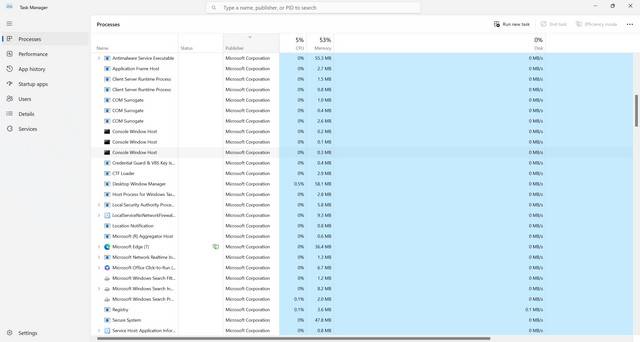
Understanding Realtek HD Audio Manager
Realtek HD Audio Manager is a software component developed by Realtek Semiconductor Corp. It is responsible for managing and controlling the audio devices and settings on your computer. This software comes bundled with Realtek audio drivers, which are essential for the proper functioning of your computer’s audio system.
Realtek HD Audio Manager provides a user-friendly interface that allows you to configure various audio settings, such as speaker configuration, sound effects, and equalizer settings. It also enables you to switch between audio output devices, such as speakers and headphones, and adjust their volume levels.
Why Is Realtek HD Audio Manager Running?
The Realtek HD Audio Manager process runs in the background to ensure that your computer’s audio system functions correctly. It is launched automatically when you start your computer and remains active to provide audio-related services.
Here are some reasons why Realtek HD Audio Manager might be running:
- Audio Device Management: Realtek HD Audio Manager is responsible for managing and controlling the audio devices connected to your computer. It ensures that the correct audio drivers are loaded and that the audio devices are functioning properly.
- Audio Settings Configuration: The software allows you to configure various audio settings according to your preferences. It ensures that these settings are applied and maintained, even after system restarts.
- Audio Effects and Enhancements: Realtek HD Audio Manager provides various audio effects and enhancements, such as virtual surround sound and equalizer settings. These features require the software to be running in the background to deliver the desired audio experience.
Is Realtek HD Audio Manager Necessary?
Realtek HD Audio Manager is not essential for the basic functionality of your computer. However, it plays a crucial role in managing and controlling your audio devices and settings. Without Realtek HD Audio Manager, you may experience issues with your audio system, such as sound distortion, incorrect device recognition, or limited control over audio settings.
If you do not use any audio-related features or prefer to use third-party audio management software, you can choose to disable or uninstall Realtek HD Audio Manager. However, it is recommended to have a backup audio management solution in place before doing so.
Troubleshooting Realtek HD Audio Manager Issues
If you encounter any issues with Realtek HD Audio Manager, here are some troubleshooting steps you can follow:
- Restart Your Computer: Sometimes, a simple restart can resolve temporary glitches or conflicts with other software.
- Update Audio Drivers: Outdated or incompatible audio drivers can cause problems with Realtek HD Audio Manager. Visit the official Realtek website or your computer manufacturer’s support page to download and install the latest audio drivers.
- Scan for Viruses or Malware: Malware or viruses can interfere with the proper functioning of Realtek HD Audio Manager. It is recommended to scan your computer using reliable antivirus software, such as Malwarebytes Free.
- Reinstall Realtek HD Audio Manager: If the software is corrupted or not functioning correctly, you can try reinstalling it. Uninstall the existing Realtek HD Audio Manager from the Control Panel and then download and install the latest version from the official Realtek website.
Conclusion
Realtek HD Audio Manager is an essential software component for managing and controlling your computer’s audio devices and settings. It ensures that your audio system functions correctly and provides a user-friendly interface for configuring various audio options.
While Realtek HD Audio Manager is not necessary for basic computer functionality, it is recommended to keep it running unless you have alternative audio management software in place. If you encounter any issues with Realtek HD Audio Manager, you can follow the troubleshooting steps mentioned above to resolve them.
Remember to regularly update your audio drivers and scan your computer for viruses or malware to maintain the optimal performance of Realtek HD Audio Manager and your audio system.








