

RedFlix.co is one of many websites that let visitors stream movies and television shows without paying for a conventional subscription. The content may play, and the site is not simply an empty page pretending to offer movies. However, that does not make the experience safe. The main concern is the extremely aggressive advertising system surrounding the video player, including pop-ups, forced redirects, misleading buttons, and third-party pages that may expose visitors to scams or unwanted software.

What Is RedFlix.co?
RedFlix.co is an unofficial streaming website built around a familiar promise: choose a movie or series, open the player, and start watching for free. Its layout resembles many other movie-streaming portals, with posters, categories, search tools, trending titles, and individual pages for different films and episodes.
Unlike a fake storefront that takes payment for a product that never arrives, RedFlix.co does provide access to streaming content. That distinction matters because it explains why people return to the site and recommend it to others. The attraction is real: visitors can often find recent releases or popular shows without creating an account or purchasing a subscription.
The problem begins with the way the service is funded. Unofficial streaming sites generally do not have a large base of paying subscribers, so they monetize traffic through advertising. On RedFlix.co, those ads can be far more intrusive than a normal banner or a short commercial before a video. A click intended to start a movie may open a separate tab, launch a pop-under window, or send the visitor through one or more unrelated domains before the video responds.
This creates an unusual situation in which the movie itself may work, while the route to watching it remains risky. The real question is therefore not only whether RedFlix.co streams movies, but what users may encounter while trying to make the player work.
RedFlix.co Appears to Be Part of a Larger Streaming-Site Network
RedFlix.co should not be viewed as an isolated website. It appears to belong to a broader network of streaming sites that operate under different domain names and brand identities while using the same basic formula. The name, logo, and web address may change, but the layouts, movie catalogs, players, and advertising behavior can remain remarkably similar.
This type of network provides several advantages to its operators. If one domain is blocked, removed from search results, abandoned, or develops a poor reputation, traffic can be directed toward another site with a different name. Visitors may believe they have discovered a new streaming service even though the underlying design and monetization system are largely unchanged.
Frequent name changes also make reputation checks less useful. A newly promoted domain may have few independent reviews simply because it has not existed under that name for very long. By the time warnings, browser blocks, or negative reports become easy to find, another version of the site may already be circulating.
For users, the important point is that switching from RedFlix.co to a near-identical streaming domain may not solve the problem. If the replacement uses the same advertising partners, redirect mechanisms, or cloned player design, it can expose visitors to the same pop-ups and deceptive pages under a fresh name.
Is RedFlix.co Legit?
RedFlix.co is a functioning streaming site, but it should not be confused with a licensed service such as Netflix, Disney+, Max, Prime Video, or Apple TV+. Established platforms normally identify the company operating the service, publish detailed subscription and privacy terms, provide official applications, offer customer support, and obtain distribution rights for the content in their catalogs.
Unofficial streaming sites rarely offer the same level of ownership transparency or accountability. Visitors may not know who controls the platform, which advertising companies receive their browsing data, where the embedded video originates, or whom to contact if something goes wrong. There may also be copyright and legality questions that differ by country and by the source of the content.
Calling RedFlix.co a legitimate streaming service would therefore be misleading. It is more accurate to describe it as an unofficial, advertising-supported movie site that may deliver the promised videos but exposes users to a considerably less controlled browsing environment.
Is RedFlix.co a Scam?
RedFlix.co is not best understood as a straightforward scam in which the entire website exists only to collect a payment or password. People visit to watch movies, and the site may provide exactly that basic function. The more serious issue is that the advertising around the stream can lead to pages that use deceptive or outright fraudulent tactics.
Some advertisements may be merely annoying. Others can imitate antivirus warnings, promote questionable browser extensions, open gambling or adult sites, request permission to send notifications, advertise fake prizes, or lead to subscription offers with unclear terms. A visitor does not need to believe that RedFlix.co itself created every one of those pages for the risk to be real. Once the site repeatedly sends users into an aggressive third-party advertising network, it becomes part of a browsing experience that is difficult to trust.
The most accurate verdict is that RedFlix.co is a risky streaming site rather than a simple, single-purpose scam. Its movies may work, but that functionality should not be mistaken for proof that every button, pop-up, redirect, or offer displayed around them is safe.
The Real Problem: Aggressive Ads and Forced Redirects
Advertising on a reputable streaming service is usually easy to recognize. A commercial plays inside the video, or a clearly marked banner appears beside the content. Aggressive streaming sites blur that boundary. Ads can be placed over the player, disguised as playback controls, or triggered by clicks anywhere on the page.
A visitor may press the large play icon and see a new browser tab open instead of the movie. After closing it, a second click might open another advertiser. The actual video may begin only after several attempts. This trains people to dismiss every new page quickly, but it also increases the chance that they will eventually click the wrong prompt, accept a notification request, or download something they did not intend to install.
Pop-under ads are particularly deceptive because they open behind the active browser window. A user may finish watching a film, close the main tab, and only then discover an unrelated gambling page, adult site, fake shopping offer, or security warning underneath it. Because the page appears later, the user may not immediately connect it to the streaming site.
Redirect chains make the situation even less predictable. Instead of opening one known advertiser, a click can pass through several tracking and advertising domains before reaching the final landing page. The destination may vary according to the visitor’s country, device, browser, time of day, or previous browsing activity. As a result, two people using RedFlix.co can have very different experiences, and a page that seemed merely annoying during one visit can produce much more troubling advertisements during another.
How the RedFlix.co Advertising Funnel Works
The Movie Brings the Visitor In
The streaming catalog is the main attraction. People search for a movie or television episode, find a RedFlix.co page in search results or through a shared link, and arrive with a clear goal. Because they expect to interact with a video player, they are already prepared to click several times.
The First Click May Be Sold to an Advertiser
The first play attempt may trigger an advertisement rather than playback. A new tab can open, the current page can briefly redirect, or an invisible advertising layer may capture the click. The visitor closes the interruption and tries again, while the site or advertising network has already monetized the first interaction.
Fake Controls Create More Opportunities for Clicks
Buttons labeled “Play,” “Watch Now,” “Continue,” “Download,” or “Unlock HD” can resemble genuine controls even when they belong to advertisements. Mobile screens make the distinction harder because banners and overlays occupy a larger share of the display, while small close buttons are easy to miss.
The Visitor Is Sent Outside the Streaming Site
Once a redirect opens, RedFlix.co is no longer the only website involved. The visitor may pass through tracking services, rotating ad networks, and unfamiliar landing pages. These third-party destinations can change without warning, which is why judging the safety of the experience solely from the RedFlix.co homepage is a mistake.
The Most Aggressive Pages Push for a Second Action
The final advertiser often wants more than a page view. It may ask the user to press “Allow,” install an extension, download a file, complete a survey, enter an email address, provide card details for a cheap trial, or call a supposed technical-support number. That second action is where an annoying pop-up can turn into a serious security or financial problem.
Common Risks Associated With the Ads
Fake Virus and Security Warnings
One redirected page may claim that the device is infected, the browser is damaged, or a subscription has expired. These alerts are designed to look urgent and authoritative, sometimes borrowing the names or logos of well-known technology and security companies. A normal webpage cannot perform the kind of instant system scan these warnings often claim to have completed.
Clicking the recommended “Fix,” “Scan,” or “Remove Virus” button may lead to a questionable program, a paid support scheme, another advertising page, or a request for personal information. The correct response is to close the tab without interacting with the alert.
Browser Notification Traps
A redirected site may ask the visitor to click “Allow” to prove they are human, close an advertisement, start the movie, confirm their age, or pass a CAPTCHA. The prompt is actually requesting permission to send browser notifications.
Once permission is granted, spam can continue after RedFlix.co has been closed. The resulting notifications may advertise adult content, crypto schemes, gambling offers, fake antivirus alerts, or phishing pages. Because they appear in the corner of the desktop or on the phone’s notification screen, they can be mistaken for genuine system messages.
No movie site needs notification permission to play a video. If a page claims otherwise, the prompt should be denied.
Misleading Downloads and Browser Extensions
Another advertisement may claim that a special video player, codec, browser update, VPN, extension, or mobile application is required. Modern browsers can play ordinary streaming video without installing random software from a pop-up.
Files promoted through these pages can contain adware, browser hijackers, potentially unwanted applications, or more serious threats. Even when the downloaded program is not technically malware, it may change the browser’s search engine, inject additional ads, collect browsing data, or make itself difficult to remove.
Android users should be especially cautious of APK files offered outside an official app store. Installing one requires bypassing a built-in security safeguard and gives an unknown application an opportunity to request access to the device.
Phishing, Fake Giveaways, and Trial Offers
Some ads use a prize, survey, loyalty reward, or cheap trial to collect information. The page may request an email address, password, phone number, shipping details, or card number. A small “verification” payment can also conceal a recurring subscription in the terms.
These offers are unrelated to the movie being watched. RedFlix.co does not need payment-card information, a social-media login, or a bank authorization merely to close an ad or continue a free stream. Entering such details on an unfamiliar redirected domain can lead to phishing, unauthorized charges, or a flood of further scam messages.
Adult, Gambling, and Other Unsuitable Content
The advertising can also expose visitors to material they did not expect to see. Adult pages and gambling promotions may open automatically, making the site particularly unsuitable for children or for use on a shared family device. Even if no malware is involved, the lack of control over these destinations is a significant reason to avoid the platform.
Can RedFlix.co Infect Your Phone or Computer?
Merely opening RedFlix.co does not prove that a device has been infected. Modern browsers isolate websites from much of the operating system, and an unwanted pop-up is not the same thing as installed malware. If a visitor opened the page, watched a video, and closed all advertising tabs without downloading anything or granting permissions, the immediate risk is lower.
The situation changes when the visitor interacts with the ads. Installing a file or extension, granting notification permission, entering login credentials, approving a calendar subscription, or following instructions in a fake security warning creates additional exposure. The risk depends less on the movie stream itself and more on what happened after the pop-ups appeared.
Users should also remember that an advertisement can be harmful without infecting the device. A phishing page can steal a password, a deceptive trial can produce recurring charges, and notification permission can create weeks of intrusive spam even when no conventional malware is present.
Is Your Device Infected? Run a Free Malware Scan
Slow performance, constant pop-ups, or strange behavior? These are classic signs of a malware infection. The fastest way to find out is to scan your device with Malwarebytes Free — one of the most trusted malware removal tools available.
The free version detects and removes the most common threats, including:
- Adware — the cause of those annoying pop-ups
- Browser hijackers — unwanted redirects and changed homepages
- Trojans and spyware — hidden programs stealing your data
- Potentially unwanted programs (PUPs) — software you never asked for
👉 Select your device below — Windows, Mac, or Android — then follow the simple steps to download Malwarebytes, scan your system, and remove any threats it finds. The scan usually takes 5 to 20 minutes.
Run a Malware Scan with Malwarebytes for Windows
Malwarebytes is one of the most popular and trusted anti-malware tools for Windows — and it’s completely free for removing infections. It catches threats that many antivirus programs miss, including adware, browser hijackers, and trojans. Follow the steps below to scan and clean your PC in just a few minutes.
Download Malwarebytes
Click the button below to download the latest version of Malwarebytes for Windows from the official source. The free version is all you need — it will scan your computer and remove adware, browser hijackers, and other malicious software at no cost.
Download MalwarebytesOfficial installer for Windows 11 and 10. Your download starts right away.Want real-time protection? See Malwarebytes Premium Malwarebytes Free for WindowsScans and removes malware at no cost
-
Install Malwarebytes
When the download finishes, open your Downloads folder and double-click the MBSetup file. If Windows shows a User Account Control pop-up, click “Yes” to allow the installation.

Follow the On-Screen Prompts to Install Malwarebytes
The setup wizard will walk you through a few quick screens:
-
Choose where you’re installing the program — “Personal Computer” or “Work Computer” — then click Next.

-
Malwarebytes will now install on your device. This usually takes under a minute.

-
When installation is complete, the “Welcome to Malwarebytes” screen will open automatically.

-
On the final screen, click Open Malwarebytes to launch the program.

-
Enable “Scan for Rootkits”
Before scanning, turn on rootkit detection so Malwarebytes can find even the most hidden threats. Click the Settings gear icon on the left side of the screen.

In the settings menu, find “Scan for rootkits” and click the toggle so it turns blue.

Done? Click “Dashboard” in the left pane to return to the main screen.
Start the Scan
Click the blue Scan button. Malwarebytes will automatically update its virus database and start checking your computer for malware.

-
Wait for the Scan to Finish
The scan checks your entire system for browser hijackers and other malicious programs, so it can take 5 to 20 minutes depending on your computer. Feel free to do something else — just check back occasionally to see the progress.

-
Quarantine the Detected Threats
When the scan is done, you’ll see a list of everything Malwarebytes found — malware, adware, and potentially unwanted programs. Click the “Quarantine” button to remove all of them at once.

Malwarebytes will now remove the malicious files and registry entries and move them safely into quarantine.

-
Restart Your Computer
Some threats can only be fully removed after a reboot. If Malwarebytes asks you to restart, click Yes. Once you’re logged back in, Malwarebytes has finished removing the threats it found.

That’s it — your Windows PC is now clean of trojans, adware, and other malware, and should be back to running smoothly.
If you are still having problems with your computer after completing these instructions, then please follow one of the steps:
- Run a computer scan with ESET Online Scanner
- Ask for help in our Windows Malware Removal Help & Support forum.
Run a Malware Scan with Malwarebytes for Mac
Malwarebytes for Mac is a free on-demand scanner that removes the malware other security software tends to miss — adware, browser hijackers, and unwanted programs included. Cleaning an infected Mac with Malwarebytes has always been completely free, and it’s our go-to recommendation. Follow the steps below to scan and clean your Mac in just a few minutes.
-
Download Malwarebytes for Mac
Click the button below to download the latest version of Malwarebytes for Mac.
Download MalwarebytesOfficial installer for macOS. Your download starts right away.Want real-time protection? See Malwarebytes PremiumMalwarebytes Free for MacScans and removes malware at no cost -
Open the Malwarebytes setup file
When the download finishes, open your Downloads folder and double-click the setup file to begin the installation.

-
Follow the On-Screen Prompts to Install Malwarebytes
The Malwarebytes for Mac Installer will guide you through a few quick screens. Click “Continue” and keep following the prompts until the installation completes.



When the installation is complete, Malwarebytes opens to the Welcome to Malwarebytes screen. Click “Get started“.
-
Select “Personal Computer” or “Work Computer”
Malwarebytes will ask what type of computer you’re installing it on. Click either Personal Computer or Work Computer, whichever applies.

-
Start the Scan
Click the “Scan” button. Malwarebytes will automatically update its detection database and begin checking your Mac for malware.

-
Wait for the Scan to Finish
Malwarebytes will scan your Mac for adware, browser hijackers, and other malicious programs. This can take a few minutes, so feel free to do something else — just check back occasionally to see the progress.

-
Quarantine the Detected Threats
When the scan is done, you’ll see a list of everything Malwarebytes found. Click the “Quarantine” button to remove all the threats at once.

-
Restart Your Mac
Malwarebytes will now remove all the malicious files it found. Some threats can only be fully removed after a reboot — if Malwarebytes asks you to restart, allow it. Once you’re logged back in, your Mac is clean.

That’s it — your Mac is now free of adware, rogue browser extensions, and other potentially harmful software.
If you are still experiencing problems while trying to remove a malicious program from your computer, please ask for help in our Mac Malware Removal Help & Support forum.
Run a Malware Scan with Malwarebytes for Android
Malwarebytes for Android automatically detects and removes dangerous threats like malware and ransomware so you don’t have to worry about your most-used device being compromised. Aggressive detection of adware and potentially unwanted programs keeps your Android phone or tablet running smooth.
-
Download Malwarebytes for Android.
You can download Malwarebytes for Android by clicking the link below.
Get Malwarebytes for AndroidOpens Google Play in a new tab.Want real-time protection? See Malwarebytes Premium for AndroidMalwarebytes for AndroidScans your phone and removes malware at no cost -
Install Malwarebytes for Android on your phone.
In the Google Play Store, tap “Install” to install Malwarebytes for Android on your device.

When the installation process has finished, tap “Open” to begin using Malwarebytes for Android. You can also open Malwarebytes by tapping on its icon in your phone menu or home screen.

-
Follow the on-screen prompts to complete the setup process
When Malwarebytes will open, you will see the Malwarebytes Setup Wizard which will guide you through a series of permissions and other setup options.
This is the first of two screens that explain the difference between the Premium and Free versions. Swipe this screen to continue.
Tap on “Got it” to proceed to the next step.
Malwarebytes for Android will now ask for a set of permissions that are required to scan your device and protect it from malware. Tap on “Give permission” to continue.
Tap on “Allow” to permit Malwarebytes to access the files on your phone.
-
Update database and run a scan with Malwarebytes for Android
You will now be prompted to update the Malwarebytes database and run a full system scan.

Click on “Update database” to update the Malwarebytes for Android definitions to the latest version, then click on “Run full scan” to perform a system scan.

-
Wait for the Malwarebytes scan to complete.
Malwarebytes will now start scanning your phone for adware and other malicious apps. This process can take a few minutes, so we suggest you do something else and periodically check on the status of the scan to see when it is finished.

-
Click on “Remove Selected”.
When the scan has been completed, you will be presented with a screen showing the malware infections that Malwarebytes for Android has detected. To remove the malicious apps that Malwarebytes has found, tap on the “Remove Selected” button.

-
Restart your phone.
Malwarebytes for Android will now remove all the malicious apps that it has found. To complete the malware removal process, Malwarebytes may ask you to restart your device.
That’s it — your Android phone is now clean — no more malicious apps, adware, or browser redirects.
If you are still having problems with your phone after completing these instructions, then please follow one of the steps:
- Restore your phone to factory settings by going to Settings > General management > Reset > Factory data reset.
- Ask for help in our Mobile Malware Removal Help & Support forum.
Stay Protected: Block Ads and Malicious Sites
Now that your device is clean, keep it that way. Most infections start with a malicious ad or a fake download button — so blocking them at the source is your best defense.
We recommend AdGuard, which blocks malicious ads, phishing pages, and dangerous redirects before they can reach you.
👉 Download AdGuard and browse safely
What to Do If You Used RedFlix.co
If you visited RedFlix.co, there is no reason to panic. Take action based on what you actually did rather than assuming that every visit results in an infection.
- Close every suspicious tab. Do not press buttons inside a virus warning, giveaway, download prompt, or unfamiliar subscription page. Close the entire browser if a tab refuses to disappear.
- Check the browser’s notification permissions. Remove any unfamiliar domain from the list of sites allowed to send notifications. This is the most important step if spam alerts began appearing after the visit.
- Review recent downloads. Delete any installer, archive, APK, document, or media player that arrived unexpectedly. Do not open a file simply to find out what it contains.
- Inspect extensions and installed applications. Remove anything you do not recognize or did not intentionally install. Pay particular attention to recently added search tools, coupon extensions, video players, VPNs, and “security” utilities.
- Run a reputable security scan. Built-in tools such as Microsoft Defender can perform a full scan, while a reputable second-opinion scanner such as Malwarebytes may help identify adware and potentially unwanted software.
- Change exposed passwords. If you entered a password on a page reached through an advertisement, change it from a clean device or trusted browser and enable two-factor authentication. Change any other account that reused the same password.
- Contact the card issuer when payment details were entered. Ask the bank to monitor or replace the card if necessary, and review transactions for small test charges or recurring payments. Do not wait for a large unauthorized charge before acting.
- Clear site data if problems continue. Removing cookies and stored website data can reset permissions and sessions, although it will not uninstall software or reverse a stolen password.
How to Reduce the Risk From Streaming-Site Ads
The safest option is to avoid unofficial streaming sites and use a licensed platform. If someone nevertheless visits RedFlix.co or a similar domain, a reputable content blocker can reduce some banners, overlays, pop-ups, and tracking scripts. Browser protections that block pop-ups and warn about deceptive sites should remain enabled.
An ad blocker is a layer of protection, not a guarantee. Advertising systems change, and some streaming sites attempt to bypass blockers or refuse to load until they are disabled. A blocked pop-up also does not resolve the site’s ownership, licensing, privacy, or data-handling concerns.
Users should never allow notifications, install a “required” player, or provide personal and payment information to continue a free stream. Children should not use sites of this type unsupervised because the advertisements can open inappropriate or fraudulent pages without warning.
- Open the extension’s page in Chrome Web Store and click Add to Chrome.
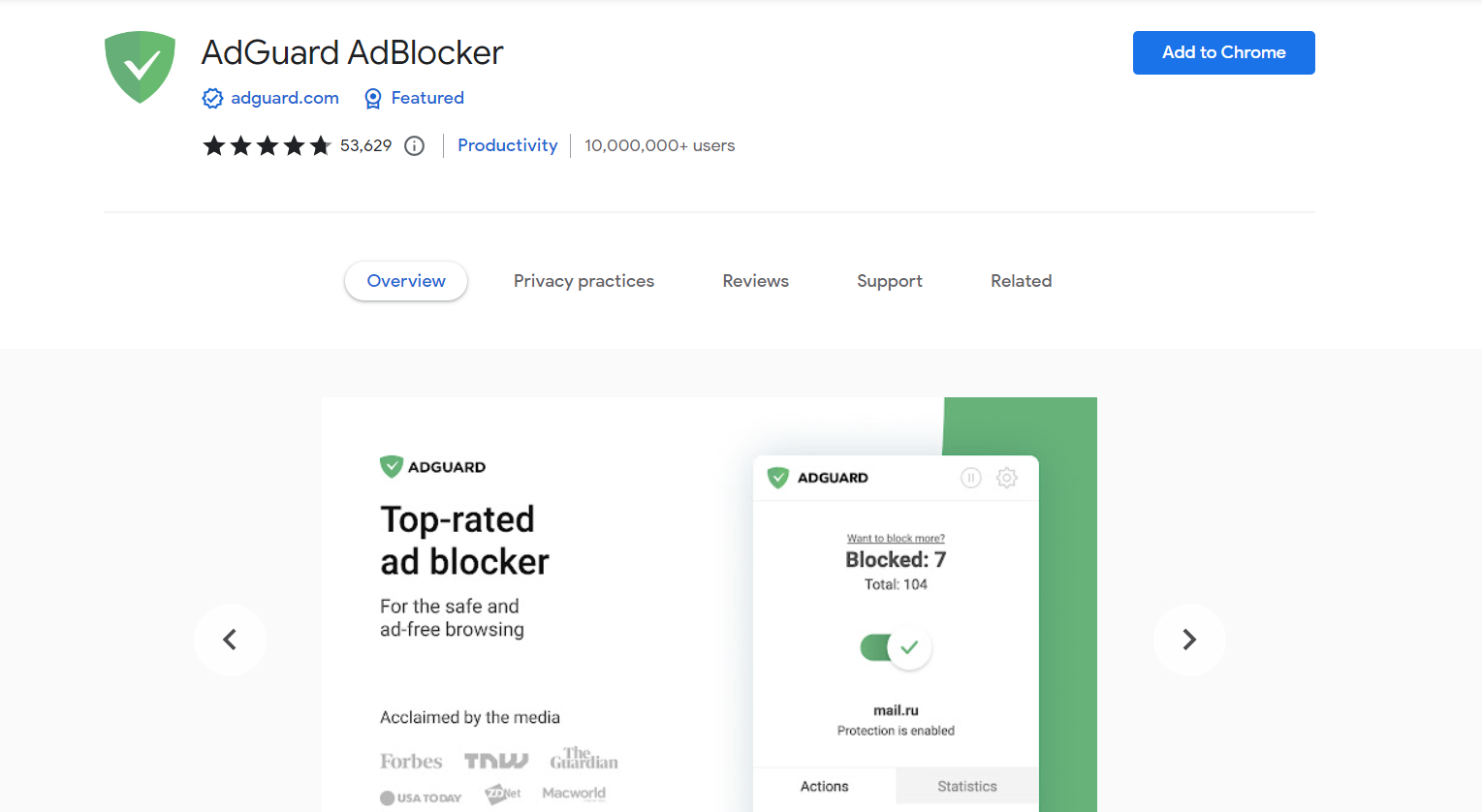
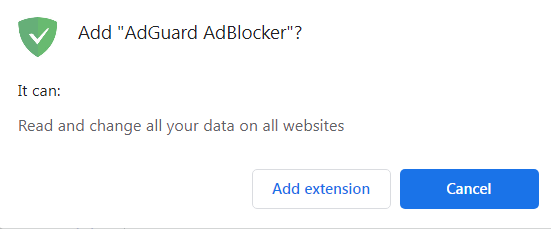
- In the opened dialog box, click Add extension.
- Open the page addons.mozilla.org.
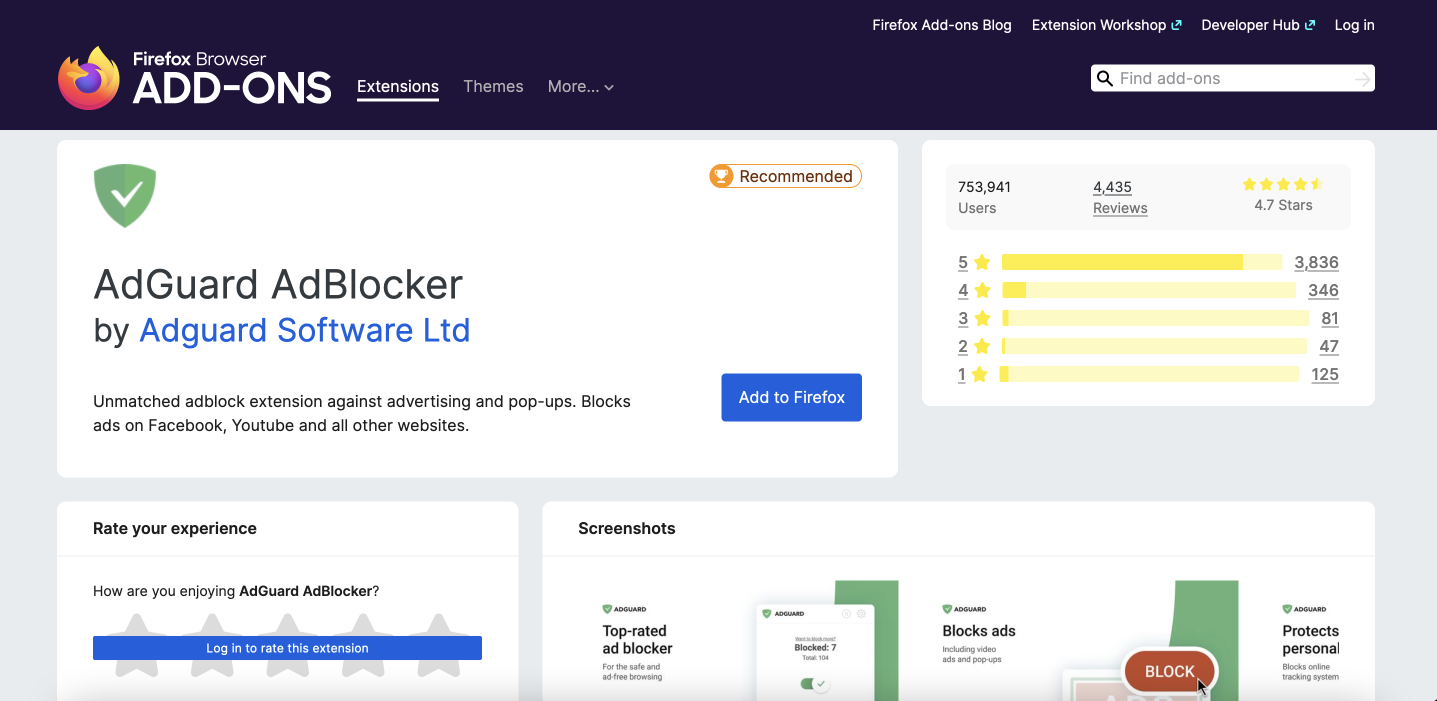
- Click Add to Firefox.
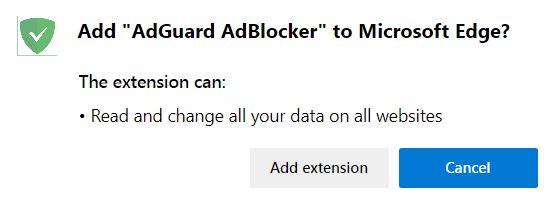
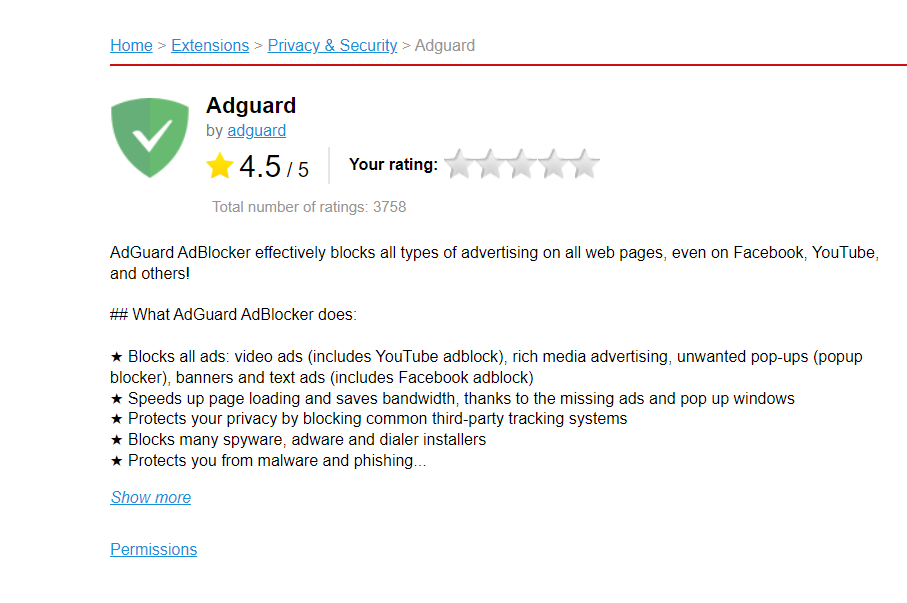
- Find AdGuard Browser Extension in the Edge Add-ons store and click Get.
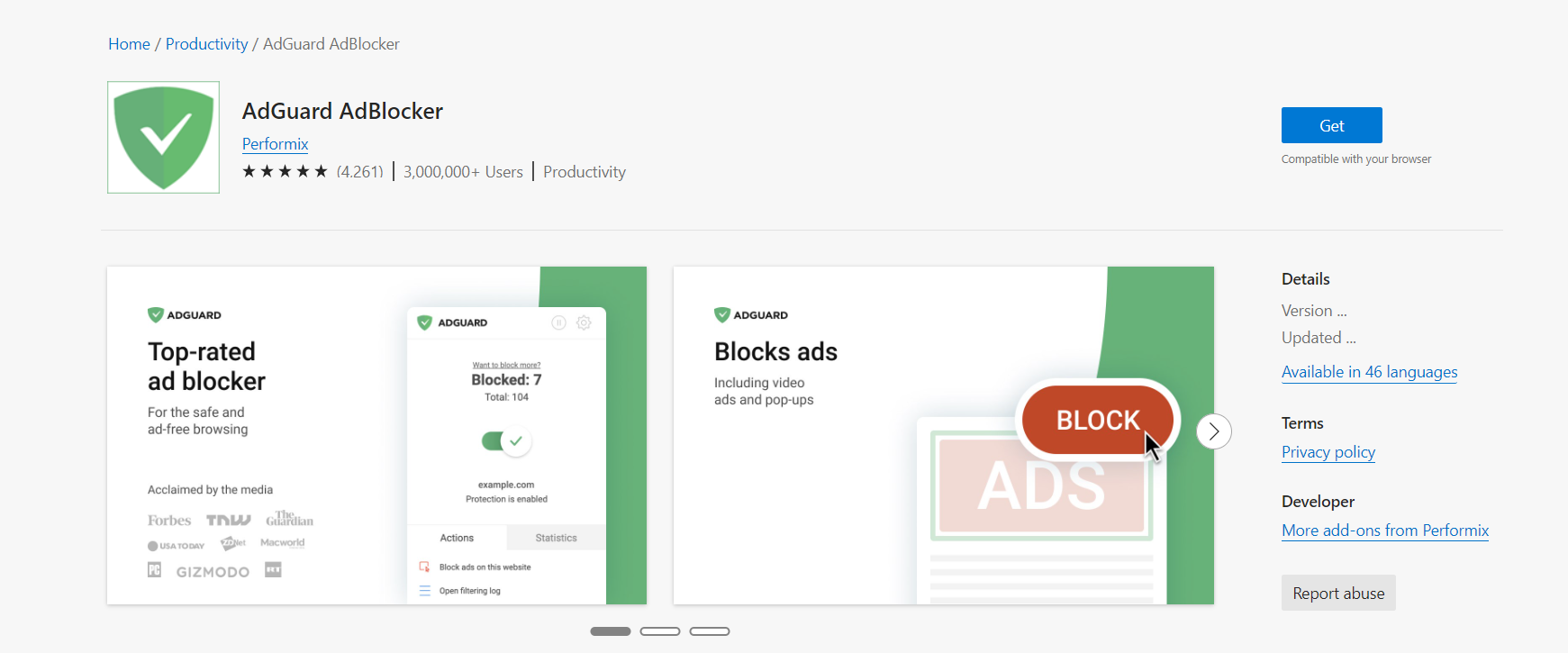
- In the opened dialog window, press Add extension.
- Open the page addons.opera.com.
- Click Add to Opera.
- Open the App Store and find the needed extension there.
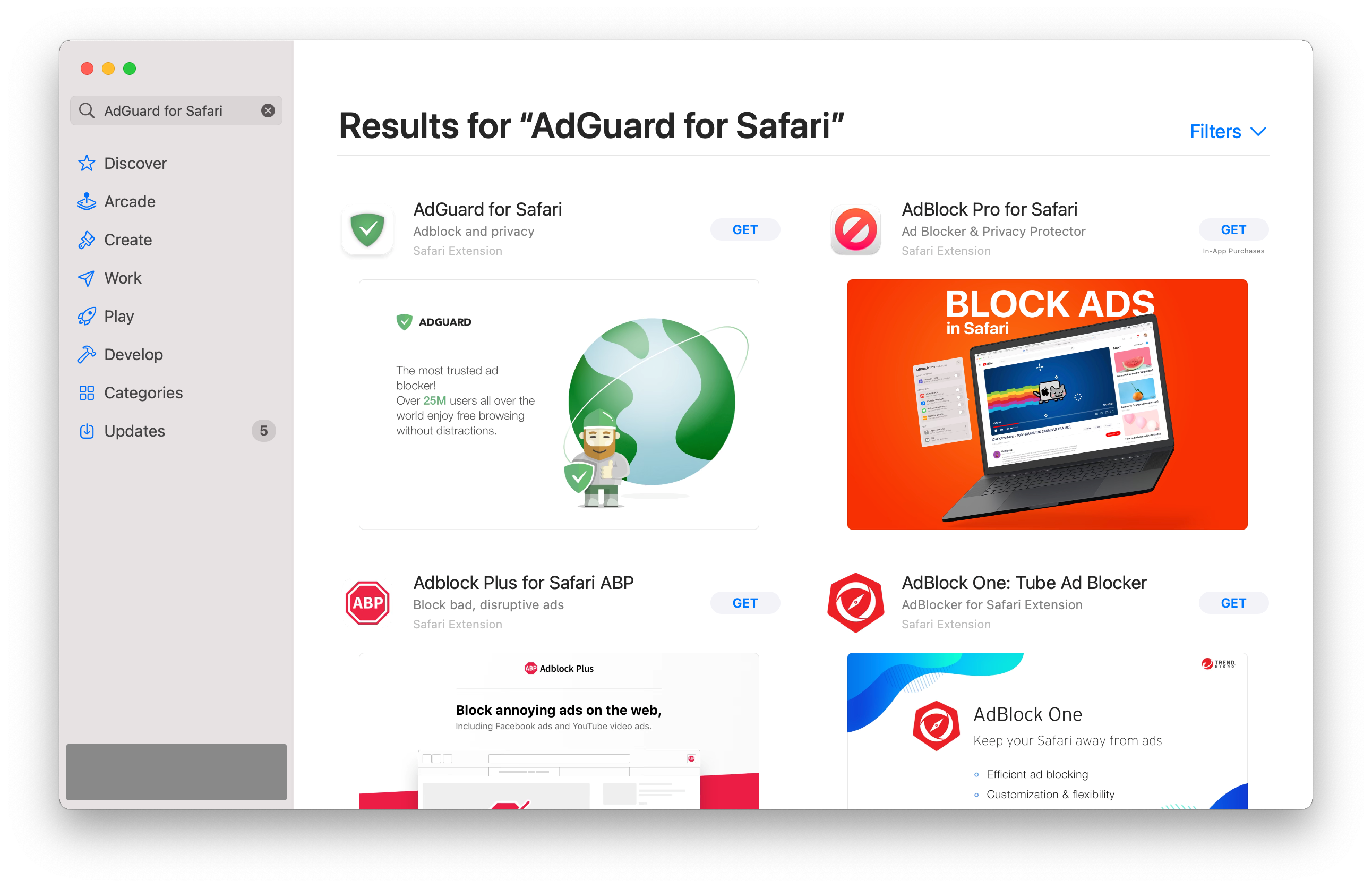
- Press Get → Install → Open.
- To set up AdGuard for Safari, enable the AdGuard extensions in the Safari settings. In a notification, click Fix it. In an opened window, check the boxes next to AdGuard extensions.
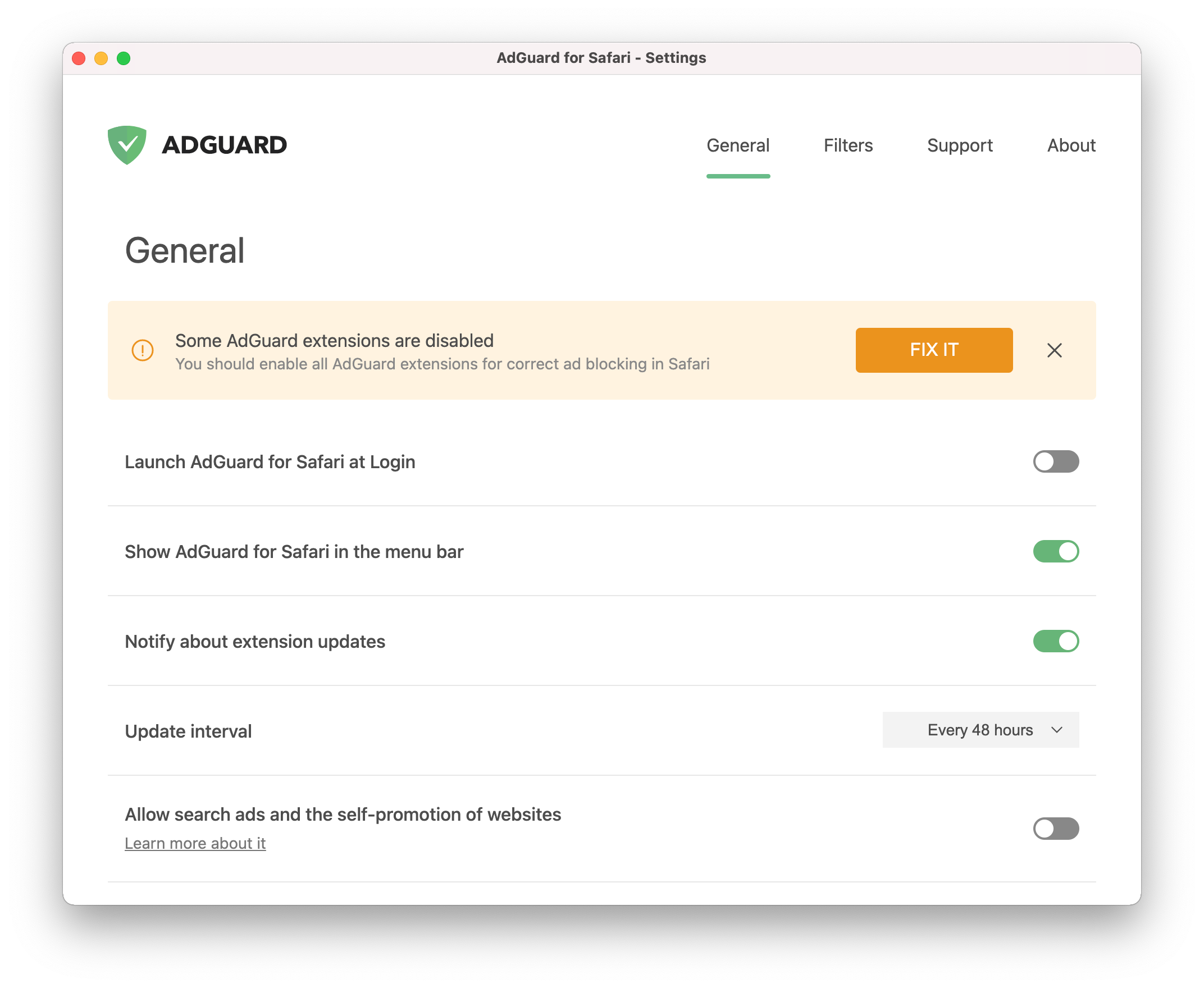 Not all extensions are required for AdGuard for Safari to function correctly. For instance, checking the Icon extension enables the icon in the tray menu. However, we recommend to enable all of them.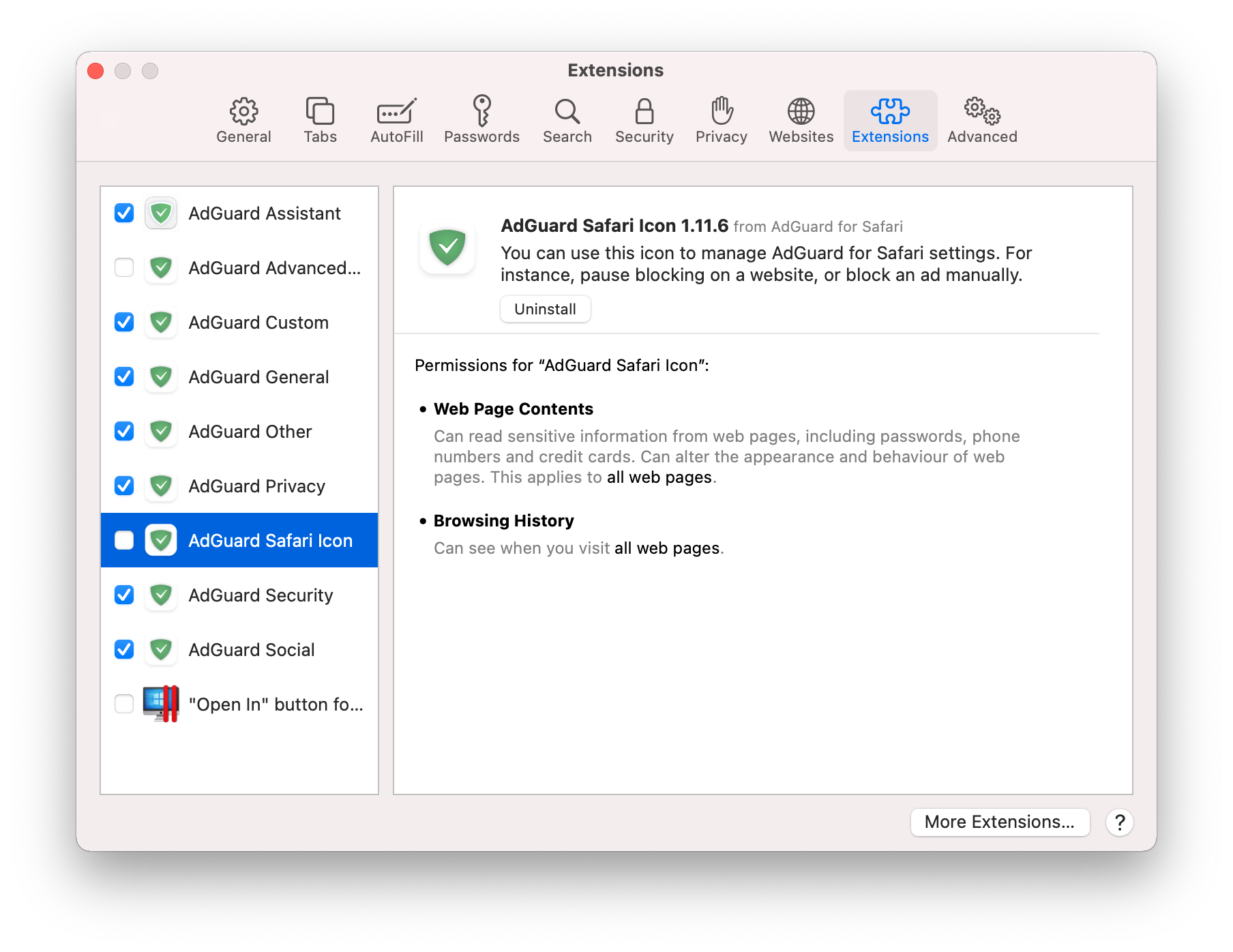
After you complete steps 1-3, AdGuard for Safari will start functioning. You can now configure its settings.
- Download the AdGuard app on your device.
- Allow installing apps from unknown sources.
Once the file download is complete, tap Open in the notification.
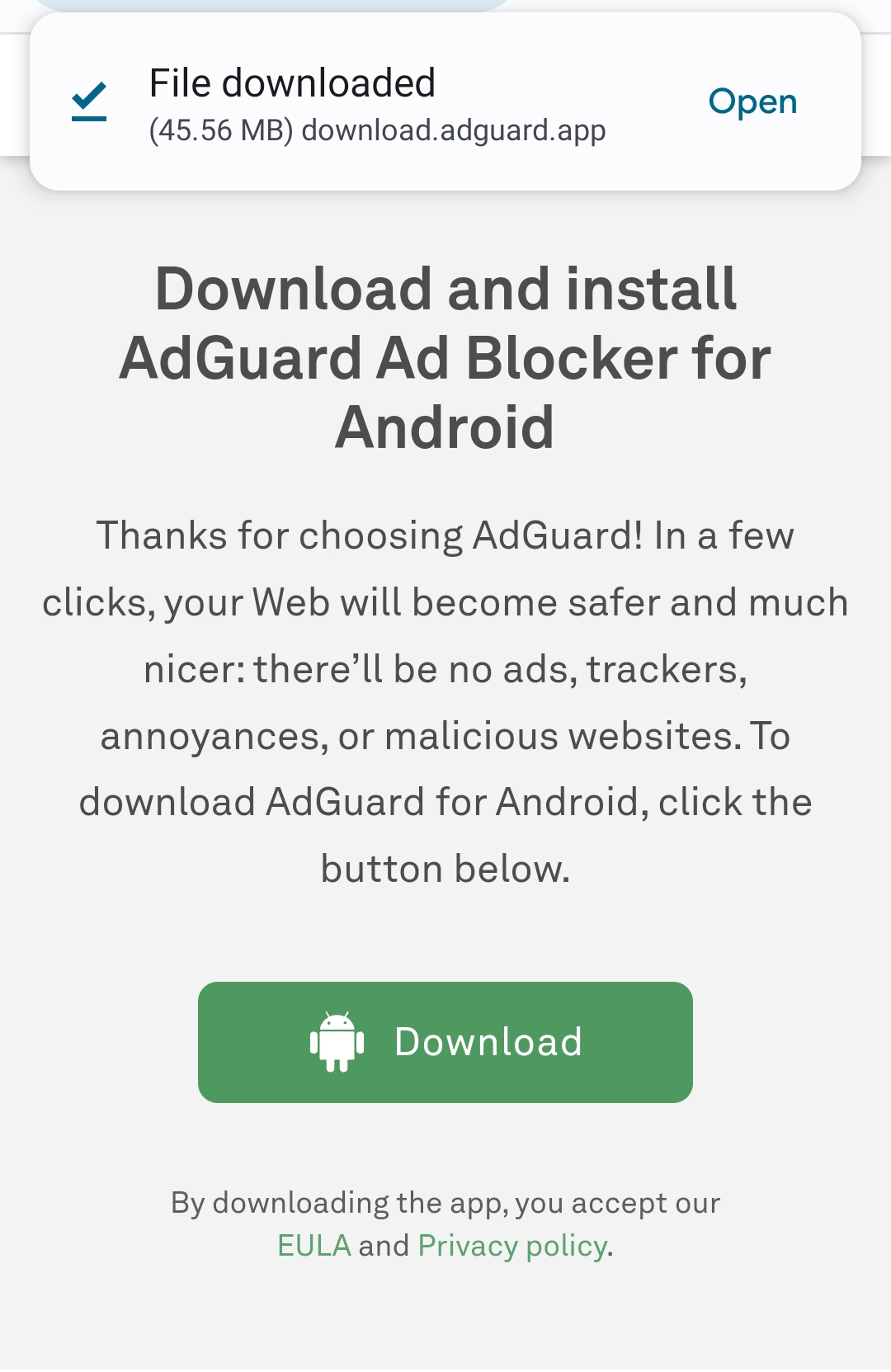
A popup will appear. Tap Settings, navigate to Install unknown apps, and grant permission for the browser you’ve used to download the file.
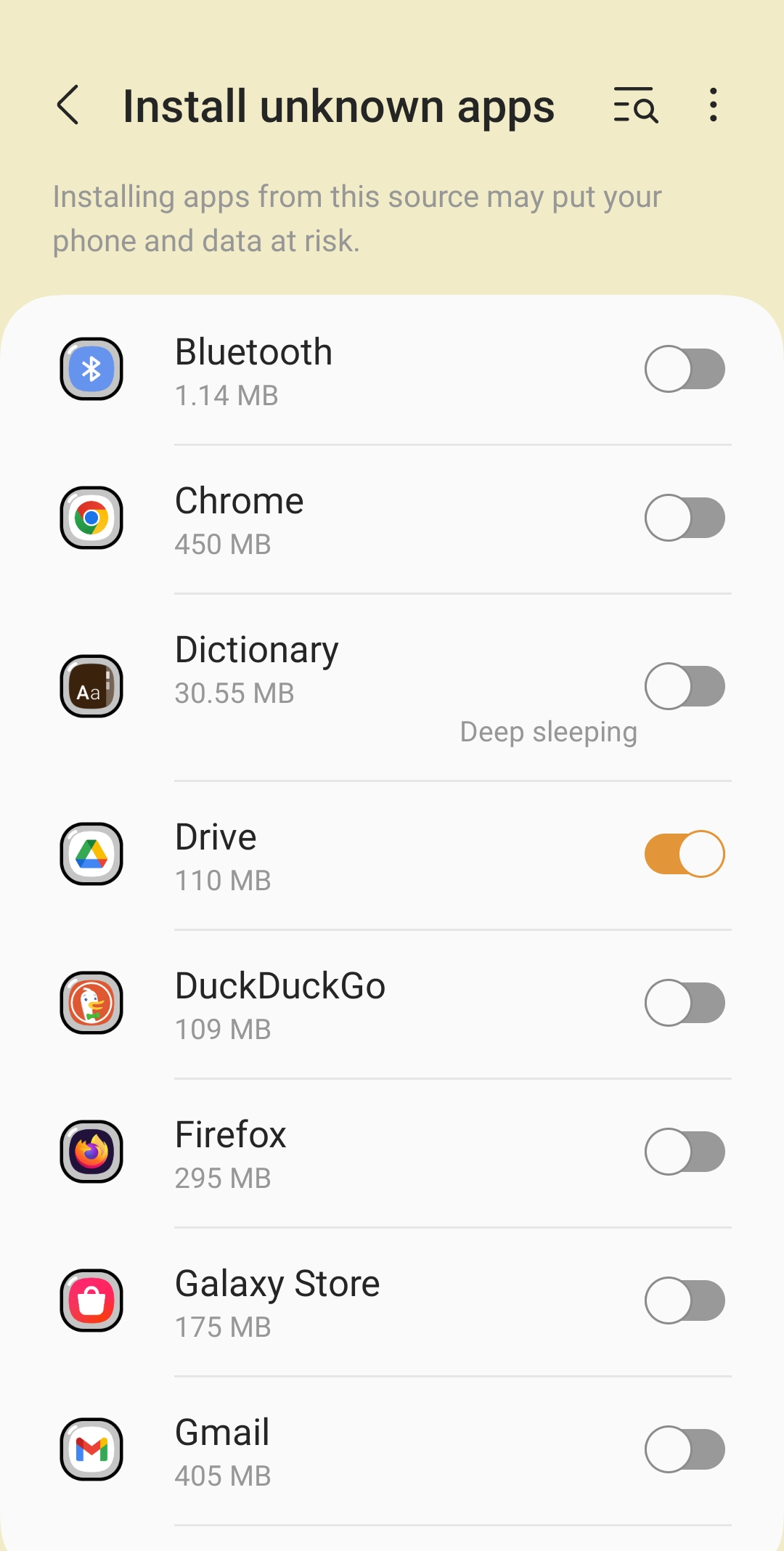
- Install the app.
Once the browser has obtained the necessary permissions, the system will ask you if you want to install the AdGuard application. Tap Install.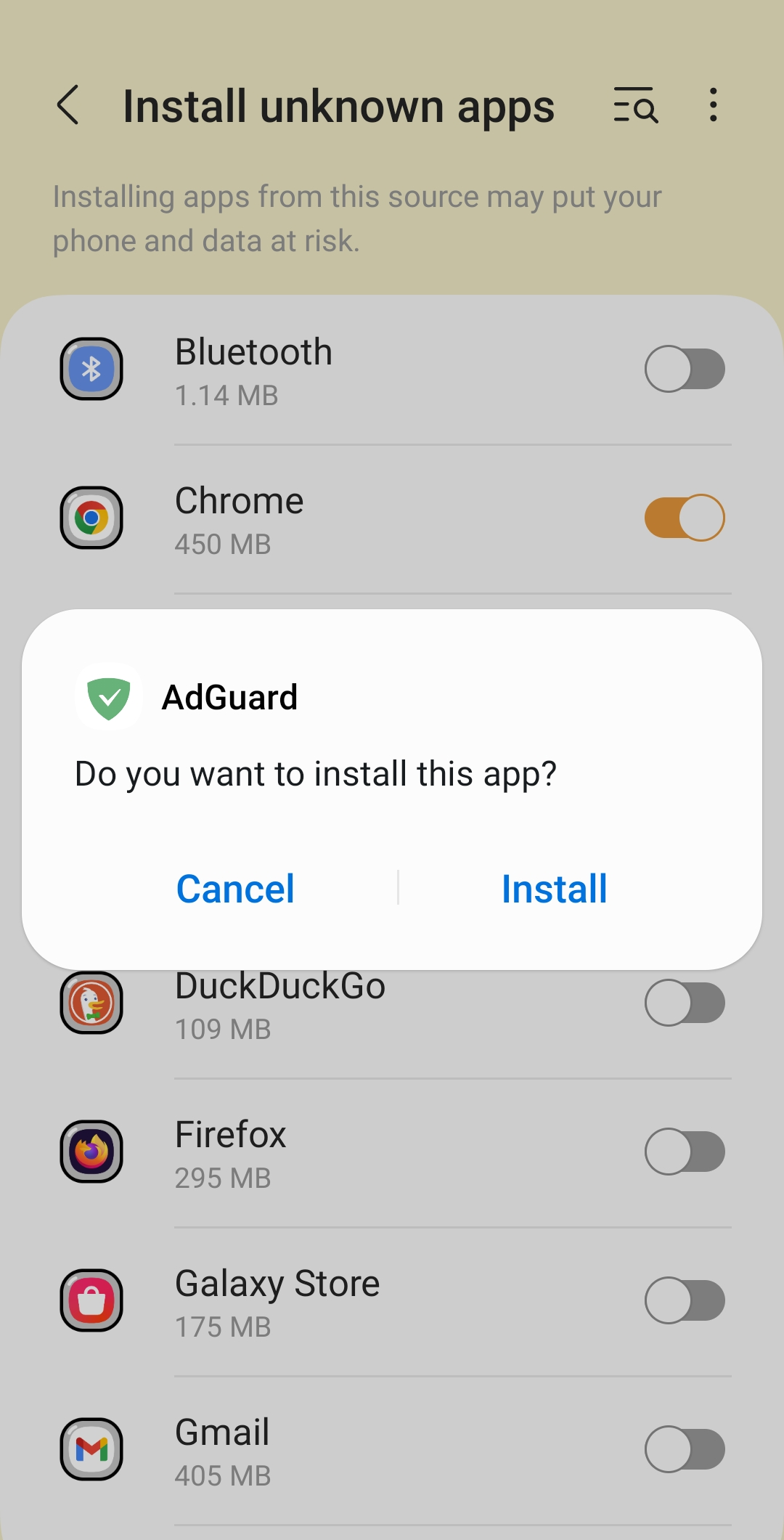
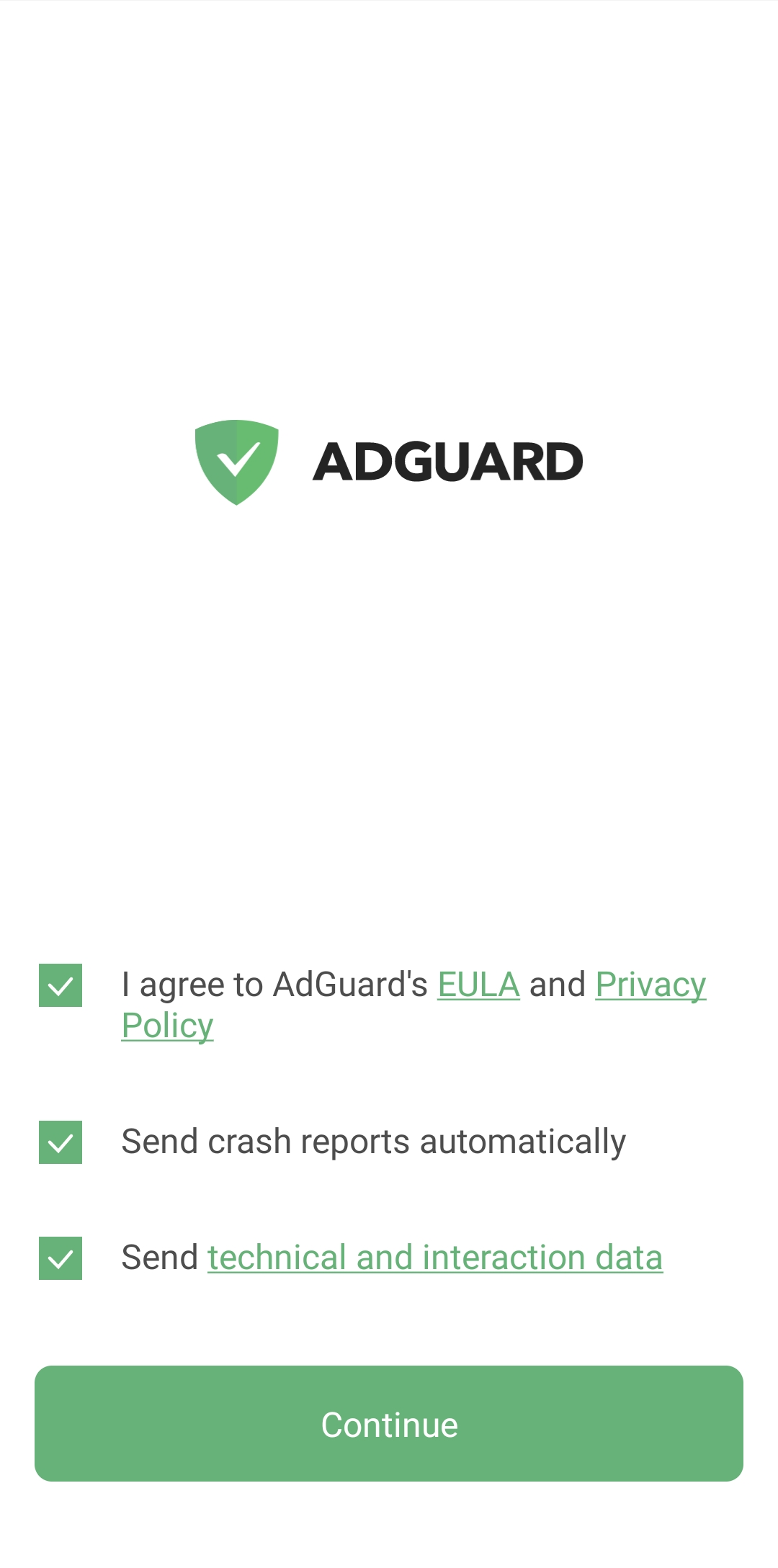
You will then be asked to read AdGuard’s License Agreement and Privacy Policy. You can also participate in product development. To do this, check the boxes for Send crash reports automatically and Send technical and interaction data. Then tap Continue.
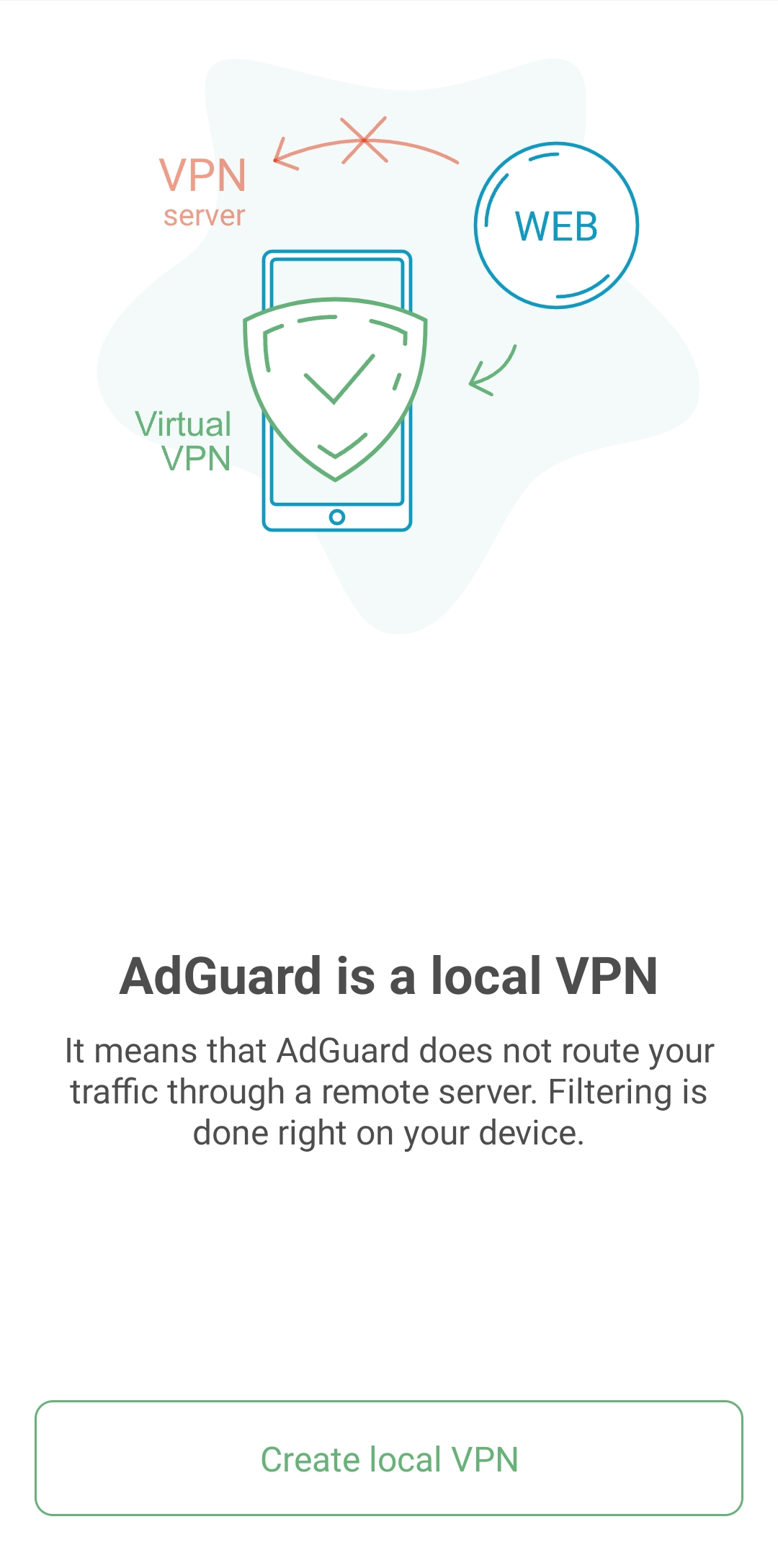
- Create a local VPN.
In order to filter all traffic directly on your device and not route it through a remote server, AdGuard needs to establish a VPN connection.
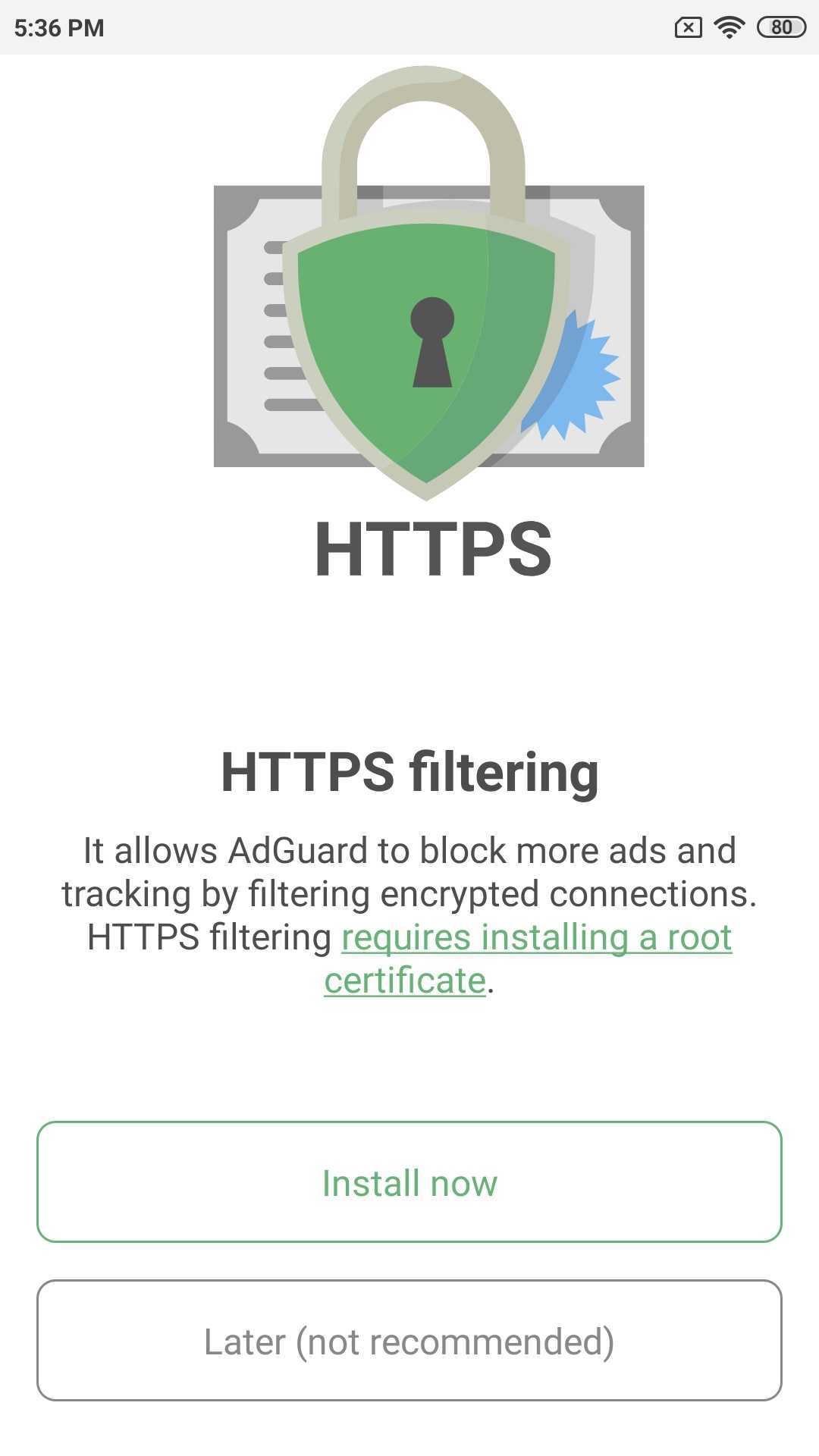
- Enable HTTPS filtering. It is not a mandatory option, however, we advice to turn it on for the best ad-blocking quality.
- If your device is running Android 7–9, you’ll be prompted to install a root certificate and configure HTTPS filtering after the local VPN setup.
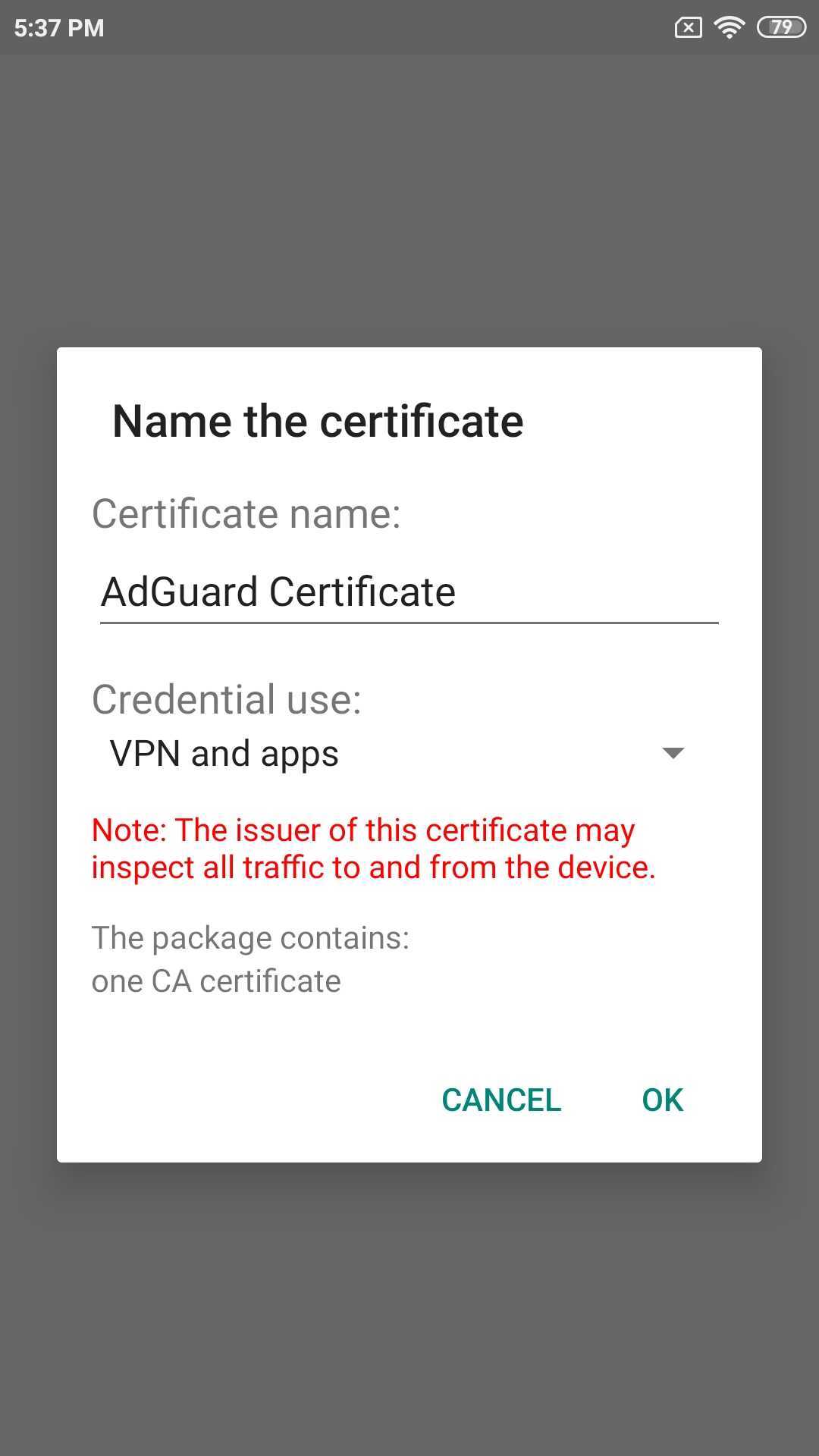
After you tap Install now, a prompt will appear asking you to authenticate the certificate installation with a password or fingerprint.
- If you have Android 10+ on your device, then after creating a local VPN, you will see the main app screen with a snack bar at the bottom: tap Enable and follow the instructions on the next screen.
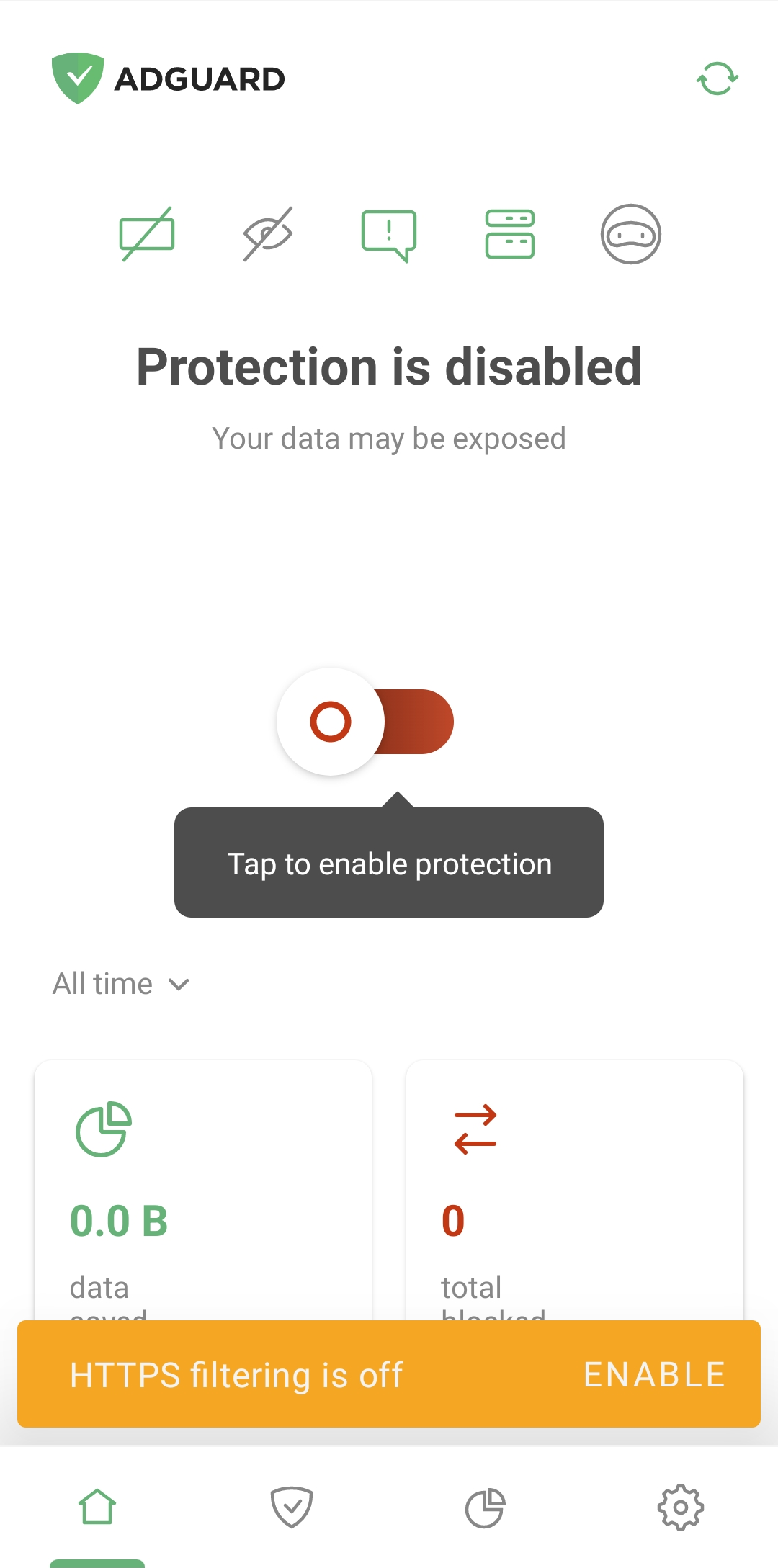
- If your device is running Android 7–9, you’ll be prompted to install a root certificate and configure HTTPS filtering after the local VPN setup.
- AdGuard for iOS is an app presented in the App Store. To install it on your device, open the App Store and tap the Search icon on the bottom of the screen.
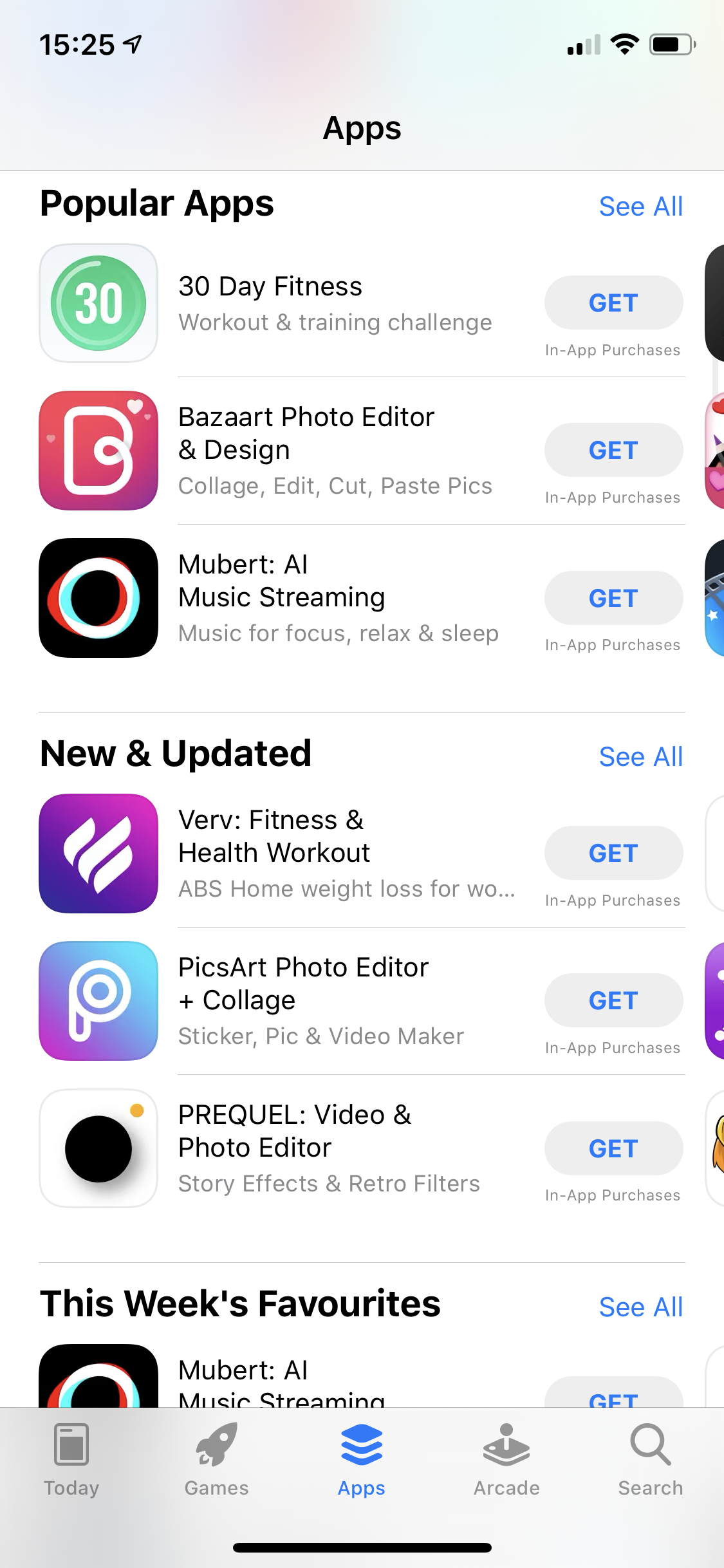 .
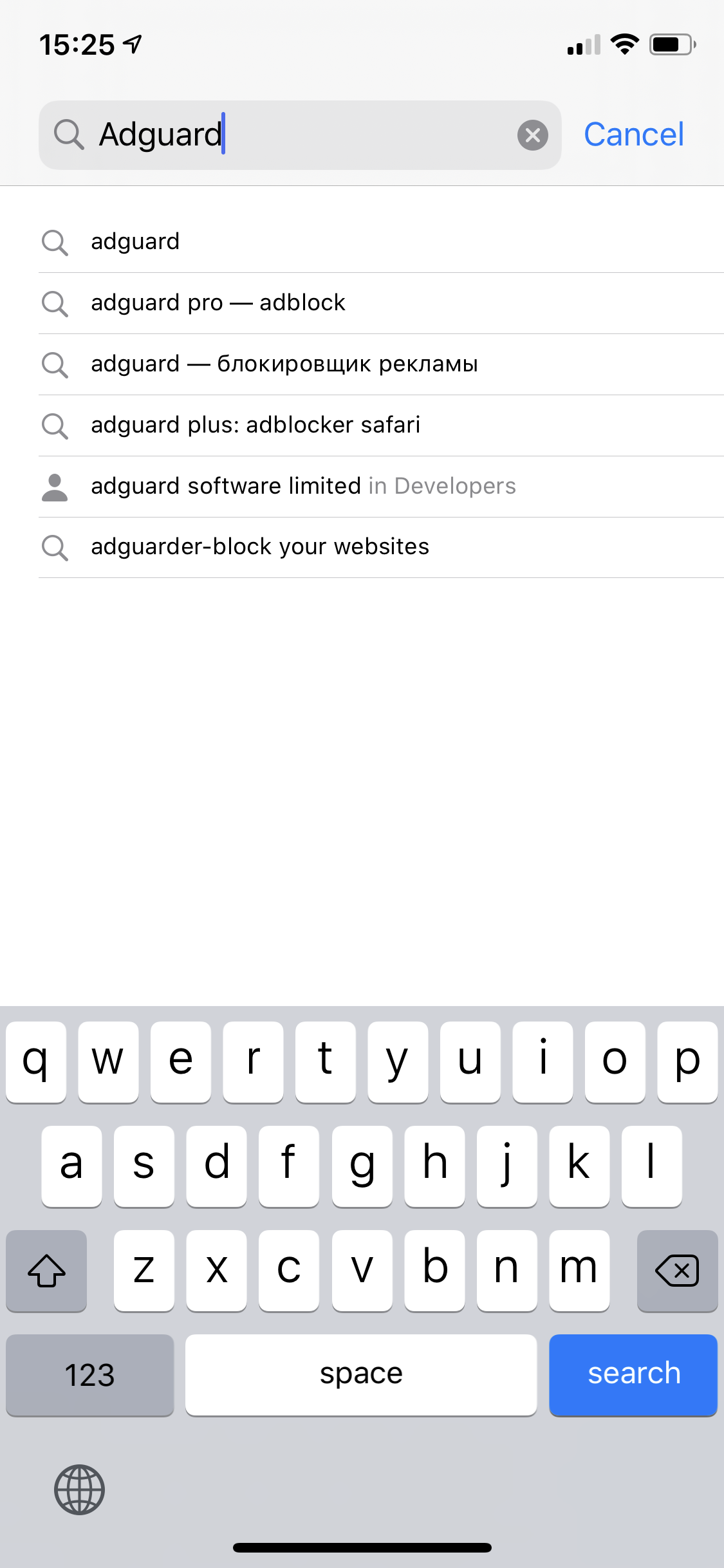
. - Type adguard in the search bar and tap the string adGuard which will be among search results.
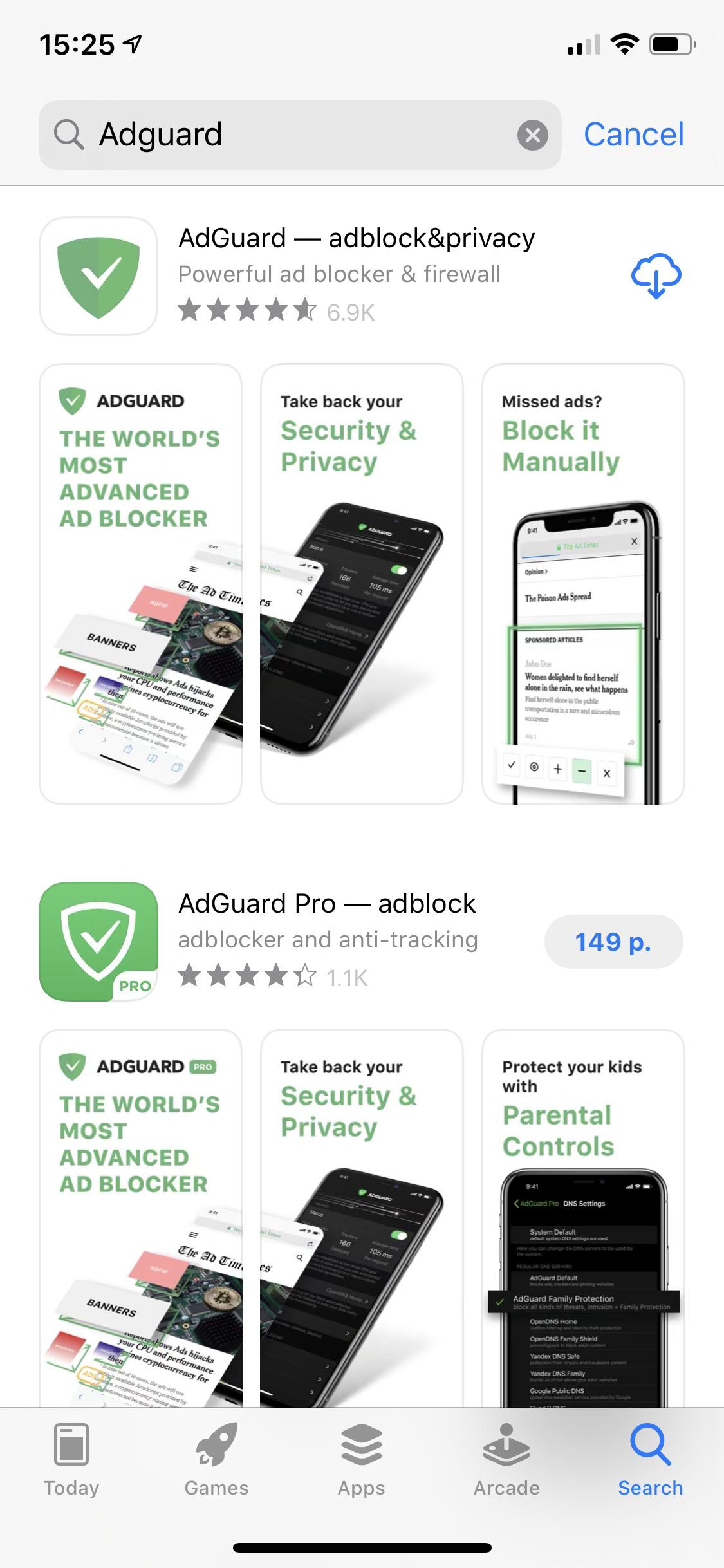
- On the opened page of the App Store tap GET under the AdGuard – adblock&privacy and then INSTALL. You may be requested to enter your Apple ID login and password. Type it in and wait for the installation to complete.
Safer Ways to Watch Movies Online
Licensed streaming services provide a more predictable experience because their applications, advertising partners, billing systems, and customer-support channels are accountable. Paid options include services such as Netflix, Disney+, Max, Prime Video, Apple TV+, and other established platforms available in the viewer’s country.
There are also legitimate free, ad-supported services in many regions, including YouTube, Tubi, Pluto TV, The Roku Channel, and official broadcaster applications. Availability varies, but these platforms are a better choice than chasing a movie across a rotating network of anonymous domains and aggressive pop-ups.
Final Verdict: Is RedFlix.co Safe?
RedFlix.co may deliver playable movies and television shows, so describing it as a completely fake streaming page would miss the real issue. Its greatest danger is the aggressive advertising ecosystem built around the content. Pop-ups, pop-under windows, fake controls, rotating redirects, notification traps, misleading downloads, and scam landing pages can turn a simple attempt to watch a film into a risky browsing session.
The fact that similar sites reappear under different names makes that risk harder to evaluate. A fresh domain can look like a new service while relying on the same design and advertising model as the site it replaced.
RedFlix.co should therefore be treated as an unofficial and unsafe streaming option. Watching a movie does not automatically infect a device, but every additional click on an ad or redirected page creates another opportunity for notification spam, unwanted software, phishing, or financial fraud. The safest decision is to avoid the site and use a licensed streaming platform with accountable advertising and clear ownership.
Frequently Asked Questions
Does RedFlix.co actually let people watch movies?
Yes, RedFlix.co may provide playable movies and television shows. The concern is not that every title is necessarily fake, but that reaching and using the player can expose visitors to aggressive advertisements, forced redirects, and potentially unsafe third-party pages.
Is every advertisement on RedFlix.co malicious?
Not necessarily. Some ads may be ordinary promotions, while others may be deceptive or unsafe. Because the destinations can rotate and differ by user, there is no reliable way for a visitor to assume that the next pop-up will be harmless.
Why does clicking Play open another website?
The page may place an advertising layer over the video player or monetize the first click through a pop-up or redirect. The actual player may respond only after the advertisement opens, encouraging the user to click repeatedly.
Should I click Allow to start the video?
No. The browser’s “Allow” prompt normally grants permission for a website to send notifications; it is not required for video playback. Granting it to an unfamiliar advertising page can produce persistent spam alerts.
Am I infected if a pop-up appeared?
A pop-up alone does not mean malware was installed. The risk is higher if you downloaded or opened a file, installed an extension or app, granted browser permissions, or entered personal information on a redirected page.
Are other sites with the same layout safer?
Not necessarily. RedFlix.co appears to be part of a wider group of similar streaming sites operating under different names. If another domain uses the same player behavior and aggressive advertising model, changing the name does not remove the underlying risk.

Reviews & discussion
0 commentsShare a firsthand experience, or ask a question.
Community reviews
redflix.co
Moderated reader experiences, not an editorial verdict.
Start the conversation
Have a question or something useful to share? Add the first comment.