

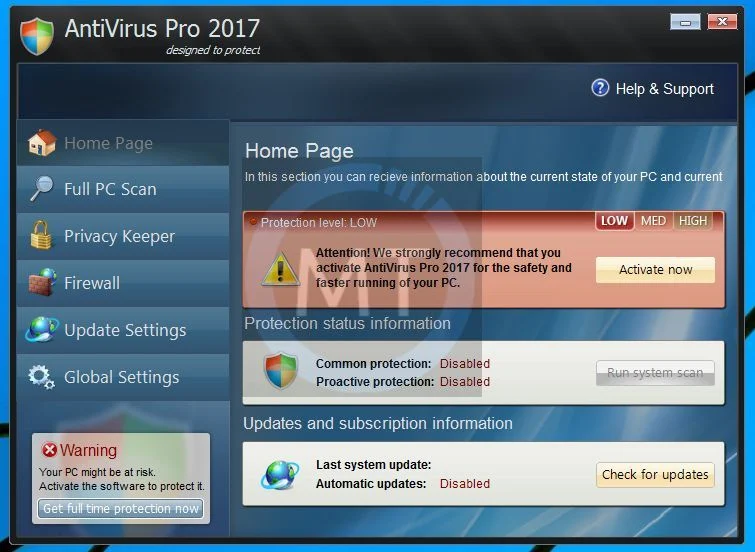
Antivirus Pro 2017 “designed to protect” is a computer virus, which masquerades as genuine security software, while actually reporting non-existent malware threats in order to scare the user into purchasing “Antivirus Pro 2017”.
What is Antivirus Pro 2017?
Antivirus Pro 2017 is classified as a rogue because it pretends to be an anti-virus program, but will instead displays bogus scan results, report non-existing computer infections, and does not allow you to run your normal applications.
In this case, not only is Antivirus Pro 2017 going to disrupt your system, it’s going to try and trick you into making a purchase using your credit card.
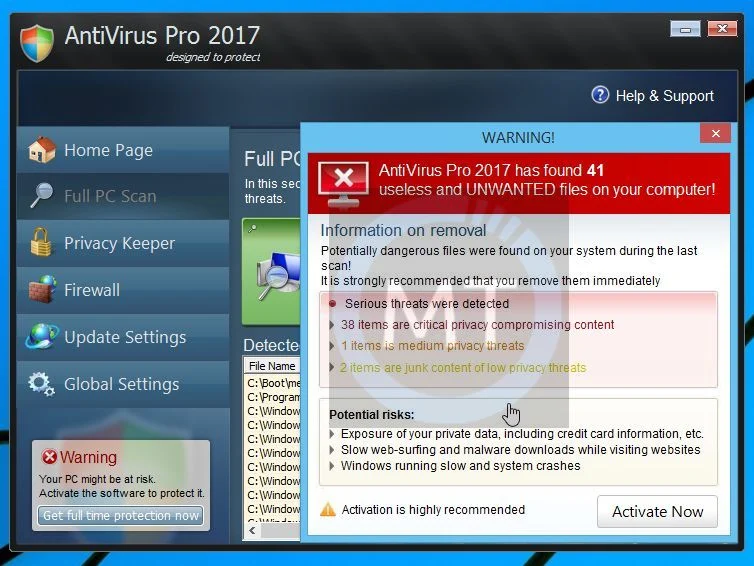
Antivirus Pro 2017 appears in the form of a fake Windows warning on your computer system that reads you have a specific number of viruses on your computer (usually in the hundreds) and that this software has detected those viruses. To get rid of them you must purchase the full-version of Antivirus Pro 2017. It’s important to remember that by purchasing the “claimed full version to remove the viruses” you will be submitting your personal information to unscrupulous persons and may also end up being a victim of credit card or identity fraud or theft.
To protect itself from being removed, Antivirus Pro 2017 will also terminate any application you try to run on your computer. It does this to protect itself from being removed by legitimate security programs and to scare you into thinking your programs are infected. When this infection terminates a program it will display a message similar to the following:
Security Warning
Malicious program has been detected. Click here to protect your computer.Firewall Warning
Hidden file transfer to remote host has been detected
Antivirus Pro 2017 has detected a leak of your files through the Internet. We strongly recommend that you block the attack immediately.
How did Antivirus Pro 2017 virus got on my computer?
Antivirus Pro 2017 is distributed through several means. Malicious websites, or legitimate websites that have been hacked, can infect your machine through exploit kits that use vulnerabilities on your computer to install this rogue antivirus without your permission.
Another method used to propagate Antivirus Pro 2017 is spam email containing infected attachments or links to malicious websites. Cyber-criminals spam out an email, with forged header information, tricking you into believing that it is from a shipping company like DHL or FedEx. The email tells you that they tried to deliver a package to you, but failed for some reason. Sometimes the emails claim to be notifications of a shipment you have made. Either way, you can’t resist being curious as to what the email is referring to – and open the attached file (or click on a link embedded inside the email). And with that, your computer is infected with the Antivirus Pro 2017 virus.
The threat may also be downloaded manually by tricking the user into thinking they are installing a useful piece of software, for instance a bogus update for Adobe Flash Player or another piece of software.
The Antivirus Pro 2017 “designed to protect” infection is also prevalent on peer-to-peer file sharing websites and is often packaged with pirated or illegally acquired software.
Am I infected with Antivirus Pro 2017 “designed to protect” virus?
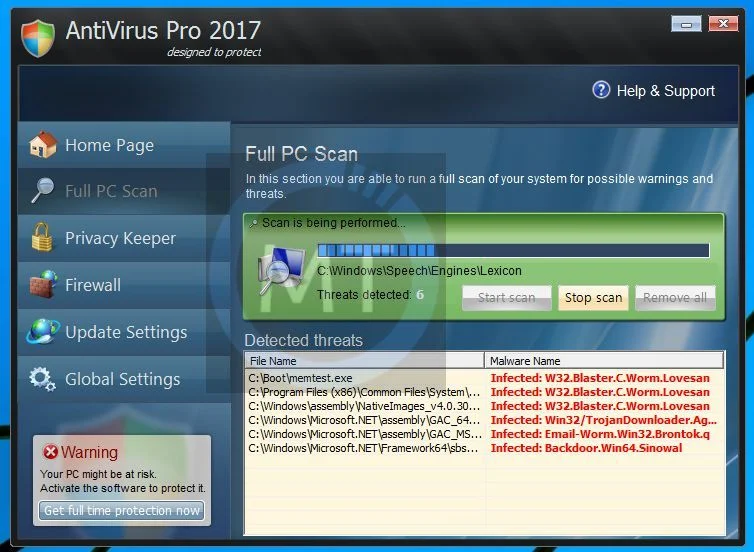
Some examples of the interface, fake alerts, fake scanning results, and pop-ups displayed by Antivirus Pro 2017 virus are shown below:
How to remove Antivirus Pro 2017 virus (Removal Guide)
This page is a comprehensive guide, which will remove the Antivirus Pro 2017 infection from your your computer. Please perform all the steps in the correct order. If you have any questions or doubt at any point, STOP and ask for our assistance.
STEP 1: Use the registration key to stop the Antivirus Pro 2017 pop-ups
STEP 2: Remove Antivirus Pro 2017 virus with Malwarebytes Anti-Malware
STEP 3: Remove Antivirus Pro 2017 “designed to protect” infection with HitmanPro
STEP 1 : Use the registration key to stop the Antivirus Pro 2017 pop-ups
In this first step we will use an Antivirus Pro 2017 key to stop the malicious Antivirus Pro 2017 pop-ups, thus making the removal process much more easier.
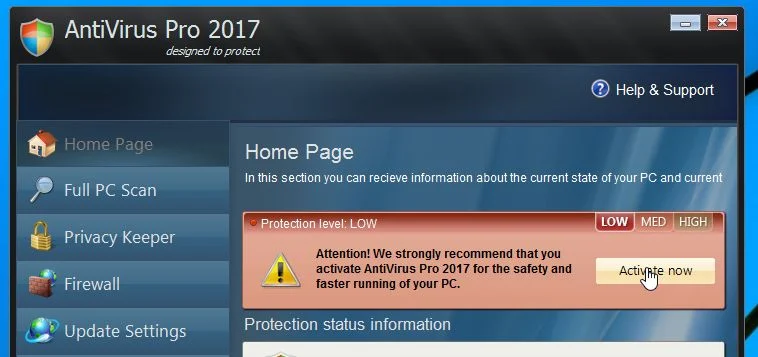
- In the Antivirus Pro 2017 main user interface, click on the “Home Page” button and select “Activate Now”.
- In the “Antivirus Pro 2017 Activation” window, insert this key: Y65RAW-T87FS1-U2VQF7A. Next, click on the “Confirm Activation” button.
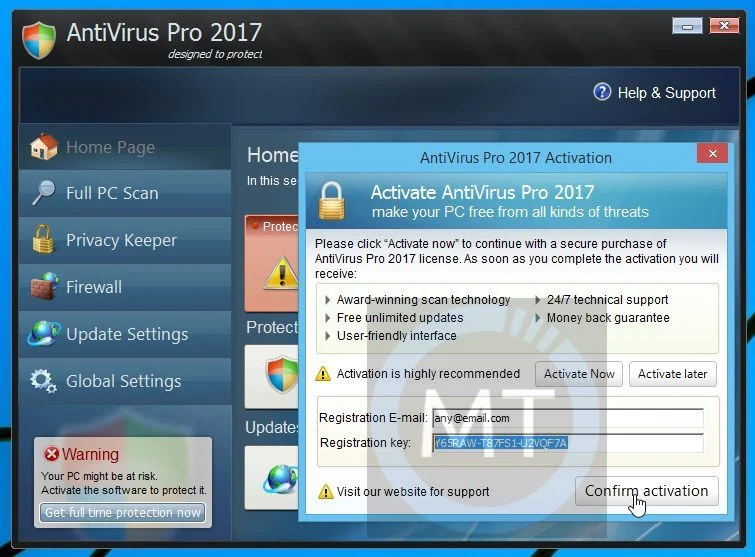
While this will stop the malicious Antivirus Pro 2017 pop-ups, we still need to remove the infection from your machine, so please go ahead and perform the next steps.
STEP 2: Remove Antivirus Pro 2017 virus with Malwarebytes Anti-Malware
Malwarebytes Anti-Malware Free uses industry-leading technology to detect and remove all traces of malware, including worms, Trojans, rootkits, rogues, dialers, spyware, and more.
It is important to note that Malwarebytes Anti-Malware works well and should run alongside antivirus software without conflicts.
- You can download download Malwarebytes Anti-Malware from the below link.
Download MalwarebytesFree official installer. Your download starts right away. - Once downloaded, close all programs, then double-click on the icon on your desktop named “mbam-setup” to start the installation of Malwarebytes Anti-Malware.
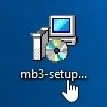
 You may be presented with a User Account Control dialog asking you if you want to run this file. If this happens, you should click “Yes” to continue with the installation.
 - When the installation begins, you will see the Malwarebytes Anti-Malware Setup Wizard which will guide you through the installation process.
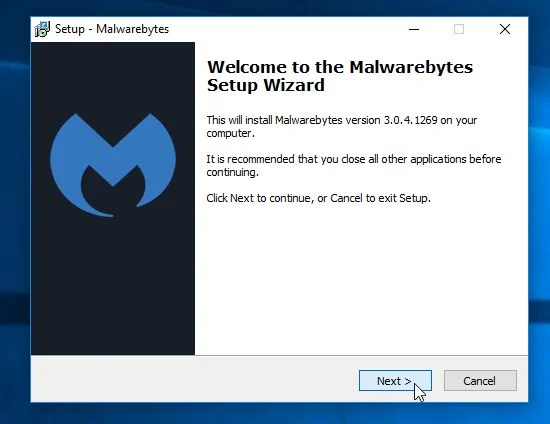
To install Malwarebytes Anti-Malware on your machine, keep following the prompts by clicking the “Next” button.
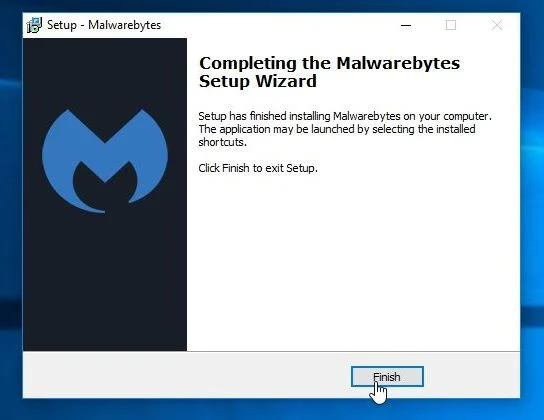
- Once installed, Malwarebytes Anti-Malware will automatically start and you will see a message stating that you should update the program, and that a scan has never been run on your system. To start a system scan you can click on the “Scan Now” button.
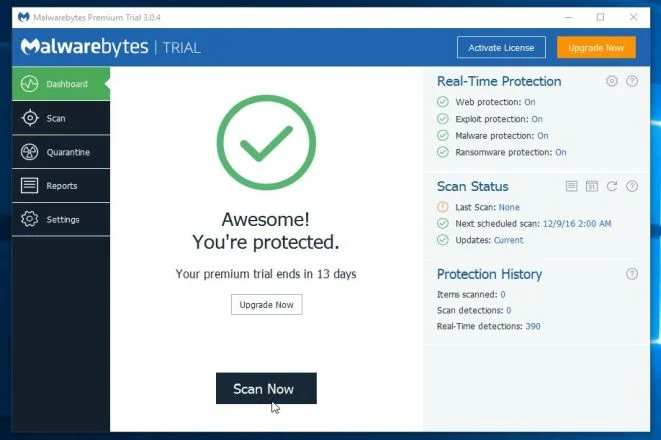
- Malwarebytes Anti-Malware will now start scanning your computer for the Ads by Antivirus Pro 2017 virus. When Malwarebytes Anti-Malware is scanning it will look like the image below.
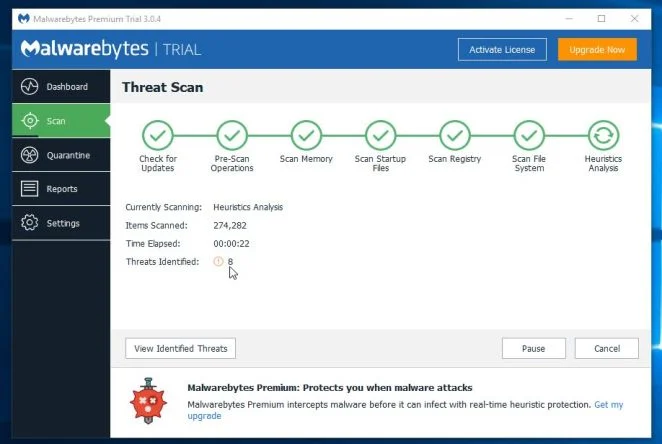
- When the scan has completed, you will now be presented with a screen showing you the malware infections that Malwarebytes Anti-Malware has detected. To remove the malicious programs that Malwarebytes Anti-malware has found, click on the “Remove Seletected” button.
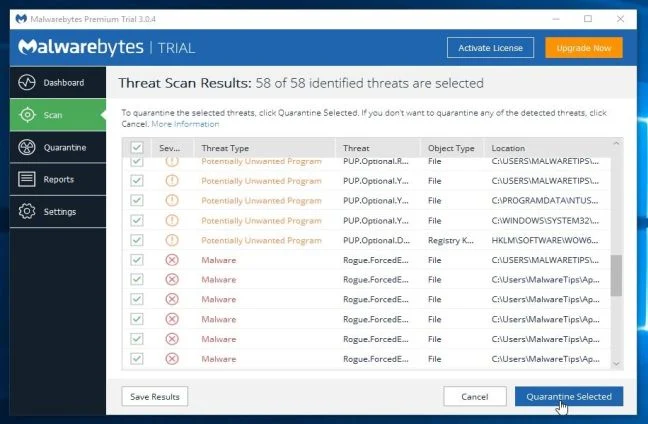
Please note that the infections found may be different than what is shown in the image. - Malwarebytes Anti-Malware will now quarantine all the malicious files and registry keys that it has found. When removing the files, Malwarebytes Anti-Malware may require a reboot in order to remove some of them. If it displays a message stating that it needs to reboot your computer, please allow it to do so.
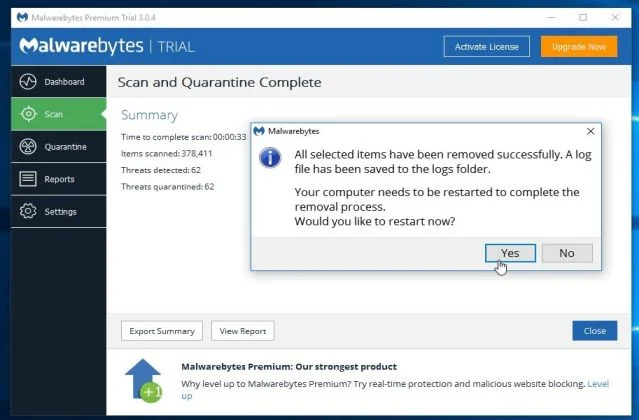
After your computer will restart, you should open Malwarebytes Anti-Malware and perform another “Threat Scan” scan to verify that there are no remaining threats
STEP 3: Remove Antivirus Pro 2017 “designed to protect” infection with HitmanPro
HitmanPro is a second opinion scanner, designed to rescue your computer from malware (viruses, trojans, rootkits, etc.) that have infected your computer despite all the security measures you have taken (such as anti-virus software, firewalls, etc.). HitmanPro is designed to work alongside existing security programs without any conflicts. It scans the computer quickly (less than 5 minutes) and does not slow down the computer.
- You can download HitmanPro from the below link:
Download HitmanProOfficial Sophos download. Free scan, free 30-day trial to remove threats. - Double-click on the file named “HitmanPro.exe” (for 32-bit versions of Windows) or “HitmanPro_x64.exe” (for 64-bit versions of Windows). When the program starts you will be presented with the start screen as shown below.
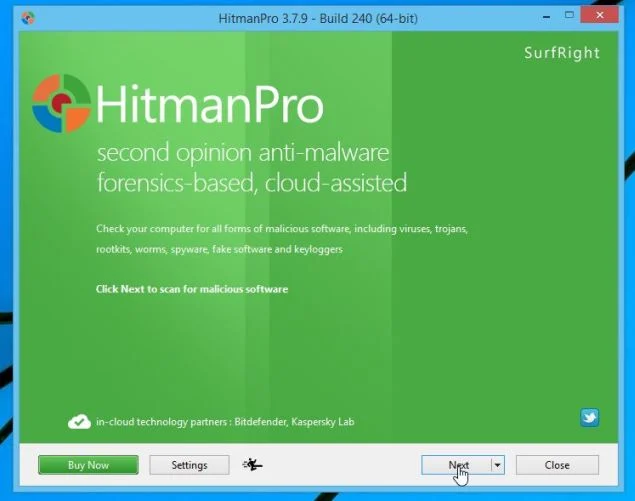
Click on the “Next” button, to install HitmanPro on your computer.
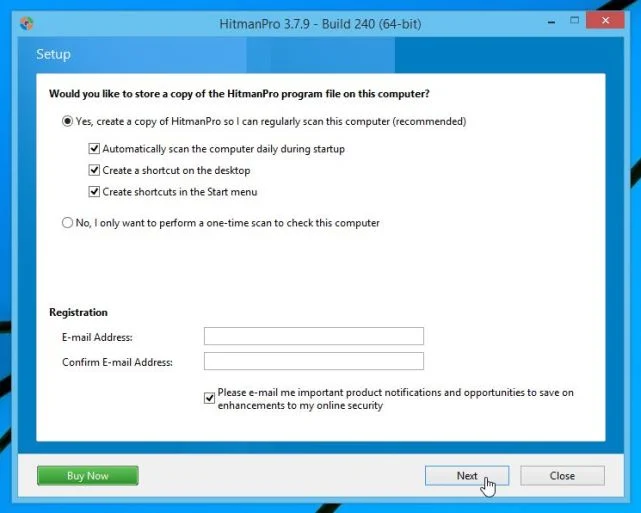
- HitmanPro will now begin to scan your computer for Ads by Antivirus Pro 2017 malicious files.
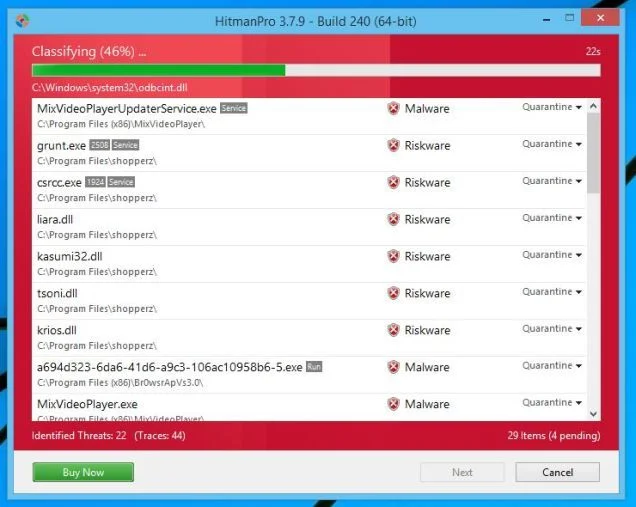
- When it has finished it will display a list of all the malware that the program found as shown in the image below. Click on the “Next” button, to remove Ads by Antivirus Pro 2017 virus.
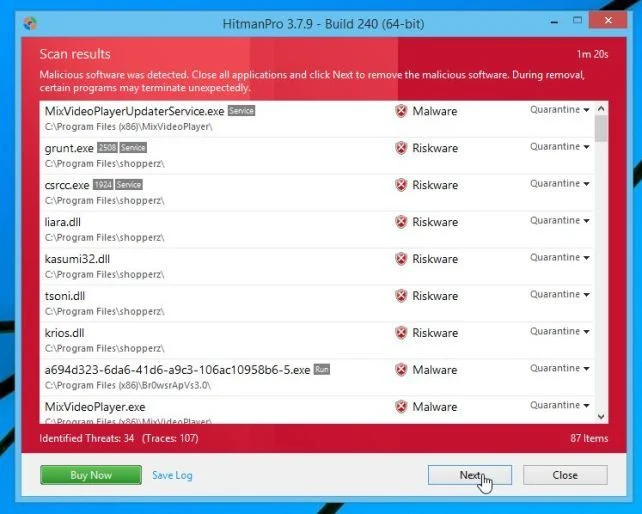
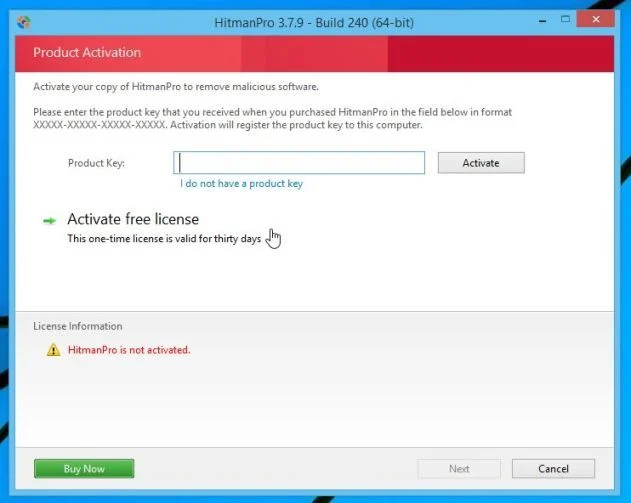
- Click on the “Activate free license” button to begin the free 30 days trial, and remove all the malicious files from your computer.
If you are still experiencing problems while trying to remove Antivirus Pro 2017 virus from your machine, please do one of the following:
- Run a system scan with Emsisoft Emergency Kit.
- Start a new thread in our Malware Removal Assistance forum.

Join the discussion
0 commentsShare your experience or ask a question about this article.
Your progress
Did these steps help?
Let us know how the guide worked for you.
Describe what you see and the step you reached. Keep passwords and other private information out.
Discussion
Start the conversation
Have a question or something useful to share? Add the first comment.