


Beklefkiom.com is an advertising domain that pushed browser notifications and redirected visitors to ads. If its pop-ups appear, a site was most likely allowed to send them.
You can stop them in a few minutes by removing that permission in Chrome, Edge, Firefox, Safari or on Android. A page visit alone doesn’t mean your device is infected.
Overview
A notification and redirect domain
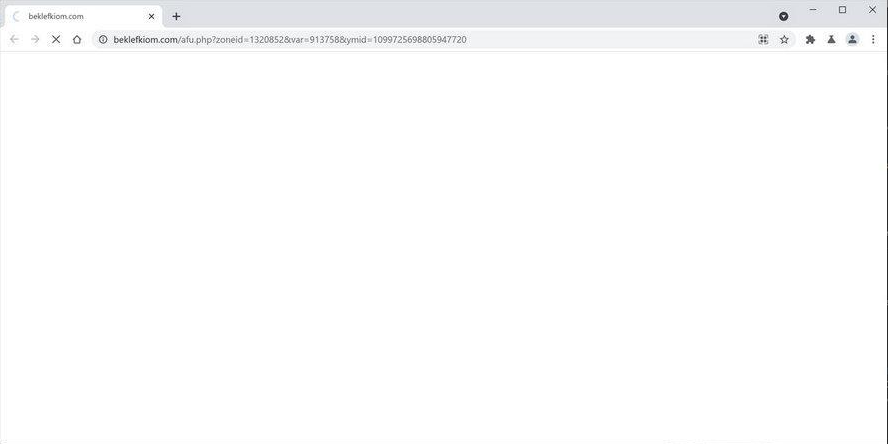
Beklefkiom.com loaded advertising redirects through addresses such as beklefkiom.com/afu.php with a zone ID. Its main tool was the browser notification permission.
Where the pop-ups come from
Once a site is allowed to send notifications, it can show alerts even when its page is closed. Removing that one permission is usually enough.
Where Beklefkiom.com stands now
The domain doesn’t point to a website today. Old permissions stay in your browser until you remove them, and similar domains keep appearing.
- Remove beklefkiom.com and any unfamiliar site from your browser’s notification list.
- Don’t click Allow on pages that ask you to prove you’re not a robot.
- Check extensions and apps only if the pop-ups come back after that.
- Scanning and paid protection are optional, not required to fix notifications.
What Is Beklefkiom.com?
Beklefkiom.com is a domain used to deliver advertising redirects and push notifications. It didn’t offer a product or service of its own.
A beklefkiom.com page could stay blank while the redirect loaded, so the address bar was often the only clue to where you’d landed.
Its addresses followed a pattern seen across push advertising, with an afu.php path and a zone ID that identifies the ad placement.
Visitors usually reached it through another site’s ads or redirects, rather than by typing the address.
The ads it pushed led to unwanted browser extensions, surveys, adult sites, games, fake software updates and unwanted programs.
The beklefkiom.com domain was registered again in September 2025, and that registration expired in September 2026. It now resolves to no website.
How Beklefkiom.com Notification Spam Works
Step 1: A redirect from another page
A link or ad on another site sends the browser to a beklefkiom.com address, often in a new tab you didn’t ask for.
The page may load for only a moment before passing you to another ad.
Step 2: A request to click Allow
Pages like this often show a message asking you to click Allow to continue, watch a video or prove you’re not a robot. That button grants notification permission.
Step 3: Alerts outside the browser tab
Once allowed, the site can send notifications to your desktop or phone, even after you close its page.
The alerts often mimic messages, prize notices or security warnings to get a click.
Step 4: Each alert leads to more ads
Clicking a notification opens another ad page, which may ask for more permissions or push a download.
Is Beklefkiom.com Dangerous?
The notifications themselves are not a virus. They’re advertising that you, or someone using your browser, allowed by mistake.
The risk is where the alerts lead. Fake update warnings, unwanted programs, survey scams and adult sites can all appear through notification ads.
Some alerts may look like system or security warnings. A real Android or iPhone warning never arrives as a website notification, so treat those alerts as ads.
If you only saw the page and clicked nothing, closing it is enough. If you clicked Allow, remove the permission using the steps below.
Notifications or Pop-up Ads? How to Tell
Website notifications and pop-up ads are different, and they’re fixed in different places.
Notifications appear outside the web page. On Windows they show in the lower-right corner and the notification center, and on a Mac in the top-right corner of the screen.
They usually name the browser and the website, such as beklefkiom.com, and they can arrive when the site isn’t open at all.
Pop-up ads open inside the browser as a new window or tab while you’re on a page. Microsoft notes that pop-ups are not the same as website notifications.
If the ads only appear while you’re on one particular site, that site’s ads are the cause. Leaving the site, or blocking its pop-ups, deals with it.
Why Am I Seeing Beklefkiom.com Pop-ups?
There are three common reasons. The most likely is that a site was allowed to send notifications at some point.
Another is that a site you visit shows ads that redirect to domains like this one. In that case, the pop-up appears only on that site.
A less common reason is an unwanted browser extension or app that opens ad pages on its own. That’s when Step 6 below helps.
Start with the notification settings, which fix the most common cause, then move to extensions and apps only if the pop-ups continue.
How to Remove Beklefkiom.com Notifications
Follow the steps for the browser where the pop-ups appear. You don’t need to do every step on every device.
If you use more than one browser or device, check each one, because notification permissions are stored separately for each browser profile.
Step 1: Block Beklefkiom.com in Google Chrome
These steps work in Chrome on Windows, Mac and ChromeOS. Open Chrome, select the three-dot More menu at the top right, then select Settings.
Go to Privacy and security, then Site settings, then Notifications.
Under Allowed to send notifications, look for beklefkiom.com and any other site you don’t recognize. Select the three-dot menu next to each one and choose Block or Remove.
If beklefkiom.com isn’t listed, the ads may come from redirects instead. On the same Site settings page, open Pop-ups and redirects and block any unfamiliar site there.
Step 2: Block Beklefkiom.com in Microsoft Edge
In Edge, select Settings and more, then Settings. Go to Privacy, search, and services, then Site permissions, then All sites.
Select beklefkiom.com or any unfamiliar site, find the Notifications setting and choose Block from the drop-down menu.
If you’re on a site that sends notifications, you can also select View site information to the left of the address bar and set Notifications to Block.
Step 3: Block Beklefkiom.com in Firefox
Open the Firefox menu and select Settings. Choose Privacy & Security, then scroll down to Permissions.
Next to Notifications, select Settings. Select beklefkiom.com or any site you don’t recognize, then choose Remove Website or set its status to Block.
Select Save Changes to apply the change.
Step 4: Block Beklefkiom.com in Safari on a Mac
Choose the Apple menu, then System Settings, then Notifications in the sidebar.
Under Application Notifications, click the website and turn off Allow Notifications.
To take the site off the list completely, open Safari, choose Safari, then Settings, then Websites, then Notifications, and deny the site permission.
On the same screen, you can deselect Allow websites to ask for permission to send notifications, so no site can ask again.
Step 5: Block Beklefkiom.com on Android
Open Chrome on your phone. To the right of the address bar, tap More, then Settings, then Site settings, then Notifications.
Find beklefkiom.com or any unfamiliar site in the list, tap it and block its notifications.
If a spam notification arrives, you can tap Unsubscribe on the notification itself. On a site you’re visiting, tap Page info to the left of the address bar, then Permissions.
If you use another browser, such as Samsung Internet or Firefox, look for its site permissions or notifications settings and remove the site there too.
Step 6: Check extensions and apps, and scan only if the ads return
If notifications or redirects continue after the steps above, look for a browser extension or app you don’t recognize.
In Chrome, open the menu, then Extensions, then Manage Extensions. In Edge, open Extensions from the menu. In Firefox, open Add-ons and themes. Remove anything you didn’t knowingly add.
On Android, open Settings, then Apps, and uninstall apps you didn’t install on purpose.
A malware scan is optional. It’s worth doing when an unknown program, extension or app keeps coming back, not after a page visit alone.
- Windows: Malwarebytes Free can scan for adware and unwanted programs.
- Mac: Malwarebytes for Mac offers a free scan.
- Android: Malwarebytes for Android can check installed apps.
Paid real-time protection is optional and isn’t needed to remove notifications. If you want it, see Malwarebytes Premium for Windows or Malwarebytes Premium for Mac.
If problems continue, MalwareTips volunteers can help for free in our Windows, Mac or mobile malware removal forums.
Signs the Problem Is More Than Notifications
Notification spam stays in the corner of the screen. If you notice any of the following, something else may have changed.
- Your browser’s homepage, new tab page or search engine changed without your choice.
- An extension appears that you don’t remember adding.
- Ads appear on every site, including ones that normally show none.
- A program or app you don’t recognize starts with your device.
- Your security software reports a detection.
In those cases, Step 6 above matters more, and an optional scan can help find what was installed.
Shared and Family Devices
If several people use the same computer or tablet, the permission may have been granted by someone else, often with a single click.
Check each user account and each browser profile on the device, since a fix in one profile doesn’t carry over to another.
On a child’s device, turn off notification requests in each browser’s notification settings, so no site can ask again.
Explain the click-Allow trick too. Knowing that a robot check never needs notification permission prevents most repeat cases.
Before You Reset Your Browser
A full browser reset is rarely needed for notification spam. Removing the permission is faster and keeps your settings.
If a reset does seem necessary, know what it changes first. Google says resetting Chrome restores the default search engine, homepage and startup tabs, and removes pinned tabs.
It also clears cookies and site data, which signs you out of many websites, and disables extensions and themes. Saved bookmarks and passwords aren’t deleted.
Make sure you know the passwords for important accounts before you reset. Our Firefox reset guide explains the equivalent option in Firefox.
Chrome’s Built-in Protection Against Spam Notifications
Chrome includes some protection of its own. Google says it automatically blocks notifications from sites with intrusive or misleading notifications and recommends keeping them blocked.
If you allow notifications from a site Chrome has marked as abusive, it may block them anyway and make the site ask again.
Chrome also reminds users from time to time to review the sites they’ve allowed. When that reminder appears, it’s a good moment to remove anything you don’t recognize.
These features help, but they don’t catch every new domain, so checking the list yourself is still worthwhile.
What to Do If You Clicked a Beklefkiom.com Notification
- Close the page that opened and don’t download any update, extension or app it offers.
- Remove the site’s notification permission using the steps for your browser above.
- If you downloaded or installed something, remove it through your extensions page or your device’s app settings.
- If you entered a password on a page that opened, change that password on the real site and turn on two-step verification.
- If you entered card details, contact your card issuer and ask about blocking the card.
- If you’re unsure what changed, ask for free help in our malware removal forum before resetting anything.
How to Stop Notification Spam Coming Back
- Treat any page that asks you to click Allow to continue as an ad, not a check.
- In Chrome, turn on quieter notification prompts so sites can’t interrupt you with requests.
- In Safari on a Mac, deselect Allow websites to ask for permission to send notifications.
- Review your browser’s allowed notifications list every few months and remove anything unfamiliar.
- Use a separate browser profile for sites with heavy advertising, so any permissions stay contained there.
- Consider an ad blocker such as AdGuard to cut down on redirecting ads.
Other Domains That Work the Same Way
Beklefkiom.com is one of many short-lived domains used for push advertising. The names change, but the permission they rely on is the same.
Our guides to Pu4.biz pop-up ads and Iadispatcher redirects cover similar domains and the same kind of checks.
Whatever the domain is called, the fix starts in the same place: your browser’s list of sites allowed to send notifications.
Frequently Asked Questions
Is Beklefkiom.com a virus?
No. It’s an advertising domain that sent notifications and redirects. The alerts can lead to harmful pages, but the domain itself isn’t malware on your device.
How do I stop Beklefkiom.com pop-ups?
Remove beklefkiom.com from your browser’s allowed notifications list. The steps differ slightly in Chrome, Edge, Firefox, Safari and Android.
Why do the notifications appear when my browser is closed?
Notification permission lets a site send alerts through the browser or the operating system, even when its page isn’t open.
Do I need antivirus to remove Beklefkiom.com?
Usually not. Removing the notification permission fixes most cases. A scan helps only when an unknown program or extension keeps returning.
What does beklefkiom.com/afu.php mean?
It’s the address format the domain used for ad redirects and notification requests. The numbers after it identify the ad placement.
Is Beklefkiom.com still active?
The domain doesn’t show a website now, but permissions you granted earlier stay in your browser until you remove them. New domains with the same purpose appear regularly.
The Bottom Line
Beklefkiom.com pop-ups usually come from a notification permission, not a virus. Remove the site from your browser’s notification list, and its alerts stop.
If the ads return, check extensions and apps. If you clicked an alert and typed a password or card number, change that password or call your card issuer.
Next time a page asks you to click Allow to continue, close it instead.

Join the discussion
0 commentsShare your experience or ask a question about this article.
Your progress
Did these steps help?
Let us know how the guide worked for you.
Describe what you see and the step you reached. Keep passwords and other private information out.
Discussion
Start the conversation
Have a question or something useful to share? Add the first comment.