


You enter a search, the address bar flashes Iadispatcher.com, and the page lands somewhere you never intended to visit. The detour may disappear before you can read it.
When it happens again, the question changes from “What was that?” to “How do I stop it?” Start by noticing exactly when the interruption occurs.
Overview
A redirect describes what happened, not everything installed
Iadispatcher.com and ext.iadispatcher.com are addresses readers may encounter while investigating unwanted browser detours. The address alone cannot identify an installed extension, application, or malware family.
The useful distinction is whether one website sent you elsewhere or whether ordinary searches keep taking the wrong route. Those situations call for different responses.
Look for a repeatable symptom
A recurring change to your chosen search provider deserves attention. So does an extension that returns after removal, or an unfamiliar app connected to the interruptions.
Record the pattern before changing several settings. Otherwise, you may stop the symptom without learning which action helped, making a recurrence harder to understand.
Use the least disruptive fix that fits
- One unwanted tab: close it and check whether normal browsing resumes.
- Repeated search detours: examine the affected browser’s search settings and extensions.
- Website notifications: withdraw the specific site’s notification permission.
- An installed unwanted app: identify it before using the relevant device’s uninstall process.
- Persistent changes or a security warning: preserve details and consider a device scan or expert help.
You do not need to buy a cleaner simply because an unfamiliar domain appeared. Work through the symptom, then stop when the relevant checks are complete.
Why the Redirect Pattern Matters
Only one website causes the detour
If the interruption begins after a particular link or advertisement, leave that page. Do not keep opening it to see whether the destination changes.
Open a fresh tab and use a familiar site through its saved address. If ordinary browsing behaves normally, avoid turning one incident into an unnecessary device overhaul.
Keep downloads unopened while you establish what happened. A file appearing in Downloads is different from a program you deliberately installed or gave permission to run.
Searches change regardless of the starting website
A repeated detour from the address bar points you toward the browser’s search configuration and anything allowed to change it.
Check the affected profile rather than another profile that happens to use the same browser. Write down which profile, search provider, and extensions were present.
If the setting changes back, that is useful evidence. It calls for investigating the cause, not repeatedly selecting your preferred engine and hoping the next attempt sticks.
An alert appears outside the page
A website notification can look like a security alert even when the underlying issue is permission to send messages. Note the sender shown on the notification.
Do not use its “repair” button as your troubleshooting route. Open the browser settings yourself and inspect the actual permission instead.
Meanwhile, an alert inside your installed security app should be read in that app. A web page displaying security branding is not the same thing.
Iadispatcher, Adexchangerapid, and Exdynsrv Are Not Interchangeable
The Iadispatcher root could not be retrieved during our check, while its ext subdomain returned an access error. That does not establish permanent closure or a current redirect payload.
ThreatDown’s detection entry associates adexchangerapid.com with riskware and redirects toward unwanted software, adware, and fraudulent sites.
Malwarebytes describes exdynsrv.com as an advertising rotator associated with deceptive destinations, including tech-support scams and unwanted software.
Those separate vendor descriptions explain why an intermediate advertising address can matter. They do not identify one common operator or prove what caused your Iadispatcher symptom.
Save the exact spelling from your own history or security report. Advice about a similarly named address can send you toward the wrong explanation.
What to Do Before Changing Anything
-
Save a useful record. Note the browser, device, approximate time, starting page, and final destination. Record whether you clicked, searched, installed anything, or allowed a permission.
A screenshot of the visible address or warning helps. Conceal account details and private search terms before sharing it publicly.
-
Separate browsing from account exposure. If you entered a password on an unfamiliar destination, visit the real service independently to secure that account.
If you supplied payment information or allowed remote access, contact the relevant provider and seek appropriate assistance. A browser reset does not reverse either exposure.
-
Protect work you need. Save open documents before uninstalling or restarting. Know how to sign back into important accounts before changing browser settings.
On a work or school device, involve the administrator before changing management settings. Do not remove policies merely because their names are unfamiliar.
-
Choose the affected device only. The Windows instructions are not steps for an Android phone. You also do not need to run every available scanner in succession.
If you cannot identify an app or understand a warning, stop at that point and ask for help rather than improvising a deletion.
How to Stop Iadispatcher Redirects Safely
Step 1: Contain the interruption and establish a baseline
Close the unwanted page without accepting its prompts. Do not call an advertised support number, install a suggested repair tool, or pay to release the browser.
Start a new browser session without restoring the troublesome tab. Check a familiar destination and one ordinary address-bar search, rather than revisiting the suspect page.
Compare that result with your notes. A problem confined to one advertising page should not be treated automatically as an application running across the whole device.
When testing, change only one relevant setting at a time. This gives you a clear before-and-after observation instead of a collection of changes you cannot untangle.
Leave security protection enabled. If it blocks a destination, do not add an exception merely to make the warning disappear.
Step 2: Correct the affected browser settings
In desktop Chrome, open the three-dot menu, then Settings and Search engine. Choose Change and select the provider you intend to use.
Next, open the menu’s Extensions section and Manage extensions. Inspect names and permissions; remove an extension you have identified as unwanted, not everything you do not immediately recognize.
Desktop Chrome keeps notification permissions under Settings, Privacy and security, Site settings, Notifications. Block the sender you no longer want to hear from.
On supported Android devices, swipe down to the unwanted Chrome notification and choose Unsubscribe. Otherwise, use Chrome’s notification controls or ask for help.
Do not re-enable every extension during testing. Restore trusted ones individually, checking whether the original symptom returns after each change.
If settings are controlled by your organization, contact its administrator. Downloading a policy-removal script is not a safe substitute for identifying who manages the browser.
Step 3: Remove an identified unwanted application
Back up personal material stored inside the app before removing it. Preserve anything needed for an ongoing payment, account-access, or software-support case.
Windows
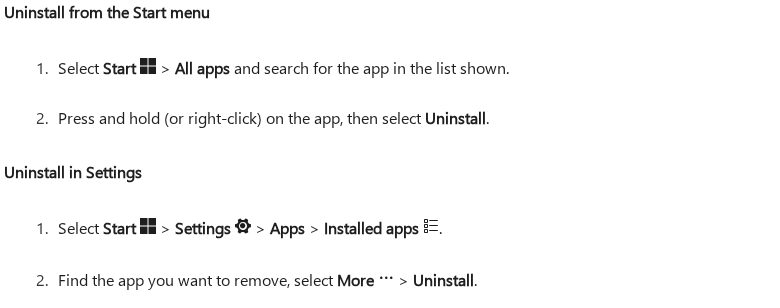
On Windows 11, use Start, Settings, Apps, then Installed apps. Find the identified application, open its More menu, and select Uninstall.
The Microsoft instructions pictured above show the normal uninstall options. They are guidance, not a screenshot proving which program caused your redirect.
Keep the app name and publisher in your notes. A recent installation date is a clue to investigate, not proof that the program is malicious.
Mac
Quit the identified app and locate it in Finder. Apple’s guidance recommends its own uninstaller when available; otherwise, use File, Move to Trash.
Review anything in the Trash before permanently deleting it. Do not empty unrelated files, remove random Library folders, or delete management profiles to complete a generic checklist.
Android
Google’s app-removal instructions use Google Play, the profile icon, Manage apps and devices, then Manage. Select the identified app and choose Uninstall.
Keep Play Protect enabled. If it identifies a harmful app, review the warning and follow the actual uninstall prompt.
If removal is blocked, preserve the exact message. Do not turn off security settings or erase the phone just to get past an unexplained obstacle.
Step 4: Scan when the exposure or symptoms justify it
Consider scanning if you installed an unwanted program, settings keep reverting, or your security software reports a detection. A closed advertising tab alone does not require this step.
Use software reached independently, not a download promoted by the page that interrupted you. Read any optional trial or subscription screen before accepting it.
Windows and Mac options
Our existing download routes are Malwarebytes for Windows and Malwarebytes for Mac. Select the correct platform.
Download from the official destination and follow its installer. If the publisher or a warning does not match what you expected, stop rather than overriding it.
Malwarebytes lists Quick and Custom scans as free on Windows and Mac. Threat Scan and real-time protection are paid features in its current comparison.
For a Windows Custom scan, open the Scanner tile’s three-dot menu, Advanced Scan, then Custom Scan. Choose the folders to inspect and select Start Custom Scan.
On Mac, select the Scanner tile, not its Scan button. Choose Advanced scans, Custom scan, then the location in Finder. Select Open to begin.
A selected-folder scan examines that scope. It does not establish that every file, account, or device connected to you has been checked.
Open the completed scan’s report and inspect the findings. Select identified threats and use Quarantine; keep the report if you need help interpreting a detection.
Optional paid protection is available through our Windows protection link and Mac protection link. Purchasing it is not a prerequisite for the manual checks here.
Android option
Malwarebytes for Android offers a free manual scanner. On its dashboard, under Device, tap Scan now.
Storage access is needed to inspect files as well as apps. Review the request and understand what the scan will cover before continuing.
For a detected app, open its results menu and select Uninstall app, then confirm Android’s prompt. Do not add an unexplained detection to Always allow.
Keep the result, detection name, and action taken. Follow a restart request when appropriate, then check the original symptom again rather than assuming a scan guarantees complete recovery.
Step 5: Reserve a desktop reset for persistent browser changes
Try the targeted checks first. A reset can undo useful preferences and interrupt signed-in sessions, so it should solve a specific remaining browser problem.
Save your work and make sure you can access important accounts. Review the confirmation before proceeding; do not use this desktop procedure as an Android reset.
In desktop Chrome, open Settings, Reset settings, Restore settings to their original defaults, then Reset settings.
This changes search and startup preferences, disables extensions, and clears cookies and site data. Saved bookmarks and passwords remain, but websites may require you to sign in again.
Turn back on only extensions you trust. If a controlled setting immediately returns, retain the details and seek assistance rather than repeatedly resetting the same profile.
Step 6: Retest the symptom and escalate what remains
Repeat the ordinary browsing check you recorded earlier. Compare the same browser and profile, not a different device that never showed the problem.
Look for the actual behavior: the unwanted detour, changed provider, returning extension, or notification. An empty scan result and a repaired search setting answer different questions.
For unresolved issues, use our Windows assistance forum, Mac assistance forum, or mobile assistance forum.
Provide the device version, browser, symptom, changes attempted, and relevant scan report. Remove personal information; never publish passwords, complete payment details, or private recovery codes.
Do not factory-reset a phone or delete browser databases on the strength of a domain name. Persistent problems need a diagnosis before a destructive repair.
Reduce Another Unwanted Advertising Detour
Update the browser and installed apps, be selective about extensions, and refuse permission requests that have nothing to do with the page you intended to use.
AdGuard is an optional advertising-blocking tool, not proof that an existing device problem has been removed. Choose a version suited to your platform.
Some security links here are affiliate links. Optional paid plans have their own prices and renewal terms, so read the agreement rather than accepting an upgrade automatically.
Do not confuse fewer advertisements with verified account security. If you entered credentials or approved a payment, deal with that specific exposure even after the browser behaves normally.
Related Warnings About Pages Reached Through Promotions
Our CouponBoomer report explains a reward page’s task gate. The Rateify investigation covers a music-review earning pitch.
The GroceryClaims report examines another promotion that asks visitors to go further than the initial promise suggests.
These are separate cases, not established Iadispatcher destinations or operators. They show why you should evaluate the page you reached instead of accepting its instructions automatically.
Frequently Asked Questions
Is Iadispatcher.com itself a virus?
A domain is an address, not an installed program. Recurring unwanted redirects deserve investigation, but the address does not identify the cause on your device.
Do I need to reinstall Windows after seeing the address?
No. Start with the relevant browser and exposure checks. Reinstallation is not a proportionate first response to a single unwanted tab.
Why does the search change come back?
Something may still control the affected setting. Record what returns and when, then investigate extensions, installed software, or legitimate organizational management rather than guessing.
Are Adexchangerapid and Exdynsrv the same as Iadispatcher?
Do not treat those names as interchangeable. Match your own warning or browsing record to the exact domain before using another case’s explanation.
Will buying antivirus stop the redirects?
A purchase is not a diagnosis. Choose a response based on your actual symptoms and exposure; permission changes or removing an unwanted extension may be the relevant fix.
What if the redirect disappears but I already entered a password?
Secure the affected account through the real service. Restoring normal browsing does not withdraw information you submitted or remove access someone already obtained.
The Bottom Line
Stop interacting with an unwanted Iadispatcher destination. Identify whether you face a single-page detour, an altered browser setting, a notification permission, or an installed app.
Apply the matching repair, retest the original symptom, and take persistent or unclear findings to the appropriate help forum. Do not replace evidence with a costly cleanup checklist.

Join the discussion
0 commentsShare your experience or ask a question about this article.
Your progress
Did these steps help?
Let us know how the guide worked for you.
Describe what you see and the step you reached. Keep passwords and other private information out.
Discussion
Start the conversation
Have a question or something useful to share? Add the first comment.