

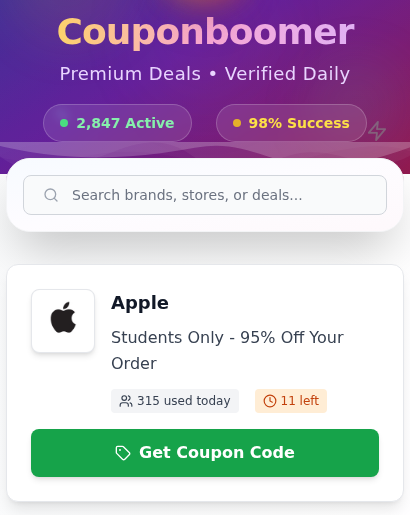
A student discount that nearly wipes out the price of an Apple order is hard to scroll past. CouponBoomer wraps that promise in a familiar coupon-site design.
There is a brand logo, a large saving and a button waiting to reveal the code. Before you follow it, look at what happens next.
Overview
CouponBoomer promises a working Apple discount
Couponboomer.com advertises “Students Only – 95% Off Your Order” beside the Apple logo. The page presents its offers as verified discounts.
The problem is more concrete than an unusually generous price. Its own footer describes the deals as fictional and the site as an educational demonstration.
That admission is incompatible with presenting the same offers as working savings. Do not complete tasks or share information to unlock these claimed coupons.
The reveal process leads to a task gate
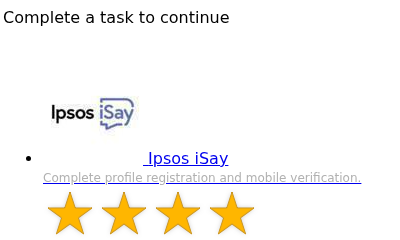
The coupon interface connects its reveal function to a separate Taskpass verification loader. The linked gate asks visitors to complete commercial tasks rather than demonstrate retailer eligibility.
Those tasks can involve registration, mobile verification or software installation. None establishes that Apple will accept the promised discount.
- A brand logo is not confirmation from the retailer.
- A displayed success rate is not a record of accepted purchases.
- A completed survey cannot make an invented coupon valid.
- An installed app does not prove a phone or computer is infected.
Coupon65 is a different service
Coupon65 appears in related searches, but its current page presents a separate senior-discounts directory and advertising-supported information service.
Do not transfer CouponBoomer’s fictional-coupon findings to Coupon65 because both names begin with the same word. The exact domain and offer matter.
Why These Are Not Verified Coupon Claims
The disclaimer contradicts the main pitch
Someone arriving through the Apple offer is looking for a usable discount, not a lesson in website design. The page should not make them discover that distinction afterward.
A disclaimer at the bottom does not turn an unsupported offer into a working promotion. You should not need to finish another company’s tasks to find that out.
The sensible decision is to leave the funnel. There is no good reason to trade information, install software or start a trial for a fictional deal.
The activity numbers are created by the page
The current program generates its per-brand usage and remaining-coupon figures from internal identifiers. Its active-user display changes through a random-number routine.
The claimed time since a coupon was verified is calculated from an identifier too. It is not evidence of someone testing a purchase at Apple.
Those details explain why the numbers look reassuring without supplying reassurance. A convincing counter can be produced without a single shopper receiving the advertised saving.
Do not read a small remaining balance as your deadline. An invented limit has no authority over when you should disclose information or make a purchase.
The offer is not a customer order
Nothing about opening a coupon card means you bought an Apple product. There is no reason to call a supposed support number to cancel a purchase you never made.
If another page later claims an order or charge exists, verify it through your actual retailer account or card statement. Do not follow the new message’s instructions.
How the CouponBoomer Scam Works
Step 1: A familiar retailer makes the saving feel relevant
Seeing a familiar brand can remove an important moment of hesitation. Instead of evaluating an unknown offer, the reader imagines buying the discounted product.
Keep the retailer and the coupon website separate in your mind. Apple appearing on a card does not mean Apple supplied the card or approved its conditions.
Step 2: Verification claims encourage a quick click
The presentation encourages the reader to move before checking the source. It makes pausing feel like the risky choice, even though pausing is the useful safeguard.
A real promotion should remain understandable when you ignore those counters. If the important terms are missing, the number of supposed users cannot replace them.
Step 3: A concealed code makes access feel like the only obstacle
The reveal interface puts a barrier between the visitor and the supposed saving. This can make the code feel valuable before its validity has been established.
The reader is encouraged to solve the access problem rather than ask the purchasing question: will this retailer actually honor the promotion?
Do not confuse revealing text with verifying a discount. A website can display a coupon-like string without any agreement from the business named beside it.
Step 4: The verification machinery introduces another website
CouponBoomer’s reveal function loads Taskpass material from taskpass.org. The linked verification page tells visitors to complete a task to continue.
A request that resembles a bot check can sound routine. But downloading a program, opening a new account or verifying a phone number is a different commitment.
Read the requested action itself. Calling something verification does not make it necessary, harmless or related to the original retailer.
Do not enter a password, payment method or security code merely because the next screen uses a familiar checkbox design.
Step 5: The task has its own terms and consequences
The gate’s available offers change. Current versions include survey-panel registration and requests to install software or browser extensions.
A legitimate service can be an irrelevant condition for a fake coupon. Appearing in this funnel does not make it malware or prove it endorses the promotion.
If you register, you create a separate relationship with the service receiving that registration. If you accept a paid trial, its billing terms are separate too.
Completing that action does not resolve CouponBoomer’s contradictory promise. Stop rather than making another commitment because you have already spent time on the first one.
Follow the Request, Not the Verification Label
A privacy promise does not cover every destination
CouponBoomer says it does not collect personal information. That statement cannot tell you what an outside registration form or installed application does with information you provide.
Check which domain is requesting the information and why. A newsletter, survey panel, app publisher and retailer can each have different privacy and cancellation rules.
There is no basis to claim every visitor’s details were sold. The immediate concern is being persuaded to disclose them for a saving the page itself calls fictional.
Phone and payment verification are not interchangeable
A mobile number may be needed for a genuine service’s own signup. That does not make the signup relevant to unlocking an Apple discount.
Likewise, a card request may create a separate purchase or trial. Read the total, renewal conditions and cancellation process before agreeing to anything.
If those terms are unclear, stop. You do not owe the coupon page another attempt, a small activation charge or proof that you can pay.
Permission to install is a separate security decision
Installing a browser extension can grant access beyond the coupon page. An application may request permissions unrelated to saving money on an order.
Do not disable security warnings or paste commands to complete a coupon check. Download software only when you independently want it and can verify its publisher.
Apple’s scam guidance specifically warns about fake promotions, unexpected information requests and misleading software downloads. Contact the actual company through independently located support.
What Real Apple Savings Look Like
Apple’s education storefront identifies eligible products and education offers. It does not validate CouponBoomer’s unrelated task-unlock promise.
Check the exact product and eligibility conditions on the retailer’s own page. Do not assume a student label makes every item eligible for the same reduction.
Apple also has an official Certified Refurbished store. Those products have disclosed condition and warranty information, rather than a secret code contingent on unrelated tasks.
For carrier offers, compare the full commitment: plan, trade-in, installments, taxes and any bill-credit period. A large advertised saving may depend on maintaining service.
Do not compare only the largest number. Compare what you receive, what you pay now and what you remain committed to afterward.
These legitimate savings routes are not proof that an unrelated coupon works. They are places to check the retailer’s actual terms without completing a mystery verification process.
Is Coupon65 Connected to CouponBoomer?
The current Coupon65 page has a different purpose
Coupon65.com currently describes a free directory for senior discounts across five countries, alongside articles, puzzles, a quiz and a newsletter.
Its footer says advertising supports the service and that companies behind some offers may compensate it. That is different from an admission that the deals are fictional.
The page also lists deals@coupon65.com for contact. None of those details establishes common ownership with CouponBoomer.
A separate service still needs offer-by-offer checking
This is not a certification of every Coupon65 listing or advertisement. Verify a particular saving with the business providing it, including country, age and membership restrictions.
A free directory does not mean every linked commercial offer is free. Read the destination’s actual agreement before registering or accepting a trial.
If a charge appears, identify the name on the receipt and statement. Do not assume it belongs to either coupon website merely because your browsing began there.

What to Do if You Have Fallen Victim to This Scam
Respond to what you actually did, not the worst outcome you can imagine. A visit, a submitted password and an installed extension call for different steps.
- Stop the coupon process and preserve useful evidence.
Close the gate without completing further tasks. Save the original page, the destination address and any confirmations if you registered, installed something or paid.
- If you only viewed the page, do not assume infection.
Seeing a coupon does not mean your accounts were breached. Revoke any unwanted notification permission and do not continue through later messages promising the missing discount.
- If you supplied contact details, watch the next messages carefully.
Expect possible marketing or impersonation attempts. Do not provide extra identity documents or security codes because someone claims your coupon is waiting.
Giving an email address alone is not the same as exposing its password. Change credentials if you entered or reused them on an untrusted form.
- If you entered a password, secure that account directly.
Use the genuine service to change the exposed password, review account activity and enable multi-factor protection. Replace reused credentials on other affected accounts too.
- If you paid or accepted a trial, identify that transaction.
Contact the named merchant about cancellation and keep the answer. Ask your card issuer about unauthorized charges or an unresolved payment dispute before its deadline.
- If you installed unwanted software, remove the actual installation.
Review recently installed apps and extensions, including their permissions. Google’s unwanted-software guidance explains relevant Chrome checks and points to further help.
Use Malwarebytes when a suspicious installation or continuing symptoms warrant a scan. Do not treat a clean result as proof that every account and permission is secure.
- Reduce further exposure without confusing prevention with recovery.
AdGuard can help filter intrusive advertisements and risky destinations. It cannot recover a payment, cancel an outside subscription or turn this coupon into a real discount.
- Escalate persistent problems safely.
Seek qualified help if unwanted behavior continues. Back up personal data before considering a reset; do not erase a phone solely because you visited a coupon page.
The scanner guide below is relevant if you installed unwanted software or have continuing device symptoms. Its steps are not necessary simply to close a coupon tab.
A scan cannot guarantee complete security or reverse a payment. Do not proceed to a factory reset without a backup and a clear reason to erase the device.
Remove Unwanted Apps and Permissions After a Coupon Task
Step 1: Close the page and identify what changed
If you only viewed the coupon, close the tab. Skip the scanning instructions unless you installed something untrusted or unwanted behavior continues.
If you downloaded a file but never opened it, do not run it to find out what it does. Record its name before deleting the unwanted download.
For an installation, note the app or extension name, publisher and approximate installation time. That helps you remove the right item without disturbing unrelated software.
Step 2: Turn off unwanted website notifications
A website notification can appear after its tab closes. Block the site’s permission rather than clicking its warning or buying the software it advertises.
- Chrome on a computer: Open Settings, then Privacy and security, Site settings and Notifications. Find the unwanted site’s permission and change it to Block.
- Chrome on Android: Open Settings, then Site settings and Notifications. Turn off unwanted notifications. On supported devices, the notification itself also offers Unsubscribe.
- Safari on Mac: Open Safari, then Settings, Websites and Notifications. Change the unwanted website’s permission to Deny.
Use the domain named in the notification to identify its source. You do not need to reopen the coupon gate to manage browser permissions.
Check whether the unwanted alerts stop. If they continue, identify the browser or app named on the next notification before changing more settings.
Step 3: Remove the unwanted app or extension you installed
Save any personal files you need before uninstalling an app. Remove only the item connected to the task or otherwise identified as unwanted.
- Windows: Open Settings, Apps and Installed apps. Locate the unwanted program, open its menu and choose Uninstall. Follow that program’s uninstall prompts.
- Mac: Open Finder and Applications. Use the app’s uninstaller if supplied; otherwise move the unwanted app to the Trash. Do not delete unrelated system files.
- Android: Open Google Play, your profile, Manage apps & devices, then Manage. Select the unwanted app and choose Uninstall.
- iPhone or iPad: Touch and hold the unwanted app, choose Remove App, then Delete App and confirm. Deleting it may remove locally stored information.
- Chrome extension: Open the browser menu, Extensions and Manage extensions. Find the unwanted item, choose Remove and confirm.
Deleting an app does not cancel its subscription. Handle any trial or renewal separately through the service or app store that billed you.
If a work or school device blocks removal, contact its administrator. Do not bypass management controls or delete random folders to force the app out.
Step 4: Scan only when the installation or symptoms warrant it
Update your existing security software first. Malwarebytes is another option for checking an untrusted installation or continuing redirects, not a requirement for every coupon visitor.
Download the version for your operating system from the official page, then install and open it. Do not bypass an unexpected security warning.
Review setup offers without accepting an unwanted trial or purchasing protection simply to follow this guide.
Windows
Use our Malwarebytes scanner link. Manual Custom scans are listed as free; ongoing protection is a separate paid feature.
- Open Malwarebytes. On the Scanner tile, select the three-dot menu, Advanced Scan, then Custom Scan.
- Select the folders you want checked, including the location of the suspicious download, then choose Start Custom Scan.
- Read the detection results and follow the app’s quarantine prompts. Restart if requested, then check whether the original unwanted behavior returns.
Mac
Use our Malwarebytes for Mac link. The free Custom scan checks the locations you select, not automatically every part of your Mac.
- Open Malwarebytes and select the Scanner tile itself. In the Scan tab, choose Advanced scans and then Custom scan.
- In Finder, select the relevant folder, application or directory. Choose Open to start the scan.
- Review detections and follow the app’s quarantine instructions. Keep the results if you need help understanding an item or the problem continues.
Android
Get Malwarebytes for Android from Google Play. Its manual scanner is free; scheduled scans and real-time protection depend on the plan.
If the Android app presents a subscription offer, its developer says the X closes that paywall and opens Free Mode without starting a trial.
- Open Malwarebytes. Under Device on the dashboard, tap Scan now. Grant storage access if you want it to check files as well as apps.
- Let the scan finish. For a detected unwanted app, open the menu beside its name and choose Uninstall app. Confirm Android’s uninstall prompt.
- Do not select Always allow for an unfamiliar detection. If removal fails or the app returns, keep its name and the result for qualified help.
These instructions do not provide an iPhone or iPad malware scan. Use the app and permission checks above, and contact Apple support for persistent problems.
Paid prevention is optional. Separate options include Malwarebytes protection for Windows, Mac protection and Android protection. None is required for the free manual checks described.
Some security-product links are affiliate links. Review the product, platform, price and renewal terms before choosing a paid plan.
Step 5: Check the result and get help when needed
Reopen your browser normally. Check that the unwanted notification, extension or app is gone and that redirects do not immediately return.
A scan with no detections is not a guarantee that every account, permission or file is secure. Keep dealing separately with exposed passwords and unwanted charges.
For persistent Windows symptoms, ESET Online Scanner offers a free one-time second opinion. It is a Windows tool, not a Mac, Android or iPhone scanner.
Do not run several scans simultaneously. If the cause remains unclear, stop escalating and ask for help rather than repeatedly installing tools.
Use the MalwareTips help forum for your device: Windows, Mac or mobile. Share detection details, not passwords or other private information.
Do not factory-reset a device just to remove a coupon warning. If qualified support recommends erasing it, first arrange backups and access to the required accounts.
For optional future ad filtering, AdGuard may help reduce intrusive advertisements. It does not remove an installed malicious app or guarantee that every deceptive offer is blocked.
Related Coupon and Reward Warnings
Our GroceryClaims Costco gift card investigation explains a separate sponsored-deal funnel. Completing partner offers is not the same as redeeming a retailer coupon.
The fake NordVPN discount warning explains why the payment destination matters, while our Starbucks voucher investigation examines a separate reward path.
Keep those mechanisms distinct. A coupon code, reward program, app signup and paid subscription have different conditions, even when an advertisement bundles them together.
Frequently Asked Questions
Is CouponBoomer a legitimate source of Apple coupons?
Do not rely on it. The page presents verified savings while its own footer calls the deals fictional. The outside task gate does not authenticate an Apple promotion.
Does the 95% student Apple code work?
There is no verified retailer authorization supporting this offer. Check Apple directly instead of completing tasks to reveal a code from a demonstration page.
Are the used-today and remaining-coupon counters real?
No. The displays are generated by the page, not a reliable record of retailer redemptions or remaining stock.
Will completing the verification task prove the discount is valid?
No. Registering for a service or installing software does not verify a retailer’s promotion. Do not make another commitment to unlock a deal described as fictional.
Is Coupon65 the same as CouponBoomer?
No relationship is established here. Coupon65 currently presents a separate advertising-supported senior-discounts service. Assess its individual offers without transferring CouponBoomer’s findings to it.
Do I need to reset my phone after visiting CouponBoomer?
No, a visit alone does not justify a reset. Address any actual permissions, installed software, exposed credentials or charges, and seek help if problems persist.
The Bottom Line
Do not use CouponBoomer’s task gate to chase the Apple discount. Fictional deals and manufactured verification signals are not a dependable route to savings.
If you already responded, stop and address the specific exposure: signup, password, payment or installation. Check genuine retailer offers directly, and keep Coupon65’s separate identity clear.

Join the discussion
0 commentsShare your experience or ask a question about this article.
Discussion
Start the conversation
Have a question or something useful to share? Add the first comment.