

Canadian Security Intelligence Service is a malicious software (Trojan Ransomware) that is locking your computer, and posing as an official notice from a law enforcement agency, claims that the your PC has been determined to have visited illegal websites.In reality, none of what Canadian Security Intelligence Service is reporting is real, and the alert is only used to scare you into paying for a non-existing fine and stealing your personal financial information
.
We strongly advise you to follow our Canadian Security Intelligence Service removal guide and ignore any alerts that this malicious software might generate.Under no circumstance should you send any money to this cyber criminals as this could lead to identity theft.
If you’ve got a Canadian Security Intelligence Service infection , you’ll be seeing this screens :
![[Image: Canadian Security Intelligence Service]](http://malwaretips.com/images/fakeav/Canadian-Security Intelligence-Service.png "Canadian Security Intelligence Service")
Removal guide for Canadian Security Intelligence Service
We will use the Kaspersky Rescue Disk Bootable CD to clean the Windows registry and to perform a system scan to remove the malicious files.
What you’ll need to perform this removal guide :
- A computer with Internet access.
- 1 blank DVD or CD
- 1 DVD/CD Burner
- Software which can create a bootable CD – http://www.imgburn.com/index.php?act=download
- A copy of the latest Kaspersky Rescue Disc from here – http://rescuedisk.kaspersky-labs.com/rescuedisk/updatable/
- About 1 -2 hours depending on how much data you have on C:
STEP 1: Create a bootable Kaspersky Rescue Disk CD
- Download the Kaspersky Rescue Disk ISO image from below.

- Download ImgBurn, a software that will help us create this bootable disk.
- You can now insert your blank DVD/CD in your burner.
- Install ImgBurn by following the prompts and then start this program.
- Click on the Write image file to disc button.
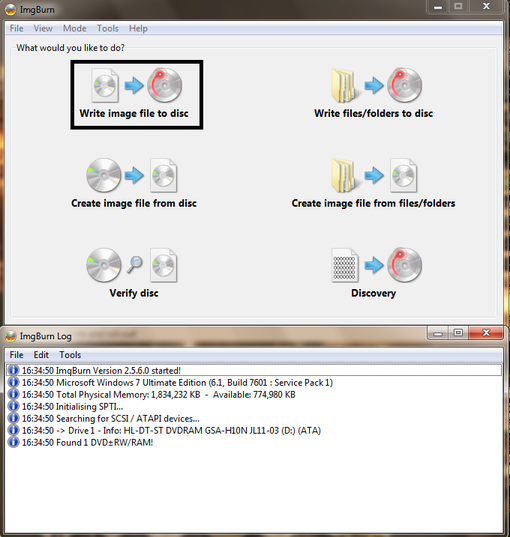
- Under ‘Source’ click on the Browse for file button, then browse to the location where you previously saved the Kaspersky Rescue Disk ISO file.(kav_rescue_10.iso)
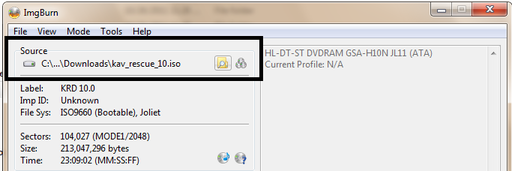
- Click on the big Write button.

- The disc creation process will now start and it will take around 5-10 minutes to complete.
STEP 2:Configure the computer to boot from CD-ROM
- Use the Delete or F2 keys, to load the BIOS menu.Information how to enter the BIOS menu is displayed on the screen at the start of the OS boot:
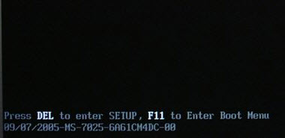
- In your PC BIOS settings select the Boot menu and set CD/DVD-ROM as a primary boot device.
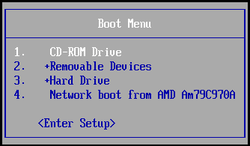
- Insert your Kaspersky Rescue Disk and restart your computer.
STEP 3:Boot your computer from Kaspersky Rescue Disk
- Your computer will now boot from the Kaspersky Rescue Disk,and you’ll be asked to press any key to proceed with this process
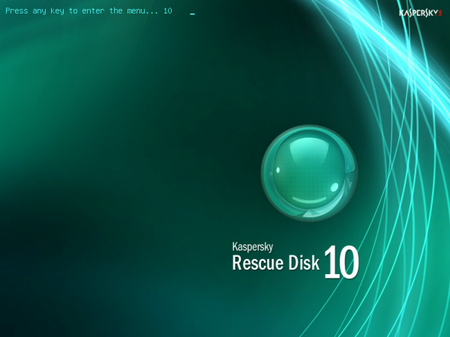
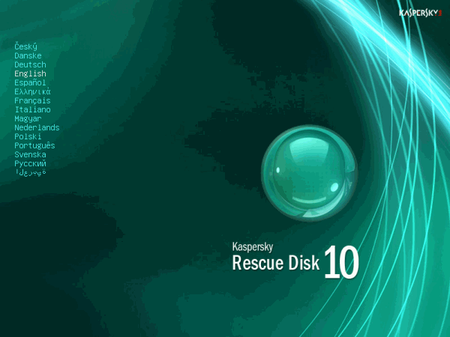
- In the start up wizard window that will open, select your language using the cursor moving keys. Press the ENTER key on the keyboard.
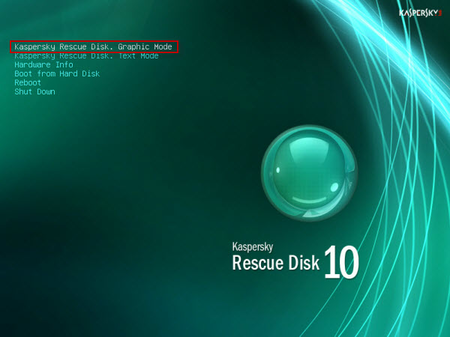
- On the next screen, select Kaspersky Rescue Disk. Graphic Mode then press ENTER.
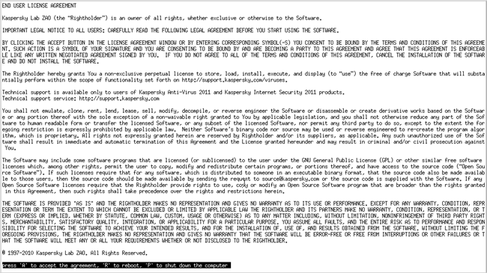
- The End User License Agreement of Kaspersky Rescue Disk will be displayed on the screen. Read carefully the agreement then press the C button on your keyboard.
- Once the actions described above have been performed, the Kasprsky operating system will start.
STEP 4: Launch Kaspersky WindowsUnlocker to remove the Canadian Security Intelligence Service malicious registry changes
Canadian Security Intelligence Service has modified your system registry so that when you’re trying to boot your computer it will instead launch his lock screen.To remove this malicious registry changes we need to use the Kasersky WindowsUnlocker from Kaspersky Rescue Disk.
- Click on the Start button located in the left bottom corner of the screen and select the Kaspersky WindowsUnlocker.
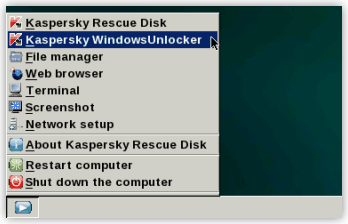
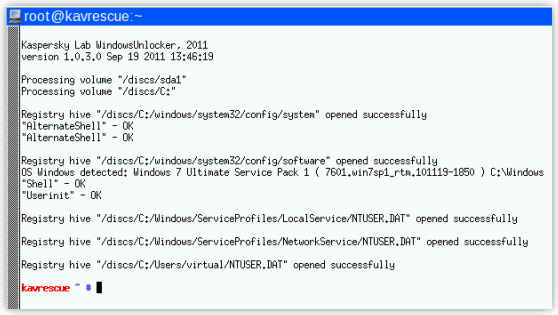
Alternatively you can select Terminal and in the command prompt type windowsunlocker and then press Enter on the keyboard. - A white colored console window will appear and will automatically start loading the registry files for scanning and disinfection. The whole process will take only a couple of seconds and after this process you should be able to boot your computer in normal mode.
STEP 5:Scan your system with Kaspersky Rescue Disk
- Click on the Start buttonlocated in the left bottom corner of the screen and select the Kaspersky Rescue Disk then click on My Update Center and press Start update.
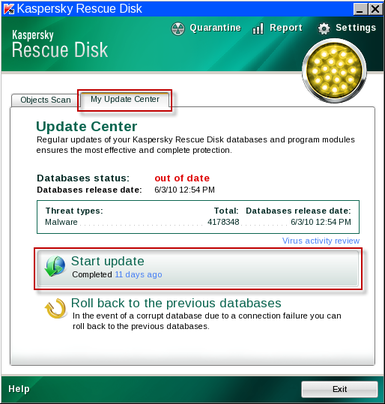
- When the update process has completed, the light at the top of the window will turn green, and the databases release date will be updated.
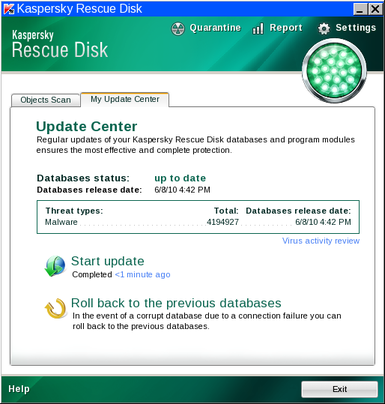
- Click on the Objects Scan tab, then click Start Objects Scanto begin the scan.
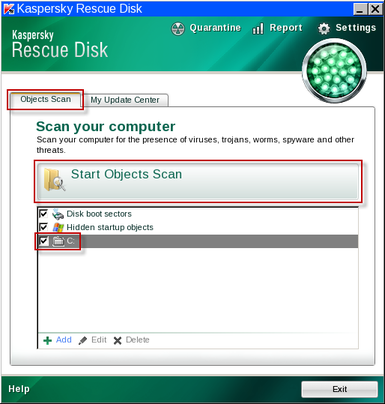
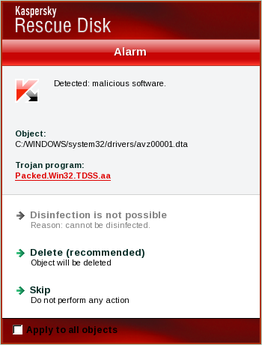
- If any malicious items are found, the default settings are to prompt you for action with a red popup window on the bottom right. Delete is the recommended action in most cases but we strongly recommend that you try first to disinfect , and if it doesn’t work chose to quarantine the infected files just to be on the safe side.
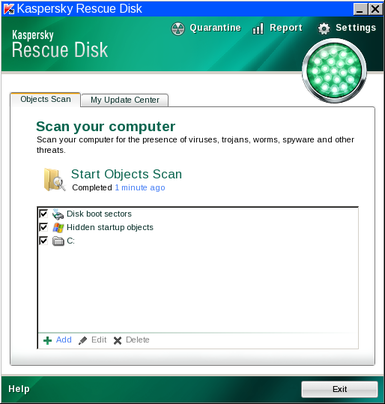
- When all detected items have been processed and removed, the light in the window will turn green and the scan will show as completed.
- When done you can close the Kaspersky Rescue Disk window and use the Start Menu to Restart the computer.
STEP 6: Download and scan with Malwarebytes Anti-Malware FREE to remove any left over malicious files from your computer.
- Download and run Malwarebytes Anti-Malware FREE
- Install Mawlarebytes Anti-Malware by following the prompts. Do not make any changes to the default installation settings and do not restart your computer if asked so.
![[Image: Scan with Malwarebytes S1]](//malwaretips.com/images/removalguide/mbam2.png "Remove Canadian Security Intelligence Service 2")
- On the Scanner tab,please select Perform full scan and then click on the Scan button to start scanning your computer for any possible infections.
![[Image: Scan with Malwarebytes S2]](//malwaretips.com/images/removalguide/mbam4.png "Remove Canadian Security Intelligence Service 3")
- When the scan is finished click the ‘OK‘ button and then you will be presented with a screen showing you the malware infections that Malwarebytes’ Anti-Malware has detected.
Make sure that everything is Checked (ticked) and click on Remove Selected button.
![[Image: Scan with Malwarebytes S3]](//malwaretips.com/images/removalguide/mbam6.png "Remove Canadian Security Intelligence Service 4")
- Malwarebytes’ Anti-Malware will now start removing the malicious files.
If during the removal process Malwarebytes will display a message stating that it needs to reboot, please allow this request.
![[Image: Scan with Malwarebytes S1]](http://malwaretips.com/images/removalguide/mbam2.png "Remove Canadian Security Intelligence Service 2")
![[Image: Scan with Malwarebytes S2]](http://malwaretips.com/images/removalguide/mbam4.png "Remove Canadian Security Intelligence Service 3")
![[Image: Scan with Malwarebytes S3]](http://malwaretips.com/images/removalguide/mbam6.png "Remove Canadian Security Intelligence Service 4")
If you are still experiencing problems while trying to remove Canadian Security Intelligence Service from your machine, please start a new thread in our Malware Removal Assistance forum.
What’s next? Join our amazing community and build up your malware defenses !

Join the discussion
2 commentsShare your experience or ask a question about this article.
Your progress
Did these steps help?
Let us know how the guide worked for you.
Describe what you see and the step you reached. Keep passwords and other private information out.
Discussion
You might want to plug in a non USB keyboard to access the Rescue Disk menu as the malware disabled the USB ports on the machine I was working on. I had to use the terminal mode as the start button was not showing on the latest version of the program disc. All seems to be well now at this point though it will take several hours for the complete scan to finish.
Thanks for the guide…
you guys saved my PC!! thanks for this guide, easy to follow, and worked perfectly! thanks again