

“MenaCel” (offered by Acmenel.pro) is a malicious Google Chrome extension (Rogue.ForcedExtension) which may hijack your default search engine or display pop-up ads and unwanted advertisements on web pages that you visit.
The MenaCel Chrome extension is promoted via a malicious JavaScript code from Acmenel.pro, which will force the users to install this unwanted extension. Most often, your browser will be redirect to Acmenel.pro from a crack, keygen, or adult entertainment site.
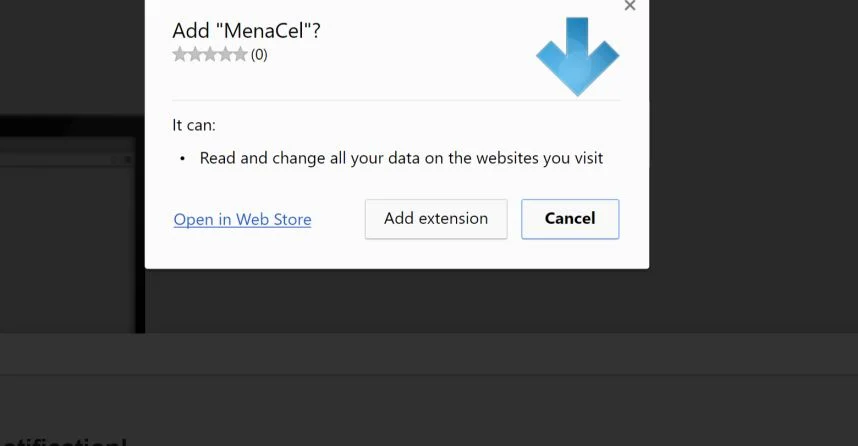
The Acmenel.pro site runs a JavaScript producing a dialog box, telling you you’ll have to “Add Extension to Leave”. Clicking “Cancel” once changes it to add a tick box marked “Prevent this page from creating additional dialogs” Thinking that this is the ticket out of the page, you will tick that box and click “OK”. At this point, your tab will go into “Full Screen” mode, and you will be prompted to install the MenaCel extension.
A typical behavior for the MenaCel malicious extensions is:
- Advertising banners are injected with the web pages that you are visiting.
- Random web page text is turned into hyperlinks.
- Browser popups appear which recommend fake updates or other software.
- Your browser homepage and default search may be changed
- Your browser search queries are being redirected or tracked
If your Windows machine gets stuck on a malicious site like Acmenel.pro, use the Ctrl-Alt-Del key combination to open the Task Manager. Use “End Process” on every active “chrome.exe” process until the browser shuts down.
How to remove MenaCel extension by Acmenel.pro (Virus Removal Guide)
Please perform all the steps in the correct order. If you have any questions or doubt at any point, STOP and ask for our assistance.
- STEP 1: Reset Google Chrome settings to remove the MenaCel Extension
- STEP 2: Use Malwarebytes to remove the MenaCel Pop-up Virus
- STEP 3: Use HitmanPro to Scan for Malware and Unwanted Programs
- STEP 4: Double-check for malicious programs with Zemana AntiMalware Portable
STEP 1: Reset Google Chrome settings to remove the MenaCel Extension
Google Chrome has an option that will reset itself to its default settings. You might need to do this if apps or extensions you installed changed your settings without your knowledge. Your saved bookmarks and passwords won’t be cleared or changed.
- On your computer, open Google Chrome.
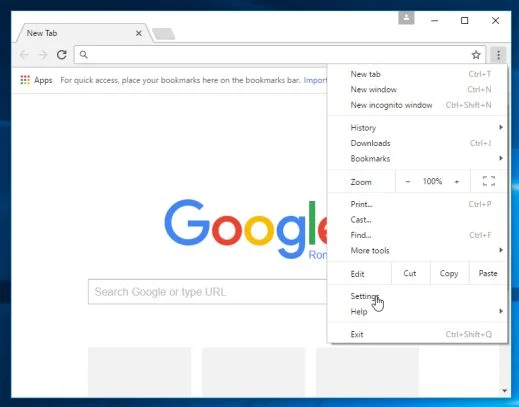
- At the top right, click “More” (represented by the three dots) and then “Settings”
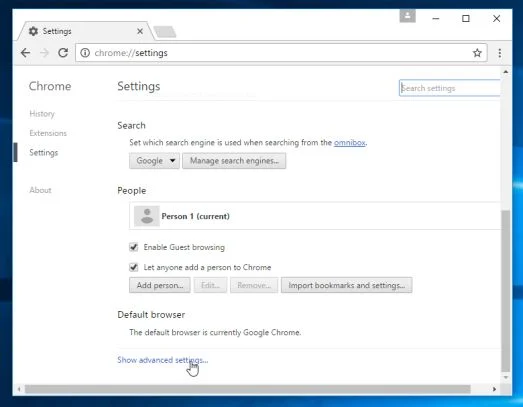
- At the bottom, click “Show advanced settings”.
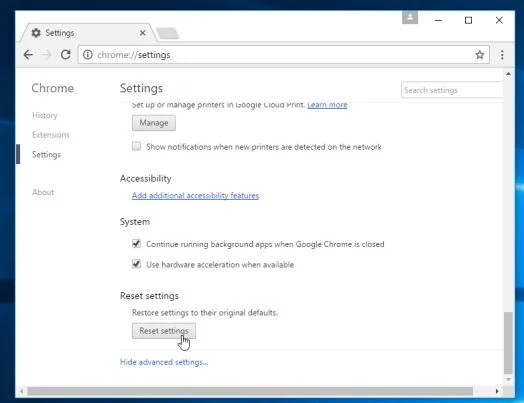
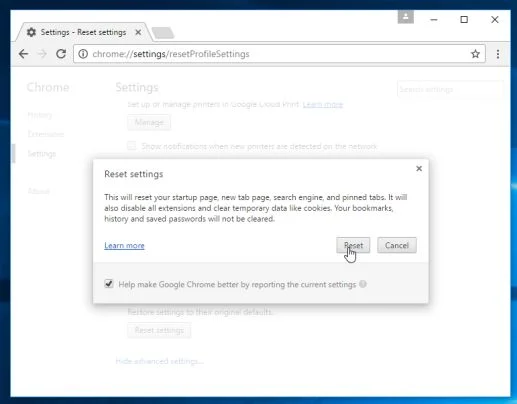
- Under the section “Reset settings”, click Reset settings.
- In the box that appears, click Reset.
STEP 2: Use Malwarebytes to remove the MenaCel Pop-up Virus
Malwarebytes is a powerful on-demand scanner which should remove the adware responsible for the MenaCel redirect. It is important to note that Malwarebytes will run alongside antivirus software without conflicts.
- You can download download Malwarebytes from the below link.
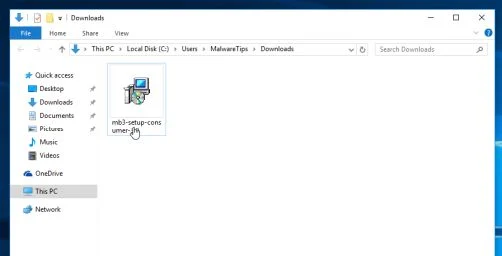
Download MalwarebytesFree official installer. Your download starts right away. - When Malwarebytes has finished downloading, double-click on the “mb3-setup-consumer” file to install Malwarebytes on your computer.
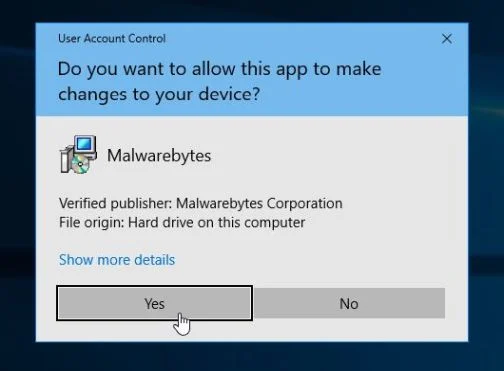
You may be presented with an User Account Control pop-up asking if you want to allow Malwarebytes to make changes to your device. If this happens, you should click “Yes” to continue with the installation.
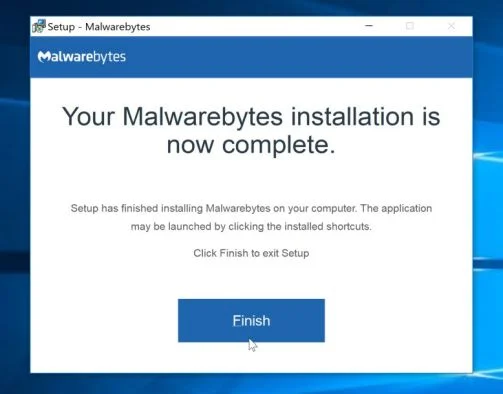
- When the Malwarebytes installation begins, you will see the Malwarebytes Setup Wizard which will guide you through the installation process.
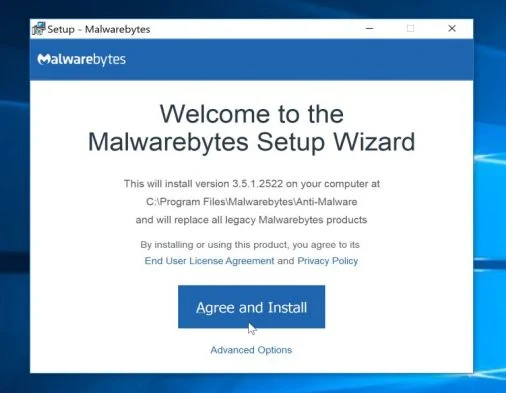
To install Malwarebytes on your machine, keep following the prompts by clicking the “Next” button.
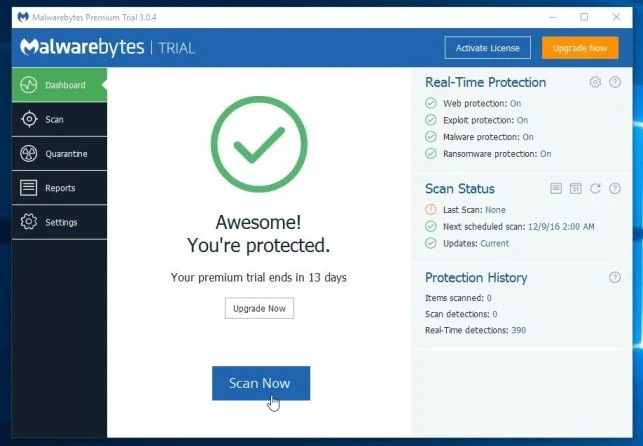
- Once installed, Malwarebytes will automatically start and update the antivirus database. To start a system scan you can click on the “Scan Now” button.
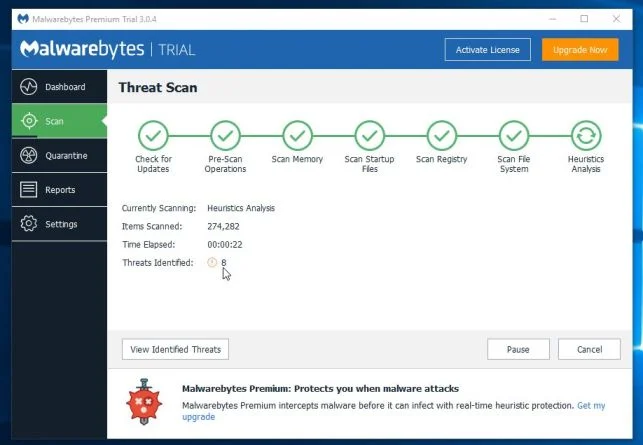
- Malwarebytes will now start scanning your computer for malicious programs.
This process can take a few minutes, so we suggest you do something else and periodically check on the status of the scan to see when it is finished.
- When the scan has completed, you will be presented with a screen showing the malware infections that Malwarebytes has detected.
To remove the malicious programs that Malwarebytes has found, click on the “Quarantine Selected” button.
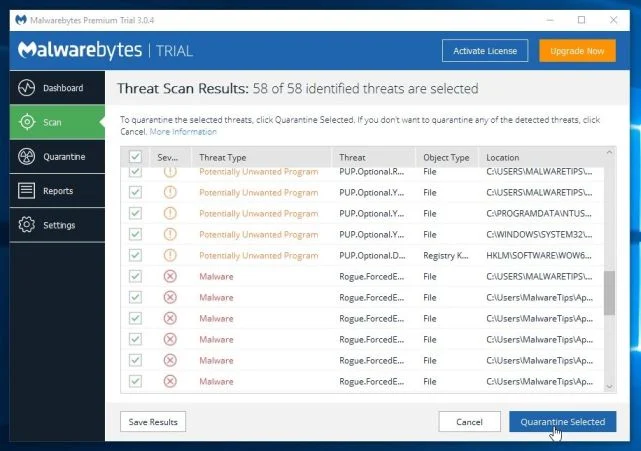
- Malwarebytes will now quarantine all the malicious files and registry keys that it has found.
To complete the malware removal process, Malwarebytes may ask you to restart your computer.
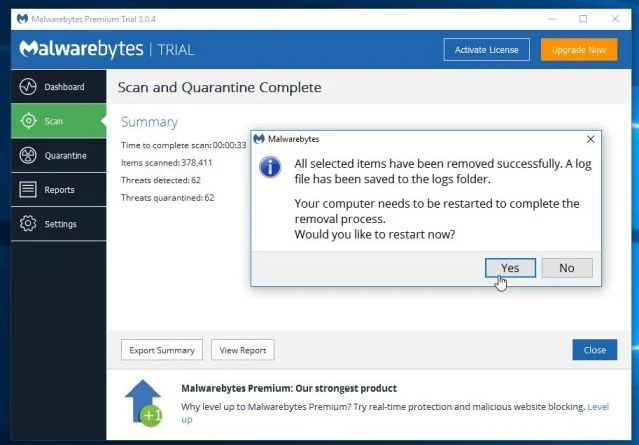
When the malware removal process is complete, you can close Malwarebytes and continue with the rest of the instructions.
STEP 3: Use HitmanPro to Scan for Malware and Unwanted Programs
HitmanPro can find and remove malware, adware, bots, and other threats that even the best antivirus suite can oftentimes miss. HitmanPro is designed to run alongside your antivirus suite, firewall, and other security tools.
- You can download HitmanPro from the below link:
Download HitmanProOfficial Sophos download. Free scan, free 30-day trial to remove threats. - When HitmanPro has finished downloading, double-click on the “hitmanpro” file to install this program on your computer.
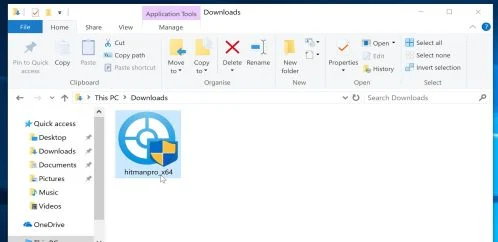
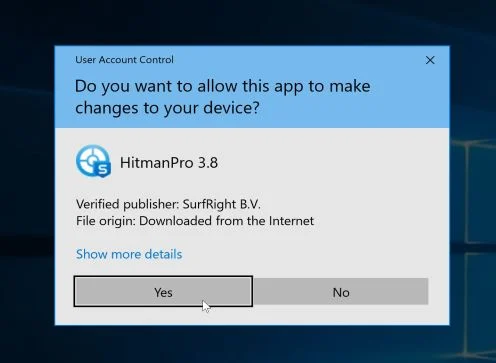
You may be presented with an User Account Control pop-up asking if you want to allow HitmanPro to make changes to your device. If this happens, you should click “Yes” to continue with the installation.
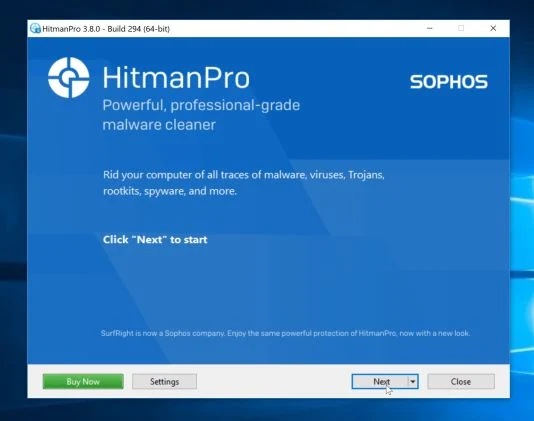
- When the program starts you will be presented with the start screen as shown below. Now click on the Next button to continue with the scan process.
- HitmanPro will now begin to scan your computer for malware.
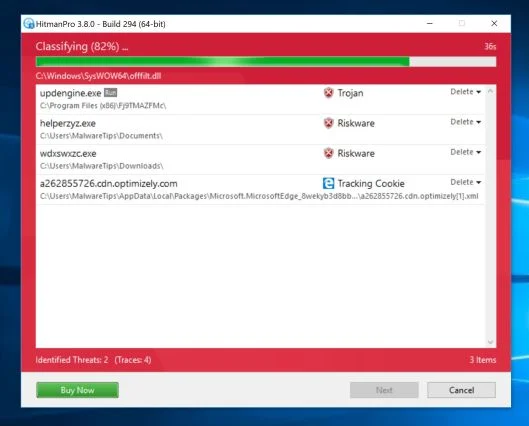
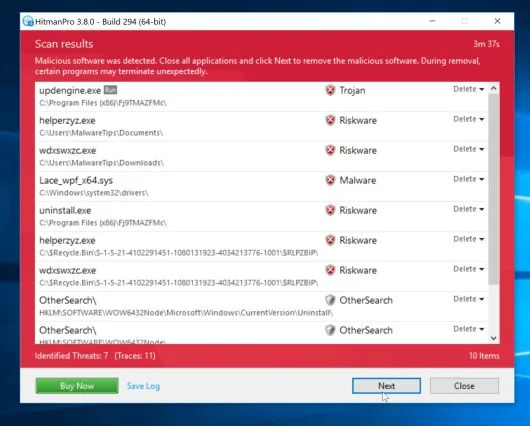
- When it has finished it will display a list of all the malware that the program found as shown in the image below. Click on the “Next” button, to remove malware.
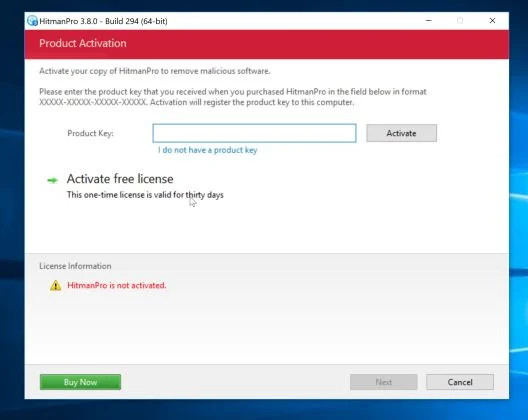
- Click on the “Activate free license” button to begin the free 30 days trial, and remove all the malicious files from your computer.
When the process is complete, you can close HitmanPro and continue with the rest of the instructions.
STEP 4: Double-check for malicious programs with Zemana AntiMalware Portable
Zemana AntiMalware Portable is a free utility that will scan your computer for the MenaCel adware and other malicious programs.
- You can download Zemana AntiMalware Portable from the below link:
Download Zemana AntiMalwareOpens the download page in a new tab. - Double-click on the file named “Zemana.AntiMalware.Portable” to perform a system scan with Zemana AntiMalware Free.
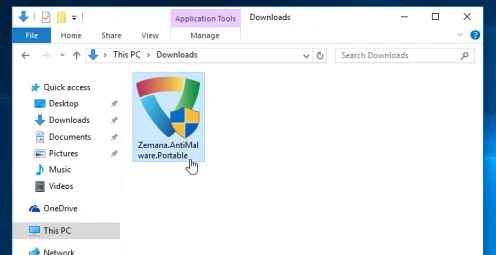
You may be presented with a User Account Control dialog asking you if you want to run this program. If this happens, you should click “Yes” to allow Zemana AntiMalware to run.
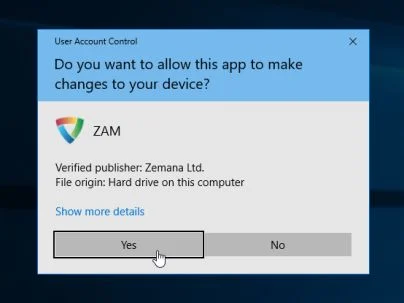
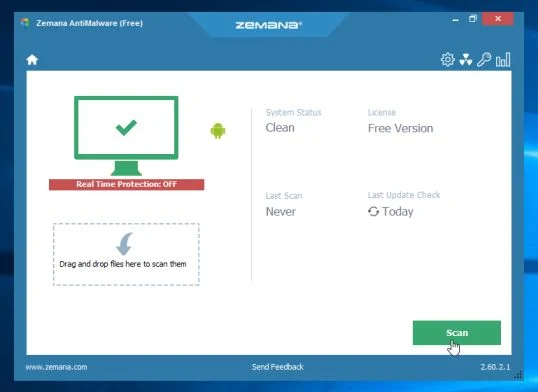
- When Zemana AntiMalware will start, click on the “Scan” button to perform a system scan.
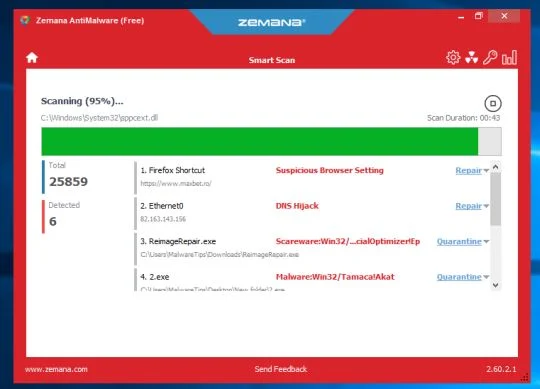
- Zemana AntiMalware will now scan your computer for malicious programs. This process can take up to 10 minutes.
- When Zemana has finished finished scanning it will show a screen that displays any malware that has been detected. To remove all the malicious files, click on the “Next” button.
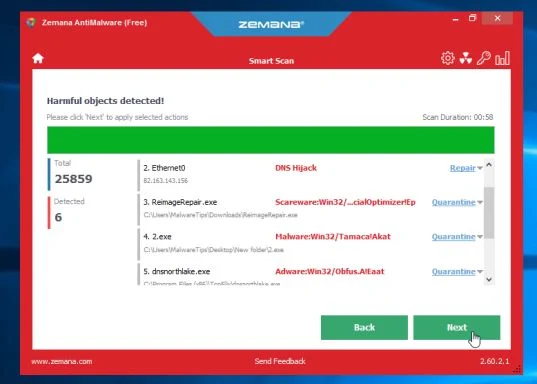
Zemana AntiMalware will now start to remove all the malicious programs from your computer. When the process is complete, you can close Zemana AntiMalware and continue with the rest of the instructions.
Google Chrome should now be free of the MenaCel malicious extension. If you are still experiencing problems while trying to remove MenaCel extension from your Google Chrome, please do one of the following:
- Run a system scan with Emsisoft Emergency Kit
- Ask for help in our Malware Removal Assistance forum.

Join the discussion
0 commentsShare your experience or ask a question about this article.
Your progress
Did these steps help?
Let us know how the guide worked for you.
Describe what you see and the step you reached. Keep passwords and other private information out.
Discussion
Start the conversation
Have a question or something useful to share? Add the first comment.