


NRSMiner is a Trojan Horse that uses the infected computer’s resources to mine digital currency (Monero, Bitcoin, DarkCoin or Ethereum) without user permission.
The NRSMiner Trojan will use more than 90% of your CPU’s power and graphics cards power. What this means, is that when the miners are running you will find that your computer is running slower and games are stuttering or freezing because the NRSMiner Trojan is using your computer’s resources to generate revenue for themselves. This will cause your CPU to run at very hot temperatures for extended periods of time, which could shorten the life of the CPU.
When a PC is infected with NRSMiner Trojan, common symptoms include:
- Very high CPU and graphics cards usage
- Windows minimize and maximize slowly, and programs run slower.
- Programs don’t launch as quickly.
- General slowness when using the PC.
How to remove NRSMiner Trojan (Virus Removal Guide)
Please perform all the steps in the correct order. If you have any questions or doubt at any point, STOP and ask for our assistance.
- STEP 1: Use Malwarebytes to remove the NRSMiner Trojan
- STEP 2: Use HitmanPro to scan for malware and unwanted programs
- STEP 3: Double-check for malicious programs with Zemana AntiMalware
STEP 1: Use Malwarebytes to remove the NRSMiner Trojan
Malwarebytes is one of the most popular and most used anti-malware software for Windows, and for good reasons. It is able to destroy many types of malware that other software tends to miss, without costing you absolutely nothing. When it comes to cleaning up an infected device, Malwarebytes has always been free and we recommend it as an essential tool in the fight against malware.
The first time you install Malwarebytes, you’re given a free 14-day trial of the premium edition, which includes preventative tools like real-time scanning and specific protection from ransomware. After two weeks, it automatically reverts to the basic free version that will detect and clean up malware infections only when you run a scan. It is important to note that Malwarebytes will run alongside antivirus software without conflicts.
-
Download Malwarebytes.
You can download Malwarebytes by clicking the link below.
 Malwarebytes Free for WindowsScans and removes malware at no cost
Download MalwarebytesOfficial installer for Windows 11 and 10. Your download starts right away.Want real-time protection? See Malwarebytes Premium
-
Double-click on the Malwarebytes setup file.
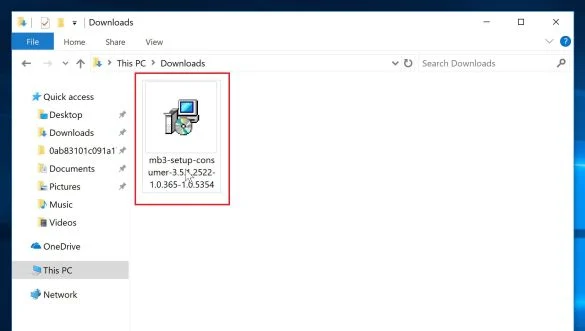
When Malwarebytes has finished downloading, double-click on the mb3-setup-consumer-x.x.x.xxxx.exe file to install Malwarebytes on your PC. In most cases, downloaded files are saved to the Downloads folder.
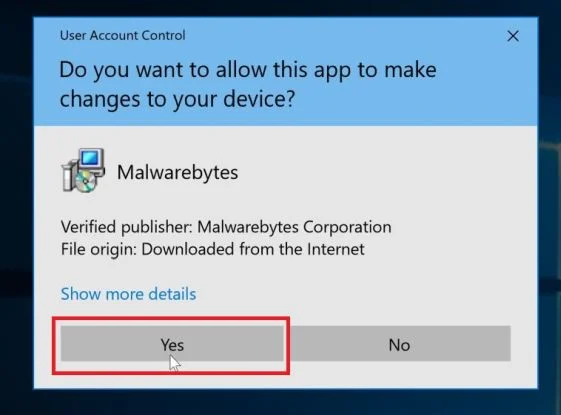
You may be presented with an User Account Control pop-up asking if you want to allow Malwarebytes to make changes to your device. If this happens, you should click “Yes” to continue with the installation.
-
Follow the on-screen prompts to install Malwarebytes.
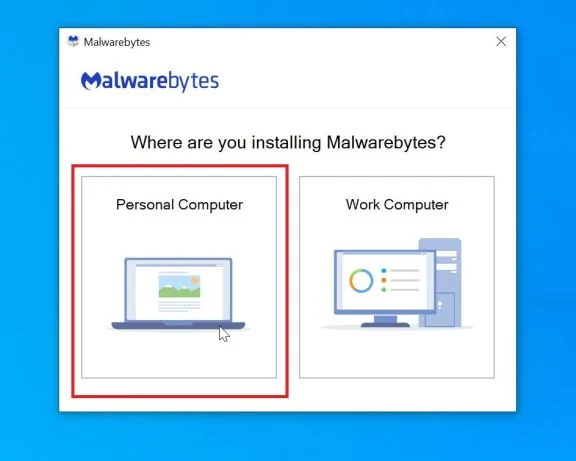
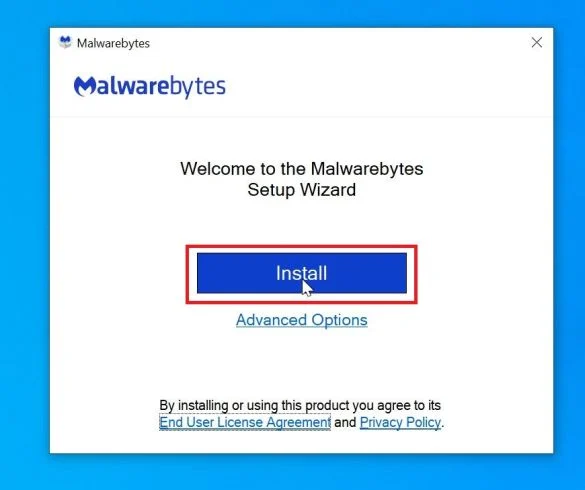
When the Malwarebytes installation begins, you will see the Malwarebytes Setup Wizard which will guide you through the installation process. To install Malwarebytes on your PC, click on the “Agree and Install” button.
-
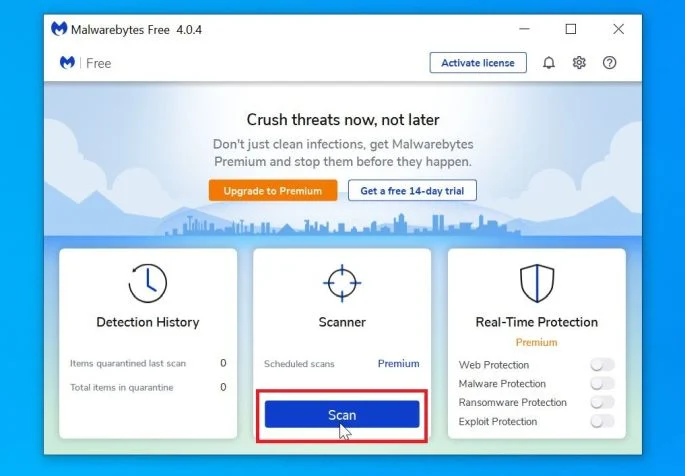
Click on “Scan Now”.
Once installed, Malwarebytes will automatically start and update the antivirus database. To perform a system scan, click on the “Scan Now” button.
-
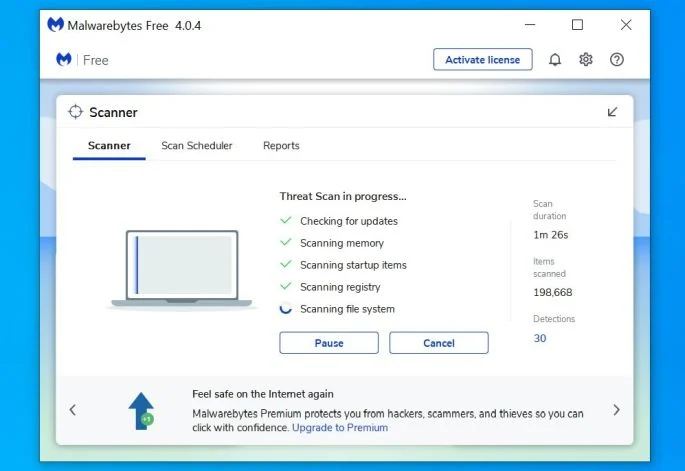
Wait for the Malwarebytes scan to complete.
Malwarebytes will now start scanning your computer for adware and other malicious programs. This process can take a few minutes, so we suggest you do something else and periodically check on the status of the scan to see when it is finished.
-
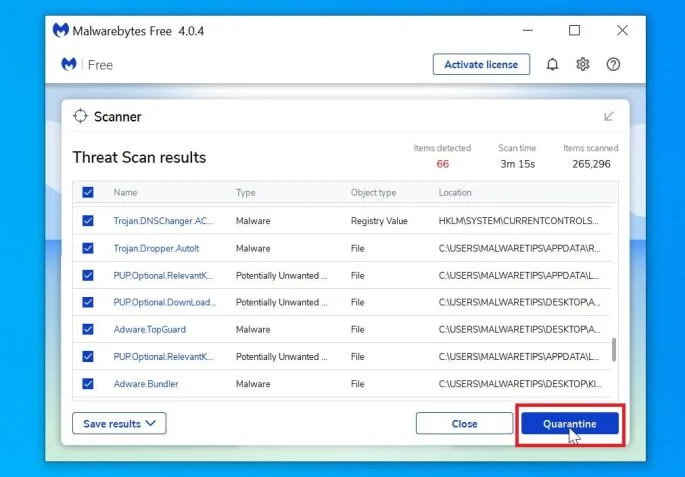
Click on “Quarantine Selected”.
When the scan has completed, you will be presented with a screen showing the malware infections that Malwarebytes has detected. To remove the malicious programs that Malwarebytes has found, click on the “Quarantine Selected” button.
-
Reboot your computer.
Malwarebytes will now remove all the malicious files and registry keys that it has found. To complete the malware removal process, Malwarebytes may ask you to restart your computer.
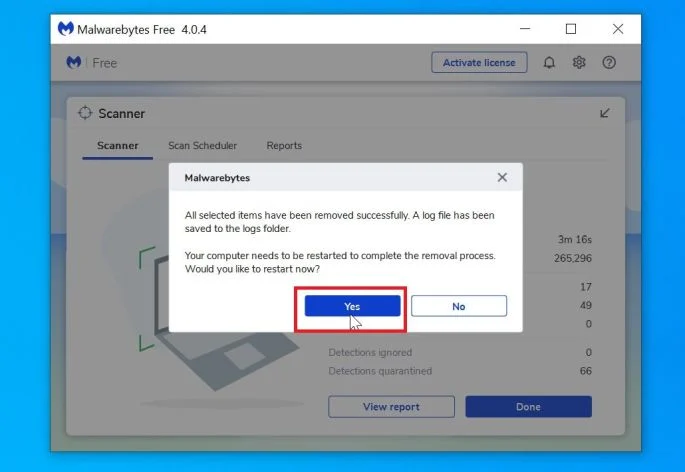
When the malware removal process is complete, you can close Malwarebytes and continue with the rest of the instructions.
STEP 2: Use HitmanPro to scan for malware and unwanted programs
HitmanPro is a second opinion scanner that takes a unique cloud-based approach to malware scanning. HitmanPro scans the behavior of active files and also files in locations where malware normally resides for suspicious activity. If it finds a suspicious file that’s not already known, HitmanPro sends it to their clouds to be scanned by two of the best antivirus engines today, which are Bitdefender and Kaspersky.
Although HitmanPro is shareware and costs $24.95 for 1 year on 1 PC, there is actually no limit in scanning. The limitation only kicks in when there is a need to remove or quarantine detected malware by HitmanPro on your system and by then, you can activate the one time 30 day trial to enable the clean up.
-
Download HitmanPro.
You can download HitmanPro by clicking the link below.
 HitmanProSecond-opinion malware scanner from Sophos
Download HitmanProFree scan. Removing threats needs the free 30-day trial. Your download starts right away.
-
Install HitmanPro.
When HitmanPro has finished downloading, double-click on “hitmanpro.exe” (for 32-bit versions of Windows) or “hitmanpro_x64.exe” (for 64-bit versions of Windows) to install this program on your PC. In most cases, downloaded files are saved to the Downloads folder.
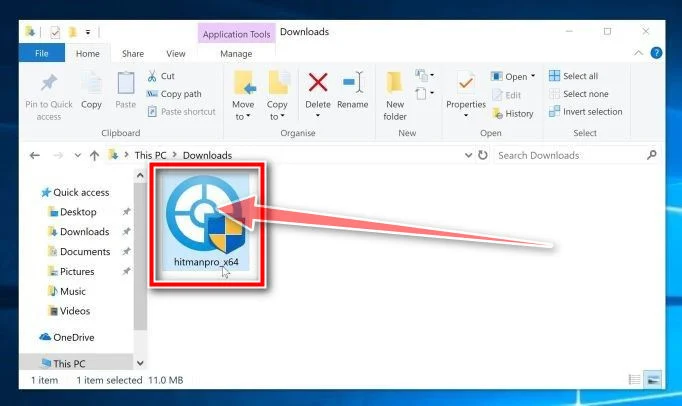
You may be presented with an User Account Control pop-up asking if you want to allow HitmanPro to make changes to your device. If this happens, you should click “Yes” to continue with the installation.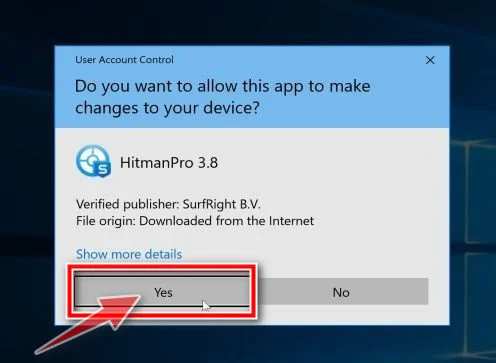
-
Follow the on-screen prompts.
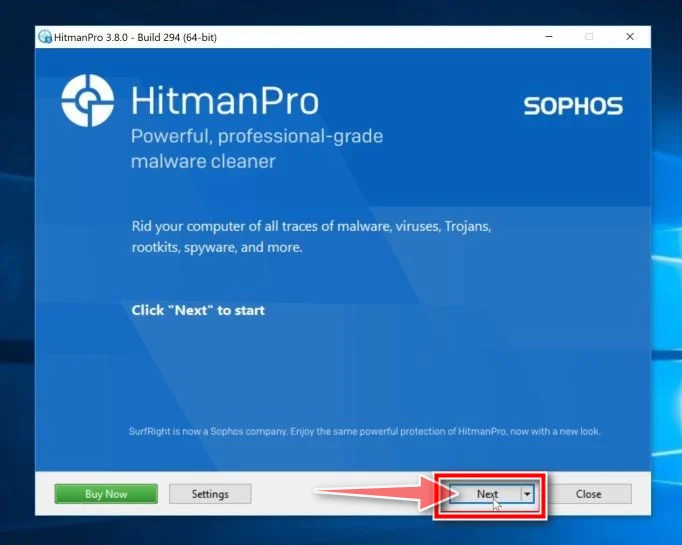
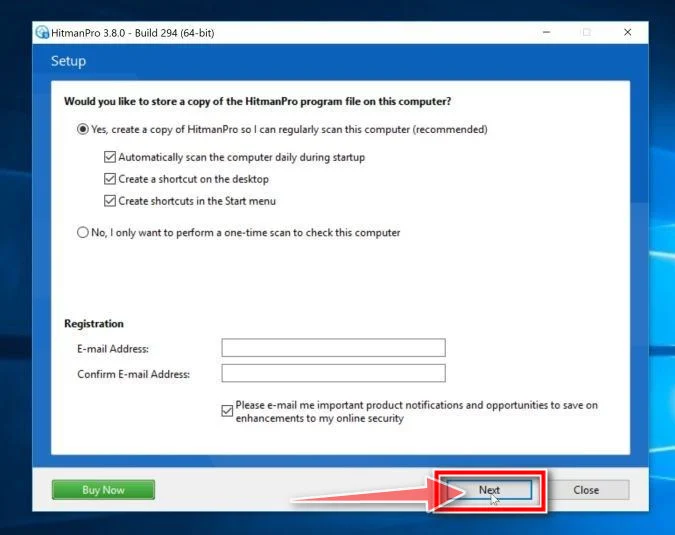
When HitmanPro starts you will be presented with the start screen as shown below. Click on the “Next” button to perform a system scan.
-
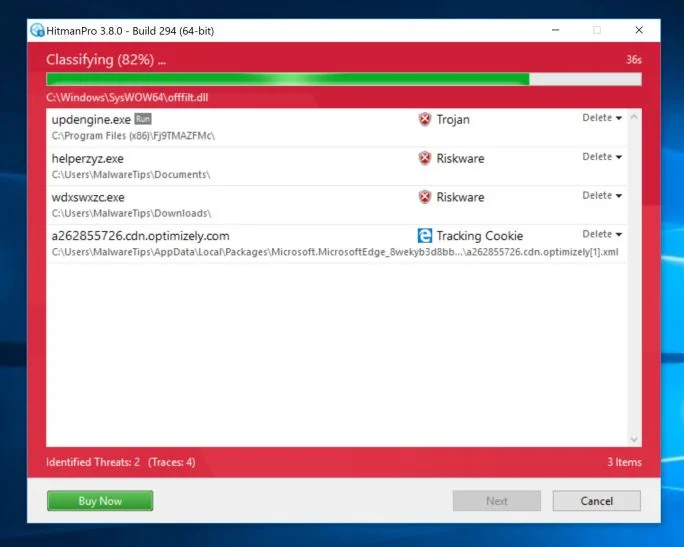
Wait for the HitmanPro scan to complete.
HitmanPro will now begin to scan your computer for malicious programs. This process will take a few minutes.
-
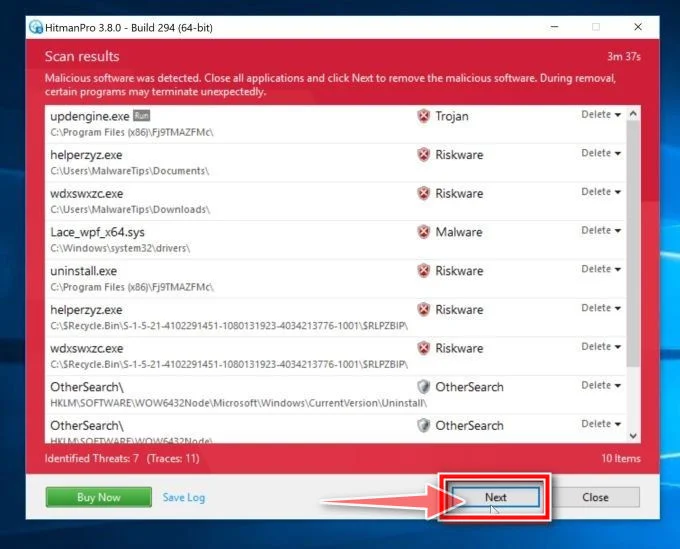
Click on “Next”.
When HitmanPro has finished the scan, it will display a list of all the malware that the program has found. Click on the “Next” button to remove the malicious programs.
-
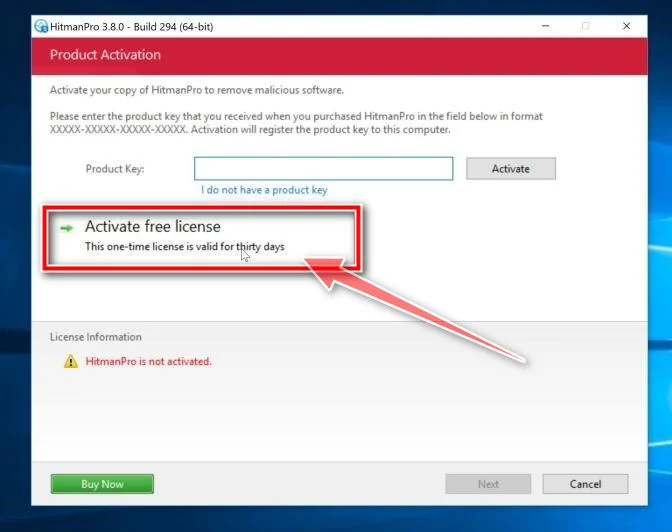
Click on “Activate free license”.
Click on the “Activate free license” button to begin the free 30 days trial and remove all the malicious files from your PC.
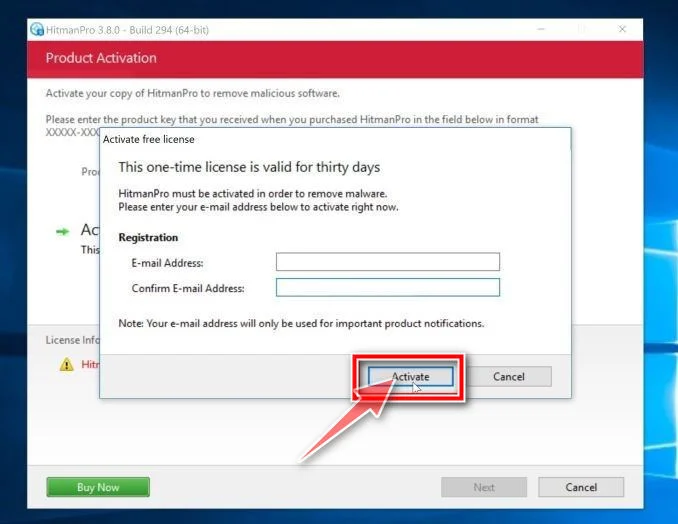
When the process is complete, you can close HitmanPro and continue with the rest of the instructions.
(OPTIONAL) STEP 3: Double-check for malicious programs with Zemana AntiMalware Free
Zemana AntiMalware is a free popular on-demand antivirus scanner which can detect and remove malware that even the most well-known anti-virus and anti-malware applications fail to find.
While the Malwarebytes and HitmanPro scans are more than enough, we’re recommending Zemana AntiMalware to users who still have malware related issues or just want make sure their PC is 100% clean.
-
Download Zemana AntiMalware.
You can download Zemana AntiMalware Free by clicking the link below.
 Zemana AntiMalwareLightweight second-opinion malware scanner
Download Zemana AntiMalwareOpens the download page in a new tab.
-
Double-click on the setup file.
Double-click on the file named “Zemana.AntiMalware.Setup.exe” to start the installation of Zemana AntiMalware. In most cases, downloaded files are saved to the Downloads folder.
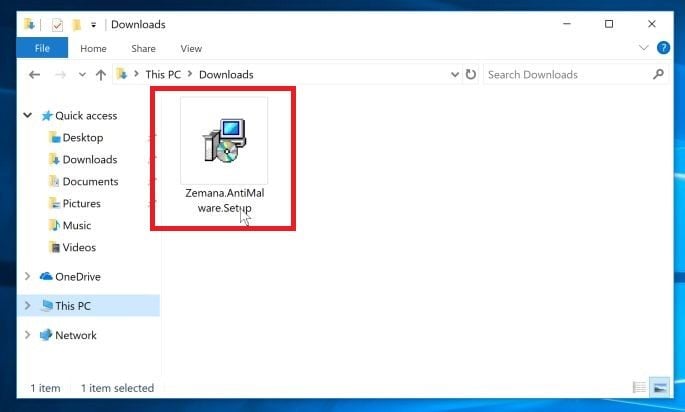
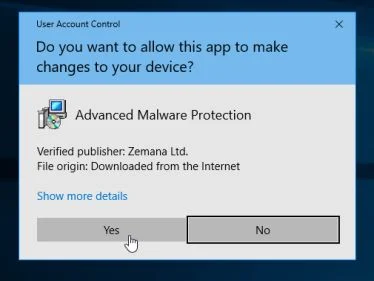
You may be presented with a User Account Control dialog asking you if you want to run this file. If this happens, you should click “Yes” to continue with the installation.
-
Install Zemana AntiMalware Free.
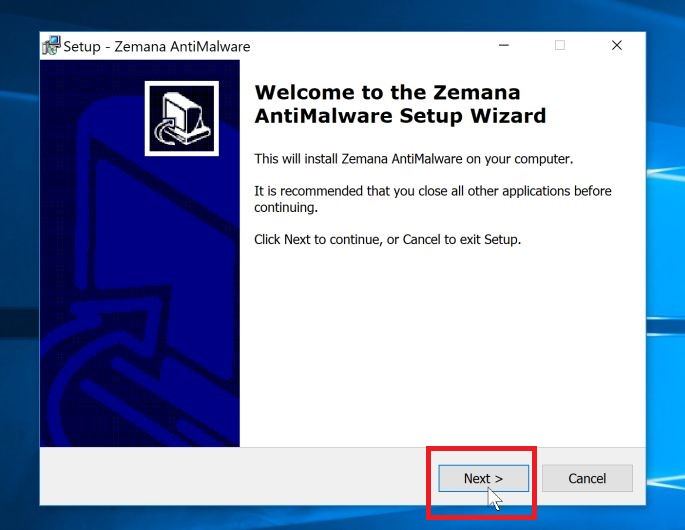
Click on the “Next” button to install Zemana AntiMalware on your PC. Follow the on-screen prompts to complete the install process.
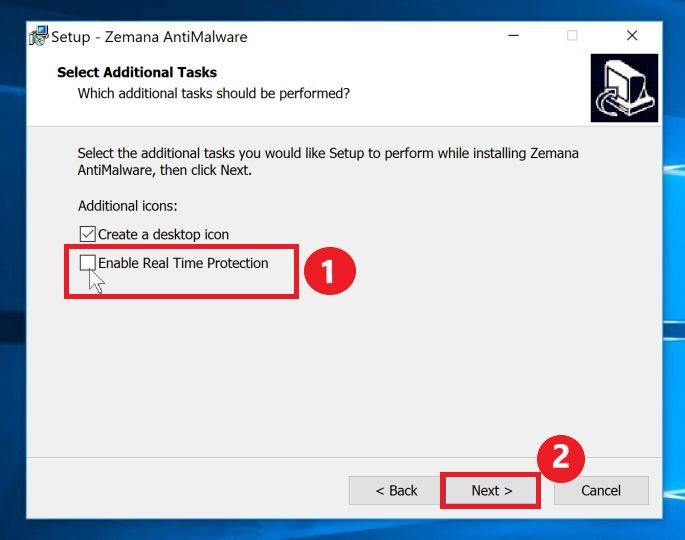
When you reach the “Select Additional Tasks” screen, you need to opt-out the “Enable Real Time Protection” option, then click on the “Next” button.
-
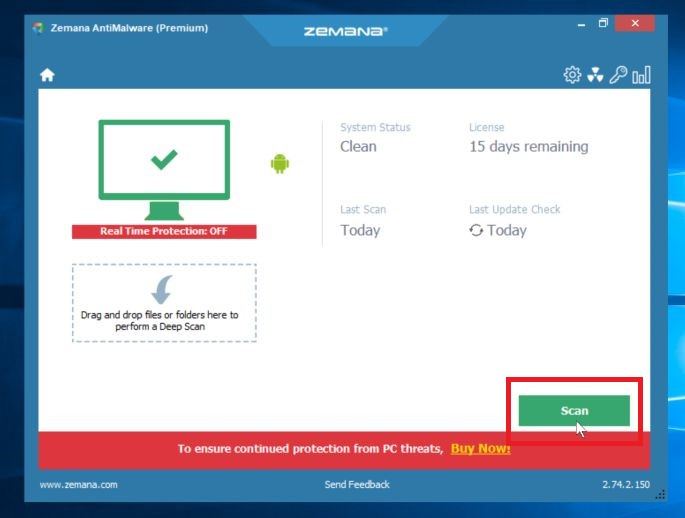
Click on “Scan”.
When Zemana AntiMalware will start, click on the “Scan” button to perform a system scan.
-
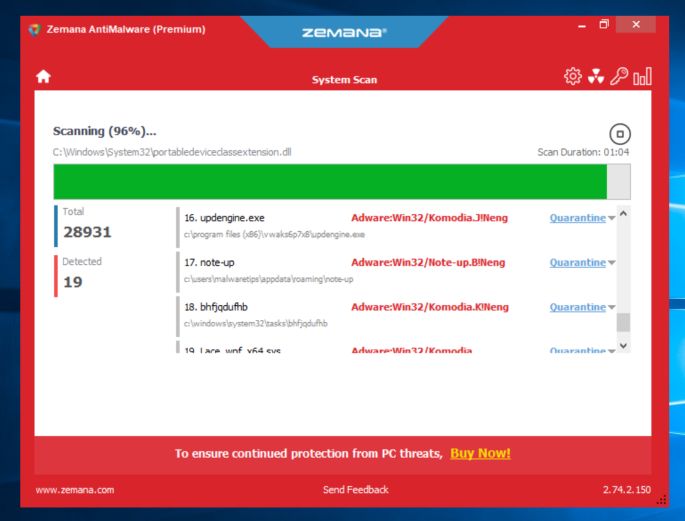
Wait for the Zemana AntiMalware scan to complete.
Zemana AntiMalware will now scan your PC for malicious files. This process can take a few minutes.
-
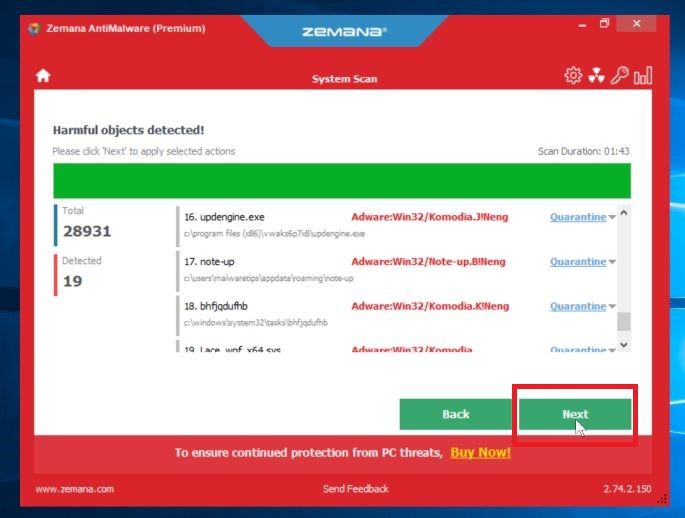
Click on “Next”.
When Zemana AntiMalware has finished it will display a list of all the malware that the program found. Click on the “Next” button to remove the malicious files from your computer.
-
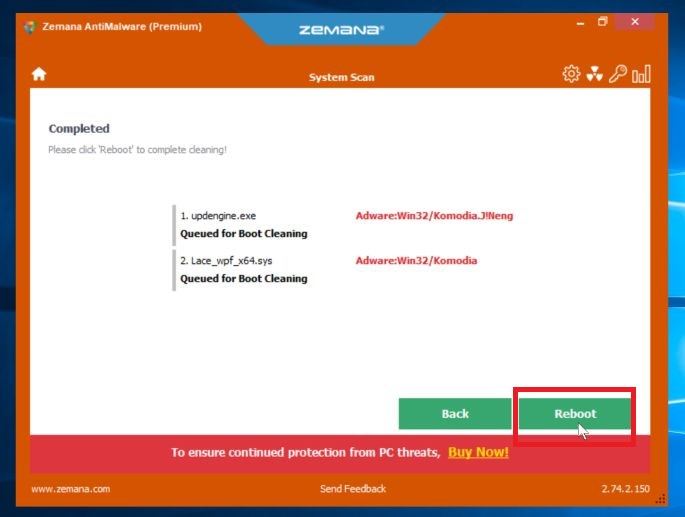
Restart your PC.
When the malware removal process is complete, Zemana AntiMalware may need to restart your computer. Click on the “Reebot” button to reset your PC.
Your computer should now be free of the NRSMiner Trojan. If you are still experiencing problems while trying to remove NRSMiner Trojan from your PC, please do one of the following:
- Run a system scan with Emsisoft Emergency Kit
- Ask for help in our Malware Removal Assistance for Windows forum.

Join the discussion
0 commentsShare your experience or ask a question about this article.
Your progress
Did these steps help?
Let us know how the guide worked for you.
Describe what you see and the step you reached. Keep passwords and other private information out.
Discussion
Start the conversation
Have a question or something useful to share? Add the first comment.